

USB Secure, from Newsoftwares.net, offers a full version that eliminates trial limitations and provides complete, unrestricted functionality. This guide will walk you through the process of purchasing the software and registering your copy directly from within the application to unlock its advanced features.
Part 1: How to Purchase from the Application
Step 1: Open the USB Secure App
- Plug in your USB drive.
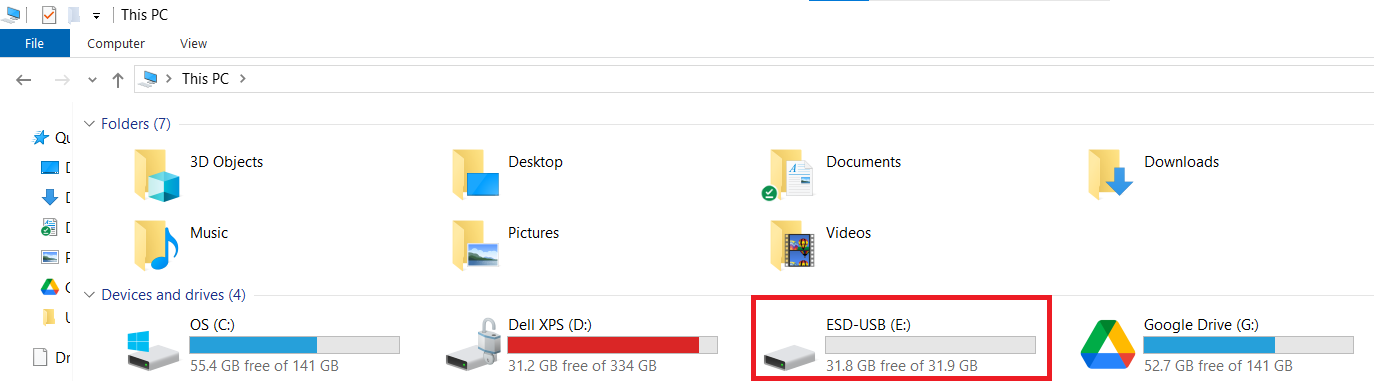
- Look for USB Secure application and launch the USB Secure application .
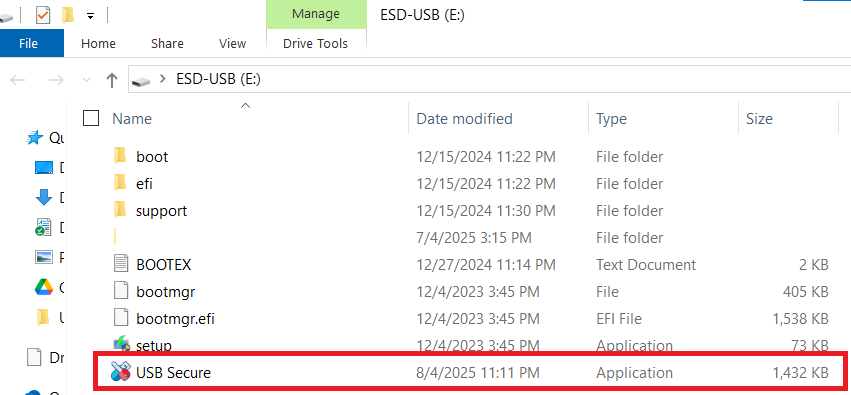
Step 2: Click "Register!"
- In the application's interface, click the red "Register!" button. This is typically located in the trial warning or main menu.
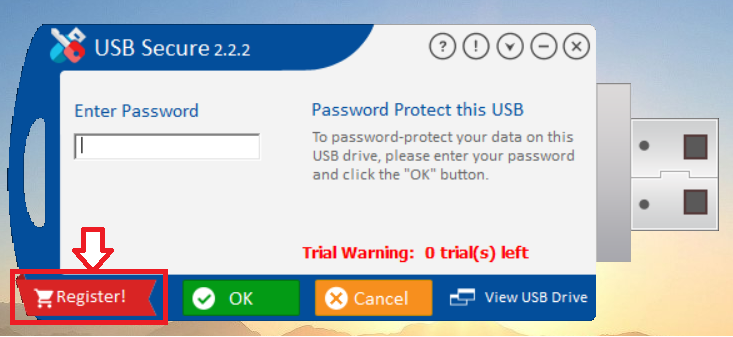
Step 3: Click "Buy Now!"
- A window will appear with options to get the full version. Click the red "Buy Now!" button to be redirected to the official Newsoftwares.net purchase page in your browser.
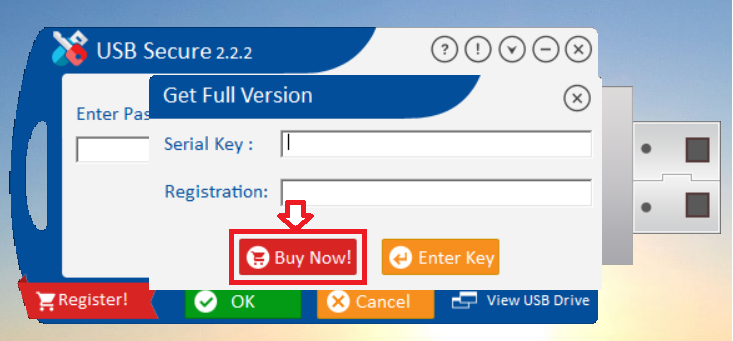
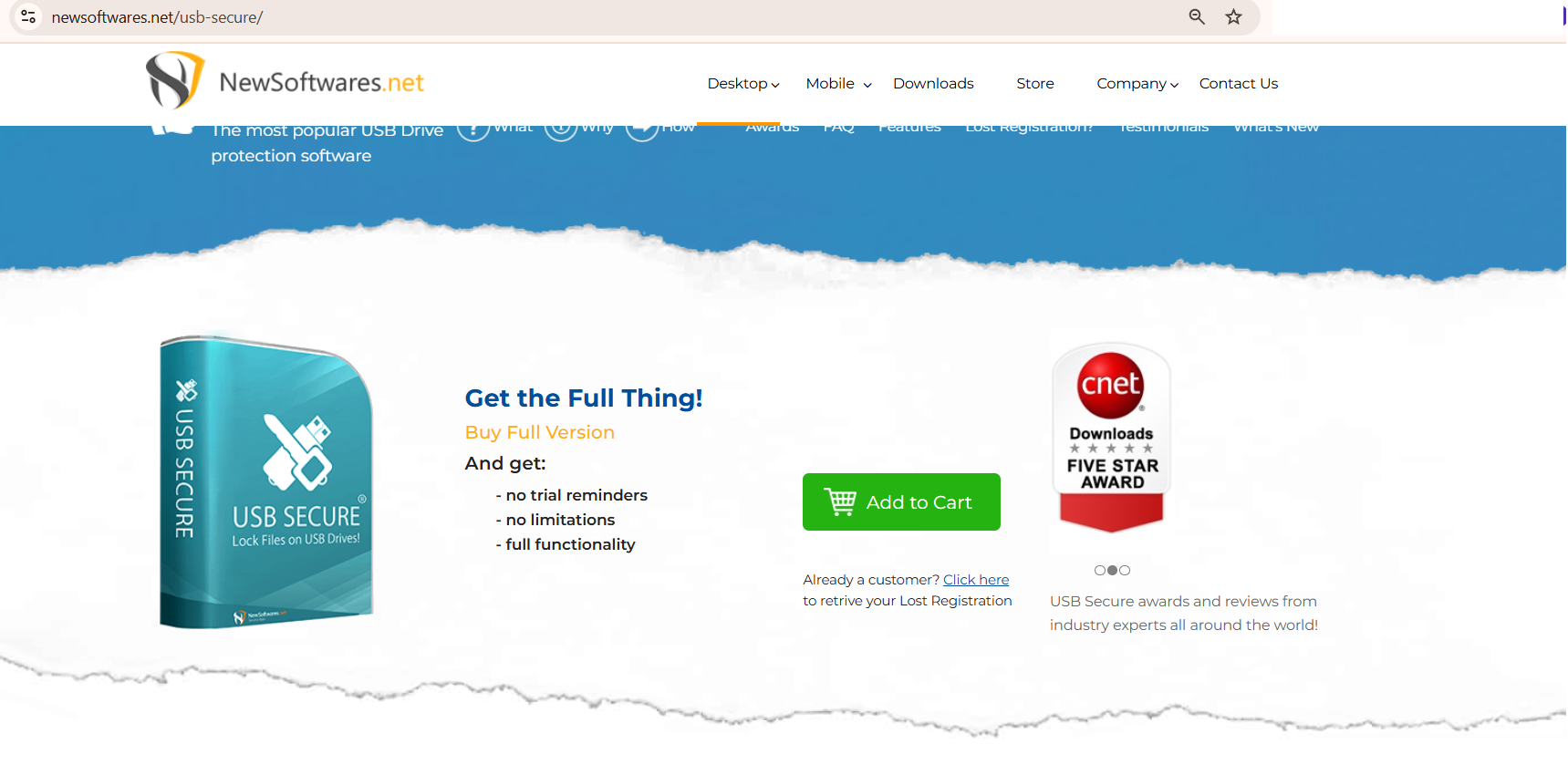
- Clicking on Buy Now will take you to a "Add to Cart" webpage as shown in below screenshot.
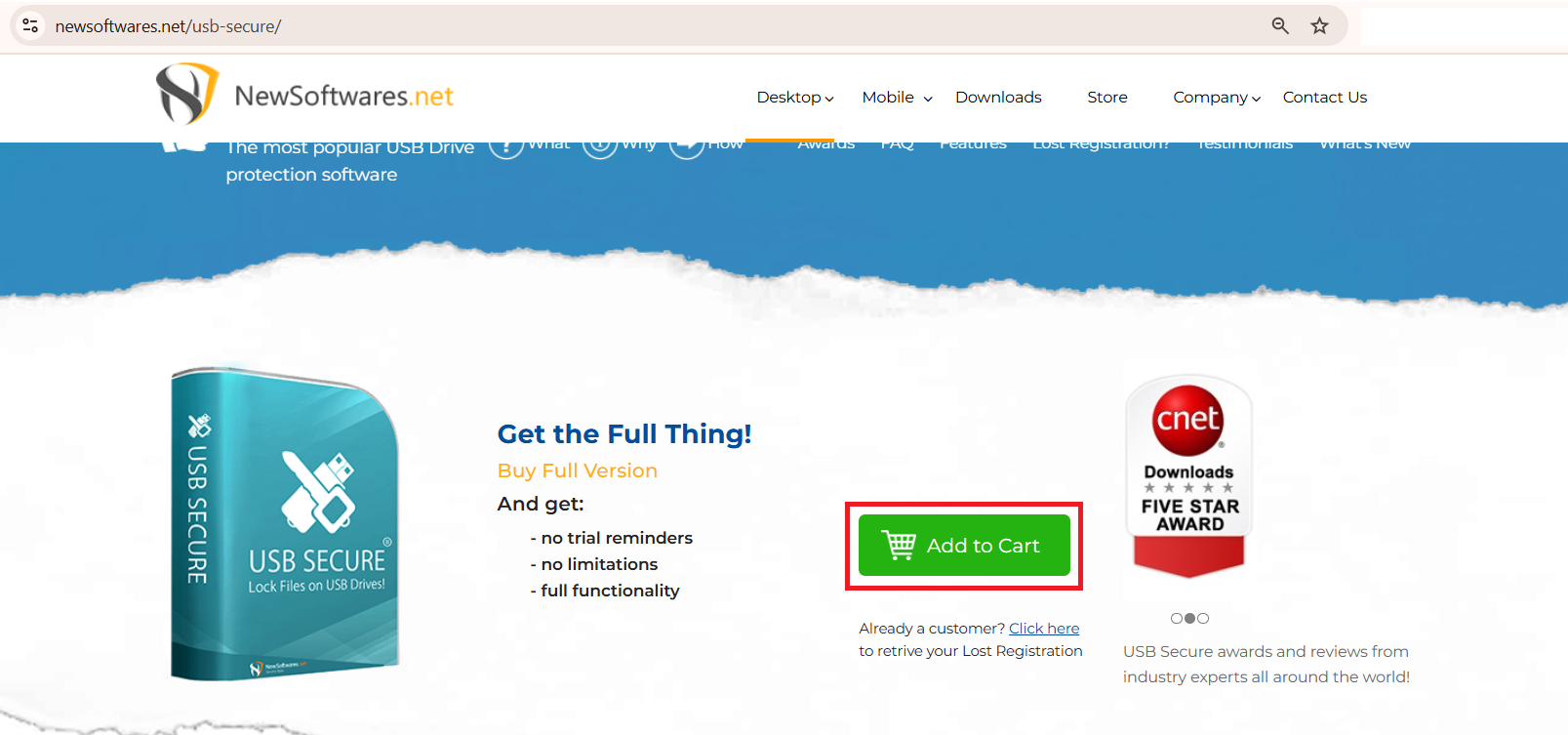
- Click on "Add to Cart".
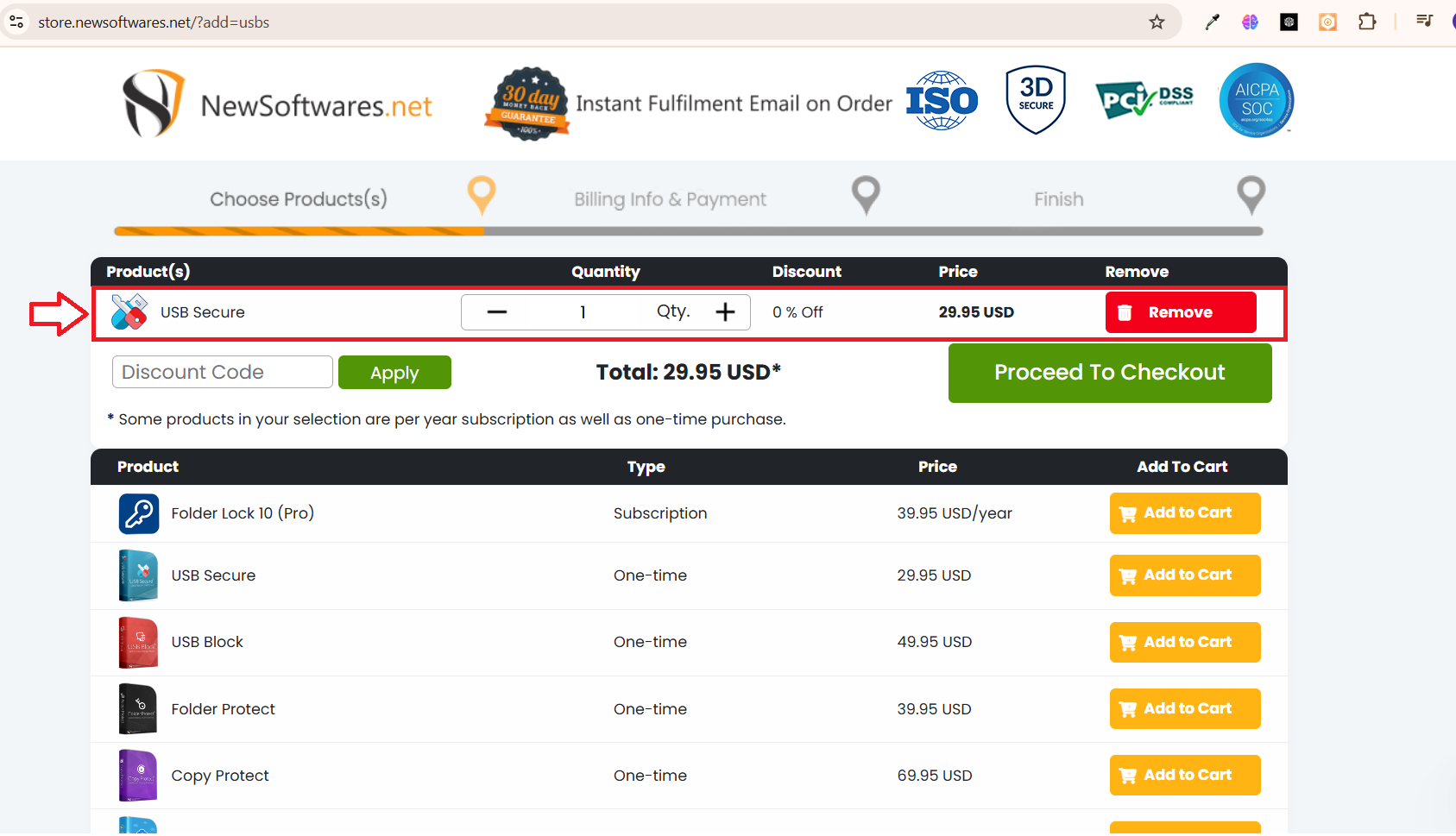
- Clicking on Add to Cart will open a webpage that displays USB Secure in your Cart.
- Click on Proceed to Checkout.

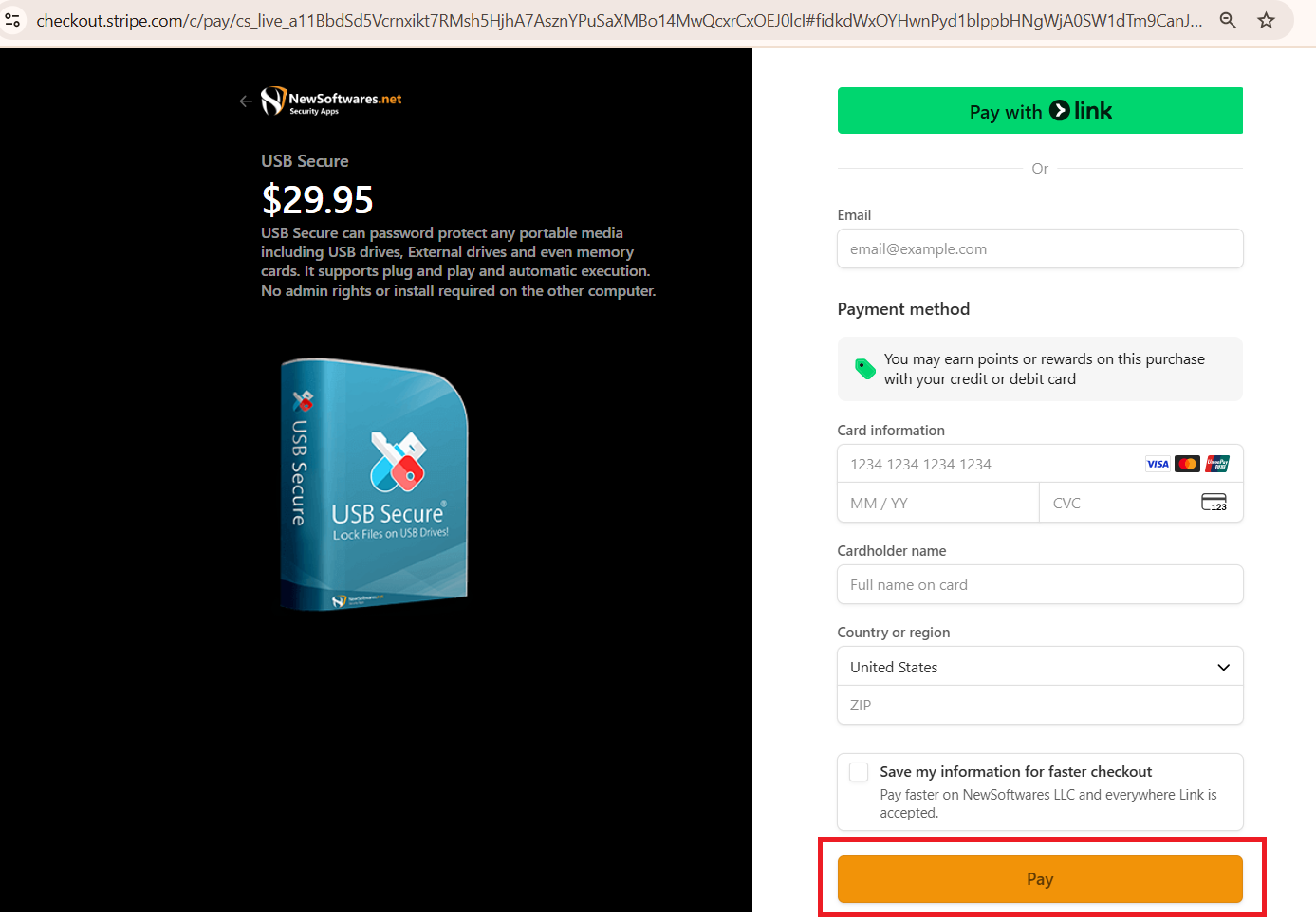
- Fill all the required payment details. Make sure to Enter the Email which you have used to register USB Secure while creating your account.
- Click on Pay.
Step 4: Check Your Email for the Registration and Serial Key
- The USB Secure Team will send an email to the address you provided during your purchase.
- Open your email inbox and check for this message. Be sure to check your spam or junk folder if you don't see it.
Part 2: How to Register Your Pro Version
Step 1: Locate Serial No and Registeration Key
- Open inbox of your email you provided during your purchase. Be sure to check your spam or junk folder if you don't see it. If you have not recieved any email from USB Secure Team, Contact support.
- Locate and copy the serial no and registeration key from the email.
Step 2: Access the Registration Screen
- Launch USB Secure application on your drive.
- Click the "Register!" button to open the "Get Full Version" screen.
Step 3: Enter Your Serial Key
- Paste the "Serial No" and Registeration Key in respective fields, you copied from the email.
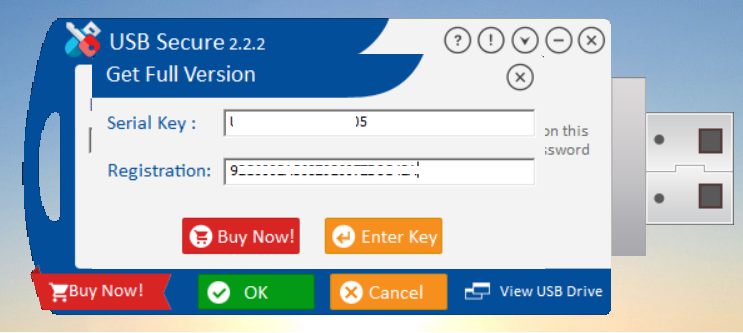
Step 4: Activate Your License
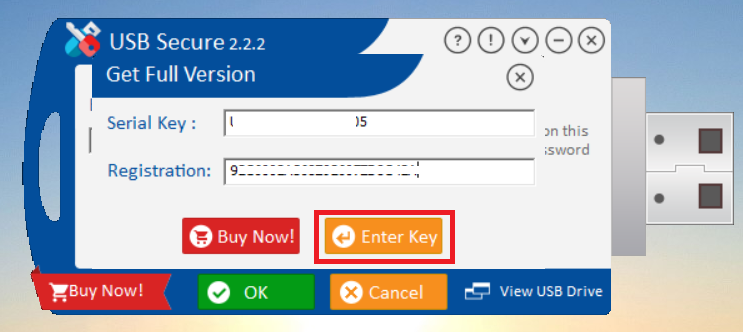
- Click the "Enter Key" button to activate your full version of USB Secure.
- After activating your key, a confirmation window will appear stating, "USB Secure has been successfully registered. Enjoy the full version without any limitations and restrictions." Click the orange "Close" button to dismiss this message. The application will now be fully registered, and you can begin using all of its features.
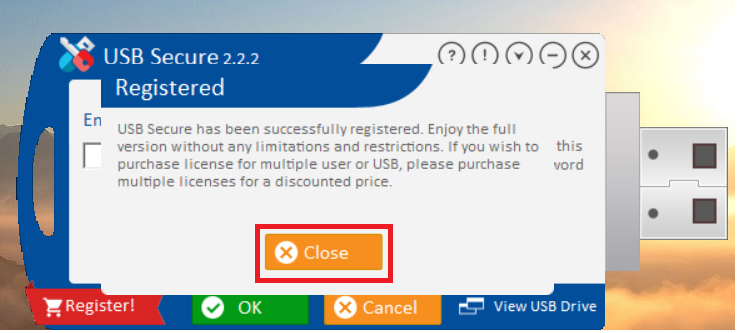
The application will now be fully registered, with all features unlocked and no trial limitations. You can now confidently use USB Secure's full functionality to protect your portable data, ensuring your files are always secure.