

Identify how you can Lock Pictures in iPhone
- To lock pictures on an iPhone, Login into the app and tap on “Photos” in the main features.

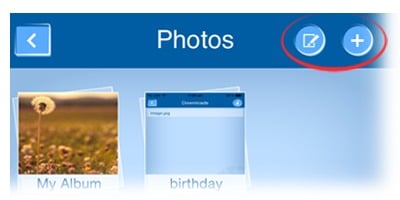
- To create album(s), tap on the “add” button on the top bar. Furthermore, create the name of the album & save it.
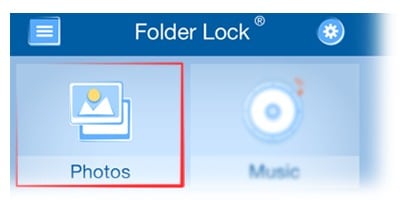
- To rename the album, click on the “edit” button in the title bar & tap on the album name area to rename it.
- To delete an album, click on the “edit” button in the title bar and tap on the “red cross” icon on album.

- Tap on any default folder or album where you want to lock your photos.
- You can import photos & videos from camera, gallery, internet and PC/Mac.

- Camera: Click on the Add (+) button in the title bar & tap on the camera icon. Protect your snaps & videos with the help of folder lock.
- Gallery: Click on the Add (+) button in the title bar & tap on the gallery icon. Browse your gallery and select your desired files or select the whole album. Tap on the “Done” button in the title bar to import selected photos or videos.
- PC/Mac: Click on the Add (+) button in the title bar & tap on the “internet” icon. Furthermore, search your desired photos & videos in the browser and protect them under the added security of folder lock.
- Internet: Click on the Add (+) button in the title bar & tap on the “internet” icon. Furthermore, search your desired photos & videos in the browser and download them in folder lock for added security.
- PC/Mac: Click on the Add (+) button in the title bar & tap on the “PC/Mac “icon. Open the “Web Server” by tapping on the toggle button which will activate the “Web Server”. Enter given URL on your PC/Mac’s internet browser.
(Note: Make sure your Wi-Fi and network connection is established and Pc/Mac only supports Google Chrome browser in windows and all browsers in Mac). Once the Folder Lock’s page is open, enter your Master password and click on the photo(s) tab. Now you can upload and download desired the photos and videos.)