

Introduction:
Protection in the form of a password used to only exist on single files. Later on, the protection was extended to the entire folders. Not stopping here, the password protection further expanded to the entire drives. In short, there is no stopping to what technology can do and its unmeasured limits. The future as well holds some even better tips of storing and securing data easily. Back in the days, some people used to initialize the built-in password protection method but soon became obsolete, as the hackers were excessively ahead of the basic protection tips. However, encryption is an algorithm that still stands to the strongest method of security that has not seen a breach till date.
Folder Lock – Password Protect folders & drives.
Folder Lock comprises of comprehensive security features. You create your encrypted lockers on the fly and back them up to a dedicated cloud storage. The quickest means to safeguard files and folders is through the ‘Lock File’ feature. Folder lock can safeguard your data using Windows Kernel level security, ensuring that your data cannot be accessed even while your PC is in safe-mode.
The locking feature lets you lock virtually any file or folder, there are no restrictions on file format. You also have the option to lock .exe programs.
Locking your files and folders is a simple and straightforward process, all you have to do is pay attention to the menu items and click on the relevant options.
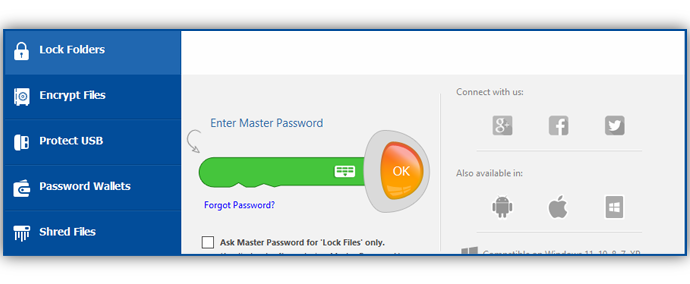
Enter your master password to gain access to your locked files, once you’ve done that, click ‘OK’. If you are inserting files to lock for the first time, expect this list to be empty. To lock folders and files, click on the ‘Add’ button and this will allow a dropdown menu to appear giving you the option to add files, folders and drives.
You also have the option to ‘Drag and Drop’ an entire file, folder, image or video in lock file interface.
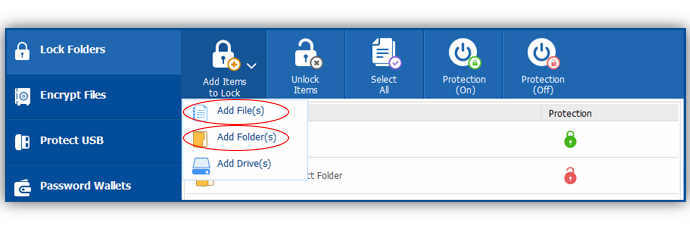
Enter your master password to gain access to your locked files, once you’ve done that, click ‘OK’. If you are inserting files to lock for the first time, expect this list to be empty. To lock folders and files, click on the ‘Add’ button and this will allow a dropdown menu to appear giving you the option to add files, folders and drives.
You also have the option to ‘Drag and Drop’ an entire file, folder, image or video in lock file interface.
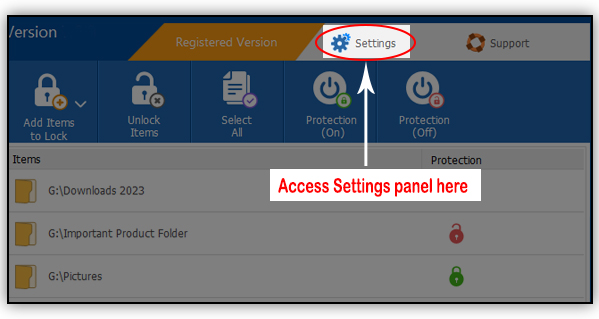
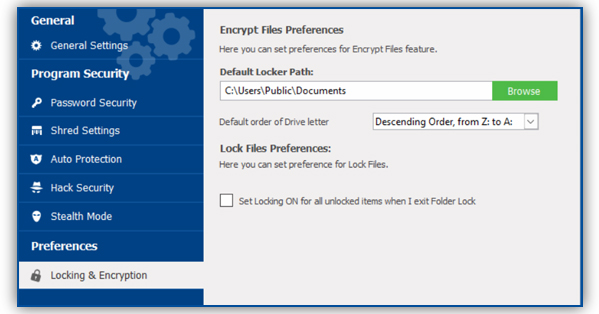
Click on preferences, then select locking & encryption and uncheck ‘set locking on for all unlocked items.
Summary:
Password protection mode is type of security that still has not run out of juice and stays at the top even today. The reason behind this is that password protection along with encryption became a decisive force. However, know that the basic password protection that does not include any type of encryption is not an ideal mean of security. Only the one having encryption around is usable and dependable.