
|
||
|
Locker Size |
1 GB |
Unlimited |
|
Sync Devices |
2 Devices |
5 Devices |
|
Share Users |

|
Unlimited |
|
Mobile Apps |

|
|
|
Secrets |
|
|
|
Portable Lockers |
|
|
|
Protect Folders |
|
|
|
Shred Files |
|
|
|
Clean History |
|
|
|
Pricing |
$0 |
$39.95 |
- 50% discount
- First year discount
- You get full version

Upgrading from Folder Lock 6?
Click here to get a 25% discount.
Say goodbye to your privacy nightmares!
Encrypt your files with AES 256-bit military grade encryption and RSA 128-bit for the user profile. Folder Lock uses folder-based on-the-fly virtual drive encryption to encrypt your files so you don't need to assign a particular size for your storage, your storage increases as the data in your storage increases.
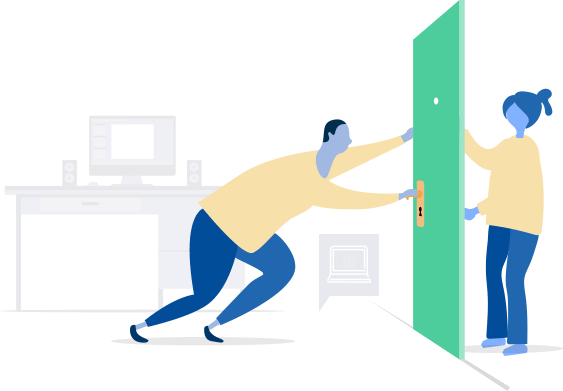
Alternatively, you can lock your files from view and access. Folder Lock uses a kernel-level driver to lock your files, folders and drives even in Safe Mode. So if you are not a fan of encryption and want to just hide your files, you can simply use this method.
Keep prying eyes at bay!
Backup encrypted files on your favorite Cloud!
Whether you use Dropbox, OneDrive or Google Drive, you can now keep a backup of all your encrypted files on your favorite cloud. Your encrypted files get synced to other devices like your PC, iPhone or Android simultaneously as well.
This allows you to not only have your files encrypted but have them available on other devices as well. In case of loss, disk failure or deletion, you can always restore your encrypted files back to your device seamlessly.
You're always in control of your encrypted files!

Share your encrypted files with co-workers (even remotely)!
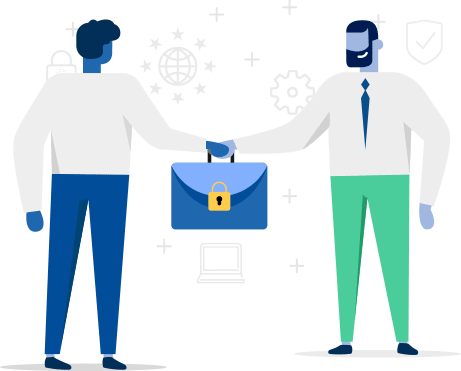
Whether you want to share your encrypted files with co-workers, friends, or family, gone are the days when you need to send your secret password to them to be able to open your files.
With support for remote workers, collaboration is seamless in Folder Lock. Share your encrypted files with authorized users, regardless of their location. They can securely access and work on the files with their own unique passwords, enhancing teamwork and productivity.
Simply share your encrypted files with the users you wish, and they will be able to open your file with their own password.
Architecture based on RSA 4096-bit encryption provides this possibility with concept of public and private keys, making it possible for you to selectively share encrypted files. All others have no access whatsoever.
Your files are shared secretly to designated individuals!

Protect Folders
If you’re not a fan of encryption, you can simply lock and hide your files, folders and drives using the Lock Folders feature in Safeguard. This will make your files inaccessible and hidden from view in Windows Explorer, even during Safe Mode. Lock Folders uses kernel level driver to achieve this.

Portable Lockers
If you already enjoy encrypting your files and folders in Folder Lock but want to take with you in USB Drive your Lockers, you can do this using Portable Locker feature in Safeguard. This will create an encrypted virtual drive file that can be taken or given to someone who you’re comfortable sharing a password with.
Make Wallets
It’s hard to organize your life in notepad. It’s much better that your Credit Card information, Banking details as well as business info is encrypted with 256-bit AES encryption in an organized, easy to access interface, accessible on all your devices. You can find this feature in Secrets.

Manage Passwords
It’s been a while that password managers are there and there are many free ones too. But most important is to either keep a backup or use Folder Lock’s Secret feature to save your passwords. 256-bit AES encryption won’t hurt as well.
Secure Notes
Whether you want to write your private feelings or things special to you and your loved ones or simply writing down your will. There is no safer place than Folder Lock’s Secret – Notes. Create as many Notes as you want and they will be encrypted with 256-bit AES encryption.
Shred Files
Not only does Folder Lock’s Safeguard has a shred files feature that can permanently delete your most secret files such that no data recovery program can recover it again, it also allows you to shred empty hard drive space so that old deleted files are gone forever too.
Clean History
Folder Lock’s Safeguard comes with another privacy related feature in its set of swiss army knife of data security tools and that is cleaning of Windows History or privacy tracks that you think aren’t that important to remove and have overlooked them in the past. Whether from Quick Access, History in Run or other tracks you might be leaving for other to see, it removes them when Folder Lock exits or when you choose to delete them.

Available Lockers in Folder Lock 10
Folder Lock 10 offers not just local Lockers to encrypt your files, but now offers encryption across all popular cloud services you use.
Desktop Locker
If you want to encrypt your files locally in Windows, you can use Desktop Locker.


Dropbox Locker
Dropbox users can use Dropbox Locker to encrypt their files. You can use all other Dropbox features alongside as well.
Google Drive Locker
Google Drive users can use Google Drive Locker to encrypt and sync their files in Google Drive.


One Drive Locker
Microsoft lovers who prefer using OneDrive can also now encrypt their files and sync at the same time using OneDrive Locker.
You’re in good hands!
Trusted by large corporations and government institutions with glowing reviews.





Screenshots


Sam
Erhan
Simple interface, practical to use and complete protection.
❞
Nathan
Great help as always
❞
Cesar Macher
I want to congratulate the Folder Lock team on an outstanding product—the encryption technology is truly sound and gives me full confidence in protecting my files. It\'s reliable, user-friendly, and does exactly what it promises. A big thank you also for the speedy resolution of my double payment mistake. Your team responded quickly and refunded me without any hesitation—refreshing and professional customer service! Highly recommended for anyone needing secure file protection. Best regards, Cesar (from Tokyo)
❞
Ron J
I’ve been a Folder Lock 7 user for nearly a decade. It was easy to install and deploy. The program and its user interface are logically organized with multiple levels of security. I especially like the way the protected files and folders are hidden from Windows File Explorer when Folder Lock is closed. I recently migrated from a Win 10 machine to Win 11 machine. Michelle (Folder Lock customer support) “held my hand” and guided me through the process with clear, explicit, easily understandable instructions (I’m no software guru.). Kudos to the Folder Lock team.
❞
Prasert B.
Good customer support with prompt and helpful responses.
❞
David
Long term Folder Lock 7 user, extremely happy with the product. Simple and effective. Great customer support too!
❞
Scott
Excellent product - have used it for years. Excellent customer service as well!
❞
PS Negi
A really great product and a must have in today\'s where you need to have lot of information and documents safe. I have been using the it many many years. The Folder Lock is very user friendly with a beautiful interface and even then if you have any issue then customer support is very prompt and helpful to get the issue resolved. Highly Highly recommended !
❞
Louis W. K.
Excellent Program. I have been using Folder Lock for quite some time already, and I am extremely satisfied with the product. For my needs, it is the best product on the market. A few years ago, I switched to a new computer, and Michelle Rossevelt was very helpful in assisting me in the transfer of Folder Lock to the new PC. Recently I ran into an issue when closing the program. It was not serious, just a nuisance only. When I asked for assistance, Michelle Rossevelt was there again! After a few tweaks, we found a way to close the program normally again. Again, Folder Lock is an excellent program, backed by a dedicated team.
❞Rate this Product:
How satisfied were you with your experience?

Have been using FolderLock for years now. Reliable and a great way to keep data safe. There are some good features too like being able to make a portable locker so it can be used anywhere, even on a pc that doesn\'t have Folderlock installed.
❞