

Folder Lock, developed by NewSoftwares.net, streamlines your workflow by allowing you to customize which essential section—Lockers, Secrets, or Safeguard—opens automatically upon logging into the application. This feature ensures immediate access to your most frequently used secure areas, enhancing efficiency and convenience.
Steps to Open Your Folder Lock Lockers, Secrets, or Safeguard on Login
Follow these steps to configure your default starting view in Folder Lock:
Step 1: Open Folder Lock and Log In
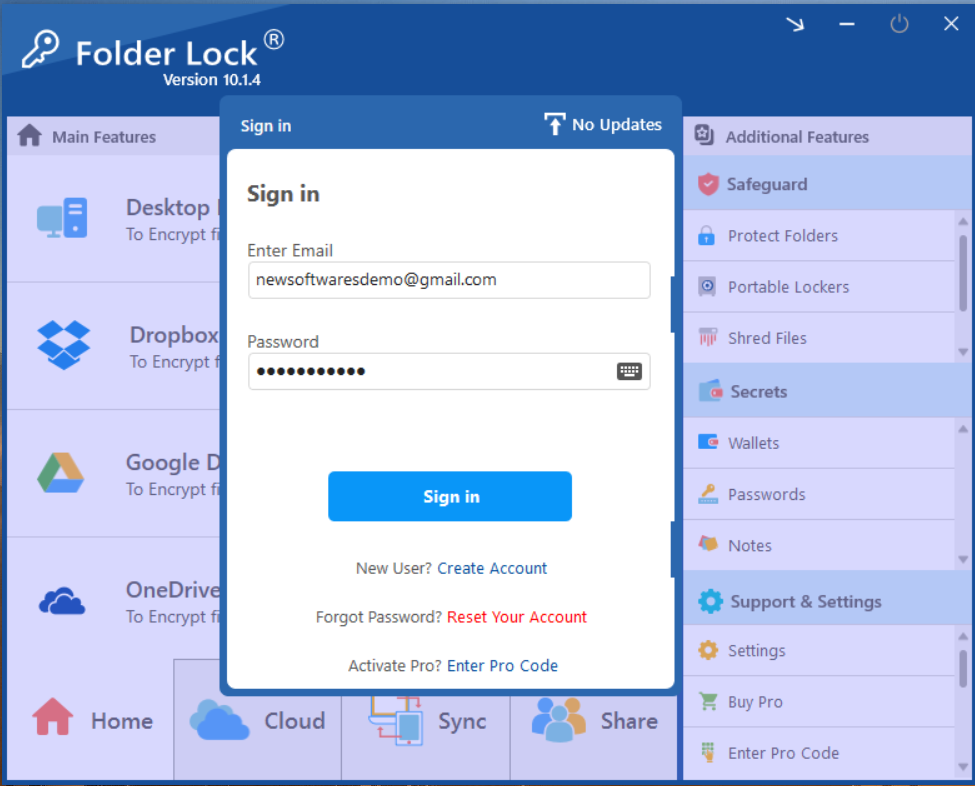
- Launch the Folder Lock application on your computer and log in to your account using your credentials. (Refer to screenshot for the login screen).
Step 2: Access the Settings Menu
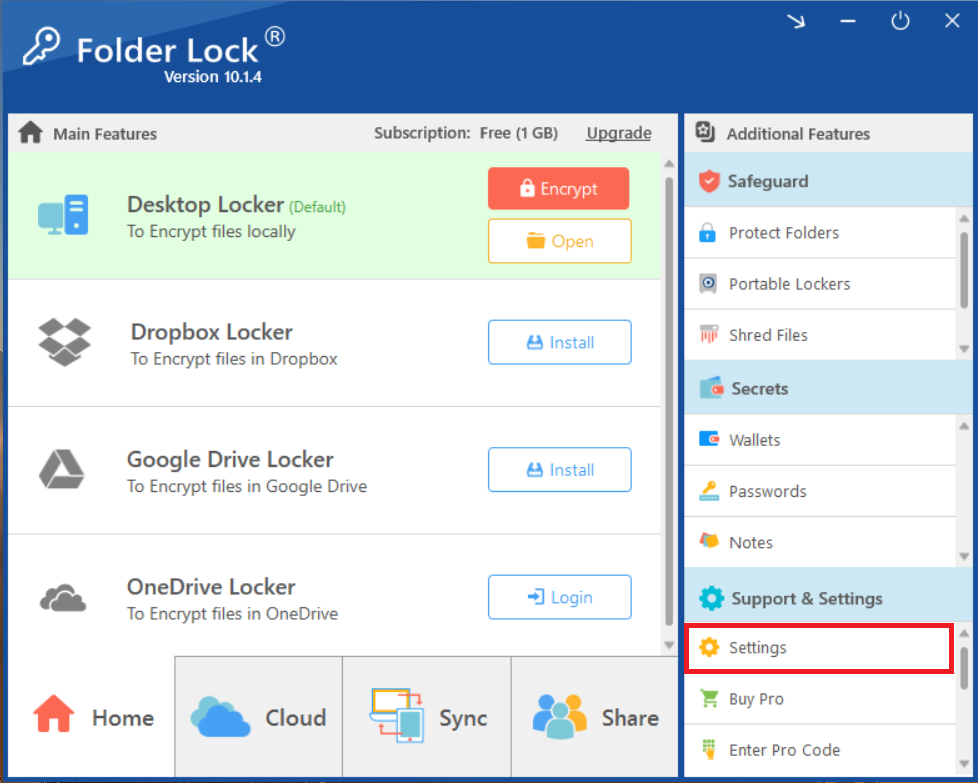
- Once logged in, locate and click on the "Settings" option. This is typically found in the bottom right corner of the Folder Lock main window, under the "Support & Settings" section.
Step 3: Navigate to General Settings
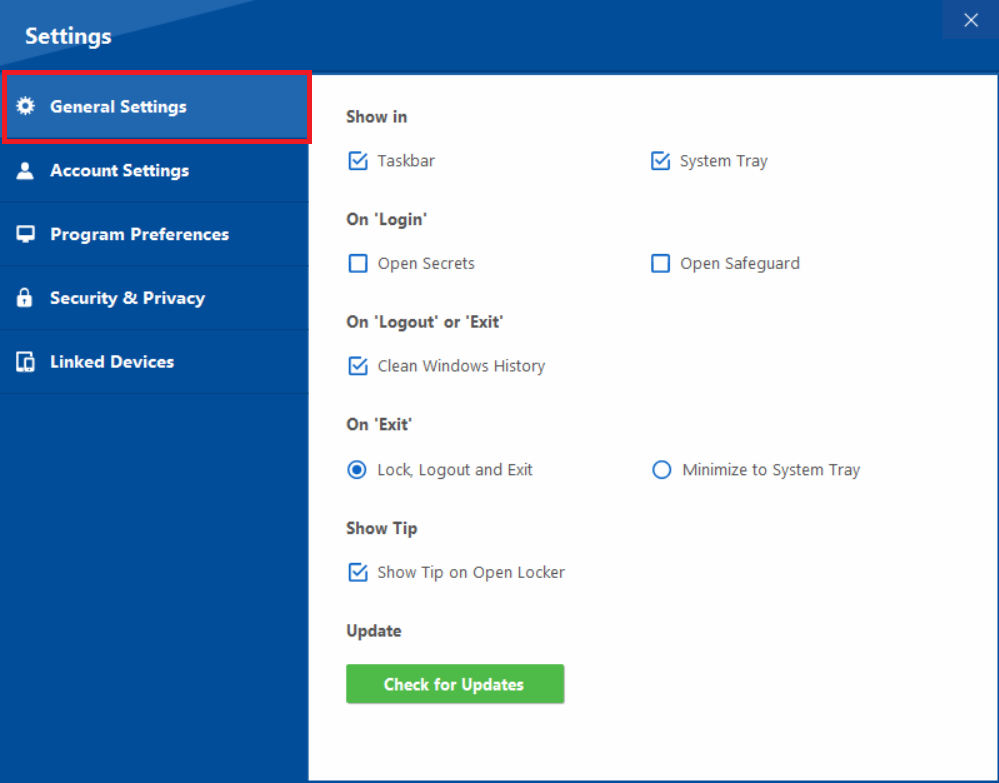
- In the Settings window that appears, ensure that "General Settings" is selected from the left-hand menu. This section controls various general behaviors of the application. (Refer to screenshot showing the "General Settings" tab).
Step 4: Find the "On Login" Option
- Within the "General Settings" view, look for the "On 'Login'" section (Refer to screenshot below). This area provides options to choose the default window that opens immediately after you log into Folder Lock.

Step 5: Select Your Desired Starting Window
Under "On 'Login'," you will see checkboxes for "Open Secrets" and "Open Safeguard."(Refer to step 4 screenshot)
- To open the Secrets section directly upon login, check the "Open Secrets" box.
- To open the Safeguard section directly upon login, check the "Open Safeguard" box.
- If neither of these is selected, Folder Lock will typically open to the Lockers (Main Features) section by default.
Select the option that corresponds to the section you wish to access most frequently right after logging in.
Gain instant access to what matters most. By configuring Folder Lock with these steps, you empower it to open straight to your chosen secure area—Lockers, Secrets, or Safeguard—optimizing your data management from the very first click.ment more efficient