

Folder Lock, developed by Newsoftwares.net, provides granular control over your privacy settings, even down to the application's login screen. Hiding your email address from the sign-in screen is a simple yet effective way to protect your account from prying eyes and enhance your overall security.
Steps to Hide Your Email on the Folder Lock Login Screen
Follow these steps to ensure your email address is not displayed on the login screen:
Step 1: Open Folder Lock and Log In
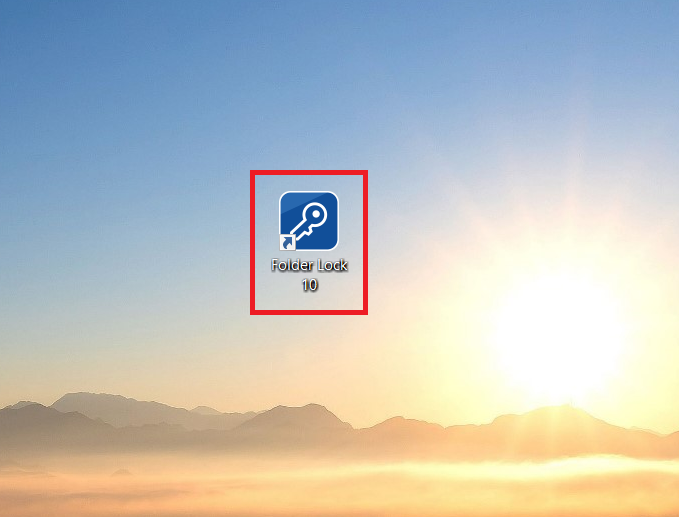
- Launch the Folder Lock application on your computer.
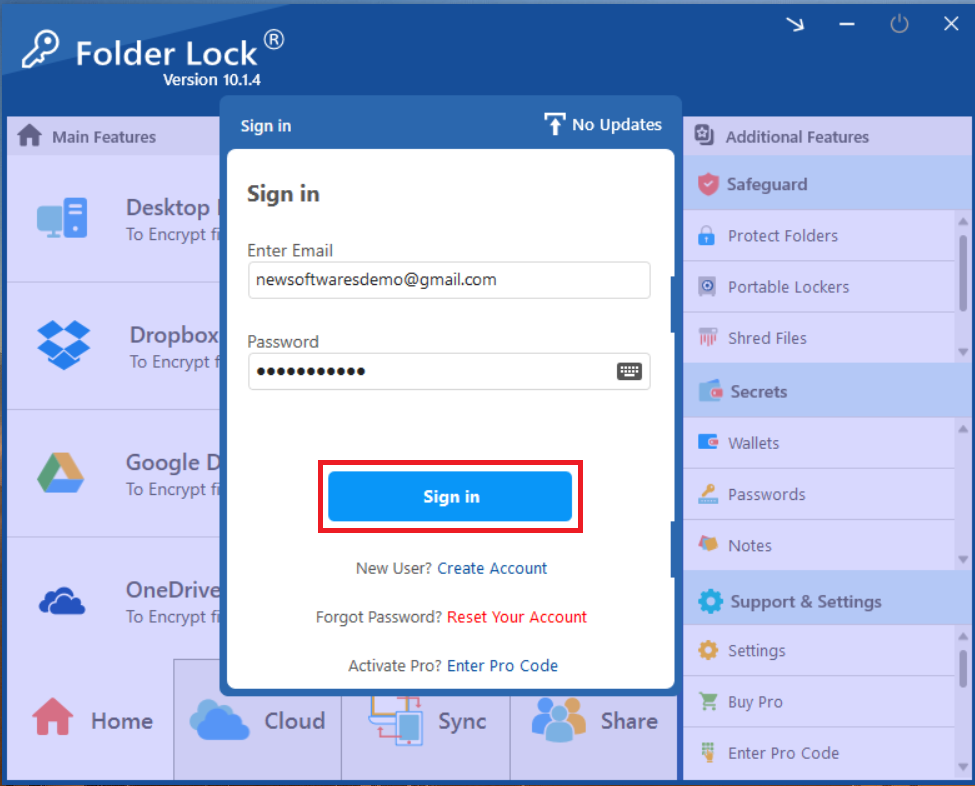
- Log in to your account using your email and password.
Step 2: Navigate to "Settings"
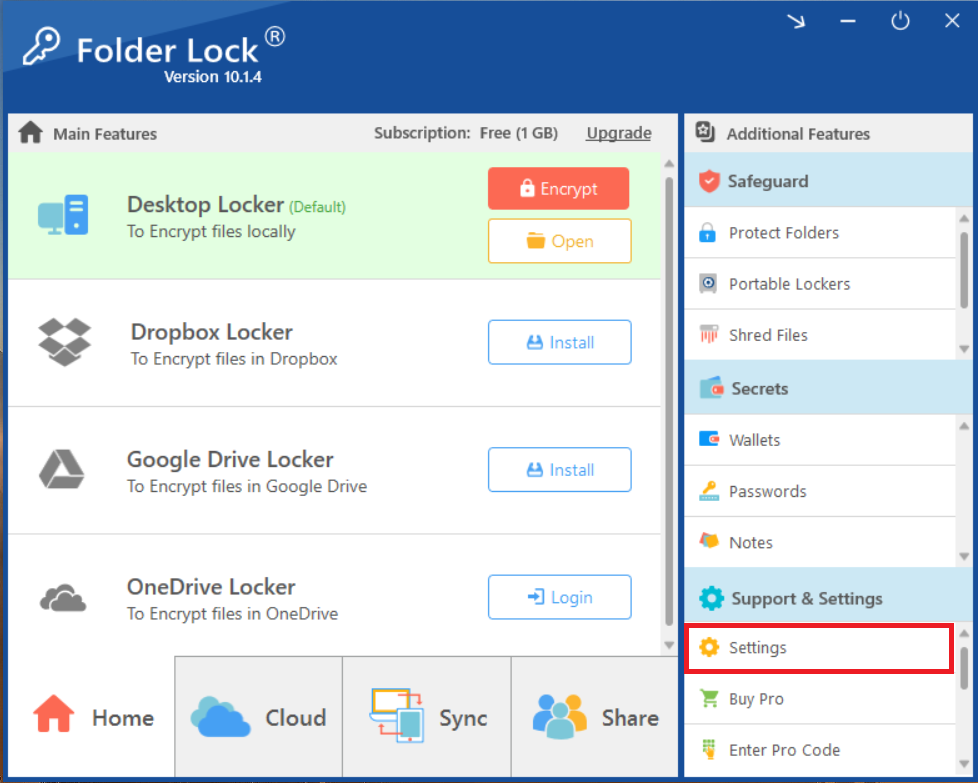
- On the Folder Lock home screen, look for the "Support & Settings" section in the bottom-right corner.
- Click on "Settings" to open the configuration window.
Step 3: Click on "Security & Privacy"
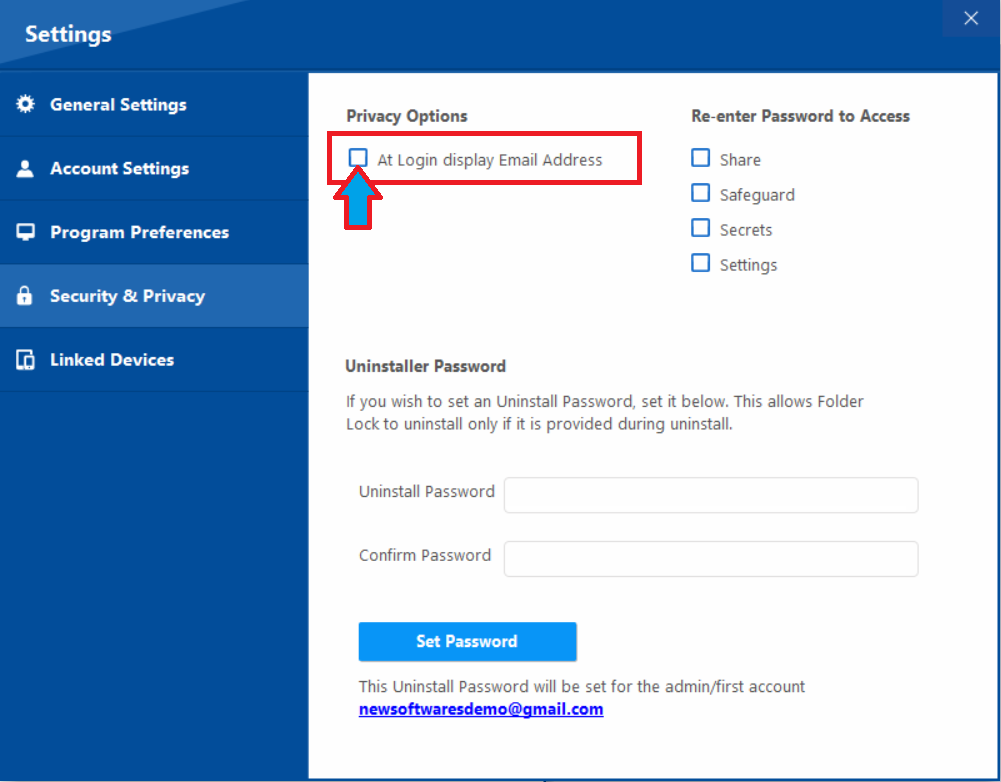
- In the Settings menu on the left side, click on "Security & Privacy." This section contains advanced privacy controls.

Step 4: Uncheck the Display Email Option
- Within the "Security & Privacy" section, you will find a "Privacy Options" area.
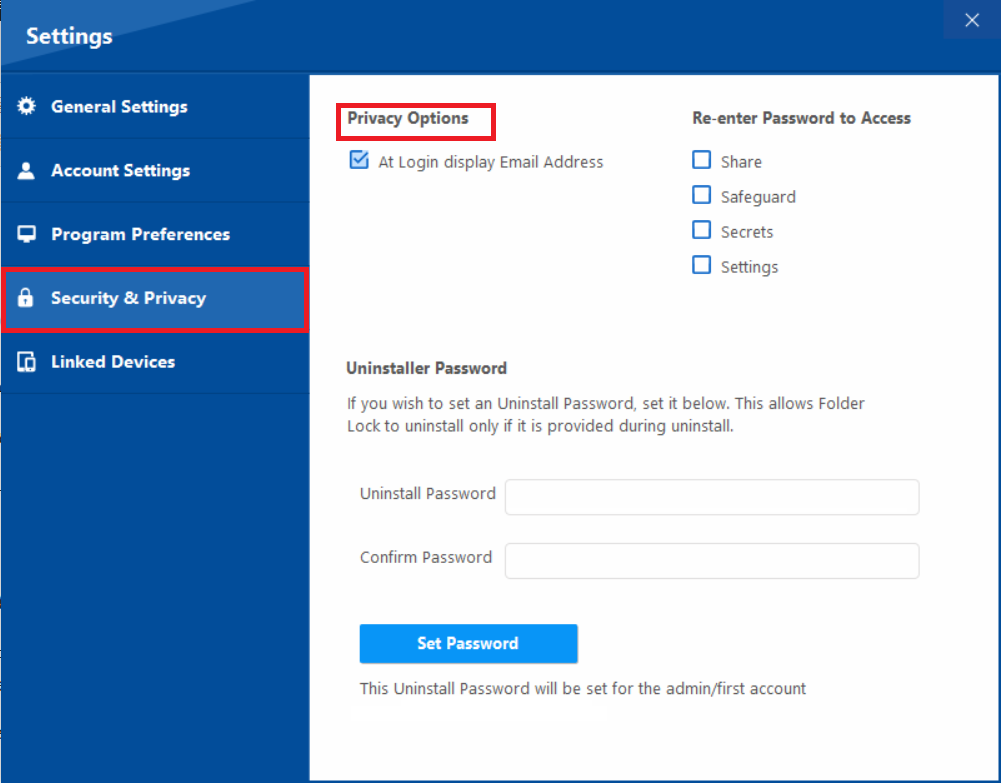
- Locate the option labeled "At Login display Email Address".

- Uncheck corresponding box of "At Login display Email Address".
By following these simple steps, your email address will no longer be visible on the Folder Lock sign-in screen, adding an extra layer of privacy and security to your account.