

In the world of professional file management, the balance between security and convenience is paramount. Newsoftwares.net understands this need, offering a suite of powerful features designed to streamline your workflow without ever compromising data integrity. This overview provides a detailed look at the "Auto Open" function within Folder Lock, demonstrating how to effortlessly configure your Google Drive Locker to automatically become accessible the moment you log in. This simple, one-time setting eliminates repetitive manual steps, creating a seamless and efficient experience while ensuring your encrypted data remains perfectly secure
Understanding the "Auto Open" Feature
The Folder Lock application is designed with both security and usability in mind. The main interface, as shown, is divided into key sections that give you complete control over your encrypted files. The "Main Features" panel is your central hub for managing your secure lockers.
The "Show on Main" column, with its checked boxes, indicates that each locker is visible and accessible from the main screen. However, it is the "Auto Open" column that introduces a new level of convenience. This feature is a powerful time-saver, allowing you to bypass the manual step of clicking "Open" for your most frequently used lockers. By enabling this option for your Google Drive, you create a seamless connection between your local machine and your secure cloud storage.
This feature is particularly beneficial for professionals who regularly access confidential documents stored in their Google Drive Locker. Instead of launching the application and then manually opening the locker, the "Auto Open" feature ensures that your secure Google Drive folder is instantly available in Windows File Explorer as soon as you authenticate with your master password. This integration means you can get to your work faster, reducing friction and enhancing overall productivity.
How to Set Auto Open for Google Drive Locker
The process is straightforward and requires just a few clicks. Here's how:
Pre-Requisite
- Your Google Drive must be installed / integrated with Folder Lock application.
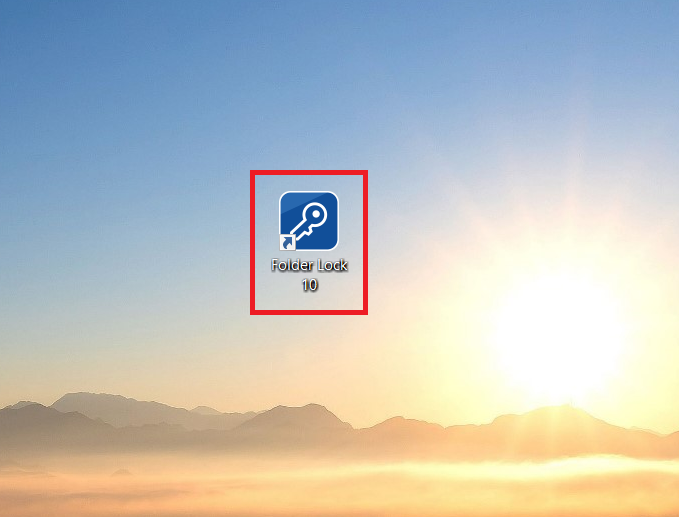
Launch Folder Lock
- Start the Folder Lock application on your computer
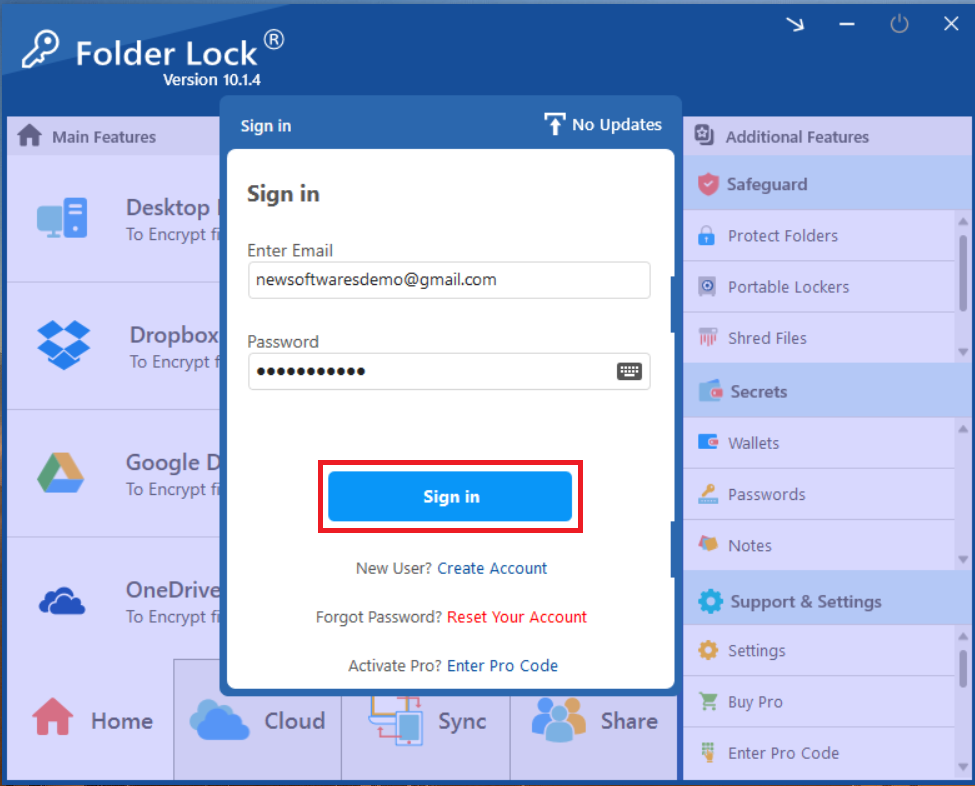
Sign In to Folder Lock
- Sign in with your registered Email and password.
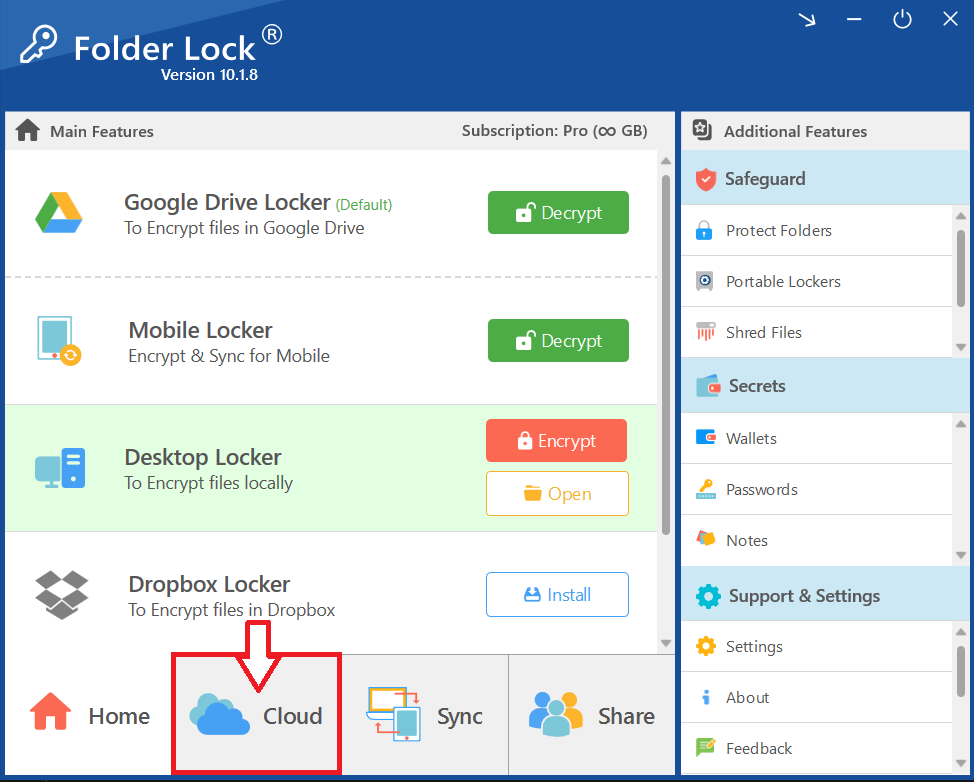
Navigate to the "Cloud Tab"
- On the Home screen, locate the "Cloud Tab" section available at the bottom of home screen as shown in screenshot.
Find Google Drive Locker
- In the cloud Tab, you will find a list of all your configured lockers, including Google Drive Locker.

Check the "Auto Open" Box for Google Drive Locker
- Find the row corresponding to your "Google Drive Locker." In the adjacent column labeled "Auto Open," click the empty checkbox. A checkmark will appear, indicating the feature is now enabled.
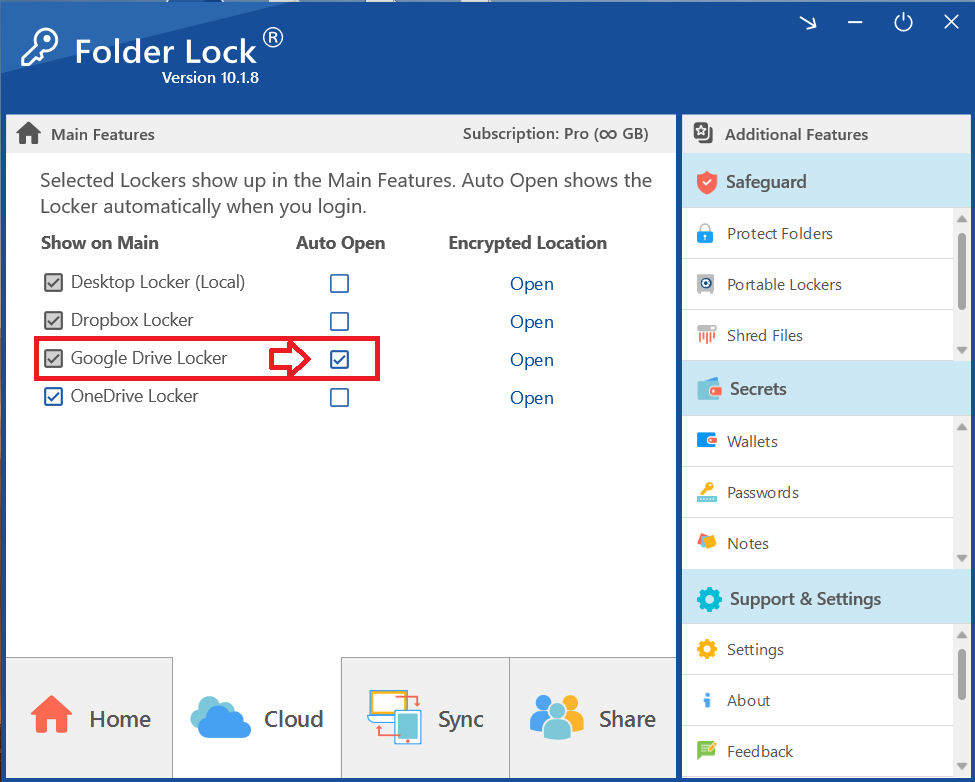
Note: - You can select only one locker (Desktop Locker, Google Drive Locker, Google Drive Locker, or OneDrive Locker) to Auto Open once the Folder Lock application is logged in.
- Once you have checked the box of Google Drive Locker, the setting will be saved and the next time you launch and sign in to Folder Lock, your Google Drive Locker will automatically open, providing you with immediate access to your secure files
Frequently Asked Questions
Q: Is it secure to use Auto Open for my Google DriveLocker?
A: Yes, it is completely secure. The "Auto Open" feature is only triggered after you have successfully authenticated your identity by entering your master password upon launching Folder Lock. This ensures that your locker remains encrypted and protected from unauthorized access at all times.
Q: What if I want to disable the Auto Open feature later?
A: Disabling the feature is as simple as enabling it. Just launch Folder Lock, sign in, and uncheck the "Auto Open" box next to your Google Drive Locker in the "Main Features" panel.
Q: Does enabling "Auto Open" also enable automatic syncing of my files?
A: No, these are separate features. "Auto Open" simply ensures your locker is opened and accessible in File Explorer. Automatic file syncing is managed by the "Sync" feature, located in the bottom menu, and requires specific settings within that tab.
Q: Does this feature work for other cloud lockers as well?
A: Yes. As seen in the "Main Features" panel, the "Auto Open" option is available for your "Dropbox Locker" and "OneDrive Locker" as well. You can configure this setting for any or all of your cloud lockers individually.
Q: Can someone else's files be accessed if they use my computer?
A: No. Folder Lock's security is tied to your individual account and master password. The "Auto Open" feature will only function after you have logged in to your specific account, preventing anyone else from accessing your encrypted lockers without your credentials.
Conclusion
By utilizing the "Auto Open" feature for your Google Drive Locker, you have successfully combined the security of Folder Lock's military-grade encryption with the seamless convenience of modern file access. This simple configuration is a testament to Newsoftwares.net's commitment to user-centric design, providing a solution that is both powerful and incredibly easy to use. Now, with your secure cloud storage instantly available upon login, you can focus on your work with the complete confidence that your confidential data is protected every step of the way.