

Introduction:
Folders are more of a combination having multiple files stored altogether in a single place. Their importance usually boosts up as they are in possession of greater MB of data that eventually helps us to access all of our files quickly. Hence, there emerges an urgent need of password protection of such folders without which, threat would always trouble us one way or the other.
How to Password Protect Folders?
Folder Lock is an all-in-one data security tool that safeguards your data from every angle. It is a unique concept in data security, as it is considered the world’s only consumer target AES-256-bit military grade encryption software which lets you create self-executable lockers. The Locking and encryption features in Folder Lock is unique and is what sets it apart from other encryption software.
In order to password Protect your folders, you will be required to lock them. The locking mechanism automatically hides and password protects your folders, preventing others from accessing them. Once you have successfully password protected your folders, your data with automatically be hidden and locked. The Lock mechanism is different from encryption. All your locked items will remain secure, even if your PC is in safe-mode, this means your data is safe considering its protected with Windows kernel level security.
To start locking files, double click on the Folder Lock icon and let the program run. Now enter your master password.
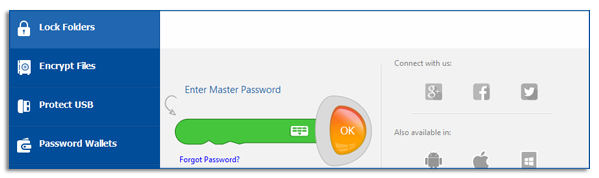
Keep in mind that passwords in Folder Lock are UNRECOVERABLE. If you forget your password, you will not be able to recover your folders. Furthermore, it is highly recommended that you use the virtual keyboard to enter your master password, as this will prevent cyber-criminals from keylogging your password.
If you are setting up your password for the first time, it is recommended to setup a password that you can remember easily, yet at the same time, it may be impossible for other users to guess. A password strength meter is provided to facilitate you in setting up strong, effective passwords.
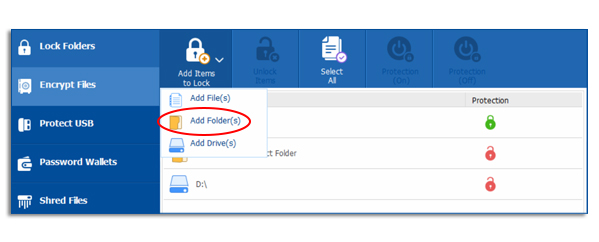
You can password protect folders by adding it to this list. To do that, click the ‘Add’ button on the top menu and select the add option from the pull down menu. To Lock your folders, click on the ‘Add Folder(s)’ tab to select your folder(s) (see image below). You can also add your folders by dragging them anywhere from your computer and dropping them into the program window. As soon as the selected item is dropped, it gets listed in the Locked items and the security setting of Locked and Hidden will both be applied to the items by default.
Please ensure that you lock all your data before exiting Folder Lock using the ‘Lock’ button located on the top right, or you can simply click on the locker and select ‘Close’ option. This ensures that your data isn’t compromised when you shut down the software. From the lock file menu, you should be able to view the status of all files, whether they are locked or unlocked.
Although you can lock virtually any type of folder with Folder Lock. There are certain restrictions put in place. Consequently, you cannot lock locker files (.flka) as well as data saved on external drives such as USB drives, external hard drives and network drives.
Summary:
Password protection of photos is an essential feature offered by Folder Lock that offers almost commendable option of data security. Along with this, Folder Lock offers hack attempt control, encryption of folders, shredding of files, and much more that makes Folder Lock one of the best data security software in today’s world.