

Introduction:
The term folder is not new to us as we all are quite accustomed to it. Since the past two decades, we have been constantly using folders but in the mean time, we have not given much time or thought in identifying how to protect them. Hence, no matter what type of data we’ve got, password protection is highly important of folders.
How To Password Protect A Folder?
Folder Lock has all the security tools to safeguard your data. It is the world’s first and only military grade encryption software that is targeted to the average user. With Folder Lock, users can safeguard their information using AES-256-bit encryption in just a few minutes. In all, Folder Lock is a complete data privacy and data encryption solution.
In order to password protect your folder, you would need to lock it. The locking mechanism is the fastest and most convenient means to safeguard folders that are frequently accessed yet need to be protected from other users, i.e. Snoopers and hackers.
Password-protecting your folders is easy, simply launch Folder lock and enter your master password, now click on the ‘Lock Files’ button.
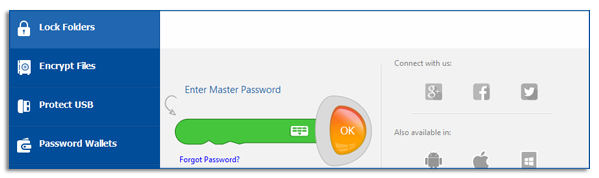
YOUR FOLDER LOCK PASSWORD IS UNRECOVERABLE, if you forget your password, it cannot be retrieved. Therefore, make sure to setup a password that is easy for you to remember, but difficult for others to guess.
Your password will also be case-sensitive, therefore keep this logic in mind before setting up your master password and locker passwords.
While setting up your master password, play close attention to the password strength meter. This meter is designed to help setup a strong, effective password. Also, it is recommended that you use the virtual keyboard to enter and or setup your password, as this will prevent hackers from tracking your master password using a keylogging software.
Once inside the ‘Lock Files’ menu, click on the ‘Add’ button and then from the drop-down menu, select the add Folder(s) option.
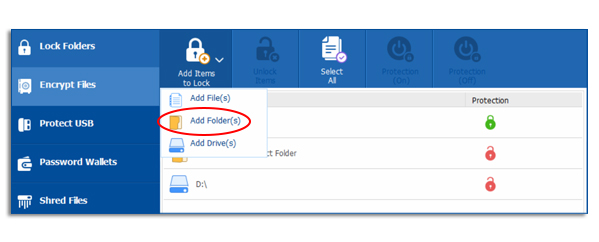
You also have the option to drag-and-drop your files into the lock files menu which is considered a much faster and convenient means of locking your folders.
Keep in mind that certain folders cannot be password-protected, these can be lockers or other files which have restrictions that don’t allow third party software to lock them.
Once you’ve added your folders to the lock file lists, they will disappear from their location and will be locked – in essence preventing others from accessing this information. From now on, you can only view them in your Folder Lock’s locked file list. The only way your files will reappear in their original location is that you unprotect them from the Folder Lock’s locked file list.
Summary:
Password protection of a file or a folder can be done by either the basic method or the encryption method. Both have the feature of password but in the encryption option, your files and folders are rather safe. For example, if someone were able to hack you, they would not be able to access the information in your encrypted lockers as such data is in unreadable form. Hence, the most a hacker could find is bits of information that is nothing but useless for them.