

Introduction:
Pictures, photos, videos etc. are a blast from the past that lets us refresh our memories. However, most of the pictures we have are deemed confidential and we do not want to share them with others who we do not trust. Folder Lock as a result proves to be a reliable solution that lets you put a boundary between the people who you do not trust and your private photos. A password would be provided that would let you lock as well as unlock photos with proper convenience. These photos would become invisible form its previous location so that nobody is able to see them in your presence or behind your back.
Hide private pictures & images.
‘Locking’ is a data protection method in Folder Lock that puts a protective lock on your folders. With the ‘Lock’ feature in place, any file, folder, drive, or a program file (EXE) that you have ‘Locked’, will be instantly hidden and/or locked from access (depending on user settings) and is suitable for users who wish to have a simple yet powerful data protection mechanism without any encryption. Items that you lock, hide, or lock and hide remain that way even in Windows Safe Mode. Later, you can simply go to ‘Lock Files’ and enter a correct Lock Files password to unlock and unhide your files.
To Lock a folder, run Folder Lock and go to the Lock Files feature, you will see the following screen.
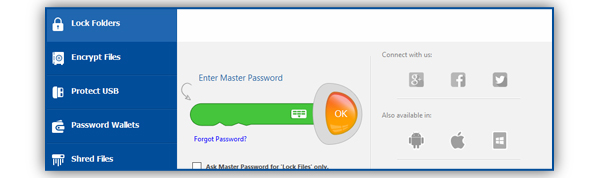
You will have the option to enter your password using the Virtual Keyboard available. The Virtual Keyboard allows you to enter your password without the fear of your password being hacked into by a Keystroke recorder or Keyloggers.
Once you have entered the password to access your Locked files, click ‘OK’ to continue to the Lock Files list, where you will enter a main window showing the Lock Files list which will be empty if you have accessed the feature for the first time.
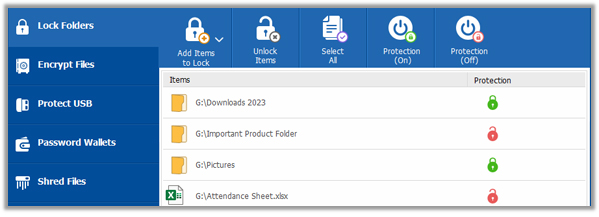
You can lock your folders by adding them to this list. To do that, click the ‘Add’ button on the top menu and select the add option from the pull down menu. To lock your folder, click on ‘Add Folder(s)’ to select your folder(s) (see image above). Once you have added the folder(s) you wish to lock, you will see them listed.
You can also lock your folders by dragging them anywhere from your computer and dropping them into the program window. As soon as the item is dropped, it gets listed and locked.
You cannot Lock system folders, system drives, virtual drives, USB drives, memory cards, cameras, any other external drives, as well as folders kept on a network mapped drive or network locations.
As soon as you have added your folder(s) to the Locking list, the default Lock Files security setting of Locked and Hidden will both be applied to the item(s). Additionally, the security setting of ‘Set Locking ON for all unlocked items when i exit folder lock’ will also be applied to the listed Lock items by default.*
*This feature is only available in the full version.
The Locked security setting is the one you should focus on for now. The purpose of the Locked option is to Lock your folder(s) from being accessed and manipulated with. With the Locked security setting, the items in the Locked list will not be accessible (i.e. Copying, Moving, and/or Deletion will not be allowed).
If you wish to remove the Hidden security option from your Locked folder(s), then simply go to the Settings panel by clicking on the Settings button which placed on top of the menu. (see image below)
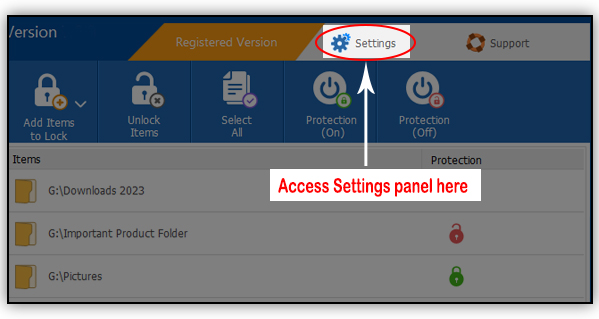
Once you click on the ‘Settings’ button as shown in the image above, go to the Locking and Encryption tab (see image below).
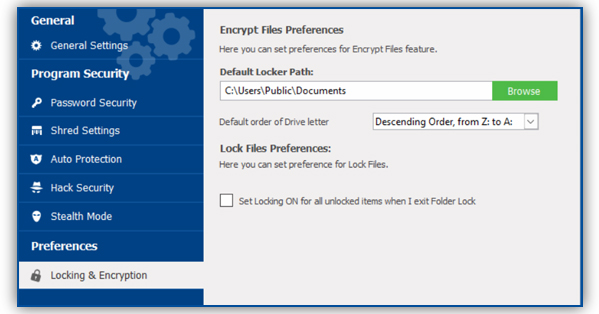
Once there, in the field ‘By default, all Locked files will be:’ deselect the Hidden option and then press ‘Apply’ to confirm the changes made. One you have finished with the changes, click on ‘OK’ to exit the ‘Settings’ panel. Now your Locked folder(s) that have been added to the list will ALL be Locked. The Locked security setting will make ALL your Locked folders inaccessible, even when others can view them.
Summary:
Storing files in Folder Lock is an effective solution that does force you to take an extra step of security but in return, offers you a wide range of comfort. However, know that this feature of protecting photos is only available in the full/paid version only.