

What is Encryption?
The term encryption may sound like a difficult task to fulfill due to which people stay reluctant to use it. What they do not know is that activating encryption security for your data makes their private data invisible to the eyes of hackers and snoopers. However, all such security and reliability is connected with the AES 256 bit encryption only. The rest or the older versions of encryption are no more a force to be relied upon.
How to Encrypt a file?
Folder Lock is a unique software that is in a class of its own. There’s no other encryption software like it. Folder Lock uses advanced encryption algorithm that uses AES-256-bit encryption standards to keep data safe from leaks and hacks. Its advanced and dynamic encrypting engine ensures that your files are encrypted and decrypted on the fly, ensuring that you don’t have to wait around to access or protect your files. In fact, depending on the file size, it can take just a few seconds to completely encrypt and decrypt files.
To begin encrypting a file, go the ‘Encrypt File’ feature and click on it. From here, you’ll be required to create an encrypted locker.
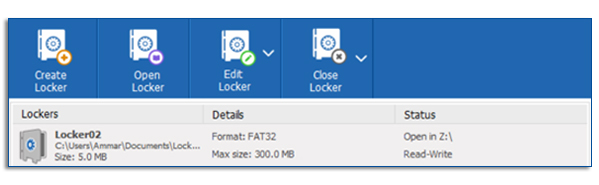
The Encrypted lockers are dynamic in the sense that they could be resized and portable. You have the option to move them on an external drive. Furthermore, these lockers are delete proof and password protected, ensuring that no one will be able to sabotage your data or steal it.
Once you click on the ‘Create Locker’ button, the default locker will be assigned (Locker01) name, if you want assign it a different name, you can do it in this step.
Next, the default locker path will be assigned, if you want to setup your locker in a different path, you can do so. Also, you will be prompted to setup your password. Keep in mind that each individual locker requires its own password. Remember to setup a password that is easy to remember, yet may be impossible for someone else to guess.
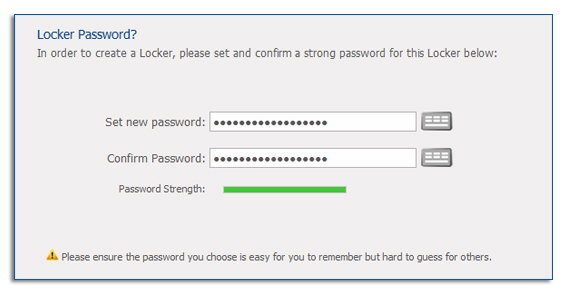
A password strength meter is provided to guide you on the effectiveness of your password. Also, it is recommended that you use the virtual keyboard to setup your password. Also, make sure to remember your password, LOCKER PASSWORDS ARE UNRECOVERABLE, if you forget your password, your data cannot be retrieved. Therefore, make sure you don’t forget your password.
The portable lockers are self-executable and can be opened on any windows PC without the need to install Folder Lock in the background.
The next step involves choosing the size of your locker. Keep in mind that certain lockers cannot be resized, so it’s imperative that you select the appropriate size range for your locker.
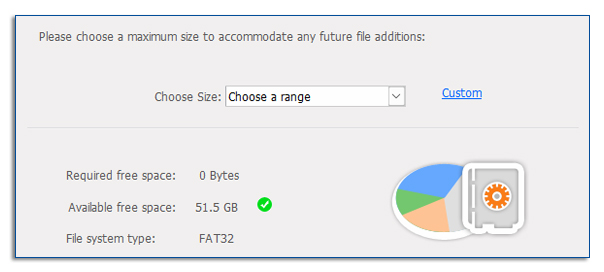
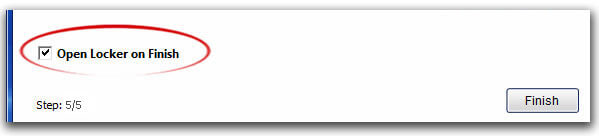
If you want your locker to open upon finishing, click on the option ‘open locker on finish’.
In the encrypt file menu, you should be able to view your locker’s status. Here you can close your locker, edit it, open your locker or backup your locker to our dedicated secure backup service.
To encrypt a file in a locker that doesn’t appear in the encrypt file list, please follow these steps:
If Your Locker Is Not in The Encrypt Files List (see image below)
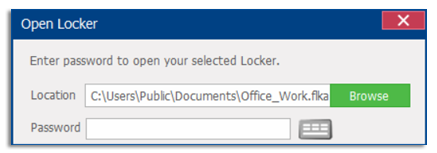
Locate the locker, and double click on it. Then it will ask for a password, input your password and press enter.
Now a virtual Z drive should open, simply drag and drop the data into the Z drive. Note, that the locker should reappear on your locker list automatically. Now, if you would like to close this locker, after entering all your data, simply click on the locker in the list and press the ‘Close Locker’ button.
If your locker is already in the list, and you would like to enter files into the locker, please follow these steps:
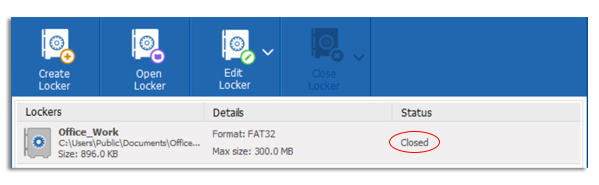
If your locker is closed, double click on it, and you will be required to enter your password. Enter your password and press ‘Open’. A new window will popup, this is your virtual drive Z. Simply drag and drop your files into this virtual drive. Once you are done adding your data, click on ‘Close Locker’ button.
Benefits:
Encryption allows you convert your private data into unreadable form
Nobody can access this encoded that unless you decode them using the designated password
Protection stays active even when you are not around
Drawbacks:
A bit difficult to use as compared to the basic password protection feature
If you lose your password for encryption, it would hard or impossible to recover your password