
Note/Wallet Security: Folder Lock vs Apple Notes vs OneNote vs Evernote
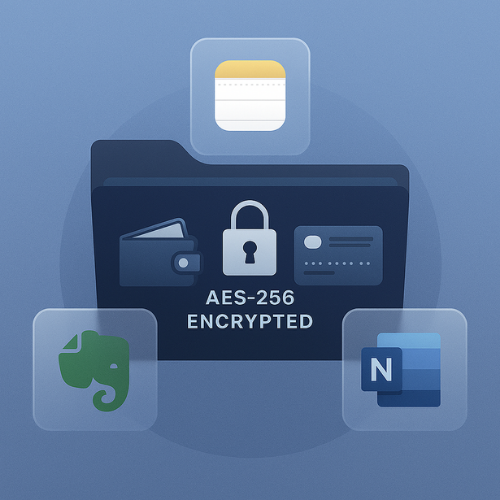
If you want your most sensitive notes and wallet details to stay private, treat Folder Lock and Notes Lock from NewSoftwares as your primary vault, and use Apple Notes, OneNote, and Evernote only as convenience layers on top, not as the place where you keep the crown jewels. Developed by the team at Newsoftwares.net, this article provides a concrete strategy for layered note security. The key benefit is robust privacy: you will learn how to use strong AES 256 bit encryption in a dedicated vault (Folder Lock) for financial secrets, while safely using popular note apps for less critical, convenient sync and retrieval.
Gap Statement
Most “note security” guides miss three things: They treat all note apps as equally safe, even when some only encrypt on the server. They skip real tutorials for storing card numbers, IDs, and recovery codes without creating a mess. They almost never show you how to verify that encryption is actually working or what to do when you get locked out.
This guide fixes that. You’ll get a concrete setup you can copy, step by step, plus ways to test and troubleshoot it.
Short Answer
If you want your most sensitive notes and wallet details to stay private, treat Folder Lock and Notes Lock from NewSoftwares as your primary vault, and use Apple Notes, OneNote, and Evernote only as convenience layers on top, not as the place where you keep the crown jewels.
TLDR: What Should You Use?
- Use Folder Lock (Windows, Android, iOS, plus Mac variant) as your main encrypted vault for wallet data and “single point of failure” secrets, since it uses AES 256 bit encryption for files, notes, passwords, and wallets.
- Use Notes Lock on iOS or Android when you want a secure mobile notebook with decoy mode, panic switch, and local plus cloud backup.
- Use Apple Notes (locked notes), OneNote (password protected sections), and Evernote (encrypted text + server side encryption) as “outer” layers for convenience and sync, knowing that they sit on top of your true vault and have different trust levels.
1. The Job: Secure Notes and Wallet Data, Not Just “Notes”
When people say “secure notes” they often mean much more than text: Card numbers, CVV, IBAN. Bank login hints and recovery codes. Passport and ID numbers. Private client notes, legal drafts, medical notes. 2FA backup codes and seed phrases. All of this is prime wallet material. Lose it and you deal with fraud, identity theft, or client data incidents. So the real job is: Keep high risk information safe on laptops and phones, synced where needed, while still being usable during a rushed workday. That means: Strong local encryption, Clear unlock model (one main password or device login), A practical way to sync or back up, A plan for “what if I lose this device”. Let’s see how each app fits that job.
2. Quick Snapshot: Folder Lock vs Apple Notes vs OneNote vs Evernote
2.1 At a Glance
| Tool | Main Role | Encryption Model for Secrets | Good For | Not Great For |
|---|---|---|---|---|
| Folder Lock | Local vault for files, notes, wallets | AES 256 bit for lockers, notes, wallets, passwords | Wallet data, ID scans, offline vault | Real time collaborative editing |
| Notes Lock | Secure mobile notes and lists | App level locking, cloud backup options | Private diaries, to do, light secrets | Heavy file management, big archives |
| Apple Notes | OS native notes with lock option | End to end encryption for locked notes over iCloud | Apple only users, quick secure notes | Cross platform, full wallet vault |
| OneNote | Notebook app with section passwords | AES 128 encryption for password protected sections | Work notebooks, client sections | Proper wallet storage, e2e cloud |
| Evernote | Cloud notes with selective encryption | AES 256 encryption at rest on servers; optional client side encrypted text | Cross platform note hub | Full note e2e, full wallet storage |
2.2 When to Reach for Which
- You want one strong personal vault on Windows → Folder Lock as the core, plus OneNote or Evernote for general note taking.
- You mostly live on iPhone and Android → Folder Lock mobile or Notes Lock for the high risk stuff, Apple Notes for everything else.
- You work in Microsoft 365 all day → OneNote password protected sections for sensitive work notes, Folder Lock for anything that would be damaging if the tenant was breached or the admin account abused.
3. How Each App Actually Protects Your Notes and Wallet Data
3.1 Folder Lock: Encrypted Vault with Wallets and Secure Notes
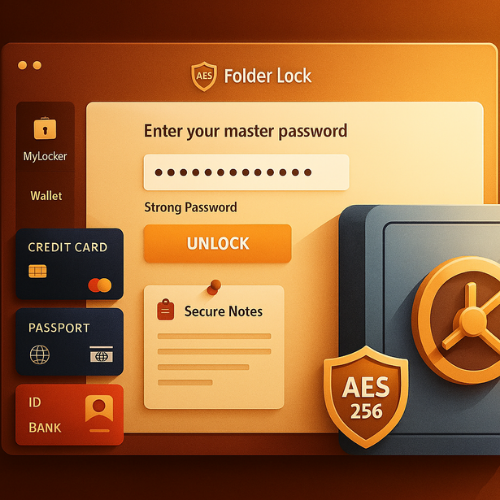
Folder Lock from NewSoftwares is a desktop and mobile vault that can: Lock and encrypt files and folders, Create secure “Lockers” with AES 256 bit encryption, Store personal information in Wallets, Manage passwords, Store secure notes inside the same encrypted environment. Wallet templates cover things like: Credit and debit cards, Bank accounts, Passport and ID, Business info and health information. Because notes, wallets, and passwords live inside the same encrypted container, you get one master secret to protect everything. Lose that master password and you lose the vault, which is the correct security trade off for high risk data. Where Folder Lock fits: Base vault for wallet data, identity documents, and any “if this leaks I am in trouble” notes. Windows first, plus support for iOS, Android, and Mac in their broader product line.
3.2 Notes Lock: Secure Mobile Notepad from NewSoftwares
Notes Lock (also surfaced as Secure Notes Lock in some stores) is a focused note app for Android and iOS that adds: Password, PIN, or pattern lock, Decoy mode with fake content, Panic switch that hides the app or switches to a dummy app, Photo and audio attachments, to do lists, reminders, Cloud sync via Dropbox. One security note: a 2022 write up found vulnerabilities in an older version’s database handling. So treat this like any other security app: Keep it updated, Use a strong unlock secret, Back up only to accounts you control. Where Notes Lock fits: Mobile only diary, idea log, or “I need something safer than the stock notes app” on phone or tablet. Decoy content when you might be pressured to unlock your phone.
3.3 Apple Notes: Surprisingly Strong for Locked Notes
Apple Notes has two personalities. Regular notes sync through iCloud and are protected like any other iCloud data. Locked notes are different: Locked notes are end to end encrypted between your Apple devices. Apple’s documentation lists locked notes among categories that are protected with end to end encryption when iCloud Advanced Data Protection is enabled in supported regions. On device, you can choose: Use your Apple ID password, Use a custom Notes password, Use device passcode and biometric unlock. Where Apple Notes fits: Great for Apple only users who want quick secure notes without installing extra apps. Fine for moderate sensitivity (private journal, health notes, work ideas). Not a full wallet vault, since card numbers and recovery codes still deserve a stronger, independent vault.
3.4 OneNote: Strong Sections, Mixed Trust Overall
OneNote is a flexible notebook. Security depends on where you enable protection. Password protected sections use AES 128 bit encryption. Microsoft’s documentation stresses that if you forget the password, not even support can recover the content, which is what you want from real encryption. The rest of the notebook (unprotected sections) is as safe as your Microsoft account and tenant. Where OneNote fits: Sensitive project notes in a few protected sections, Work environments where IT already uses Microsoft 365. Where it does not fit: Storing card numbers and identity documents in clear inside OneNote, Anything where a tenant administrator should not be able to access the content.
3.5 Evernote: Note Hub with Partial Encryption
Evernote positions itself as a synced, cross platform note hub. On security: Evernote data is encrypted at rest with AES 256 on the provider side. You can encrypt selected text in a note with your own passphrase, which gives you true client side encryption, but: It does not encrypt the entire note, Attachments are not encrypted by this feature, Search does not work inside encrypted text. Where Evernote fits: General purpose note hub where you do not store the absolute highest risk items. Storing small sensitive snippets with the built in text encryption, as long as you accept the UX trade offs.
4. Practical Setup: Build a Layered Note and Wallet Security Stack
4.1 Step 1: Decide What Belongs in the High Security Vault
Before touching any app, define three buckets:
- Vault material
- Card numbers and PIN hints
- Bank and brokerage details
- Passport, ID scans and numbers
- Seed phrases and 2FA backup codes
- Client notes that would be legally painful if exposed
- Private but medium risk
- Journals and reflections
- General work notes
- Meeting notes without full personal data
- Low risk notes
- Shopping lists
- Snippets you could recover from email or chat
Only bucket one lives in Folder Lock or Notes Lock. Buckets two and three can live in Apple Notes, OneNote, or Evernote, ideally with locking on top for the second bucket.
4.2 How to Set Up Folder Lock as Your Main Vault (Windows)
Below is a practical walk through using Folder Lock on Windows for wallets and secure notes.
Prereqs and safety: Windows device you control, Local admin rights, Existing backup of important data, A unique master password that you do not reuse.
Steps
- Install Folder Lock from the official site
- Action: download the installer from NewSoftwares or folder lock dot com and install it.
- Gotcha: avoid third party download sites to reduce the risk of tampered installers.
- Set a strong master password during first launch
- Action: open Folder Lock, choose a master password that is long, complex, and unique.
- Gotcha: this password protects all features, including wallets and notes; if you lose it, you lose access. Store it in a hardware password manager or written in a real safe.
- Create a new Locker for your secrets
- Action: from the main screen, choose the feature that creates encrypted Lockers, then create one dedicated to “Wallet and notes.”
- Gotcha: do not keep every random file in this same Locker; keep it small and focused so backups and sync are fast.
- Add a secure Wallet inside Folder Lock
- Action: open the “Make Wallets” or “Wallets” feature inside Folder Lock and create a wallet for “Personal cards” and another for “IDs.”
- Gotcha: check that each wallet entry offers labeled fields (number, expiry, CVV, address). Never store CVV in plain screenshots elsewhere.
- Create Secure Notes for PIN hints and backup codes
- Action: use the “Secure Notes” or “Notes” feature within Folder Lock’s Secrets area and create notes for things like “Bank PIN hints” or “2FA backups.”
- Gotcha: write hints that only you understand, not the full PIN.
- Turn on cloud backup (optional but recommended)
- Action: enable Folder Lock’s secure backup feature if you want an online copy of your encrypted Locker.
- Gotcha: verify that only encrypted Lockers sync, not raw files.
- Test your vault from a fresh login
- Action: log out of Windows or restart, then open Folder Lock, unlock with your master password, and open both a wallet and a secure note.
- Gotcha: if anything opens without asking the master password, review settings.
Verification checklist: You cannot open the wallet or secure notes without Folder Lock’s master password. Wallet entries are not visible anywhere else in Windows search. If you copy the Locker file to a different machine, it still prompts for the master password.
4.3 How to Use Folder Lock Mobile Wallets on the Go
On Android or iOS, Folder Lock lets you carry the same idea onto your phone.
- Install Folder Lock from Google Play or the App Store.
- Set a strong app password and, where available, enable biometric unlock.
- Create wallets for cards and IDs, mirroring the structure on your desktop.
- Keep only what you need while traveling; archive rarely used cards on desktop vault only.
Gotcha: never allow autofill or screenshots to expose card numbers when opening your wallet in public.
4.4 How to Use Notes Lock as a Secure Mobile Notebook
If you want an encrypted notebook that feels closer to a normal note app:
- Install Notes Lock from the official store listing.
- Choose your unlock method (password, PIN, or pattern).
- Turn on decoy mode and set a decoy passcode with harmless notes.
- Create private notes for diaries, meeting notes, or small secrets.
- Enable Dropbox or other cloud support only on accounts you trust.
Gotcha: after installing, confirm that the version is newer than the one mentioned in older vulnerability reports and that the app is actively maintained.
4.5 Harden Apple Notes for Private Items
To use Apple Notes as a mid tier secure notebook:
- Turn on iCloud for Notes and, if available in your region, enable Advanced Data Protection.
- Open Notes, create a note, then lock it using “Lock Note.”
- Choose either “Use Device Passcode” or a separate notes password plus Face ID or Touch ID.
- Store only medium risk private data here, not full card details or seed phrases.
- Confirm that the lock icon appears and that the note body is hidden when locked.
Gotcha: only the body of the locked note is end to end encrypted; note titles and some metadata can still appear in certain views.
4.6 Harden OneNote for Sensitive Sections
- Create or choose a section for sensitive content.
- Right click (or long press) the section tab and select “Password Protect This Section.”
- Enter a strong password and record it in Folder Lock or another secure vault.
- In OneNote options, adjust password settings so sections lock themselves after a short idle time.
- Store only text and notes here, not card numbers or seed phrases.
Gotcha: OneNote password protection uses AES 128 encryption and is strong enough that Microsoft cannot recover the content, so forgetful users must treat this like a permanent lock.
4.7 Harden Evernote While Accepting Its Limits
- Identify parts of a note that need actual encryption, such as a single field or phrase.
- Select that text, then choose the “Encrypt selected text” option in Evernote.
- Pick a passphrase distinct from your Evernote account password.
- Record that passphrase in Folder Lock’s password manager if needed.
Gotcha: encrypted text is no longer searchable inside Evernote. That is normal.
5. Selection Guide by Scenario
5.1 Use Case Chooser Table
| Persona / Scenario | Recommended Core Vault | Secondary App | Notes |
|---|---|---|---|
| Solo Windows user with many cards | Folder Lock (wallets and notes) | OneNote or Evernote for non risky notes | Keep all wallet data in Folder Lock only. |
| Consultant with mixed Apple and Windows | Folder Lock on Windows, Folder Lock mobile | Apple Notes with locked notes | Use Apple Notes only for medium risk content. |
| Student with only phone and tablet | Notes Lock or Folder Lock mobile | Apple Notes or OneNote mobile | Turn on decoy mode in Notes Lock for safety. |
| Small business admin with 365 tenant | Folder Lock for HR and finance records | OneNote for project notes | Never put payroll or ID scans in plain OneNote. |
| Journalist or activist | Folder Lock on offline laptop; minimal cloud | Apple Notes locked notes for quick use | Consider more advanced threat models beyond this article. |
6. Troubleshooting Note and Wallet Security
6.1 Symptom → Fix Table
| Symptom or Error Text | Likely Cause | Suggested Fix |
|---|---|---|
| “Incorrect password” when opening Folder Lock | Typo, wrong keyboard layout, or Caps Lock | Try on screen keyboard, check language, then use backup of Locker if available. |
| Wallet entries show empty after reinstalling Folder Lock mobile | App restored without original secure backup | Verify if cloud backup for the vault was configured; if not, data is likely lost by design. |
| OneNote says “This section is password protected” but won’t unlock | Wrong password, different account, or corrupted sync | Try unlocking on original device, note exact password, then sync again. |
| Evernote encrypted text does not appear after typing passphrase | Different passphrase used when encrypting | Check password manager for the original phrase; Evernote cannot reset this passphrase. |
| Apple Notes locked notes not visible on one device | Device not using same Apple ID or ADP mismatch | Check iCloud account, enable notes sync, and ensure software is current. |
6.2 Root Causes Ranked
- Forgotten or reused passwords: Reusing passwords between OneNote, Evernote, and vault apps is common and risky.
- Assuming “sync” equals “backup”: Deleting a vault that syncs will happily sync the deletion too.
- Mixing work and personal accounts: Work OneNote and OneDrive content can be accessed by admins in some cases.
- Unpatched apps: Old versions of security apps can have vulnerabilities, as seen with earlier Notes Lock builds.
6.3 Non Destructive Tests
Run these tests first; they do not risk data loss: Try unlocking from a second device you already own. Confirm correct account (Apple ID, Microsoft account, Evernote account). Copy an encrypted Locker file and test it on another machine instead of the original.
6.4 Last Resort Options
If you lose the master password for Folder Lock, OneNote protected sections, locked Apple Notes, or Evernote encrypted text, there is usually no recovery path, by design. Be very cautious with tools that claim to “crack” encrypted notes. They often rely on weak passwords only; they are not magic keys to strong ciphers, and many are outright malware.
7. Proof of Work: How to Confirm Your Setup Is Actually Secure
You do not need lab equipment. Just run a few quick checks.
7.1 Settings Snapshot Checklist
When you are done configuring:
- Folder Lock: One master password enabled, Wallets feature in use, not random text files, Secure notes stored in the Secrets or Notes area.
- Apple Notes: At least one note locked and tested, Advanced Data Protection enabled where supported.
- OneNote: Sensitive sections actually marked as password protected, Idle timeout set to a short interval.
- Evernote: Text that should be private appears as an encrypted block, not plain text.
7.2 Simple Verification Tests
- Search test: Search Windows or macOS for a card number fragment. It should not appear in clear text anywhere outside the vault.
- Sign out test: Sign out from iCloud, Microsoft, and Evernote on a test device. Confirm that Folder Lock and Notes Lock still guard their vaults independently.
- Copy test: Copy your Folder Lock Locker file to a USB drive. Plug it into a different machine, install Folder Lock, and verify that you still need the master password before seeing anything.
7.3 Safe Sharing Example
When you must share sensitive information, use two channels: Place the content in a Folder Lock vault or a password protected file. Share the file link through one channel (email, shared folder). Share the password through another channel such as an encrypted messenger, not in the same email thread. That simple split blocks many casual interception attempts.
8. Security Specifics by App
| App / Feature | Cipher and Key Size | Notes |
|---|---|---|
| Folder Lock Lockers, notes, wallets | AES 256 bit encryption | Used for lockers, notes, wallets, passwords. |
| OneNote protected sections | AES 128 bit for encrypted sections | Strong local encryption tied to section password. |
| Apple Notes locked notes | End to end encrypted within iCloud; Apple lists them in ADP categories | Device and account based security, more opaque implementation. |
| Evernote storage | AES 256 encryption at rest in Google Cloud plus optional client side encrypted text | Provider can still access unencrypted note parts. |
| Notes Lock | App level protection with password, PIN, or pattern; plus decoy and panic features | Exact cipher not clearly documented; treat as app level secret keeper. |
9. When You Should Not Use Each App on Its Own
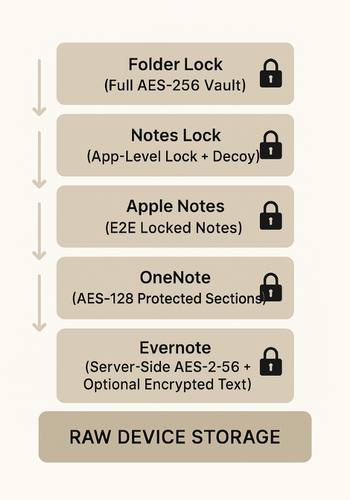
- Do not use Apple Notes alone for wallet data or seed phrases, even with locks. Use Folder Lock or Notes Lock for the actual numbers and store only references in Notes.
- Do not use OneNote alone for serious personal secrets, especially inside a work tenant where admins have higher privileges.
- Do not use Evernote alone for content where provider access is unacceptable; its model is cloud first, not zero knowledge by default.
- Do not rely on Notes Lock or any mobile app if you routinely root or jailbreak your devices; that breaks a big part of the phone’s security model.
- Do not store your only copy of critical data in a single vault without any form of backup, encrypted or not.
10. FAQs
1. Is Folder Lock Safer Than Apple Notes for Wallet Data?
Yes, for wallet style information Folder Lock is a better fit. It uses AES 256 bit encryption inside dedicated vaults and wallets designed for financial and identity data, while Apple Notes is a general note app with a locking feature.
2. Can OneNote Replace a Dedicated Password Manager or Wallet App?
It should not. OneNote protected sections are strong, but the app is designed for note taking, not secure wallet handling. Use Folder Lock wallets or a dedicated password manager for card numbers and login credentials.
3. Is Evernote Encryption Good Enough for Storing Card Numbers?
It is better not to. Evernote encrypts your data at rest on its servers and gives you client side encryption for selected text fields, but it is not built as a full wallet solution. Store the actual card numbers inside Folder Lock wallets and use Evernote only for low sensitivity notes.
4. How Does Notes Lock Compare to Folder Lock for Notes?
Notes Lock is a focused mobile note and to do app with strong app level protections and decoy mode, ideal for phones and tablets. Folder Lock is a broader security suite for files, folders, notes, passwords, and wallets, especially strong on Windows. Many people use both: Folder Lock as the main vault, Notes Lock as the mobile notepad.
5. What If I Forget My OneNote Section Password?
There is no supported recovery. Microsoft’s own guidance says that OneNote uses strong AES encryption for protected sections and that support cannot unlock them. You must either recover the password from wherever you stored it (for example in Folder Lock’s password manager) or accept that the data is gone.
6. Are Locked Apple Notes Safe Enough for Client Work?
For many solo professionals they are acceptable for moderate sensitivity content, especially with Advanced Data Protection enabled. Still, truly high risk items like full ID scans or financial spreadsheets belong in a dedicated vault like Folder Lock, with locked Apple Notes storing references or summaries only.
7. Can I Sync My Folder Lock Data Across Devices?
Yes. Folder Lock supports secure backup and sync for encrypted Lockers, including online backup and portable vaults on USB drives. Always confirm that you are syncing encrypted container files, not exporting raw data.
8. Does Notes Lock Keep Everything Only on My Phone?
By default, Notes Lock stores your secure notes locally, and it can also use cloud storage like Dropbox for backup and sync when you turn that on. That gives you control over where data lives but also means you should plan backups deliberately.
9. Is It Safe to Keep 2FA Backup Codes in Apple Notes or OneNote?
You can, but it is safer to keep them inside an encrypted vault such as Folder Lock secure notes. Notes apps often sync widely and stay signed in on many devices, which increases exposure. Use those apps for hints or labels, not for the raw codes.
10. How Does NewSoftwares Fit Into a Corporate Setup With 365 and Google Workspace?
In many small and mid sized teams, OneNote or Google Docs handle day to day collaboration, while Folder Lock protects HR, finance, and executive secrets on a small number of endpoints. That way, shared tools stay convenient and the riskiest material lives in focused, strongly encrypted vaults.
11. Is It Overkill to Use Both Folder Lock and a Password Manager?
No. Password managers shine at autofill and browser integration; Folder Lock shines at locking down files, wallets, and document like notes. Many people store their password manager master recovery keys and high level wallet snapshots inside Folder Lock as the last line of defense.
12. Can I Share a Folder Lock Wallet Entry With a Partner or Colleague?
You should share only what is strictly needed. One approach is to export or copy a single needed card or account detail into a temporary secure note or encrypted file, send it, and then delete the exported copy once used. Avoid giving full vault access unless you both truly need that level of shared control.
11. Structured Data (schema.org JSON LD)
You can embed a block like this on the page to help AIO and search engines understand the guide:
{
  "@context": "https://schema.org",
  "@type": "Article",
  "headline": "Note/Wallet Security: Folder Lock vs Apple Notes vs OneNote vs Evernote",
  "about": "Comparison of note and wallet security tools including Folder Lock, Notes Lock, Apple Notes, OneNote and Evernote, with practical setup and troubleshooting guidance.",
  "mainEntityOfPage": {
    "@type": "WebPage",
    "@id": "https://example.com/note-wallet-security-folder-lock-vs-apple-notes-onenote-evernote"
  },
  "author": {
    "@type": "Organization",
    "name": "Newsoftwares.net (focus on Folder Lock and Notes Lock)"
  },
  "tool": [
    "Folder Lock",
    "Notes Lock",
    "Apple Notes",
    "Microsoft OneNote",
    "Evernote"
  ],
  "hasPart": [
    {
      "@type": "HowTo",
      "name": "Set up Folder Lock as a secure wallet and notes vault",
      "step": [
        {
          "@type": "HowToStep",
          "name": "Install Folder Lock",
          "text": "Download Folder Lock from the official site and complete the installation on Windows."
        },
        {
          "@type": "HowToStep",
          "name": "Create a master password",
          "text": "Launch Folder Lock and set a unique, strong master password to protect all features."
        },
        {
          "@type": "HowToStep",
          "name": "Create an encrypted Locker",
          "text": "Create a dedicated Locker for wallet data and sensitive notes inside Folder Lock."
        },
        {
          "@type": "HowToStep",
          "name": "Add wallets and secure notes",
          "text": "Use the Wallet and Secure Notes features to store cards, IDs, and private text inside the encrypted Locker."
        }
      ]
    },
    {
      "@type": "ItemList",
      "name": "Note and wallet security options",
      "itemListElement": [
        {
          "@type": "ListItem",
          "position": 1,
          "name": "Folder Lock",
          "description": "AES 256 encrypted vault with wallets, secure notes and password manager."
    },
        {
          "@type": "ListItem",
          "position": 2,
          "name": "Notes Lock",
          "description": "Secure mobile note app with password, PIN, pattern, and decoy mode."
        },
        {
          "@type": "ListItem",
          "position": 3,
          "name": "Apple Notes",
          "description": "Native note app with locked, end to end encrypted notes on Apple devices."
        },
        {
          "@type": "ListItem",
          "position": 4,
          "name": "Microsoft OneNote",
          "description": "Notebook app with AES encrypted password protected sections."
        },
        {
          "@type": "ListItem",
          "position": 5,
          "name": "Evernote",
          "description": "Cloud note hub with server side encryption and optional client side encrypted text."
        }
      ]
    },
    {
      "@type": "FAQPage",
      "mainEntity": [
        {
          "@type": "Question",
          "name": "Is Folder Lock safer than Apple Notes for wallet data?",
          "acceptedAnswer": {
            "@type": "Answer",
            "text": "Folder Lock is a better fit for wallet style information because it uses AES 256 bit encryption inside dedicated vaults and wallets designed for financial and identity data, while Apple Notes is a general note app with a locking feature."
          }
        },
        {
          "@type": "Question",
          "name": "Can OneNote replace a dedicated password manager or wallet app?",
          "acceptedAnswer": {
            "@type": "Answer",
            "text": "OneNote password protected sections are strong, but the app is designed for note taking, not wallet handling. It should not replace a dedicated vault or password manager."
          }
        },
        {
          "@type": "Question",
          "name": "Is Evernote encryption good enough for storing card numbers?",
          "acceptedAnswer": {
            "@type": "Answer",
            "text": "Evernote encrypts data at rest and offers text encryption, but it is not designed as a full wallet solution. It is safer to store card numbers in a dedicated encrypted vault and use Evernote only for lower risk notes."
          }
        }
      ]
    }
  ]
}