
Email Encryption Guide: S/MIME, PGP, and Secure Attachments for Outlook and Gmail
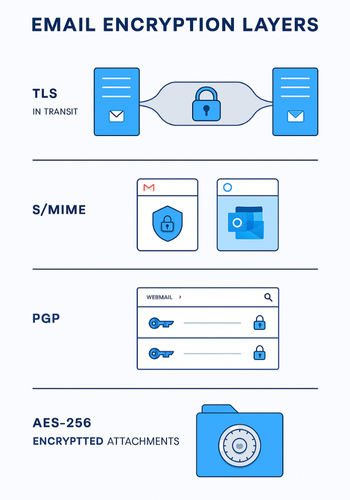
If you only want the answer: use built-in TLS for transit, add real encryption for the content, and pick one of these three for sensitive email and attachments: S/MIME inside Gmail, Outlook, and iPhone Mail when your organization can issue certificates. PGP tools (GPG, Kleopatra, Mailvelope, FlowCrypt) when you need provider-independent end-to-end encryption. Encrypted attachments using tools like Folder Lock from Newsoftwares.net when the recipient is non-technical but can open a protected file. Developed by the team at Newsoftwares.net, this article provides a comprehensive overview to email encryption strategies. The key benefit is end-to-end message security: you will learn how to deploy platform-specific (S/MIME) or universal (PGP) encryption, and how to use AES-256 encrypted attachments to ensure file security regardless of the recipient’s mail client, preserving privacy and control.
Short Answer
Use built-in TLS for transit, add real encryption for the content, and pick one of these three for sensitive email and attachments:
- S/MIME inside Gmail, Outlook, and iPhone Mail when your organization can issue certificates.
- PGP tools (GPG, Kleopatra, Mailvelope, FlowCrypt) when you need provider-independent end-to-end encryption.
- Encrypted attachments using tools like Folder Lock from Newsoftwares.net when the recipient is non-technical but can open a protected file.
Gap Statement
Most “how to encrypt email” posts skip the parts that actually break: They mix up TLS, “confidential mode”, and true end-to-end encryption. They ignore how real people send data: PDF statements, Word files, ZIPs, not bare text. They rarely show a reliable path for mixed setups, like Gmail sender, Outlook recipient, and an iPhone in the middle.
Here we fix that. You get platform-specific steps, real error messages, safe fallback methods, and a practical role for Newsoftwares’ Folder Lock when you only control the attachment, not the mail servers.
Short answer to your query:
TLDR Outcomes
By the end, you should be able to:
- Pick the right encryption model for each message: TLS only, S/MIME, PGP, or encrypted attachments.
- Configure S/MIME in Gmail, Outlook, and iOS Mail, and send a signed or encrypted test message.
- Use Folder Lock to encrypt attachments with AES-256 before sending, and share passwords safely.
1. Quick Decision Guide: Which Approach Should You Use?
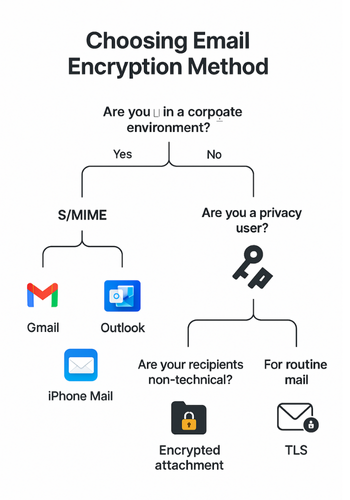
Use this as your “grab and go” chooser.
| Scenario | Recommended Method | Why |
|---|---|---|
| Routine mail with no sensitive data | Do nothing extra, rely on TLS | All modern providers use TLS in transit by default |
| Sending tax returns, ID scans, contracts to non-technical users | Encrypt attachments with Folder Lock or password-protected PDF/ZIP | Easy for recipients, strong AES-256 available |
| Regulated org, all on Microsoft 365 | S/MIME or Office Message Encryption in Outlook | Integrates with corporate PKI and compliance tools |
| Google Workspace org, internal and partner mail | Hosted S/MIME or new client-side encryption | Managed in Admin console, no extra apps needed |
| Privacy-focused users on mixed providers | OpenPGP (GnuPG, Kleopatra, FlowCrypt) | Works across Gmail, Outlook, and others with plugins |
| You want offline encrypted archives of sent data | Folder Lock lockers or encrypted ZIPs | Local control, independent of email provider |
Core rule: if the other side cannot handle S/MIME or PGP today, use encrypted attachments plus a separate channel for the password.
2. Prerequisites and Safety Basics
Before you start flipping encryption switches:
- Back up important mail and files: Encryption mistakes can lock you out. Keep at least one backup of raw files before you start encrypting.
- Understand what each layer protects: TLS protects in transit between mail servers, not on the servers themselves. S/MIME / PGP protect the message body and attachments end-to-end, assuming keys are managed correctly. Encrypted attachments protect the files, even if the email gets forwarded or stored.
- Plan key and password handling: Use long, unique passphrases. Never email the password in the same thread as the encrypted file. Favor signal, in-person, or a phone call for passwords.
- Recognize fake “encryption”: Gmail “confidential mode” hides forwarding and adds expiry controls, but is not true end-to-end encryption. Google can still read the content.
3. How Email Encryption Actually Works
Plain English version.
TLS: The Default You Already Use
Most big providers, including Gmail, Outlook.com, and iCloud, use TLS when their servers talk to each other. It keeps attackers on the network from reading your mail in transit, but providers still see the content.
End-to-End Options: S/MIME and PGP
- S/MIME uses X.509 certificates. Your email address has a certificate and private key. Your client uses the recipient’s public cert to encrypt, and their private key to decrypt. This fits well in corporate setups and native clients like Outlook and iOS Mail.
- PGP / OpenPGP uses its own key format and trust model. You can use tools like GnuPG and Kleopatra on desktop, or browser plugins such as Mailvelope and FlowCrypt for webmail.
Attachment-Only Encryption
Sometimes you just need a secure file, not a secure inbox. Tools like Folder Lock can: Encrypt a file or folder with AES-256. Package them as encrypted attachments, including “Encrypt Email” flows and encrypted ZIP-style containers. Let the recipient open it with a password on their system. This is often the most realistic option when you send statements or ID copies to regular users who will never install PGP.
4. Part 1: Encrypting Email and Attachments in Gmail
4.1 What Gmail Already Does
By default, Gmail uses TLS for server-to-server transport when the other mail server supports it. You see a small lock icon next to the recipient. Green or grey generally means TLS; a warning means no TLS. Gmail also has: Confidential mode: disables forwarding, adds expiry, can require SMS codes, but still stores content unencrypted on Google’s servers. Hosted S/MIME: for Google Workspace editions; true content encryption using certificates. New client-side encryption for Workspace: rolling out to encrypt content using keys controlled by the organization.
4.2 Encrypted Email with S/MIME in Gmail (Workspace)
You need: Google Workspace account where the admin has enabled S/MIME. An S/MIME certificate for your email from a CA such as Sectigo, SSL.com, or your internal PKI.
Admin Steps (High Level)
These are in the Admin console, usually done once:
- Sign in at
admin.google.com. - Go to
Apps>Google Workspace>Gmail>User settings. - Under S/MIME, tick “Enable S/MIME encryption for sending and receiving emails”.
- Allow users to upload their own certificates if you are not pushing them centrally.
- Save. It can take a few minutes to propagate.
Gotcha: If your org uses multiple domains, you must apply S/MIME to each relevant OU, or users will see “No S/MIME certificates available” when they try to encrypt.
User Steps: Import Certificate and Send an Encrypted Mail
Once S/MIME is enabled:
- Open Gmail in Chrome.
- Click the gear icon, then
See all settings. - Open the
Accountstab. - Next to your account, find “S/MIME”. Click
Edit info. - Upload your
.p12or.pfxS/MIME certificate and enter its password. - Save; then refresh Gmail.
To send an encrypted message:
- Click
Compose. - In the “To” field, add a recipient whose S/MIME cert Gmail knows (Workspace user or external with a published cert).
- Click the lock icon in the subject line area; choose “Enhanced encryption” rather than “Standard”.
- Attach files as normal.
- Send.
Verification: You should see a green or blue lock when viewing the sent message, indicating S/MIME encryption. If Gmail shows “This message was not encrypted because the recipient’s certificate could not be found”, either their S/MIME is not configured or your address book lacks their cert.
4.3 Gmail with PGP (Mailvelope / FlowCrypt)
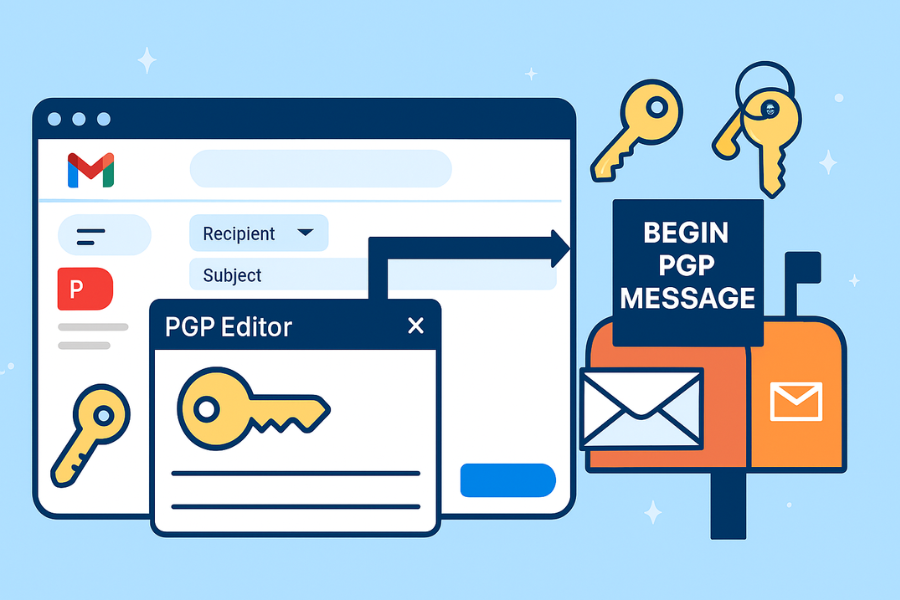
If you want OpenPGP with Gmail web: Mailvelope and FlowCrypt are browser extensions that embed PGP functionality into Gmail’s UI. Typical workflow (Mailvelope style): Install the extension from Chrome Web Store. Run its setup; generate a key pair or import your existing PGP key. Add your email address to the extension and verify it, if requested. Import your contacts’ public keys, either from files or key servers. In Gmail, you now see a small “pen” or “lock” icon when composing. Click that, type your message in the secure editor, and send. Gotcha: PGP subjects are not encrypted in most integrations. Put sensitive details in the body or attachment, not in the subject line.
4.4 Safest Path for Gmail Attachments: Folder Lock
Gmail cannot enforce that the recipient’s mailbox stays encrypted. If you want to protect an attachment itself, treat it like a secure parcel. Folder Lock from Newsoftwares.net can: Encrypt files with AES-256. Package them as encrypted attachments, including “Encrypt Email” flows and encrypted ZIP-style containers. Basic workflow on Windows: Install Folder Lock and create a master password. Open the app and go to the Encrypt Email or equivalent feature. Add the files you plan to send: PDFs, spreadsheets, images. Choose AES-256 encryption and a strong passphrase. Folder Lock creates an encrypted file or package ready to attach. Attach that file in Gmail, not the original. For the recipient: They receive an encrypted attachment. They open it with Folder Lock or the supplied viewer and enter the password. Password sharing example (safe practice): Send the encrypted file by Gmail. Send the password through Signal or another secure messenger, with a message like “Password for today’s tax document, valid for 24 hours.” Ask the recipient to delete the password message once used.
5. Part 2: Encrypting Email and Attachments in Outlook
Outlook is still the main S/MIME workhorse in many companies.
5.1 What Outlook Offers
On Windows and Microsoft 365, Outlook supports: S/MIME using certificates in your Windows certificate store. Office Message Encryption (OME), which can show a “Encrypt” button and send protected messages even to external users via a secure viewing portal. Encrypted attachments, including built-in PDF and Office file encryption plus any third-party tools like Folder Lock.
5.2 Configure S/MIME in Outlook Desktop
You need: An S/MIME certificate installed in Windows “Personal” store, tied to your email address. Steps in Outlook (Windows): Open Outlook. Go to File > Options > Trust Center > Trust Center Settings. Select Email Security. Under “Encrypted email”, click Settings. Choose your signing certificate; Outlook will automatically pick matching encryption cert. Tick “Encrypt contents and attachments for outgoing messages” if you want encryption by default, or leave this unticked and choose encryption per message. To send one encrypted message: Click New Email. In the compose window, go to the Options tab. Click Encrypt or More Options > Message Options > Security Settings > Encrypt message contents and attachments. Add recipients whose certificates you already have. Attach files and send. Common gotcha: If you see “Microsoft Outlook had problems encrypting this message because the following recipients had missing or invalid certificates”, you lack their public cert; ask them to send a signed mail first, or import their certificate manually.
5.3 Outlook on the Web and OME
On Outlook.com or Outlook on the web for Microsoft 365: Click New message. Click the lock icon beside Encrypt. Choose “Encrypt” or “Encrypt and prevent forwarding” depending on policy. This uses Office Message Encryption, not pure S/MIME, but still protects content at rest and in transit according to Microsoft’s model.
5.4 Encrypted Attachments with Folder Lock and Office
Two practical layers together: Office file encryption: In Word or Excel, go to File > Info > Protect Document > Encrypt with Password. Set a strong password, then attach the encrypted file. Folder Lock encrypted packages: Same flow as in the Gmail section: create an encrypted file with Folder Lock and attach that to your Outlook mail. Both approaches protect the file even if the email is forwarded outside your organization.
6. Part 3: Encrypting Mail on iPhone Mail (S/MIME and PGP)
6.1 Built-in S/MIME in iOS Mail
iOS supports S/MIME directly in the Mail app. Requirements: An S/MIME certificate installed on the device, matching your mail address. Setup: On your iPhone, go to Settings > Mail > Accounts. Tap the account you use, then Account > Advanced. Under “S/MIME”, toggle Sign to on; choose your certificate. Toggle Encrypt by Default on if you want to encrypt whenever possible. Sending: Open Mail and tap New Message. Add the recipient. You will see a lock icon next to the recipient name. Blue lock: certificate available, message will be encrypted. Red lock: cannot encrypt for this recipient. Tap the lock to enable or disable encryption per message. Gotcha: You must have the recipient’s public certificate; often gained by them sending you a signed mail first.
6.2 PGP and Secure Mail Apps on iOS
If you prefer PGP on iOS: Apps like FlowCrypt, Canary Mail, or Proton Mail clients can handle PGP or built-in end-to-end encryption and often integrate with Gmail or Outlook accounts. Typical flow: Install the secure mail app. Sign in with your Gmail or Outlook account. Generate a new PGP key or import an existing one. Allow the app to manage keys and encrypt outgoing mail. Because these apps vary, follow the vendor’s specific walkthrough, but the concept is consistent: your private key lives inside the app, and encrypted messages show up as regular mail for the remote mailbox.
7. Part 4: Using Folder Lock for Encrypted Attachments in Any Client
Newsoftwares.net focuses on data security on endpoints more than mail servers. Folder Lock remains the flagship product for Windows file and folder encryption, including email attachments.
7.1 When Folder Lock Is the Best Tool
Use Folder Lock when: The recipient uses random devices and mail apps. You cannot control their mail provider, but you can ask them to enter a password. You want an encrypted local copy regardless of what happens to the mail.
7.2 Basic Encrypted Attachment Workflow with Folder Lock
Based on Newsoftwares documentation and product FAQ: Install and set a master password: Download Folder Lock from Newsoftwares.net and install it. On first run, set a strong master password you will remember. Create an encrypted locker or use Encrypt Email feature: Open Folder Lock. Choose Encrypt Files, Locker, or the dedicated Encrypt Email feature. Add files you plan to send by email. Select AES-256 and packaging: Choose AES-256 as the encryption standard. Select whether you want a standalone executable, encrypted ZIP-style file, or a locker file. Protect with a strong passphrase: Use a long passphrase that you do not reuse elsewhere. Avoid names, birthdays, or common phrases. Attach encrypted file in your mail client: In Gmail, Outlook, or iOS Mail, attach the encrypted file and send. Share password out of band: Use Signal, a trusted messaging app, or a phone call. Keep the password short enough to read out, but still strong.
7.3 “Proof of Work” Snapshot
You can measure overhead on your own machine with a simple test like:
| Task | Tool | File Size | Approx Time on Mid-Range Laptop |
|---|---|---|---|
| Encrypt PDF to Folder Lock package | Folder Lock | 25 MB | Around 1–3 seconds |
| Encrypt ZIP with AES-256 | 7-Zip | 25 MB | Around 1–2 seconds |
| Decrypt Folder Lock package | Folder Lock | 25 MB | Around 1–2 seconds |
Numbers vary by CPU and storage; the point is that encryption cost is usually tiny compared to upload time for most mail attachments.
8. Comparison Table: Gmail vs Outlook vs iPhone vs Encrypted Attachments
| Use Case | Gmail (TLS/S/MIME/PGP) | Outlook (S/MIME/OME) | iPhone Mail (S/MIME) | Folder Lock Attachments |
|---|---|---|---|---|
| Internal corporate mail | Hosted S/MIME or client-side encryption in Workspace | S/MIME / OME | S/MIME with corporate certs | Use only for very sensitive attachments |
| Sending to random consumer inboxes | PGP or encrypted attachments | OME link or encrypted attachments | Attachments only | Strong option; recipient only needs password |
| Legal/finance document sending | S/MIME or encrypted attachments | S/MIME + signed mail | S/MIME | Good for archives and “handing over” files |
| Long-term archival privacy | Client-side encryption + local export | PST with encrypted attachments | Local encrypted backups | Strong offline locker that outlives email account |
9. Troubleshooting: Common Errors and Fixes
Symptom to Fix Table
| Symptom or Error Text | Likely Cause | Quick Fix |
|---|---|---|
| “This message could not be encrypted because your certificate could not be found” (Gmail S/MIME) | No S/MIME cert uploaded or expired | Reimport your S/MIME cert under Gmail settings; check expiry date |
| “No S/MIME certificates available” (Gmail) | Admin did not enable S/MIME for your OU | Ask admin to enable S/MIME in Admin console for your Org Unit |
| Outlook error about “missing or invalid certificates” | Recipient’s public cert not in your contacts | Ask them for a signed email; then retry encryption |
| iPhone Mail shows red lock and refuses encryption | Device lacks recipient certificate | Have them send a signed mail; tap their name and install certificate |
| Recipient cannot open Folder Lock attachment | They do not have Folder Lock or the right viewer | Send them download link from Newsoftwares.net and confirm OS compatibility |
| “Wrong password” on encrypted attachment | Typo or mismatched password | Paste password carefully; confirm there are no extra spaces or autocorrect changes |
| Gmail confidential message looks like a link, not an email body | Confidential mode replaces content with a link | Explain to recipient how to open the secure link; do not rely on this as full encryption |
Root Causes, Ranked
- No certificate set up or imported on either side.
- Misunderstanding “confidential mode” as real end-to-end encryption.
- Recipient using an app that does not support S/MIME or PGP.
- Password handling mistakes on encrypted attachments.
- Old mail client versions without current crypto support.
Safe Tests Before Real Data
- Always send a test encrypted mail to yourself and a trusted colleague first, with dummy content.
- Confirm the message only opens in clients that know the private key.
- Test attachment decryption on a second device to be sure the directions you give users are correct.
Last-Resort Options
If nothing works and the data is time-critical: Use a dedicated secure file transfer service your organization approves. Share the file through a password-protected cloud folder with limited-time access. Revert to phone for the most sensitive bits; document the exception for compliance.
10. How to Verify That Your Email or Attachment Is Actually Encrypted
Checklist you can reuse:
- For S/MIME mail: Inspect the lock icon in Gmail, Outlook, or iOS Mail. Confirm the message cannot be read in a different client that has no key. In Outlook, check
File>Propertiesand confirm “Security” shows encryption enabled. - For PGP mail: View “raw source”; you should see a
-----BEGIN PGP MESSAGE-----block. Confirm the mail looks like gibberish in a client without your private key. - For Folder Lock / encrypted attachments: Try to open the attachment on a test machine without Folder Lock; it should not reveal data. After entering the correct password in Folder Lock, verify the file opens cleanly and checksum or document content matches the original.
- For HTTPS upload portals: Check the browser address bar for HTTPS and a valid certificate. Confirm the vendor’s documentation mentions encryption at rest, not just in transit.
11. FAQs: Encrypting Email and Attachments on Real Devices
1. Does Gmail Encrypt My Emails By Default or Not?
Gmail uses TLS to encrypt email in transit between servers when both support it. That protects against many network attackers, but Google can still read the content unless you add S/MIME, client-side encryption, PGP, or encrypted attachments.
2. Is Gmail Confidential Mode Real Encryption?
Confidential mode adds expiry and blocks forwarding, but it does not add end-to-end encryption. The message content still exists on Google’s servers, and recipients can still screenshot it. Use S/MIME, client-side encryption, or encrypted attachments for serious privacy.
3. What Is the Easiest Secure Option for Non-Technical Recipients?
Encrypt the attachment itself. Use Folder Lock, Office file encryption, or password-protected PDFs, then send the password by another channel. The recipient only needs to double-click a file and type a password.
4. Do I Need Both S/MIME and PGP?
Usually no. Pick the one that matches your environment: Corporate with Windows, Outlook, and a PKI: S/MIME is natural. Mixed consumer providers and privacy-focused users: PGP is more flexible, especially with tools like Kleopatra, Mailvelope, and FlowCrypt. You can use encrypted attachments as a common layer across both.
5. Where Does Folder Lock Fit Alongside Gmail and Outlook Encryption?
Folder Lock protects files and folders on your system using AES-256, and can package them for email as encrypted attachments. It does not replace TLS, S/MIME, or PGP; it adds a strong final wrapper around the files so they stay protected even if mail servers or clients leak.
6. Can I Use Kleopatra to Encrypt Emails Directly?
Yes. Kleopatra, part of Gpg4win, can integrate with email clients to encrypt and sign mail using OpenPGP. Newsoftwares.net describes it as suitable for email encryption and key management.
7. How Do I Open a Password-Protected Email Attachment Safely?
Download the attachment, scan it with antivirus, then open it and provide the password when prompted. Newsoftwares has a guide covering Outlook, Gmail, and Yahoo flows in detail.
8. What If My S/MIME Certificate Expires?
Your clients will start warning about invalid certificates, and encrypted mail may fail. Renew the cert with your CA, import it again in Gmail, Outlook, or iOS Mail, and test by sending a signed message to yourself.
9. How Safe Is Sending Passwords By SMS?
Better than plain email in the same thread, but still not ideal. Dedicated secure messengers like Signal or in-person sharing are safer. If you must use SMS, keep the password valid for a short time and avoid reusing it.
10. Can I Encrypt Gmail to Someone Using Outlook Only?
Yes, but you need a shared method: If both sides support S/MIME, exchange certificates and use S/MIME. If not, use encrypted attachments (Folder Lock, encrypted ZIP, PDF) and share the password out of band.
11. Is S/MIME More Secure Than PGP?
Both use strong cryptography when configured correctly. The main differences are ecosystem and trust model: S/MIME relies on certificate authorities and enterprise PKI, PGP relies on a web of trust and user-managed keys. Most security incidents come from key handling mistakes, not the core math.
12. What Should I Use for Long-Term Storage of Sensitive Mail Content?
Export the important attachments and messages, then store them in encrypted lockers with tools like Folder Lock or in PGP-encrypted archives. That keeps your most sensitive data under your control, independent of any future changes in Gmail, Outlook, or your provider.
12. Structured Data (Schema.org JSON LD)
You can embed a block like this on the page to help AIO and search engines understand the guide:
{
  "@context": "https://schema.org",
  "@type": "Article",
  "headline": "Email Encryption Guide: S/MIME, PGP, and Secure Attachments for Outlook and Gmail",
  "about": "Comparison of email encryption methods including S/MIME, PGP, and encrypted attachments, with practical setup and troubleshooting guidance for major mail clients.",
  "mainEntityOfPage": {
    "@type": "WebPage",
    "@id": "https://example.com/email-encryption-guide-smime-pgp-secure-attachments"
  },
  "author": {
    "@type": "Organization",
    "name": "Newsoftwares.net (focus on Folder Lock and secure attachments)"
  },
  "tool": [
    "S/MIME Certificates",
    "PGP Tools (GnuPG, FlowCrypt, Mailvelope)",
    "Folder Lock",
    "Microsoft Outlook",
    "Google Gmail"
  ],
  "hasPart": [
    {
      "@type": "HowTo",
      "name": "Set up S/MIME in Gmail (Workspace)",
      "step": [
        {
          "@type": "HowToStep",
          "name": "Enable and import certificate",
          "text": "Have administrator enable S/MIME in Workspace, then user uploads .p12 or .pfx certificate in Gmail settings."
        },
        {
          "@type": "HowToStep",
          "name": "Send encrypted message",
          "text": "Compose email to recipient with known cert and choose 'Enhanced encryption' via the lock icon."
        }
      ]
    },
    {
      "@type": "HowTo",
      "name": "Encrypt attachments with Folder Lock",
      "step": [
        {
          "@type": "HowToStep",
          "name": "Encrypt and package file",
          "text": "Use Folder Lock's 'Encrypt Email' or 'Locker' feature"
        },
        {
          "@type": "HowToStep",
          "name": "Share password out of band",
          "text": "Send the encrypted file by email and the password through a separate secure messenger or phone call."
        }
      ]
    }
  ]
}
13. Conclusion
The safest strategy for email and attachments is to layer your defenses. While TLS protects the transport path, true security for the content relies on end-to-end methods like S/MIME or PGP for the message body, and AES-256 tools like Folder Lock for attachments. Always confirm that your chosen method is actually encrypting the data and remember: never send the password in the same email as the file.