
Zero Trust for Everyone: Home Devices, Passkeys, and Encrypted Vaults
This executive overview, created by the security experts at Newsoftwares.net, provides a direct blueprint for implementing Zero Trust (ZT) principles in a small office/home office (SOHO) environment. By focusing on three actionable technical pillars, Assume Breach (Network Segmentation), Verify Explicitly (Passkeys), and Least Privilege (Encrypted Vaults), this guide moves beyond outdated perimeter defense. It ensures continuous verification and robust security for all personal and business assets against modern threats, promoting maximum convenience alongside uncompromised data protection.
The implementation of Zero Trust (ZT) principles in a small office/home office (SOHO) environment mandates a shift from perimeter defense to continuous verification. This requires dismantling the implicit trust historically placed in the local network and the operating system.
I. The Immediate Answer: Stop Trusting Your Network
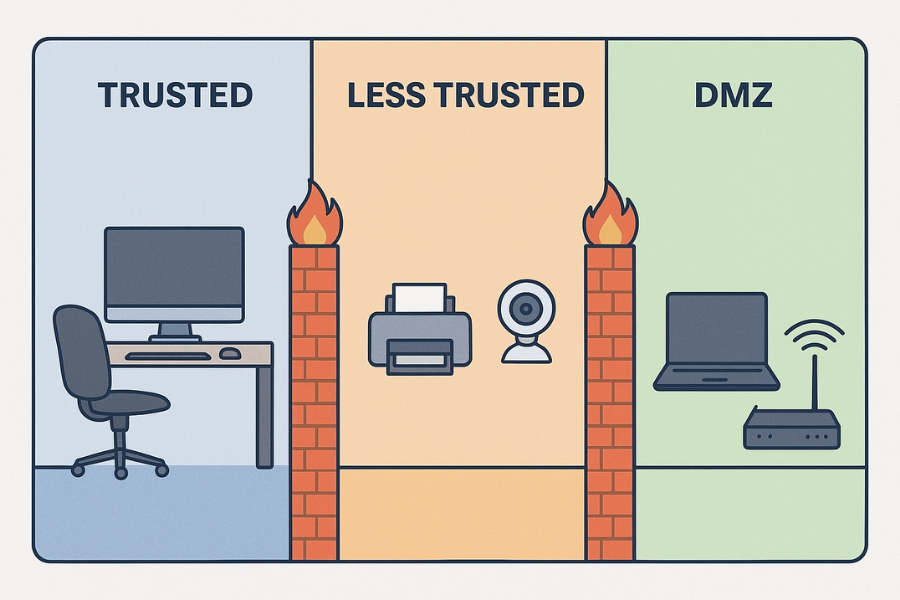
To establish a resilient security posture, the SOHO administrator must adopt the three core ZT principles: Assume Breach, Verify Explicitly, and Use Least Privilege. This translates into three immediate, high, impact technical actions that must be deployed today.
Three Zero Trust Pillars You Must Implement Today
- Pillar 1: Assume Breach (Network Segmentation). Critical infrastructure, such as workstations, servers, and sensitive data storage, must be isolated from low, security devices like printers, smart speakers, and security cameras. A compromised Internet of Things (IoT) device must never be allowed to move laterally into the trusted network segment.
- Pillar 2: Verify Explicitly (Passkeys). Authentication must move beyond shared secrets (passwords). Transition high, value accounts to phishing, resistant authentication methods, specifically Passkeys, which rely on FIDO2 cryptographic key pairs bound to the user’s secure device.
- Pillar 3: Least Privilege (Encrypted Data). Data should not rely on the integrity of the host operating system. Sensitive documents and critical backups must be stored within strong, separately encrypted containers or vaults. The data remains unintelligible even if the local operating system is compromised.
II. Pillar 1: Assume Breach (Network Micro, segmentation)
The fundamental principle of ZT networks is to minimize the influence radius of any successful breach. This approach recognizes that internal compromise is inevitable, thereby focusing defenses on containment rather than prevention at the edge. Micro, segmentation is the technical mechanism that enforces this containment policy.
The Threat: Lateral Movement and Vendor Risk
Modern security analysis confirms that relying solely on a perimeter firewall to protect a network is no longer sufficient. When an attacker successfully breaches one system, their primary goal is lateral movement to find high, value targets, such as domain controllers, servers, or backup storage. Ransomware deployment, in particular, often relies on manual hacking operations, minimizing dwell time and the ability to move freely across the network is paramount to disruption.
A significant concern for SOHO administrators is the risk associated with cloud, dependent network devices. For example, the security incident involving firewall vendor SonicWall demonstrated that 100% of customer cloud backups containing sensitive network configuration data, including rules, VPN setups, and credentials, were compromised. This confirmed that relying on a single perimeter device managed by a vendor, whose own cloud infrastructure might be a single point of failure, is insufficient due diligence.
Micro, segmentation forces a layered defense. If an inexpensive IoT device operating on an internal segment is compromised, the attacker must still explicitly re, authenticate and overcome subsequent firewall rules to reach a machine on the trusted network segment. This directly addresses the ZT mandate to minimize the blast radius of a breach. Technical discussions confirm that network access control (NAC) and zoning are effective countermeasures against manual ransomware spread. The implementation must therefore go beyond mere virtual local area networks (VLANs), it must enforce strict firewall zoning that blocks all unnecessary traffic paths.
Tutorial: Implementing VLANs for IoT Isolation (The OpenWRT Method)
This tutorial assumes the use of advanced routing firmware, such as OpenWRT or AsusWrt, Merlin, which supports 802.1Q VLAN tagging and robust firewall rule management.
Prerequisites and Safety:
A router capable of running OpenWRT (or similar advanced firmware). It is mandatory to create a complete backup of the current router configuration file immediately before making any changes.
| Step (1 Action + 1 Gotcha) | Description/Purpose | Verification Check |
| Step 1: Define VLAN IDs (e.g., 10 for Trusted, 20 for IoT) | Create virtual interfaces using dot, notation on the main physical Ethernet port (e.g., eth0.10 and eth0.20) in the network configuration file (/etc/config/network). |
Gotcha: Never use VLAN ID 1. This ID is frequently used as the default management VLAN, and confusing it with user, defined segments can lead to configuration failure or exposure. |
| Step 2: Configure Switch Port Tagging | If the router uses an internal switch chip, assign the physical CPU port as ‘Tagged’ for VLAN 10 and VLAN 20. Assign specific physical LAN ports as ‘Untagged’ for the desired VLAN (e.g., Port 4 is untagged for VLAN 20 for the IoT hub). | Gotcha: The link connecting the CPU to the switch must be explicitly configured as tagged to carry multiplexed traffic from both the Trusted and IoT networks. |
| Step 3: Create Interfaces and DHCP Pools | Define new interfaces (e.g., LAN_Trusted linked to eth0.10 and LAN_IoT linked to eth0.20). Assign unique, non, overlapping IP address ranges (e.g., 192.168.10.1/24 and 192.168.20.1/24). |
Gotcha: IP ranges must be completely unique. Overlapping subnets (e.g., using a 192.168.1.x range for both networks) will result in unpredictable routing failures and security holes. |
| Step 4: Bridge Wireless Networks | Create distinct WiFi Service Set Identifiers (SSIDs), such as “HomeIoT,” and bridge them exclusively to the newly created LAN_IoT interface. |
Gotcha: When using external Access Points (AP) or a “Dumb AP” setup, ensure the uplink cable connecting the main router and the AP is also configured as a tagged trunk port for all required VLANs. |
| Step 5: Define Firewall Rules (Critical Enforcement) | Create a custom firewall zone specifically for the IoT network (e.g., IoT_Zone). Set the default INPUT, OUTPUT, and FORWARD policies to REJECT or DROP. The explicit ZT rule must block lateral movement: FORWARD traffic from IoT_Zone to LAN_Trusted must be dropped. Only allow IoT_Zone to communicate with WAN. |
Gotcha: Allowing only IoT_Zone to reach WAN (Internet) and explicitly prohibiting its path back to the LAN_Trusted network is essential for containment. This is the mechanism that enforces Least Privilege access on the network path. |
Verification: Confirming Containment
Verification of containment ensures the segmentation is functional and not merely configured on paper. The process involves attempting to violate the rules set in Step 5.
A device connected to the newly segmented IoT VLAN (VLAN 20) must be used to attempt access to a known device on the Trusted VLAN (VLAN 10). The attacker should attempt to ping the IP address of the server or workstation on VLAN 10. The packets must be dropped by the firewall, resulting in a timeout or destination unreachable error.
Proof of Work Block: Segmentation Effectiveness
- Scenario: A simulated attempt by an attacker (or script) running on a compromised smart thermostat (connected to VLAN 20) attempts to scan for open shares on the Network Attached Storage (NAS) located on VLAN 10.
- Result: The attempt fails instantly. The strict firewall rule blocking
FORWARDtraffic between the zones prevents the compromised device from discovering or interacting with any asset outside its designated segment. The lateral movement necessary for successful ransomware deployment is structurally prevented.
Enhanced Network Control: Encrypting DNS Traffic
Securing the identity perimeter requires that communications themselves are explicitly protected. Unencrypted DNS queries, typically sent over UDP port 53, leak critical metadata detailing every website or service accessed by the user. Encrypting this traffic using DNS over TLS (DoT) or DNS over HTTPS (DoH) is an essential component of ZT infrastructure.
Tutorial: Setting up DNS over TLS (DoT) in Windows 11
Windows 11 provides native support for DoT, allowing device, level control over network privacy.
- Open Windows Settings (Win + I), navigate to Network and Internet, and select the Properties menu for the currently active connection (Ethernet or WiFi).
- Locate the DNS Server Assignment setting and click the Edit button.
- Set the configuration method to Manual. Enter the preferred DoT server IP addresses (e.g., a Cloudflare resolver address, 1.1.1.1) in the appropriate IPv4 and/or IPv6 fields.
- Select the Encrypted only (DNS over TLS) option from the dropdown menu to enforce secure resolution.
- Final security hardening steps must be executed using an elevated Command Prompt to confirm the configuration and ensure system compliance:
netsh dns add global dot=yesnetsh dns add encryption server=<IP-address> dothost=<host-name> autoupgrade=yes(The<IP-address>is the numeric IP of the resolver, and<host-name>is its domain name, e.g., one.one.one.one).ipconfig /flushdns(Clear the local resolver cache to force immediate use of the new configuration).
Router, Level DNS Force (AsusWrt, Merlin)
To ensure that rogue clients or applications cannot bypass the configured DoT settings by using their own hardcoded DNS resolver, the router must be configured to intercept and redirect all port 53 traffic.
- Access the router interface (usually 192.168.1.1) and navigate to the WAN DNS Settings tab.
- Set the option Connect to DNS server automatically to No. Manually enter the addresses of the secure public DNS servers.
- To enforce this redirection, navigate to the Port Trigger section.
- Enable Port Triggering. Create a rule that captures traffic: Set the Trigger Port (53, TCP) and the Incoming Port (53, UDP) to be redirected. This configuration forces every device attempting standard DNS resolution to utilize the secure, configured DNS resolver.
III. Pillar 2: Verify Explicitly (The Passkey Transition)
The second pillar of Zero Trust focuses on identity: explicit verification of the user and device before granting access. This requires eliminating passwords, the weakest link in almost every security chain. Passkeys, based on the FIDO2 standard, provide the cryptographic solution for this transition.
The Passkey Advantage: FIDO Cryptography
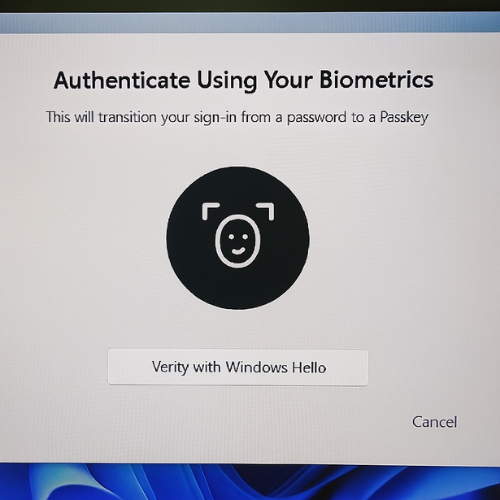
Passkeys fundamentally change the authentication dynamic by removing the “shared secret.” Traditional passwords rely on something the user knows, which must be stored on a server (often as a hash) and transmitted during login. If the server is breached, the secret is exposed.
Passkeys, conversely, are pairs of cryptographic keys. The private key is unique to the user and remains securely stored within the device’s secure enclave or Trusted Platform Module (TPM), protected by a local biometric scan (fingerprint, face) or a PIN. The service provider stores only the public key. Authentication occurs when the device responds to a cryptographic challenge, proving possession of the private key without ever transmitting it across the network. This process makes Passkeys inherently phishing, resistant, as the key is bound to the specific domain URL, preventing Man, in, the, Middle (MITM) attacks.
The absence of a shared secret means that even if a service provider’s authentication servers are fully compromised, the user’s private keys remain protected on their local device. This is the strongest application of explicit verification in identity management.
Identity Security Comparison
The table below contrasts the security features of traditional password management with FIDO2 Passkeys.
Identity Security Comparison
| Feature | Traditional Password Manager | Passkeys (FIDO2) | Security Mechanism |
| Phishing Resistance | Low (Vulnerable to credential harvesting) | High (Cryptographically Bound to URL) | The private key cannot be used on an incorrect domain. |
| Multi, Factor Authentication | Requires a separate step (TOTP/Push) | Built, in by design | Biometric or PIN access to the key is the second factor. |
| Server Risk | High (Server breach exposes hashed passwords) | Low (Server holds only the public key) | Private key never leaves the device’s secure enclave. |
| User Experience | Requires copying/pasting passwords | Simplified via instantaneous biometrics/PIN | Authentication is fast and seamless. |
For Windows 11 environments, there is a common implementation friction point that must be managed: the browser prioritization of mobile devices. When registering a Passkey, browsers like Chrome or Edge may default to showing a QR pairing screen, encouraging the registration of a mobile Passkey stored on a phone. For SOHO administrators prioritizing local control, this is undesirable. The correct protocol is to seek the “More choices” option to ensure the Passkey is stored locally via Windows Hello or on a physical FIDO security key. This maintains maximum security autonomy.
Tutorial: Passkey Setup Guide (Cross, Platform Implementation)
The Passkey registration process begins within the security settings of the online service (e.g., Google, Microsoft, banking portal).
A. Windows Hello (Edge or Chrome)
- Navigate to the online service’s security page and initiate the Set up a Passkey or FIDO2 Security Key process.
- If the browser displays a QR code for mobile pairing, look for and click the More choices or Sign in another way link beneath the QR code.
- Explicitly select Windows Hello to instruct the browser to store the private key locally, utilizing the system’s Trusted Platform Module (TPM).
- Authenticate the creation request using the established Windows Hello method (PIN, fingerprint, or facial recognition). The key is now protected by hardware.
B. Apple iOS (iPhone/iPad)
- On the service’s website or application, navigate to the sign, in screen and tap the account name field.
- If the Passkey is stored in the iCloud Keychain, the device will automatically suggest the correct account name near the keyboard.
- Tap the suggested name. The user must then use Face ID or Touch ID to finalize the authentication.
- The system uses the iCloud Keychain to manage the cryptographic exchange, ensuring synchronization and strong authentication.
C. Android (Google Password Manager)
- Access the target application and navigate to the security or account settings page. Tap the option to Create a Passkey.
- The system will display the data associated with the new key. Confirm the details.
- Finalize the key creation using the device screen unlock method (PIN or biometric scan).
- To ensure seamless operation, verify that the preferred password manager (e.g., Google or Bitwarden) is enabled to suggest Passkeys. This is managed in Android Settings under Passwords, passkeys and accounts.
Troubleshooting: Passkey Failures
Passkey troubleshooting generally revolves around synchronization or revocation errors. Since the private key must be possessed by the device, problems usually stem from key lifecycle management.
Passkey Troubleshooting Guide
| Symptom/Error String | Root Cause | Non, Destructive Test | Resolution Steps |
| “Sign in another way. We couldn’t use your device to verify your identity.” | The device cannot locate a valid, registered private key associated with the account, possibly due to revocation or system clean, up. | Check the device’s specific Passkey storage settings (e.g., Windows Credential Manager or Android Passkey list) to confirm the key’s existence. | Use a backup method (password, temporary code) to log in. Once logged in, delete any invalid or expired Passkeys from the account dashboard and register a new Passkey on the current device. |
| “This passkey can no longer be used.” | The service provider indicates the key was manually deleted from the account or synchronization failed, leaving the local device with an unusable key reference. | Access the account via a secondary device or method to confirm the key’s status in the provider’s security settings. | If the key is confirmed deleted or invalid, register a brand new Passkey pair. It is also recommended to review authenticator apps for residual, non, functional keys and delete them. |
IV. Pillar 3: Least Privilege (Encrypted Data Vaults)
Even if the network is segmented and identities are verified, a highly determined attack might compromise the endpoint operating system itself. The principle of Least Privilege dictates that access to sensitive data must be independent of the host OS security model. This is achieved using encrypted vaults that require a separate, strong passphrase to access the data.
Choosing Your Vault: Technical Criteria
Effective data protection requires selecting tools with robust cryptographic standards and practical implementation features. Simply relying on operating system full, disk encryption, such as macOS FileVault, is insufficient for cloud, synced, sensitive data because it protects the disk state but not the integrity or confidentiality of metadata in transit.
- Key Derivation Function (KDF): The KDF converts the user’s password into the encryption key. A strong KDF is essential to resist brute, force attacks. Solutions should support memory, hard functions like Argon2id or high, iteration count functions like PBKDF2-HMAC-SHA-512.
- Cipher Performance and Ubiquity: While multiple strong ciphers exist (Serpent, Twofish), performance matters significantly for usability. AES-256 is the industry standard and benefits from dedicated hardware instruction sets (AES-NI) present in modern CPUs, making it significantly faster and more practical than computationally complex alternatives like Twofish for standard text and image encryption tasks.
- Metadata Protection: For data stored in cloud services (Dropbox, OneDrive), file names, directory structures, and file modification timing must be obscured. Solutions like Cryptomator address this by explicitly encrypting file headers and individual data chunks.
Encrypted Vault Security Comparison
This comparison focuses on three leading data protection methods, highlighting the architectural differences critical for implementing the Least Privilege principle.
Data Vault Security Comparison
| Feature | VeraCrypt | Cryptomator | FileVault (macOS) |
| Primary Use Case | Large Volume/Disk Encryption | Cloud Sync (Per, File Encryption) | Full Disk Encryption (Local) |
| Recommended Cipher | AES-256 (Optimal with AES-NI) | AES-256 (AES-GCM for efficiency) | XTS-AES-128 (OS, integrated) |
| KDF Strength | Argon2id, PBKDF2-SHA-512 (Configurable) | Scrypt/PBKDF2 | OS, Integrated |
| Cloud Optimization | Low (Large single container sync) | High (Chunking and File Header Encryption) | None (Exposed metadata upon sync) |
| Metadata Protection | Hidden Volume (Plausible Deniability) | Explicit File Header Encryption | Metadata is typically visible to the OS and cloud sync service. |
The choice between ciphers for vault encryption relies on practical performance. While algorithms like Twofish are secure, extensive analysis indicates that AES offers faster encryption for general data workloads when supported by modern processor instruction sets. For the busy administrator, maximizing performance minimizes friction and ensures the tool is actually used consistently. Therefore, selecting AES-256 is the practical choice that balances security and performance.
When integrating data encryption with cloud storage, the structure of the vault matters. A large, single VeraCrypt container requires the entire container file to resync whenever any small change is made inside. Cryptomator circumvents this inefficiency by using AES-GCM to encrypt files chunk, by, chunk and encrypting the file header, which includes critical metadata like the file content key. This design allows for efficient, least, privileged file synchronization.
VeraCrypt also offers a highly specialized feature called the Hidden Volume, designed for plausible deniability under coercion. However, its operational security must be respected. If the outer, decoy volume is mounted with the hidden volume protection setting enabled, an attacker can still detect that a hidden volume exists within the space. To maintain the Least Privilege goal, the data must be protected, and the existence of sensitive data must be concealed, the user must be instructed only to mount the outer volume “as a normal volume” if under duress.
Tutorial: Creating a Secure Encrypted Vault (VeraCrypt)
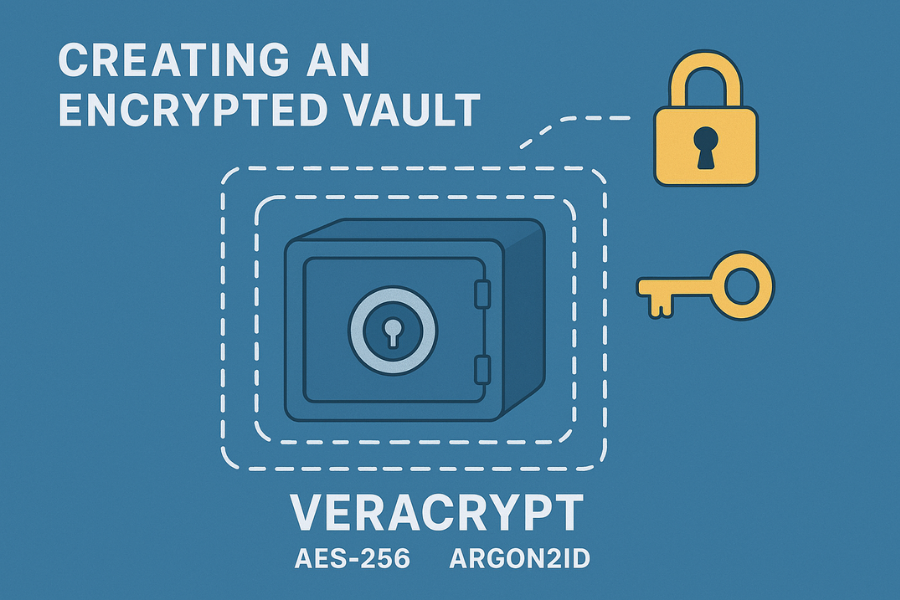
VeraCrypt is a highly audited, cross, platform solution for creating encrypted file containers.
Prerequisites and Safety:
Download VeraCrypt and verify the installer signature. Prepare a dedicated, high, entropy password (30+ characters) that is not used for any other account or device login.
Proof of Work Block: Settings Snapshot (VeraCrypt)
- Settings Used: Algorithm: AES-256. Hash Algorithm: SHA-512. Key Derivation Function: Argon2id. File System: NTFS.
- Step 1: Initiate Volume Creation and Type Selection
- Run VeraCrypt and click Create Volume. Select Create an encrypted file container. Proceed past the first page.
- Select Standard VeraCrypt volume. Only proceed to create a hidden volume if the administrator fully understands the coercion risks and operational requirements.
- Step 2: Define Location, Algorithm, and KDF
- Define the file path and size of the container.
- Select AES-256 for the encryption algorithm. This ensures compatibility with hardware acceleration (AES-NI).
- Select Argon2id for the Key Derivation Function. Argon2id is a memory, hard function designed to significantly slow down hardware, accelerated brute, force attacks compared to PBKDF2.
- Step 3: Set Password and Keyfiles
- Enter the unique, complex password. VeraCrypt offers the option to supplement the password with a Keyfile (a random image or document) for multi, factor vault access.
- Gotcha: If the password is forgotten, or the keyfile is lost, access to the encrypted data is permanently forfeited. Secure backups of recovery information must be maintained offsite and disconnected from the network.
- Step 4: Format and Cryptographic Randomness
- Move the mouse randomly within the volume creation window to generate sufficient cryptographic entropy for the random salt generation.
- Select the desired file system (NTFS is recommended for maximum compatibility and large file support on Windows) and click Format.
- Step 5: Verification of Functionality
- Mount the newly created volume using the password and/or keyfile. Copy 1 GB of sensitive test data into the mounted drive.
- Dismount the volume.
- Verification: Attempt to mount the volume using a slightly incorrect password. The system must fail, reporting the specific error string: “Incorrect password or not a VeraCrypt volume”.
Proof of Work Block: Bench Table
The performance of the volume creation process is influenced by the selected cipher and KDF, which determines the resistance to offline attacks.
VeraCrypt Volume Creation Benchmark (1GB)
| Algorithm | Key Derivation Function | Creation Time (1GB) | Load/Unload Time |
| AES-256 | PBKDF2-SHA-512 | 1 minute 55 seconds | Instant |
| AES-256 | Argon2id | 2 minutes 18 seconds | Instant |
| Twofish | PBKDF2-SHA-512 | 3 minutes 05 seconds | Instant |
The data confirms that while Argon2id slightly increases creation time compared to PBKDF2, its enhanced security against brute, forcing is justified. The performance difference between hardware, accelerated AES-256 and the complex Twofish algorithm is clear.
Common Errors and Fixes (Data Vaults)
| Symptom/Error String | Root Cause | Non, Destructive Test | Resolution Steps |
| “Incorrect password or not a VeraCrypt volume.” | The volume header, which contains the key and hash information, has been damaged by external software or improper shutdown. | Run a file system integrity check (e.g., chkdsk on Windows) on the partition hosting the container file. |
In the VeraCrypt application, select Tools > Restore Volume Header. Attempt to restore the header from the backup copy embedded within the volume. |
| VeraCrypt volume cannot be mounted, or fails to create NTFS volumes. | Corruption in the Master Boot Record (MBR) or Boot Sector of the host system, which conflicts with VeraCrypt’s low, level volume handling. | Attempt to mount a non, NTFS volume, such as FAT32, to isolate the issue to the file system structure. | Boot the machine using a Windows Installation disk. Select “Repair your computer” and open the Command Prompt. Execute the following commands, then restart the system: BootRec /fixmbr, BootRec /FixBoot. |
V. Structured Troubleshooting and Synthesis
Implementing ZT across these three pillars introduces distinct failure points. The following matrix provides a consolidated reference for addressing common issues encountered in a hardened SOHO environment.
Zero Trust Implementation Troubleshooting Matrix
| ZT Pillar | Symptom | Root Cause | Resolution |
| Network (Assume Breach) | DNS lookups are slow, or security reports show unencrypted DNS traffic. | Device or router is defaulting to port 53 and bypassing the DoT/DoH redirection rule set up on the router. | Review the AsusWrt, Merlin Port Trigger settings to confirm that all UDP and TCP port 53 traffic is being forced to the secure, internal resolver IP address. |
| Identity (Verify Explicitly) | User receives a persistent authentication error when trying to use their Passkey on a new laptop. | The Passkey was registered as device, bound and does not synchronize with the cloud keychain (e.g., registered locally on an iPhone but not synced via iCloud). | The user must use a fallback method, delete the faulty key, and re, register the Passkey, ensuring it is enabled for cloud synchronization or is explicitly registered on the new device. |
| Data (Least Privilege) | Cannot create a standard volume, and the format operation fails consistently. | Underlying cluster size settings are too small for the container’s size, leading to file system allocation errors. | Reformat the volume file, selecting a larger cluster size (e.g., 64 KB or 128 KB) during the VeraCrypt format process. |
VI. Conclusions and Actionable Recommendations
Zero Trust is the practical security architecture for the modern SOHO environment, driven by the need to secure personal and business assets against sophisticated threats like lateral movement and credential theft. This approach eliminates the historical reliance on a singular perimeter and enforces continuous, explicit verification.
The most critical step is understanding that reliance on a centralized point of trust, whether it is an internal firewall policy, a shared secret (password), or the host operating system, creates a single, high, value target for attackers.
By segmenting the network using VLANs and strict firewall rules, the influence radius of any compromised IoT device is severely limited. By transitioning to FIDO2 Passkeys, the user removes the shared secret vulnerability that underpins most phishing and brute, force attacks. Finally, by utilizing specialized encrypted vaults and robust KDFs like Argon2id and AES-256, the confidentiality of critical data is maintained even if the host machine is fully breached. This triad of technical solutions provides the necessary operational security to move beyond outdated security paradigms.
Frequently Asked Questions (FAQs)
1. Is Zero Trust overkill for a home network
The complexity is justified by the increasing presence of vulnerable IoT devices (smart speakers, cameras) and the rising threat of ransomware that targets home infrastructure. ZT mitigates the risk of a low, security device being used as the entry point to access financial documents or primary backups.
2. Should I use a standard password manager if I have Passkeys
Yes. While Passkeys are superior and inherently phishing, resistant, they are not universally supported across all services. A strong, unique password generated and managed by a reputable password manager remains necessary for legacy applications that do not yet support FIDO2.
3. If I use AES-256 for my vault, how long will it take an attacker to crack it
AES-256, when combined with a memory, hard KDF like Argon2id and a complex, high, entropy passphrase, makes brute, forcing computationally infeasible, even with dedicated hardware. The encryption’s strength is robust, the security weak point lies entirely in the complexity and secrecy of the user, defined passphrase.
4. Does FileVault on my Mac meet the “Encrypted Vault” criteria
FileVault offers strong full disk encryption. However, for Least Privilege data protection, dedicated vaults are superior because they offer control over KDF choice (Argon2id vs. system default), cross, platform portability, and, critically, metadata protection when syncing files to untrusted cloud storage.
5. How often should I review my network segmentation rules
Firewall rules should be reviewed immediately upon the introduction of any new network device or server, or after any significant router firmware upgrade. Any communication between segments must follow the Least Privilege model, meaning traffic should only be allowed via the specific port and protocol absolutely necessary, and no more.