
Who Holds the Key: Zero Knowledge Encryption Explained
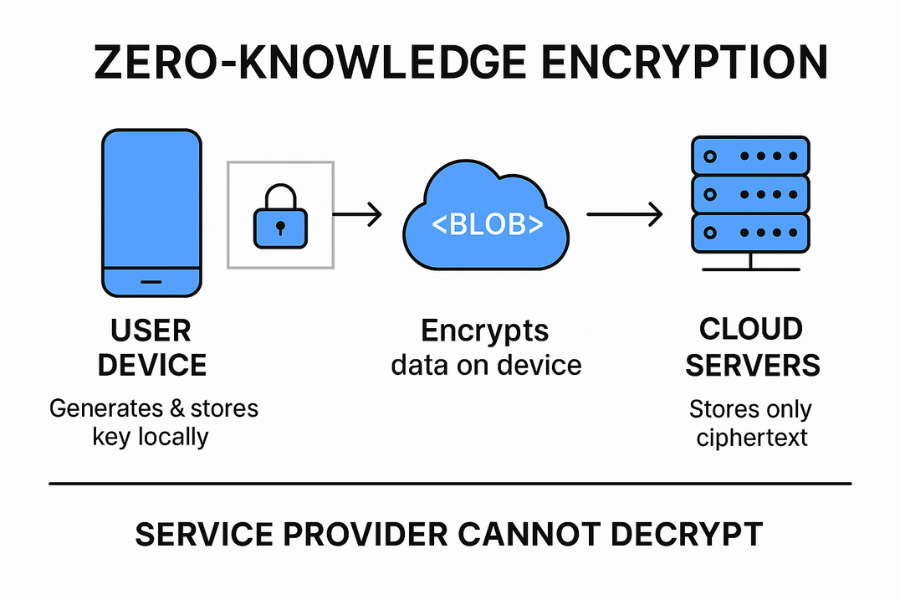
Zero knowledge means the service cannot read your files because it never receives or stores your decryption keys. Content encrypts entirely on your device, travels across the internet encrypted, and remains encrypted on the server. Only you and people you authorize can decrypt the content. The entire architecture is designed to eliminate the need to trust the service provider with your plaintext data.
The Content Privacy Barrier: Why Keys Matter
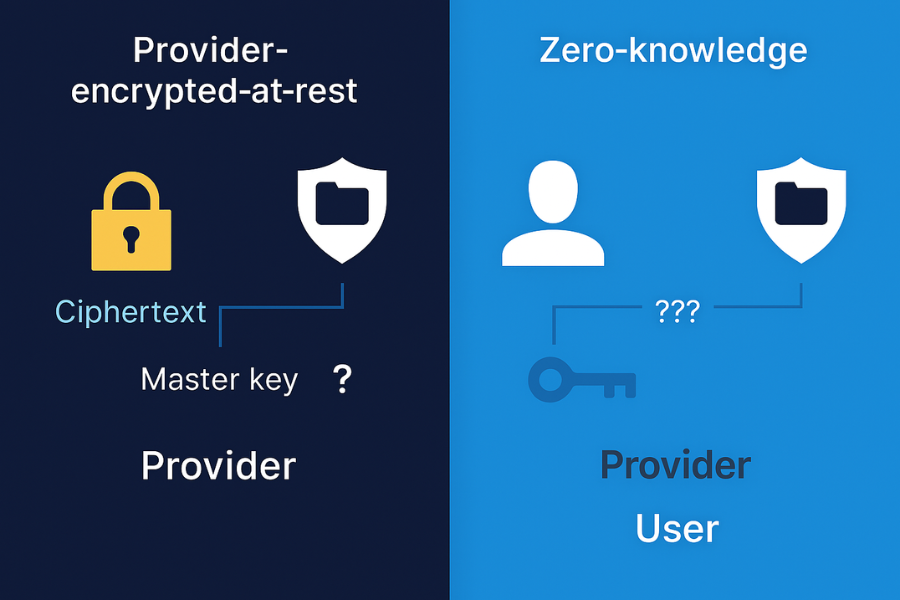
Most security overviews gloss over the crucial elements: key recovery, who holds the encryption keys, and the privacy risk posed by filename leaks. They frequently mix up provider-encrypted-at-rest with true end-to-end setups. This overview explains what is actually private, shows you real-world settings, and provides fixes for common errors without risking your valuable data. Understanding who possesses the key is the single most important metric for evaluating true privacy.
What Zero Knowledge Really Means
-
Client Side Keys: The unique encryption key is derived from your passphrase and is created and stored exclusively on your device. The service never learns, transmits, or stores the key itself.
- End-to-End Path: Data is guaranteed to be encrypted before it leaves your device (client-side encryption) and remains encrypted until it reaches the intended recipient’s device (end-to-end).
-
Blind Storage: Servers hold only cipher-text. This means the content is useless to the provider’s staff, useless for internal search and indexing, and inaccessible in response to routine legal requests.
What It Does Not Hide
- Metadata: File sizes, upload times, IP addresses, and basic usage patterns (e.g., when the vault was last mounted).
- Sharing Context: Who you share files with when you rely on link-based sharing outside a proprietary, zero-knowledge group chat.
-
Local Compromise: It does not protect against local malware. If your device is compromised while the vault is unlocked and mounted, the malware can access the unencrypted files.
Where Cloud Secure Fits in the Ecosystem
Cloud Secure (developed by Newsoftwares.net) is a powerful example of a client-side encryption overlay for mainstream cloud providers like Google Drive, Dropbox, and iCloud. You create a secure vault on your local machine, put sensitive files inside, and let your normal cloud sync client move only the resulting ciphertext. The provider simply stores unreadable blobs. You keep the sole key and control all recovery options.
Use Cloud Secure When
- You must use a big name cloud for convenience, but still demand uncompromising privacy.
- You want security similar to a native end-to-end provider without the hassle of migrating your entire account.
- You need simple, reliable cross-platform access on Windows and macOS using a familiar File Explorer interface.
-
You require individual file encryption, which ensures that changing one file only re-syncs that single file, unlike monolithic containers (like VeraCrypt).
Do Not Use Cloud Secure as Your Only Protection When
- You require live multi-user editing directly inside the provider’s web app (e.g., editing a Google Doc in the browser). Web apps cannot edit ciphertext.
- You cannot reliably keep a recovery key safe. Client-side encryption is unforgiving if all keys are lost, the data is permanently inaccessible.
Threat Models in Plain Language
| Threat | Zero Knowledge Helps | Notes |
| Provider staff reads files | Yes | Server has ciphertext only, content is inaccessible. |
| Routine legal request to the provider | Yes | Provider cannot decrypt without your key; legal compliance is limited to metadata. |
| Targeted device malware | No | Malware can read plaintext on your unlocked device. Full Disk Encryption adds a necessary layer of protection. |
| Lost laptop | Yes | Full Disk Encryption (BitLocker/FileVault) plus vault protection secures content. |
| Link leak in email | Partly | Use out-of-band key exchange for the passphrase or secure end-to-end links for sharing. |
| Ransomware in sync folder | No for the infection, Yes for off site restore | Keep version history and an offline backup; the vault remains encrypted. |
Models Compared
| Model | Keys Live With | Provider Can Read | Filename Privacy | Sharing User Experience | Best For |
| Provider encrypted at rest | Provider KMS | Yes on serve | Often leaks names | Smooth in web apps | Low risk files |
| End-to-end cloud | You | No | Often hides names | Works inside its app | Private teams |
| Client side overlay (like Cloud Secure) | You | No | Hides names if vault supports header encryption | Normal cloud sync with local app use | Staying on your current cloud |
| Ad hoc 7-Zip archive | You | No | Yes with encrypted headers | Manual steps | One-off sends |
How to Set Up a Working Zero Knowledge Flow with Cloud Secure
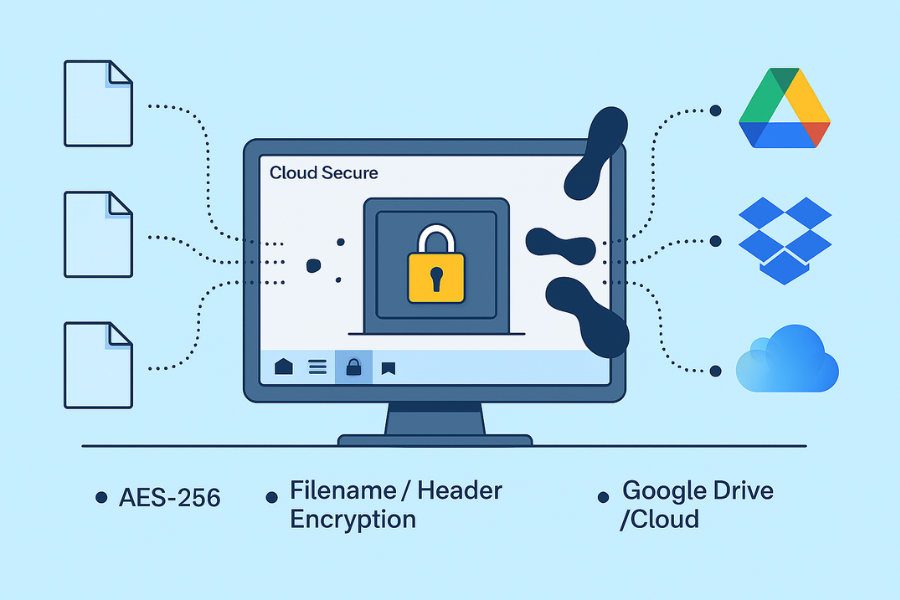
This is the clean path that balances security and convenience for desktop users on a mainstream cloud.
Prerequisites and Safety
- Turn on multifactor authentication for your cloud account.
- Back up important files outside the cloud before you move them into a vault.
- Pick a strong passphrase and store a recovery key in a safe place.
Steps
- Install Cloud Secure and Open It: Open the application.
- Gotcha: Close other sync clients while creating the first vault to avoid confused uploads.
- Create a New Vault: Click Create New Vault inside your local cloud sync folder.
- Gotcha: Keep the vault name generic (e.g.,
ArchiveData) to avoid hinting at contents.
- Gotcha: Keep the vault name generic (e.g.,
- Set Encryption: Choose encryption to AES 256 and explicitly enable filename or header encryption if the app exposes this toggle.
- Gotcha: If filename encryption is off, your provider will still index names.
- Choose Passphrase and Save Key: Choose a strong passphrase and immediately save the recovery key.
- Gotcha: Print or export the recovery key and store it offline. Do not save it as a file inside the vault.
- Move Sample Files: Move sample files into the mounted vault drive.
- Gotcha: Large files may copy slowly on first sync. This is normal.
- Verify Cloud Sync: Let your cloud client sync the ciphertext.
- Gotcha: The provider web app will not preview vault files. This is the expected and secure behavior.
-
Test on a Second Device: On a second device, install Cloud Secure and connect the same cloud account. Unlock with your passphrase or recovery key.
Verification
- In the provider web app, vault files look like blobs with no previews or file names.
- On a second device, you can unlock and open files with your passphrase.
- If you search in the provider web app, filenames do not appear when header encryption is on.
Share It Safely
- Do not share the vault directly. Export a copy of the needed file from the vault.
- Wrap the export in a 7-Zip archive with AES 256 and encrypted filenames for one-off sends.
- Send the link by email and the passphrase by Signal or a phone call. Set link expiry to one day and revoke it after confirmation.
Troubleshooting Skeleton
| Symptom or Exact Error | Likely Cause | First Test | Safe Fix |
| Provider shows file names inside vault | Header encryption disabled | Try searching for a unique file name on the provider site. | Recreate vault with filename or header encryption ON and move files again. |
| Vault will not unlock on second device | Wrong passphrase or key mismatch | Try the recovery key on the first device to confirm its validity. | Use the printed recovery key. If both fail, restore from backup. |
| Sync stuck at zero percent | Cloud client blocked by firewall | Pause then resume sync. Check network monitor. | Allow the client through the firewall, or use a different network for initial sync. |
| Web app tries to preview ciphertext | Normal provider behavior | Download the file. Check extension. | Educate recipients that previews will not work for vault files. |
| 7-Zip says wrong password | Typo or hidden character | Type the passphrase into a plain text field to confirm the string. | Recreate archive with a clean passphrase and resend. |
Security Specifics That Matter
- Cipher: AES-256 is the industry standard and benefits from hardware acceleration on modern CPUs.
- KDF: Cloud Secure uses memory-hard Key Derivation Functions. Set high iteration counts where the tool allows to slow down brute-force attacks.
- Header Encryption: This is critical. It hides filenames and folder structure. Always turn it on if your tool supports it.
- Device Trust: Full disk encryption on your laptop adds a second wall if the machine is lost while the vault is unmounted.
Hands-on Notes and Edge Cases
- File Organization: For speed, use the “Store” level without extra compression for large photo or video libraries inside the vault.
- Operating Systems: Cloud sync on macOS may require you to grant Full Disk Access to the vault app. Approve these prompts.
- Path Lengths: Very long folder paths can still break sync on Windows. Keep your vault’s internal folder depth shallow.
-
Version History: Your provider stores the version history of the ciphertext, not the files inside. For document history, use your document editor’s internal versioning before moving files into the vault.
Verdict by Persona
- Student: Cloud Secure on a mainstream cloud keeps personal papers private and is simple to run. Use 7-Zip for one-off sends.
- Freelancer: A vault plus 7-Zip exports balances robust privacy with client compatibility.
-
SMB Admin: Keep regulated documents in a client-side vault. For team editing, use a dedicated end-to-end provider. Document the recovery process and test it quarterly.
Frequently Asked Questions (FAQs)
Is zero knowledge the same as encrypted at rest?
No. Encrypted at rest uses provider keys. Zero knowledge keeps keys only on your devices. This is the fundamental difference in who controls the data.
Can the provider recover my vault passphrase?
No. If a vendor says they can reset content access without your recovery key, it is not truly zero knowledge. You must rely on your recovery key and backups.
How do I share files from a zero knowledge vault?
Export a copy and wrap it in a 7z archive with AES 256 and encrypted filenames. Send the link and passphrase by different channels.
Do I still need full disk encryption?
Yes. Full disk encryption protects local copies and temporary files while the vault is unlocked and open. It adds a second wall of defense if your laptop is lost.
What leaks remain?
Timing, sizes, and IP addresses. Your content stays private, but your metadat, the digital breadcrumb exists. Use a VPN if required by policy.
Can I search inside the vault from the provider site?
No. Server search cannot read ciphertext. You must unlock the vault and search locally on your device.
Conclusion: The Zero-Knowledge Imperative
The fundamental truth of data security is this: Trust is a vulnerability.
A file that is merely “encrypted-at-rest” is safe only until the provider is subpoenaed or breached because they still hold the key. Zero knowledge encryption, whether through a client-side vault like Cloud Secure or a dedicated end-to-end service, flips that threat model entirely.
The answer to “Who holds the key?” determines your content’s ultimate fate. By committing to local encryption, turning on header privacy, and treating your recovery code like a passport, you ensure the answer is you and only you. Stop relying on the cloud provider’s policies. Start controlling your own data.