
Windows 11 Encryption Overview: EFS and BitLocker
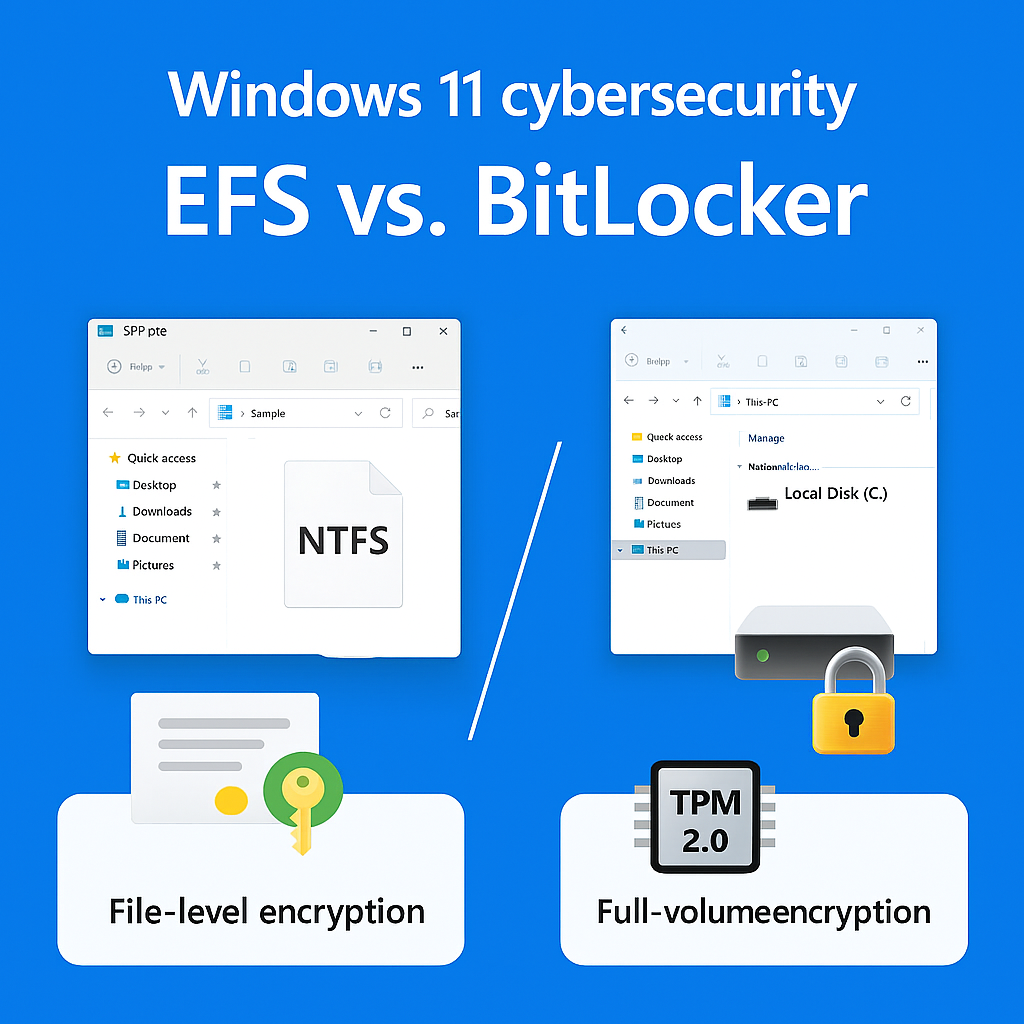
This comprehensive overview, developed by the security experts at Newsoftwares.net, details the native encryption solutions available in Windows 11. If protection is required for sensitive information on Windows 11, the method employed must match the version of Windows being used and the scope of the data needing protection. Standard Windows 11 offers two primary native solutions: Encrypting File System (EFS) for individual files and folders, and BitLocker for entire volumes. This guide provides clear, step, by, step instructions for both, ensuring your data is protected against both external theft and unauthorized local access for verifiable security and convenience.
If protection is required for sensitive information on Windows 11, the method employed must match the version of Windows being used and the scope of the data needing protection. Standard Windows 11 offers two primary native solutions: Encrypting File System (EFS) for individual files and folders, and BitLocker for entire volumes. Full control over BitLocker Drive Encryption is restricted to Windows 11 Pro, Enterprise, or Education editions. Windows 11 Home Edition relies on a feature called Device Encryption, which provides automatic, system, wide protection.
The Right Tool for the Job Summary
- To secure individual documents or shared folders: EFS is the recommended tool, but users must immediately back up the EFS private key to prevent permanent data loss.
- To secure the primary Windows drive (Home Edition): Device Encryption handles full, disk protection automatically, provided the hardware meets the Trusted Platform Module (TPM) 2.0 requirement.
- To secure removable media or secondary internal drives (Pro/Enterprise): Standard BitLocker Drive Encryption offers advanced customization of ciphers and key protectors.
Windows 11 Encryption Roadmap: Where to Start
Understanding the fundamental difference between EFS and BitLocker is key to deploying effective data protection. BitLocker operates at the volume level, locking down the entire drive against offline attacks, such as when an unauthorized party attempts to read the disk contents by removing it from the computer. EFS, conversely, operates at the file level, securing specific documents or folders even when the drive itself is shared or mounted.
The Crucial Distinction: Home versus Pro Encryption
Widespread confusion persists regarding which Windows edition supports which encryption feature.
The full, featured BitLocker Drive Encryption interface, which grants administrative flexibility to manage recovery keys, suspend protection, and specify encryption strength, is exclusively available in Windows 11 Pro, Enterprise, and Education editions.
Windows 11 Home includes a simplified mechanism known as Device Encryption. This feature uses the same underlying BitLocker technology to encrypt the operating system and fixed data drives. It is intended for everyday users who require security without managing complex settings. Device Encryption is typically enabled automatically when a user signs in with a Microsoft account or a work or school account on a device that meets the necessary hardware prerequisites, such as the presence of a TPM 2.0 module.
Layered Protection and the TPM Connection
EFS uses a system involving a symmetric File Encryption Key (FEK) for the data itself. This FEK is protected by the user’s public key, which is part of their EFS certificate. BitLocker, meanwhile, uses the Trusted Platform Module (TPM) 2.0 to securely protect the drive encryption key, ensuring that the key is only released if the system integrity checks pass during boot.
A significant relationship exists between these two technologies when both are enabled. The core secrets and keys for EFS are stored by default on the operating system drive. Therefore, if BitLocker or Device Encryption is active on the operating system drive, any data encrypted by EFS, even if located on a separate unencrypted drive, gains an indirect layer of protection from BitLocker. This confirms that volume encryption should always be the foundational security layer, with EFS used to provide additional user, based separation on shared computers.
Windows 11 Native Encryption Feature Comparison
This table summarizes the availability and functionality of the native Windows 11 encryption options, highlighting their different security scopes and management requirements.
| Feature | EFS (Encrypting File System) | Device Encryption (Home) | BitLocker Drive Encryption (Pro) |
| Scope of Protection | Individual files and folders (NTFS required) | Entire OS volume/Fixed Drives | Entire Volume (OS, fixed, removable) |
| Availability | Pro, Enterprise, Education (NTFS requirement met on Home) | Home (if hardware supported and TPM is active) | Pro, Enterprise, Education |
| Authentication | User account login (Certificate, based) | Microsoft Account/TPM/Recovery Key | TPM, PIN, USB Key, Password, Recovery Key |
| Recovery Criticality | Highest Risk: Requires exported EFS certificate (PFX file) backup | Recovery Key saved to Microsoft Account/Azure AD | Recovery Key saved to multiple secure locations |
Method 1: Encrypting Files and Folders with EFS
Encrypting File System (EFS) is best suited for scenarios demanding security segregation of specific documents, such as on a shared family computer or for protecting proprietary files on an internal drive not covered by BitLocker. Crucially, EFS encryption ensures that only the authorized user who performed the encryption can decrypt and read the file when logged in.
Prerequisites and Safety: The Non, Negotiable EFS Certificate Warning
The functionality of EFS is dependent upon the New Technology File System (NTFS) format, the file or folder must reside on an NTFS, formatted volume.
The most significant operational risk associated with EFS is key loss. EFS relies on a user certificate and the associated private key. If the private key is lost due to a system crash, a user profile corruption, or operating system reinstallation, the encrypted files become irrevocably locked, leading to permanent data loss. Therefore, backing up the EFS certificate and private key immediately after the first encryption is a mandatory security practice.
How, To: Encrypting Files with EFS in File Explorer
This procedure utilizes the standard Windows File Explorer context menu and is identical whether encrypting an individual file or an entire folder. Encrypting a folder is preferable, as it automatically applies EFS protection to all new files saved within it.
| Step | Action + Gotcha |
| 1. Access Properties | Action: Right, click the file or folder icon intended for protection. Action: Select Properties from the context menu. |
| 2. Open Advanced Attributes | Action: Navigate to the General tab and click the Advanced button located near the bottom of the window. |
| 3. Check the Box | Action: Locate and check the option labeled Encrypt contents to secure data. |
| 4. Apply and Confirm | Action: Click OK in the Advanced Attributes window, and then click Apply in the main Properties window. |
| 5. Confirmation Dialogue | Action: A prompt will appear asking if the encryption should be applied only to the file, or to the file and its parent folder. Action: Selecting the folder option ensures future files are automatically protected. Click OK. |
| Verification | Verify: The system confirms successful encryption by displaying a small yellow padlock or lock symbol overlay on the file or folder icon. |
Decryption is achieved by simply reversing the procedure: follow the steps above and uncheck the Encrypt contents to secure data option.
Critical Action: Backing Up Your EFS Private Key
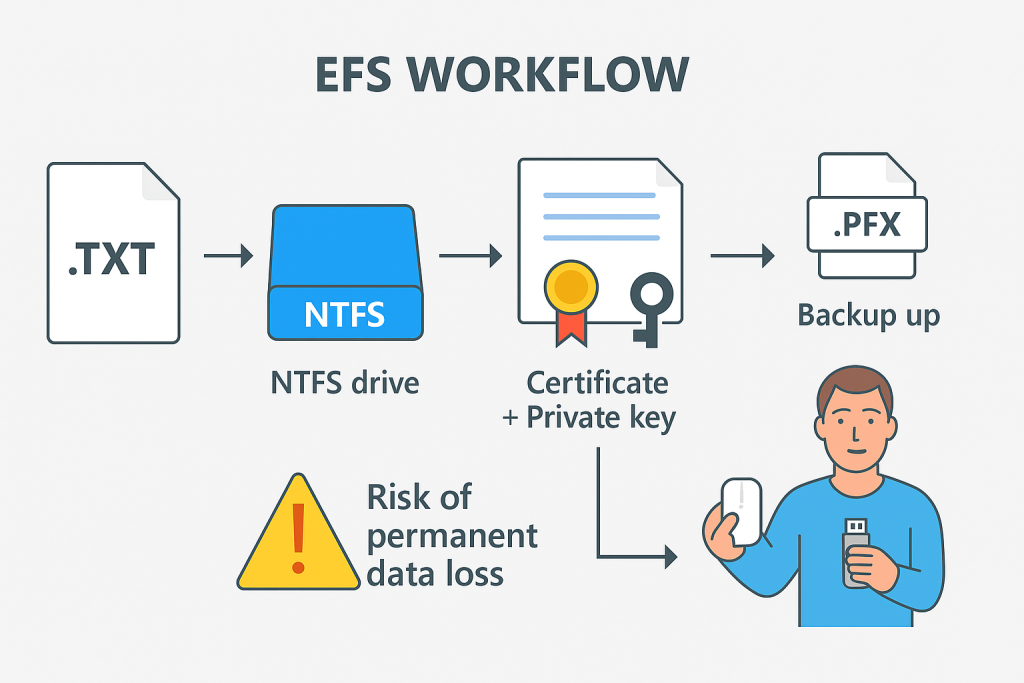
Securing the private key is the only defense against EFS data loss. This backup is stored as a Personal Information Exchange (.PFX) file, which is itself protected by a password.
| Step | Action + Gotcha |
| 1. Open Certificate Manager | Action: Use the Run dialog (Win + R), type certmgr.msc, and press Enter. |
| 2. Locate EFS Certificate | Action: In the left pane, expand Personal and select the Certificates store. Find the certificate listed with your username under “Issued To” and the intended purpose: Encrypting File System. |
| 3. Start Export Wizard | Action: Right, click the certificate, select All Tasks, and then Export. Click Next to begin the Certificate Export Wizard. |
| 4. Export Private Key | Action: When asked, select the option Yes, export the private key. Gotcha: If this selection is grayed out, the private key is non, exportable, which means an essential backup cannot be made. |
| 5. Choose Format | Action: Select Personal Information Exchange – PKCS #12 (.PFX). Action: Ensure that both Include all certificates in the certification path if possible and Enable certificate privacy are checked to maintain the integrity of the certificate chain. |
| 6. Set Security Password | Action: Set a strong, unique password to secure the PFX file. The recommended setting is AES256-SHA256 for robust protection of the backup file itself. Click Next. |
| 7. Save Safely | Action: Save the resulting .PFX file to a secure, external location, such as a different computer, a dedicated cloud storage vault, or an encrypted USB drive. Gotcha: Storing the PFX file on the same drive being encrypted negates the benefit of the backup. |
Advanced EFS: Sharing Encrypted Files
EFS offers a distinct advantage over volume, level encryption methods like BitLocker by enabling secure multi, user access to the same encrypted file.
To grant access, the authorizing user must add the recipient’s EFS certificate to the file’s encryption details. This process requires the recipient to have previously encrypted at least one file on the system to generate their necessary EFS certificate. The file owner right, clicks the encrypted file, navigates to Properties > Advanced > Details, and uses the Add function to select the recipient user’s certificate from the list. Once added, the second user can access, modify, and save changes to the file securely, maintaining the integrity of the EFS protection.
The EFS Offline Access Contradiction
For corporate environments utilizing network, managed certificates, a unique compatibility issue has been observed in Windows 11. Some users report losing access to EFS, encrypted files when disconnected from the domain or corporate network, even when successfully authenticated locally. This behavior differs from Windows 10, where offline access was generally maintained. This dependency suggests that Windows 11, in some configurations, requires network connectivity to validate or refresh the user’s EFS certificate against the Domain Controller or Azure AD.
This scenario underscores the importance of the .PFX private key backup. If an individual encounters this offline access failure, the current resolution is to export the existing EFS certificate with the private key, delete the local certificate, and then re, import the exported .PFX file. This action resolves the certificate dependency and restores resilience for offline access.
Method 2: Whole Drive Encryption for Home Users (Device Encryption)
Users running Windows 11 Home Edition cannot access the traditional BitLocker management console. Instead, full, drive protection is delivered through Device Encryption, an automated feature designed to be seamless and user, friendly.
Prerequisites: Checking Device Encryption Support
Device Encryption automatically activates on new systems that meet Microsoft’s security baselines. The most essential hardware prerequisites include:
- Trusted Platform Module (TPM) 2.0, which is necessary for modern security features in Windows 11.
- Secure Boot must be enabled within the Unified Extensible Firmware Interface (UEFI/BIOS) settings.
- The Windows Recovery Environment (WinRE) must be properly configured.
To verify whether a device is eligible for this feature, the System Information panel provides a clear status report.
How to Verify Support Status:
- Action: Open Start and search for System Information. Right, click the application and select Run as administrator.
- Action: In the System Summary window, scroll to the bottom.
- Action: Examine the value for the entry Device Encryption Support.
- Verify: If the value states Meets prerequisites, the feature is available. Gotcha: If the value lists specific failures (e.g., “TPM is not usable,” or “PCR7 binding is not supported”), those firmware or hardware issues must be corrected before encryption can be enabled.
How, To: Activating Device Encryption
If Device Encryption did not activate automatically, often because the user initially signed in with a local account instead of a Microsoft account, it can be enabled manually through the Settings application.
| Step | Action + Gotcha |
| 1. Access Settings | Action: Press the Win + I keyboard shortcut to open the Settings window. |
| 2. Navigate to Security | Action: Select the Privacy and Security tab located in the left navigation pane. |
| 3. Locate Encryption | Action: Click Device encryption on the right side of the window. Important Note: If this option is not displayed, the hardware requirements are not met, or the user is signed in with a non, admin account. |
| 4. Turn On | Action: Move the toggle switch to turn Device Encryption On. Action: The device will begin encrypting the operating system drive in the background, minimizing impact on system performance. |
Critical Action: Backing Up the BitLocker Recovery Key
Device Encryption relies on the same 48, digit numeric BitLocker Recovery Key as the Pro version. This key is essential for accessing the drive if standard authentication fails (e.g., after a BIOS update or a major hardware change).
Automatic Backup (Microsoft Account): If the device was set up using a Microsoft Account (MSA), the key is automatically uploaded and stored in the MSA recovery keys library. It can be retrieved by signing into the MSA recovery page on any other device.
Manual Backup: Users are strongly advised to retain a manual, secure backup. Within the Device Encryption settings, options are provided to Save to a USB flash drive, Save to a file (on an unencrypted volume), or Print the recovery key. The key must never be stored on the drive being encrypted.
Method 3: Standard BitLocker Drive Encryption (Pro, Enterprise, Removable)
Standard BitLocker Drive Encryption, available on professional editions of Windows 11, allows users to encrypt internal non, OS drives and removable drives (like external hard drives or USB sticks). This method offers advanced control, including the ability to specify the encryption cipher and authentication methods.
How, To: Enabling BitLocker on an Internal or Removable Drive
| Step | Action + Gotcha |
| 1. Open Manage BitLocker | Action: Type BitLocker into the Start menu search and select Manage BitLocker from the results list. |
| 2. Select Target Drive | Action: The control panel lists all connected volumes. Click Turn on BitLocker adjacent to the drive requiring encryption. |
| 3. Choose Unlock Method (OS Drive) | Action: For the operating system drive, the default method uses the TPM for automatic startup. Gotcha: If a TPM is not present (which is rare on Windows 11 hardware), the system will require either a USB startup key or a password. Using a password is fundamentally insecure and is disabled by default, making the startup key the preferred option if the TPM is unavailable. |
| 4. Back Up Recovery Key | Action: Select multiple recovery key storage options from the choices provided: Microsoft Account, USB drive, file, or printout. Action: Redundancy is crucial for recovery. |
| 5. Choose Encryption Scope | Action: The user must choose between Encrypt used disk space only (fastest for empty or new drives) or Encrypt entire drive (recommended for drives already holding sensitive data). |
| 6. Run System Check | Action: Windows typically requires a system check to verify that the key protectors are working correctly before initiating the final lock down. Select Run BitLocker system check and confirm to Start encrypting. |
Proof of Work: Benchmarking Encryption Speed and Cipher Choice
By default, BitLocker in Windows 11 utilizes the XTS-AES 128, bit cipher. Advanced users or organizations facing regulatory requirements may opt to configure the more robust XTS-AES 256, bit encryption.
The decision between 128, bit and 256, bit encryption involves a minor trade, off between speed and security margin. AES-256 requires 14 rounds of cryptographic processing compared to 10 rounds for AES-128. In older systems without dedicated hardware, this could result in a 40% processing penalty for 256, bit encryption.
BitLocker and EFS Technical Benchmarks
| Feature | BitLocker Default (Fixed Drives) | BitLocker 256, bit Option | Performance Implication |
| Cipher Strength | XTS-AES 128, bit | XTS-AES 256, bit | 256, bit uses 14 rounds, 128, bit uses 10 rounds. |
| CPU Overhead (Theoretical) | Minimal | ~40% slower than 128, bit without hardware acceleration | Modern CPUs supporting AES-NI acceleration experience negligible overhead for both standards. |
| SSD I/O Impact (Software) | Minimal (Hardware) to Significant (Software) | Software encryption can cause performance drops up to 45% on some SSDs. | Use hardware, based encryption when possible to maintain optimal disk speeds. |
The performance penalty observed in older systems is now generally offset by the widespread inclusion of hardware acceleration (AES-NI) in modern Intel and AMD processors. Because the speed difference is marginal on contemporary hardware, and XTS-AES 256, bit offers a higher security margin, the advanced key size is the preferred choice for compliance and heightened security scenarios. Administrators often configure BitLocker to use XTS-AES 256, bit as a default via Group Policy.
Verification and Key Management
Once encryption is complete, it is vital to verify that the protection is active and establish a protocol for managing the sensitive recovery key.
Verifying Encryption Status (Proof of Work Block):
The status of all BitLocker volumes should be checked using the command, line utility.
- Action: Open Command Prompt (CMD) or PowerShell with Administrator privileges.
- Action: Execute the command:
manage-bde -status.
The output will display the Protection Status for each drive letter, confirming whether encryption is fully functional.
| Status Field Output | Meaning |
| Protection On | The drive is fully encrypted and actively protected. |
| Protection Off | BitLocker is not enabled on the volume. |
| Suspended | Protection is temporarily paused (e.g., during a firmware update). |
| Waiting for Activation | Encryption may be complete, but a key protector (like a PIN or startup key) requires final configuration. |
Secure Key Exchange and Rotation Procedures (Share it Safely):
The BitLocker recovery key is a critical secret that unlocks the entire drive. Key management best practices dictate that if this key is ever used, or if its confidentiality might have been compromised (e.g., shared with technical support), it must be immediately rotated. Key rotation involves generating a new recovery key and securely storing it.
In managed environments, IT administrators can remotely refresh the recovery key using tools such as Microsoft Intune or other Mobile Device Management (MDM) platforms. If the 48, digit key must be shared with a trusted party, it should only be transmitted via a secure, end, to, end encrypted channel, such as a secure messaging app or password vault, avoiding standard email or text messages.
V. Troubleshooting and Advanced Security
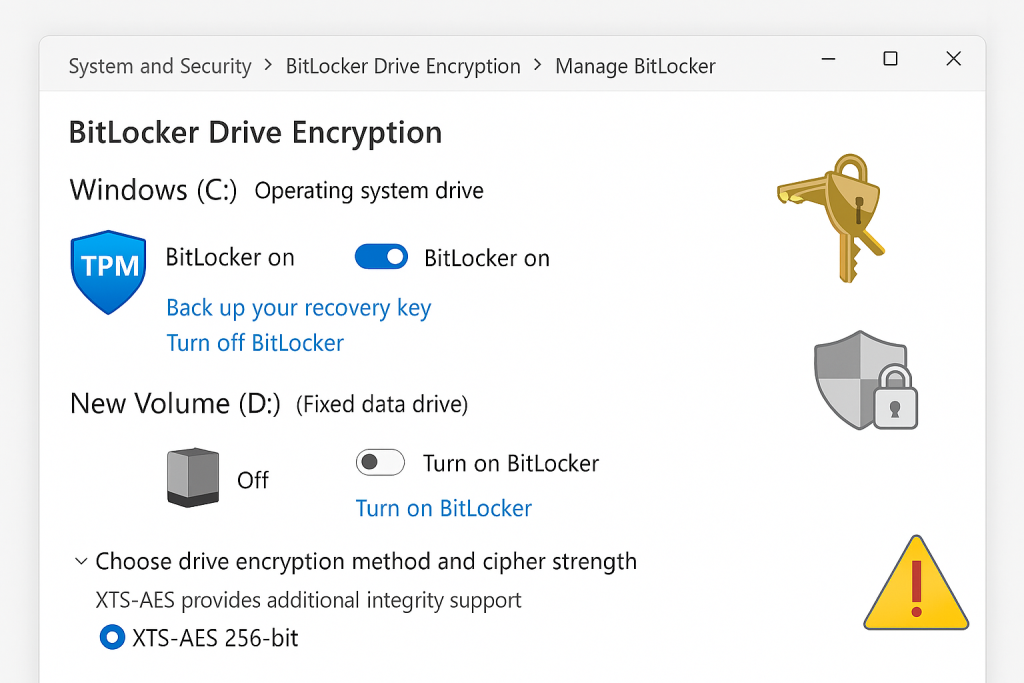
A critical aspect of implementing data encryption is understanding how to recover from failure, particularly concerning the Trusted Platform Module (TPM) and EFS certificates.
Troubleshoot Skeleton: Common Encryption Errors
BitLocker and TPM Troubleshooting Matrix
| Symptom/Error String | Root Cause | Non, Destructive Test/Fix | Last Resort (Data Risk) |
| “BitLocker cannot encrypt the drive. The TPM is not ready.” | TPM is disabled, requires a firmware refresh, or is uninitialized. | Action: Enter UEFI/BIOS, ensure Security > TPM Security is enabled and active. | Clear the TPM via the TPM management console (tpm.msc). This requires the temporary suspension of BitLocker protection. |
| System Information lists “PCR7 binding is not supported” | Secure Boot is disabled in the UEFI, or certain incompatible peripherals are connected during startup. | Action: Enable Secure Boot in the UEFI/BIOS settings. Disconnect specialized peripherals (e.g., docking stations). | N/A |
| EFS, encrypted files are inaccessible after Windows reinstallation. | The EFS certificate and private key were not backed up (PFX file) before the system wipe. | Action: Search all backups and cloud storage for the necessary .PFX certificate file. If found, import it via certmgr.msc. |
PERMANENT DATA LOSS: If the PFX file is not found, the data is irreversibly encrypted and cannot be recovered. |
| BitLocker encryption speed is slow. | BitLocker is performing a non, aggressive background conversion, or the system is using slow software encryption on a modern SSD. | Action: Use manage-bde -status to monitor the conversion process. Gotcha: BitLocker is designed to run slowly in the background to avoid degrading overall system responsiveness. |
N/A |
Fixing the “TPM Failing to Prepare” Error:
TPM status errors often stem from firmware or sequence issues. A sequence of disabling and re, enabling the TPM frequently resolves these problems:
- Action: Restart the computer and enter the UEFI/BIOS configuration screens.
- Action: Locate the Security or TPM settings and disable the TPM.
- Action: Save the changes and reboot into Windows.
- Action: Restart the device again and re, enter the UEFI/BIOS.
- Action: Reenable the TPM. Save and reboot back into Windows.
If this soft reset fails, the final option involves clearing the TPM through the Windows TPM Management Console (tpm.msc). Clearing the TPM deletes all stored keys, including the BitLocker protectors, which mandates that the user have the BitLocker Recovery Key readily available to unlock the drive afterward.
Performance Deep Dive: Encryption Overhead
While BitLocker and EFS are designed for high performance, users often ask about the practical overhead. EFS generally adds negligible overhead for routine file operations on modern systems. BitLocker introduces a small performance hit, typically in the low single, digit percentages, relative to the drive’s data throughput.
A significant performance concern has been identified in recent reports, suggesting that Windows 11 Pro devices running software, based BitLocker encryption may experience substantial degradation in SSD performance, with throughput drops potentially reaching 45% in specific benchmarks. This severe slowdown occurs when the CPU is overburdened with encryption duties that should ideally be handled by the SSD’s dedicated hardware encryption components. If a dramatic drop in disk speed is observed after enabling BitLocker, the user should investigate whether the drive is using hardware encryption to mitigate this specific performance penalty.
VI. Comparison and Alternatives (Verdict by Persona)
While native Windows encryption is convenient, third, party solutions offer better portability and cross, platform compatibility.
| Use Case | BitLocker (Windows Native) | EFS (Windows Native) | VeraCrypt (Open Source) | 7, Zip (Compression Tool) |
| Primary Scope | Full Disk/Volume | File/Folder | Full Disk/Volume/Container | Archive (Files) |
| Portability | Low (Windows, locked) | Low (Windows/User, locked) | High (Encrypted volume container is movable) | High (Archive is easily transferable) |
| Multi, OS Support | No (Windows only) | No (Windows only) | Yes (Windows, Linux, macOS) | Yes (Windows, Linux, macOS) |
| Admin Control | High (Policy, Key Rotation) | Medium (Certificate Management) | Low (Local User Control) | N/A |
| Ease of Use | Simple (UI driven) | Simple (Right, click access) | Complex Setup (Requires volume creation) | Simple (Context menu for archiving) |
When to Consider Non, Native Alternatives
Cross, Platform Requirements: If encrypted data must be accessed on non, Windows operating systems such as Linux or macOS, native Windows solutions are inappropriate. VeraCrypt should be used to create a portable encrypted container or volume that is universally accessible.
File Transfer and Archiving: For securing small collections of files for transfer or occasional access, 7, Zip provides a rapid way to compress and apply AES-256 encryption. However, editing files requires manual extraction, modification, and re, archiving, making it cumbersome for daily use.
Verdict by Persona
The Busy Home User (Windows 11 Home): This user should rely exclusively on Device Encryption. The focus must be on verifying the hardware supports Device Encryption and diligently securing the Microsoft Account recovery key.
The Freelancer / Shared PC User: This user needs EFS to segregate sensitive documents from other local users. The one necessary administrative task is the mandatory backup and storage of the EFS private key.
The Corporate Administrator / Compliance Officer: This persona must mandate BitLocker Drive Encryption (configured for XTS-AES 256, bit) across the environment using centralized tools like Group Policy or Intune. Enforcing automatic key backup to Azure AD ensures managed recovery and key rotation capability.
VII. Frequently Asked Questions (FAQs)
Q: Does BitLocker significantly slow down my computer
A: Usually, the performance impact is minimal, generally restricted to low single, digit percentage losses relative to the drive’s speed. Modern systems with AES-NI hardware acceleration experience almost no noticeable slowdown. Significant slowdowns are typically isolated to specific cases involving software encryption on high, speed SSDs.
Q: Can I share EFS, encrypted files with other users
A: Yes, EFS is capable of secure multi, user access on the same machine. The file owner can add the encryption certificates of authorized users directly within the file’s advanced properties, allowing secure read/write access.
Q: What is the risk if I lose my BitLocker Recovery Key
A: If the recovery key is lost and the primary authentication method (e.g., TPM protection) fails, the data on the BitLocker, protected drive becomes permanently unrecoverable. The encryption is fundamentally designed to be unbreakable without the key.
Q: If I use BitLocker, do I still need EFS
A: BitLocker protects the entire volume from external theft or offline attack. EFS protects files from other authorized users who are locally logged into the same computer. If the system is shared, EFS provides a necessary layer of separation on top of BitLocker.
Q: Why does Windows 11 require TPM 2.0 for encryption
A: The Trusted Platform Module (TPM) 2.0 is a dedicated cryptoprocessor that secures the BitLocker encryption key while the system is off or idle. It also verifies that the boot environment has not been tampered with before releasing the key, ensuring maximum data integrity.
Q: Is EFS supported on Windows 11 Home Edition
A: EFS technically functions on Windows 11 Home because it relies on the NTFS file system. However, the lack of centralized management tools for certificate backup makes it highly risky for home users, which is why Microsoft primarily markets it toward Pro/Enterprise users. Home users should prioritize Device Encryption for drive protection.
Q: How long does the initial BitLocker encryption take
A: The duration varies depending on the drive size, but BitLocker is non, aggressive. It encrypts new data immediately (Encrypt, On, Write) and processes existing data in the background, minimizing impact on system usability.
Q: What should I do if my EFS key is corrupted
A: If the EFS key becomes corrupted, access is lost immediately. The only solution is to import the previously exported .PFX certificate file and private key using the Certificate Manager.
Q: Can I access Personal Data Encryption (PDE) content using a standard password login
A: No. Personal Data Encryption keys are specifically protected by Windows Hello credentials (PIN or biometrics). Access to PDE, protected content is blocked if the user signs in using only a traditional password.
Q: Does BitLocker use AES-128 or AES-256
A: By default, BitLocker uses XTS-AES 128, bit. Administrators can configure it to use XTS-AES 256, bit, which is recommended for the highest security standards, given that minimal performance difference.
Q: Where can I find my BitLocker recovery key
A: Depending on the initial setup, the key may be saved to your Microsoft Account (for Device Encryption), a USB flash drive, a local file, or printed out. Checking the Microsoft Account recovery page is the most common first step for modern Windows 11 devices.
Q: Can I use BitLocker without a TPM
A: Yes, BitLocker can be enabled without a TPM, but it requires the user to authenticate using a startup key stored on a USB drive or an insecure password. This configuration sacrifices the integrity verification provided by the TPM.
Conclusion
The necessary encryption measures, whether file, level or volume, level, must be implemented alongside rigorous key management. Data is only truly secured when the recovery keys and certificates are diligently backed up and stored in a location separate from the protected device. This small administrative effort is the critical step that safeguards access to the data when system failures inevitably occur.