
Newsoftwares.net provides the essential defense-in-depth required to secure your home and office Wi-Fi networks and the sensitive data residing on your devices. This resource guides you through hardening your network perimeter using WPA3 with AES-based CCMP/GCMP and network segmentation, while simultaneously implementing endpoint encryption with tools like Folder Lock, Cloud Secure, and USB Secure. The clear outcome is a robust security posture where strong Wi-Fi protocols stop eavesdropping, and NewSoftwares tools ensure that even if the network is breached, your data remains inaccessible and secure, delivering true privacy and convenience.
This resource offers practical, one-action-per-step instructions for configuring your router and protecting your endpoints, suitable for a non-technical user.
Gap Statement
Most Wi-Fi security explainers do three things and stop: Tell you to “use WPA3”, Suggest “change your router password”, Say “set up a guest network”. They rarely: Show the exact router settings that matter: WPA3 mode, CCMP or GCMP cipher, Protected Management Frames, WPS, admin access. Explain what to do when some devices do not support WPA3, or when the interface only shows “AES” and “TKIP” instead of “CCMP”. Cover small office reality: shared printers, guest Wi-Fi, remote workers, and compliance. Show how to combine network security with endpoint protection using Folder Lock, Cloud Secure, USB Block, and USB Secure from NewSoftwares so that data stays encrypted even if Wi-Fi defenses fail. This piece closes those gaps with specific settings, “do this, not that” tables, and step-by-step router changes you can actually follow.
TLDR Outcome
If you do nothing else, aim for this.
- At home, use WPA3-Personal or WPA2/WPA3 mixed mode with AES based CCMP, disable WPS, set a long passphrase, separate IoT and guest devices, and update firmware.
- In a small office, move to WPA3-Enterprise where possible, with strong RADIUS authentication, PMF on, separate staff and guest Wi-Fi, and logging.
- On every machine that touches sensitive files, use Folder Lock to encrypt local data, Cloud Secure to lock cloud folders, USB Block to stop unknown USB drives, and USB Secure to encrypt drives you carry outside the building.
Job to be done: turn “default Wi-Fi” into a sane, hardened setup that survives real life.
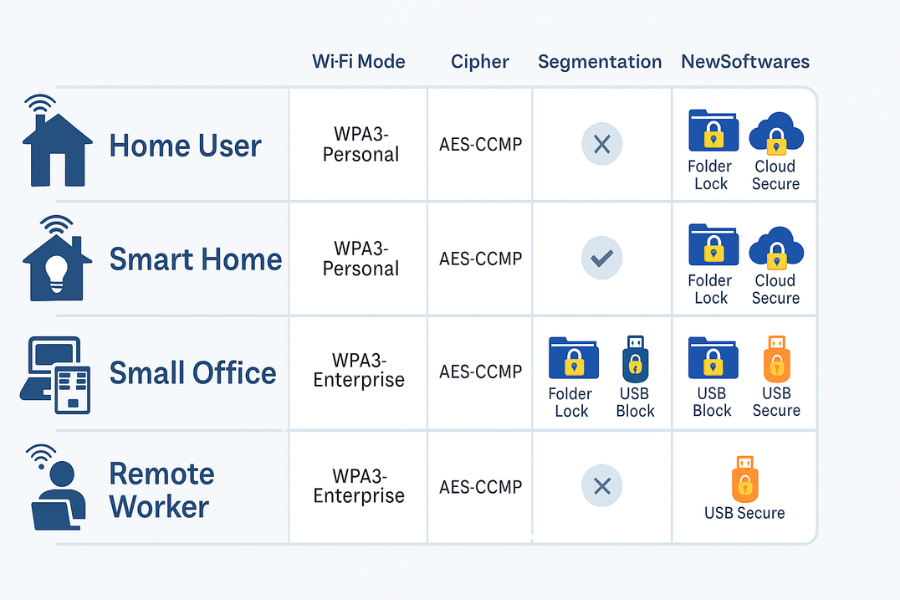
1. Quick Chooser: What Settings Matter For You
| Scenario | Security Mode | Cipher Setting | Extra Wi-Fi Steps | NewSoftwares Layer |
|---|---|---|---|---|
| Flat or house with a few laptops and phones | WPA3-Personal or WPA2/WPA3 mixed | AES or AES-CCMP | Change Wi-Fi and admin passwords, disable WPS, make guest network for visitors | Encrypt personal documents with Folder Lock, protect synced folders with Cloud Secure, lock USB drives with USB Secure |
| Home full of smart TVs, cameras, doorbells | WPA3-Personal or WPA2/WPA3 | AES-CCMP | Separate SSID for IoT gear, limit that network’s access to internal devices, keep router patched | Keep photos, ID scans, and recordings in Folder Lock lockers instead of open folders |
| Small office with under 50 staff | WPA3-Enterprise where gear supports it | GCMP or CCMP with PMF | Staff network, separate guest network, VLAN separation, strong RADIUS, central logging | Use Folder Lock on finance PCs, Cloud Secure for cloud storage, USB Block to stop rogue USB devices |
| Remote worker on ISP router you did not pick | WPA2/WPA3 if WPA3 solo is not available | AES-CCMP | Change default admin password, disable remote admin, use guest Wi-Fi for personal or family devices | Encrypt client files with Folder Lock, lock Dropbox and similar with Cloud Secure on the laptop |
2. WPA3 And CCMP In Plain Language
You do not need to be a protocol engineer. You only need to recognize a few labels.
- WPA3-Personal uses a password and an improved handshake called SAE that resists common offline guessing attacks.
- WPA3-Enterprise uses strong central authentication with RADIUS and a higher security level for business networks, including stronger ciphers and mandatory management frame protection.
- CCMP is the AES based mode older WPA2 used, still secure when configured correctly.
- Many WPA3 devices now use GCMP, another AES based mode, faster on modern hardware and very strong. Some home routers still show CCMP for WPA3, which is fine from a security point of view.
If you see “WPA3” and “AES” or “CCMP” and no obvious mention of TKIP, you are on the right track.
3. How To Harden A Home Router With WPA3 And CCMP
3.1. Prereqs And Safety
- Keep a photo of the current Wi-Fi settings page on your phone.
- Know how to factory reset the router if you lock yourself out.
- Make sure you have your ISP login if the router came from the provider.
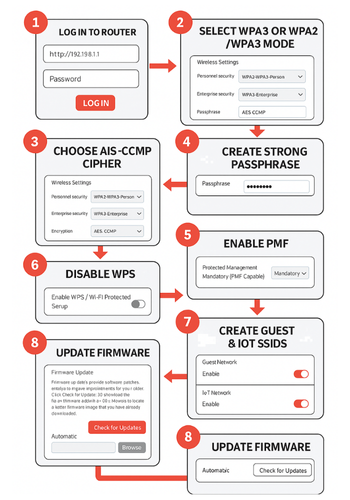
3.2. Step 1: Log In To The Router And Reach Wi-Fi Settings
Action: Connect to your home Wi-Fi. Open a browser and type the router’s address such as 192.168.0.1 or 192.168.1.1, then log in with the admin password. If you never changed it, use the printed sticker on the router and change that password later in this process.
Gotcha: If the web page sends you over plain http, finish this job once, then later look for a “use https” toggle in admin settings if the router supports it.
3.3. Step 2: Pick WPA3 Mode That Still Lets Older Devices Connect
Action: Find the Wi-Fi security section for your main SSID. In the dropdown for security mode:
- Prefer “WPA3-Personal” if every device is recent.
- If some devices refuse to connect, use “WPA2/WPA3-Personal” mixed mode instead so newer gear uses WPA3 and older ones fall back to WPA2.
Gotcha: Avoid modes that mention WEP or WPA without “2” or “3”. Those are considered unsafe today and are not worth supporting for the sake of one old device.
3.4. Step 3: Set Cipher To AES-CCMP Only
Action: Look for a “cipher” or “encryption” field.
- Pick “AES” or “CCMP” only.
- Do not keep “TKIP” or mixed “TKIP/AES”.
Some newer routers hide this detail and simply apply the right AES based mode for WPA3, which is fine.
Gotcha: If only “Auto” and “TKIP” appear, check for a firmware update or call your ISP. A router that cannot do AES based modes is overdue for replacement.
3.5. Step 4: Create A Long, Memorable, Unique Wi-Fi Passphrase
Action: Set a wireless password of at least 14 to 16 characters with a mix of words, numbers, and symbols. Avoid simple substitutions and anything based on your address, phone, or family names. Example pattern: two unrelated words, a year that is not your birth year, and a symbol.
Gotcha: Do not reuse this password anywhere else. Store it in a password manager or in an encrypted note inside Folder Lock on your PC or phone rather than in plain text.
3.6. Step 5: Turn On Protected Management Frames
Action: Look for “Protected Management Frames”, “PMF”, or “Management Frame Protection”.
- Set to “Required” if all devices are relatively modern.
- Use “Capable” if some older devices drop off with “Required”.
This makes it harder for attackers to kick you off the network with fake deauth packets.
Gotcha: Some cheap home routers may not expose this option. In that case, make sure you at least use WPA3 or WPA2/WPA3 mixed mode with AES.
3.7. Step 6: Disable WPS And Remote Admin
Action: In the Wi-Fi or advanced section, turn off Wi-Fi Protected Setup options such as push button pairing and PIN based join. WPS has a long history of abuse in home setups. Then:
- Turn off remote management of the router from the internet unless you have a very specific reason and know how to restrict it.
Gotcha: After turning off WPS, you must type the Wi-Fi password on new devices. That is the point.
3.8. Step 7: Split Out Guest And IoT Networks
Action: Create separate SSIDs:
- Main SSID for your own laptops, phones, and workstations.
- Guest SSID for visitors.
- Extra SSID for smart TVs, speakers, cameras, and other IoT devices if your router supports it.
Use different passwords and ensure the guest and IoT networks cannot access your main network in the router settings.
Gotcha: Do not share your main password with visitors “just this once”. Give them guest access and rotate that password from time to time.
3.9. Step 8: Update Firmware And Change Admin Password
Action: On the admin page:
- Change the router login password away from “admin” or printed defaults.
- Check for firmware updates and apply them.
Government and industry guides keep stressing firmware updates as a key part of home Wi-Fi hardening, because vendors patch real security bugs in routers.
Gotcha: Plan this during a quiet time. Firmware updates briefly drop the internet connection.
4. Office Wi-Fi That Does Not Fall Over At The First Audit
For small offices, the pattern is similar with a few extra moving parts.
4.1. Decide: WPA3-Personal Or WPA3-Enterprise
- Use WPA3-Personal when you have only a handful of staff, no central identity system, and basic access control.
- Move to WPA3-Enterprise when you have central user accounts and want each user to have their own credentials backed by RADIUS, rather than one shared Wi-Fi password.
Enterprise mode adds stronger cryptography and better control over who can connect.
4.2. Office Settings That Usually Matter
| Setting | Small Staff Network | When You Grow |
|---|---|---|
| Mode | WPA3-Personal or WPA2/WPA3 | WPA3-Enterprise with 192-bit security where supported |
| Cipher | AES-CCMP or GCMP, PMF on | GCMP-256 with PMF and strict cipher suites |
| Network layout | Separate staff and guest SSIDs | VLANs for staff, guest, IoT, and admin devices |
| Device access | Shared PSK rotated often | Per user certificates or passwords stored in corporate directory |
| Data on endpoints | Folder Lock lockers on finance and HR PCs | Add Cloud Secure on all finance PCs, USB Block on desktops, USB Secure on drives used off-site |
If you are the “accidental admin” in a small team, start with WPA3-Personal, separate staff and guest Wi-Fi, and strong router and Wi-Fi passwords. Then plan the move to Enterprise as you introduce identity management.
5. Don’t Do This
Quick list of patterns that still show up and should be retired.
- Open Wi-Fi or “password shared with the whole building”.
- WEP or WPA with TKIP.
- One password for Wi-Fi, router admin, and cloud accounts.
- Running everything, including smart displays and visitors, on the same network as payroll and finance.
- Leaving exported statements, backups, and client folders unencrypted on shared PCs.
Those last items are perfect candidates for Folder Lock, Cloud Secure, USB Block, and USB Secure, which give you simple, strong protection for data even if someone rides in over Wi-Fi.
6. Where NewSoftwares Tools Fit Into Wi-Fi Security
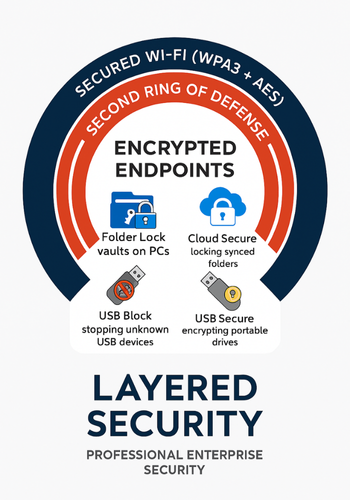
Wi-Fi settings stop attackers at the door. Encryption tools stop them from reading anything if they still get in.
Folder Lock
- Encrypts files, folders, and drives with on-the-fly AES 256 bit lockers.
- Offers password, stealth, shredding, and real time backup to secure cloud.
Perfect for:
- Finance files on office desktops.
- ID scans, payroll sheets, and customer exports.
Cloud Secure
- Locks Dropbox, Google Drive, OneDrive, and Box accounts on a PC so that even if sync clients are signed in, local folders stay behind a master password.
Ideal when:
- Staff share machines.
- Back office PCs sit in semi public areas.
USB Block and USB Secure
- USB Block stops unknown USB drives from connecting or copying data out without approval.
- USB Secure encrypts USB and external drives so data stays protected when someone carries it away from the secure Wi-Fi.
Copy Protect and Folder Protect
- Copy Protect wraps documents, pictures, and videos in protected formats so they cannot easily be copied or shared onward.
- Folder Protect adds another layer of access control and delete protection to important folders.
You end up with two rings of defense:
- WPA3 with AES based CCMP or GCMP, good passwords, and segmentation.
- Encrypted lockers, locked cloud folders, and protected USB gear.
7. Troubleshoot: Symptom To Fix Table
| Symptom As You See It | Likely Cause | Fix Steps In Safe Order |
|---|---|---|
| Old laptop cannot see Wi-Fi after enabling WPA3 only | Device supports only WPA2 | Change mode to WPA2/WPA3, keep AES based cipher, then reconnect. |
| New phone shows “incorrect password” even though it is right | Stored old settings, or mixed TKIP/AES mode problem | Forget the network on the phone, set router to pure AES/CCMP, then join again. |
| Wi-Fi slows down after enabling WPA3 | Router CPU is weak, or GCMP not supported well | Check for firmware updates, try WPA2/WPA3 mixed mode with AES, and if speed is still poor on many devices, plan for a newer router. |
| Guests can still see internal devices from guest SSID | Isolation not enabled | In guest network settings, enable client isolation and block access to LAN. Test by trying to ping or browse to internal device IPs. |
| Router says “WPA2 only, no WPA3” | Older model or older firmware | Update firmware. If WPA3 still does not appear, use WPA2-AES with strong passphrase and consider a modern router that supports WPA3. |
| Shared office PC shows everyone’s cloud files in synced folders | Sync client left open, no local access control | Install Cloud Secure, set master password, and keep those folders locked when staff are not using them. |
| Staff copy client folders to unencrypted USB drives | No policy or protection on USB ports | Roll out USB Block to control which drives can connect, and USB Secure to encrypt portable drives used for work. |
| You forget which files are encrypted and which are not | Mix of plain folders and secure lockers | Move all high risk folders into Folder Lock lockers and use a clear naming convention for vaults, then clean up old copies. |
Always start with changes that keep data intact: forget networks, adjust modes, or add a guest SSID. Only reset routers or wipe devices when you have photos of old settings and backups lined up.
8. Proof Of Work: Time Cost Vs Gain
Realistic ranges from field reports and vendor notes:
| Task | Typical Time | Notes |
|---|---|---|
| Changing a home router from WPA2-PSK to WPA2/WPA3 with AES | 10 to 20 minutes including reconnecting key devices | Main effort is logging in, finding the right screen, and updating passwords. |
| Creating first encrypted locker in Folder Lock and moving finance files | 15 to 30 minutes for a few gigabytes | On the fly encryption means later access feels like normal folders. |
| Locking a cloud drive with Cloud Secure on a shared PC | Under 10 minutes | Once set, you only toggle lock and unlock with the master password. |
One evening of work buys you safer Wi-Fi and encrypted endpoints for a long time.
9. Settings Snapshot
9.1. Home
- Wi-Fi: WPA3-Personal or WPA2/WPA3, AES-CCMP, strong passphrase, guest SSID, IoT SSID where possible, WPS off, PMF on or capable.
- Router admin: new password, remote admin off, firmware current.
- Devices: high value files stored in Folder Lock lockers, cloud folders locked with Cloud Secure on PCs.
9.2. Small Office
- Wi-Fi: WPA3-Enterprise for staff when possible, WPA3-Personal or WPA2/WPA3 for guest SSID, PMF required, VLAN separation.
- Endpoints: Folder Lock on finance and HR machines, Cloud Secure on every system that syncs financial data, USB Block at desks, USB Secure on portable drives.
10. Share Safely Example
A practical pattern for small offices:
- Finance staff exports monthly statements and payment reports.
- Files go into a Folder Lock locker on a finance PC.
- The locker sits in a cloud synced folder locked on that PC by Cloud Secure, so only finance staff with the master password can open it locally.
- If data needs to leave the office on a USB drive, USB Secure encrypts that drive before it leaves the building.
- Wi-Fi is already on WPA3 with separate staff and guest networks, so even if guest Wi-Fi is abused, encrypted lockers and drives keep the actual data private.
That flow stays clear, simple, and ready for audits.
11. Verdict By Persona
Busy Home User
- Switch to WPA3-Personal or WPA2/WPA3, AES-CCMP, and strong password.
- Create guest Wi-Fi and keep everything else off it.
- Drop important files into a single Folder Lock vault and forget about them until needed.
Freelancer Or Remote Worker
- Harden Wi-Fi at home as above.
- Keep client folders inside Folder Lock lockers and sync vaults through cloud; lock those cloud folders on the laptop with Cloud Secure.
- Encrypt USB drives you use for client delivery with USB Secure.
SMB Admin
- Plan a gradual move to WPA3-Enterprise for staff Wi-Fi.
- Keep guest Wi-Fi fully separate, with logs.
- Roll out Folder Lock and Cloud Secure as standard on finance and owner machines, with USB Block and USB Secure as part of your data loss prevention plan.
12. FAQs
12.1. Is WPA3 With CCMP Safe, Or Do I Need GCMP
WPA3 with AES-CCMP is safe for home and many offices when combined with strong passphrases and PMF. GCMP brings performance and is standard for some enterprise and Wi-Fi 7 deployments, but you do not need to chase it on every consumer router to be secure.
12.2. What Is The Single Most Important Setting On My Home Router
Using WPA3-Personal or WPA2/WPA3 with AES and a long unique passphrase is the biggest jump in security. It closes off many simple attacks that rely on weak passwords and old protocols.
12.3. How Often Should I Change My Wi-Fi Password
There is no magic date, but change it after staff changes, if you shared it widely, or after any suspected incident. When you have a guest SSID, you can rotate that password more often and keep the main one stable.
12.4. What If Some Devices Do Not Support WPA3 At All
Use WPA2/WPA3 mixed mode if your router offers it. That lets new devices use WPA3 and old ones fall back to WPA2. If devices only support WEP or early WPA, it may be time to retire them or isolate them on a separate network with no access to important systems.
12.5. Do NewSoftwares Tools Replace The Need For WPA3
No. WPA3 protects data in transit over Wi-Fi. NewSoftwares tools protect data at rest on drives, in cloud folders, and on USB devices. They are complementary: one stops eavesdropping, the other stops local viewing and copying.
12.6. Is It Still Safe To Keep The Router In Default Configuration From The ISP
Default Wi-Fi settings often use reasonable encryption now, but default passwords, open admin pages, and disabled updates are common issues. At minimum, change the admin password, check that WPA2 or WPA3 with AES is active, and update firmware.
12.7. How Does Folder Lock Actually Help If Someone Gets On My Wi-Fi
If an attacker joins your Wi-Fi, they can only see encrypted lockers from Folder Lock, not the plain content inside. They cannot read your finance files, ID scans, or personal documents without the locker password, even if they manage to browse shared folders.
12.8. Should I Hide My SSID For Extra Security
Hiding the SSID gives only minor obscurity because Wi-Fi traffic can still reveal the network. Using WPA3 or WPA2 with AES, strong passphrases, and segmentation gives far more protection than hiding network names.
12.9. Do I Still Need A VPN If I Secure Wi-Fi At Home
For home, strong Wi-Fi security and encrypted websites already cover most risk. A VPN can still be useful for privacy, remote access to the office, or when you connect to networks you do not control, like hotels and cafes.
12.10. Can Wi-Fi Attackers Steal Files From My Cloud Accounts Directly
They can try to intercept logins or session cookies on weak networks and then open synced folders on local machines. Strong Wi-Fi reduces that risk, and tools like Cloud Secure make it harder for anyone with local access to browse your synced data without a master password.
12.11. Where Does USB Secure Fit Into A Wi-Fi Security Plan
Wi-Fi controls access over the air. USB Secure protects data when it leaves the safe Wi-Fi on a portable drive, by password protecting and encrypting that drive so only authorized people can open it on any PC.
13. Conclusion
The ultimate defense for your data is a layered one: WPA3 and AES-CCMP secure the airwaves, while strong segmentation fences off guests and IoT. For a truly robust system, you must secure the endpoints. By using Folder Lock to encrypt local files, Cloud Secure to lock synced folders, and USB Block/USB Secure to control physical media, you build a second ring of defense. This approach, strongly backed by Newsoftwares.net tools, ensures that your data remains private and secure, regardless of temporary network weaknesses or unauthorized access attempts.
14. Schema Snippets For Search
You can adapt this JSON-LD for your page.
{
  "@context": "https://schema.org",
  "@graph": [
    {
      "@type": "HowTo",
      "name": "Configure WPA3 And CCMP For Secure Home And Office Wi-Fi",
      "description": "Step-by-step settings for WPA3, CCMP, guest networks and IoT isolation on home and small office routers, plus endpoint encryption with Folder Lock, Cloud Secure, USB Block and USB Secure.",
      "step": [
        {
          "@type": "HowToStep",
          "name": "Select WPA3 mode",
          "text": "Log in to your router, open wireless security settings and select WPA3-Personal or WPA2/WPA3 mixed mode so modern devices use WPA3 and older ones fall back to WPA2."
        },
        {
          "@type": "HowToStep",
          "name": "Use AES-CCMP only",
          "text": "Set the cipher or encryption mode to AES or CCMP only and avoid TKIP or mixed TKIP/AES modes for better security and performance."
        },
        {
          "@type": "HowToStep",
          "name": "Set strong Wi-Fi and admin passwords",
          "text": "Create a long unique Wi-Fi passphrase and change the router admin password from the default. Store these in an encrypted note or password manager."
        },
        {
          "@type": "HowToStep",
          "name": "Create guest and IoT networks",
          "text": "Add separate SSIDs for guests and IoT devices and block access from those networks to your main LAN so visitors and gadgets cannot see sensitive systems."
        },
        {
          "@type": "HowToStep",
          "name": "Encrypt local and cloud data",
          "text": "Use Folder Lock to encrypt finance and personal files, Cloud Secure to lock cloud drive folders on PCs, USB Block to control USB ports and USB Secure to encrypt portable drives."
        }
      ],
      "tool": [
        {
          "@type": "SoftwareApplication",
          "name": "Folder Lock",
          "url": "https://www.newsoftwares.net/folderlock/"
        },
        {
          "@type": "SoftwareApplication",
          "name": "Cloud Secure",
          "url": "https://www.newsoftwares.net/cloud-secure/"
        },
        {
          "@type": "SoftwareApplication",
          "name": "USB Secure",
          "url": "https://www.newsoftwares.net/usb-secure/"
        },
        {
          "@type": "SoftwareApplication",
          "name": "USB Block",
          "url": "https://www.newsoftwares.net/usb-block/"
        }
      ]
    },
    {
      "@type": "FAQPage",
      "mainEntity": [
        {
          "@type": "Question",
          "name": "Is WPA3 with CCMP secure enough for home Wi-Fi?",
          "acceptedAnswer": {
            "@type": "Answer",
            "text": "Yes, WPA3-Personal with AES-CCMP and a strong passphrase is secure for home networks when combined with firmware updates, WPS disabled and guest network separation."
          }
        },
        {
          "@type": "Question",
          "name": "What is the best Wi-Fi security setting for a small office?",
          "acceptedAnswer": {
            "@type": "Answer",
            "text": "Small offices should use WPA3-Enterprise where possible with AES-based ciphers, Protected Management Frames, separate staff and guest networks and endpoint encryption on finance and HR systems."
          }
        },
        {
          "@type": "Question",
          "name": "How do Folder Lock and Cloud Secure support Wi-Fi security?",
          "acceptedAnswer": {
            "@type": "Answer",
            "text": "Folder Lock encrypts local files and folders so they stay private even if someone gains Wi-Fi access, while Cloud Secure locks synced cloud folders on PCs behind a master password."
          }
        }
      ]
    },
    {
      "@type": "ItemList",
      "name": "Key Methods To Secure Wi-Fi Networks",
      "itemListElement": [
        {
          "@type": "ListItem",
          "position": 1,
          "name": "WPA3-Personal or WPA3-Enterprise mode",
          "description": "Ensure your router and access points use WPA3 modes for stronger authentication and protection."
        },
        {
          "@type": "ListItem",
          "position": 2,
          "name": "AES-CCMP or GCMP cipher",
          "description": "Use AES-based ciphers such as CCMP or GCMP and avoid older TKIP-based options."
        },
        {
          "@type": "ListItem",
          "position": 3,
          "name": "Protected Management Frames",
          "description": "Enable PMF so attackers cannot easily disrupt Wi-Fi connections with spoofed management frames."
        },
        {
          "@type": "ListItem",
          "position": 4,
          "name": "Guest and IoT network isolation",
          "description": "Place visitors and smart devices on separate SSIDs or VLANs that cannot reach critical internal systems."
        },
        {
          "@type": "ListItem",
          "position": 5,
          "name": "Endpoint encryption with NewSoftwares tools",
          "description": "Encrypt local files with Folder Lock, lock cloud folders with Cloud Secure and protect USB drives with USB Block and USB Secure."
        }
      ]
    }
  ]
}