
Trust Models Exposed: Google Drive vs. Dropbox vs. iCloud

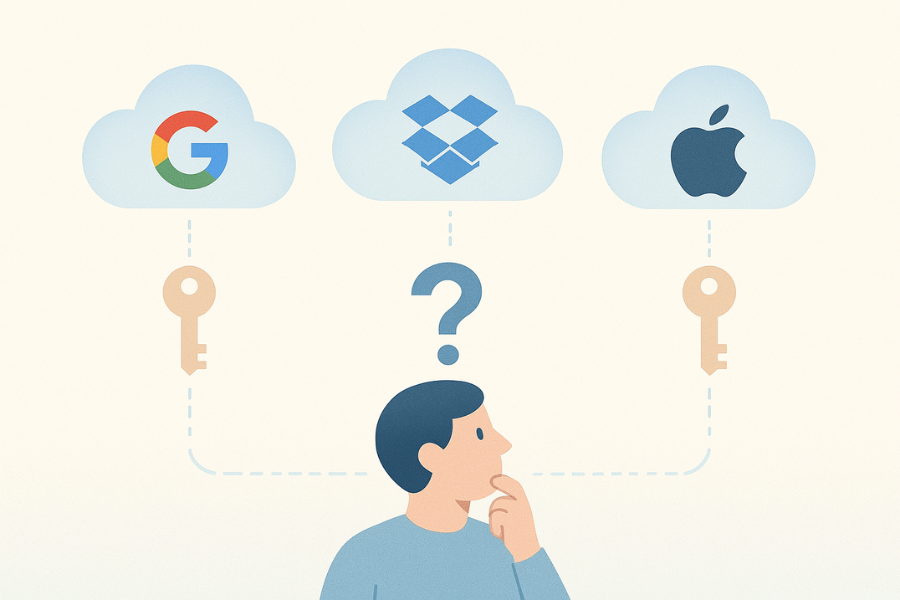
None of them truly protect your files, not by default. While all three services encrypt your data, Google, Dropbox, and Apple all hold the encryption keys. This server-side model means they can access, scan, and decrypt your data to comply with legal requests or their own internal policies. True protection and privacy come only from zero-knowledge encryption, where you alone hold the keys. Apple’s optional Advanced Data Protection comes closest to this ideal for consumers, but the only guaranteed way to secure your files is to encrypt them yourself before they ever touch the cloud.
Key Takeaways
- Google Drive: The most convenient for real-time collaboration but offers the weakest privacy and sharing controls. Its security model requires complete trust in Google, and its integration with third-party apps creates significant, often overlooked, security risks.
- Dropbox: Provides the best and most granular sharing controls, including password protection and link expiration, but these are premium features. Its optional end-to-end encryption is currently available only for business teams.
- iCloud: Offers the strongest optional privacy for consumers through Advanced Data Protection , which applies end-to-end encryption to most (but not all) data. However, its file-sharing features are the most limited of the three.
Security Architecture and Key Ownership: A Head-to-Head Comparison
The claim that your files are “encrypted” by a cloud provider is technically true but can be misleading. The critical question is not if your files are encrypted, but who holds the keys. This distinction determines who has ultimate control over your data.
| Feature | Google Drive | Dropbox | iCloud |
| Default Encryption Model | Server-Side (Google holds keys) | Server-Side (Dropbox holds keys) | Server-Side (Apple holds keys) |
| Optional End-to-End Encryption | Yes (Workspace Enterprise/Education only) | Yes (Business plans only) | Yes (Advanced Data Protection, for most data) |
| Password-Protected Links | No (Workarounds required) | Yes (Paid plans only) | No (Only for Pages, Numbers, Keynote docs) |
| Link Expiration | Yes (Limited) | Yes (Paid plans only) | Yes (Photos/Videos only, 30-day fixed) |
| External Sharing Controls | Basic (Viewer, Commenter, Editor) | Granular (Paid plans) | Basic (Collaborate, View Only) |
| Data Privacy (Content Scanning) | Scans for ads, malware, CSAM, etc. | Scans for malware, CSAM, policy violations | Scans for CSAM, less intrusive on-device processing |
| Known Major Data Breaches | No major file content breaches | Yes (2012, 68M credentials) | Yes (2014 celebrity photo leak via phishing) |
Google Drive: The Illusion of Privacy
Google Drive’s security relies on a server-side encryption model. Your files are protected with TLS while in transit and encrypted with AES-256 at rest on Google’s servers. However, Google owns and manages the encryption keys. This architecture allows Google to scan your content for various purposes, including malware detection, policy enforcement, and indexing for search. While Google’s privacy policy states it does not use content from Drive, Gmail, or Photos for advertising purposes, the fundamental access capability remains.
The Third-Party App Minefield

The most significant and commonly misunderstood security risk in Google Drive is its deep integration with a vast ecosystem of third-party applications. When a user grants a third-party app—such as a PDF editor, a project management tool, or a diagramming app—access to their Google Drive, they are essentially creating a new, authorized entry point to their data.
This process, which uses an authentication protocol called OAuth, gives the app a token that acts as a key. If that third-party service is ever breached, is malicious by design, or has poor security practices, attackers can use that token to access, read, or exfiltrate files from the user’s Google Drive via its API. This bypasses Google’s infrastructure security, as well as the user’s password and two-factor authentication, because the user explicitly granted the permission. It is a user-authorized backdoor that undermines the platform’s native security model.
Sharing Security Weaknesses
Google Drive’s sharing model is built around user identity (Google accounts), not passwords. There is no native feature to password-protect a shared link or an entire folder. This leads to a common and dangerous security mistake: users create “anyone with the link” shares for sensitive documents for the sake of convenience. These links can be easily forwarded, accidentally posted online, or even discovered by external parties, leading to significant data exposure. While Google offers client-side encryption (CSE), it is restricted to high-tier Google Workspace accounts (Enterprise and Education) and is not available to the vast majority of consumers and small businesses.
Dropbox: Security Forged in Fire
Dropbox employs a similar server-side encryption model by default, using AES 256-bit encryption for files at rest and TLS for data in transit. Like Google, Dropbox holds the encryption keys. However, Dropbox’s security posture and feature set have been heavily influenced by its history, particularly the major 2012 data breach where 68 million user credentials were stolen.
From Breach to Feature
The 2012 incident was not a failure of Dropbox’s encryption algorithm, it was a failure of operational security. An attacker gained access to a Dropbox employee’s account by using a password the employee had reused on another breached site (LinkedIn). This allowed the attacker to access a document containing user email addresses, which ultimately led to the credential leak.
This event starkly illustrates the inherent weakness of any security model that relies on trusting the provider. No matter how strong the server-side encryption, the human element and internal access controls remain a potential point of failure. Dropbox’s subsequent actions, including the acquisition of the client-side encryption company Boxcryptor and the native integration of end-to-end encryption for business teams, are direct strategic responses to this fundamental vulnerability. This history provides a clear narrative: the company learned a hard lesson about the limits of server-side trust and invested in features that put more control back in the user’s hands, albeit at a price.
Superior Sharing Controls
For paying customers, Dropbox’s key advantage is its granular control over shared links. Users on Professional, Business, and other premium plans can add password protection, set expiration dates, and disable downloads for shared links. These features directly mitigate the most common cause of data leaks—an exposed public link—and represent a significant security advantage over Google Drive’s native capabilities.
End-to-End Encryption (E2EE)
Dropbox now offers native E2EE, a feature that ensures not even Dropbox can access the content of designated files. However, this is currently limited to their business plans (Advanced, Enterprise) and is applied on a per-folder basis for team collaboration. While powerful, it remains inaccessible to individual users on free or basic plans.
iCloud: The Two-Faced Privacy Model
Apple’s iCloud security operates on two distinct levels: the default “Standard Data Protection” and the optional “Advanced Data Protection” (ADP).
Standard versus Advanced Protection
By default, all iCloud data is encrypted in transit and at rest on Apple’s servers. With this standard protection, Apple holds the encryption keys. This allows them to assist with account recovery and provide seamless access across devices, but it also means they can decrypt your data to comply with law enforcement requests.
Advanced Data Protection, an optional feature, extends end-to-end encryption to the majority of iCloud data categories, including iCloud Drive, Photos, Notes, and device backups. When ADP is enabled, the encryption keys are stored exclusively on the user’s trusted devices. This creates a zero-knowledge architecture where not even Apple can access the encrypted data.
The Fine Print Matters
The power of ADP lies in its details, and its exceptions are critical. Even with ADP enabled, three key services remain under standard, server-side encryption: iCloud Mail, Contacts, and Calendars. This is a necessary compromise to ensure interoperability with global email and calendaring systems that do not support end-to-end encryption.
Furthermore, the security of shared content is conditional. Collaboration features like iWork and Shared Photo Albums only maintain end-to-end encryption if all participants have ADP enabled. If you share a file from your ADP-protected iCloud Drive with someone using standard protection, the end-to-end guarantee is broken for that file. This means a user’s security is not solely in their own hands but is also dependent on the security settings of everyone they collaborate with, creating a potential for unintentional data exposure.
Rudimentary Sharing Security
iCloud Drive’s link-sharing capabilities are basic. You can share a link with “Anyone” or “Only people you invite,” but there is no native option to add a password or a custom expiration date. The only exceptions are a fixed 30-day expiration for shared Photos links and password protection for Pages, Numbers, and Keynote documents. This makes ad-hoc sharing of other sensitive file types less secure than what is offered on Dropbox’s paid plans.
The Real Solution: Encrypting Your Files Before the Cloud
Since all three major cloud providers hold your encryption keys by default, the only way to guarantee your privacy is to take control of the encryption yourself. By using a client-side encryption tool, you ensure that your data is unreadable before it is uploaded to Google Drive, Dropbox, or iCloud.
Why Client-Side Encryption is the Only Guarantee
Client-side, or zero-knowledge, encryption is a security model where the encryption and decryption processes happen exclusively on your device (the “client”). Think of it like putting your valuables in a personal safe before giving that safe to a bank for storage . The bank can store the safe, but it has no key to open it. This is what tools like Cryptomator do for your digital files. In contrast, the default cloud model is like giving the bank your valuables and a copy of the key to their vault.
Cryptomator: A Free, Open-Source Solution
Cryptomator is a free and open-source tool that creates an encrypted “vault” inside any cloud storage folder. It encrypts each file individually using AES-256, which makes it highly efficient for cloud synchronization—only changed files are re-uploaded, not an entire large container. Critically, Cryptomator also encrypts filenames and obfuscates the directory structure, meaning an observer cannot even see what your files are called or how they are organized.
Tutorial: How to Create a Zero-Knowledge Vault in Google Drive with Cryptomator
This tutorial demonstrates how to secure your files on Google Drive, but the same steps apply to Dropbox, iCloud, or any other cloud service that syncs with a local folder on your computer.
Key Outcome
You will create a password-protected, encrypted folder (a “vault”) inside your Google Drive. Files added to this vault are automatically encrypted on your computer before being synced, ensuring Google only ever sees encrypted, meaningless data.
Prerequisites and Safety
- OS: Windows 11 / macOS Sonoma
- Software: Google Drive for desktop app, latest version of Cryptomator.
- Safety: Your vault password is unrecoverable. If you lose it, your data is gone forever. Back up your Recovery Key immediately and store it in a separate, secure location.
Steps
- Download and Install Cryptomator: Go to the official website and download the installer for your operating system.
- Create a New Vault: Launch Cryptomator, click the + button at the bottom left, and select Create New Vault.
- Gotcha: The most common mistake is choosing the wrong location. You must navigate to and save the vault inside your local Google Drive sync folder (e.g.,
C:\Users\YourName\Google Drive\My Secure Vault). This ensures the encrypted files are automatically uploaded by the Google Drive client.
- Gotcha: The most common mistake is choosing the wrong location. You must navigate to and save the vault inside your local Google Drive sync folder (e.g.,
- Set Your Vault Password: You will be prompted to create a strong, unique password that you do not use anywhere else.
- Gotcha: Do not reuse your Google account password. This vault password is the sole key to your data; Cryptomator does not know it and cannot reset it.
- Save Your Recovery Key: Cryptomator will generate a unique Recovery Key. Click Copy Recovery Key and immediately paste it into a secure password manager (like Bitwarden or 1Password) or print it out and store it in a physical safe.
- Gotcha: Do not save the recovery key as a plain text file inside the vault itself.
- Unlock Your Vault: In the Cryptomator interface, select your new vault, enter the password, and click Unlock.
- Gotcha: Cryptomator will mount a new virtual drive on your computer (e.g., drive Z: on Windows). This virtual drive is the only place you should add or edit your sensitive files.
- Add and Verify Files: Open the new virtual drive. Drag and drop a test document (e.g.,
MySecretPlan.docx) into it. Wait for the Google Drive desktop client to finish syncing.- Verification: Now, navigate to your local Google Drive folder where you created the vault. Inside, you will see a
dfolder and other files with randomized, nonsensical names likemasterkey.cryptomator. You will not seeMySecretPlan.docx. This confirms that the file’s name and content were successfully encrypted before being synced.
- Verification: Now, navigate to your local Google Drive folder where you created the vault. Inside, you will see a
Common Errors and Fixes
| Symptom | Root Cause | Fix |
Sync conflicts appear (e.g., files named document (1).c9r) |
Editing the same file from two different devices before one has finished syncing. | Cryptomator will display a “Conflict Resolved” event. Manually compare the two files, merge changes, and delete the other. |
| Very slow performance, especially with many small files | Each small file requires a separate encryption operation. Antivirus software can also interfere. | If possible, add an exclusion for the Cryptomator process in your antivirus settings. For backups, compress many small files into a single ZIP or 7z archive first. |
Verdict by Persona: Which Service Is Right for You?
The “best” service depends entirely on your priorities, technical comfort, and threat model.
- For the Casual User (Family Photos, Personal Documents)
- Verdict: iCloud with Advanced Data Protection enabled.
- Reasoning: For Apple users, ADP offers the most seamless and robust “set it and forget it” end-to-end encryption for the most common data types like photos and documents. The privacy risks associated with Mail, Contacts, and Calendars not being E2EE are generally acceptable.
- For the Freelancer or Small Business (Client Work, Contracts, IP)
- Verdict: A paid Dropbox plan with a strict sharing policy.
- Reasoning: Collaboration and secure sharing are paramount. Dropbox’s ability to password-protect and set expiration dates on shared links is a critical security feature that protects against accidental data exposure from a leaked link—the most common real-world sharing risk. The subscription cost is a justifiable business expense for this level of control.
- For the Privacy Advocate (Legal Documents, Financial Records, Activism)
- Verdict: Any of the three platforms, but ONLY when used with client-side encryption via Cryptomator.
- Reasoning: For this user, the threat model includes the platform provider itself. Therefore, a zero-knowledge architecture is non-negotiable. Using a trusted, open-source, third-party tool like Cryptomator is the only solution that guarantees privacy.
Frequently Asked Questions (FAQs)
Can Google employees read my Google Drive files?
Technically, yes. With the default server-side encryption, Google holds the keys and can access your data to comply with legal requests or enforce its terms of service.
Is Dropbox secure after its big hack?
Dropbox has significantly improved its security since the 2012 breach, but the incident highlights the inherent risk of any service where the provider holds the encryption keys. Their move to offer E2EE for business teams is a direct response to this risk.
If I turn on iCloud’s Advanced Data Protection, is everything end-to-end encrypted?
No. iCloud Mail, Contacts, and Calendars are always excluded to maintain interoperability. Collaboration with users who do not have ADP enabled will also break the end-to-end encryption for those specific shared files.
What’s the biggest security mistake people make with cloud storage?
Using the “share with anyone with the link” setting for sensitive files. This creates a public URL that can be forwarded, leaked, or even indexed by search engines, leading to widespread, unintentional data exposure.
Why can’t I just password-protect a Google Drive link?
Google Drive does not offer this feature natively. Its security model is based on user identity (Google accounts), not link-based passwords. You must use workarounds or a service like Dropbox that offers this as a premium feature.
What is the difference between “encryption at rest” and “end-to-end encryption”?
“Encryption at rest” means the provider encrypts your data on their servers, but they hold the key. “End-to-end” (or zero-knowledge) encryption means the data is encrypted on your device before it is sent to the server, and only you hold the key.
If I lose my Cryptomator password, can I recover my files?
No. This is the fundamental trade-off for true privacy. Cryptomator is a zero-knowledge system, so the developers have no access to your password or keys. If you lose your password and your recovery key, the data is permanently inaccessible.
Does using a VPN make my cloud storage more secure?
A VPN protects your data in transit from your device to the cloud, which is useful on public Wi-Fi. However, it does not encrypt the files themselves on the cloud server. The files are only as secure as the cloud provider’s native encryption model.
What is “client-side encryption”?
It is another term for end-to-end or zero-knowledge encryption. It signifies that the encryption and decryption processes occur on your device (the “client”), not on the company’s servers.
What is the most secure way to share a sensitive file with someone?
Encrypt the file locally using a tool like 7-Zip with AES-256 and filename encryption. Upload the encrypted archive to your cloud service. Finally, share the password with the recipient through a separate, secure channel, such as an end-to-end encrypted messaging app like Signal.
Conclusion: The Zero-Knowledge Imperative
The fundamental truth of cloud privacy is this: Convenience is the enemy of confidentiality. While Google Drive, Dropbox, and iCloud offer features that make sharing and collaboration seamless, their default security architecture is built on a model of trust where they hold the keys to your kingdom. Encrypted-at-rest only protects your data from a stolen hard drive, not from the company that owns the server.
For any file you cannot afford to have read by a third party—whether that’s a hacker, a malicious employee, or a government agency—the choice is clear. You must shift to a zero-knowledge model.
Apple’s Advanced Data Protection is a commendable step forward for its ecosystem users, but the only truly cross-platform, non-negotiable solution for privacy advocates remains client-side encryption using open-source tools like Cryptomator.
Stop asking who you can trust. Start asking: “Who holds the key?” The answer should always be you.