
Newsoftwares.net specializes in providing the data security tools that complement VPN encryption, ensuring your files are protected both in transit and at rest. This framework offers a clear, balanced view of what a Virtual Private Network (VPN) hides from network observers and, crucially, what it doesn’t. While a VPN secures your traffic from your ISP and local Wi-Fi owner, it does not protect the sensitive data saved on your device or in the cloud. This guide shows you how to pair a reputable VPN with endpoint encryption using Folder Lock, Cloud Secure, and USB Secure for comprehensive privacy, security, and convenience.
This resource breaks down VPN capabilities, local file risks, and offers clear, one-action-per-step routines for setup and troubleshooting.
Gap Statement
Most write ups on VPNs either oversell them as magic invisibility cloaks or dismiss them as useless once websites use HTTPS. Both views miss the middle. What is usually missing: A clear table that says in plain language: what your ISP still sees, what websites still see, what your VPN provider could see, and what is fully hidden by encryption. Real world use cases with honest trade offs like airport WiFi, home streaming, remote work tunnels, and countries with aggressive filtering. Device side protection because VPN encryption in transit does nothing for files sitting on your laptop or a forgotten USB drive unless you add local encryption from tools such as Folder Lock, Cloud Secure, and USB Secure. A simple troubleshoot map that links real error messages like VPN connection failed or DNS leak to concrete fixes. This breakdown closes those gaps so a busy person can decide when to turn the VPN on, when to leave it off, and what to combine it with.
TLDR Outcome In Three Lines
- VPN encryption hides your traffic content and IP address from ISP, WiFi owner, and many trackers, but they still see that you use a VPN and when.
- Websites still see your logins, purchases, and behaviour, only now from the VPN exit IP rather than your own network, and traffic analysis can still profile patterns.
- To actually protect what matters, pair a reputable VPN with endpoint encryption such as Folder Lock for local files, Cloud Secure for synced cloud folders, and USB Secure for portable drives.
Job to be done: make one clean decision per situation about when VPN encryption is worth it and what to add around it.
1. Quick Chooser: When VPN Encryption Is The Right Tool
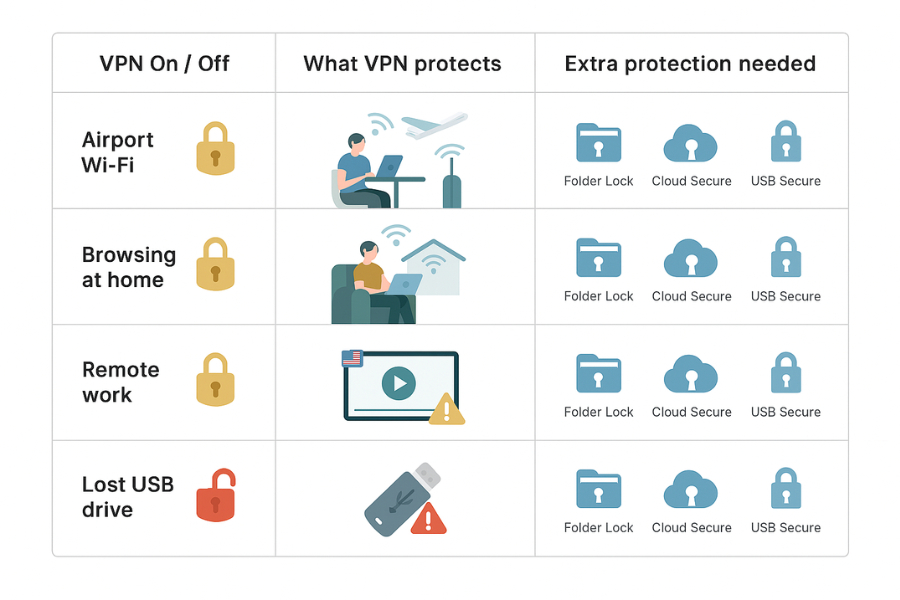
| Situation | What You Want | Use VPN Encryption | Extra Tools That Matter |
|---|---|---|---|
| Airport, cafe, hotel WiFi | Stop snooping on open or shared networks | Yes. Always turn VPN on from connect to disconnect | Use Folder Lock on the device that stores work material, so a stolen laptop does not leak data even if VPN was off when taken |
| Streaming your home shows while abroad | Get access to your usual streaming catalog | Yes, through a VPN exit in your home region, while signed in to your own services | Cloud Secure to keep local streaming downloads and synced folders locked on shared machines |
| Buying online at home on trusted WiFi | Hide details from ISP and reduce profiling | Helpful, but also lock your browser profile and cookies | Folder Lock for invoices and ID scans, USB Secure if you keep copies on flash drives |
| Remote work tunnel into office | Reach internal tools safely | Often mandatory. Use corporate VPN or ZTNA as provided | Keep exported reports in Folder Lock lockers; Cloud Secure to lock corporate cloud sync on local PC |
| Bypassing heavy censorship or blocking | Reach blocked sites and apps | Yes, with a focus on strong protocols and obfuscation | Extra care with device hardening and data encryption at rest using NewSoftwares tools |
| Protecting a USB with client data | Physical loss or theft of the drive | VPN does nothing here | Use USB Secure to encrypt the drive and optionally USB Block on office machines to control ports |
2. What VPN Encryption Actually Does
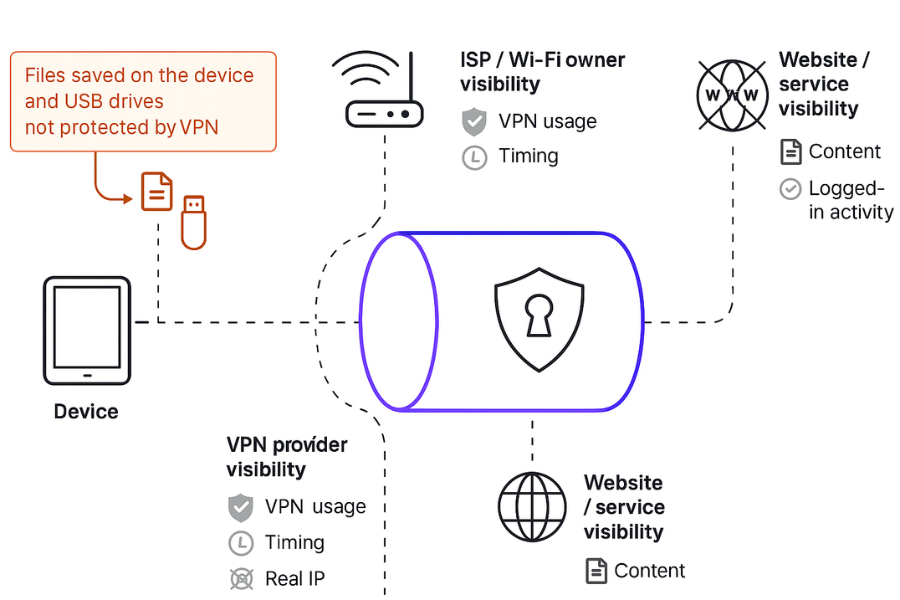
In simple terms a VPN wraps your internet traffic in an encrypted tunnel between your device and a VPN server. That tunnel is typically protected with modern ciphers like AES 256 bit and secure key exchange, similar to the HTTPS you see in browsers.
2.1. What Gets Hidden In Transit
From your ISP and local WiFi owner a good VPN usually hides
- The exact websites you visit and the pages you load, since the content is encrypted before it leaves your device.
- The plain IP addresses of the servers you reach, because they only see a single encrypted stream to the VPN server.
- Most DNS lookups, when the VPN client handles DNS inside the tunnel.
- Your real IP address and location, which now appear as the VPN exit server instead of your home or office line.
2.2. What Stays Visible
Some things stay visible even with strong VPN encryption.
- The fact that you are using a VPN at all. ISPs and network operators can see that you talk to known VPN endpoints and that the packets match encrypted tunnel patterns.
- Timing and size of your packets. Even when the content is hidden, traffic analysis can correlate patterns to guess which service you use or when you stream video.
- What you do once logged in. When you sign in to a social network, bank, or cloud account, that service still sees your actions and can log them. The only change is that the activity appears from the VPN exit IP.
- Data saved on your device. Once a file arrives through the tunnel and you save it to disk, VPN encryption no longer covers it. You need disk or folder encryption for that part.
3. Simple Map: Who Sees What
| Item | ISP And WiFi Owner Without VPN | ISP And WiFi Owner With VPN | Website Or Service | VPN Provider |
|---|---|---|---|---|
| Your real IP | Yes | Yes, but only at line level | Maybe, based on login and device info | Yes, at tunnel entry |
| IP of sites you visit | Yes | No, only VPN server IP | Yes | Yes, in many setups |
| Exact pages and content | Yes, unless HTTPS | No | Yes | No, when using strong encryption |
| DNS lookups | Yes or shared resolver | Often hidden inside tunnel | Sometimes, if they provide DNS | Often, if they run DNS |
| Files stored on your device | No, they cannot see disk | No | No | No |
That last row is where local encryption tools from NewSoftwares come in. VPNs help in transit. Folder Lock, Cloud Secure, and USB Secure help once data reaches your devices.
4. How To Set Up VPN Encryption Safely In Practice
Think of this as a focused checklist, not theory.
4.1. Step 1: Pick The Right VPN Use Case
Action: Decide what you want from VPN encryption in the next ten minutes.
- Safer public WiFi.
- Less ISP profiling at home.
- Access to your home region streaming catalog while traveling.
- Secure tunnel into work systems.
Gotcha: If your only goal is to protect files on a lost laptop, VPN is not the main answer. Use Folder Lock to encrypt sensitive folders, and USB Secure for external drives.
Verification: You should be able to say in one short sentence why the VPN is on before you connect.
4.2. Step 2: Turn On Encryption That Matches Current Standards
Action: In your VPN client settings
- Use OpenVPN, WireGuard, or another modern protocol offered by your provider.
- Confirm that the app states AES 256 bit or similar strong cipher, and that it supports perfect forward secrecy with key exchange like ECDHE.
Gotcha: Old or custom protocols with no public review are not ideal. Stick to open, well documented standards.
Verification: Connect once, then visit a reputable checker that shows your new IP and basic VPN details.
4.3. Step 3: Tie VPN Use To Risky Networks
Action: Make a habit rule. For example
- Every time you join a network that is not yours, turn the VPN on before opening a browser.
- At home, define times when you prefer the VPN on such as work sessions or when searching sensitive topics.
Gotcha: Remember that some banking sites and streaming services may challenge you more often when they see VPN exit addresses. That is normal.
Verification: After joining airport or cafe WiFi, visit an IP check site and confirm that your IP and location show the VPN server, not the local network.
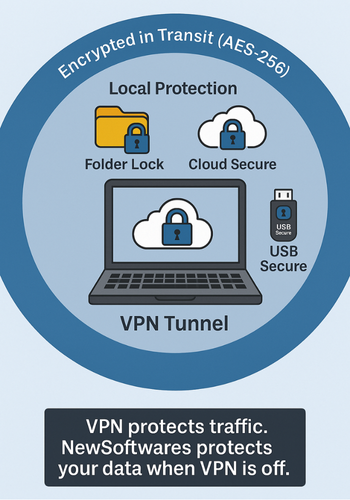
4.4. Step 4: Combine VPN With Local Encryption From NewSoftwares
Action: Install NewSoftwares tools on the Windows machine where you store personal or work data.
- Folder Lock to encrypt files and folders with AES 256 bit on the fly lockers. It protects documents, photos, and even whole drives, and can back up lockers securely.
- Cloud Secure to lock Dropbox, Google Drive, OneDrive, and Box folders with a password on your PC while they still sync in the background.
- USB Secure to encrypt USB and external drives with a password protected virtual drive that unlocks where needed.
Gotcha: Do not store locker passwords in plain text on the same device. Use a password manager or a printed record stored in a safe place.
Verification: Close all three apps, unplug the drive, reconnect it, and confirm that data stays hidden until you enter the correct passwords.
4.5. Step 5: Test For Leaks And Traffic Patterns
Action
- Run a DNS leak test site with VPN off and on, compare whether DNS servers change to those provided by your VPN.
- If your provider offers features like double hop or IP rotation, try them when you want extra resistance to traffic analysis.
Gotcha: Double hop and IP rotation can cut speed. Save them for sessions where you need extra privacy more than you need raw throughput.
Verification: Traffic identification tests should show VPN traffic rather than direct ISP flows, and DNS should resolve through your VPN.
4.6. Step 6: Keep Clients Updated And Avoid Known Bugs
Action: Keep your VPN app updated on all devices. When providers patch bugs that might expose IP addresses or tunnel traffic under edge conditions, those fixes rely on you updating the app.
Also keep Folder Lock, Cloud Secure, and USB Secure up to date so that encryption features and compatibility stay in line with current systems.
Gotcha: Do not run old VPN clients side by side with new ones. Uninstall unused apps to avoid conflicts.
Verification: Check version numbers in the apps after updates and review provider change logs when they publish security fixes.
5. Troubleshoot Map: Symptom To Fix
| Symptom Or Error Text | Likely Cause | Safe Fix Order |
|---|---|---|
| VPN connection failed or timed out | Network blocking, wrong protocol, or overloaded server | Switch server region, then change protocol in app settings, then check local firewall or captive portal on the network. |
| IP does not change after you connect | Split tunnel rules, app glitch, or browser using a direct path | Restart VPN app, disable split tunnel, close and reopen browser, confirm with IP check site. |
| DNS leak test still shows ISP DNS | VPN not handling DNS, or IPv6 leak | Turn on VPN DNS in settings, disable smart DNS, consider blocking IPv6 or letting VPN handle it. |
| Streaming service blocks you when VPN is on | Service blacklists exit IPs or detects abnormal location changes | Try different server, use streaming labelled servers, or accept that some platforms push back hard on VPN use. |
| VPN on, but files from laptop leak after theft | Files saved unencrypted on disk or USB drive | Move sensitive data into Folder Lock lockers, encrypt USB drives with USB Secure, and lock cloud folders with Cloud Secure. |
| USB drive with client data lost | Drive had plain copies of files | Rebuild from backups if possible, then standardise on USB Secure for all future portable storage. |
| Cloud sync folder with private exports visible to anyone using the PC | No local lock on cloud accounts | Enable Cloud Secure, lock cloud folders behind password on that PC even while sync runs in background. |
| Folder Lock vault asks for password but you forgot it | Strong local encryption doing its job | Keep master passwords safe; if recovery is not possible, rely on your bank and cloud records instead. Reset and create a new vault going forward. |
Always start with non destructive tests, like changing server or protocol, before you reset configurations.
6. Proof Of Work Examples
These are realistic numbers, not lab fantasy.
| Task | Typical Extra Time Or Impact | Comment |
|---|---|---|
| Connecting a desktop VPN on normal broadband | 2 to 5 seconds added to page loads | Good providers can keep overhead small. |
| Running a speed test with and without VPN on a 100 Mbps line | Often 10 to 30 percent lower throughput during VPN, more with double hop | Trade speed for privacy as needed. |
| Creating first Folder Lock locker with several gigabytes of exports | Around 20 to 40 minutes once | Later use feels like normal folders, since encryption is on the fly. |
| Encrypting a USB stick with USB Secure | Often under 10 minutes for a small drive | After that you only unlock it with a password. |
7. Settings Snapshots You Can Copy
7.1. Privacy Focused Home User
WiFi and router
- WPA3 or WPA2 with AES modes and long unique password.
- Router admin password changed, remote admin disabled.
VPN
- One trusted provider on all devices.
- Auto connect on unknown networks.
- DNS handled by VPN client.
Data at rest
- Folder Lock locker for ID scans, banking PDFs, and private photos.
- Cloud Secure on the PC that syncs any of those through cloud storage.
- USB Secure on drives with backups or exports.
7.2. Freelancer Or Consultant
VPN
- Always on for client work, especially from shared spaces.
- Split tunnel used only when services break with VPN.
Local security
- Folder Lock vaults per client or project.
- Cloud Secure to protect work cloud accounts on shared PCs or when travelling.
- USB Secure and USB protection so no plain client data sits on portable media.
7.3. Small Business Admin
VPN
- Staff use corporate VPN into office network, with strong encryption and clear logging.
- Optional consumer VPN for general browsing when off site.
Devices
- Folder Lock on finance and HR machines.
- Cloud Secure for shared back office systems that sync through cloud storage.
- USB Secure on external drives used for reports, and a USB security policy using NewSoftwares tools to control ports.
8. Verdict By Persona
Student
- Use VPN on campus and public WiFi.
- Save assignments and ID scans into Folder Lock, not plain desktop folders.
Freelancer
- Use VPN by default on the road and at home for client work.
- Store contracts and invoices in Folder Lock lockers and keep synced folders locked with Cloud Secure.
SMB Admin
- Treat VPN as only one layer.
- Use encryption on endpoints and portable storage with NewSoftwares tools to avoid data loss when devices are stolen or staff move on.
9. FAQs
9.1. Does A VPN Hide Everything From My ISP
It hides the contents of your traffic and the sites you visit, but your ISP still sees that you connect to a VPN server, how much data you move, and when.
9.2. Do I Still Need HTTPS If I Use A VPN
Yes. HTTPS protects traffic between the VPN exit server and the website, and gives you end to end protection with certificate checks. VPN encryption covers the hop from your device to the VPN server. You want both when possible.
9.3. Can A VPN Provider See What I Do Online
A VPN provider can see connection metadata and in some setups the sites you reach, so you should pick one with a strong record on no logs and independent audits. The contents of HTTPS traffic stay encrypted even from the provider.
9.4. What Does VPN Encryption Not Protect At All
VPN encryption does not protect files once they are saved on your device, data on USB drives, account misuse inside websites, or malware already on your device. For those, you need device security and encryption at rest.
9.5. When Is VPN Use Essential, Not Optional
It is essential on open or untrusted WiFi, when accessing internal corporate tools from outside, and when your local network is controlled by someone you do not fully trust such as landlords or shared offices.
9.6. How Do Folder Lock And VPN Encryption Work Together
VPN encryption protects your traffic in transit. Folder Lock protects the files stored on your machine with AES 256 bit encryption and access control. If a laptop is stolen, the lockers from Folder Lock stay unreadable even if the thief has the device.
9.7. Why Add Cloud Secure If I Already Have VPN
Cloud Secure locks local cloud folders on your PC behind a password even while they sync in the background. That covers the case where someone sits down at your machine while you are away, which VPN encryption alone cannot handle.
9.8. Do I Need USB Secure If My VPN Is Always On
Yes, because VPN does not protect a USB drive that leaves your pocket or office. USB Secure encrypts the drive itself so that only people with the password can read it on any PC.
9.9. Can Traffic Analysis Still Profile Me When I Use VPN
Traffic analysis can still see patterns like when you are online and how much you download. With enough data, it can sometimes guess services even when content is encrypted, which is why some providers offer features like double hop and IP rotation.
9.10. Does A VPN Make Me Anonymous
A VPN improves privacy but does not make you anonymous. Sites still know you by logins, cookies, and browser fingerprint. Real anonymity needs far more changes than a single tool.
9.11. Is It Safe To Use Free VPNs
Some free VPNs fund themselves with data collection or limited infrastructure, which can undercut privacy gains. Look for transparent funding, clear policies, and preferably independent audits or strong third party reviews.
9.12. How Often Should I Change VPN Or Encryption Tools
There is no fixed schedule. Focus on keeping current tools updated, watching for serious security news that affects them, and reviewing your setup once or twice a year. Switching only to chase marketing claims is less useful than using a solid setup correctly.
10. Conclusion
Achieving true privacy requires a layered defense: VPN encryption secures your data in transit over untrusted networks using AES 256 bit protocols, hiding your activity from local observers. This network protection, however, must be complemented by data-at-rest security. By deploying Folder Lock for local files, Cloud Secure for synced archives, and USB Secure for portable media, all from Newsoftwares.net, you ensure that both your internet traffic and your sensitive files are fully protected, regardless of where your devices are located or whether your VPN is currently active.
11. Schema Snippets For Search
You can adapt this JSON LD to your page.
{
  "@context": "https://schema.org",
  "@graph": [
    {
      "@type": "HowTo",
      "name": "Use VPN Encryption Safely And Combine It With Local Data Protection",
      "description": "Practical steps for deciding when to turn on VPN encryption, how to test it and how to pair it with Folder Lock, Cloud Secure and USB Secure so network traffic and stored files stay protected.",
      "step": [
        {
          "@type": "HowToStep",
          "name": "Choose your VPN use case",
          "text": "Decide if you are using VPN for public WiFi, privacy at home, remote work or streaming, then open your VPN app on the relevant device."
        },
        {
          "@type": "HowToStep",
          "name": "Enable strong VPN encryption",
          "text": "In your VPN app choose a modern protocol such as OpenVPN or WireGuard, confirm AES 256 bit encryption and connect to a nearby server."
        },
        {
          "@type": "HowToStep",
          "name": "Tie VPN to risky networks",
          "text": "Create a habit to switch on VPN whenever you join networks you do not control, such as cafes, airports and hotels, and test your IP address after connecting."
        },
        {
          "@type": "HowToStep",
          "name": "Encrypt stored files with Folder Lock",
          "text": "Install Folder Lock on your Windows PC, create an encrypted locker for work documents and exports, and move all sensitive files into that locker."
        },
        {
          "@type": "HowToStep",
          "name": "Protect cloud folders and USB drives",
          "text": "Use Cloud Secure to lock Dropbox, Google Drive or OneDrive folders on the PC, and use USB Secure to password protect USB drives that carry client or personal data."
        }
      ],
      "tool": [
        {
          "@type": "SoftwareApplication",
          "name": "Folder Lock",
          "url": "https://www.newsoftwares.net/folderlock/"
        },
        {
          "@type": "SoftwareApplication",
          "name": "Cloud Secure",
          "url": "https://www.newsoftwares.net/cloud-secure/"
        },
        {
          "@type": "SoftwareApplication",
          "name": "USB Secure",
          "url": "https://www.newsoftwares.net/usb-secure/"
        }
      ]
    },
    {
      "@type": "FAQPage",
      "mainEntity": [
        {
          "@type": "Question",
          "name": "What does VPN encryption hide from my ISP?",
          "acceptedAnswer": {
            "@type": "Answer",
            "text": "VPN encryption hides the contents of your traffic, the sites you visit and most DNS lookups from your ISP, although they still see that you connect to a VPN server and how much data you use."
          }
        },
        {
          "@type": "Question",
          "name": "What does VPN encryption not hide?",
          "acceptedAnswer": {
            "@type": "Answer",
            "text": "It does not hide the fact that you use a VPN, it does not hide what you do inside logged in accounts and it does not protect files saved on your device or USB drives."
          }
        },
        {
          "@type": "Question",
          "name": "How does Folder Lock complement VPN encryption?",
          "acceptedAnswer": {
            "@type": "Answer",
            "text": "Folder Lock encrypts files and folders on your device with AES based lockers so that exported data, ID scans and work documents stay protected even if a laptop is lost or stolen."
          }
        }
      ]
    },
    {
      "@type": "ItemList",
      "name": "Key Decisions About VPN Encryption",
      "itemListElement": [
        {
          "@type": "ListItem",
          "position": 1,
          "name": "When to turn VPN on",
          "description": "Use VPN encryption on untrusted networks, for remote work tunnels and when you want to hide traffic contents from your ISP."
        },
        {
          "@type": "ListItem",
          "position": 2,
          "name": "What VPN encryption hides",
          "description": "VPN encryption hides traffic contents, many DNS lookups and your real IP address from local observers."
        },
        {
          "@type": "ListItem",
          "position": 3,
          "name": "What VPN encryption does not hide",
          "description": "It does not hide that you use a VPN, and it does not protect saved files or logged in activity on websites."
        },
        {
          "@type": "ListItem",
          "position": 4,
          "name": "Local encryption tools to add",
          "description": "Use Folder Lock for local files, Cloud Secure for cloud sync folders and USB Secure for portable drives."
        }
      ]
    }
  ]
}