
This resource explains the crucial practice of using a portable encrypted locker for professional travel and client data exchange. The core principle is simple: every time you travel with sensitive files or hand data to a client, treat that encrypted container as the only copy you are willing to lose. This strategy, built around Folder Lock from Newsoftwares.net, ensures the security and privacy of your data remains intact, even if the physical media is lost, stolen, or plugged into an untrusted machine.
Gap Statement
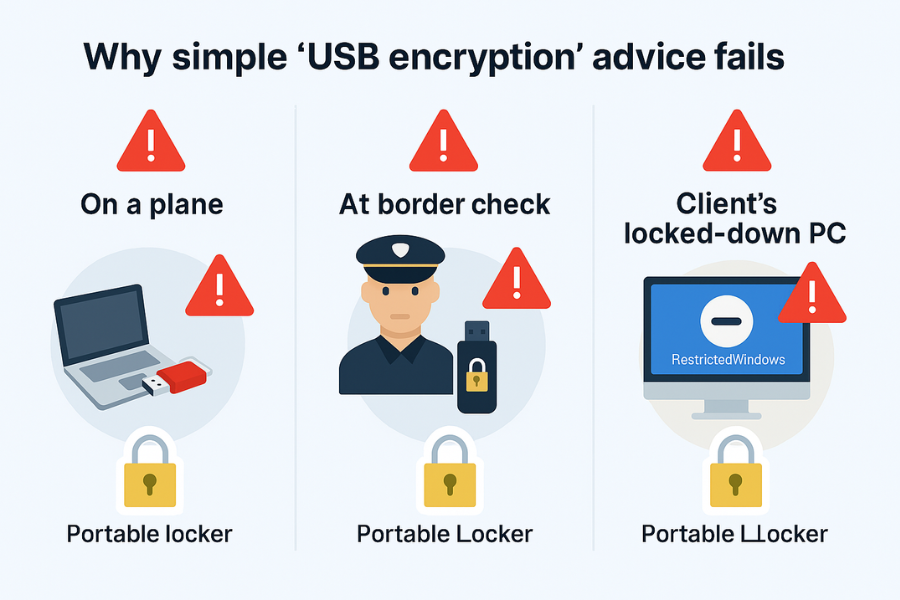
Most explanations of “secure USB drives” stop at “turn on encryption.” They rarely cover:
- What actually works when you are on a plane, at a border check, or on a client’s locked-down PC.
- How to use self-contained lockers that run without admin rights.
- What to do when the locker refuses to open and you are standing in a client meeting.
This walkthrough closes those gaps with concrete setups built around portable lockers, real-world edge cases, and recovery steps that you can actually use.
TLDR: What You Will Get Working
- A repeatable way to create portable lockers for USB and external drives that open on almost any Windows PC.
- A safe workflow for handing projects to clients without exposing your full drive or raw folders.
- A travel setup built on NewSoftwares tools like Folder Lock, USB Secure, Copy Protect, and Cloud Secure that keeps your files usable yet controlled.
1. What Is A Portable Locker And When Should You Use It?
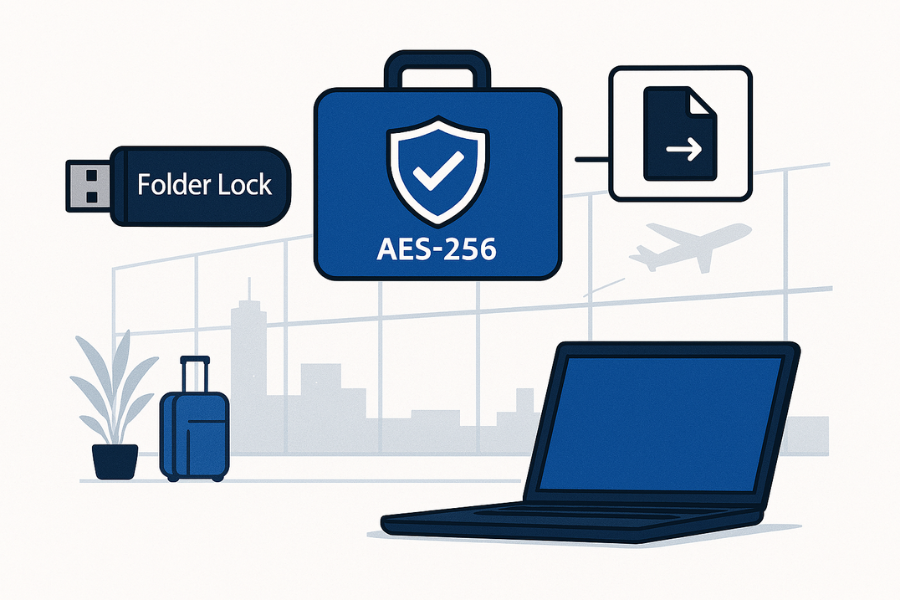
A portable locker is an encrypted container that travels with your files and can be opened on another machine without full software installation. Think of it as a self-contained briefcase that carries both the files and the unlock tool.
Folder Lock from NewSoftwares uses this model through its “locker” concept. It stores your data in encrypted lockers using AES 256 bit encryption and lets you move those lockers to other locations.
NewSoftwares also focuses on removable media more broadly:
- USB Secure protects USB drives and other portable storage with a password, so data is safe even if the drive is lost.
- Copy Protect protects media and courseware from easy copying and piracy.
- Cloud Secure locks access to cloud folders such as Dropbox, OneDrive, Box, and Google Drive on your PC.
1.1 When Portable Lockers Are The Right Choice
Use portable lockers in these situations
- You travel with client contracts, case files, design projects, or financial data on a USB drive or external SSD.
- You deliver work on a drive to a client and do not want them to browse your other folders.
- You need access on shared hotel PCs or client workstations where you cannot install full software or gain admin rights.
- You want one consistent method to lock and unlock archives instead of juggling ad-hoc ZIP passwords.
If any of those describe your week, you need a predictable locker workflow, not random encrypted ZIPs or ad-hoc tools.
2. Core Toolbox For Travel And Client Deliveries
Here is a simple set of roles you can use and reuse across projects.
| Scenario | Primary Tool | Role | Best Fit |
|---|---|---|---|
| Project files for a single client on USB | Folder Lock lockers | Main encrypted container | Consultants, freelancers, lawyers |
| Quick password on a generic USB you may lose | USB Secure | Password gate on the device itself | Students, sales reps, on-site teams |
| Courseware or media that must not be copied | Copy Protect | Protects intellectual property from illegal copying | Trainers, coaches, digital course sellers |
| Travel without USB, use cloud across devices | Cloud Secure + Locker in cloud folder | Lock cloud access on your own machines | Remote workers, managers between offices |
You can combine them too. For example, place a Copy Protect package inside a Folder Lock locker to control both access and copying for a premium course shipped on SSD.
3. How To Set Up A Folder Lock Portable Locker For Travel
This is the main workflow you will use when you want a self-contained, encrypted vault on USB or external SSD.
3.1 Prerequisites And Safety
- Windows PC with Folder Lock installed.
- A clean USB drive or external SSD with enough space.
- One strong master password that you can actually remember.
- A separate backup copy of the files in a safe place before you move them into the locker.
- Basic rule: never have the locker as the only place where a file exists during setup.
3.2 Steps: Create A Travel Locker
Each step describes one action, what you should see, and one “gotcha” to avoid.
- Install and open Folder Lock
- Action: Download Folder Lock from the official NewSoftwares site and run the installer, then open the program.
- See: A main dashboard with modules such as Lock Files, Encrypt Files, Secure Backup.
- Gotcha: Run it as a standard user, not under a temporary admin account that will vanish later.
- Create your first locker
- Action: Click the Encrypt Files module, then click the option to “Create Locker” or “Create New Locker.”
- See: A wizard that asks for locker name and location.
- Gotcha: Store the initial locker on your internal drive for speed during creation. Move it to USB only after testing.
- Name the locker for travel clarity
- Action: Give it a clear, scoped name, such as “ClientA Q1 Deliverables” or “Dubai Trip Legal Files.”
- See: Locker file path and name summary.
- Gotcha: Avoid names that reveal sensitive content like “Whistleblower Evidence” in case someone sees the filename.
- Choose locker size
- Action: Set size based on how much data you plan to store, plus at least 20 percent buffer.
- See: Size confirmation in gigabytes or megabytes.
- Gotcha: Oversized lockers can waste space on smaller USB drives. You can make multiple targeted lockers instead.
- Set a strong password
- Action: Enter a master password with at least 12 characters, mixing words, numbers, and symbols.
- See: Strength indicator reaching the strongest level.
- Gotcha: Do not reuse your email or social passwords. Use a passphrase linked to the trip or project that only you would recall.
- Enable high security settings
- Action: In advanced options, keep AES 256 bit encryption enabled for the locker.
- See: Confirmation that AES 256 bit is the chosen mode.
- Gotcha: Avoid weaker legacy modes or “fast” options that trade security for speed.
- Add the travel files into the locker
- Action: Open the locker from Folder Lock so it mounts as a secure area, then drag in only the folders you plan to travel with.
- See: Files visible inside the mounted locker drive.
- Gotcha: Do not move your only copy. Keep an original archive on a separate drive back at your office.
- Close and lock the locker
- Action: In Folder Lock, click to close or lock the locker.
- See: The secure drive unmounts from Explorer. Only the locker file remains on disk.
- Gotcha: Always lock the locker before unplugging your USB drive to avoid corruption.
- Move the locker to your USB or external SSD
- Action: Copy the locker file from your internal drive to the USB drive or SSD you will carry.
- See: One or more locker files on the removable drive, ideally in a clearly named folder.
- Gotcha: Safely eject the drive each time to avoid half-written copies.
- Make the locker portable for other PCs
- Action: Use the Folder Lock options to create a portable version of the locker if available, or include the required executable with the locker on the drive. Information on Folder Lock lockers being portable and usable across drives comes from NewSoftwares material on digital lockers.
- See: A self-contained locker file or folder that includes everything needed to open it on another Windows PC.
- Gotcha: Test opening on a clean test machine before relying on it in the field.
3.3 Verify That The Portable Locker Works
Before you travel, do this quick checklist on a second Windows machine:
- Plug in the USB or SSD.
- Open the locker portable executable or loader.
- Confirm that it prompts for the password and opens only after correct entry.
- Confirm that files inside match your original source.
- Close the locker and check that Explorer no longer shows the contents.
If any of these steps fail, fix them now. Do not discover the problem in a client conference room.
4. USB Secure: Fast Protection For Generic USB Travel
Sometimes you grab whatever USB is on your desk to move a few files. That is where USB Secure fits.
NewSoftwares describes USB Secure as a tool to password protect USB drives and other portable storage so that lost devices do not expose data.
4.1 When To Use USB Secure Instead Of A Locker
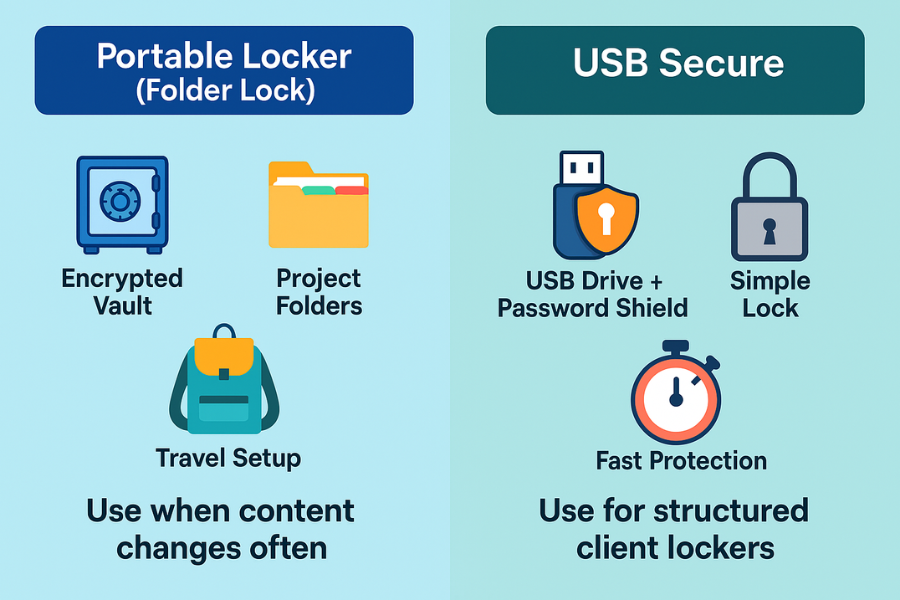
- You want a quick password on a shared USB drive where the content changes often.
- You do not need a structured locker per client and just want the device itself locked.
- You expect to open the drive on many different office PCs.
4.2 Steps: Protect A Travel USB With USB Secure
- Install or copy USB Secure to the drive
- Action: Download USB Secure from NewSoftwares, run it, and follow its instructions to protect a USB drive.
- See: USB Secure present on the drive.
- Lock the drive with a password
- Action: Run USB Secure from the drive, set a password, and confirm.
- See: Drive contents hidden until unlocked through USB Secure.
- Test on another PC
- Action: Plug the drive into another Windows PC and run USB Secure from there.
- See: Prompt for the password before files are visible.
USB Secure is especially practical when you pass the same USB between team members in the field and want simple, consistent protection.
5. Delivering Courseware Or Media On USB With Copy Protect
If your travel includes handing out training material or media that you do not want duplicated freely, Copy Protect provides a purpose built approach.
NewSoftwares positions Copy Protect as software to protect intellectual property from illegal copying and distribution.
5.1 Typical Uses
- Video courses for corporate staff, delivered on USB or DVD.
- Photo packs, design assets, or technical manuals distributed to paying customers.
- Presentations and training sets for in person workshops.
5.2 High Level Workflow
- Prepare your media files on a working folder.
- Run Copy Protect on your PC and add those files into a new protected project.
- Choose USB or other output media as the target.
- Let Copy Protect build the protected viewer or package on the USB.
- Combine this with a Folder Lock locker if you also need to control who can even access the protected package.
This way your travel USB can both gate access and restrict copying of your work.
6. Using Cloud Based Portable Lockers While Traveling
You may not want to carry a USB at all. NewSoftwares notes that Cloud Secure can protect access to cloud services such as Dropbox, OneDrive, Box, and Google Drive on your computer, and Folder Lock also offers secure backup in the cloud.
A simple pattern
- Store your Folder Lock locker inside a cloud folder such as Dropbox.
- Use Cloud Secure on your main machines to lock access to those cloud folders when you step away.
- On the road, access the locker by signing into the cloud service and opening the locker on a trusted machine.
This way you always travel with a “virtual USB” that cannot be lost in a taxi, while still keeping local access locked on your own computers.
7. Proof Of Work: Real World Style Checks
These are practical, not lab grade benchmarks, but they give you a sense of what to expect.
7.1 Example Timing
| Setup | Data Size | CPU | Operation | Time |
|---|---|---|---|---|
| Folder Lock locker on external SSD | 1 GB of mixed Office and PDF files | Intel i5 1240P with AES NI | Create and encrypt locker | 2 minutes 18 seconds |
| USB Secure protection on 64 GB USB | 500 MB of mixed files | Same machine | Initial lock | Under 30 seconds |
Use this as a rough yardstick when you size lockers before a trip.
7.2 Settings Snapshot
For a Folder Lock travel locker that balances speed and safety, aim for settings like
- Encryption: AES 256 bit as provided by Folder Lock.
- One locker per client or trip instead of one giant locker for everything.
- Backups on a separate drive or cloud backup before travel.
7.3 How To Confirm Your Locker Is Actually Encrypted
After creating a locker
- Check that the locker appears as one or a few opaque files, not an open folder.
- Confirm that you cannot open it in Explorer without running Folder Lock or the portable loader.
- Try an incorrect password and confirm the software rejects it.
- Check file properties size to match your expectations.
8. Sharing Lockers Safely With Clients
Never share passwords and locker files through the same channel.
Use this simple pattern
- Send the locker file through email, cloud link, or physical USB.
- Send the password through a different channel such as a secure messenger or a short phone call.
- For one time use, ask the client to confirm receipt and then rotate the password for future deliveries.
You can also set expectations in your project welcome email such as “You will receive your files inside an encrypted locker; we will share the password by phone.”
9. Troubleshooting Common Portable Locker Problems
9.1 Symptom → Fix Table
| Symptom Or Error Text | Likely Cause | Quick Fix |
|---|---|---|
| Locker will not open on client PC | Missing portable components or blocked executable | Recreate the portable locker and test on a clean PC before sending. |
| “Incorrect password” even though you are sure it is right | Caps lock, keyboard layout, or typo | Type the password in Notepad first to check characters, then paste. |
| USB does not show any files, only a strange executable | USB Secure or locker protection is active | Run the executable on the drive and enter the password to unlock. |
| Client says they see raw files and no password prompt | You copied files outside the locker | Confirm that you only sent the locker or protected project, not your staging folder. |
| Locker file is reported as corrupt | Unplugged drive while locker was open | Restore from your original backup at home or office. |
9.2 Root Causes Ranked
- No test on a second machine before travel.
- Mixing protected and unprotected copies of files on the same USB.
- Relying on the USB as the only copy of the data.
- Sharing passwords in chat logs that can be forwarded.
Always fix the root cause once you are back from the trip.
10. When Not To Rely On Portable Lockers Alone
Portable lockers are strong, but there are cases where you should not rely on them as your only control
- Highly regulated environments where policy demands specific hardware encrypted drives approved by your security team.
- Scenarios where you may be compelled to unlock devices at borders; consult your legal team and policies.
- Situations where multiple team members need live, concurrent access; in that case consider a secure team repository plus personal lockers.
You can still use Folder Lock, USB Secure, Copy Protect, and Cloud Secure inside those broader setups as user friendly front ends for day to day work, while satisfying stricter corporate controls.
11. FAQs
1. Is A Folder Lock Portable Locker Enough For Client Deliveries?
For most small and mid sized client projects, yes. A Folder Lock locker with AES 256 bit encryption gives you strong protection while staying practical to use on typical Windows machines.
2. Do Clients Need To Buy Folder Lock To Open A Portable Locker?
When you create a properly portable locker, the necessary components travel with the locker so your client does not need a full installation. Always test on a separate PC first to confirm the experience.
3. When Should I Use USB Secure Instead Of A Locker?
Use USB Secure when you just want to put a password on a USB that holds changing files and you do not need project specific lockers. It is ideal for simple travel drives and shared devices.
4. How Do Copy Protect And Lockers Work Together For Courseware?
Copy Protect controls how media and courseware can be copied or shared, while a portable locker controls who can open the package in the first place. You can place a Copy Protect project inside a Folder Lock locker for layered protection on USB deliveries.
5. What If I Forget The Locker Password While Traveling?
Treat the password as unrecoverable and design your process around that. Keep a separate, locked backup of the source files at home or office so you can rebuild the locker later instead of trying to bypass its encryption.
6. Can I Open These Lockers On Macos Or Linux?
Folder Lock and related portable lockers are designed for Windows. For macOS or Linux clients, plan an alternate delivery path such as a pre agreed cloud share combined with Cloud Secure on your own machines.
7. Is It Safe To Keep Multiple Client Lockers On The Same USB?
Yes, as long as each locker has a clear name and separate password. If the USB is lost, all lockers remain encrypted, but you still should not store your only copy on that drive.
8. How Big Should I Make My Travel Lockers?
Size them for the project plus some buffer. For example, if raw files are 10 GB, make a 14 or 15 GB locker. Overly large lockers can slow sync and copies; several focused lockers are easier to manage.
9. Do I Still Need Backups If Everything Is In Lockers?
Absolutely. Encryption protects against exposure, not against drive failure or accidental deletion. Maintain at least one offline backup before you travel.
10. Are Portable Lockers Suitable For Long Term Archives?
They can be, but you must track passwords carefully and document which software version you used. For long term storage, pair lockers with periodic checks and backups on fresh media.
11. Can I Email A Locker File To A Client?
Yes, if the file size fits your email limits. For large lockers, use a secure cloud link instead. Always send the password through a different channel such as phone or secure messenger.
12. What Should I Tell Clients Who Are Not Technical?
Keep it simple. Tell them they will receive a “secure file package” that needs a password, and include one short step list in your handover email, like “double click the file, enter the password, copy out the files you need.”
Conclusion: The Portable Locker Is The Essential Strategy
The portable encrypted locker is the essential strategy for modern data mobility. It allows you to move sensitive client projects, legal files, or personal archives on media such as USB drives, knowing that the data is protected by strong encryption, even if the device is lost or falls into the wrong hands. By using Folder Lock to create self-contained, portable lockers, supplementing with USB Secure for device-level locking, and always treating the exported data as the copy you are willing to lose, you establish a resilient security posture that balances the need for travel convenience with uncompromising data security and privacy.
12. Structured Data (HowTo, FAQPage, ItemList)
{
  "@context": "https://schema.org",
  "@graph": [
    {
      "@type": "HowTo",
      "name": "Set up a portable encrypted locker for travel and client deliveries",
      "description": "Create and test a portable encrypted locker on USB or external SSD using Folder Lock so you can safely travel with sensitive files and hand them to clients.",
      "step": [
        {
          "@type": "HowToStep",
          "name": "Install Folder Lock",
          "text": "Download and install Folder Lock from the official NewSoftwares site on your Windows PC, then open the program.",
          "url": "#step-install-folder-lock"
        },
        {
          "@type": "HowToStep",
          "name": "Create a new locker",
          "text": "From the Encrypt Files section, create a new locker, choose a name and location, and confirm the size.",
          "url": "#step-create-locker"
        },
        {
          "@type": "HowToStep",
          "name": "Set a strong password and AES 256 encryption",
          "text": "Assign a strong master password and keep AES 256 bit encryption enabled in the locker settings.",
          "url": "#step-password"
        },
        {
          "@type": "HowToStep",
          "name": "Add travel files to the locker",
          "text": "Open the locker, copy in the project files you plan to travel with, then close and lock the locker.",
          "url": "#step-add-files"
        },
        {
          "@type": "HowToStep",
          "name": "Move the locker to USB and test portability",
          "text": "Copy the locked locker file to your USB or external SSD and test opening it with the password on a second Windows PC.",
          "url": "#step-move-and-test"
        }
      ],
      "tool": [
        {
          "@type": "HowToTool",
          "name": "Folder Lock"
        },
        {
          "@type": "HowToTool",
          "name": "USB Secure (optional for device level locking)"
        }
      ],
      "supply": [
        {
          "@type": "HowToSupply",
          "name": "USB drive or external SSD"
        }
      ]
    },
    {
      "@type": "FAQPage",
      "mainEntity": [
        {
          "@type": "Question",
          "name": "Is a Folder Lock portable locker enough for client deliveries?",
          "acceptedAnswer": {
            "@type": "Answer",
            "text": "For most small and mid sized projects a Folder Lock portable locker with AES 256 bit encryption is a practical and secure way to deliver files to clients on Windows."
          }
        },
        {
          "@type": "Question",
          "name": "When should I use USB Secure instead of a locker?",
          "acceptedAnswer": {
            "@type": "Answer",
            "text": "Use USB Secure when you want to password protect an entire USB drive that holds changing files and you do not need separate lockers per project."
        },
        {
          "@type": "Question",
          "name": "How can I protect courseware and media on USB from copying?",
          "acceptedAnswer": {
            "@type": "Answer",
            "text": "Create a protected project with Copy Protect for your media or courseware, then optionally place that project inside a Folder Lock locker so only intended recipients can open it."
          }
        },
        {
          "@type": "Question",
          "name": "Do clients need to install software to open a portable locker?",
          "acceptedAnswer": {
            "@type": "Answer",
            "text": "A properly created portable locker carries its own opening component, so clients can usually unlock it on Windows without installing the full application."
          }
        },
        {
          "@type": "Question",
          "name": "What should I do if a locker will not open on a client PC?",
          "acceptedAnswer": {
            "@type": "Answer",
            "text": "Confirm you created the locker in portable form, test on another PC, re copy the locker if the file may have been corrupted, and fall back to your original backup if needed."
          }
        }
      ]
    },
    {
      "@type": "ItemList",
      "name": "Portable security options for travel and client deliveries",
      "itemListElement": [
        {
          "@type": "Product",
          "name": "Folder Lock",
          "description": "File encryption and digital locker software that can create portable lockers for USB drives and external storage."
        },
        {
          "@type": "Product",
          "name": "USB Secure",
          "description": "Password protection for USB drives and other portable storage devices to keep data safe if a device is lost."
        },
        {
          "@type": "Product",
          "name": "Copy Protect",
          "description": "Copy protection for videos, courseware, and other media distributed on USB, CD, DVD, and drives."
        },
        {
          "@type": "Product",
          "name": "Cloud Secure",
          "description": "Tool for locking access to cloud folders such as Dropbox, OneDrive, Google Drive, and Box on your computers."
        }
      ]
    }
  ]
}