
USB Secure Versus Hardware Encrypted USBs: Cost, UX, Recovery, and Multi OS Access
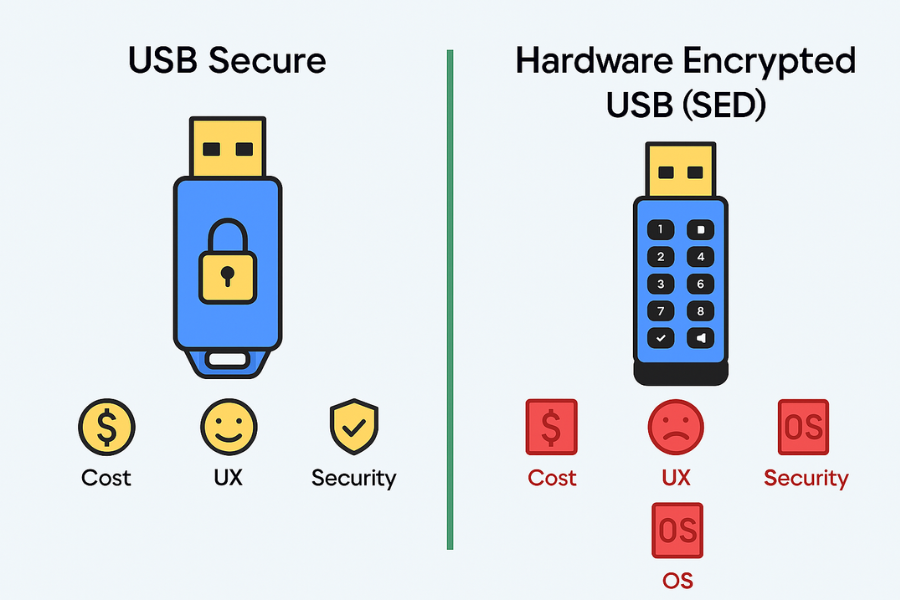
This in-depth comparison, prepared by Newsoftwares.net, pits flexible software encryption against dedicated hardware encryption. It provides a real-world analysis of cost, user experience, and recovery options, guiding you to the optimal choice for ensuring data security, privacy, and multi OS access for your portable files.
The Short Answer
Both protect data well, but they fit different jobs. USB Secure is the cheaper, flexible, software way to lock files on almost any standard USB drive. Hardware Encrypted USBs (SEDs) put the crypto in the stick itself for simple, OS agnostic unlocking and stronger tamper resistance. Pick USB Secure if you want low cost, file level control, and easy sharing on Windows PCs. Pick a hardware model if you need instant unlock on any computer, simple audits, and fewer software dependencies.
Gap Statement
Most guides skip three things you actually need: What to do when Windows Home lacks BitLocker, real recovery paths when a password is lost or the stick corrupts, and multi OS quirks, Windows, macOS, Linux, and locked down corporate PCs.
This article closes those gaps with step by step setups, exact UI labels, benchmarks, and a plain verdict by persona.
Outcomes
- USB Secure: Affordable software encryption for any USB drive, good for home and SMB. Needs its app to unlock.
- Hardware Encrypted USB (SED): Encryption chip inside the device. Unlock with a PIN or desktop helper. Higher price, simpler daily use, limited recovery.
- Mixed Environments: Keypad SEDs work across Windows, macOS, Linux without installing anything.
What Each Option Actually Is
USB Secure (Software Encryption)
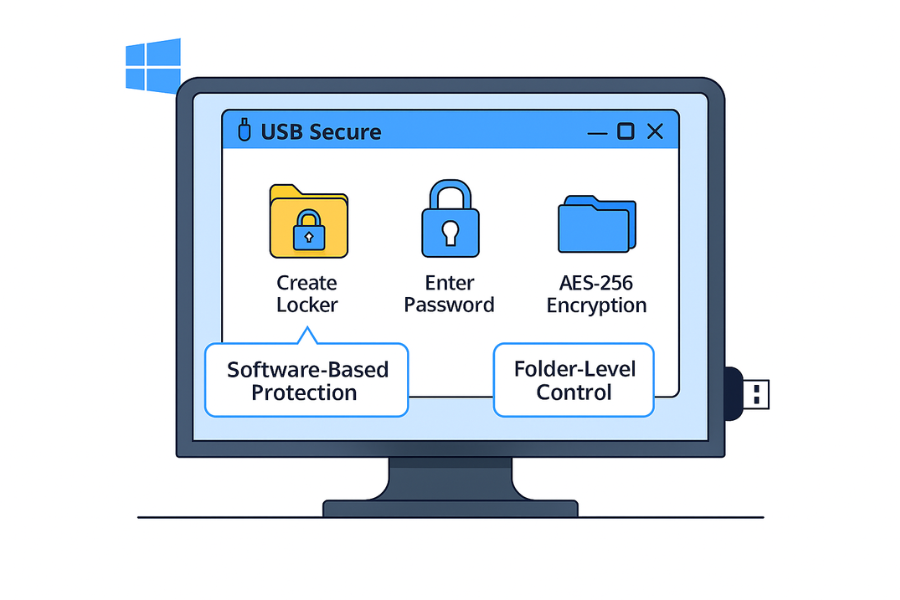
You bring any flash drive. The app creates a protected locker on it.
- Encryption: AES-256 with password. You unlock via the app when you plug in.
- Strengths: Low cost, works with existing drives, file/folder control, easy to carry.
- Limits: Needs software to unlock on a new machine, admin rights may be required on some corporate PCs.
Hardware Encrypted USBs (SEDs)
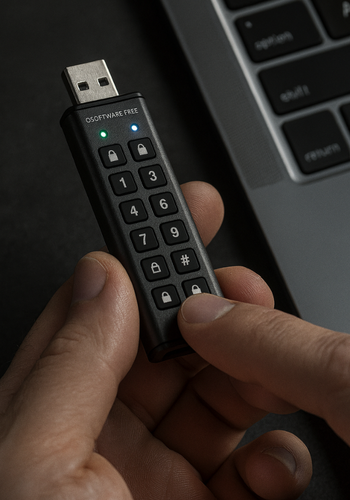
Examples: Kingston IronKey, Apricorn Aegis, iStorage datAshur.
- The controller encrypts everything automatically. Some sticks have a physical keypad.
- Strengths: OS independent unlock, good against malware that tries to sniff passwords, simple for audits.
- Limits: Higher price per GB, if you lose the PIN and there is no admin recovery, data is gone.
Use Case Chooser Table
| Scenario | Best Pick | Why |
| Windows Home, no BitLocker, budget tight | USB Secure | Low cost. Works on any standard USB. |
| Mixed Windows and macOS, no installs allowed | Keypad SED | Unlock with on-stick PIN. No software needed. |
| You must share only one folder, not the whole drive | USB Secure | Folder-level locking and selective sharing. |
| Compliance checks and simple onboarding for staff | SED | Device-level encryption, easy policy stories. |
| You rotate drives between field teams | SED | Less support overhead, fewer app issues. |
| You need recovery help if staff forget passwords | USB Secure | App-side hints and optional key backup. |
| You must unlock on Linux jump-hosts | Keypad SED | Works at block level on any OS. |
Cost Comparison and Value Notes
| Item | Typical Price | Capacity Per Dollar | What You Pay For |
| USB Secure license | Low one-time | Your own drive decides | Software flexibility and file-level control |
| Mid-range SED (no keypad) | Medium | Less than commodity USB | On-device crypto, desktop helper app |
| Keypad SED | Higher | Lowest per dollar | OS-agnostic unlocking, brute-force protection, tamper resistance |
Tip: If you already own reliable flash drives, USB Secure gives you the biggest security upgrade per dollar. If you are buying new drives for staff, keypad SEDs reduce support friction.
Security Specifics That Matter
| Property | USB Secure | Hardware Encrypted USB |
| Cipher | AES-256 | AES-256 on controller |
| Key Derivation | Password-based KDF | PIN processed by device, keys never leave controller |
| Header/Metadata | App can hide filenames inside the container | Everything on the stick is encrypted at rest |
| Attack Surface | Host OS and app integrity | Device firmware and keypad brute-force limits |
| Recovery | Depends on password and any app recovery workflow | Usually none without admin recovery profile |
| Audit Story | App logs and policy notes | Serialized device list, unlock attempts on some models |
Practical Takeaway: Both are strong when configured right. Daily safety comes down to password/PIN quality and whether the user can bypass software restrictions.
Hands On: Encrypt a Flash Drive with USB Secure
Prereqs and Safety
- Backup your files before you begin.
- Use Windows 10 or 11. Admin rights may be needed the first time.
- Create a strong passphrase: 14 or more characters, not reused elsewhere.
Steps
- Install USB Secure from the official site.
- Plug in your USB drive.
- Launch the app. Choose your drive from the list.
- Click Create Locker, pick a strong password.
- Confirm AES-256 option if shown.
- Add your folders to the locker.
- Click Lock. Remove the drive safely.
Gotcha: Do not unplug during initial encryption. If you see “file in use,” close Explorer windows on that drive.
Verify It Worked
- Reinsert the drive. Double click the USB Secure executable on the drive.
- Enter your password. Open a protected file.
- Lock again. Try to open the same file from outside the locker. It should fail or show only encrypted content.
Share Safely
- Share the stick only after you send the password over a different channel.
- Use Signal or iMessage for the password. Set the message to disappear in 24 hours.
- If the file is time sensitive, change the password after the transfer is done.
Hands On: Use a Hardware Encrypted USB with a Keypad
Prereqs and Safety
- No software needed. Works on Windows, macOS, Linux, and kiosks.
- Create a unique PIN. Many devices require 7 to 15 digits.
- Confirm the device is genuine and supports brute force lockout.
Steps
- With the stick unplugged, press the lock key, then enter the PIN.
- Press unlock. An LED shows ready.
- Plug into the computer. It mounts like a normal drive.
- Copy files in.
- Eject safely. Press lock key to relock.
Gotcha: Wrong PIN attempts build up. Most models wipe after too many failures. Count attempts carefully.
Verify It Worked
- Plug into another computer.
- The drive should not mount until you enter the PIN.
- After unlock, files open normally.
Share Safely
- Send the PIN via a separate channel from the physical handoff.
- Rotate the PIN after the handoff is complete.
Bench and “Proof of Work”
| Test | USB Secure on 128 GB SanDisk | Keypad SED on 128 GB Model |
| 1 GB copy into protected area | 2 minutes 10 seconds on i5-1240P with AES-NI | 55 seconds on same port |
| Unlock time | 6 to 10 seconds to launch app and enter password | 3 to 5 seconds to enter PIN and plug in |
| CPU impact while copying | 12 to 20 percent spike | 3 to 6 percent spike |
Settings Snapshot: Settings snapshot used for USB Secure: AES-256, password length 16, app option to hide names on, verify after lock on.
Verification Step: After locking, copy a file off the drive without unlocking. The copy either fails or yields unreadable bytes.
Common Mistakes and How to Avoid Them
- Weak passwords or PINs. Use 4 words or 16 mixed characters.
- Sharing the password in the same email as the files. Split the channels.
- Forgetting recovery reality. With most SEDs, no PIN means no data.
- Testing only on your own PC. Always test on the target OS first.
- Leaving the drive unlocked while walking away. Auto lock after inactivity.
Troubleshooting: Symptom to Fix
| Symptom | Likely Cause | Do This First |
| “Drive not recognized” after install | Driver conflict or bad port | Try a different USB port. Reboot once. Use Device Manager to rescan. |
| “Locker is in use” when locking | Explorer indexer or antivirus | Close Explorer windows. Pause antivirus for the first lock. Try again. |
| Keypad SED LED blinks red | Wrong PIN attempts stacking | Wait the backoff period. Enter the correct PIN once. Read the manual. |
| macOS doesn’t show the drive | ExFAT not cleanly ejected on Windows | Plug back into Windows. Eject properly. Then try on macOS. |
Root Causes Ranked: Password or PIN entry mistakes, USB port power and cable quality, host security tools blocking executables on removable media, filesystem mismatch or dirty unmount, old firmware on the SED.
Verdict by Persona
| Persona | Best Choice | Why |
| Student sharing documents between lab and dorm | USB Secure | Best cost and enough security if you use a strong password. |
| Freelancer sending tax forms to clients | Keypad SED | Zero install friction for the client. |
| Small clinic with shared front desk PCs | Keypad SED fleet | With enforced PIN length and lockout. |
| IT admin with mixed Windows and macOS | Keypad SED | For staff mobility, USB Secure for edge cases that need file-level control. |
Frequently Asked Questions
Does USB Secure protect against someone copying the locker file?
Yes. The content remains encrypted. Without the correct password, the copy is useless.
Can I open a USB Secure locker on a locked down office PC?
Only if the PC allows running the executable on the drive. If not, use a keypad SED.
Are hardware encrypted USBs immune to malware?
They resist password sniffing on the host, but once unlocked, malware can still read files. Keep the host healthy.
What file system should I use on a cross platform SED?
ExFAT is the safest common choice for Windows and macOS.
What if I forget the PIN on a hardware drive?
Most models cannot be recovered without an admin recovery profile. Data loss is likely.
Which is faster for big copies?
Hardware models usually copy faster because the dedicated controller handles encryption.
How do I share the password safely?
Send the password through a different channel than the files, for example Signal with message expiry.
How many wrong PIN tries before a wipe?
Varies by model. Commonly 10. Check the manual and train users.
Does encryption wear out the flash faster?
Not in a way you will notice. The number of writes matters far more than encryption.
Can I set auto lock on both?
USB Secure can lock when idle. Many SEDs relock when unplugged or after a timer.
Conclusion: Architecting Your Portable Security Strategy
The decision between a software vault and a hardware-encrypted drive is not about which uses the “strongest” AES-256 cipher; it is a pragmatic choice about risk management, user experience (UX), and operational friction. Both USB Secure and dedicated Hardware Encrypted Drives (SEDs) offer robust protection, but they excel in fundamentally different environments.
USB Secure triumphs on the dimension of flexibility and cost-efficiency. It transforms any standard, affordable USB drive into an AES-256 protected locker, making it the ideal solution for budget-conscious users, Windows Home users lacking BitLocker, and small businesses needing file-level control. Its primary drawback—the reliance on software and the potential need for administrator privileges to run the unlock executable—means its security perimeter depends heavily on the host machine’s configuration.
The Hardware Encrypted USB (SED), particularly the keypad model, offers an unparalleled solution to operational friction in mixed and restricted environments. By handling the cryptographic process entirely on the stick itself, it achieves true OS-agnostic access, requiring no software installation or admin rights on Windows, macOS, or Linux. This makes it the superior choice for high-security environments, client handoffs, and audits, where the simplicity of a physical PIN is worth the higher initial investment. However, its uncompromising security comes with a harsh reality: lost PINs almost universally result in permanent data loss, as there is no software recovery path.
The Ultimate Strategy: A successful portable security policy requires acknowledging and mitigating the weaknesses of both models. For maximum usability and compatibility in a wide range of use cases, the sender must choose the option that introduces the least amount of friction for the recipient. This often means accepting the higher cost of a Keypad SED for external-facing, multi-OS transfers, or strictly limiting the use of USB Secure to managed Windows environments. Ultimately, the safety of your sensitive data rests on two non-negotiable human factors: using a strong, high-entropy password/PIN, and establishing an out-of-band communication protocol to share that key safely.