
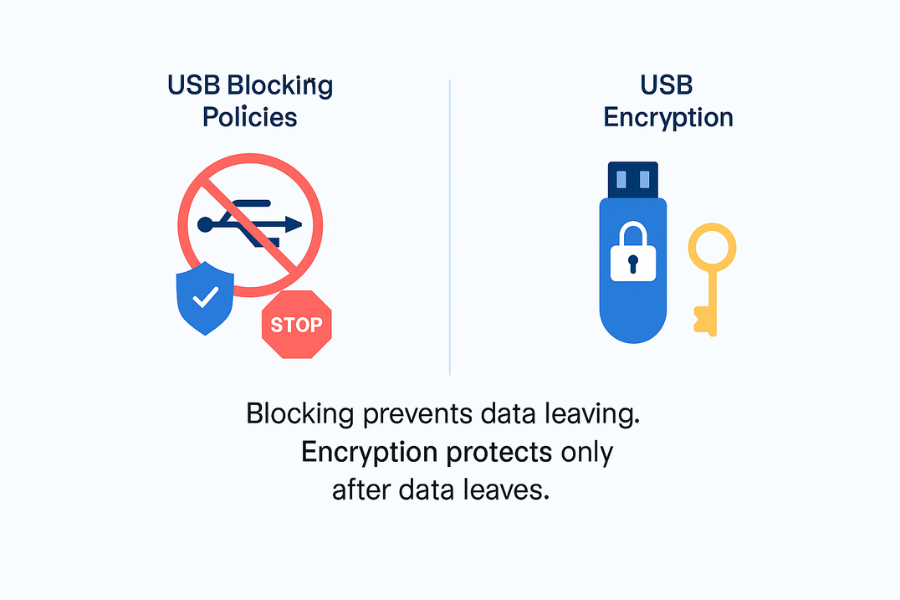
This breakdown clarifies that USB blocking policies are essential for preventing sensitive data from leaving a managed environment, while encryption acts as a final safeguard only after the data is already on portable media. This approach offers superior security by controlling the endpoint, which is critical for meeting compliance and mitigating insider threats. This resource provides a practical guide on implementing layered controls using Windows policies and specialized tools like USB Block from Newsoftwares.net.
Direct Answer
USB blocking policies are what you use when you want to stop data from ever reaching a USB drive, while encryption only helps after that drive has already left the building.
Gap Statement: What Most Explanations Miss

Most material about USB security stops at “turn on BitLocker” or “encrypt your drives”. That skips three things you care about in real environments:
- It rarely shows working, step by step USB blocking using Group Policy, DLP and port control tools together.
- It ignores edge cases like phones presenting as MTP devices, USB keyboards, encrypted sticks that still bypass policy, and helpdesk chaos.
- It almost never connects OS controls with tools like USB Block from NewSoftwares, which can enforce password based access on ports and log who tried what.
This breakdown is written to fix those gaps.
TLDR Outcome
By the end, you will be able to:
- Decide when “encrypt the USB stick” is enough and when you must add blocking with GPO, DLP or a tool like USB Block.
- Roll out staged USB blocking on Windows using Group Policy and, for more advanced setups, Microsoft Defender style device control.
- Add a practical “belt and braces” layer using NewSoftwares utilities for small teams that cannot afford a full enterprise DLP stack.
USB Encryption Vs USB Blocking In One Glance
Short Answer To The Main Question
- Encryption alone helps if a USB drive is lost or stolen.
- USB blocking policies help when the threat is insiders, contractors or malware copying data out in the first place.
- In most business settings, you need both: encrypted media plus controlled or blocked USB ports.
Quick Decision Snapshot
| Situation | Is Encryption Alone Enough? | Do You Need USB Blocking / DLP? |
|---|---|---|
| Personal home laptop backup | Often yes | Usually no |
| Finance team laptops with customer data | No | Yes |
| Call center desktops | No | Yes |
| Lab PCs that read from instruments only | No | Yes with tight whitelisting |
| Shared kiosks / training rooms | No | Yes |
| Developer laptops with source code | Rarely | Strongly recommended |
Why Encryption Alone Is Not Enough For USB Media
Full disk encryption and encrypted USB sticks are great. They stop an attacker from reading data without the key if they find the drive.
They do not stop:
- An unhappy employee copying reports to their own stick before they resign.
- A contractor syncing a client list to a portable SSD “to finish work at home”.
- Malware that quietly copies files to any attached removable drive and walks away with someone’s backpack.
This is why regulators and security frameworks increasingly treat removable media control as a core requirement, not a nice to have.
Windows already includes some device restriction settings through Group Policy and, at the higher end, device control and DLP solutions add very granular policies for USB and other removable media.
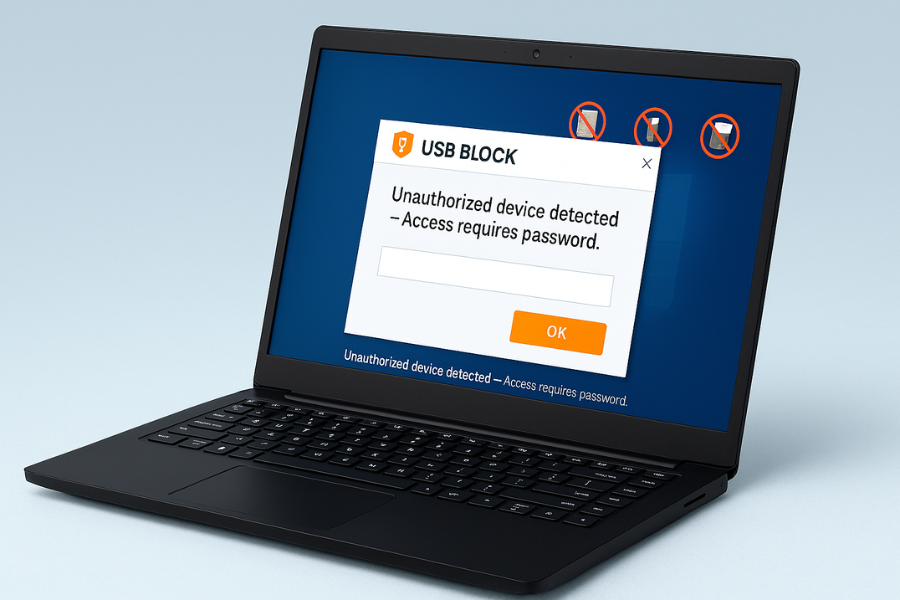
NewSoftwares adds another option in that mix: USB Block, which prompts for a password whenever an external or unauthorized device is connected and blocks access if the password is wrong.
Encryption Vs USB Blocking Vs DLP
Control Types Compared
| Control Type | What It Protects | Strengths | Weak Spots |
|---|---|---|---|
| Full disk encryption | Lost or stolen laptops | Transparent to user, strong crypto | Data wide open when device is unlocked |
| Encrypted USB drive | Lost or stolen USB / external disks | Simple, user friendly when done well | Still allows copying anything while in use |
| OS USB blocking (GPO) | Any removable storage on managed devices | Central control, no install cost | Basic logs, limited content awareness |
| Device control / DLP | USB, email, cloud, printers | Content aware rules, rich logging | Needs licensing, rollout effort |
| USB Block (NewSoftwares) | Unauthorized USB ports and drives | Password prompt, blocks many device types | Windows focus, must protect admin password |
The rest of this piece walks through how to layer these options instead of betting everything on encryption.
Before You Change USB Policies: Prerequisites And Safety
Do this upfront so you do not lock out your own admins.
Prerequisites
- You know which devices are managed by your directory or endpoint platform.
- You have a small test group: one or two machines in each important department.
- You have at least one backup admin account that is exempt from the strict USB policy.
Safety Steps
- Start in audit or “allow but log” mode where possible.
- Block only write access first, then read, then complete access if needed.
- Roll out by group or OU, not entire domain.
- Document a recovery path: for example, a sealed USB with a local administrator password and GPO reset script stored in a safe.
Method 1: Block USB Storage With Windows Group Policy
This is the cheapest starting point if you run Active Directory.
What This Method Does Well
- Blocks most USB storage on domain joined Windows devices.
- Lets you treat admins and regular users differently.
- Integrates with existing AD structure.
What Is Missing
- Limited logging insight.
- No content awareness: it cannot tell photos from source code.
- No cross platform control for macOS or Linux.
Step By Step: Restrict Removable Storage With GPO
These steps assume a Windows Server domain with Group Policy Management.
Step 1: Create A Scoped GPO
- Open Group Policy Management on a management server.
- Create a new GPO named, for example,
USB_Control_Pilot. - Link it only to a test OU that contains a few non critical machines.
Gotcha: Never link your first USB blocking policy at the domain root. If you misconfigure it, you may block backup servers and domain controllers.
Step 2: Block Read And Write To Removable Disks
- Edit the
USB_Control_PilotGPO. - Go to
Computer Configuration
Policies
Administrative Templates
System
Removable Storage Access. - Enable the following settings as a starting point:
Removable Disks: Deny write accessRemovable Disks: Deny read access
Gotcha: Start with deny write only if you want to avoid breaking legitimate read only uses like camera cards in a design team.
Step 3: Use “All Removable Storage Classes: Deny All Access” For Stricter Control
For tighter environments (finance, call centers):
- In the same Removable Storage Access node, enable:
All Removable Storage classes: Deny all access - Keep this in a separate GPO so you can apply it only to very sensitive machines.
Gotcha: This setting can also affect some smart card readers and other devices that present as removable storage. Test with your actual hardware.
Step 4: Combine With Device Installation Restrictions
To stop users from installing their own USB drivers:
- Within the same GPO, go to
Computer Configuration
Policies
Administrative Templates
System
Device Installation
Device Installation Restrictions. - Enable rules such as:
Prevent installation of removable devicesPrevent installation of devices not described by other policy settings
Gotcha: If you deploy new corporate USB devices later, remember to temporarily relax or complement this with “Allow installation of devices that match any of these device IDs”.
Step 5: Force Update And Verify
On a pilot machine:
- Run
gpupdate /forcefrom an elevated command prompt. - Plug in a standard USB drive.
- You should see an access denied type error when trying to open or write to the drive.
To double check policy:
- Run
gpresult /rand confirm theUSB_Control_PilotGPO is applied.
Step 6: Plan Exceptions For Hardware That Must Still Work
Some devices plug in over USB but are not “storage”, such as:
- Special keyboards or mice
- USB connected lab instruments
- USB based license dongles
For these, you can:
- Identify the hardware IDs using Device Manager.
- Create a separate GPO or device installation setting that allows those IDs while the general deny rules are active.
Method 2: Use Device Control And DLP Policies
If you have Microsoft Defender for Endpoint, Purview Endpoint DLP or a third party DLP platform, you can go beyond simple block and allow.
What This Method Does Well
- You can allow USB for some groups but only for non sensitive files.
- You can prompt the user for justification instead of outright blocking.
- You get detailed reports of who tried to copy what, when and where.
What Is Missing
- Licensing and platform cost.
- A longer rollout and tuning phase.
Because admin panels differ, the steps below are conceptual but map well to Microsoft and most major DLP suites.
Step By Step: Policy Flow For USB In A DLP Platform
Step 1: Onboard Devices And Enable Device Control
- Confirm your endpoints are enrolled in your security platform.
- Confirm you can see events from test machines.
- Turn on the “device control” or “removable storage” feature in audit mode first.
Gotcha: Some platforms require a separate agent component for device control, not just the AV agent.
Step 2: Define Device Groups
Group devices logically:
- Managed corporate USB drives
- Hardware encrypted drives from approved vendors
- Unknown or personal drives
- Phones and cameras
Most platforms identify these using vendor and product IDs or by type (USB storage, MTP etc).
Gotcha: Phones often present as “portable devices”, not classic storage, so you must include those classes too.
Step 3: Build Layered Policies
Example structure:
- Block unknown USB storage for everyone
- Action: block read and write.
- Scope: all users, all devices.
- Allow approved encrypted drives for finance staff
- Condition: device vendor and product ID match your chosen encrypted model.
- Condition: file is not labelled “highly confidential”.
- Action: allow, but log.
- Prompt and record justification for sensitive copies
- Condition: data with financial labels going to approved USB.
- Action: allow only after user justification with manager name.
Gotcha: Start with “audit only” to watch what would be blocked before you block it.
Step 4: Test With Real Data
On a test machine:
- Create a dummy document that matches your sensitive label (for example, contains fake account numbers that match your pattern).
- Try to copy it to both an approved USB device and a personal one.
- Confirm the personal USB is blocked while the approved one follows the prompt or allow rules you set.
Step 5: Tune Alerts And Reporting
- Reduce noise by excluding log files, cached browser data and temporary folders where possible.
- Tag repeated violations by the same user as higher risk in your SIEM.
Method 3: Add USB Block From NewSoftwares For Port Level Control
For many small and mid sized outfits, a full DLP platform is overkill. This is where a focused tool like USB Block from NewSoftwares makes sense.
According to NewSoftwares, USB Block helps users restrict unauthorized USB ports, external drives, flash disks and similar devices. When an external or unauthorized device is connected, it prompts for a password and denies access if the password is not correct.
It is marketed as a data leak prevention tool and is compatible with modern Windows versions.
Where This Fits
- Small offices without Active Directory who still need USB control.
- Contractors who must protect client data on their own laptops.
- As an extra layer on top of GPO where insider risk is high.
Setup Walkthrough: USB Block On A Windows Machine
Interface details can change, but the core steps are consistent with NewSoftwares documentation and press material.
Step 1: Install And Set The Master Password
- Download USB Block from the NewSoftwares store.
- Run the installer and complete setup.
- On first launch, create a strong master password and record it in a secure password manager.
Gotcha: Anyone with the master password can change USB Block rules, so treat it like an admin password.
Step 2: Choose What To Block
USB Block is built to control:
- USB flash drives
- External HDD and SSD
- Memory cards
- Network drives
- Optical drives in some versions
- In the main panel, tick the classes of devices you want to restrict.
- Enable prompts when a new device appears.
Gotcha: If you rely on a USB based keyboard or mouse on a desktop, test carefully and keep a fallback device.
Step 3: Allow Specific Trusted Devices
Most teams need at least a few allowed devices.
- Plug in a device you want to allow, such as an encrypted USB stick.
- When USB Block prompts, choose an option that marks this device as trusted.
- Assign it to the right category or user, depending on how the software phrases it.
Gotcha: If you reformat an allowed drive, it may present a new identifier and be treated as untrusted again.
Step 4: Review And Export Logs
USB Block also logs unauthorized access attempts.
- Open the log or history panel.
- Export the log to a secure folder if you want to review it centrally.
- Use entries to spot patterns, such as repeated attempts outside working hours.
When To Combine USB Block With Encryption Tools
NewSoftwares also provides USB Secure for encrypting files on USB drives and Folder Lock for broader file protection.
A practical stack for a small business:
- Use USB Block to stop any unknown USB device from mounting.
- Use USB Secure on approved sticks so that, if one is lost, the data is still protected.
- Use Folder Lock or Folder Protect on desktops and laptops to control who can open key folders, or to keep a portable encrypted locker on local storage.
This brings you close to what large enterprises do with DLP, but without enterprise tooling.
Troubleshooting: Common USB Blocking Problems And Fixes
Quick Symptom To Fix Table
| Symptom | Likely Cause | First Fix |
|---|---|---|
| All USB storage blocked for everyone, even admins | GPO linked too high in domain | Scope GPO to specific OU, force policy update |
| Policy seems ignored on some devices | Machine not in right OU or not domain joined | Check gpresult or device inventory |
| Some phones still appear in Explorer | Only classic storage blocked, not portable devices | Add mobile device and MTP classes to DLP or device rules |
| Approved encrypted stick blocked by USB Block | Device identifier changed | Remove and re add it to allow list |
| Backup software broken after GPO rollout | Backup disk treated as removable | Add that disk or host to exception group |
| Staff bypass by emailing data to webmail | USB control only, no DLP on email | Extend DLP policy to email channels |
Root Causes In Order Of How Often They Show Up
- Scope confusion: wrong OU, wrong group, stale inventory.
- Overly broad “deny all” applied too early.
- Ignoring non storage USB classes like portable devices.
- Missing communication with users, leading to “shadow IT” workarounds.
- No pilot or rollback plan.
“Proof Of Work” Style Checks You Can Run
These are simple checks you can actually perform to confirm the controls you set do something real.
Bench Style Sanity Test
Not a precise benchmark, but it shows your controls are taking effect.
| Scenario | Expected Result |
|---|---|
| Copy 1 GB file to personal USB | Fails or blocked message appears |
| Copy same file to approved encrypted USB | Succeeds, with logs or justification recorded |
| Copy from approved USB back to PC | Allowed if policy permits read |
If copying looks identical in all three rows, your policy is not yet in play.
Settings Snapshot Checklist
When you are done, on a reference Windows device you ideally have:
- At least
Removable Disks: Deny write accessenabled in a scoped GPO. - Either:
- A device control policy in your endpoint platform that treats unknown USB as blocked, or
- USB Block installed and active with a small, well managed allow list.
Verifying The Protection
A quick verification sequence:
- Log in as a normal user.
- Plug in an unknown USB stick.
- Confirm you see one of:
- Access denied error from Windows.
- A USB Block password prompt.
- A DLP popup explaining that policy blocks this action.
- Check the relevant log source:
- Windows Event Viewer for GPO based blocks.
- DLP console or SIEM for device control.
- USB Block log panel for password prompts and failures.
When You Still Need More Than USB Blocking
USB blocking policies do a lot, but they are not the final answer in some cases:
- Developers and admins still need paths for source control, build artefacts and backups that may live outside the main network.
- Cross platform fleets with macOS and Linux need their own device control tools or a vendor that covers all.
- Highly regulated sectors may need central key management, hardware encrypted drives and signed policies that USB Block alone does not cover.
In those cases, USB blocking is a piece of a larger data protection program.
FAQ
1. If Every Laptop Has Full Disk Encryption, Do I Really Need USB Blocking?
Yes, if you care about insiders or malware copying data out while the laptop is unlocked. Encryption keeps data safe when a device is lost, not when a staff member is sitting at it and copying files to a stick.
2. Is It Safer To Ban USB Drives Completely?
Sometimes, but it often creates workarounds such as personal cloud uploads or messaging apps. A better pattern is controlled USB: block unknown devices, allow a small list of encrypted drives for specific roles, and monitor their use.
3. Can I Block USB Only For Some Departments?
Yes. With Group Policy, scope the USB control GPO to OUs that contain those departments. With DLP or device control, target policies to user groups or device tags.
4. What About Keyboards And Mice, Will They Break?
If you only use removable storage and device installation rules, standard keyboards and mice usually keep working. Very aggressive “deny all USB” settings can affect them, so always test with the exact hardware you deploy.
5. How Does USB Block Differ From Simple GPO Blocking?
GPO rules are policy based and driven from the domain. USB Block runs on the machine itself, prompts for a password when a device connects, and logs unauthorized attempts. It can be used on standalone machines and in small networks without a server.
6. Can I Allow Only Hardware Encrypted USB Drives?
Yes. In DLP or device control tools, you can often whitelist specific vendor and product IDs that match encrypted models. In smaller setups, you can maintain a small list of “known good” devices in USB Block and deny everything else.
7. Users Keep Sharing Data Via Phones Instead Of USB Sticks. What Can I Do?
Include mobile and portable device classes in your device control policy, not just classic USB storage. Also include cloud upload controls where your DLP platform allows it, so you close both routes together.
8. Is Bios Level USB Disable Worth Using?
It is strong but blunt. It works well for kiosks or highly locked down machines, but is hard to manage at scale and often blocks needed devices. Many teams prefer OS level control first and BIOS changes only for special assets.
9. How Do I Handle Contractors Who Need USB For Their Work?
For contractors using your machines, treat them like staff and apply the same policies. For contractors using their own machines, a portable encryption tool and a policy that all work must live on approved encrypted devices is more realistic, combined with strict access controls on your own systems.
10. Can I Log Who Tried To Use Which USB Drive And When?
Yes. Device control and DLP platforms provide this as standard. USB Block also logs unauthorized attempts, which you can export or review during audits.
11. What Is The Best First Step If I Have Nothing Today?
Turn on full disk encryption for laptops, then introduce a pilot USB blocking policy on a small group using GPO or USB Block. Once that is stable, expand and consider DLP if your risk profile demands deeper inspection.
12. Does USB Blocking Slow Down Computers?
The checks are usually lightweight. In DLP systems, heavy content inspection on every file can add a small delay when copying large files, but it is rarely noticeable for normal documents if the policy is tuned.
Conclusion: Blocking Provides Control, Encryption Provides Resilience
The primary defense against data leakage via portable media is control, which must be enforced at the endpoint using blocking policies. By deploying Windows Group Policy for domain-wide restrictions and supplementing with highly effective tools like USB Block from Newsoftwares.net for standalone password protection and monitoring, organizations gain crucial oversight. This strategy ensures data never reaches an unauthorized drive, complementing encryption’s role as the final layer of defense for lost or stolen assets.
Structured Data Snippets (HowTo, FAQPage, ItemList)
You can adapt this JSON LD for your page to help search engines understand the steps, comparisons and questions.
{
  "@context": "https://schema.org",
  "@graph": [
    {
      "@type": "HowTo",
      "name": "Set up USB blocking policies on Windows with Group Policy",
      "description": "Step by step process to block or restrict USB storage on Windows devices using Group Policy and to verify that it works.",
      "steps": [
        {
          "@type": "HowToStep",
          "name": "Create a scoped USB control policy",
          "text": "Create a new Group Policy object, link it only to a test organizational unit and confirm it applies to a small pilot group of machines."
        },
        {
          "@type": "HowToStep",
          "name": "Configure removable storage access rules",
          "text": "In the Removable Storage Access section enable settings such as Removable Disks Deny write access and optionally All Removable Storage classes Deny all access."
        },
        {
          "@type": "HowToStep",
          "name": "Add device installation restrictions",
          "text": "Use Device Installation Restrictions to prevent installation of removable devices except for approved hardware identifiers."
        },
        {
          "@type": "HowToStep",
          "name": "Test and verify on pilot machines",
          "text": "Force a policy update, plug in a USB drive and confirm access is denied and the event is logged."
        }
      ],
      "tool": [
        {
          "@type": "HowToTool",
          "name": "Group Policy Management Console"
        },
        {
          "@type": "HowToTool",
          "name": "Windows domain joined computer"
        }
      ],
      "supply": [
        {
          "@type": "HowToSupply",
          "name": "Test USB flash drive"
        }
      ]
    },
    {
      "@type": "ItemList",
      "name": "USB security control types",
      "itemListElement": [
        {
          "@type": "ListItem",
          "position": 1,
          "name": "Full disk encryption"
        },
        {
          "@type": "ListItem",
          "position": 2,
          "name": "Encrypted USB drives"
        },
        {
          "@type": "ListItem",
          "position": 3,
          "name": "Group Policy based USB blocking"
        },
        {
          "@type": "ListItem",
          "position": 4,
          "name": "Device control and DLP policies"
        },
        {
          "@type": "ListItem",
          "position": 5,
          "name": "USB Block and similar port control tools"
        }
      ]
    },
    {
      "@type": "FAQPage",
      "mainEntity": [
        {
          "@type": "Question",
          "name": "If every laptop has full disk encryption, do I still need USB blocking?",
          "acceptedAnswer": {
            "@type": "Answer",
            "text": "Yes. Encryption protects against lost or stolen devices but does not stop insiders or malware from copying data to USB while the machine is unlocked."
          }
        },
        {
          "@type": "Question",
          "name": "Can I block USB only for some departments?",
          "acceptedAnswer": {
            "@type": "Answer",
            "text": "You can scope Group Policy or device control rules to specific organizational units or user groups so that only chosen departments are affected."
          }
        },
        {
          "@type": "Question",
          "name": "How does USB Block help with USB security?",
          "acceptedAnswer": {
            "@type": "Answer",
            "text": "USB Block prompts for a password when a new or unauthorized device is connected and blocks access if the password is wrong, which reduces the risk of casual data leaks on Windows machines."
          }
        }
      ]
    }
  ]
}