
Transport Encryption Guide: TLS 1.3, SSH, IPSec, and WPA3 for 2025
If you just want the short answer: Use TLS 1.3 for web and APIs, SSH/SFTP for admin access and file moves, IPSec for VPNs between networks or devices, and WPA3 for Wi-Fi. Those four cover almost every real transport encryption job you will meet in 2025. Developed by the team at Newsoftwares.net, this guide provides actionable steps for securing all communication paths in your organization. The key benefit is comprehensive security: you will learn how to choose, implement, and troubleshoot industry-leading protocols to protect data in transit, ensuring privacy and compliance across heterogeneous networks.
Gap Statement
Most “transport encryption” guides do three things badly: They re-explain SSL history instead of telling you what to deploy right now. They treat TLS, SSH, IPSec, and WPA3 as theory instead of mapped to real setups. They ignore tools you already use for data at rest, like Folder Lock, that can work with these protocols rather than compete with them.
This article fills those gaps with concrete choices, simple how-to steps, and troubleshooting checklists you can plug into your own stack.
Short Answer
Use TLS 1.3 for web and APIs, SSH/SFTP for admin access and file moves, IPSec for VPNs between networks or devices, and WPA3 for Wi-Fi. Those four cover almost every real transport encryption job you will meet in 2025.
TLDR: What to Use Where
- Internet-facing web apps and APIs: TLS 1.3 at the load balancer or reverse proxy, with TLS 1.2 as fallback only if you must support old clients.
- Admin access and file transfer: SSH for shells, SFTP for file transfer, and avoid plain FTP or “FTP over SSH” unless you have a legacy requirement.
- Network-wide and Wi-Fi security: IPSec tunnel mode for site-to-site VPNs or remote gateways, IPSec transport mode for host-to-host when you control both ends, WPA3 for Wi-Fi access.
Newsoftwares’ Folder Lock and related tools sit beside these: they encrypt files and folders at rest with AES-256 and provide secure file sharing and cloud backup. They do not replace TLS or IPSec, they complement them.
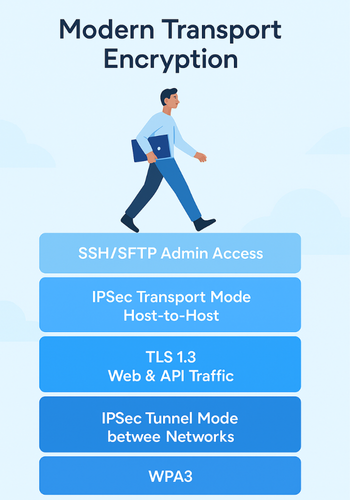
1. Transport Encryption in One Picture
Think of your stack as layers:
| Layer | Typical Protocol Choice | Main Job |
|---|---|---|
| Wi-Fi radio link | WPA3-Personal or WPA3-Enterprise | Protect wireless hop |
| IP network between sites | IPSec tunnel mode in VPN devices | Protect traffic between networks |
| Host-to-host IP traffic | IPSec transport mode or mTLS | Protect traffic between two servers |
| Application protocols (HTTPS) | TLS 1.3 on web servers, load balancers, APIs | Protect HTTP, gRPC, mail, etc. |
| Admin shell and file transfer | SSH, SFTP, sometimes FTPS | Protect shells and file movements |
You rarely pick only one. For example, a remote engineer on a laptop might connect to office Wi-Fi with WPA3, then over IPSec to the internal network, then hit an internal admin panel over TLS 1.3, and finally SSH into servers. Each layer covers a different path.
2. TLS 1.3: Default for Web and APIs
2.1 Why TLS 1.3 is the Default Answer
TLS 1.3 is faster and safer than TLS 1.2. It removes broken ciphers, enforces forward secrecy, and cuts the handshake down to a single round trip, with the option for zero-RTT on repeat connections.
Older TLS versions are deprecated. TLS 1.0 and 1.1 are considered unsafe; many browsers and APIs refuse them outright.
So if you are securing:
- A customer portal
- Public APIs
- Admin dashboards behind VPN
you should start from “TLS 1.3 everywhere, TLS 1.2 only when compatibility forces it.”
2.2 Hands-On: Enabling TLS 1.3 on a Reverse Proxy
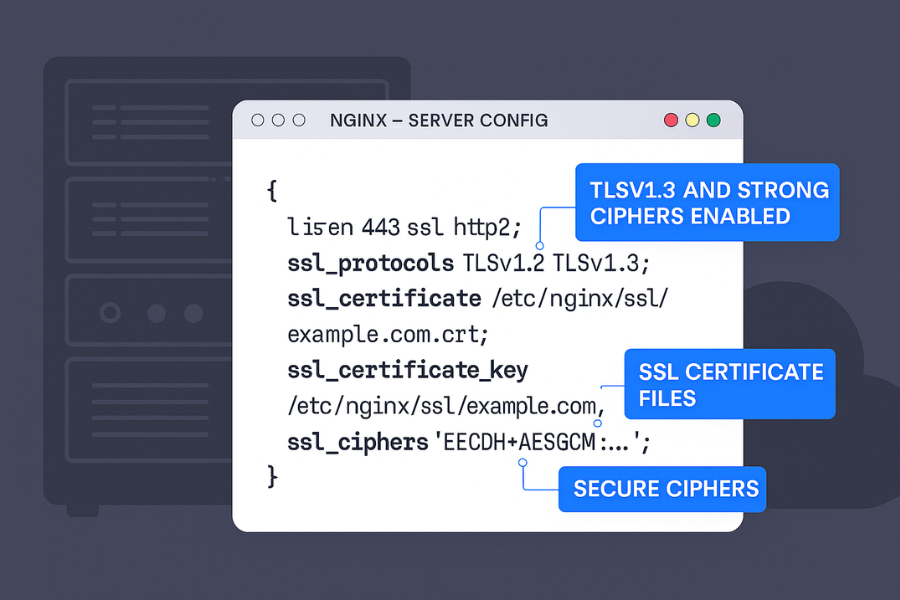
Example with Nginx as TLS terminator in front of your app.
Prereqs and safety
- Modern Nginx or OpenSSL build with TLS 1.3 support.
- Certs from a trusted CA such as Let’s Encrypt.
- Backup of your current config.
Steps (each step = action plus gotcha)
- Check TLS support
- Run
nginx -Vand confirm OpenSSL version supports TLS 1.3. - Gotcha: if your distro Nginx is old, you may need the vendor’s “mainline” repo or a container image.
- Run
- Restrict allowed protocols
- In your
serverblock, set something like:ssl_protocols TLSv1.2 TLSv1.3; - Gotcha: do not leave TLS 1.0 or 1.1 enabled “just in case”; many scanners flag this.
- In your
- Choose cipher suites
- Use strong TLS 1.3 ciphers; many servers pick safe defaults now.
- For TLS 1.2 fallback, disable ciphers with RC4, 3DES, MD5, and weak key sizes.
- Enable HTTP/2 or HTTP/3 if your stack supports it
- This improves latency and works nicely with TLS 1.3.
- Gotcha: some client libraries still struggle with HTTP/2 defaults; test your most important clients.
- Test with a public scanner
- Use tools like SSL Labs or similar services to check protocols, ciphers, and certificate chain.
- Fix any warnings about old protocols or weak cipher suites.
Verify it worked
- Hit the site with
openssl s_client -connect host:443 -tls1_3and confirm the handshake. - Use a browser dev tools “Security” tab to check that “TLS 1.3” shows as the connection protocol.
3. SSH and SFTP: Secure Remote Access and File Transfer
SSH protects admin shell sessions. SFTP is a file transfer protocol that runs inside SSH and encrypts both commands and data.
3.1 SSH vs SFTP vs FTPS
| Task | Recommended Protocol | Notes |
|---|---|---|
| Admin shell on Linux/Unix | SSH | Key-based auth, strong logging |
| Secure file transfer | SFTP | Runs over SSH, one port, firewall friendly |
| Legacy file transfer | FTPS | FTP over TLS, multiple ports, legacy systems |
Plain FTP is not acceptable for sensitive data anymore.
3.2 How to Harden SSH and SFTP on a Server
Prereqs
- SSH server installed on Linux host.
- Ability to edit
sshd_config. - At least one admin with an SSH key pair.
Steps
- Disable password logins for admins
- Set
PasswordAuthentication nofor privileged accounts once keys work. - Gotcha: test with a second session before restarting SSH, or you can lock yourself out.
- Set
- Force key-based auth
- Use
PubkeyAuthentication yesand upload public keys to~/.ssh/authorized_keys.
- Use
- Restrict SFTP users
- Create a group for SFTP-only users.
- Use
ForceCommand internal-sftpandChrootDirectoryfor that group. - Gotcha: chroot paths must be owned by root and not writable by users.
- Reduce exposed ciphers and MACs
- Keep modern key exchange and cipher suites and drop older ones like
diffie-hellman-group1-sha1.
- Keep modern key exchange and cipher suites and drop older ones like
- Set up logging and alerts
- Send SSH auth logs to your central logging system.
- Watch for repeated failures or connections from unexpected countries.
Typical errors and quick fixes
| Error Text | Likely Cause |
|---|---|
Permission denied (publickey) |
Wrong key, wrong user, or key not in authorized_keys |
No matching host key type found |
Client too old, server trimmed algorithms |
Connection reset by peer vs SFTP only |
Firewall or chroot misconfig |
4. IPSec: VPNs Between Networks and Hosts
IPSec runs at the IP layer and can encrypt any IP packet. It has two main modes.
| IPSec Mode | What It Protects | Best Use Cases |
|---|---|---|
| Tunnel mode | Entire IP packet | Site-to-site VPNs between routers, gateways, and clouds |
| Transport mode | Payload of IP packet only | Host-to-host VPN, some point-to-site patterns |
Tunnel mode is what you see in most site-to-site VPN docs and cloud VPN gateways.
4.1 Example: Site-to-Site IPSec Between Branches
Every vendor has a different UI, but the checklist is similar.
Prereqs
- Two IPSec-capable gateways or firewalls, one in each site.
- Static or dynamic public IPs for each gateway.
- Clear plan of internal subnets at each site.
Steps
- Define “interesting traffic”
- Pick which internal subnets must talk to each other.
- Gotcha: avoid overlapping subnets; renumber if required.
- Set phase 1 (IKE) proposal
- Choose strong algorithms such as AES-GCM with modern key exchange and SHA-2 family hashes.
- Set phase 2 (IPSec) proposal
- Use tunnel mode and match algorithms on both ends.
- Configure pre-shared key or certificates
- For small setups, a strong pre-shared key can be enough.
- For larger ones, prefer certificates.
- Enable and test
- From one subnet, ping an IP in the other subnet.
- Watch the IPSec status page to confirm that Security Associations came up.
Common IPSec errors
| Symptom | Likely Cause |
|---|---|
| Tunnel never forms | Mismatch in phase 1 settings or wrong pre-shared key |
| Tunnel flaps on and off | Dead Peer Detection or NAT traversal mismatch |
| Tunnel is up, but no traffic | Wrong “interesting traffic” subnets or local routes |
5. WPA3: Securing Wi-Fi
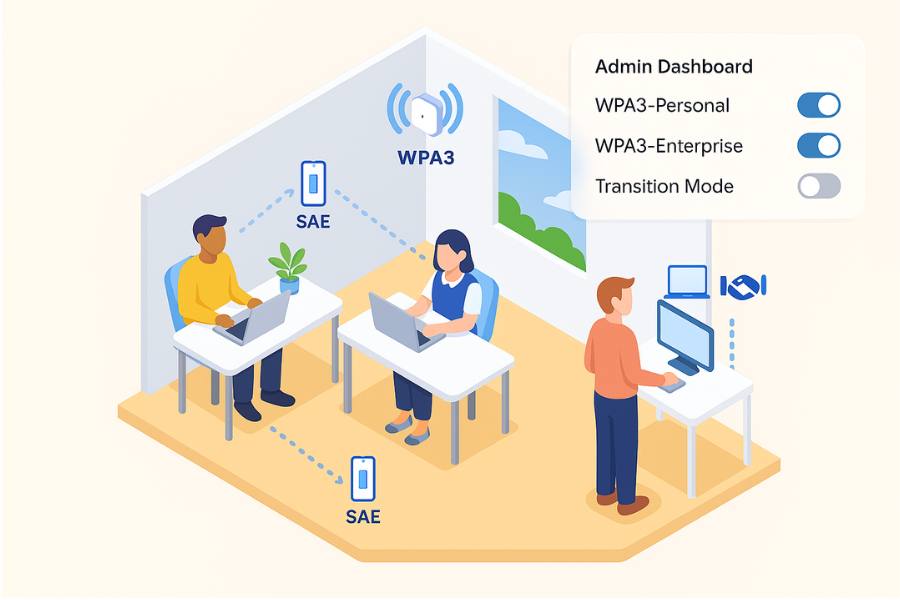
WPA3 protects the Wi-Fi hop. It comes in two versions: WPA3-Personal runs on a shared passphrase base, but uses SAE (Simultaneous Authentication of Equals) to resist offline guessing better than WPA2-PSK. WPA3-Enterprise uses 802.1X and often RADIUS with certificates or credentials, and offers a 192-bit “Suite B” profile for high security setups.
5.1 How to Migrate a Small Office to WPA3
Prereqs
- Access points and routers that support WPA3 firmware.
- Clients (laptops, phones) with reasonably current OS versions.
Steps
- Check compatibility list
- Confirm that your APs and key client devices support WPA3 or at least WPA2/WPA3 mixed mode.
- Plan SSIDs
- For a small office, one main staff SSID with WPA3-Personal or WPA3-Enterprise is enough.
- Configure WPA3-Personal or Enterprise
- For WPA3-Personal, set a strong passphrase; SAE improves resistance but does not fix weak passwords.
- For WPA3-Enterprise, integrate with your RADIUS or identity service.
- Enable transition mode during migration
- Many devices let you run WPA2/WPA3 mixed mode so older clients can still connect.
- Gotcha: transition mode can weaken some protections; plan a cut-off date for WPA2.
- Test roaming and throughput
- Check that staff can roam between APs and that latency stays acceptable.
6. Where Newsoftwares Tools Fit (Folder Lock and Friends)
Newsoftwares focuses on local and portable encryption, not on TLS, IPSec, or WPA3. Their flagship, Folder Lock, encrypts files and folders with AES-256, creates secure lockers, and supports cloud backup and secure file sharing with password protection and expiry.
That lines up with these scenarios:
- You store sensitive files on laptops that also use TLS 1.3 and WPA3 to connect to company systems.
- You send encrypted archives over SFTP or HTTPS and want an extra layer using AES-256 lockers.
- You keep portable encrypted copies on USB for offline use.
A simple pattern:
- Use Folder Lock to create an AES-256 encrypted locker for project files.
- Sync that locker to a cloud storage service through its built-in backup feature.
- When staff connect over TLS 1.3 and VPN, they work inside the locker rather than on raw files.
Transport encryption protects the path. Folder Lock protects the endpoints and stored content.
7. Selection Guide: Matching Protocol to Scenario
7.1 Use-Case Chooser Table
| Scenario | Best Primary Choice | Add-ons |
|---|---|---|
| Public website or customer portal | TLS 1.3 at load balancer | Folder Lock for admin laptops |
| Public JSON or gRPC API | TLS 1.3, optionally mutual TLS | IPSec only if between internal hosts |
| Admin shell on production servers | SSH with key-based auth | Behind VPN if you want extra defense |
| Secure nightly file transfers to a partner | SFTP, or FTPS if partner requires it | Encrypt files with Folder Lock before transfer |
| Site-to-site branch office connection | IPSec tunnel mode VPN | TLS on top for internal web apps |
| Staff on office Wi-Fi | WPA3-Personal or WPA3-Enterprise | TLS for apps, SSH for admin |
| Remote staff on home Wi-Fi | WPA2/WPA3 at home router, then IPSec or TLS VPN | TLS 1.3 for app access |
| Shared kiosk or lab machines | TLS for network, Folder Lock for local data | Strict logout policies |
8. Troubleshooting Transport Encryption: Symptom to Fix
8.1 Common Errors Table
| Symptom or Error String | Likely Layer | First Checks |
|---|---|---|
| “Protocol version mismatch” in browser | TLS | Server still offers old TLS or client is very old |
| SSL scanner flags weak ciphers | TLS | Remove legacy cipher suites and protocols |
| “Permission denied (publickey)” | SSH | Key not installed, wrong user, or wrong file permissions |
| SFTP connects but directory is empty | SSH/SFTP | Chroot path, user home, and file ownership |
| IPSec tunnel “up” but no ping | IPSec | Wrong subnets, missing routes, or NAT rules |
| IPSec log shows repeated IKE failures | IPSec | Phase 1/2 mismatch, bad pre-shared key |
| Wi-Fi clients see SSID but cannot authenticate | WPA3 | Incompatible client, wrong WPA3 mode, or mixed mode glitch |
8.2 Root Causes Ranked
In practice, most issues come from:
- Configuration drift between endpoints (TLS ciphers, IPSec proposals, SSH key formats).
- Old clients that cannot handle modern defaults.
- Firewall rules blocking ports (IPSec ESP, SSH 22, SFTP explicit ports, etc).
Non-destructive steps first:
- Log protocol, cipher, and version on both ends.
- Test with a known-good modern client (recent browser, OpenSSH, etc).
- Check for overlaps or conflicts in network ranges.
Last resort:
- For IPSec, fall back to a simpler proposal set and then tighten once connectivity works.
- For Wi-Fi, temporarily enable WPA2/WPA3 mixed mode while you phase out old devices.
9. “Proof of Work” Style Checks
This section is less about exact numbers and more about how to validate your choices in real deployments.
9.1 Example Bench Table
Run your own quick tests with tools like curl, iperf3, or browser timings.
| Test | Metric to Watch | Expected Result |
|---|---|---|
| TLS 1.2 vs TLS 1.3 on same host | Handshake time | TLS 1.3 should show fewer round trips and lower latency. |
| SFTP vs plain FTP on LAN | Transfer throughput | Similar throughput; SFTP overhead small on modern CPUs. |
| IPSec tunnel vs no tunnel | Latency and jitter | Slight increase, but acceptable for most business apps. |
| WPA3 vs WPA2 on same AP | Signal quality, speed | Similar or slightly better, with stronger protection. |
If you see big slowdowns, your issue is often in hardware (old router), not the crypto algorithm itself.
9.2 Settings Snapshots You Can Mirror
- TLS 1.3: protocols set to TLS 1.2 and 1.3 only, HTTP/2 enabled, HSTS where appropriate.
- SSH: password logins disabled for admins, only modern key types, SFTP chroot for file users.
- IPSec: tunnel mode between branch gateways, AES-GCM or equivalent modern suite, clear subnets.
- WPA3: WPA3-Personal or Enterprise chosen explicitly, mixed mode only as a temporary bridge.
9.3 Verification Checklist
To confirm your transport encryption is doing its job:
- Use a packet sniffer like Wireshark and confirm payloads are unreadable on the wire.
- Confirm all server logs show modern protocol versions and ciphers, not legacy ones.
- For Folder Lock or other Newsoftwares tools, verify files at rest are unreadable without the master password, even if copied to another device.
10. Structured Data Snippets
10.1 HowTo Schema (Selection Guide)
<script type="application/ld+json">
{
  "@context": "https://schema.org",
  "@type": "HowTo",
  "name": "Select the right transport encryption protocol",
  "description": "Step-by-step guide to choosing between TLS 1.3, SSH/SFTP, IPSec, and WPA3 for real-world setups.",
  "tool": [
    "TLS 1.3-capable web server or reverse proxy",
    "SSH server and client",
    "IPSec-capable firewalls or VPN gateways",
    "WPA3-compatible access point"
  ],
  "step": [
    {
      "@type": "HowToStep",
      "name": "Identify where data moves",
      "text": "List web apps, admin connections, site-to-site links, and Wi-Fi segments you need to secure."
    },
    {
      "@type": "HowToStep",
      "name": "Map each path to a protocol",
      "text": "Use TLS 1.3 for web and API traffic, SSH/SFTP for admin and file transfer, IPSec for site-to-site links, and WPA3 for Wi-Fi."
    },
    {
      "@type": "HowToStep",
      "name": "Apply baseline configurations",
      "text": "Enable TLS 1.3 on your web tier, enforce key-based SSH, configure IPSec tunnel mode for branch links, and turn on WPA3 on access points."
    },
    {
      "@type": "HowToStep",
      "name": "Test and monitor",
      "text": "Verify that all connections negotiate the expected protocol and cipher, then add monitoring for failures and unusual access attempts."
    }
  ]
}
</script>
10.2 FAQPage Schema Stub
<script type="application/ld+json">
{
  "@context": "https://schema.org",
  "@type": "FAQPage",
  "mainEntity": []
}
</script>
10.3 ItemList Schema for Protocols
<script type="application/ld+json">
{
  "@context": "https://schema.org",
  "@type": "ItemList",
  "name": "Transport encryption options",
  "itemListElement": [
    {
      "@type": "ListItem",
      "position": 1,
      "name": "TLS 1.3",
      "description": "Modern protocol for securing web and API traffic over HTTPS."
    },
    {
      "@type": "ListItem",
      "position": 2,
      "name": "SSH and SFTP",
      "description": "Secure shell and file transfer protocols for admin access and managed file movement."
    },
    {
      "@type": "ListItem",
      "position": 3,
      "name": "IPSec",
      "description": "Network-layer VPN technology in tunnel or transport mode for securing IP traffic between sites and hosts."
    },
    {
      "@type": "ListItem",
      "position": 4,
      "name": "WPA3",
      "description": "Wi-Fi security standard for encrypting traffic on wireless links."
    }
  ]
}
</script>
11. FAQs: Transport Encryption and Selection
1. Is TLS 1.3 Enough to Protect My Web App?
For traffic in transit, yes. TLS 1.3 with strong ciphers and good certificate hygiene is considered state of the art in 2025. You still need input validation, auth, and proper access control; TLS only protects the pipe.
2. Should I Still Allow TLS 1.2?
If you have older clients that cannot speak TLS 1.3, you may keep TLS 1.2 for now, but with weak ciphers disabled. New projects that control both ends should aim for TLS 1.3 only.
3. SFTP vs FTPS: Which is Better?
SFTP runs over SSH and uses a single port, which makes it easier to secure and route through firewalls. FTPS runs FTP over TLS and often needs multiple ports. If you have a choice, SFTP is usually the cleaner path.
4. When Should I Use IPSec Instead of Just TLS?
Use IPSec when you need to secure all IP traffic between networks or hosts, not only specific applications. For example, site-to-site VPNs between offices or VPCs are a classic IPSec tunnel use case. For a single web app, TLS is simpler.
5. Is WPA3 Mandatory Now?
Many new devices and routers ship with WPA3 support and some vendors push WPA3 as the default. You should move toward WPA3 for staff networks, but you may need a mixed WPA2/WPA3 mode during migration if you have older devices.
6. Do I Still Need VPNs If Everything Uses TLS 1.3?
VPNs add value when you want network-level access control, not just encryption. They can hide internal services from the internet, group traffic for monitoring, and help meet policy requirements. TLS 1.3 protects individual apps; VPNs shape access to whole networks.
7. Where Does a Tool Like Folder Lock Help If I Already Use TLS and VPNs?
TLS and VPNs protect traffic. Folder Lock protects files and folders at rest with AES-256, gives you secure lockers, and adds features like cloud backup and secure sharing with password protection and expiry. It is a good extra layer if you worry about laptop theft or USB loss.
8. How Do I Know If IPSec Tunnel Mode or Transport Mode Is Right?
Pick tunnel mode for site-to-site VPNs between networks and router-to-router links. Pick transport mode only when you control both hosts and want to protect direct host-to-host IP traffic without adding an extra encapsulation layer.
9. Is SFTP Secure Enough Over the Public Internet?
Yes, when configured with key-based authentication, modern ciphers, and proper user isolation, SFTP is considered secure for file transfer on the public internet. As with any exposed service, you still need rate limits, logging, and access control.
10. Do I Need Mutual TLS for Internal APIs?
Mutual TLS helps when you want the server to prove its identity and the client to prove its identity at the TLS layer. It is especially useful for internal service-to-service calls in microservice architectures or B2B API integrations with strict trust boundaries.
11. Does WPA3 Protect Me on Public Wi-Fi?
WPA3-Personal and WPA3-Enterprise protect networks that require a passphrase or credentials. For open networks, the related standard “Enhanced Open” (OWE) can encrypt traffic but does not authenticate users. On public Wi-Fi, still treat the network as untrusted and use TLS and VPNs.
12. Is It Safe to Rely Only on VPN Without TLS?
That creates a bigger blast radius. If a VPN credential is stolen, every app that depends solely on the VPN is exposed. Using TLS 1.3 inside the VPN gives you separate layers: breaking one does not break everything.