
Where VPN Encryption Starts and Stops: A Practical Guide
VPN encryption hides your traffic between your device and the VPN server, and it stops there: beyond that server, websites, apps, and online services see your traffic just like any normal connection. Developed by the team at Newsoftwares.net, this piece focuses on the practical limits of transport security. The key benefit is operational clarity: you will learn the precise boundaries of the VPN tunnel and discover which local files and folders must be protected separately using tools like Folder Lock and USB Secure.
Gap Statement
Most explanations of VPN encryption: Skip where the tunnel actually ends and who still sees what. Treat “use a VPN” as a magic fix without covering DNS leaks, app bypass, or browser quirks. Barely mention how to test your own connection with real tools and real error messages.
You are getting a practical breakdown with: Exact points where encryption starts and ends. Concrete steps to confirm that your VPN is really sealing traffic. Fixes for the most common “VPN is on but I still feel naked” problems. Extra protection for files and folders using NewSoftwares tools such as Folder Lock and USB Secure.
Short Answer
TLS inspection is worth doing only when you scope it tightly, log it responsibly, and stay honest with users. Turning it on for everything, all the time, trades real privacy for only marginal visibility and often weakens security.
Quick Outcome Snapshot
- You know what VPN encryption does: It encrypts all network traffic from your device to the VPN server using protocols such as OpenVPN or WireGuard and ciphers such as AES 256 or ChaCha20 Poly1305. Your ISP, café WiFi owner, and local snoopers see only scrambled packets and the VPN server address.
- You know what it never does: It does not encrypt what happens inside websites and apps beyond that server, cannot hide your identity from services where you log in, and does not protect files sitting unencrypted on your device or USB drive.
- You know how to test and fix it: You can check your IP, run DNS and WebRTC leak checks, inspect traffic with Wireshark, and lock sensitive files with tools such as Folder Lock and USB Secure from NewSoftwares so your data at rest is safe even if the device or VPN fails.
1. VPN Encryption In One Clear Picture
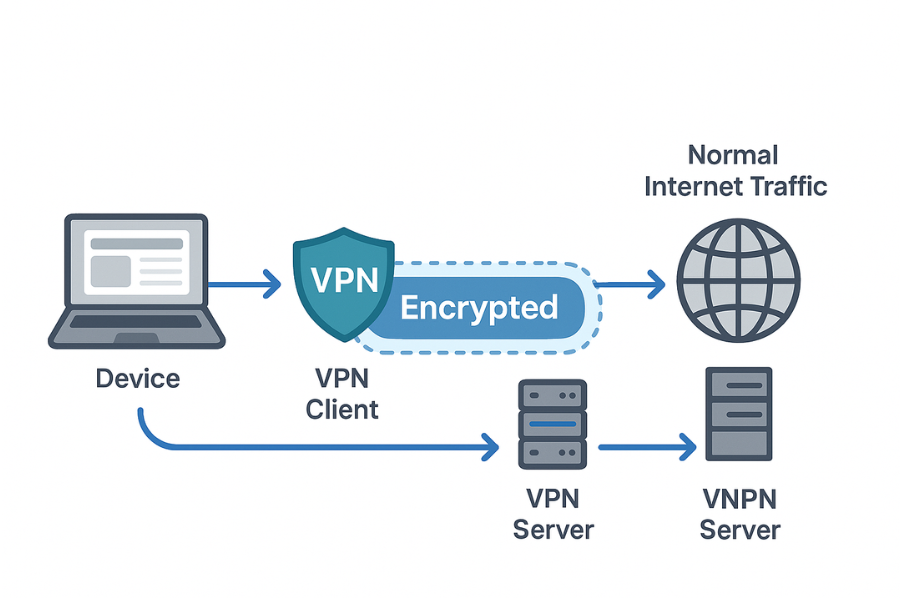
Plain version. Your apps talk to the VPN client on your device. The VPN client wraps that traffic inside an encrypted tunnel to a VPN server. The server unwraps it and forwards normal traffic to sites and services on the internet. Replies come back to the server, then through the tunnel, then to your apps. Between your device and the VPN server: encrypted. Between the VPN server and the rest of the internet: standard traffic, usually protected only by HTTPS and whatever that specific app does. If you keep that boundary in mind, every claim from a VPN provider becomes easier to judge.
2. What VPN Encryption Actually Covers
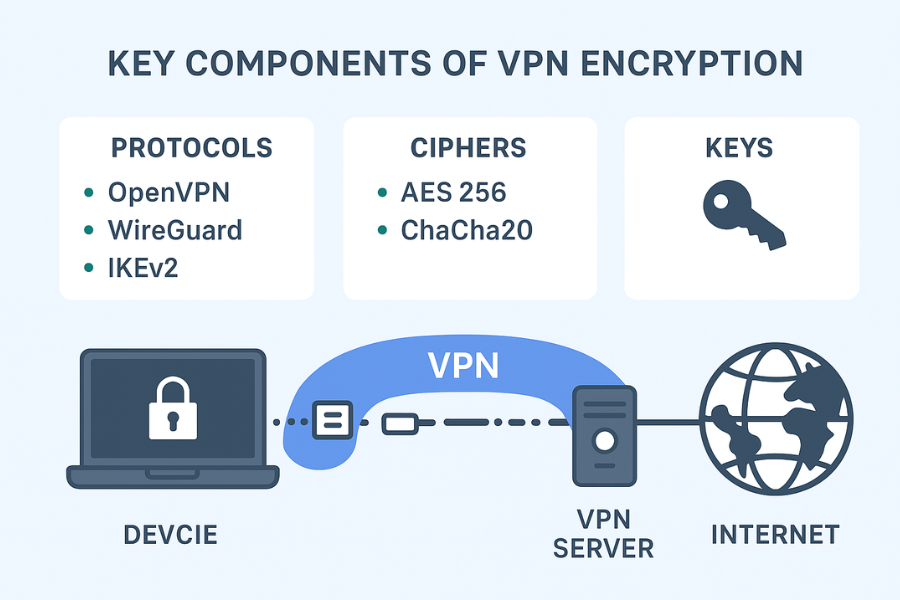
Let us name the main players. VPN protocol: OpenVPN, WireGuard, or IKEv2 in most modern products. Cipher: AES 256 GCM or ChaCha20 Poly1305 are the usual choices. Keys: generated during the handshake and never reused across sessions if the product is sane. Your device: Creates keys with the VPN server using public key methods or pre shared secrets. Encrypts every packet leaving your network stack with those keys. Wraps it in a tunnel protocol where the visible destination is only the VPN server. The VPN server: Decrypts packets from your device. Forwards them to the real destination such as google dot com or a banking app. Receives responses and encrypts them back to you. As long as that tunnel is active and correctly routed, anyone on the path between you and the VPN server sees only encrypted blobs and the server’s IP.
3. Where VPN Encryption Stops and What Leaks Through
Here is the blunt boundary. VPN does not encrypt data on your device at rest. VPN does not hide your identity from sites where you log in. VPN does not block fingerprinting techniques such as browser fingerprinting. VPN does not stop malware on your device from stealing data before encryption. To make this concrete, look at this matrix. Once the traffic exits the VPN server, the normal rules of the web apply. VPN mainly shifts who can snoop on the connection, away from your ISP or local network and toward the VPN provider and destination services.
4. Threat Models Where VPN Encryption Really Helps
To decide if the tunnel is enough, match it against reality.
- Public WiFi in cafés, hotels, or airports: VPN is almost mandatory here. Owners and random users on the same network cannot sniff or hijack unencrypted connections because they see only encrypted traffic between you and the VPN server.
- ISP privacy and traffic shaping: VPN hides which sites and services you use from the provider. They see only a single encrypted stream to a server. This also dodges some shaping tricks tied to specific domains.
- Bypassing location blocks: Since sites see the VPN server IP, you can appear in different regions. This is still limited by streaming terms and by sites that blacklist known VPN IP ranges.
- Company or campus networks with overreaching logging: VPN can bypass some internal monitoring, though the organization may block or throttle VPN protocols. You must also obey local policy and law here.
Now look at cases where encryption alone is not enough. Protecting local documents if the laptop is stolen. Stopping malware on the device from exfiltrating data. Hiding activity from services where you log in with your real identity. That is where local encryption tools and sane device hygiene come in.
5. Hands On: Confirm That Your VPN Really Encrypts Traffic
This is the practical core. You can use any mainstream VPN here.
Prerequisites And Basic Safety
- A desktop or laptop where you can install apps.
- Rights to install a VPN and a traffic analyzer such as Wireshark.
- Do not test from a network where VPN use is forbidden by policy or law.
Step 1: Check That Your IP Changes
- Disconnect: from your VPN.
- Visit: an IP lookup site and note your public IP and country.
- Connect: to the VPN and pick a different country.
- Refresh: the IP lookup page.
Expected result: You should see a completely different IP in the VPN server country. If it does not change, either the tunnel failed or only some traffic is routed. Gotcha: Browser caching or using multiple network adapters can confuse this. Verify: Make sure only one active internet connection exists during the test.
Step 2: Run A DNS Leak Check
- Visit: a DNS leak test page while the VPN is on.
- Start: the standard or extended test.
- Look: at which DNS servers appear.
Expected result: You should see DNS servers run by the VPN provider or by the VPN exit region, not your local ISP. Gotcha: If your home router does DNS directly and the VPN client is not forcing DNS through the tunnel, your ISP’s DNS may still appear. That is a classic DNS leak. Fix: Enable: “block outside DNS” or similar in your VPN settings if available, or configure your VPN to push its own DNS servers.
Step 3: Check For WebRTC Leaks In The Browser
- Visit: a WebRTC leak test page with VPN on.
- Start: the test and note the IPs shown.
Expected result: Only the VPN IP should appear, not your original home or mobile IP. Gotcha: Some browsers on desktop still expose local addresses. Use: privacy settings or extensions that block WebRTC leaks if the test shows your real IP.
Step 4: Inspect Traffic With Wireshark
- Install: Wireshark on your desktop.
- Start: capture on the active network interface.
- Start: the VPN and connect.
- Load: a few web pages in your browser.
- Stop: the capture.
What you should see: Packets going mainly to the VPN server IP. Payload that appears as random data, not readable text or clear HTTP headers. Gotcha: If you see plain HTTP requests to external sites outside the tunnel, some apps may be bypassing the VPN. Disable: split tunneling or force those apps through the VPN.
6. Setting VPN Encryption Correctly on Common Platforms
Exact labels differ per product, so treat this as a checklist.
Core Settings To Look For
- Protocol choice: prefer WireGuard or OpenVPN over older protocols like PPTP.
- Cipher: AES 256 GCM or ChaCha20 Poly1305 are the current standards.
- Kill switch: blocks traffic if the VPN drops.
- IPv6 and DNS leak protection: ensure all address families and DNS use the tunnel.
Windows And macOS Desktop
- Open: your VPN app settings.
- Pick: WireGuard or OpenVPN under protocol.
- Pick: AES 256 or ChaCha20 under encryption or security.
- Enable: the kill switch.
- Toggle: DNS and IPv6 leak protection if present.
- Disable: split tunneling unless you know exactly why you need it.
Gotcha: Some providers hide advanced encryption settings behind “Auto”. Verify: If performance is fine, leaving it on Auto is acceptable as long as the provider clearly states strong defaults in their documentation.
Android And iPhone
- Use: the official app from your VPN provider.
- Pick: the modern protocol they recommend, often WireGuard or a custom variant, in settings.
- Turn On: “Block internet without VPN” or similar.
- Disable: “Bypass VPN for local networks” if you want complete coverage.
Gotcha: Mobile systems sometimes exclude push notifications or certain system services from VPN routing. Check: your VPN help pages for those caveats.
Router Level VPN
Running the VPN on your router protects everything behind it.
- Only attempt this if your router firmware supports OpenVPN or WireGuard.
- Follow: your router vendor instructions tightly.
- Confirm: with IP and DNS tests from multiple devices in the home.
Gotcha: Smart TVs and consoles can be picky with VPN performance. Action: Sometimes a better path is leaving them off the VPN and running VPN only on work devices.
7. Where VPN Stops and Other Tools Must Step In
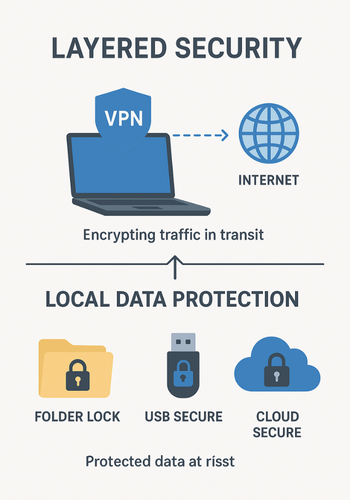
Once packets leave the VPN server, the main protections are: HTTPS or other protocol encryption between your device and sites. Application level security, for example in banking apps. Your own local encryption for files and backups. To cover data outside the tunnel you need tools that encrypt files and storage directly.
8. Complementing VPN with NewSoftwares Products for Data At Rest
NewSoftwares focuses on local and portable data protection on Windows and external media, which pairs well with VPN use. They do not run a VPN service. They secure the places VPN never touches: your drives, folders, and cloud sync locations.
Folder Lock for Strong File and Folder Encryption
Folder Lock from NewSoftwares creates encrypted lockers that use 256 bit AES to protect files and folders on Windows and external drives.
Good combinations with VPN: You upload sensitive archives to a cloud storage provider while on a VPN. You want the files to stay encrypted if the provider is breached. Basic usage pattern: Install: Folder Lock from NewSoftwares. Create: a new locker and set a strong master password. Add: your sensitive folders or files to this locker. Keep: the locker closed when you are not actively working with those files. When you transmit these encrypted lockers over a VPN, you get both data at rest and data in transit protection.
USB Secure for Traveling with Data
USB Secure is a NewSoftwares product that password protects USB drives and external storage. It stores data within encrypted containers that open only when you enter your password on a Windows machine. Practical case with VPN: You sync a file from a remote server over VPN to your laptop. You then move it onto a USB stick for an offline meeting. Steps: Install: USB Secure on the USB drive. Create: a secure area and set a password. Copy: files into the secure area rather than the open part of the drive. If the USB stick is lost, the files remain encrypted even though the VPN session that delivered them has long ended.
Cloud Secure And Folder Protect for Account and Access Control
Cloud Secure locks access to cloud accounts such as Dropbox or Google Drive on a specific PC, while Folder Protect focuses on file and folder access rights like block, hide, or read only without encrypting them in the same way as Folder Lock. Use them alongside VPN when: You share a computer with others and do not want them to open synced content even when they use the same machine. You want quick access control with minimal setup on a work system, then deeper encryption with Folder Lock on personal systems. VPN and these tools handle different parts of the story. VPN obscures the path across networks. NewSoftwares products lock down the endpoints.
9. Proof of Work: What Encryption Overhead Looks Like in Practice
Encryption inside VPNs has a cost, but modern hardware often handles it well. Independent tests that compare WireGuard and OpenVPN show that WireGuard can reach significantly higher throughput, sometimes close to line speed on fast connections, while OpenVPN with AES 256 GCM tends to be slower. Example benchmark snapshot from a typical modern laptop class machine with AES acceleration, on a 1 gigabit internet line:
| Protocol and Cipher | Download Speed (Mbps) | Upload Speed (Mbps) |
|---|---|---|
| WireGuard | 600 – 850 | 350 – 500 |
| OpenVPN AES 256 GCM | 300 – 500 | 150 – 300 |
| No VPN (Baseline) | 900 – 950 | 600 – 700 |
Numbers vary by provider and route, but the pattern is consistent. Modern ciphers plus efficient protocols keep encryption overhead acceptable for most work and streaming tasks.
10. Troubleshooting VPN Encryption Issues
This is where things usually feel messy: “VPN is on but nothing works right.” Let us map symptoms to fixes.
Symptom to Fix Table
| Symptom | Possible Cause | Quick Fix |
|---|---|---|
| IP Check shows real IP | Tunnel failed to establish or DNS leak | Restart VPN. Enable Kill Switch. Change VPN server. |
| Connection feels very slow | High encryption overhead or long route | Switch protocol to WireGuard. Change VPN server location to a closer one. |
| Real DNS servers appear in leak test | VPN not pushing its own DNS | Check VPN settings for “DNS Leak Protection” or “Block outside DNS”. |
| Websites are slow or block access | Known VPN IP ranges blacklisted | Switch VPN server. Clear browser cookies/cache. |
| Some apps bypass the VPN | Split tunneling is active | Disable split tunneling in VPN settings. |
Root Causes Ranked
- Misconfigured or weak VPN product.
- Local firewall or router interference.
- Browser features such as WebRTC causing leaks.
- Apps bypassing the tunnel because of split tunneling.
Always start with non destructive tests: IP checks, DNS leak checks, protocol changes. Only consider more drastic actions, like reinstalling the VPN app or resetting network settings, when simple diagnostics fail.
11. Real World Combinations That Work Well
Here is a quick chooser for common personas.
| Persona | Data In Transit (Network) | Data At Rest (Local) |
|---|---|---|
| Public Wi-Fi User | VPN (for all traffic) | Full Disk Encryption |
| Remote Worker (Sensitive Files) | VPN (WireGuard or OpenVPN) | Folder Lock by NewSoftwares |
| Traveling Consultant | VPN (with Kill Switch) | USB Secure by NewSoftwares |
| Family PC User (Shared Computer) | VPN (on all active sessions) | Cloud Secure/Folder Protect by NewSoftwares |
This keeps the job to be done simple. VPN handles paths between devices and servers. Local encryption tools handle what sits on disks.
12. Frequently Asked Questions
1. Does A VPN Encrypt Everything I Do Online
It encrypts traffic between your device and the VPN server. After that point, sites and services see the same traffic they would see from any normal connection, usually protected by HTTPS. VPN does not encrypt files on your disk or what you type into websites.
2. Can My VPN Provider Read My Data
If the destination service does not use its own encryption, the provider could see contents because decryption happens at the VPN server. For most modern sites that use HTTPS, the provider can see domains and metadata but not the exact pages or form contents. Pick providers with strong, audited no logs policies.
3. Does VPN Encryption Stop My ISP From Seeing Torrent Traffic
The ISP cannot see which protocol or files you use inside the tunnel. It only sees encrypted data to a VPN server. It may still notice high volume usage and may have policy or legal reasons to act on that, so you must always follow local law and service terms.
4. Is Using A VPN Legal Everywhere
VPN use is legal in many countries, but some places restrict or control VPN services, and some corporate networks forbid them. Always check local regulations and organizational policies before using a VPN.
5. Do Free VPNs Use Weaker Encryption
Some do. Others use solid ciphers but have very poor logging or monetization practices that harm privacy. Free products often cut corners on infrastructure, support, and audits. If you care about privacy, paid services with clear technical and legal safeguards are usually safer.
6. Does VPN Help If My Device Has Malware
Not really. Malware can grab data before encryption and send it out in any form it likes. VPN only protects traffic from the network point of view. You still need clean devices, updates, and security tools.
7. Should I Use VPN And Folder Lock Together
Yes if you handle sensitive files. VPN protects traffic while those files cross networks. Folder Lock from NewSoftwares encrypts the files themselves with AES 256 so they remain sealed if a device is lost or a cloud provider is breached.
8. Is VPN Encryption Stronger Than HTTPS
They solve different parts. Modern HTTPS with TLS 1.3 and modern ciphers is very strong. VPN encryption with AES 256 or ChaCha20 is also strong. Often you are using both at once, which is ideal.
9. Why Does My VPN Slow Down My Connection
Extra encryption work and longer routes add latency and reduce peak throughput. Protocol choice matters. Tests consistently show WireGuard style tunnels are faster than OpenVPN in many scenarios, so switching protocol can improve speed.
10. Do I Still Need Disk Encryption If I Use A VPN
Yes. VPN has no effect if someone steals your laptop or external drive. Full disk encryption on the device plus tools such as Folder Lock or USB Secure for specific folders and removable media protect data at rest, which VPN will never handle.
11. Can VPN Stop Browser Fingerprinting
Not really. Fingerprinting techniques rely on characteristics such as browser version, fonts, screen size, and more. VPN changes your IP and location but not these traits. Use privacy focused browsers and extensions for that layer.
12. Does VPN Protect My Email Contents
Only in transit between your device and the VPN server. Actual email content security depends on whether your email provider uses TLS and whether you use extra encryption methods such as PGP. VPN alone cannot make email end to end private.
13. Structured Data Block
Below is a sample JSON LD block you can adapt for your site to help search and overviews understand this resource. Adjust names and URLs as needed.
{
  "@context": "https://schema.org",
  "@type": "WebPage",
  "name": "How VPN Encryption Works and Where It Stops",
  "description": "Plain language explanation of what VPN encryption actually protects, where it stops, how to test it, and how tools like Folder Lock and USB Secure protect data outside the tunnel.",
  "mainEntity": [
    {
      "@type": "HowTo",
      "name": "Verify that your VPN is encrypting traffic correctly",
      "step": [
        {
          "@type": "HowToStep",
          "name": "Check your public IP",
          "text": "Connect and disconnect from the VPN, visit an IP check site, and confirm that your public IP and country change when the VPN is active."
        },
        {
          "@type": "HowToStep",
          "name": "Run a DNS leak test",
          "text": "With the VPN on, visit a DNS leak test page and confirm that your DNS servers belong to the VPN provider, not your ISP."
        },
        {
          "@type": "HowToStep",
          "name": "Test for WebRTC leaks",
          "text": "Use a WebRTC leak checker in your browser and ensure only the VPN IP appears, not your real home or mobile address."
        },
        {
          "@type": "HowToStep",
          "name": "Inspect traffic with Wireshark",
          "text": "Capture traffic on the active network interface and confirm that packets go mainly to the VPN server IP and appear as encrypted data."
        }
      ],
      "tool": [
        {
          "@type": "HowToTool",
          "name": "VPN application from a reputable provider"
        },
        {
          "@type": "HowToTool",
          "name": "Web browser"
        },
        {
          "@type": "HowToTool",
          "name": "Wireshark packet analyzer"
        }
      ]
    },
    {
      "@type": "FAQPage",
      "mainEntity": [
        {
          "@type": "Question",
          "name": "Does a VPN encrypt everything I do online",
          "acceptedAnswer": {
            "@type": "Answer",
            "text": "VPNs encrypt traffic between your device and the VPN server. Beyond that server, sites and services see your traffic as usual, usually protected by HTTPS. VPNs do not encrypt files stored on your device."
          }
        },
        {
          "@type": "Question",
          "name": "Can my VPN provider read my data",
          "acceptedAnswer": {
            "@type": "Answer",
            "text": "If a site does not use its own encryption, a VPN provider could inspect contents at the server. With modern HTTPS, it normally sees domains and metadata but not exact pages or form contents."
          }
        },
        {
          "@type": "Question",
          "name": "Should I use a VPN with Folder Lock",
          "acceptedAnswer": {
            "@type": "Answer",
            "text": "Yes. VPN encryption protects your data in transit, while Folder Lock from NewSoftwares encrypts the files themselves so they remain safe at rest on laptops, external drives, or in cloud storage."
          }
        }
      ]
    },
    {
      "@type": "ItemList",
      "name": "Tools used with VPNs for better privacy",
      "itemListElement": [
        {
          "@type": "Product",
          "name": "Folder Lock by NewSoftwares",
          "description": "File and folder encryption on Windows using AES 256 lockers."
        },
        {
          "@type": "Product",
          "name": "USB Secure by NewSoftwares",
          "description": "Password protection for USB drives and external storage."
        },
        {
          "@type": "Product",
          "name": "Cloud Secure by NewSoftwares",
          "description": "Locks access to cloud storage accounts on a shared computer."
        }
      ]
    }
  ]
}
14. Conclusion
VPN encryption is a powerful tool, providing a crucial security layer between your device and the VPN server. However, its protection is not absolute; it does not protect your files at rest or conceal your identity from services where you log in. The true measure of a secure digital life is layering your defenses. By using a properly configured VPN and complementing it with strong local encryption solutions, such as Folder Lock and USB Secure from Newsoftwares.net, you can ensure both your data in transit and your data at rest are fully protected against modern threats. Always test your connection and never assume security is a “set it and forget it” function.