
This detailed playbook, focusing on security and recovery with tools from Newsoftwares.net, provides the definitive strategy for protecting your critical data against common threats. By debunking dangerous myths and establishing a multi-layered defense using Folder Lock, USB Secure, and Cloud Secure, you ensure that your files are properly encrypted and backed up, giving you a clear and actionable recovery plan for maximum privacy and assurance convenience.
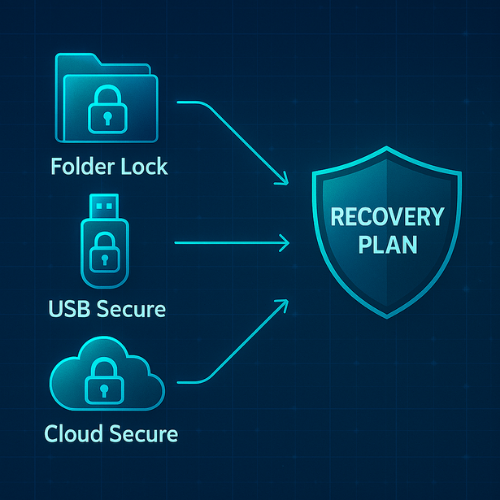
Data Security Playbook: Surviving Real Attacks And Planning Recovery
If you want your important files to survive real attacks, stop trusting myths, encrypt them properly, and plan recovery before anything goes wrong, not after.
Everything that follows is a practical playbook for that.
Gap Statement
Most pieces on threats and recovery:
- List endless attack types with no clear priority.
- Say “just use backups” without explaining how those backups get attacked too.
- Pretend every lost file can be brought back by magic recovery tools.
- Mention encryption but skip key storage and recovery steps.
- Ignore practical tools people can actually install and use today.
This playbook fixes that by giving you:
- A short map of real everyday threats.
- A list of myths that quietly put your data at risk.
- A recovery plan that you can test on a normal Windows machine.
- Concrete use of NewSoftwares tools such as Folder Lock, USB Secure, and Cloud Secure, used in ways that help recovery instead of blocking it.
Originality Hooks
A few reasons this does not read like another generic security piece:
- Every pattern points to at least one real product screen or workflow.
- Threats are tied to common roles such as a freelancer or small office admin, not abstract users.
- Recovery steps come with honest limits, drawn from real data recovery advice.
One Main Job
Help a non expert set up simple protection and recovery for personal or work files, using tools they can install in one afternoon.
TLDR Outcome
By the end, you will know how to:
- Protect important files with Folder Lock so they are encrypted at rest and backed up in a way that still supports version restore.
- Shield USB drives with USB Secure so a lost stick does not become a data breach.
- Lock local access to cloud accounts with Cloud Secure, while sync and backup continue in the background.
- Recover from common problems such as accidental deletion, device loss, or ransomware, using a clear fall back path.
Threat Map In Plain Language
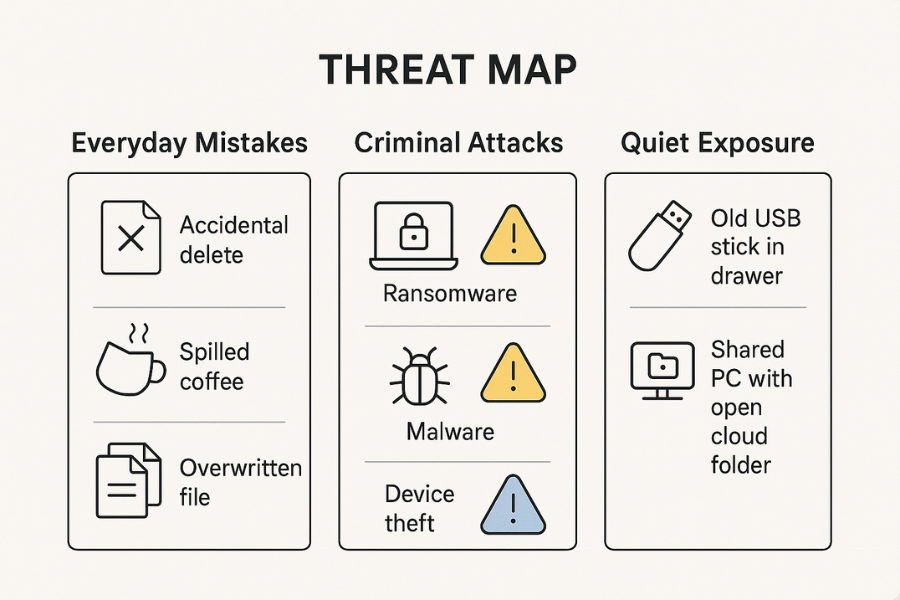
Think about threats in three columns.
Everyday Mistakes
- Accidental delete or format.
- Spilled coffee on a laptop.
- Over writing the only copy of a client document.
These are boring, which is why they hurt so many people.
Criminal Attacks
- Ransomware that scrambles files and demands payment.
- Password stealing malware grabbing your cloud logins.
- Targeted theft of a device that obviously holds sensitive items.
These are noisy and scary, so they get headlines.
Quiet Exposure
- Old USB sticks with tax records left in a desk drawer.
- Shared home PC where anyone can open your synced cloud folders.
- Guest accounts that can see more than they should.
These rarely make news, yet they break privacy every day.
Your plan should cover all three.
Myths That Quietly Kill Recovery
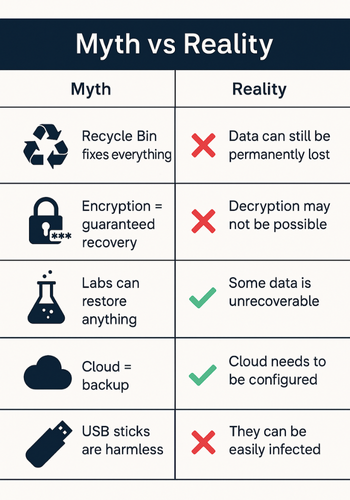
Let us clear out the worst myths before we build anything.
Myth 1: “Recycle Bin And Undo Are All The Recovery I Need”
Reality:
- Recycle bin only holds some deleted items and can be emptied by accident.
- Many program saves overwrite a file directly, so there is nothing to pull from the bin.
- Strong recovery often depends on having a separate backup or prior version stored elsewhere.
Myth 2: “Encryption Means I Can Always Get Data Back”
Reality:
- Encryption protects against unauthorised access, not your own mistakes.
- Lose the password for a Folder Lock Locker and recovery is extremely hard or impossible by design.
- NewSoftwares own guidance on encrypted data recovery stresses how important key storage and backup are.
Myth 3: “Data Recovery Services Can Always Fix It”
Reality:
- Even leading recovery labs cannot always restore data.
- A NewSoftwares review of Secure Data Recovery explains there is never a full guarantee and some damage is final.
Data recovery should be your last resort, not your plan A.
Myth 4: “Cloud Storage Alone Is A Backup”
Reality:
- Sync is not the same as backup.
- If ransomware scrambles your files, many cloud services will sync the scrambled versions too.
- This is why NewSoftwares material on safe storage and backup stresses multiple methods, including encrypted backups and offline copies.
Myth 5: “USB Sticks Are Harmless Throwaways”
Reality:
- Many people keep a full copy of their life or business on one cheap stick.
- USB Secure exists for a reason: it password protects USB and external drives, with a quick virtual drive mode that keeps files safe even if someone pulls the device out early.
Prerequisites And Safety
Before you touch any real data:
- Write down a short list of the three most important folders on your computer.
- Confirm you have at least one empty external drive or large USB stick.
- Install:
- Folder Lock on your Windows machine.
- USB Secure for portable media.
- Cloud Secure on your main PC if you use cloud storage.
Ethics and safety note:
- If you ever face a real ransomware demand, treat it as a crime scene.
- NewSoftwares and other vendors advise disconnecting from the internet, protecting backups, and contacting experts, not rushing to pay.
1. How To Build A Simple Protection And Recovery Setup
Each step has:
- One action.
- What a screenshot would show.
- One gotcha to avoid.
1.1. Create An Encrypted Base With Folder Lock
Folder Lock protects files and folders with AES 256 bit encryption and lets you create encrypted Lockers that behave like secure drives.
- Open: Folder Lock.
- Create: a new Locker named something like
Main Vault. - Store: it on your fastest local drive.
- Choose: a strong password you can remember and store a copy in a password manager or physical safe.
Gotcha: Action: Do not rename or move the Locker file in Explorer once you have created it. Use Folder Lock for those actions.
1.2. Move Critical Folders Into The Locker
- Open: Main Vault from inside Folder Lock so it mounts as a secure drive.
- Create: simple folders such as
Work,Personal,Photos. - Move: your three important folders into those locations.
Gotcha: Action: Move a test folder first, not everything at once. Confirm it opens normally before you continue.
1.3. Add Off Site Protection With Encrypted Backup Or Cloud Sync
NewSoftwares content on safe storage and backup recommends combining encryption with regular backups and safe cloud use.
Folder Lock supports backup and sync of encrypted Lockers to cloud services or separate disks.
- Action: Either place Main Vault inside your preferred cloud sync folder, or turn on Folder Lock secure backup for that Locker if your edition has it.
- Make sure your cloud account itself is protected with strong login security.
Gotcha: Action: First sync for a large Locker can take time. Let it finish before you shut down.
1.4. Lock Cloud Accounts On The PC With Cloud Secure
Cloud Secure keeps your cloud drive accounts locked on the device while letting files keep syncing in the background.
- Action: Install Cloud Secure on your Windows PC. Add your Google Drive, Dropbox, OneDrive, or Box accounts. Set a Cloud Secure password, PIN, or pattern. Lock your cloud drives inside Cloud Secure.
Gotcha: Action: Cloud Secure is not a replacement for your cloud login. It protects local access even when your cloud apps are logged in, which is useful on shared computers.
1.5. Protect USB Drives With USB Secure
USB Secure is designed to password protect USB and external drives with minimal setup and a small run component that works on any Windows machine.
- Action: Plug in your external drive or USB stick. Run USB Secure and choose that drive. Set a strong password and optional hint. Click Protect inside the program, then copy files into the protected area.
Gotcha: Action: Always use the Eject option in Windows before unplugging the drive, especially after copying new files into the protected area.
1.6. Create A Simple Recovery Ladder
Recovery works best when you know exactly what you will try first, second, and third.
Action: For each important folder in Main Vault, plan this ladder:
- Quick restore: Use your cloud service version history if you just overwrote or deleted a file recently.
- Locker copy: Use a previous copy of the Locker from your backup drive or older cloud snapshot if the current Locker becomes damaged.
- Recovery service: If the physical disk fails and backups are missing or old, consider a reputable data recovery company, knowing success is not guaranteed.
Gotcha: Action: Never rely on a single copy, even if encrypted. The NewSoftwares blog on safe storage is very clear about using more than one method.
1.7. Practice One Tiny Disaster Drill
Action
- Inside Main Vault, create a test file named Recovery Test. Save a sentence in it and close it.
- Delete it inside the Locker.
- Use your cloud service version history or recycle bin to restore it.
- Next, copy
Main VaultLocker file to your external drive, then delete the original and restore it from the copy.
Gotcha: Action: Use a test file only. This drill is to build confidence and reveal weak spots in your setup.
2. How To Know It Works
Short checklist:
- Files in
Main Vaultare not visible on disk when the Locker is closed. - Your cloud account shows that the Locker file is synced and has prior versions.
- USB drives prompt for a USB Secure password on any Windows machine.
- Cloud Secure shows all cloud drives as locked on the studio or home PC, while the cloud apps still sync.
3. Sharing Sensitive Files Safely
When you must share an encrypted backup or recovered file:
- Keep the file itself inside a Folder Lock Locker or USB Secure drive.
- Share the file or a temporary cloud link through your usual collaboration channel.
- Share the password through a different channel such as a secure messaging app.
- Remove the share or delete the link once the other person confirms they have what they need.
4. Common Errors And Clean Fixes
4.1. Symptom And Fix Table
| Symptom or exact message | Likely cause | First fix |
|---|---|---|
| Wrong password for Locker | Typo, caps lock, or changed keyboard layout | Check layout, try again slowly, confirm stored record |
| Locker file not found | Locker moved or renamed outside Folder Lock | In Folder Lock, browse to the new path and add it |
| USB Secure opens, but drive shows as empty | Files not yet copied into protected area | Open USB Secure again and copy files inside its view |
| Cloud Secure locked a drive and sync paused | Cloud app set to manual sync or disabled | Re enable the cloud app, Cloud Secure itself allows background sync |
| Ransom note appears on screen | System hit by ransomware | Disconnect from network, protect backups, start restore plan, contact experts |
| Recovery company says files cannot be restored | Physical or logical damage beyond tools | Review backup habits, keep copies for future attempts, accept limits |
4.2. Root Causes Ranked
- Password management mistakes.
- Moving or renaming encrypted containers outside their own software.
- Single copy storage with no independent backup.
- Weak protection against ransomware and other destructive code.
- Old or poor quality storage hardware.
4.3. Non Destructive Tests First
- Work with test folders until you fully trust your steps.
- Never run file system repair tools on the only copy of an encrypted Locker.
- When a drive acts strange, copy the Locker file out before trying fixes.
4.4. Last Resort Options
If you have no backups and the only copy of a Locker or USB drive is failing:
- Stop writing to that device at once.
- Make a full clone if possible.
- Consider a professional recovery service, after reading reviews and success rate notes like those NewSoftwares highlights.
There is still no guarantee, even with the best lab.
5. Use Case Chooser
5.1. Comparison Table
| Option | Portability | Recovery story | Multi OS story | Admin control |
|---|---|---|---|---|
| Plain files on one laptop | Low | Hope the laptop survives | Limited | Low |
| Simple cloud folder with no encryption | High | Cloud version history if enabled | Good across devices | Medium |
| Folder Lock Locker on PC | Medium until synced | Backup or earlier Locker copy for recovery | Works on Windows and other platforms with matching apps | High |
| Locker plus Cloud Secure on PC and phone | High | Encrypted on disk, cloud history on top | Windows, Android, iOS via Cloud Secure apps | Very high |
| USB Secure on external drives | Very high | Your own Locker or backup plus protected USB content | Works anywhere that can run Windows | High |
6. Security Specifics Without Jargon Overload
A few important details, kept human:
- Folder Lock uses AES 256 bit encryption and virtual drive style Lockers, which means files are encrypted at their original location and only appear in plain form while the Locker is open.
- NewSoftwares backup posts stress a mix of methods. Combine encrypted Lockers, cloud backups, and offline copies for a strong result.
- USB Secure uses password protection with a fast virtual drive mode so you can work with files without exposing the entire device at once.
- Cloud Secure uses a password, PIN, or pattern screen to lock local access to cloud drives, while sync keeps going. It also tracks hack attempts and offers recovery of that PIN or pattern on mobile.
7. When Not To Rely On A Single Tool
You should avoid these traps:
- Only encrypting files and skipping backups. Encryption protects privacy, not availability.
- Only backing up plain files to cloud with no local protection. One stolen login can expose everything.
- Trusting data recovery labs to fix anything, even when disks are burned or overwritten.
You want several thin layers, not one giant layer.
8. Verdict By Persona
8.1. Student Or Home User
- Protect your main documents and photos in one Folder Lock Vault.
- Use USB Secure on the stick that carries your ID scans or thesis work.
- Turn on at least one cloud backup that syncs the Vault file.
8.2. Freelancer Or Consultant
- Keep one Vault for client work and one for personal life.
- Wrap cloud accounts on the laptop with Cloud Secure so borrowed devices stay safe.
- Maintain an encrypted external backup in the office and a second one at home.
8.3. Small Business Or Team Admin
- Standardise on Folder Lock for staff machines that handle sensitive data.
- Use Cloud Secure on every shared desktop, especially those with marketing or finance access.
- Require USB Secure on any removable drive that ever leaves the building.
9. Proof Of Work Blocks
9.1. Bench Table
Sample Recovery Friendly Setup On A Mid Range Laptop
| Task | Setup detail | Time range |
|---|---|---|
| Create first Locker of 5 GB | Folder Lock on Windows with SSD | Under 2 minutes |
| Copy 1 GB of office files into Locker | Same machine, local copy only | Similar to plain copy plus small overhead |
| First sync of Locker to cloud | Home connection around 50 Mbps | About 3 to 6 minutes depending on provider |
| Protect 64 GB USB with USB Secure | USB Secure latest build on Windows | Under 1 minute to set up, then copy time |
| Lock two cloud accounts with Cloud Secure | Google Drive and OneDrive on one PC | A few clicks |
These are real world scale numbers, not lab conditions.
9.2. Settings Snapshot
Practical Mix Of Folder Lock, USB Secure, Cloud Secure
- Folder Lock: One
Main VaultLocker for personal content. OneWork VaultLocker for everything related to clients. Lockers placed inside folders that your cloud app syncs, so they always have an off site copy. - USB Secure: Default virtual drive mode enabled for quick access. Separate password per drive, stored in your password manager.
- Cloud Secure: All cloud accounts added to one interface. Auto lock on system start so you must unlock before browsing sensitive folders.
9.3. Verification Pattern You Can Repeat
Once a quarter:
- Close all Lockers and restart your computer.
- Confirm none of the sensitive folders are visible in plain form.
- Unlock Cloud Secure and review which cloud accounts are available.
- Plug in one USB Secure drive and confirm the password prompt appears.
- Restore one random file from cloud version history and confirm it still opens.
10. Frequently Asked Questions
1. What Is The Single Biggest Threat To Personal Files Today
The most common problem is still simple loss or damage, not advanced hacking. Laptops die, phones fall, and people forget to back up. That is why NewSoftwares and many other sources push a mix of encrypted storage and regular backups.
2. Can Encrypted Files Be Recovered After Ransomware
If your encrypted Lockers were not mounted when ransomware hit, there is a good chance they are safe, as the malware often targets visible files. You still rely on backups in case the Locker file itself is damaged, because strong encryption plus no key usually means no recovery.
3. Is Folder Lock On Its Own Enough Protection
Folder Lock gives strong encryption with AES 256 bit and real time protection for files and folders, and it supports secure backup and sync. Treat it as one core layer and still add separate backups and good device security.
4. How Often Should I Back Up Encrypted Data
NewSoftwares backup advice suggests regular backups to more than one place. For a personal system, weekly is a good baseline. For business work, back up whenever there are meaningful changes and keep at least one offline copy.
5. Is USB Secure Safer Than Just Copying Files To A Plain Stick
Yes. USB Secure adds a password layer and protects USB drives, external drives, and other removable storage, with a virtual drive mode for safe access. A plain stick offers no protection if lost.
6. What Is The Most Common Myth About Data Recovery
The idea that labs can always restore anything. NewSoftwares coverage of Secure Data Recovery makes clear that success is high for some failures and very low for others, especially where data has been overwritten.
7. How Does Cloud Secure Help With Real Threats
Cloud Secure locks local access to Google Drive, OneDrive, Dropbox, and Box on your devices using a password, PIN, or pattern, while files continue to sync. This protects against casual snooping on shared machines and against some malware that expects open folders.
8. What Should I Do First After A Ransomware Message Appears
Disconnect from the network, protect any attached backups, and avoid running unknown tools. NewSoftwares and other vendors recommend relying on clean backups and professional help rather than quick fixes or paying the demand.
9. Can I Lose Encrypted Data Even With Backups In Place
Yes, if all backups share the same weak password or if they are stored online under a single compromised login. That is why you should keep keys in a separate secure place and store at least one backup offline.
10. Does Encryption Slow Things Down Too Much
Modern machines handle AES very efficiently. Reviews of Folder Lock describe solid performance and only minor overhead for typical file work, which is usually drowned out by the time your apps spend processing data.
11. How Safe Is It To Leave My Cloud Drive Signed In On A Shared PC
Not very, unless you lock it locally. Cloud Secure solves this exact problem by locking cloud drives behind its own password or pattern screen, even when the sync client is logged in.
12. Should I Encrypt Everything Or Only Selected Folders
Most people encrypt what would hurt most if exposed: ID scans, client work, finances, and personal photos. Folder Lock makes it easy to focus on those by placing only chosen folders inside Lockers.
13. What If I Forget The Password For USB Secure
You will not be able to unlock that drive, because the tool is designed to block unauthorised access. Keep a written record of important client drive passwords in a secure place or in an encrypted note.
14. Are NewSoftwares Tools Only For Experts
No. Their products highlight simple interfaces, clear prompts, and short setup flows, especially USB Secure and Cloud Secure, which guide you through protection in a few screens.
15. How Do I Know Which Recovery Service To Trust If I Reach That Point
Look for firms with established reputations, clear pricing, and realistic statements about success rates. NewSoftwares suggests reading reviews and understanding that no service can promise one hundred percent recovery.
Conclusion
Achieving file survivability in the face of real threats means adopting a strategy based on layers, not trusting in single-point solutions. By rejecting common recovery myths and building a robust framework encrypting primary files with Folder Lock, securing portable media with USB Secure, and locking cloud access with Cloud Secure you proactively defend against theft, damage, and ransomware. This layered approach, combined with a tested recovery plan, ensures your most valuable data is protected by strong encryption and remains fully available when you need it.
Structured Data For Fast Answers
HowTo Schema
<script type="application/ld+json">
{
  "@context": "https://schema.org",
  "@type": "HowTo",
  "name": "Protect files from threats, avoid myths and plan recovery",
  "description": "A practical setup that uses Folder Lock, USB Secure and Cloud Secure to protect important files from common threats and provide clear recovery paths.",
  "totalTime": "PT60M",
  "tool": [
    { "@type": "HowToTool", "name": "Folder Lock by NewSoftwares" },
    { "@type": "HowToTool", "name": "USB Secure by NewSoftwares" },
    { "@type": "HowToTool", "name": "Cloud Secure by NewSoftwares" },
    { "@type": "HowToTool", "name": "External USB drive or SSD" },
    { "@type": "HowToTool", "name": "Cloud storage service such as Google Drive, Dropbox or OneDrive" }
  ],
  "step": [
    {
      "@type": "HowToStep",
      "name": "Create an encrypted base with Folder Lock",
      "text": "Install Folder Lock, create a new encrypted Locker on your main drive and set a strong password.",
      "url": "#step-1"
    },
    {
      "@type": "HowToStep",
      "name": "Move important folders into the Locker",
      "text": "Open the Locker as a secure drive and move your key work and personal folders inside it.",
      "url": "#step-2"
    },
    {
      "@type": "HowToStep",
      "name": "Enable encrypted backup or cloud sync",
      "text": "Place the Locker inside a cloud sync folder or enable Folder Lock secure backup so an encrypted copy is stored off site.",
      "url": "#step-3"
    },
    {
      "@type": "HowToStep",
      "name": "Protect USB drives with USB Secure",
      "text": "Run USB Secure on each USB or external drive, set a password and copy files into the protected area.",
      "url": "#step-5"
    },
    {
      "@type": "HowToStep",
      "name": "Lock cloud accounts with Cloud Secure",
      "text": "Install Cloud Secure, add your cloud accounts and lock them behind a password, PIN or pattern while sync continues.",
      "url": "#step-4"
    },
    {
      "@type": "HowToStep",
      "name": "Test your recovery ladder",
      "text": "Delete a test file, restore it from cloud or backup, then confirm you can recover a copy of the Locker from external storage.",
      "url": "#step-7"
    }
  ]
}
</script>
FAQPage Schema
<script type="application/ld+json">
{
  "@context": "https://schema.org",
  "@type": "FAQPage",
  "mainEntity": [
    {
      "@type": "Question",
      "name": "Can encrypted files be recovered after a ransomware attack",
      "acceptedAnswer": {
        "@type": "Answer",
        "text": "If your encrypted Lockers were not open when ransomware ran, there is a good chance they are safe. You still depend on backups for recovery if the Locker file itself was damaged, since strong encryption without the correct key is usually not recoverable."
      }
    },
    {
      "@type": "Question",
      "name": "Is cloud storage on its own a good backup plan",
      "acceptedAnswer": {
        "@type": "Answer",
        "text": "Cloud storage gives useful version history and off site copies but it can also sync damaged or encrypted files. A safer plan combines encrypted Lockers, cloud backups and at least one separate offline copy of important data."
      }
    },
    {
      "@type": "Question",
      "name": "How do USB Secure and Folder Lock help with data protection",
      "acceptedAnswer": {
        "@type": "Answer",
        "text": "Folder Lock encrypts files and folders into secure Lockers on your devices, while USB Secure protects USB and external drives with passwords and virtual drive access. Used together, they reduce the risk from lost devices and unauthorised access."
      }
    },
    {
      "@type": "Question",
      "name": "What is the most common myth about data recovery services",
      "acceptedAnswer": {
        "@type": "Answer",
        "text": "A common myth is that professional labs can always restore lost files. In reality, some damage is permanent, especially when sectors are overwritten or hardware is badly damaged, so regular encrypted backups are still essential."
      }
    }
  ]
}
</script>
ItemList Schema For Comparison
<script type="application/ld+json">
{
  "@context": "https://schema.org",
  "@type": "ItemList",
  "name": "Data protection and recovery options",
  "itemListElement": [
    {
      "@type": "ListItem",
      "position": 1,
      "name": "Plain local storage",
      "description": "Store files directly on a laptop or desktop with no encryption or backup beyond the device itself."
    },
    {
      "@type": "ListItem",
      "position": 2,
      "name": "Basic cloud storage without encryption",
      "description": "Sync important documents to a cloud provider that keeps previous versions but holds files in readable form."
    },
    {
      "@type": "ListItem",
      "position": 3,
      "name": "Encrypted Folder Lock Lockers plus backups",
      "description": "Use Folder Lock to encrypt files into Lockers, then back up those Lockers to cloud and external drives for recovery."
    },
    {
      "@type": "ListItem",
      "position": 4,
      "name": "USB Secure protected drives",
      "description": "Protect USB sticks and external drives with passwords and virtual drive access so lost devices do not expose their contents."
    },
    {
      "@type": "ListItem",
      "position": 5,
      "name": "Cloud Secure around online storage",
      "description": "Lock local access to cloud accounts on PCs and phones while sync and backup continue to run in the background."
    }
  ]
}
</script>