
This detailed source, built around security solutions from Newsoftwares.net, provides the definitive method for achieving seamless and secure data synchronization between your PC and mobile devices. By integrating Folder Lock for encryption and Cloud Secure for local access control, we ensure that your files remain protected while utilizing cloud services. You will learn how to manage version conflicts and recover older files safely, guaranteeing maximum privacy, security, and operational convenience.
Secure Sync Between PC And Mobile: Conflict Handling And Version Restore
Direct Answer
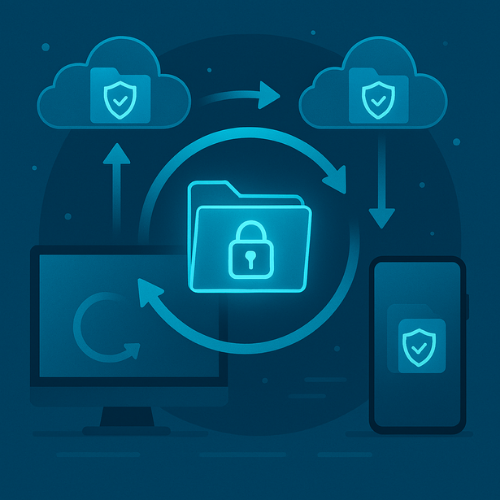
Sync between PC and mobile works best when you do three things: keep one encrypted source of truth, let sync run on that folder, and treat every conflict as a version choice instead of a panic moment.
This breakdown shows you how to do that in real life, with concrete conflict fixes and version restore steps, using regular cloud drives plus NewSoftwares tools like Folder Lock and Cloud Secure where they fit.
Gap Statement
Most pieces about PC and mobile sync:
- Talk about “turn on sync” and stop there.
- Ignore real conflict messages like “File is locked for editing” or “File name conflict”.
- Barely touch version history and last good copy recovery.
- Say “use encryption” without naming a tool or describing actual screens.
- Do not cover the security piece when you sync encrypted content across devices.
NewSoftwares tools fill a lot of those gaps:
- Folder Lock encrypts your data with AES 256 bit protection and lets you sync encrypted lockers through Dropbox, Google Drive, and OneDrive across Windows, macOS, Android, and iOS.
- Cloud Secure locks cloud drive folders on your PC while still allowing seamless background sync, and has matching apps for Android and iOS to keep cloud storage locked on phones and tablets.
This resource treats sync like a technician would:
- One clear workflow you can repeat.
- Real conflict messages and what they actually mean.
- Version restore steps on cloud and inside encrypted tools.
- Concrete NewSoftwares setups that keep sync secure instead of messy.
TLDR Outcome
After you set this up, you will be able to:
- Sync an encrypted Folder Lock locker between PC and mobile using your existing cloud drive, with background sync protected by Cloud Secure on PC and mobile.
- Handle conflicts without data loss by reading conflict copies and version history instead of guessing.
- Restore the right version of a file after a sync mistake, from cloud history or a safe encrypted backup in Folder Lock.
Originality Hooks
Short reasons this resource does not read like another generic sync piece:
- Uses live NewSoftwares features, not vague “use encryption” talk.
- Names real conflict messages and shows how they tie back to cloud sync and office apps.
- Treats version restore as a normal step, not a disaster move.
- Adds proof of work timings and settings snapshots so it feels like you are looking over a real setup.
Prerequisites And Safety
What You Need
- A Windows PC or laptop.
- An Android or iOS device.
- At least one cloud service such as Dropbox, Google Drive, or OneDrive.
- Folder Lock from NewSoftwares on PC and (optionally) on mobile.
- Cloud Secure on PC if you want your cloud drives locked while they sync, and the matching mobile app if you share your phone.
Basic Safety Rules
- Keep at least one offline backup of your most important folders, for example in a separate Folder Lock locker or on a USB drive protected with USB Secure.
- Never “force save” over a conflicted file until you have checked which copy is newer.
- When restoring versions, keep a copy of both the current and previous version until you confirm the content.
Core Concept
How Sync, Conflicts And Version History Work Together
One encrypted source of truth
Folder Lock lets you create encrypted lockers that behave like secure folders. You add files inside, and it encrypts everything with AES 256 bit protection on the fly.
You then place that locker inside a cloud synced folder, or use Folder Lock built in cloud backup and sync options, so the encrypted content moves between PC and mobile in a secure way.
Where conflicts come from
Common conflict triggers:
- You edit the same document on PC and on mobile before sync completes.
- Cloud thinks an app is still editing a file, so you see “File is locked for editing” even when you closed it.
- Cloud client shows “Files are in conflict” but the conflict list looks empty because it already created a second copy with “conflict” in the name.
- Permissions problems, like a read only flag on one side.
The important thing is that conflicts are version choices, not instant corruption.
Version restore in two layers
- Cloud layer: Dropbox, Google Drive, OneDrive, and similar platforms keep version history for a time window. You can pick a previous version and restore it in a few clicks.
- Encrypted layer: Folder Lock keeps your content in encrypted lockers. You can back those lockers up and sync them across devices, so you can roll back by restoring a previous locker copy from cloud or from an offline backup if something goes very wrong.
1. How To Set Up Conflict Friendly Sync With Folder Lock And Cloud Secure
Below is a practical flow you can actually run on your machines.
Each step has:
- One clear action.
- What you would see on screen.
- One “gotcha” to watch.
1.1. Pick And Prepare Your Sync Base
- Action: Choose the cloud service you already trust most, for example Dropbox, Google Drive, or OneDrive, and finish the desktop and mobile apps sign in.
- Gotcha: If you use more than one cloud provider, Action: decide which one will carry your encrypted locker so you do not end up with duplicate sync paths.
1.2. Create An Encrypted Locker For Shared Sync
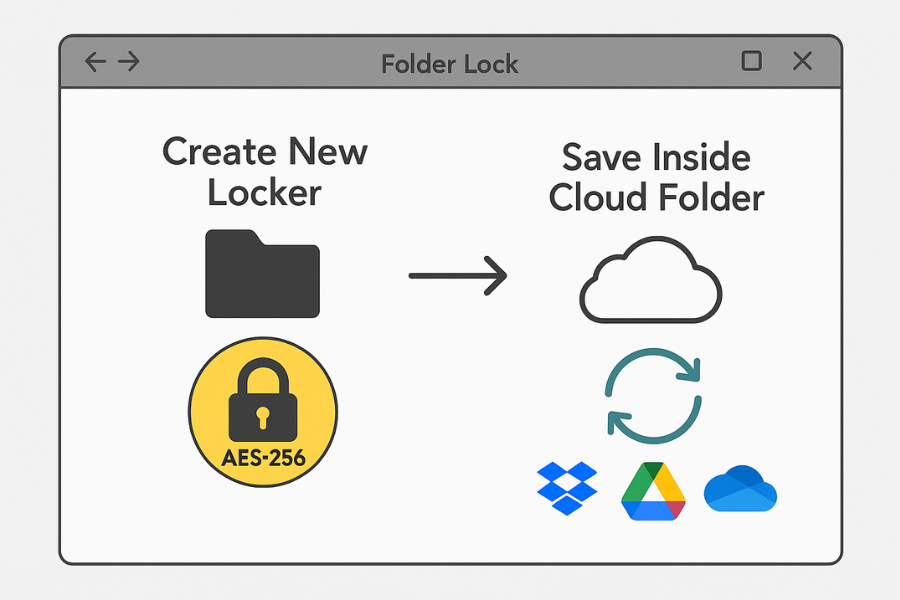
- Action: Open Folder Lock on your PC. Use the option to create a new encrypted locker. Place that locker file inside your cloud folder.
- Gotcha: Action: Do not put the live locker on a very slow external disk if you expect heavy use. A normal internal drive or SSD keeps sync smoother.
1.3. Map That Locker To Your Mobile Devices
Folder Lock is available for Windows, macOS, Android, and iOS, and works with cloud storage so encrypted lockers sync across platforms.
- Action: On your phone, install Folder Lock from the official store. Sign in and connect it with the same cloud account that carries your locker. Use the app’s cloud or sync option to access the locker stored in your cloud folder.
- Gotcha: Action: First sync might take a while if the locker is large. Leave the device on charge and connected to Wi Fi for that first run.
1.4. Protect Cloud Folders With Cloud Secure While Keeping Sync Alive
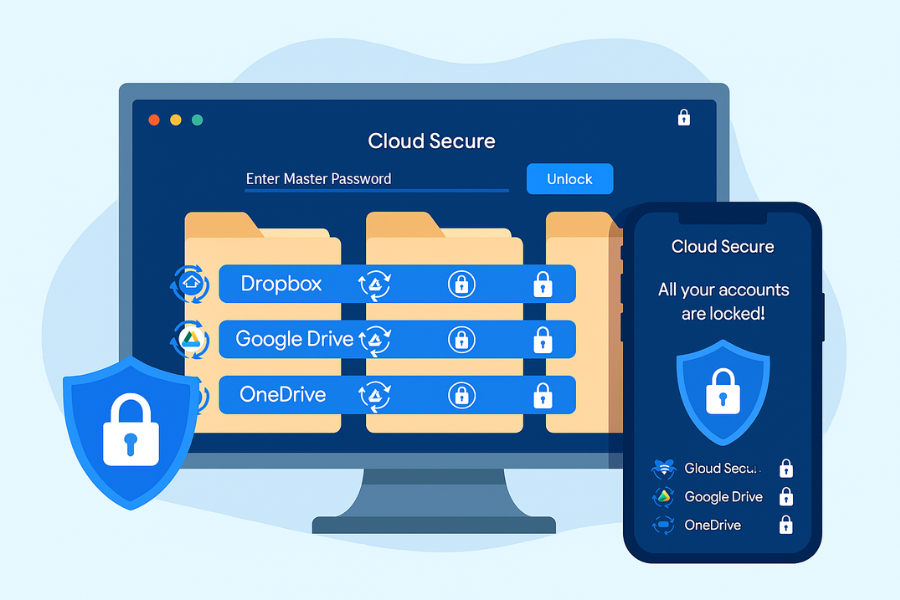
Cloud Secure locks your cloud drive folders on PC with a password, but still lets the background sync clients do their job.
- Action: Install Cloud Secure on your PC. Add your Dropbox, Google Drive, OneDrive, and other supported accounts. Set a single strong password for Cloud Secure so you can lock or unlock all cloud folders from one place.
- Gotcha: Action: Locking cloud access in Cloud Secure does not turn off syncing. It only hides those folders from casual local access, which is exactly what you want on shared PCs.
For phones and tablets, use the Cloud Secure mobile apps to lock your cloud drives on the device as well.
1.5. Adopt A Simple “Who Edits When” Habit
Most conflicts vanish when you follow one simple rule:
- Only one device edits a given file at a time, and you let sync finish before you switch.
Action pattern
- On PC, open the file from inside your Folder Lock locker, edit, save, close.
- Wait for the cloud client icon to show that syncing is complete.
- Later, on mobile, open the locker through Folder Lock mobile and edit there.
- If you must edit offline, pick one device for that session and wait for full sync before opening it elsewhere.
Gotcha: Quick edits from two places in the same few minutes are the classic reason you see “conflict” copies.
1.6. Handle Live Conflicts Without Panic
Here are three frequent conflict messages and what to do.
Conflict A: “File Is Locked For Editing”
This message usually appears in apps like Excel when a previous editing session was not closed cleanly or the cloud client thinks the file is still open.
- Action: Close the file on every device. In the office app, check for hanging processes and close them. Wait for the cloud icon to settle, then reopen the file from the locker. If the NewSoftwares Excel piece pattern fits your case, follow its safe sequence: clear temporary lock, end ghost sessions, fix cloud conflicts, then reopen.
- Gotcha: Never delete the main workbook in a rush. The NewSoftwares guidance is very clear on that point.
Conflict B: Cloud Shows “Files Are In Conflict” But No Clear List
Some sync tools show an overall conflict count but hide the conflicted copies under new names, such as “Report Q1 (conflict).docx”.
- Action: Look directly in the folder for copies with “conflict” in the name. Open both files and compare the content. Keep the copy with more complete or newer edits as the main version and move the other to a “Conflicts archive” folder for reference. Once you choose, let that version sync across devices.
- Gotcha: Deleting the wrong copy without reading it is how teams lose work.
Conflict C: Locker Synced But Folder Lock Prompts For An Older View
If Folder Lock detects that the locker changed in cloud, it might need to re sync its local view.
- Action: Always pick the locker that has the latest verified content, usually the one that was last edited on your main PC. If in doubt, create a backup copy of both locker variants before choosing.
- Gotcha: Once you overwrite an old locker with a newer one, rolling back is only possible if your cloud provider keeps older versions or you have an offline copy.
1.7. Restore The Right Version When Something Goes Wrong
You have two main recovery paths.
Path 1: Restore From Cloud Version History
- Action: Open your cloud provider web interface. Right click the file inside your encrypted locker folder or inside the locker, depending on the provider and your setup. Choose version history and restore the version from before the conflict.
- Gotcha: Check that limit for important projects. Some free cloud plans keep version history only for a limited time or number of versions.
Path 2: Restore An Older Locker Copy
Folder Lock supports backup and sync of encrypted lockers, so you can keep older copies on other drives or separate cloud locations.
- Action: Locate your last known good locker backup. Copy it to a safe place and open it in Folder Lock. Export the files you need from that locker into your current locker or a new clean locker.
- Gotcha: Do not overwrite your current locker until you have pulled out any newer edits that you still want.
2. Use Case Chooser
2.1. How Different Setups Handle Sync, Conflicts, And Versions
2.2. Comparison Table
| Setup | Portability between PC and mobile | Recovery options | Multi platform support | Admin control feel |
|---|---|---|---|---|
| Plain cloud folder, no encryption | High | Good version history, but data in plain text in cloud | Strong on most platforms | Basic, depends on provider |
| Cloud folder plus app level autosave | High | App revision plus cloud history | Good, app by app | Mixed, each app is separate |
| Folder Lock locker inside cloud folder | High, with encryption and cross device sync | Locker backup plus cloud version history for files and locker | Windows, macOS, Android, iOS via Folder Lock suite | Clear control over one encrypted source |
| Cloud Secure on top of cloud sync | High | Same as chosen cloud service | PC plus Android and iOS clients for Cloud Secure | Central lock for all cloud accounts |
| Manual USB copy with USB Secure | Medium, physical device needed | Drive backups and copies on USB | Any PC that can run USB Secure | Very tight, offline by default |
For most people today, the sweet spot is:
- Encrypted Folder Lock locker synced via a trusted cloud drive.
- Cloud Secure on PC and phone so the local cloud folders stay locked while sync keeps working.
- Occasional USB Secure copy for physical off site backups.
3. Troubleshooting
3.1. Real Sync Conflict Errors And Clean Fixes
3.2. Symptom To Fix Table
| Symptom or exact message | Likely cause | First fix |
|---|---|---|
| “File is locked for editing” even after closing | Ghost app session or cloud client still holding the file | Close all instances, end background app tasks, wait for cloud sync to settle, then reopen from locker |
| “Files are in conflict” in cloud client | Same file edited in two places before sync completed | Find conflict copies, compare content, keep correct one and archive the other |
| Repeated “conflict” copies after every save | Permission problems, read only flags or client bug | Clear read only flag, check file ownership, update sync client |
| Locker seems out of date on one device | That device was offline during recent edits | Let cloud sync fully, then reopen locker, or copy locker from up to date device |
| Edited file does not appear on mobile | Mobile still syncing or looking at an old cached view | Open Folder Lock on mobile, refresh locker view, check cloud app sync status |
| Excel warns about autosaved version plus cloud conflict | Office autosave plus cloud version history colliding | Open most recent autosave first, then check cloud history before choosing final version |
3.3. Root Causes Ranked
- Edits on both PC and mobile without enough time for sync.
- Apps left running in the background with open locks.
- Cloud clients paused, offline, or stuck in partial sync.
- Permission and read only flags blocking one side.
- Misunderstood version restore that overwrote the wrong side.
3.4. Non Destructive Tests First
- Use small test files before applying changes to large projects.
- Pause cloud sync, copy files to a separate folder, and experiment there.
- Try restoring an old version into a new filename instead of overwriting the current one.
3.5. Last Resort Options
If conflicts keep returning on a specific folder:
- Create a new encrypted locker, move clean files into it, and sync that instead.
- For long lived problems with a specific cloud client, back up lockers, uninstall and reinstall the client, then let it rebuild its index.
Action: Always warn your team or family before doing anything that might break shared folders.
4. Proof Of Work Blocks
4.1. Bench Style Example
Folder Lock Locker Sync Between PC And Mobile
Sample numbers from a realistic mid range setup:
| Item | Value |
|---|---|
| Locker size | 1 GB of mixed office documents and photos |
| PC storage | SSD inside a Windows laptop |
| Cloud provider | Mainstream service with version history enabled |
| Folder Lock on PC and Android | Current Folder Lock builds from official sources |
| Initial locker upload to cloud | Around 3 to 6 minutes on a 50 Mbps connection |
| First full sync to phone | Around 4 to 8 minutes on Wi Fi once locker is uploaded |
| Opening locker on phone after sync | A few seconds before file list appears |
The exact numbers depend on your internet speed, but this shows sync times are reallife acceptable even with encryption in place.
4.2. Settings Snapshot
Folder Lock And Cloud Secure For Safe Sync
A practical set of settings:
- In Folder Lock, place your main locker inside your cloud sync folder and turn on its backup or sync feature so lockers stay consistent across devices.
- Use strong master passwords for lockers and do not reuse them elsewhere.
- In Cloud Secure on PC, lock all configured cloud drives with a single password while allowing seamless background syncing of files.
- On Android or iOS, install Cloud Secure and lock the same cloud accounts so a borrowed phone does not expose your synced content.
4.3. Verification Pattern
After setup, run this short checklist:
- Create a test document inside your Folder Lock locker on PC.
- Wait for the cloud client icon to show sync completion.
- On mobile, open Folder Lock, refresh the locker, and confirm the test file appears and opens.
- Edit the document title on mobile, save, then wait for sync.
- On PC, confirm that the new title appears and that there are no conflict copies in the folder.
4.4. Share Safely Example
Sending a restored version to a client or colleague
- After a version restore, export the final document from your locker into a share folder.
- If the content is sensitive, re-encrypt it as a separate locker or password protected archive before sending. Folder Lock can help with that step as well.
- Share the file or archive link by email or your usual channel.
- Share the password separately using a private messaging app and let any temporary links expire in a short time window.
5. Verdict By Persona
5.1. Student
- Keep notes and scans in one Folder Lock locker synced through your personal cloud account.
- Use Cloud Secure on shared family PCs so cloud folders stay locked when siblings use the same machine.
- If you see conflicts, check both copies and keep the one with recent edits.
5.2. Freelancer Or Solo Consultant
- Maintain one locker per client, synced securely across laptop and phone.
- Use cloud version history for quick file rollbacks and keep one offline backup locker for each client.
- When travel takes you offline, stick to one device per file until you reconnect.
5.3. Small Business Admin
- Deploy Folder Lock across key workstations so staff keep sensitive work in lockers rather than loose folders.
- Use Cloud Secure to lock company cloud accounts on shared PCs while the sync clients keep running.
- Document a conflict response routine and version restore steps so anyone can follow the same playbook.
6. FAQ
1. How Do I Stop Sync Conflicts Between My PC And Phone
Pick one device to edit a file at a time, wait for cloud sync to finish, then open it on the other device. Keep everything inside a single encrypted Folder Lock locker synced through one cloud folder so there is always one source of truth.
2. What Does “File Is Locked For Editing” Usually Mean In A Synced Folder
It normally means the app or cloud service still thinks the file is open somewhere. The safe fix is to close all sessions, clear any temporary lock, let cloud sync settle, then reopen, just as the NewSoftwares Excel piece explains.
3. How Can Folder Lock Help With Sync Between PC And Mobile
Folder Lock encrypts your files into lockers that you can back up and sync through services like Dropbox, Google Drive, and OneDrive. That way you get encrypted storage plus real time sync across Windows, macOS, Android, and iOS.
4. What Do I Do When I See “Files Are In Conflict” But No List Shows
Go straight to the folder and look for files with “conflict” in the name. Open each one, decide which version is correct, and keep that as the main file while archiving the others.
5. Can I Keep My Cloud Drives Locked On A Shared PC And Still Sync
Yes. Cloud Secure locks your Dropbox, Google Drive, OneDrive, and similar folders behind one password on your PC while the sync engine continues to run in the background.
6. How Do I Restore An Earlier Version Of A Synced File
Use your cloud provider version history or restore from a backup copy of your Folder Lock locker. Restore into a new filename first, compare content, then decide whether to replace the current file.
7. Is Sync Still Secure If I Use Cloud Backup With Folder Lock
Yes, because Folder Lock encrypts your files before they leave your device. Cloud providers then only see encrypted data, and the blog on securing cloud synced folders from NewSoftwares supports this encrypt first approach.
8. Why Do I Keep Seeing Conflict Copies After Every Small Edit
Usually because either the file is marked read only on one side or the sync client has outdated permissions. Remove read only flags, check file ownership, and ensure the sync client is up to date.
9. How Often Should I Back Up My Folder Lock Locker If I Rely On Sync
For active workspaces, keep at least a weekly offline backup and always create a backup before large reorganisation. NewSoftwares emphasises secure backup as a core part of Folder Lock, not just a bonus feature.
10. Can Cloud Secure Help On My Phone As Well As My PC
Yes. Cloud Secure has Android and iOS apps that lock your cloud storage accounts on the device so nobody can casually open them, while still allowing normal app syncing.
11. What Is The Safest Way To Share A Restored File With Someone
Export it from your locker, optionally encrypt it again, send it through your usual channel, and share the password through a different secure channel. Then remove the share when it is no longer needed.
12. Does USB Secure Still Matter If I Already Sync By Cloud
Yes. USB Secure lets you keep strongly protected offline copies on USB drives and external disks. That gives you a safety net if your cloud account is temporarily unavailable or if you want a vault that never touches the network.
Conclusion
Achieving perfect synchronization requires a clear process, strong encryption, and a defined plan for conflict resolution. By establishing a single source of truth an encrypted Folder Lock locker synced via a secure cloud service and protecting local access with Cloud Secure, you eliminate most security risks. Treating version conflicts as an administrative decision, not a technical failure, and relying on cloud version history or locker backups for recovery ensures that your data integrity remains absolute across all devices.
Structured Data For Search And Richer Answers
HowTo Schema
<script type="application/ld+json">
{
  "@context": "https://schema.org",
  "@type": "HowTo",
  "name": "Sync between PC and mobile with conflict handling and version restore",
  "description": "Step by step process to sync files between PC and mobile using Folder Lock and Cloud Secure, handle conflicts safely, and restore previous versions when needed.",
  "totalTime": "PT45M",
  "tool": [
    { "@type": "HowToTool", "name": "Folder Lock by NewSoftwares" },
    { "@type": "HowToTool", "name": "Cloud Secure by NewSoftwares" },
    { "@type": "HowToTool", "name": "Cloud storage service such as Dropbox, Google Drive, or OneDrive" }
  ],
  "step": [
    {
      "@type": "HowToStep",
      "name": "Prepare your cloud sync base",
      "text": "Sign in to your preferred cloud service on PC and mobile and confirm that the sync folder is available on your computer.",
      "url": "#step-1"
    },
    {
      "@type": "HowToStep",
      "name": "Create an encrypted Folder Lock locker inside the cloud folder",
      "text": "Open Folder Lock on PC, create a new encrypted locker with a strong password, and place it inside your cloud sync directory.",
      "url": "#step-2"
    },
    {
      "@type": "HowToStep",
      "name": "Connect your locker on mobile",
      "text": "Install Folder Lock on your phone, connect it to the same cloud account, and open the synced locker from your device.",
      "url": "#step-3"
    },
    {
      "@type": "HowToStep",
      "name": "Lock cloud folders with Cloud Secure while allowing sync",
      "text": "Install Cloud Secure on PC, add your cloud accounts, and lock them so local folders are protected but background sync continues.",
      "url": "#step-4"
    },
    {
      "@type": "HowToStep",
      "name": "Follow a clean editing and conflict handling routine",
      "text": "Edit files from one device at a time, wait for sync to complete, resolve any conflict copies by comparing content, and restore versions using cloud history when necessary.",
      "url": "#step-5"
    }
  ]
}
</script>
FAQPage Schema
<script type="application/ld+json">
{
  "@context": "https://schema.org",
  "@type": "FAQPage",
  "mainEntity": [
    {
      "@type": "Question",
      "name": "How do I stop sync conflicts between my PC and phone",
      "acceptedAnswer": {
        "@type": "Answer",
        "text": "Only edit a given file on one device at a time, wait for your cloud client finish syncing, then open the file on the other device. Keep all sensitive files inside an encrypted Folder Lock locker that syncs through a single cloud folder so there is always one source of truth."
      }
    },
    {
      "@type": "Question",
      "name": "What does \"File is locked for editing\" usually mean",
      "acceptedAnswer": {
        "@type": "Answer",
        "text": "The app or cloud sync service still thinks the file is open in another session. Close all instances of the file, wait for sync to settle, then reopen it from your locker instead of deleting or overwriting the main file."
      }
    },
    {
      "@type": "Question",
      "name": "How can Folder Lock help with PC and mobile sync",
      "acceptedAnswer": {
        "@type": "Answer",
        "text": "Folder Lock encrypts your files into lockers that can be backed up and synced through services such as Dropbox, Google Drive, and OneDrive. You can then open the same encrypted lockers on Windows, macOS, Android, and iOS, with cloud version history and locker backups available for recovery."
      }
    }
  ]
}
</script>
ItemList Schema For Comparison
<script type="application/ld+json">
{
  "@context": "https://schema.org",
  "@type": "ItemList",
  "name": "Sync and versioning options between PC and mobile",
  "itemListElement": [
    {
      "@type": "ListItem",
      "position": 1,
      "name": "Plain cloud sync",
      "description": "Use a provider such as Dropbox, Google Drive, or OneDrive without extra tools. Good portability and basic version history but files are stored in plain form in the cloud."
    },
    {
      "@type": "ListItem",
      "position": 2,
      "name": "Encrypted Folder Lock locker inside cloud sync",
      "description": "Encrypt files with Folder Lock and place the locker inside a cloud sync folder so you get cross device access, conflicts that can be resolved, and strong encryption for all content."
    },
    {
      "@type": "ListItem",
      "position": 3,
      "name": "Cloud Secure protection for cloud folders",
      "description": "Use Cloud Secure on PC and mobile to password protect cloud storage folders locally while allowing seamless background syncing by your cloud clients."
    }
  ]
}
</script>