
Welcome. This detailed resource, focusing on robust development security, provides the essential strategy for protecting sensitive application secrets. By prioritizing platform vaults (Keychain/Keystore) and integrating Folder Lock from Newsoftwares.net for developer-side key storage, we ensure that secrets are never hard coded and are protected by hardware-backed encryption where possible, maximizing security and development convenience.
Secure App Secrets: Platform Vaults And Developer Key Storage
Direct Answer
To store secrets in apps safely, use the platform vault (Keychain, Keystore or equivalent), prefer hardware backed keys, and never ship secrets hard coded into code, assets or config.
Gap Statement
Most developer docs show how to call storeSecret() once.
They rarely show:
- How to tie Keychain or Keystore to real app flows (logins, tokens, keys)
- How hardware backed storage, secure elements and OS vaults fit together
- How to protect the same secrets on your own laptop or build server
- What to do when things break in production
This playbook fills that gap with concrete patterns, copy-pasteable flows and a realistic setup that includes NewSoftwares tools where they help in daily work.
TLDR Outcome
After working through this, you can:
- Ship a mobile or desktop app that never hard codes secrets and uses Keychain or Keystore correctly.
- Keep signing keys, config files and backup secrets encrypted on your own machines with Folder Lock from NewSoftwares.
- Troubleshoot broken vault access and migrate to safer patterns without locking users out.
1. What Actually Counts As A “Secret” In Your App
If an attacker can use a value to impersonate a user, move money or exfiltrate data, treat it as a secret.
| Item | Example | Secret Level |
|---|---|---|
| API key with write actions | Stripe secret key, internal admin API | Critical |
| Long lived access token | OAuth refresh token, backend session token | Critical |
| Short lived token | 5 minute access token | High |
| Private key | TLS client key, signing key, JWT signing key | Critical |
| Encryption key | AES key for local data store | Critical |
| Device identifier | Stable per user ID, per device ID | Medium |
| Configuration only | Public API base URL, feature flags | Low |
Secrets should never live:
- In source code
- Inside shipped binary as a string
- In
.envfiles sitting unencrypted on a laptop - In screenshots, issue trackers or chat history
2. Patterns To Avoid: Never Hard Code Secrets
2.1. Why Hard Coding Breaks Security
Decompiling mobile or desktop apps is routine. Attackers can:
- Run the app in a simulator and dump memory
- Pull the binary and run string or symbol analysis
- Hook into APIs and intercept values at runtime
If a token or key is in the shipped app, assume it can be extracted.
2.2. Common Bad Patterns
Bad pattern 1: mobile app with baked in API key
// Bad
object Config {
    const val STRIPE_SECRET = "sk_live_51Something..."
}
Bad pattern 2: JavaScript client containing admin token
// Bad
const ADMIN_BEARER = "Bearer eyJhbGciOiJIUzI1NiIsInR5cCI...";
Bad pattern 3: unencrypted config on dev machine
# Bad: stored in plain text config
DB_PASSWORD=SuperSecret2025
JWT_SIGNING_KEY=my-signing-key
If you see something like this, plan a migration:
- Move long term secrets to a server side vault or KMS.
- Give the app only short lived tokens or per device keys.
- Protect any backup copies on your own machines with a local vault such as Folder Lock.
3. Platform Vaults In Practice: Keychain, Keystore And Desktop Vaults
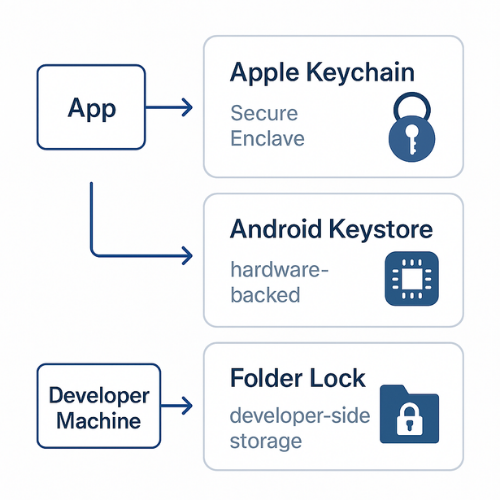
3.1. Apple Platforms: Keychain And Secure Enclave
On iOS, iPadOS and macOS, Keychain Services let you store passwords, keys and small secrets in an encrypted database managed by the OS. APIs support access control flags such as:
- “This device only”
- “Require passcode / biometrics”
- “Available after first unlock”
On many devices, keys can live in the Secure Enclave which adds hardware isolation for key operations.
Typical usage:
- Store OAuth refresh token and per device encryption keys.
- Optionally gate access with Face ID or Touch ID.
- Mark data as “non migratable” if it must never leave the device.
3.2. Android: Keystore And Hardware Backed Keys
Android Keystore stores private keys in a container isolated from app code. On many devices those keys are hardware backed and operate in a trusted execution environment so the key material never leaves secure hardware.
Typical usage:
- Generate a random AES key to encrypt local data.
- Protect the AES key with a Keystore RSA or AES wrapping key.
- Gate usage via device PIN or biometrics.
3.3. Windows And Desktops
For desktop apps and tools, you can use:
- Windows DPAPI or Windows Credential Manager for user scoped secrets.
- macOS Keychain for desktop apps.
- A dedicated encrypted vault on disk for bulk items like key stores, config backups and large export files.
This is where Folder Lock from NewSoftwares is a natural fit. It encrypts folders, drives and even portable USB lockers using AES 256 encryption and syncs encrypted lockers to cloud storage if needed.
4. Quick Pattern Map: Where To Keep Which Secret
| Scenario | Storage Pattern |
|---|---|
| Mobile app refresh token | Platform Keychain or Keystore |
| Local encryption key for cached data | Keystore or Secure Enclave backed key |
| Web app secrets (server side) | Server vault / KMS, not client |
| Signing keys, config for dev and CI | Encrypted Folder Lock locker on dev machine |
| One time recovery codes | Folder Lock secure wallet or OS credential store |
| USB transfer of key backups | Folder Lock USB locker |
5. How To Store Secrets On IOS Or macOS With Keychain
5.1. Prerequisites And Safety
- iOS 15+ or macOS 12+
- Xcode recent release
- Device with passcode and biometric auth enabled
- Backup plan for server side secrets (not just local Keychain)
Safety notes:
- Do not store long term signing keys only on a single device.
- Prefer random keys instead of user chosen strings for encryption.
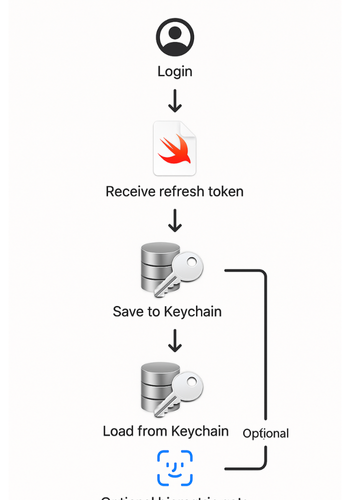
5.2. Steps: Store An API Refresh Token In Keychain
Each step: 1 action, 1 screenshot description, 1 gotcha.
- Define a Keychain service and account name
- Action: pick a fixed
servicelikecom.yourcompany.app.authand accountrefresh-token. - Screenshot: Xcode project settings showing bundle ID and a comment in your constants file.
- Gotcha: changing service or account later breaks reads of existing entries.
- Action: pick a fixed
- Add a small wrapper around Keychain APIs
- Action: implement
save,loadanddeletehelpers in a single file. - Screenshot: Swift file with
KeychainStoreand three short functions. - Gotcha: always set
kSecAttrAccessibleAfterFirstUnlockThisDeviceOnlyfor truly local use.
- Action: implement
- Store the token after a successful login
- Action: when the server returns refresh and access tokens, save the refresh token into Keychain.
- Screenshot: login view model with a
storeRefreshToken(token)call. - Gotcha: never store the token in
UserDefaultsas a backup.
- Read the token when you need to refresh
- Action: before calling the refresh endpoint, load the token from Keychain.
- Screenshot: network client method that fetches the token, then calls the API.
- Gotcha: treat “no token found” as a sign out condition, not as a crash.
- Gate sensitive entries with biometrics if needed
- Action: when storing very sensitive items, attach an access control attribute requiring Face ID.
- Screenshot: Keychain query options including
kSecAttrAccessControl. - Gotcha: have a fallback path for devices without biometrics.
5.3. Verify That It Worked
- On macOS, open Keychain Access and check that an item with your service name exists.
- On iOS, run a build with logging that prints whether read/write succeeded (without logging the secret).
- Rotate the token on the server and confirm the old one fails and the new one is stored.
6. How To Store Secrets On Android With Keystore
6.1. Prerequisites And Safety
- Android 8+ target
- Device or emulator with lock screen
- App has no root requirements
Safety notes:
- Prefer
StrongBoxbacked keys when present. - Avoid exporting private keys from Keystore where possible.
6.2. Steps: Generate And Use A Key To Encrypt Local Data
- Generate a Keystore key alias
- Action: decide on a fixed alias such as
local_data_key. - Screenshot: a
SecurityConfigfile with the alias constant. - Gotcha: alias changes break access to existing data.
- Action: decide on a fixed alias such as
- Create the key in Android Keystore
- Action: use
KeyGenParameterSpecto create an AES or RSA key bound toAndroidKeyStore. - Screenshot: code snippet with
KeyGenerator.getInstance("AES","AndroidKeyStore"). - Gotcha: require user authentication only if you can handle auth prompts during background operations.
- Action: use
- Encrypt your local database key or blob
- Action: generate a random content encryption key and wrap it using the Keystore key.
- Screenshot: helper class
LocalKeyManagerwithencryptKey()anddecryptKey()methods. - Gotcha: store IVs alongside ciphertext, not in a separate untracked place.
- Store sealed data in shared preferences or a file
- Action: write ciphertext and metadata to disk.
- Screenshot: Android Studio layout showing the file in Device File Explorer.
- Gotcha: never store the raw key itself outside Keystore.
- Handle Keystore failures gracefully
- Action: catch
KeyPermanentlyInvalidatedExceptionand force a clean re login. - Screenshot: log view with
KeyPermanentlyInvalidatedExceptionhandled. - Gotcha: if the user changes lock pattern or adds fingerprints, keys might be invalidated.
- Action: catch
6.3. Verify That It Worked
- Call a small test method that encrypts then decrypts a random string and asserts equality.
- Inspect the file or shared preference and confirm it contains binary or base64 data, not plain text.
- On a device with TEE support, confirm via logs or device info that the key is hardware backed.
7. Protecting Secrets On Developer And Admin Machines With Folder Lock
Even if your app uses Keychain and Keystore correctly, secrets often sit on:
- Laptops of developers and admins
- Build servers and CI agents
- External drives used for backups or migration
These machines usually hold:
- Signing keys for mobile apps
- Database connection strings
- VPN configs and admin passwords
- One time recovery codes and backup tokens
7.1. Why Use Folder Lock Here
Folder Lock from NewSoftwares encrypts files and folders using AES 256 encryption and can protect whole drives and portable USB lockers. It also provides secure wallets for credit cards, bank details and other sensitive information, plus options for cloud backup and sync.
That makes it ideal for:
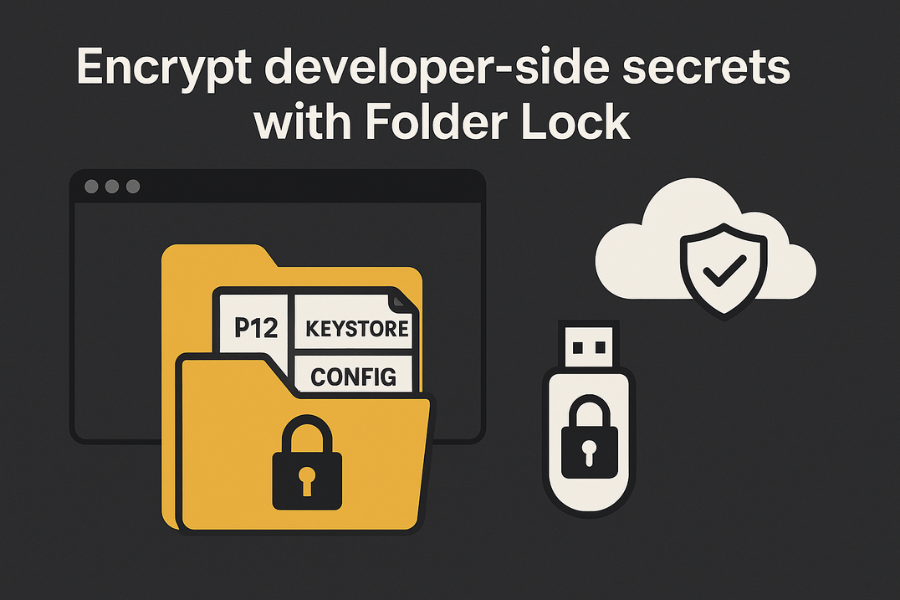
- Locking down
.keystore,.p12and.pemfiles - Keeping
.envand YAML config files in an encrypted locker - Creating a portable encrypted USB device with signing keys for controlled handover
- Storing master passwords and recovery codes in a digital wallet instead of notes or spreadsheets
7.2. Simple Workflow
- Create a Folder Lock locker on your dev machine.
- Move signing keys, config files and recovery codes into that locker.
- Mount the locker only when needed, then close it after builds or maintenance.
- For extra safety, back the locker up to a Folder Lock compatible cloud location so the encrypted container is still protected even if the cloud account is compromised.
8. Troubleshooting: Common Errors And Quick Fixes
| Symptom or error text | Likely cause | Safe fix first |
|---|---|---|
errSecItemNotFound on iOS |
Service/account name mismatch | Confirm constants, avoid typos |
| Keychain item works in debug, fails in TestFlight | Different keychain access group or entitle | Align entitlements, rebuild |
KeyPermanentlyInvalidatedException on Android |
Device lock screen changed or biometrics reset | Force re login, regenerate keys |
Keystore operation not authorized |
Auth required but user not authenticated | Prompt for auth, adjust key params |
| Folder Lock locker will not open | Wrong password entered | Verify password, check for caps lock |
| “Access denied” opening config file | File left outside locker or wrong path | Confirm file inside mounted locker |
If non destructive tests do not help:
- For Keychain / Keystore: treat failure as a signal to revoke tokens and clear local state.
- For Folder Lock: contact support rather than trying low level disk tools.
9. Which Pattern To Use When: Quick Chooser
| Need | Best Pattern | Avoid |
|---|---|---|
| User login tokens on mobile | Keychain / Keystore only | Shared prefs, plain files, SQLite columns |
| Local cache encryption | Keystore or Secure Enclave backed key | User chosen passwords as encryption keys |
| Web app secrets (server side) | Server vault / KMS, not client | Client side storage |
| Developer workstation secret storage | Folder Lock locker plus OS user account | Loose files on desktop |
| Moving keys between admins | Portable Folder Lock USB locker | Email attachments or unencrypted cloud |
| Storing card data for testing | Folder Lock secure wallet | Spreadsheets, sticky notes |
10. FAQ: People Also Ask
1. Where Should A Mobile App Store API Keys And Tokens?
Use the platform vault: Keychain on Apple platforms, Keystore on Android. Avoid shared preferences, plain files and hard coded values. Keep long term secrets on the server side and give the app short lived tokens when possible.
2. Is It Ever Acceptable To Hard Code Any Secret In An App?
For production, no. Even “low risk” secrets can often be chained in attacks. If you must ship anything fixed, treat it as public and build security around server checks, rate limits and per user tokens.
3. How Do Folder Lock And Platform Vaults Work Together?
Use Keychain or Keystore inside your shipped app. Use Folder Lock on your own Windows or macOS machines to encrypt project folders, signing keys, config files and other developer side secrets, including portable USB lockers and secure wallets for passwords.
4. What If My Keystore Keys Become Invalid After A Device Change?
This can happen when a user changes device lock or restores from certain backups. Catch the specific exception (for example KeyPermanentlyInvalidatedException), sign the user out and trigger a clean login and key regeneration instead of crashing.
5. How Should I Handle Backups Of Encrypted Lockers And Vaults?
Backup the encrypted containers themselves, not the raw files. For example, back up the Folder Lock locker to a cloud storage location, but let Folder Lock handle encryption before upload. Store locker passwords and recovery information in a secure wallet, not in plain notes.
6. Can I Use Folder Lock On Mobile To Protect App Related Files?
Yes. Folder Lock is available for Android and iOS and can protect photos, documents and other files with AES 256 encryption, plus secure wallets and hack attempt monitoring. That is useful when you handle exports, logs or temporary files on mobile devices that should not stay in plain form.
7. How Do I Prove To Auditors That Secrets Are Stored Correctly?
Document:
- Which secrets exist and where they live
- Which storage technology protects each one (Keychain, Keystore, Folder Lock, KMS)
- How keys are rotated, backed up and revoked
- Screenshots of configuration and short test logs showing encryption and access control in action
Keep this documentation updated as part of your regular security checks.
8. What Is The Biggest Pitfall With Client Side Encryption For Forms And PII?
Trusting JavaScript minification or obfuscation instead of real key management. The storage pattern must assume the client can be inspected, so any long term or shared secret should live on a server side vault. Client devices should hold only per device keys and short lived tokens served over secure channels.
9. How Often Should Teams Review Secret Storage In Apps?
At least:
- Before each major release
- After any new integration with payment, identity or health data
- After staff changes that affect access to keys or lockers
- After any security incident, even if it looks minor at first glance
10. What Is A Simple First Step If My Current App Hard Codes Secrets?
Start by moving one secret:
- Create a server side endpoint that returns a short lived token.
- Use Keychain or Keystore to store and refresh that token.
- Protect the original long term secret in a server vault and a Folder Lock locker on your admin machine.
Then repeat for the next secret until nothing sensitive is shipped in the client at all.
11. Conclusion
Securing secrets in application development demands strict adherence to platform best practices. The rule is simple: all long-term, high-value secrets must live in a server-side vault (KMS), and local secrets must be protected by platform vaults (Keychain/Keystore). Crucially, the sensitive assets that support this stack—signing keys, configuration files, and backups—must be encrypted on developer and admin workstations using tools like Folder Lock. This layered approach ensures keys are protected by hardware, reducing the attack surface and making secrets safe from both software inspection and physical theft.
12. Structured Data Snippets (JSON LD)
12.1. HowTo Schema (Storing A Refresh Token With Keychain)
{
  "@context": "https://schema.org",
  "@type": "HowTo",
  "name": "Store a refresh token securely using iOS Keychain",
  "description": "Steps for app developers to store an API refresh token in iOS Keychain instead of hard coding it.",
  "tool": [
    {
      "@type": "HowToTool",
      "name": "Xcode"
    },
    {
      "@type": "HowToTool",
      "name": "iOS Keychain Services"
    }
  ],
  "supply": [
    {
      "@type": "HowToSupply",
      "name": "iOS device with passcode enabled"
    }
  ],
  "step": [
    {
      "@type": "HowToStep",
      "name": "Define Keychain identifiers",
      "text": "Choose a fixed service name and account name for your refresh token entry.",
      "position": 1
    },
    {
      "@type": "HowToStep",
      "name": "Create Keychain wrapper",
      "text": "Implement small save, load and delete helpers using Keychain Services APIs.",
      "position": 2
    },
    {
      "@type": "HowToStep",
      "name": "Store token after login",
      "text": "Call the Keychain save helper when the server returns a new refresh token.",
      "position": 3
    },
    {
      "@type": "HowToStep",
      "name": "Load token when refreshing",
      "text": "Read the token from Keychain before calling the refresh endpoint.",
      "position": 4
    },
    {
      "@type": "HowToStep",
      "name": "Verify storage",
      "text": "Confirm the item exists and that login and refresh flows work after app restarts.",
      "position": 5
    }
  ]
}
12.2. FAQPage Schema
{
  "@context": "https://schema.org",
  "@type": "FAQPage",
  "mainEntity": [
    {
      "@type": "Question",
      "name": "Where should a mobile app store API keys and tokens?",
      "acceptedAnswer": {
        "@type": "Answer",
        "text": "Use the platform vault: Keychain on Apple platforms and Keystore on Android. Avoid shared preferences, plain files and hard coded values."
      }
    },
    {
      "@type": "Question",
      "name": "Is it safe to hard code any secret in an app?",
      "acceptedAnswer": {
        "@type": "Answer",
        "text": "No. Treat any value that can grant access or move data as confidential and keep it out of shipped binaries."
      }
    },
    {
      "@type": "Question",
      "name": "How can I protect signing keys on a developer machine?",
      "acceptedAnswer": {
        "@type": "Answer",
        "text": "Store signing keys in an encrypted locker such as Folder Lock and open the locker only when needed."
      }
    },
    {
      "@type": "Question",
      "name": "What happens if Android Keystore keys become invalid?",
      "acceptedAnswer": {
        "@type": "Answer",
        "text": "Keys can be invalidated when users change device security settings. Handle the specific exception, sign the user out and generate new keys after login."
      }
    },
    {
      "@type": "Question",
      "name": "How should backups handle encrypted lockers and vaults?",
      "acceptedAnswer": {
        "@type": "Answer",
        "text": "Back up the encrypted containers themselves, not the raw decrypted files. Keep passwords and recovery data in a secure wallet."
      }
    }
  ]
}
12.3. ItemList Schema For Storage Patterns
{
  "@context": "https://schema.org",
  "@type": "ItemList",
  "name": "Secret storage patterns for apps",
  "itemListElement": [
    {
      "@type": "ListItem",
      "position": 1,
      "name": "Platform vaults",
      "description": "Use iOS Keychain and Android Keystore for tokens and keys stored on devices."
    },
    {
      "@type": "ListItem",
      "position": 2,
      "name": "Server side vault or KMS",
      "description": "Keep long term secrets such as API keys, signing keys and database credentials in a centralized vault."
    },
    {
      "@type": "ListItem",
      "position": 3,
      "name": "Folder Lock lockers and wallets",
      "description": "Encrypt bulk files, signing keys, config and financial data on developer and admin machines using Folder Lock."
    }
  ]
}