
This resource explains how to defeat shoulder surfing, a common breach of privacy, by creating a layered mobile defense. The strategy involves three coordinated actions: hiding the app, masking the real data, and presenting a decoy vault to onlookers. We provide a practical setup guide using the comprehensive features of Folder Lock from Newsoftwares.net, ensuring that anyone watching your screen only sees harmless content, maximizing your security and convenience in public or shared environments.
Direct Answer
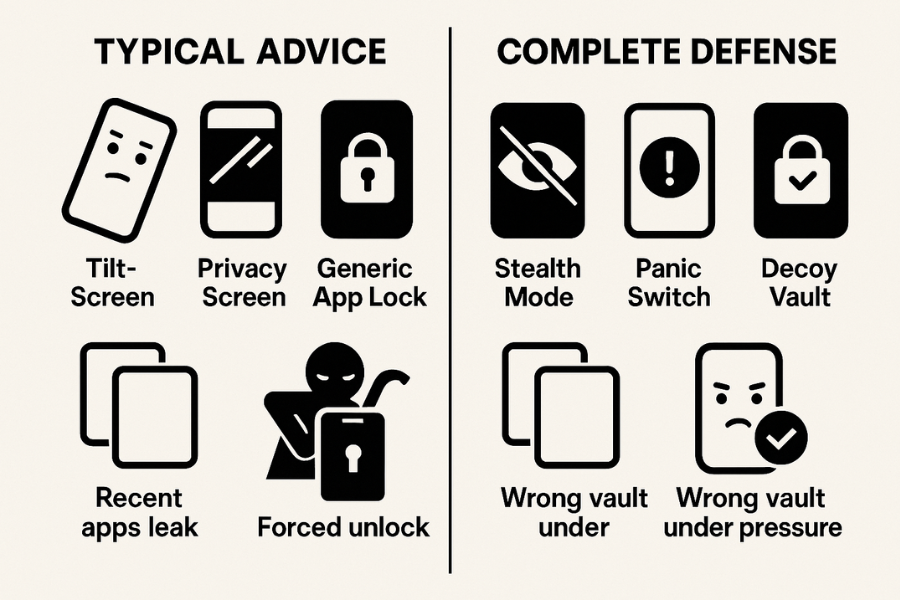
You stop shoulder surfing with three moves working together: hide the app itself, hide the real data, and give watchers something harmless to see while your vault stays locked.
Most posts about privacy on phones say things like “tilt your screen” or “use an app lock” then stop. They almost never show a complete setup that includes stealth mode, panic actions, and decoy vaults working as one system, with real examples from apps that already ship these features. They also skip what usually goes wrong in real life, like opening the wrong vault under pressure or leaving obvious traces in “recent apps.”
This piece closes that gap with a practical build you can copy, using tools that actually exist, including Folder Lock from NewSoftwares where it fits.
TLDR Outcome
- Set up a vault layout where someone standing next to you only ever sees harmless content.
- Use stealth mode, panic switch, and decoy vaults in one flow on Android or iOS.
- Test and troubleshoot that flow so it works when you are stressed, not only in a calm lab moment.
Shoulder Surfing In One Minute
Shoulder surfing is any situation where another person can see your screen or guess your unlock pattern.
Common situations:
- Colleague hovering over your desk while you open payroll data.
- Partner asking you to “show that trip photo again” while your private album is still open.
- Border agent or security staff asking you to unlock your phone and scroll “a little.”
If your only defense is a strong phone PIN, you are safe until the moment you unlock. After that, everything is in plain view.
Stealth mode, panic switches, and decoy vaults are about controlling that unlocked moment.
The Three Building Blocks
We will use these three ideas a lot, so define them clearly first.
1.1 Stealth Mode
Goal: reduce the chance anyone even asks “what is that secret app.”
Stealth features usually do one or more of these:
- Hide the app icon from the launcher or app grid.
- Rename it to something boring, like “System Service” or “Calculator.”
- Require a secret dial code or browser link to open it.
Folder Lock for Android, for example, offers a stealth mode that hides the app icon and lets you launch it with a custom code and other non obvious triggers.
On desktop, Folder Lock for Windows can also run in a hidden state so the main program is not visible in the normal start areas while its encrypted lockers still work.
1.2 Panic Switch
Goal: instantly cover or quit the sensitive screen without fumbling.
Typical panic actions in privacy apps:
- Shake the phone to instantly switch to another app.
- Press a hardware key pattern, like pressing the power button twice.
- Put the phone face down to auto close the vault.
In Folder Lock mobile variants, panic switch can instantly switch to another pre chosen app when a trigger occurs, which means anyone looking over your shoulder sees a safe screen instead of your vault.
1.3 Decoy Vaults And Decoy Passwords
Goal: show a believable “fake truth” when forced to open something.
Two common patterns:
- One password opens your real vault.
- A second, different password opens a decoy vault with harmless files or photos.
Folder Lock for Android includes a decoy mode, where a separate user account with its own vaults appears, specifically intended for situations where you must open the app in front of someone else.
Folder Lock for Windows also supports multiple lockers and profiles, which can be combined to mimic this pattern, with one locker holding sensitive data and another holding harmless content.
Use Case Chooser
Before we build, decide what you are actually protecting.
| Scenario | Who Watches You | Best Combo |
|---|---|---|
| Nosy roommate or friend | Informal, short visits | Stealth mode plus panic switch |
| Partner who can ask you to unlock | Emotional pressure, repeated | Decoy vault plus panic switch |
| Co worker hovering at your desk | Professional, unpredictable | Panic switch plus discreet app name |
| Shared devices at home | Kids, guests, housemates | Strong app lock plus separate decoy profile |
| High risk travel or inspections | Border or security agents | Decoy vault plus strict data minimisation |
If you only care about casual glances, stealth plus a fast panic switch is usually enough.
If someone can demand you open a vault, decoy design becomes critical.
Concrete Setup Using Folder Lock (NewSoftwares)
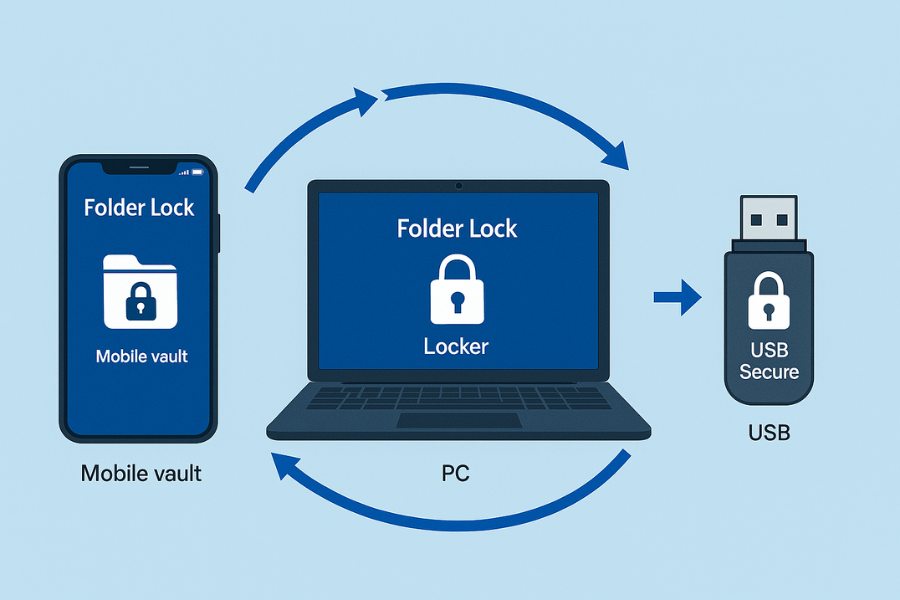
Folder Lock from NewSoftwares is a good example of this design in the real world. It protects files and folders, offers wallet storage and password management, and secures portable drives on desktop.
The Android version adds features like decoy mode, stealth mode, panic switch, and hack attempt monitoring.
2.1 TLDR Of The Folder Lock Setup
You will:
- Install Folder Lock on Android.
- Set a strong main password that you never type near untrusted people.
- Create a decoy user or vault with boring content.
- Turn on stealth mode so the app is not obvious.
- Turn on panic switch and choose a trigger you can use under stress.
- Practice opening the decoy only, while a friend watches, until it feels automatic.
Step By Step: Stealth, Panic, Decoy On Android
Exact screens change slightly between versions, but the flow looks like this.
3.1 Step 1: Install And Set The Main Password
- Install Folder Lock from the official store or vendor link.
- Open it and pick a master password.
- Use at least twelve characters with a mix of words and digits.
- Write it in a secure paper note and store that note somewhere safe at home.
- Do not reuse any password from email or banking.
Gotcha: if you forget this master password, your encrypted vaults cannot be recovered in normal ways. Treat it like a safe key.
3.2 Step 2: Create Your Real Vault Layout
- Inside Folder Lock, create folders for Photos, Videos, Documents, and Wallets.
- Import a small sample of truly sensitive items, not your entire life yet.
- Confirm that these items no longer appear in your gallery or file manager.
- Lock the app and reopen it with your master password to ensure everything works.
Verification: your sensitive photos should open only inside Folder Lock, and not in any default gallery.
3.3 Step 3: Set Up The Decoy Vault
- Open the app settings and look for “Decoy mode” or “Fake login” options.
- Set a second password, which will be used only when you are under pressure.
- Log out, then log in using the decoy password.
- Create harmless folders, for example “Holiday Photos” or “College Notes.”
- Fill them with believable but non sensitive items.
Design tip: decoy content should be mildly personal and messy. A nearly empty vault looks suspicious.
3.4 Step 4: Turn On Stealth Mode
- Go to settings and find “Stealth mode” features.
- Enable the option that hides the app icon, or renames it to something neutral.
- Note the secret code or launch method that brings the app back.
- Test it twice. Close everything, use the secret method to open the app, and sign in.
Gotcha: do not forget the launch code. Store it in a secure note manager that is not on the same phone, or write it down in the same place as your master password.
3.5 Step 5: Turn On Panic Switch
- In settings, open the “Panic switch” section.
- Pick a trigger you can do without looking at the phone too closely, such as double pressing a button or shaking.
- Choose what should appear when the panic switch triggers, for example the home screen or a calculator app.
- With a real photo or document open inside Folder Lock, trigger the panic action and check the result.
- Confirm that Folder Lock no longer appears in recent apps.
If recent apps still shows Folder Lock, enable any extra “clear from recent” or “close on lock” options inside the app.
3.6 Step 6: Practice A Real World Rehearsal
Ask a trusted friend to play the role of a nosy observer. Then run this drill:
- Start on your normal home screen.
- Use the secret method to open Folder Lock and log in to the real vault.
- Browse a sensitive photo.
- Have your friend say “show me something else” suddenly.
- Trigger panic switch without looking down for long.
- Reopen Folder Lock, but this time log in with the decoy password.
- Hand the phone over and let them look.
Repeat until your hands move automatically.
Proof Of Work Style Checks
These are practical checks you can run on your own device to ensure your setup is not only theoretical.
4.1 Target Timings Checklist
Aim for these rough goals when you rehearse:
| Action | Target Time |
|---|---|
| Trigger panic from inside a vault | Under 1 second |
| Open decoy vault from home screen | Under 5 seconds |
| Launch real vault from completely hidden state | Under 10 seconds |
Do not claim victory until you can hit these numbers more than once in a row.
4.2 Settings Snapshot Example For Folder Lock Mobile
You can mirror this type of configuration:
- Master password: at least twelve characters.
- Decoy mode: enabled, decoy password set, decoy content filled.
- Stealth mode: app icon hidden, custom launch method written down.
- Panic switch: trigger set to a physical action that feels natural to you.
- Hack attempt monitoring: enabled, so failed password tries are logged.
When To Use Folder Lock From NewSoftwares
Folder Lock fits well when:
- You want one tool that can lock files, folders, drives, and even wallets on desktop, and also handle private photos and documents on mobile.
- You like the idea of features built for shoulder surfing defense, such as decoy login, panic switch, and stealth mode in the same app.
- You sometimes move data to portable drives that also need protection.
For mixed environments, you can keep a Folder Lock vault on Windows for deep storage, and rely on Folder Lock mobile for day to day privacy on your phone, all following the same mental model.
Troubleshooting Common Problems
Here is a quick symptom to fix table you can work through.
| Symptom | Likely Cause | Fix |
|---|---|---|
| Panic switch does nothing | Trigger not granted required permissions | Reopen app, allow motion or accessibility access |
| Panic switch works but app stays in recent list | “Clear recent” option disabled | Enable close on lock or clear recent in settings |
| Decoy vault looks suspiciously empty | Not enough harmless content | Add random but believable files and photos |
| Stealth mode hides icon and you forget the code | Launch code not stored safely | Retrieve from any backup you made, or reinstall |
| Wrong vault opens under pressure | Fingers type the main password by habit | Change decoy password to something more natural |
Always test fixes calmly first, then repeat your rehearsal with a friend.
Design Notes And Best Practices
A few deeper points that often get missed.
5.1 The Decoy Must Align With Your Real Life
If you tell people you never take photos yet your decoy vault is filled with selfies, it will look odd. Match the contents to your normal behavior.
5.2 Do Not Store Everything In The Phone
Stealth and decoys defend against casual inspection, not determined forensic work. Keep truly critical data, such as legal documents or sensitive work archives, in strong desktop storage, for example encrypted lockers on a trusted computer.
Folder Lock on Windows supports encryption for files, folders, and entire drives, which is ideal for that layer.
5.3 Keep The Workflow Simple
Every extra vault and password is another chance to panic and tap the wrong thing. Most people do well with exactly two levels.
- Real vault with master password.
- Decoy vault with alternate password.
5.4 Avoid Obvious “Vault App” Icons On Your Main Screen
Even if you do not use full stealth mode, move privacy apps into a folder, or rename them in launchers that allow custom labels.
FAQ
1. Does A Decoy Vault Really Protect Me If Someone Forces Me To Unlock?
It helps in situations where the person only checks quickly and does not know that decoy logins exist. They see content that looks personal and lose interest. It is not meant to defeat trained investigators or legal searches.
2. Is Folder Lock Better Than The Default Phone Photo Lock Feature?
Default features in gallery apps mostly hide photos inside that one app. Folder Lock adds encrypted storage, decoy mode, stealth options, and a panic switch that works even when the app is open, which gives more control during shoulder surfing moments.
3. Can I Use These Ideas On Ios As Well As Android?
Yes, although exact features differ. Many vault apps on iOS offer fake login profiles and quick hide actions. The design pattern is the same. On Android, Folder Lock already implements decoy mode, stealth, and panic switch in one place.
4. How Often Should I Change My Master Password?
Change it if you think anyone may have seen you type it, or if you reused it somewhere else. In calm conditions, reviewing your master passwords every six to twelve months is a good rhythm.
5. What If I Forget The Secret Launch Code For Stealth Mode?
That depends on the app. In some cases you can reinstall the app and set it up again. In others, uninstalling means losing access to encrypted data. With Folder Lock and similar tools, always keep launch codes and master passwords backed up offline before turning stealth mode on.
6. Can Panic Switch Damage My Data?
Normally, panic actions only hide the app or switch screens. They do not delete data. Always confirm what the panic action does in the settings and test it on harmless content first.
7. Is It Safer To Keep Vault Apps Off The Phone Completely?
For some people, yes. If you repeatedly face forced unlock situations, the safest move is to keep sensitive data only on properly encrypted desktop storage and use your phone only for access tokens and low risk items.
8. How Do I Stop My Phone Backup From Copying Vault Contents To The Cloud?
Check the app settings. Many vault tools store encrypted data in a way that cloud services cannot read. With apps like Folder Lock, encryption is performed before any backup, so the cloud only sees encrypted blobs, not plain content.
9. What If Someone Records My Screen Instead Of Just Watching Over My Shoulder?
Stealth mode and panic switch still help by reducing how long sensitive data is visible. For very sensitive information, consider using the vault only in private locations and closing it quickly, so even a recording has little to capture.
10. Can I Use Biometric Unlock With A Decoy Vault?
Some apps let you pair biometric unlock with a specific account or vault. If you use Face ID or fingerprint, ensure that using biometrics only opens the decoy vault in situations where someone is watching, and reserve the master password for private use.
11. How Many Decoy Layers Are Sensible?
One decoy layer is usually enough. More layers add confusion and make failure more likely. The goal is believable simplicity, not theatrical complexity.
12. How Do I Explain Having A Vault App At All?
Most people accept photo vaults and app locks as normal privacy tools today. If asked, you can say you keep work documents, ID scans, or financial files in one place. Decoy content can support that story.
Conclusion: Layered Deception Defeats Casual Snooping
Defeating shoulder surfing requires a multi-faceted approach where stealth, quick reactions, and layered deception work in harmony. By using the comprehensive features of tools like Folder Lock—which integrates stealth mode to hide the app, a panic switch for instant cover, and a decoy vault for plausible deniability—users gain robust control over the visibility of their sensitive information. The key is practicing the switch to the decoy vault until it is automatic under pressure, ensuring that casual observers are always presented with a harmless facade while the real data remains securely encrypted and hidden.
Structured Data (JSON LD)
{
  "@context": "https://schema.org",
  "@type": "HowTo",
  "name": "Use stealth mode, panic switch and decoy vaults to defeat shoulder surfing",
  "description": "Practical steps to configure a mobile vault app with stealth mode, panic switch, and decoy vaults so that onlookers only ever see harmless content.",
  "step": [
    {
      "@type": "HowToStep",
      "name": "Install and secure your vault app",
      "text": "Install a respected vault such as Folder Lock, set a strong master password, and confirm that sensitive items only open inside the app.",
      "url": "#step-1-install-and-set-the-main-password"
    },
    {
      "@type": "HowToStep",
      "name": "Create a real vault and a decoy vault",
      "text": "Create your real vault for sensitive content and a second decoy vault or user with harmless but believable files. Assign a different password for the decoy.",
      "url": "#step-3-set-up-the-decoy-vault"
    },
    {
      "@type": "HowToStep",
      "name": "Enable stealth mode",
      "text": "Turn on stealth options that hide or rename the app icon and note the secret launch method so you can open it without drawing attention.",
      "url": "#step-4-turn-on-stealth-mode"
    },
    {
      "@type": "HowToStep",
      "name": "Configure panic switch",
      "text": "Choose a panic trigger, such as a hardware key pattern or device motion, that instantly hides the vault and shows a safe screen.",
      "url": "#step-5-turn-on-panic-switch"
    },
    {
      "@type": "HowToStep",
      "name": "Rehearse real shoulder surfing scenarios",
      "text": "Practice opening the real vault in private and the decoy vault under observation until you can trigger panic and decoy access under pressure.",
      "url": "#step-6-practice-a-real-world-rehearsal"
    }
  ],
  "tool": [
    {
      "@type": "HowToTool",
      "name": "Folder Lock mobile app"
    },
    {
      "@type": "HowToTool",
      "name": "Android or iOS device"
    }
  ]
}
{
  "@context": "https://schema.org",
  "@type": "FAQPage",
  "mainEntity": [
    {
      "@type": "Question",
      "name": "Does a decoy vault really protect me if someone forces me to unlock?",
      "acceptedAnswer": {
        "@type": "Answer",
        "text": "A decoy vault helps in casual or short inspections by showing believable but harmless content. It is not aimed at trained investigators or forensic analysis."
      }
    },
    {
      "@type": "Question",
      "name": "Is Folder Lock better than default photo locking features on phones?",
      "acceptedAnswer": {
        "@type": "Answer",
        "text": "Default photo locks usually hide items only inside that one app. Folder Lock adds encrypted storage, decoy login, stealth options, and panic switch features that work even when the app is open."
      }
    },
    {
      "@type": "Question",
      "name": "Can I use these shoulder surfing defenses on both Android and iOS?",
      "acceptedAnswer": {
        "@type": "Answer",
        "text": "Yes. Many vault apps on both platforms support fake logins and quick hide actions. On Android, Folder Lock already combines decoy mode, stealth mode, and panic switch into one tool."
      }
    }
  ]
}