
Direct Answer
If you only have 10 seconds: use SFTP for server to server and admin work, HTTPS upload for browser and API based transfers, and FTPS only when a partner or legacy system demands it and you can control both ends.
TLDR: What To Pick
- SFTP is the default choice for admins, cron jobs, and automated transfers to Linux and BSD servers.
- HTTPS upload is the right pick for web apps, APIs, and one time browser uploads.
- FTPS is a niche option for older FTP workflows, regulated partners, and some managed file transfer appliances.
Gap Statement: What This Write Up Fixes
Most coverage of secure file transfer has three problems:
- It compares acronyms but does not show real setups on Windows, macOS, and Linux.
- It ignores odd failure modes: passive ports, SSH host keys, TLS handshake errors.
- It forgets the “before and after” story: local encryption, endpoint hygiene, and what happens once the file lands.
Here you get side by side decisions, concrete steps for each option, and extra protection tips using tools like NewSoftwares Folder Lock and USB Secure where they fit.
What SFTP, FTPS, And HTTPS Upload Actually Are
Short version:
- SFTP runs over SSH on a single port, wraps file operations into SSH packets, and supports strong modern ciphers such as AES and ChaCha20.
- FTPS is classic FTP plus TLS, as defined in RFC 4217, with explicit and implicit modes that still rely on separate control and data channels.
- HTTPS upload is plain HTTP over TLS (the same thing your browser uses for banking) with file data sent as POST or PUT bodies.
All three can be safe when configured correctly. The real split is:
- How much control you have over client and server.
- How firewall friendly you need the solution to be.
- Whether users are humans in a browser or scripts on a host.
Quick Comparison Snapshot
| Feature | SFTP | FTPS | HTTPS Upload |
|---|---|---|---|
| Underlying tech | SSH | FTP + TLS | HTTP + TLS |
| Default port | 22 | 21 (explicit) or 990 (implicit) | 443 |
| Firewall friendliness | High | Low to medium (extra data ports) | Very high |
| Client UX | Admin tools, scripts | FTP clients, legacy workflows | Browser forms, curl, SDKs |
| Modern cipher suites | Yes | Depends on TLS config | Yes (TLS 1.2, TLS 1.3) |
| Integrity protection | Built in | Built in through TLS | Built in through TLS |
| Best primary use | Admin, backups, automation | Old ecosystems, managed FT solutions | Web apps, APIs, user uploads |
Use Case Chooser
Use this to make a decision in under a minute.
| Scenario | Best option | Why |
|---|---|---|
| Linux server to Linux backup host | SFTP | SSH already present, one port, strong auth |
| Windows desktop users sending files to your server | FTPS or HTTPS | Familiar FTP clients, or browser uploads |
| Web app where users upload PDFs and images | HTTPS upload | Native to HTTP, easy to secure with TLS |
| Partner insists on “FTP” but accepts TLS | FTPS (explicit) | Meets policy, keeps compatibility |
| Automated nightly upload to vendor SFTP host | SFTP | Vendor already exposes SFTP endpoint |
| Sharing encrypted archive via browser to cloud app | HTTPS + Folder Lock | TLS in transit, local AES container at rest |
Prerequisites And Safety Checklist
Before you touch any config:
- Decide data class
Identify whether you move public, internal, or regulated data (health, finance, legal). - Check OS and environment
- Servers: version of Linux, BSD, or Windows Server.
- Clients: Windows 10+, macOS 12+, or current Linux distro.
- Ensure OpenSSH or a maintained FTP server is available, or web stack with TLS.
- Make a clean backup path
- Keep a separate, access controlled backup target.
- Do not reuse the transfer server as the only backup.
- Plan at rest protection
- For sensitive files, encrypt them before transfer with AES based tools like Folder Lock.
- For portable drives, protect the USB itself with USB Secure.
- Decide on identity
- Will you use username plus password, SSH keys, mutual TLS, or API tokens.
- For SFTP, prefer SSH keys.
- For HTTPS APIs, prefer short lived tokens.
Part 1: SFTP In Practice
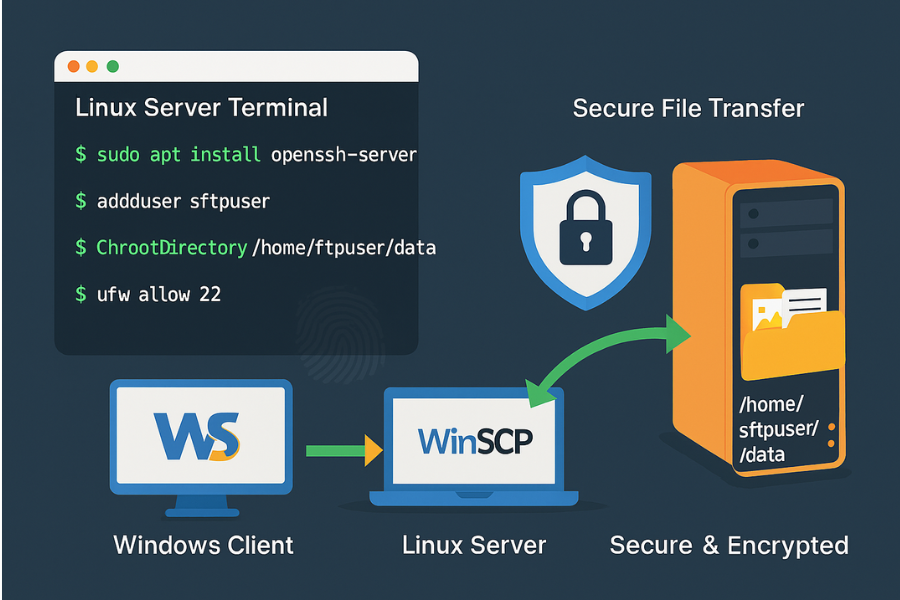
When SFTP Is The Smart Default
Pick SFTP when:
- You control a Unix style server.
- You can open port 22 through your firewall.
- Users are admins, cron jobs, or backend services.
SFTP gives you:
- Strong encryption and integrity through SSH.
- Simple firewall rules.
- Built in user isolation with chroot or restricted shells.
SFTP Setup On A Linux Server
Assume an Ubuntu or Debian like host.
Step 1: confirm SSH server
sudo systemctl status ssh
- If it is inactive, install and start:
sudo apt update
sudo apt install openssh-server
sudo systemctl enable --now ssh
Gotcha: some hosting providers call the service sshd. Adjust the name if ssh fails.
Step 2: create a transfer account
sudo adduser sftpuser
Give it a strong password if you cannot use keys yet.
Step 3: force SFTP only for that user
Edit /etc/ssh/sshd_config and append:
Match User sftpuser
 ForceCommand internal-sftp
 ChrootDirectory /home/sftpuser
 PasswordAuthentication yes
 X11Forwarding no
 AllowTcpForwarding no
Then fix permissions:
sudo chown root:root /home/sftpuser
sudo mkdir /home/sftpuser/data
sudo chown sftpuser:sftpuser /home/sftpuser/data
Reload SSH:
sudo systemctl reload ssh
Gotcha: if ChrootDirectory is not owned by root, SFTP logins will fail silently.
Step 4: open firewall
sudo ufw allow 22/tcp
sudo ufw reload
Verify with ss -tlnp | grep 22.
SFTP Client Workflow On Windows (WinSCP)
- Install WinSCP from the official site.
- Click “New Session”.
- Set:
- File protocol:
SFTP. - Host name: your server DNS name.
- Port number:
22. - User name:
sftpuser.
- File protocol:
- For password auth, enter the password.
For key auth, load your.ppkorOpenSSHkey in the “Advanced” auth section. - Connect. On first connect, WinSCP will show the SSH host key fingerprint. Confirm it out of band before accepting.
- Drag and drop files into
/data.
Verification: after upload, use the server shell:
ls -l /home/sftpuser/data
sha256sum /home/sftpuser/data/yourfile.bin
Compare checksums against your local hash.
Part 2: FTPS When You Cannot Avoid It
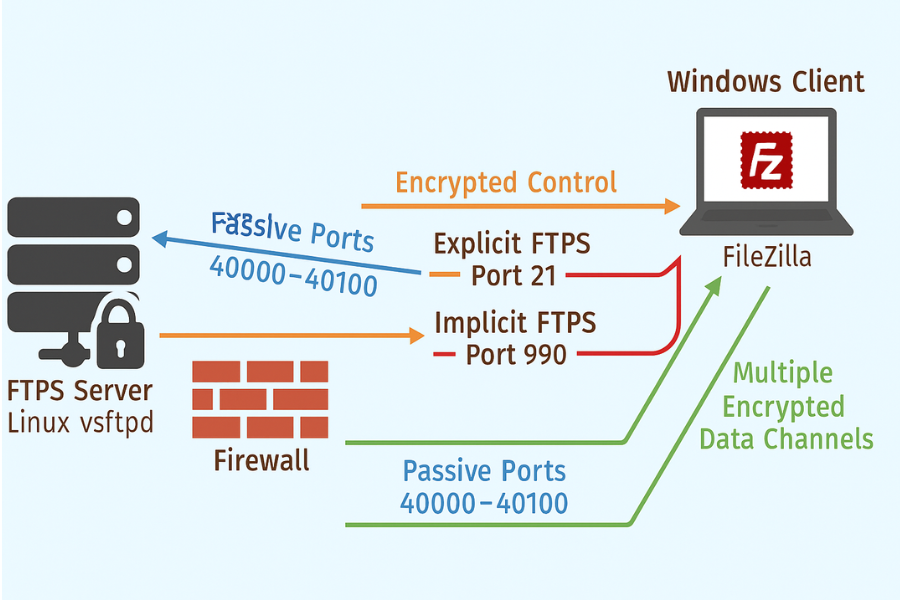
When FTPS Still Makes Sense
Use FTPS only when:
- A partner has an existing “FTP over TLS” endpoint you must use.
- An appliance exposes FTPS only for compliance reasons.
- A Windows shop depends on IIS FTP server with TLS.
FTPS wraps FTP with TLS so credentials and file contents are encrypted, but FTP’s multi channel design remains.
Key choices:
- Explicit FTPS: starts as plain FTP on port 21, then upgrades with
AUTH TLS. - Implicit FTPS: expects TLS from the first packet, usually on port 990.
Firewalls must allow control plus data ports.
FTPS Server Sketch: Vsftpd On Linux
Very short outline for explicit FTPS:
- Install server:
sudo apt install vsftpd
- Generate a TLS cert (or use a real one):
sudo openssl req -x509 -nodes -days 365 \
 -newkey rsa:2048 \
 -keyout /etc/ssl/private/vsftpd.pem \
 -out /etc/ssl/private/vsftpd.pem
- Edit
/etc/vsftpd.confand set:
ssl_enable=YES
allow_anon_ssl=NO
force_local_data_ssl=YES
force_local_logins_ssl=YES
rsa_cert_file=/etc/ssl/private/vsftpd.pem
pasv_min_port=40000
pasv_max_port=40100
- Open ports 21 and 40000 to 40100 on the firewall.
- Restart vsftpd:
sudo systemctl restart vsftpd
Gotcha: passive ports must match between server config, firewall, and any upstream load balancer.
FTPS Client Basics In FileZilla
- Open FileZilla.
- Site Manager > New Site.
- Protocol:
FTP. - Encryption:
Require explicit FTP over TLS. - Fill host, port 21, username, password.
- Connect and accept the TLS certificate after you verify fingerprints.
If you see 425 Can't open data connection, your passive port range is blocked. Open it on both host and firewall.
Part 3: HTTPS Uploads For Web And APIs
When HTTPS Upload Is The Clean Answer
Choose HTTPS upload when:
- Users are in a browser.
- You control a web backend.
- You want built in TLS features: HSTS, content security policies, and modern cipher suites.
Typical shapes:
- Web form posting a multipart file to
/upload. - Client app uploading via REST to
/api/upload. - Direct to object storage (S3, Azure Blob, etc) using pre signed URLs.
Basics: Secure Upload Endpoint
High level plan:
- Force HTTPS only.
- Use TLS 1.2 or TLS 1.3 with strong ciphers.
- Put the upload path behind auth and rate limits.
- Enforce maximum size and type server side.
Example for a simple Nginx reverse proxy fronting an upload service:
server {
 listen 443 ssl http2;
 server_name files.example.com;

 ssl_protocols TLSv1.2 TLSv1.3;
 ssl_ciphers HIGH:!aNULL:!MD5;
 add_header Strict-Transport-Security "max-age=31536000" always;

 location /upload {
  client_max_body_size 200m;
  proxy_pass http://backend_uploads;
 }
}
Gotcha: client_max_body_size must be big enough for your largest file or users will see “413 Request Entity Too Large.”
CLI Upload Using HTTPS
Curl example:
curl -X POST https://files.example.com/upload \
 -H "Authorization: Bearer $TOKEN" \
 -F "file=@report.zip"
Verify server side:
- Check your logs for the request.
- Confirm saved file size and hash.
- Serve file back only over HTTPS from a protected path.
Extra Layer: Encrypt Before You Send
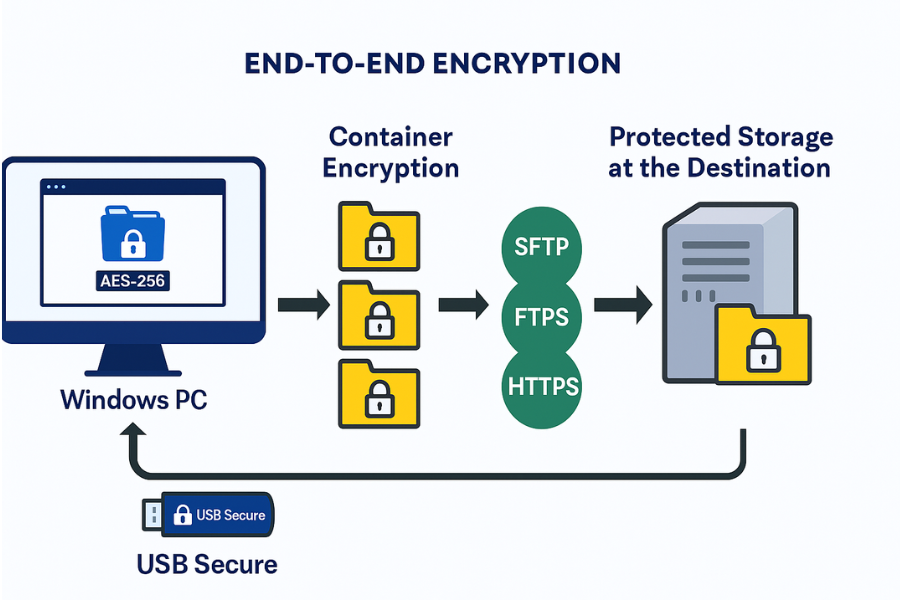
Protocols protect data in transit. They do not control every at rest risk.
NewSoftwares tools help here:
Folder Lock For Encrypted Containers And Lockers
Folder Lock provides AES 256 based encryption for files and lockers, plus features like portable lockers and secure backup.
Practical uses with SFTP, FTPS, and HTTPS:
- Create an encrypted locker on Windows for a set of sensitive files.
- Lock and close it so only the
.flkcontainer exists. - Transfer that container via SFTP, FTPS, or HTTPS upload.
- Give the recipient the password or key over a separate channel.
This way:
- Protocol secures the pipe.
- Folder Lock secures the payload before and after the transfer.
USB Secure For Removable Drives
If the “file transfer” is actually handing over a USB stick, USB Secure password protects and encrypts the drive contents, blocking access on lost or stolen media.
Example workflow:
- Copy data to a USB drive.
- Protect it with USB Secure on your Windows machine.
- Hand the USB to the recipient.
- They unlock it with the password on their own system.
You can combine this with SFTP or HTTPS if the USB is only a staging step.
Common Symptoms And Fixes
SFTP Problems
| Symptom | Likely Cause | Quick Fix |
|---|---|---|
Permission denied on login |
Wrong password or key, or bad shell | Check user, reset password, inspect logs |
Connection refused |
SSH not running or port blocked | Check sshd service, firewall rules |
Host key verification failed |
Host key changed | Confirm change, update known hosts |
| Upload stops at 100 percent then hangs | Chroot or disk quota issue | Check disk space, chroot permissions |
FTPS Problems
| Symptom | Likely Cause | Quick Fix |
|---|---|---|
425 Can't open data connection |
Passive ports blocked | Open passive range, switch to passive mode |
SSL handshake failed |
TLS version mismatch or bad cert | Enable TLS 1.2+, replace self signed cert |
| Directory listing empty | Firewall mangling data channel | Use passive, check stateful firewall rules |
HTTPS Upload Problems
| Symptom | Likely Cause | Quick Fix |
|---|---|---|
Browser shows 413 Request Entity Too Large |
Upload size limit too low | Increase client_max_body_size |
| Upload stops without error | Reverse proxy or CDN timeout | Raise timeout, chunk uploads |
| File corrupted after upload | App decoding bug, binary/text mix | Use multipart upload, check encoding |
Non destructive steps first:
- Check logs and TLS handshake details.
- Test with a tiny text file.
- Use
curl -vto see connection stages.
Last resort steps:
- Regenerate keys and certificates with known good settings.
- Move to a fresh server or VM if the stack is badly misconfigured.
Proof Of Work: Measuring Your Own Transfers
You can benchmark your three options on a test network.
Template:
| Test Case | Size | Protocol | Time (Seconds) | Avg Throughput |
|---|---|---|---|---|
| Local server to server, wired | 1 GB | SFTP | ||
| Same hosts, same file | 1 GB | FTPS | ||
| Same hosts, same file via HTTPS upload | 1 GB | HTTPS |
Example command on Linux for SFTP:
time scp bigfile.bin sftpuser@server:/home/sftpuser/data/
For HTTPS:
time curl -X POST https://files.example.com/upload \
 -F "file=@bigfile.bin"
Record times in the table. The important point is relative performance under your real constraints, not synthetic numbers.
Structured Data Snippets
You can embed JSON LD in your page to help search engines understand the content.
HowTo For Secure SFTP Upload
<script type="application/ld+json">
{
  "@context": "https://schema.org",
  "@type": "HowTo",
  "name": "Send a file securely with SFTP",
  "description": "Set up an SFTP account and upload a file with encryption in transit.",
  "tool": [
    { "@type": "HowToTool", "name": "SFTP client (WinSCP or FileZilla)" }
  ],
  "supply": [
    { "@type": "HowToSupply", "name": "Server with SSH enabled" }
  ],
  "step": [
    {
      "@type": "HowToStep",
      "name": "Create SFTP user",
      "text": "Create a dedicated SFTP account on the server and restrict it to a home directory."
    },
    {
      "@type": "HowToStep",
      "name": "Configure firewall",
      "text": "Open TCP port 22 on the server firewall and any upstream firewalls."
    },
    {
      "@type": "HowToStep",
      "name": "Connect with SFTP client",
      "text": "Enter host, username, and key or password in the SFTP client and connect."
    },
    {
      "@type": "HowToStep",
      "name": "Upload file and verify",
      "text": "Upload the file, then verify checksum on both client and server."
    }
  ]
}
</script>
FAQPage Snippet
<script type="application/ld+json">
{
  "@context": "https://schema.org",
  "@type": "FAQPage",
  "mainEntity": [
    {
      "@type": "Question",
      "name": "Is SFTP more secure than FTPS?",
      "acceptedAnswer": {
        "@type": "Answer",
        "text": "Both can be secure when configured correctly. SFTP is easier to deploy behind strict firewalls and avoids FTP data channel issues, so many teams prefer it for new setups."
      }
    },
    {
      "@type": "Question",
      "name": "When should I use HTTPS upload instead of SFTP?",
      "acceptedAnswer": {
        "@type": "Answer",
        "text": "Use HTTPS upload when users send files through a browser or app. SFTP is better for admin and automation tasks."
      }
    }
  ]
}
</script>
FAQs
1. Which Is Safest: SFTP, FTPS, Or HTTPS Upload?
All three can protect data with strong encryption. In real deployments, SFTP and HTTPS are easier to harden because they use single ports and modern stacks. FTPS can be safe, yet often breaks behind firewalls if data channels are misconfigured.
2. Is It Acceptable To Keep Using Plain FTP On An Internal Network?
Only if the data is low sensitivity and the network is fully isolated. Plain FTP sends credentials and data in clear text. For anything tied to customers, staff, or regulated records, move to SFTP, FTPS, or HTTPS.
3. Does SFTP Use The Same Encryption As SSH?
Yes. SFTP is a subsystem under SSH and reuses its key exchange, ciphers, and integrity checks. When you enable modern SSH ciphers and disable weak ones, SFTP benefits from the same settings.
4. Is FTPS Still Required By Any Standards?
Some older policies and managed file transfer appliances still mention “FTP over TLS” as a requirement, often based on RFC 4217. That is why FTPS remains present in banking and legacy B2B connections.
5. Can HTTPS Uploads Be As Secure As SFTP?
Yes. HTTPS, running over TLS 1.2 or 1.3, gives confidentiality, integrity, and server authentication on par with SFTP. The weak spots are usually app bugs and access control mistakes, not TLS itself.
6. How Do I Pick Between SFTP And HTTPS For Automation?
Pick SFTP when jobs already use SSH keys and the team is comfortable with Unix style tooling. Pick HTTPS when the integration happens inside an existing web stack or when you want fine grained access control with API tokens.
7. Where Does A Tool Like Folder Lock Fit Into This Picture?
Folder Lock adds strong AES 256 encryption at rest on top of any protocol, creating lockers and encrypted files you can send with SFTP, FTPS, or HTTPS. If someone gains access to the server or backup, the data remains unreadable without the passphrase.
8. Should I Still Care About SSH Host Keys For SFTP?
Yes. Host keys prevent silent man in the middle attacks. First time you connect, record the fingerprint out of band. Later, if the client warns “host key changed,” stop and verify before accepting.
9. How Do I Debug “Connection Refused” When Testing SFTP?
Check that the SSH service is running, the server listens on port 22, and your firewall allows that port. From the client, try ssh user@host from a terminal. If that fails, fix SSH first, SFTP second.
10. Is FTPS Always Harder For Firewalls?
Most of the time, yes. FTPS needs both control and data channels, and TLS can hide FTP commands from simple inspection, which confuses some network devices. Correct passive port ranges and proper stateful inspection support are key.
11. Should I Use Client Certificates With HTTPS Upload?
Client certificates give strong identity yet often increase setup effort. They work well for small sets of trusted servers or devices. For large user groups, tokens and robust authentication on top of HTTPS are easier to manage.
12. Do I Still Need Local Encryption If I Already Use SFTP Or HTTPS?
If the file content is sensitive and will sit on servers, backups, or laptops, local encryption still matters. Tools such as Folder Lock and USB Secure help protect content from theft or misuse, even if the transfer path was already encrypted.
13. Can I Mix Protocols On The Same Project?
Yes. For example, your admins can sync data over SFTP while customers upload new content over HTTPS. The important point is to apply consistent logging, monitoring, and at rest protection across them.
14. What Is The Fastest Option Among SFTP, FTPS, And HTTPS?
In many networks the difference is small compared to latency and bandwidth caps. Performance usually depends more on implementation quality than on the protocol label. Benchmark on your real path using sample files and measure.
15. What Should I Document Once I Settle On One Option?
At minimum, record:
- Which protocol and ports are in use.
- Cipher and TLS or SSH settings.
- User onboarding and offboarding steps.
- Troubleshooting steps for common errors.
That record turns your secure transfer choice into a repeatable, auditable practice rather than a one time experiment.
Conclusion: Select The Right Tool For The Job
The best secure file transfer protocol SFTP, FTPS, or HTTPS upload depends entirely on the use case, client type, and network constraints. For new, automated, server-centric workflows, SFTP is the cleanest choice. For user-facing applications, HTTPS upload is the native standard. FTPS should be reserved for compatibility needs. Regardless of the protocol chosen, supplementing with strong at rest encryption from tools like NewSoftwares Folder Lock ensures the payload remains protected from end-to-end.