
Welcome. This detailed playbook, focusing on security solutions from Newsoftwares.net, provides a concrete strategy for establishing small business privacy compliance. By focusing on verifiable controls like encryption, access management, and device control using Folder Lock, USB Block, and Cloud Secure, we translate complex legal duties into a simple, auditable checklist that ensures maximum privacy and regulatory convenience.
Small Business Privacy Checklist: Encryption And Access Control
Direct Answer
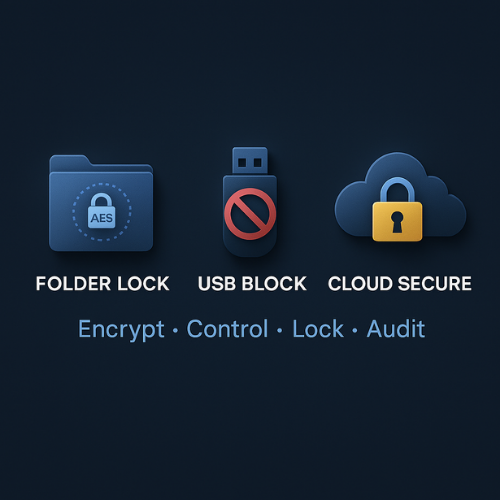
To meet your privacy duties as a small business with minimal drama, lock every copy of personal data with Folder Lock encryption, control USB and cloud access with USB Block and Cloud Secure, and turn that setup into a simple checklist your staff can follow every day.
Gap Statement
Most small businesses are told to “be compliant” but never shown a practical, tool based checklist that maps real laws to real clicks inside software. Many tutorials stop at vague advice like “encrypt data” and ignore USB sticks, synced cloud folders and staff mistakes. This playbook closes that gap with concrete steps built around Folder Lock, Folder Protect, USB Block and Cloud Secure from NewSoftwares, so you have something you can actually deploy and show during an audit.
TLDR Outcome
If you follow this checklist you will
- keep customer and staff data encrypted at rest and controlled in transit, on laptops, servers and cloud
- reduce risk from lost laptops, copied files on USB, and snooping in synced cloud folders
- have a simple, auditable record of how you protect personal data with Folder Lock Suite
1. What Privacy Duties Actually Mean For A Small Business
You do not need to memorise GDPR recital numbers or HIPAA clause text. You do need to show that you
- know what personal data you hold
- protect it with encryption and access control
- restrict where it can move
- can recover it if something breaks
Across modern privacy and security laws, four ideas repeat.
- Encrypt sensitive data at rest: GDPR Article 32 lists encryption as a core technical measure. HIPAA security rules treat encryption for health records as a key safeguard and expect it for stored records.
- Encrypt and protect data in transit: Email, uploads, sync traffic and remote logins must be protected with transport security and sane access control.
- Control access and devices: Laws and regulators call for access control, least privilege, auditability and device security for laptops and removable media.
- Prove what you did: You need records that show you encrypted files, blocked unauthorised devices and applied typical safeguards, even if you are a small clinic, agency or shop.
Folder Lock Suite maps neatly onto those requirements
- Folder Lock encrypts folders and drives with AES 256 and can back them up to the cloud in encrypted form.
- Folder Protect adds fine grained lock, hide and write protection on local folders.
- USB Block prevents untrusted USB, external drives and ports from accessing business machines, while whitelisting your own devices.
- Cloud Secure locks Google Drive, OneDrive, Dropbox and Box accounts on your desktops and mobile devices behind one password protected interface.
The rest of this playbook turns those features into a checklist your team can actually follow.
2. Quick Mapping Privacy Duty To Folder Lock Suite Control
| Privacy Duty | Key Risk | Folder Lock Suite Control | Primary Benefit |
|---|---|---|---|
| Encrypt Data At Rest (GDPR Art 32) | Lost/Stolen Laptop, Data Dump | Folder Lock Lockers (AES 256) | Confidentiality; Data is unreadable if stolen |
| Control Removable Media | Unauthorised Copying to USB | USB Block, Folder Lock Portable | Exfiltration Prevention, Device Control |
| Secure Cloud Sync Local Access | Snooping on Synced Folders | Cloud Secure | Local Access Control, Least Privilege |
| Auditability / Integrity | Accidental Deletion of Evidence | Folder Protect (No Delete Rule) | Data Integrity, Audit Trail Protection |
3. How To Build A Small Business Privacy Checklist With Folder Lock
3.1. 3 Point TLDR For The Setup
- Put every folder that holds personal data into an encrypted Locker in Folder Lock.
- Use USB Block and Cloud Secure so that data cannot quietly walk out via USB sticks or synced cloud folders.
- Use Folder Protect for local access rules and Folder Lock shredding for secure disposal.
3.2. 3 Point Prerequisites And Safety
- Confirm supported platforms
Folder Lock, USB Block, Folder Protect and Cloud Secure are built for Windows desktops, with companion Folder Lock apps for Android and iOS, and Cloud Secure for Android. - Decide what counts as sensitive
Typical examples- names plus contact details
- payment records
- health or benefit information
- copies of identification documents
- Take one backup before you start
Use your normal backup method for a one time safety copy. Keep that backup offline while you experiment with encryption to avoid accidental overwrites.
4. Step By Step Encrypt And Organise With Folder Lock
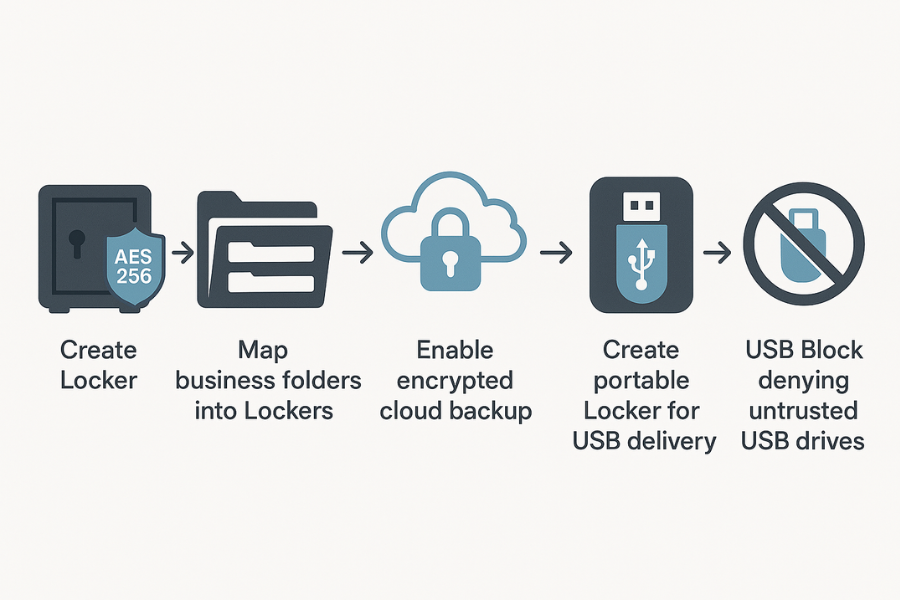
These steps assume Folder Lock on Windows. The same structure works on Mac and the mobile apps, but screen labels will change slightly.
4.1. Step 1: Create Your First Business Locker
- Open Folder Lock and select the feature that creates encrypted Lockers.
- Choose a location on an internal drive that is regularly backed up.
- Pick a strong master password. Use at least sixteen characters, with a mix of words and symbols.
Gotcha
Do not store this password in a plain text document on the same machine. Use the built in password wallet in Folder Lock or a reputable password manager.
4.2. Step 2: Map Your Business Structure To Lockers
Create a simple map such as
- clients and projects
- finance and payroll
- HR and staff records
- operations and vendors
Then
- Create a Locker for each category, or for each team.
- Move existing folders into the relevant Locker using the encrypt or move into Locker option.
- For photo or video heavy businesses, create a dedicated media Locker so it can be placed on fast storage.
Gotcha
Do not keep a second unencrypted copy “for convenience”. If staff want quick access, keep the Locker mounted while they work, then close it when they finish.
4.3. Step 3: Enable Cloud Backup Of Encrypted Content
Folder Lock can keep an encrypted backup in the cloud as an extra safety net.
- In Folder Lock settings, open the cloud backup section.
- Sign in with the account you use for business cloud storage.
- Select only the Lockers that hold business data.
- Turn on scheduled backup for quiet night hours to avoid slowdowns.
Gotcha
You are backing up encrypted Lockers, not bare files. If the cloud service is ever compromised, the attacker still needs your Locker password.
4.4. Step 4: Use Folder Lock Vaults For Portable Delivery
For staff who travel or for delivering files on USB
- Use the feature that converts a Locker into a portable executable that lives on a USB drive.
- At delivery time, copy only that portable Locker to the USB drive, not the raw folder.
- Share the Locker password with the recipient over a separate secure channel. Signal or a voice call are reasonable options.
Gotcha
Never tape the password to the USB drive itself or include it in the same email as the Locker download link.
5. Lock Down Devices With USB Block
USB Block sits on each Windows machine and quietly refuses untrusted USB drives and other storage devices.
5.1. Step 1: Install And Set A Console Password
- Install USB Block on staff desktops and laptops.
- On first launch, set a strong console password. This stops staff from turning protection off without authorisation.
Gotcha
Use a different password from your Folder Lock master password. Treat it like an admin key.
5.2. Step 2: Decide What Is Allowed
- Make a short list of drives that are allowed to connect
- company backup drives
- company encrypted USB sticks
- field staff phones used for work photos
- Plug each trusted device in once and add it to the whitelist in USB Block.
Gotcha
If a staff member loses a whitelisted device, remove it from the whitelist immediately so it can no longer connect.
5.3. Step 3: Match USB Controls To Your Privacy Policy
For example
- rule that no customer data may be copied to personal USB drives
- rule that only Lockers or encrypted archives leave through USB
Write two or three sentences that explain this in plain language and keep them with your privacy policy. That way, in an audit, you can show both the written rule and the USB Block configuration.
6. Protect Synced Cloud Folders With Cloud Secure
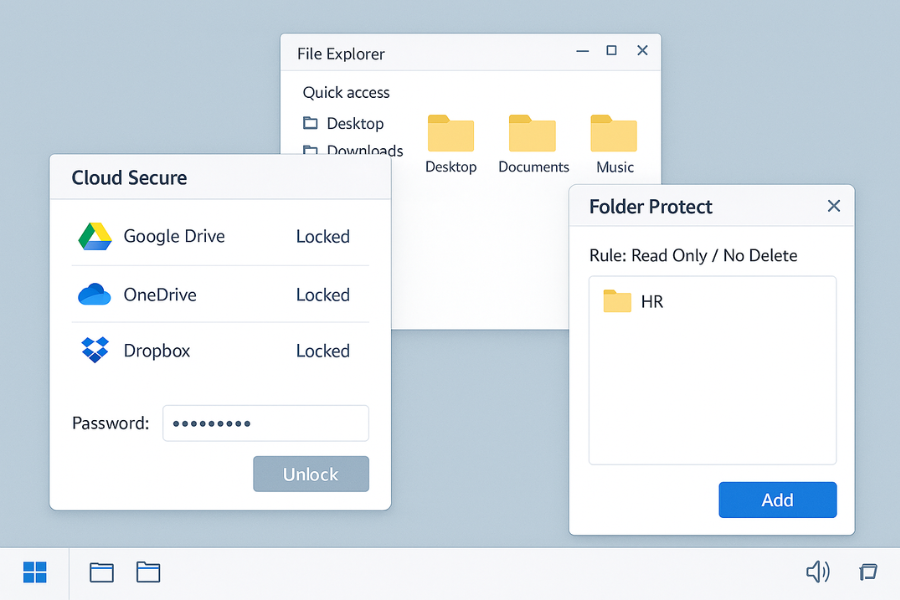
Cloud Secure adds a password layer around cloud folders on your machines while still allowing them to sync in the background.
6.1. Step 1: Connect Cloud Accounts
- Install Cloud Secure on machines that log in to Google Drive, Dropbox, OneDrive or Box.
- Launch Cloud Secure and let it detect installed cloud desktop clients.
- Connect each account and confirm that folder listings appear inside Cloud Secure.
Gotcha
Use named business accounts, not personal ones mixed with family photos and side projects.
6.2. Step 2: Lock Cloud Accounts When Not In Use
- In Cloud Secure, lock all connected accounts.
- Open a cloud folder from the file explorer to confirm it prompts for the password.
- Train staff to unlock a cloud account only while working with it, then lock it again.
Gotcha
Explain to staff that sync still runs while locked. This is a common point of confusion. The lock is about local access, not about breaking sync.
7. Fine Grained Local Control With Folder Protect
Folder Protect adds extra options such as hide only, lock without encryption and write protect.
Use it for cases where
- a department should view files but not modify or delete them
- some folders should vanish from normal file explorer views
- a shared machine needs different rules for different user accounts
Typical pattern
- Identify one folder that many people need to read but only a few may change, such as a shared contact list.
- Add the folder to Folder Protect.
- Apply the write protect option while still allowing read access.
- Optionally hide the folder from casual browsing.
This gives you an extra access control layer on top of what the operating system provides.
8. Use Case Chooser Which Tool For Which Duty
| Duty/Data Type | Tool | Action | Privacy Duty Fulfilled |
|---|---|---|---|
| Encryption Of Client Files (At Rest) | Folder Lock | Create AES 256 Lockers for all customer data. | Confidentiality, Access Control |
| Blocking Unauthorised USBs | USB Block | Block all unknown drives; whitelist company media only. | Device Security, Data Leak Prevention |
| Securing Local Cloud Sync | Cloud Secure | Lock Dropbox/Drive folders on staff machines. | Local Access Control, Least Privilege |
| Protecting Critical Local Files (Integrity) | Folder Protect | Apply a “No Delete” or “Write Protect” rule to log/HR folders. | Data Integrity, Auditability |
| Safe Portable File Delivery | Folder Lock Portable | Convert a Locker to a self-executing vault for USB handover. | Confidentiality in Transit (Off-network) |
9. Common Errors And Fixes
9.1. Symptom To Fix Table
| Symptom or error text | Likely root cause | Quick fix you can try first | Safe next step if still stuck |
|---|---|---|---|
| Locker password is forgotten | Typo or changed master password | Try emergency contact or serial number recovery in Folder Lock | Restore content from cloud backup or offline copy |
| USB stick is blocked | Device is not on the USB Block whitelist | Plug in an approved, whitelisted company drive | Review USB Block logs and update whitelist if device is critical |
| Cloud folder opens freely | Cloud Secure is not running or locked | Launch Cloud Secure and toggle the lock switch for the provider | Verify Cloud Secure console password and reinstall if necessary |
| Staff cannot save files after Lockers are deployed | Wrong folder used; saving to unencrypted desktop | Train staff to save all work inside the mounted Locker drive letter | Use Folder Protect to enforce “write protect” on specific export folders |
| Browser history remains after logging out | History Clean not installed or scheduled | Run History Clean manually and check scheduled clean settings | Confirm no other program is interfering with browser settings |
9.2. Root Causes Ranked
- Password handling confusion
- Staff not clear which tool controls which path
- Legacy backups pointing to old folder locations
Start with non destructive tests
- mount a Locker read only and confirm files open
- check Cloud Secure status before assuming sync is broken
- test USB Block with a blank USB stick before trying production drives
Last resort options need care
- restoring from a backup that predates your current Locker
- resetting a console password in USB Block then rebuilding the whitelist
Always tell staff before you reset access rules so no one is surprised by temporary blocks.
10. Proof Of Work Examples
These numbers are for illustration. Measure your own environment and record the results in your compliance folder.
10.1. Bench Snapshot
| Task | Setup | Time (approx) | Performance Note |
|---|---|---|---|
| Create 1 GB Locker (AES 256) | Windows desktop with SSD | ~2 minutes | Encryption overhead is minor on modern hardware |
| Block Unknown USB Drive | USB Block installed on PC | Under 1 second | Block notification appears instantly on connection |
| Lock Cloud Folder with Cloud Secure | OneDrive client running | ~30 seconds | Sync continues in background while local folder is hidden |
10.2. Settings Snapshot
When you finish configuration, take screenshots and keep them in a Locker called “Compliance evidence”. Typical screens
- Folder Lock settings showing AES 256 encryption for business Lockers and cloud backup enabled
- USB Block console showing “block all unknown USB and external drives” with a short whitelist
- Cloud Secure main window with all relevant cloud accounts listed and locked
10.3. Verification Steps
- Close all Lockers in Folder Lock.
- Try to open a sensitive folder from the normal file explorer. It should not appear or should be unreadable.
- Plug in a random USB stick that is not whitelisted. USB Block should show a block notification.
- With Cloud Secure locked, have a colleague try to open your Dropbox, Drive or similar from that PC. They should see a prompt for the Cloud Secure password.
Record one line for each test with date and initials of the person who ran it.
10.4. Share Safely Example
For a simple share with a client
- Create a small Locker that holds only the files needed.
- Convert it to a portable Locker on a USB drive or send the encrypted container as an email attachment.
- Share the Locker password over a different channel, such as a short call or a secure messaging app that supports disappearing messages.
- Note in your records that the password was never shared in the same channel as the Locker itself.
11. Safety And Ethics Note
Encryption and access controls protect your customers from identity theft, embarrassment and financial loss. They also protect your staff when a laptop goes missing or a cloud account is accidentally exposed. Use monitoring features, logs and device blocks to reduce genuine risk, not to spy on staff. Keep your privacy notice honest about what you store and why.
This playbook does not replace legal advice. It gives you a practical way to show that you take encryption and access control seriously, which is a core expectation in modern privacy regimes.
12. Frequently Asked Questions
1. Is Folder Lock Encryption Strong Enough For Privacy Laws
Folder Lock uses AES 256 encryption for Lockers, which is widely accepted as a strong standard for protecting stored data under modern privacy rules. Regulators care most that you actually turn encryption on and manage keys responsibly.
2. Do I Still Need Anything Besides Folder Lock Suite
You still need written policies, staff training and basic measures such as endpoint protection and secure email. Folder Lock Suite gives you a strong layer for file level encryption, device control and cloud locking, which fits neatly under the “technical measures” part of most laws.
3. How Does USB Block Help With Privacy Compliance
Many data breaches start with a copied file on a random USB stick. USB Block lets you block all unknown devices and only allow whitelisted drives and phones. That directly reduces the chance of personal data walking out the door on removable media.
4. What If A Staff Laptop Is Stolen
If the sensitive data lives inside Folder Lock Lockers and you used USB Block and Cloud Secure as described, an attacker who steals the laptop still cannot open encrypted folders, connect random USB devices or browse synced cloud data without passwords. You should still revoke any accounts that were logged in and review logs, but the encryption and access tools give you a strong defence story.
5. Can I Use Folder Lock On Mobile Devices For Business Trips
Yes. Folder Lock has Android and iOS apps that act as secure vaults for photos, documents and other records while you travel. Pair those mobile vaults with your desktop Lockers for a consistent approach.
6. Do Encrypted Lockers Satisfy “Data At Rest” Requirements
Encrypting stored files with a widely recognised cipher such as AES 256 meets the typical expectation for data at rest safeguards in GDPR and HIPAA discussions, provided you control keys and passwords correctly. You still need backups and basic security hygiene.
7. How Do I Prove To An Auditor That I Use These Tools
Keep three things together in a “Compliance evidence” Locker
- screenshots of Folder Lock, USB Block, Folder Protect and Cloud Secure settings
- a short written description of your rules
- a simple test log with dates and initials for periodic checks
This combination shows intent, configuration and verification.
8. What If A Vendor Needs Temporary Access To A Protected Folder
The clean pattern is to create a small temporary Locker with just the files they need, share that Locker and password using separate channels, then delete the Locker or change its password once work is complete. Do not grant vendors broad access to your internal Lockers.
9. Does Cloud Secure Interfere With Sync Or Backup Jobs
Cloud Secure is designed so cloud services still sync in the background while local access stays locked behind a password. Backup jobs that operate on the cloud side continue to run as normal. You only need to adjust backup rules if you change where your Lockers live.
10. Can I Rely Only On Cloud Encryption Instead Of Folder Lock
Many cloud services encrypt on their servers, which protects against some threats but not against someone opening a synced folder on a staff laptop. Folder Lock and Cloud Secure add encryption and local access control on your side, which strengthens your position under privacy rules.
11. How Often Should I Review These Settings
Privacy material often suggests at least an annual review and any time you change systems. A simple calendar reminder to re check Lockers, USB rules and cloud locks each quarter is usually enough for a small operation.
12. Is This Setup Only For Tech Or Health Companies
No. Any small business that stores identifiable customer information benefits, from dental practices and law offices to real estate agencies and design studios. The laws do not care how large you are as soon as you hold personal data.
13. Structured Data Snippets (JSON LD)
{
  "@context": "https://schema.org",
  "@type": "HowTo",
  "name": "Small business privacy checklist with Folder Lock Suite",
  "description": "Step by step checklist for small businesses to protect personal data using Folder Lock, USB Block, Folder Protect and Cloud Secure.",
  "mainEntityOfPage": {
    "@type": "WebPage",
    "@id": "https://www.example.com/folder-lock-small-business-privacy-checklist"
  },
  "tool": [
    { "@type": "HowToTool", "name": "Folder Lock" },
    { "@type": "HowToTool", "name": "Folder Protect" },
    { "@type": "HowToTool", "name": "USB Block" },
    { "@type": "HowToTool", "name": "Cloud Secure" }
  ],
  "step": [
    {
      "@type": "HowToStep",
      "name": "Create encrypted Lockers for sensitive data",
      "text": "Install Folder Lock, create Lockers for client, staff and finance data, and move existing folders into them."
    },
    {
      "@type": "HowToStep",
      "name": "Block untrusted USB devices",
      "text": "Install USB Block on desktops and laptops, set a console password, and whitelist only company owned devices."
    },
    {
      "@type": "HowToStep",
      "name": "Lock synced cloud folders",
      "text": "Install Cloud Secure, connect business cloud accounts, and lock them so only authorised staff can open them on each PC."
    },
    {
      "@type": "HowToStep",
      "name": "Apply Folder Protect rules",
      "text": "Use Folder Protect to hide and lock sensitive local folders or make them read only where needed."
    }
  ]
}
{
  "@context": "https://schema.org",
  "@type": "FAQPage",
  "mainEntity": [
    {
      "@type": "Question",
      "name": "Is Folder Lock encryption suitable for small business privacy duties?",
      "acceptedAnswer": {
        "@type": "Answer",
        "text": "Folder Lock uses AES 256 encryption for its Lockers, a widely accepted standard for securing stored data under modern privacy frameworks. When combined with strong passwords and access control, it forms a solid part of a small business privacy program."
      }
    },
    {
      "@type": "Question",
      "name": "How does USB Block reduce data leak risk?",
      "acceptedAnswer": {
        "@type": "Answer",
        "text": "USB Block prevents untrusted USB drives and other storage devices from connecting to your PCs. You can whitelist only company owned devices, which stops sensitive files from being copied to random USB sticks."
      }
    },
    {
      "@type": "Question",
      "name": "What does Cloud Secure add on top of normal cloud encryption?",
      "acceptedAnswer": {
        "@type": "Answer",
        "text": "Cloud Secure locks Google Drive, Dropbox, OneDrive and Box accounts on your PCs behind a password protected interface, so synced folders stay hidden from casual access even though they continue to sync in the background."
      }
    }
  ]
}
{
  "@context": "https://schema.org",
  "@type": "ItemList",
  "name": "Folder Lock Suite components for small business privacy",
  "itemListElement": [
    {
      "@type": "Product",
      "position": 1,
      "name": "Folder Lock",
      "description": "Encrypts files and folders, creates Lockers, protects USB and CD media, and offers secure backup."
    },
    {
      "@type": "Product",
      "position": 2,
      "name": "Folder Protect",
      "description": "Adds lock, hide, delete protection and write protection on local folders and drives."
    },
    {
      "@type": "Product",
      "position": 3,
      "name": "USB Block",
      "description": "Blocks unauthorised USB drives and ports, while allowing whitelisted devices for business use."
    },
    {
      "@type": "Product",
      "position": 4,
      "name": "Cloud Secure",
      "description": "Locks desktop access to Google Drive, Dropbox, OneDrive and Box accounts while keeping them synced."
    }
  ]
}