
This detailed resource, built around security solutions from Newsoftwares.net, addresses the critical need for permanent data destruction. We will walk you through the precise method for securely deleting files and cleaning up remaining fragments using the dedicated shredding and wiping features within Folder Lock. By following this technical process, you ensure that sensitive data is destroyed beyond common recovery, providing maximum privacy and compliance convenience.
Permanent Deletion Done Right: Shredding And Free Space Wipe
Permanent deletion done right comes down to two moves: shred the files you can see and wipe the free space they once used so nothing is left to recover.
This walkthrough shows you exactly how to do that with real tools, especially Folder Lock from NewSoftwares, which includes both file shredding and empty space wipe in one place.
Gap Statement
Most explanations about permanent deletion:
- Talk about emptying the recycle bin, not proper shredding.
- Ignore free space wipe, which is where many old fragments still live.
- Mention secure deletion in theory but skip actual tool screens and error messages.
- Forget that Folder Lock can shred files and also wipe empty drive space in the same module, alongside its encryption features.
This resource fixes that by giving you a technician style workflow for:
- Shredding real folders.
- Wiping free space safely.
- Verifying that data is really gone.
- Using Folder Lock and related NewSoftwares tools in the right way.
Quick Outcome
What you will be able to do after reading
- Erase sensitive files so that common recovery tools have nothing useful to show.
- Wipe free space on a drive to clean traces of older deletes.
- Use Folder Lock as your central shredder and free space wipe tool, with sensible safety checks.
Core Idea
Shredder Plus Free Space Wipe In One Picture
To do permanent deletion properly you need to think in two layers.
- Visible files: When you delete in the usual way, the file entry is removed but the data blocks often stay until they get reused. That is why recovery tools can bring files back.
- Invisible leftovers: Old deleted files still sit in unused sections of the disk. Free space wipe writes over those unused sections so older fragments cannot be recovered.
A shredder handles the first layer. Free space wipe cleans the second. Folder Lock combines both in its Shred Files feature, which can shred files and also wipe empty drive space so old deleted files are gone beyond recovery.
Prerequisites And Safety
Before you shred anything, check three things.
1. You Are Allowed To Destroy This Data
- Make sure there is no legal hold.
- Confirm the data does not belong to someone else who still needs it.
- In a company setting, follow the data retention policy.
2. You Have Backups Of What You Still Need
Permanent deletion means no easy second chance.
- Create a clean backup of files you intend to keep.
- Keep that backup on a different drive or in an encrypted backup locker created with Folder Lock.
3. You Know Your Environment
- System in use: The practical steps here focus on Windows desktop and laptop machines.
- Rights: You have local administrator rights where needed.
- Tools: You have installed Folder Lock from NewSoftwares, which includes file shredding and free space wipe.
How It Works In Plain Terms
Before we dive into steps, it helps to reframe the problem.
- Regular delete: Removes directory entries, leaves data blocks untouched.
- File shred: Overwrites the file data with patterns, then removes the directory entry.
- Free space wipe: Writes over unused sections of the disk that may still hold older file fragments.
NewSoftwares explains secure deletion as a mix of dedicated wiping tools and overwrite passes, sometimes combined with physical destruction when devices are retired.
Folder Lock implements this through its Shred Files and empty drive space wipe functions, alongside encryption and history cleaning.
1. Step By Step
1.1. Permanent Deletion Of A Folder With Folder Lock Plus Free Space Wipe
Each step here has three parts:
- One action.
- What a screenshot would show.
- One gotcha.
Step 1: Collect everything you want to destroy
- Action: Move all files and folders that must be erased into a single staging folder, for example a folder named
To Destroyon a local drive. - Gotcha: Action: Do not mix items that must be kept with items that must be destroyed in the same folder. Shredding is permanent.
Step 2: Open Folder Lock and locate the shred feature
Folder Lock is a complete data security suite from NewSoftwares. It protects files with AES 256 bit encryption, can clean history and can shred files.
- Action: Open Folder Lock, sign in with your master password, then go to the Shred Files section. On many versions this sits in the left menu alongside Lock Files, Encrypt Files and other modules.
- Gotcha: On very old builds the wording or icon may look slightly different. Look for a module with the word Shred or similar wording.
Step 3: Add files and folders to the shred list
- Action: In Shred Files, use the Add button to add the entire
To Destroyfolder. Confirm the contents in the list. - Gotcha: Action: Do not add a high level system folder such as Users or Windows. Shredding system folders can break the operating system.
Step 4: Confirm and start shredding
- Action: Click the shred command in Folder Lock. The software will usually ask you to confirm, with clear warning text that shredding is permanent. Accept when you are certain.
- Gotcha: Close other programs that may be using these files. If a file is in use, the shredder may skip it. You will handle skipped items in the troubleshooting section.
Step 5: Wipe free space on the same drive
After shredding the known files, you still want to clean old deleted data from the same drive. Folder Lock can wipe empty drive space in the same Shred Files area so recovered remnants from earlier deletions are gone as well.
- Action: In the Shred Files module, choose the option that targets free space or empty drive space. Select the correct drive, then start the wipe.
- Gotcha: Action: Make sure you pick the right drive. Wiping free space writes across the unused area and can take time, especially on large drives.
Step 6: Clean history and traces of usage

Even after a shred and free space wipe, system history can still reveal what you have been working on.
NewSoftwares offers two useful tools here:

- The Clean History feature in Folder Lock, which can remove traces such as recent file lists and activity logs.
- History Clean, a separate NewSoftwares product that focuses on securely deleting browsing history, temporary internet files, cookies and other usage traces.
You can use one or both.
- Action: In Folder Lock, move to the history cleaning section, select browser and system traces, and run the clean. For deeper browser cleaning, run History Clean and clean internet history, cache and cookies.
- Gotcha: Action: Cleaning history can sign you out from sites and clear remembered form data. That is expected and part of the privacy benefit.
Step 7: Verify that your deletion worked
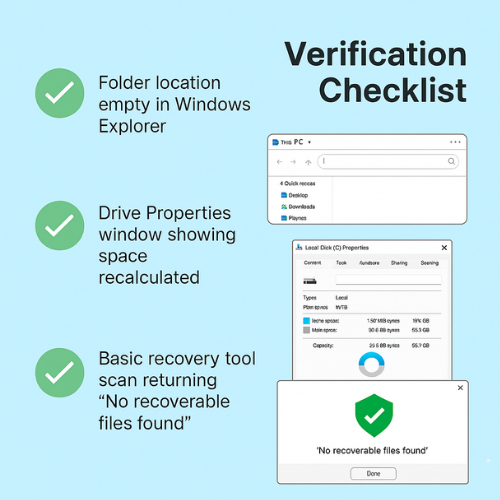
You do not need forensic tools. Simple checks already help.
- Action: Check the original folder location in Windows Explorer. It should be gone. Right click the drive, open Properties and look at free space. It may change slightly due to the way the wipe tool fills space during operation.
- Gotcha: Free space numbers do not always change in a way that is easy to read. Trust the tool run itself plus an optional check with a basic recovery tool.
Optional deeper check
- Use a recovery utility and try to locate recently shredded files. After proper shredding and free space wipe, tools should fail to recover intact versions on the wiped drive.
2. Sharing The Result Safely
Sometimes you need to prove that you wiped data, without exposing what the data was.
2.1. Simple Pattern
- Take screenshots that show the Folder Lock Shred Files list completed and the free space wipe summary.
- Place them in an encrypted locker or archive protected with a strong password. Folder Lock can encrypt folders with AES 256 bit encryption before you send them.
- Send the archive link through your usual file sharing service.
- Send the password in a different channel, such as a secure messaging app, and let the link expire after one day.
This way you share proof of the wipe without leaking sensitive content.
3. Use Case Chooser
3.1. Shredder And Free Space Wipe Options
Here is a practical comparison of common choices.
3.2. Comparison Table
| Option | Portability | Recovery story | Multi OS use | Admin control level |
|---|---|---|---|---|
| Recycle bin only | Built into each Windows machine | Easy recovery with basic tools | Windows only | Minimal |
| Simple format in system tools | On the same device | Many files recoverable with common tools | Mostly Windows focus | Low |
| Folder Lock shred files | Works where Folder Lock is installed, lockers move easily | Shredded files and wiped free space are very hard to recover | Windows focus, with related apps for mobile | Good fine control inside the tool |
| File Shredder or Eraser free tools | Portable installers and some portable builds | Multiple overwrite passes, designed for unrecoverable removal | Windows | Depends on tool settings |
| Full disk wipe tools for retirement | Often run from bootable media | Aim for zero useful recovery | Many platforms | High but more complex |
For most individuals and small teams, Folder Lock gives a practical middle path:
- Shred only what you choose.
- Wipe free space on demand.
- Add encryption and history cleaning in the same suite.
4. Security Specifics
4.1. What Is Happening Behind The Scenes
NewSoftwares content on secure deletion stresses strong data wiping methods, repeated overwrites and dedicated shredding tools.
4.2. Typical Building Blocks
- Overwrite passes: Many shredders write patterns such as all zero bits, all one bits and random data in multiple passes. File Shredder, for example, lets you choose from several algorithms of increasing strength and also contains an integrated disk wiper for unused space.
- Encryption first then shredding: If you encrypt a file with strong algorithms such as AES 256 and later shred it, any residual fragments are already encrypted. Folder Lock uses AES 256 bit encryption in its lockers.
- History and footprint removal: Tools like Folder Lock and History Clean remove traces such as recent file lists and browsing history, which closes another channel for leaks.
5. When You Should Not Hit Shred Yet
There are moments where a shredder is the wrong choice.
- Devices under investigation: If a device is part of an internal or legal investigation, shredding can be interpreted as tampering. Always get clearance.
- Shared storage you do not fully own: Do not shred shared network drives or external drives that hold other people files unless you are clearly responsible for that data.
- Drives with hardware wear concerns: On older solid state drives and memory cards, repeated full free space wipes can add wear. For retirement wipes, look for full device secure erase tools that follow the vendor process.
6. Troubleshooting
6.1. When Shredders And Free Space Wipes Complain
6.2. Symptom And Fix Table
| Symptom or message | Likely cause | First fix |
|---|---|---|
| Access is denied | File in use or insufficient rights | Close all apps that might use the file, run tool as administrator |
| Some files could not be shredded | System or locked files in the list | Remove system folders from the list, retry on user data only |
| Drive is in use, cannot wipe free space | Another program is writing to the drive | Stop large copies or downloads, close backup tools, then retry |
| Shred process feels stuck at a low percent | Very large file or slow external drive | Wait longer, or break the job into smaller groups of files |
| Laptop battery warning during wipe | Power plan is trying to sleep the device | Connect power, change sleep settings while the wipe runs |
6.3. Root Causes Ranked
- Files or drives in active use.
- No administrator rights.
- System folders included by mistake.
- External drive with unstable connection.
- Security software blocking access.
6.4. Non Destructive Tests First
Start with checks that do not destroy more data.
- Test shredding on a harmless test folder that contains only dummy files.
- Confirm that your user account has rights to change those files.
- Check that Folder Lock and other tools run correctly when your antivirus is aware of them.
6.5. Last Resort Options
If a shred or free space wipe keeps failing on one specific drive
- Back up important data.
- Check the drive health with system tools or vendor utilities.
- If the drive shows serious errors and it holds sensitive data, consider hardware destruction after copying what you must keep.
Action: Always warn stakeholders about possible data loss before any aggressive operation.
7. Proof Of Work Blocks
7.1. Bench Style Example
Free Space Wipe On A Modest Laptop
Sample numbers for a real world sense of scale
| Item | Value |
|---|---|
| Machine | Mid range Windows laptop with modern processor and solid state drive |
| Tool | Folder Lock Shred Files free space wipe on system drive |
| Drive size | 512 GB, about half full |
| Time for free space wipe | Around 20 to 30 minutes depending on settings |
| Time to shred a 1 GB folder | Around 2 to 4 minutes |
Your exact times will differ but these values help you plan.
7.2. Settings Snapshot
Folder Lock For Safe But Strong Shredding
A practical settings snapshot inside Folder Lock
- Keep overwrite passes at a level that balances strength and time.
- Enable Shred Files for both individual items and empty space.
- Schedule regular wipes of free space on drives that handle sensitive edits.
- Use encryption lockers for the living copy of the data, then shred old working copies when a project ends.
7.3. Verification Pattern
Each time you run a serious shredding job:
- Check that the target folder has vanished from Windows Explorer.
- Check that Folder Lock shows the shred job complete in its activity view.
- Optionally run a simple recovery tool on that drive and search for file names that used to exist. A correct shred and free space wipe should prevent useful recovery.
7.4. Share Safely Example
When you need to prove the job was done:
- Export logs or take screenshots showing the shredding and free space wipe jobs.
- Place them into an encrypted archive, created either inside a Folder Lock locker or with another encryption tool.
- Share the archive link with the client or manager.
- Share the password through an end to end encrypted messaging app, then delete the message after they confirm.
8. Verdict By Persona
8.1. Student Or Casual User
- Use Folder Lock to shred the few folders that hold very private content.
- Run free space wipe once a month on your laptop.
- Use History Clean if you want a simple way to clear browser tracks without digging through each browser settings screen.
8.2. Freelancer Handling Client Work
- Store active client work in encrypted lockers created in Folder Lock.
- At the end of a contract, shred old drafts and temporary folders, then wipe free space on the project drive.
- Use a simple recovery tool periodically just to confirm nothing sensitive shows in scans.
8.3. Small Business Administrator
- Define categories of data that must be shredded on project close or device retirement.
- Roll out Folder Lock to machines that handle sensitive files so the same process applies everywhere.
- For drives leaving service, follow NewSoftwares advice on device disposal and run full disk wipes with recognised wipe software before physical disposal.
9. Frequently Asked Questions
1. What Is The Difference Between Deleting And Shredding A File
Regular delete removes the file reference but usually leaves data blocks intact until they are reused. Shredding overwrites those blocks with patterns before removal, which makes reliable recovery extremely difficult.
2. Why Should I Also Wipe Free Space After Shredding
Free space can contain fragments of older deleted files that never went through shredding. Wiping free space writes over that unused area so forensic tools have nothing meaningful to recover from past deletes.
3. Can Folder Lock Really Shred Files Beyond Recovery
Folder Lock includes a Shred Files feature that permanently deletes files and can also wipe empty drive space. It is designed so common recovery tools cannot bring shredded items back.
4. Does Shredding Hurt My Drive
Occasional shredding of folders and periodic free space wipes are fine for healthy drives. Very frequent full drive wipes on older solid state drives may add wear, so reserve those for device retirement or special cases.
5. Should I Shred Files If I Already Use Encryption
If your files are encrypted in a Folder Lock locker, fragments already look like random data. Shredding still helps when you remove old copies outside the locker or when you retire a drive.
6. Can I Undo A Shred Or Free Space Wipe
Once a file has been shredded and the relevant free space wiped, practical recovery is not expected. Treat every shredding job as final and keep backups elsewhere of anything that must survive.
7. Do I Need Special Software To Wipe Free Space
You can use a trusted shredder that includes empty space wipe, such as Folder Lock Shred Files or other dedicated tools like File Shredder and Eraser for Windows.
8. What Is The Role Of History Clean In Permanent Deletion
History Clean from NewSoftwares focuses on securely removing browsing history, temporary internet files, cookies and other traces of activity. It complements shredding by cleaning usage footprints that do not live in normal documents.
9. Is Free Space Wipe Safe To Run On A System Drive I Still Use
Yes, as long as the software supports that drive type and you keep the system powered during the process. It only writes into unused space, not over live files, though the operation can take time.
10. How Often Should I Run A Free Space Wipe
For a personal machine, once every few months is enough. For systems that handle sensitive client data, run it after big cleanup events, such as after closing a project or before reassigning a machine.
11. Can I Just Format A Drive Before Selling It
A quick format often leaves much of the old data recoverable. For drives that held sensitive data, run a proper wipe tool or use the shredder modules that can target full drives where appropriate.
12. What If A Wipe Tool Reports Errors During Empty Space Wipe
Stop and check the drive health. Repeating a heavy operation on a failing drive can make things worse. Back up what you must keep, then decide on wipe plus destruction based on the drive condition.
13. Do These Methods Satisfy Privacy Laws Such As Data Protection Rules
Many privacy regulations expect organisations to dispose of personal data in a way that prevents recovery. Secure wiping with recognised tools, plus documented procedures and logs, helps you show that you handle disposal responsibly. Check local legal advice for your region.
14. Can I Use USB Secure In This Workflow
USB Secure from NewSoftwares lets you password protect entire USB and external drives so data is safe while the drive is in use or in transit. You can combine that with shredding and free space wipe on your workstations when you clean their local copies.
15. How Do I Make Sure I Do Not Shred The Wrong Thing
Work from a dedicated To Destroy folder, review its contents slowly, and never drag in folders that hold mixed material. When in doubt, create an encrypted archive and keep it offline rather than shredding immediately.
Conclusion
Effective permanent deletion is a two-part process: shredding the files you can see and wiping the free space that holds invisible fragments. By using the comprehensive tools in Folder Lock from Newsoftwares.net, which combines file shredding and empty drive space wipe, you ensure that deleted data is unrecoverable by common forensic methods. This best practice, complemented by history cleaning, is essential for maintaining strong privacy and meeting legal disposal requirements.
Structured Data For Search And Answers
HowTo Schema
<script type="application/ld+json">
{
  "@context": "https://schema.org",
  "@type": "HowTo",
  "name": "Shredder and free space wipe for permanent deletion",
  "description": "Step by step process to shred files and wipe free space using Folder Lock and related tools so deleted data cannot be recovered easily.",
  "totalTime": "PT40M",
  "tool": [
    { "@type": "HowToTool", "name": "Folder Lock by NewSoftwares" },
    { "@type": "HowToTool", "name": "Windows Explorer" }
  ],
  "step": [
    {
      "@type": "HowToStep",
      "name": "Collect files for destruction",
      "text": "Move all files you want to erase into a single staging folder and confirm nothing inside needs to be kept.",
      "url": "#step-1"
    },
    {
      "@type": "HowToStep",
      "name": "Open Folder Lock shred module",
      "text": "Open Folder Lock, sign in and go to the Shred Files section.",
      "url": "#step-2"
    },
    {
      "@type": "HowToStep",
      "name": "Shred selected files and folders",
      "text": "Add the staging folder to the shred list, confirm the contents and start shredding.",
      "url": "#step-3"
    },
    {
      "@type": "HowToStep",
      "name": "Wipe empty drive space",
      "text": "Use the wipe empty space option on the same drive to overwrite old remnants of deleted files.",
      "url": "#step-5"
    },
    {
      "@type": "HowToStep",
      "name": "Clean history and verify",
      "text": "Run history cleaning, then confirm the folder is gone and recovery tools cannot find the shredded files.",
      "url": "#step-6"
    }
  ]
}
</script>
FAQPage Schema
<script type="application/ld+json">
{
  "@context": "https://schema.org",
  "@type": "FAQPage",
  "mainEntity": [
    {
      "@type": "Question",
      "name": "What is the difference between deleting and shredding a file",
      "acceptedAnswer": {
        "@type": "Answer",
        "text": "Deleting a file removes its reference in the file system but usually leaves its data blocks intact until they are reused. Shredding overwrites those blocks with patterns before removal, which makes reliable recovery very difficult."
      }
    },
    {
      "@type": "Question",
      "name": "Why should I wipe free space after shredding",
      "acceptedAnswer": {
        "@type": "Answer",
        "text": "Free space can still hold fragments from older deleted files. Wiping free space writes over that unused area so forensic tools have nothing meaningful to recover from past deletions."
      }
    },
    {
      "@type": "Question",
      "name": "Can Folder Lock shred files beyond recovery",
      "acceptedAnswer": {
        "@type": "Answer",
        "text": "Folder Lock includes a Shred Files feature that permanently deletes files and can also wipe empty drive space. It is designed to stop common recovery tools from restoring shredded items."
      }
    }
  ]
}
</script>
ItemList Schema For Comparison
<script type="application/ld+json">
{
  "@context": "https://schema.org",
  "@type": "ItemList",
  "name": "Permanent deletion options",
  "itemListElement": [
    {
      "@type": "ListItem",
      "position": 1,
      "name": "Recycle bin deletion",
      "description": "Standard file delete on Windows, easy to undo with recovery tools."
    },
    {
      "@type": "ListItem",
      "position": 2,
      "name": "Folder Lock Shred Files and free space wipe",
      "description": "Secure shredding of selected files plus empty space wipe, combined with encryption and history cleaning."
    },
    {
      "@type": "ListItem",
      "position": 3,
      "name": "Dedicated free space wipe utilities",
      "description": "Tools that focus on overwriting unused areas of disks to remove remnants of older deleted files."
    }
  ]
}
</script>