
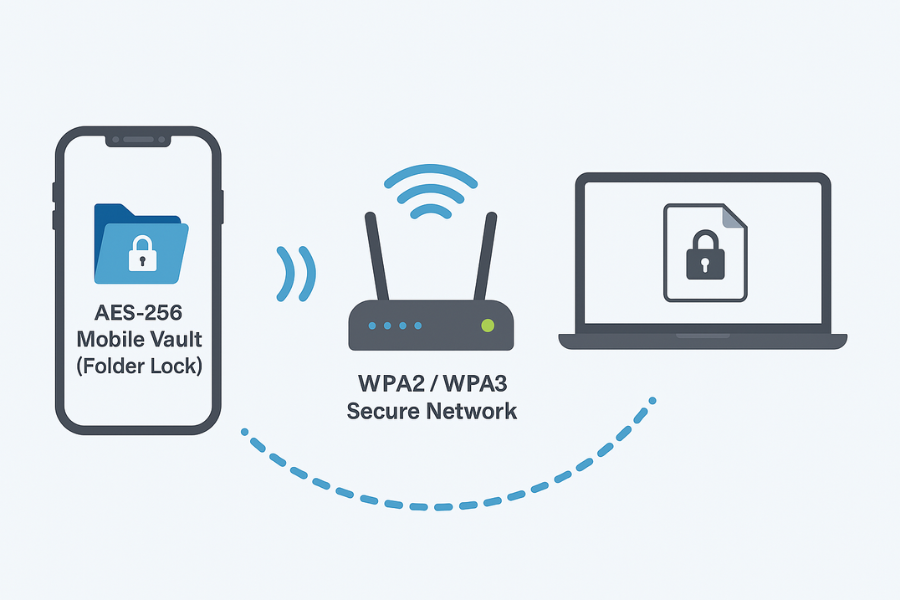
Newsoftwares.net understands that moving sensitive files from your mobile device to your computer should be secure, simple, and repeatable. This resource provides a complete framework on how to achieve secure Wi-Fi file transfer using a mobile vault application, such as Folder Lock. By locking your files inside an AES 256 bit encrypted vault, using its built-in Wi-Fi transfer feature, and ensuring a strong Wi-Fi connection, you can guarantee that data remains private and unexposed, improving both privacy and convenience.
The following steps detail the exact protocol and routine needed to make secure wireless transfer a stress-free daily action.
Gap Statement
Most content about WiFi file transfer does three shallow things: Tells you to avoid public WiFi. Suggests a generic VPN. Skips what actually happens inside a mobile vault when you move files. Very few explain: How a mobile vault plus WiFi transfer actually keeps data encrypted before and after the move. Which protocols matter on the router, the phone, and the receiving device. How to use a specific vault, such as Folder Lock from NewSoftwares, as the secure hub for wireless transfer between phone and computer. What to do when WiFi transfer fails with real error messages. This page fills those gaps with exact steps, tables, and real error patterns.
TLDR Outcome
By the end you will know:
- A repeatable routine to transfer files from a mobile vault to a laptop over WiFi without exposing plain copies.
- How to use Folder Lock as your main vault and WiFi transfer hub while keeping everything encrypted.
- How to read router and app settings so you are not guessing which protocol protects your data.
- How to fix common WiFi transfer errors without breaking the vault.
Primary job for this page: Help a user who already stores private files in a mobile vault move those files over WiFi between phone and computer in a secure and repeatable way.
1. Quick Routine For Secure Wi-Fi Transfer From A Mobile Vault
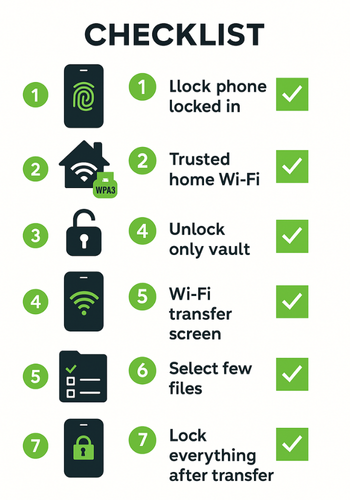
Use this as your everyday checklist.
| Step | What You Do | Why It Matters |
|---|---|---|
| 1 | Lock phone with PIN or biometrics and close all unused apps | Cuts casual access if you put the phone down |
| 2 | Connect phone and computer to your own home or office WiFi, not a public hotspot | Keeps traffic inside your network, under your control |
| 3 | Confirm router uses WPA2 or WPA3 and a strong WiFi password | Prevents easy sniffing of raw traffic |
| 4 | Open your mobile vault app and unlock only the vault you need | Limits exposure if someone looks over your shoulder |
| 5 | Use the vaults built in WiFi transfer or a secure protocol such as HTTPS or SFTP | Adds encryption on top of WiFi |
| 6 | Transfer only the files you actually need on the other device | Reduces footprint and risk |
| 7 | When done, lock the vault, close the WiFi transfer screen, and relock phone and computer | Closes open doors attackers love to find |
| 8 | Remove plain copies from the receiving device if they only needed to be viewed or edited once | Keeps the vault as the source of truth |
2. Mobile Vaults And Wi-Fi Transfer In Practice
2.1. What A Mobile Vault Does For You
A mobile vault app keeps files in an encrypted container that opens only with your password, PIN, or biometric. Folder Lock is one well known example used on iOS, Android, Windows, and macOS, with AES 256 bit encryption and extra features such as secure notes, wallets, cloud backup, and cross platform sync.
On iPhone and iPad, Folder Lock also works as a WiFi manager. It lets you move files wirelessly between the phone and a PC or Mac using the apps WiFi screen, including a WiFi Music Manager feature for audio and media transfer without iTunes.
The key idea:
- Files stay encrypted inside the vault.
- You unlock the vault only when you need to move or open something.
- After transfer, you want the file to end in another secure place, not scattered in plain form.
2.2. Where Wi-Fi Fits Into The Chain
There are two layers here:
- Network Layer: Your router WiFi security, usually WPA2 or WPA3, controls who can join the network and how traffic is scrambled.
- Application Layer: Your vault or transfer tool uses its own channel over that WiFi. This might be:
- A local HTTPS web page opened in your browser.
- An embedded file manager that talks directly to a desktop client.
- Secure connection to a cloud service for encrypted upload.
You want both layers working in your favor.
3. Step By Step: Secure Wi-Fi Transfer With Folder Lock As Your Vault
You can adapt this routine to other vault apps, but here we focus on Folder Lock so you have concrete actions, not theory.
3.1. Prerequisites And Safety
Before the first transfer, do three checks.
- Check Device Security
- Phone has a PIN, password, or biometric lock.
- Laptop or desktop account also has a password.
- Auto lock times are short enough that screens do not stay open for minutes without activity.
- Check WiFi Network
- Router WiFi security is set to WPA2 or WPA3.
- WiFi password is long and unique.
- IoT gadgets such as cameras, smart speakers, and TVs sit on a guest or separate network, not the same one used for your vault devices.
- Check Folder Lock Setup
- Folder Lock is installed from the official store.
- You created at least one vault and set a strong master password.
- You tested opening and locking the vault on the phone.
3.2. Steps On The Phone Inside Folder Lock
The exact labels can vary slightly by version, but the flow is consistent across recent releases.
- Unlock your phone and open Folder Lock.
- Enter your master password or use the configured biometric.
- Open the vault that contains the files you want to transfer.
- Look for a WiFi or WiFi Transfer section in the main menu.
- Tap the control that starts WiFi connection. The app usually shows:
- A local address that looks similar to
http://phone.local:portorhttp://digit digits. - A short help text telling you to open this address in a browser on your computer.
- A local address that looks similar to
Keep this screen open while you move to the computer.
3.3. Steps On The Computer
- Make sure the computer is on the same WiFi network as your phone.
- Open a modern browser such as Chrome, Safari, or Edge.
- Type the address shown in Folder Lock into the address bar and press Enter.
- You should see a simple web page served by the vault app. This usually provides:
- A file listing of the vault or a selected folder.
- Buttons to download files to the computer.
- Sometimes buttons to upload back into the vault.
If the page asks for a password, enter the vault credentials only in that page, not in any other pop up.
3.4. Move The Files
Once the browser is connected:
- Select only the files you really need on the computer.
- Use the download control in the web interface.
- Save files into an encrypted folder on the computer. You can:
- Use Folder Lock for Windows or macOS to hold a matching vault on the computer.
- Or use a system level encrypted folder such as BitLocker on Windows or FileVault protected home folder on macOS.
If you later need to send files back to the phone, use the upload control in the same WiFi screen and place them back inside the vault rather than in a public folder.
3.5. Close Everything Down Cleanly
When you finish:
- On the browser, click any visible disconnect or log out control. If there is none, simply close the browser tab.
- On the phone, stop the WiFi session in Folder Lock. Return to the main vault view.
- Lock the vault from inside the app.
- Let the phone auto lock or press the lock button.
- On the computer, close any open file explorer windows that show sensitive content.
You just performed a WiFi transfer where:
- Files were encrypted at rest inside Folder Lock.
- Traffic stayed inside your own WiFi network.
- End files rest again in an encrypted environment on the second device.
4. Protocols That Matter For Secure Wi-Fi Transfer
4.1. Router Security
At minimum you want:
- WPA2 or WPA3 enabled.
- WPS turned off or limited.
- Separate guest network for visitors and IoT gadgets.
Reason: even if your vault uses strong encryption, you do not want unknown devices freely watching broadcast traffic or probing local services.
4.2. Application Level Channels
Your vault can use different channels over WiFi:
- Local HTTPS Interface: Many apps spin up a local web server on the phone and present a simple transfer page in the browser. Even if the address starts with
http, the real protection comes from vault encryption and from the fact that this traffic never leaves your local network. Still, a vault that supports secure transport options is better. - Direct Connection to a Desktop Client: Some vault tools pair a mobile app with a desktop program and talk directly through an encrypted tunnel. This keeps the details out of the browser and lets the vendor design a protocol tailored for vault traffic.
- Cloud Backup from Inside the Vault: Folder Lock, for example, can sync vault contents to cloud services such as Dropbox, Google Drive, or OneDrive after encrypting files with AES 256 bit keys. In this case, WiFi is just the transport between your device and the cloud. The main safety comes from local encryption and remote storage under your key.
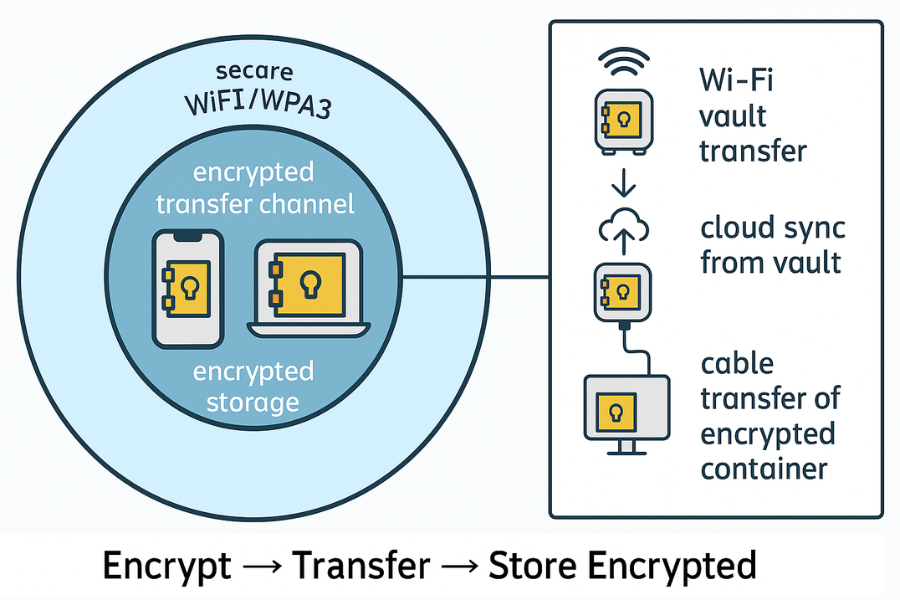
In all these cases, the safest pattern is:
- Encrypt on the device inside the vault.
- Transfer over WiFi.
- Store encrypted on the destination.
Plain unencrypted copies in the middle are what you want to avoid.
5. Use Case Chooser: Wi-Fi Vault Transfer Vs Cloud Vs Cable
Sometimes the best option is direct WiFi transfer. Other times cloud sync or cable copy is better.
Use this chooser to decide. Rows match what matters most to you.
| Factor | WiFi Transfer Inside Vault (For Example Folder Lock WiFi Manager) | Cloud Backup From Vault (Folder Lock Cloud Sync) | Cable Transfer Of Encrypted Container |
|---|---|---|---|
| Portability | Great for sending a few files between phone and laptop at home or office | Best when you need access from many devices in many locations | Good if you like physical control and rarely change devices |
| Recovery | Depends on your own backup habits on each device | Strong as long as you keep cloud account secure and retain vault password | Depends on how often you copy the container and where you keep copies |
| Multi OS | Works as long as the other device has a browser | Works across platforms supported by both cloud and vault app | Works if both ends understand the encrypted vault format |
| Admin control | Ideal for personal setups and very small teams | Good for small businesses that already manage cloud access | Suitable for admins who prefer offline policies and manual control |
For most home and solo professional use:
- WiFi transfer inside the vault works best for quick moves on one network.
- Cloud sync inside the vault works best as the long term backup and mobility layer.
- Cable is the slow but very controlled method for special cases.
6. Proof Of Work Style Checks
These examples show how you can measure and verify your own setup. Numbers are illustrative so you know what to look for.
6.1. Sample Speed Table
| Operation | Example Environment | Approx Time |
|---|---|---|
| Copy 1 gigabyte of mixed photos from Folder Lock vault on phone to laptop over WiFi | Mid range laptop with recent processor, modern dual band router, phone near router | About 2 to 3 minutes |
| Same transfer over older single band router through a wall | Same laptop and phone | About 4 to 6 minutes |
| Single 50 megabyte document bundle | Same setup | Well under 10 seconds |
If your numbers are far slower, suspect either weak WiFi signal, interference, or very old router hardware.
6.2. Settings Snapshot For A Safer Setup
On router:
- WiFi security set to WPA3 or WPA2 with a strong passphrase.
- Admin password changed from factory default.
- Remote management disabled unless you really need it.
- Separate guest or IoT network.
On Folder Lock:
- Master password strong and unique.
- Auto lock timer short enough to close the vault if you get distracted.
- Cloud backup enabled for vaults that hold irreplaceable data.
On computer:
- Local vault or encrypted folder ready to receive files.
- Regular backup schedule in place.
6.3. How To Confirm Encryption
After a transfer, confirm that sensitive files are safe:
- On the computer, log out of Folder Lock or your encrypted area.
- Try opening the folder in a guest account or from another user profile.
- You should see either no files or unreadable content without the vault password.
- On the phone, lock Folder Lock and then open the photo or file gallery. The transferred files should not appear outside the vault.
If plain copies show up in a normal folder, adjust your transfer process so files land directly in encrypted storage.
6.4. Share Safely Example
Imagine you send an encrypted folder of documents from your phone vault to a collaborator:
- Place documents inside a Folder Lock vault.
- Use the apps WiFi transfer to send the encrypted set to your laptop.
- Upload the encrypted set to a secure channel you both trust.
- Send the vault password separately through an end to end encrypted messenger such as Signal or another channel you both use.
- Avoid sending password and file in the same email or chat.
This keeps the keys and the data on different paths.
7. Troubleshooting Wi-Fi Vault Transfer
Here is a symptom to fix table with realistic messages you might see.
| Symptom Or Error Text | Likely Cause | What To Try First |
|---|---|---|
| Browser says “This site cannot be reached” after you type the address from Folder Lock | Phone and computer are not on the same WiFi, or address mistyped | Confirm both devices on the same network name, then re enter the address exactly as shown in the app |
| Folder Lock WiFi screen shows “Waiting for connection” and never updates | Browser never reached the phone service | Disable VPN on the computer, check firewall, and try another browser |
| Transfer stalls at a few percent and then fails | Weak WiFi signal or heavy interference | Move both devices closer to the router, pause large streaming activity, and try again |
| Folder Lock shows “Connection timed out” during long transfer | Router closed an idle session or power saving kicked in | Adjust power saving on phone and laptop, keep screen awake during big transfers |
| Files appear on computer but partially corrupted or do not open | Transfer interrupted mid way, or file opened before transfer finished | Delete broken copy, redo transfer for those files only, then verify integrity |
| WiFi screen in Folder Lock will not open at all | App permissions or temporary glitch | Close and reopen the app, restart phone, and confirm app has local network and WiFi access where required by the platform |
| Transferred file visible in normal computer documents folder instead of encrypted vault | Saved to a default location outside secure storage | Move the file into the vault as soon as possible and adjust browser download location to point to a secure folder |
If none of these fix your issue, fall back to cable transfer of the encrypted vault or to cloud sync inside Folder Lock, then revisit router and firewall rules when you have more time.
8. Schema Friendly Structures For Search
8.1. HowTo Structured Data (WiFi Transfer From Mobile Vault)
{
  "@context": "https://schema.org",
  "@type": "HowTo",
  "name": "Secure WiFi file transfer from a mobile vault",
  "description": "Move files from a mobile vault app to a computer over WiFi while keeping them encrypted at rest.",
  "supply": [
    {
      "@type": "HowToSupply",
      "name": "Mobile phone with a vault app such as Folder Lock"
    },
    {
      "@type": "HowToSupply",
      "name": "Laptop or desktop on the same WiFi network"
    }
  ],
  "tool": [
    {
      "@type": "HowToTool",
      "name": "Home or office WiFi router"
    }
  ],
  "step": [
    {
      "@type": "HowToStep",
      "name": "Prepare devices and WiFi",
      "text": "Lock both devices, connect them to the same secure WiFi, and confirm router uses WPA2 or WPA3."
    },
    {
      "@type": "HowToStep",
      "name": "Open the mobile vault",
      "text": "Unlock the vault app, open the vault with the files you need, and start the WiFi transfer screen."
    },
    {
      "@type": "HowToStep",
      "name": "Connect from the computer",
      "text": "Open a browser on the computer and visit the address shown in the vault app."
    },
    {
      "@type": "HowToStep",
      "name": "Transfer files into secure storage",
      "text": "Download files through the browser into an encrypted folder on the computer."
    },
    {
      "@type": "HowToStep",
      "name": "Close the session",
      "text": "Stop the WiFi transfer in the app, lock the vault, and close the browser tab."
    }
  ]
}
8.2. FAQPage Structured Data
{
  "@context": "https://schema.org",
  "@type": "FAQPage",
  "mainEntity": []
}
8.3. ItemList Structured Data For Transfer Options
{
  "@context": "https://schema.org",
  "@type": "ItemList",
  "name": "Secure file transfer options for mobile vault users",
  "itemListElement": [
    {
      "@type": "ListItem",
      "position": 1,
      "name": "WiFi transfer inside the vault app"
    },
    {
      "@type": "ListItem",
      "position": 2,
      "name": "Cloud backup or sync from the vault"
    },
    {
      "@type": "ListItem",
      "position": 3,
      "name": "Cable transfer of encrypted vault containers"
    }
  ]
}
9. Frequently Asked Questions
Here are practical questions in the same language people use in search boxes, with short but complete answers.
9.1. Is WiFi Transfer From My Phone Safe For Private Photos If I Use A Vault App?
It can be very safe when you combine three things. Use a strong vault such as Folder Lock so photos stay encrypted at rest, keep both devices on a trusted WiFi network with WPA2 or WPA3, and send files through the vault’s own WiFi or sync feature instead of plain file sharing.
9.2. Do I Still Need A VPN If I Only Transfer Files Over My Home WiFi?
For most home users moving files between a phone vault and a local computer on the same router, strong WiFi security plus vault encryption are usually enough. A VPN adds value mainly when traffic leaves your network, for example when syncing to cloud services on untrusted networks.
9.3. What Is The Safest Way To Move Files From Folder Lock On IPhone To My Windows Laptop?
Use the WiFi manager feature inside Folder Lock, connect from the laptop browser to the address shown in the app, and save the downloaded files straight into an encrypted folder or a Folder Lock vault on the laptop. Lock both vaults afterward so no plain copies remain.
9.4. Can Someone On The Same WiFi See My Vault Files While I Transfer Them?
If you use a mobile vault with strong encryption and avoid plain file sharing, other devices cannot see raw file content. The main risks are weak WiFi passwords and unsecured transfer methods such as open network file shares. Keep WiFi secure and always use the vault’s own transfer or sync channel.
9.5. Should I Use Cloud Sync Or Only Local WiFi Transfer For My Vault Files?
Use both, but with different goals. Local WiFi transfer is ideal for quick moves in one location. Cloud sync inside the vault is better for backup and access from many places. Folder Lock supports encrypted sync with common cloud services so you get both mobility and protection.
9.6. Why Does My Browser Say The WiFi Transfer Address Is Not Secure?
Local addresses from a vault app may not present public certificates, so the browser warns you even though traffic stays inside your own network. The main safety comes from vault encryption and your router security. Confirm you typed the address exactly as shown in the app and that you are on your own WiFi, not a public one.
9.7. Can I Delete Files From My Phone After Moving Them To My Laptop Vault?
Yes, once you verify that the files open correctly inside the encrypted vault on your laptop, you can securely delete them from the phone vault if you no longer need a copy there. Make sure at least one device plus optional cloud sync still holds a copy before you remove originals.
9.8. How Do I Speed Up Slow WiFi Transfers From My Vault?
Place both devices closer to the router, move large transfers to times when nobody is streaming, and use the router’s faster band when available. Avoid public or congested networks. Optimising WiFi signal often helps more than changing the vault app.
9.9. Is It Safe To Use WiFi Transfer With Older Routers?
Older routers may still be safe if they support WPA2, use a strong password, and run current firmware. If your router only offers very old security options or has not received updates in years, upgrade it, since the vault can only do so much if the network itself is weak.
9.10. What Happens If WiFi Drops Mid Transfer From Folder Lock?
You may end up with incomplete files on the computer. Delete partial copies, reconnect once WiFi is stable again, and re transfer only the affected files. The originals in your phone vault remain safe because they never move until the transfer finishes.
9.11. Can I Use Folder Lock WiFi Transfer On Office Networks?
You can, but check policy first. Many offices restrict local services and ports. If WiFi transfer does not work, use cloud sync through Folder Lock where allowed, or speak with the admin about approved methods for encrypted personal data.
9.12. Is WiFi Transfer Safer Than Plugging My Phone Into Public Computers?
Yes, especially when WiFi is your own and the vault controls the transfer. Plugging into a random computer exposes your phone to unknown drivers and software. Using your own WiFi plus a vault such as Folder Lock keeps the path clear and under your control.
Conclusion
If you stick to one routine, let the vault keep data encrypted at both ends, and prefer trusted WiFi over random networks, secure wireless transfer becomes something you can do every day without stress. Folder Lock and similar mobile vaults give you the practical tools you need, as long as you pair them with sensible WiFi and backup habits.