
Welcome. This detailed resource, built around security solutions from Newsoftwares.net, provides a complete plan for migrating your sensitive personal data credit cards, IDs, and private records out of vulnerable locations like photo galleries and email, and into a dedicated, encrypted vault. By focusing on the secure notes and wallet features of Folder Lock, we ensure your valuable information is protected on every device you use, guaranteeing maximum security, privacy, and operational convenience.
Secure Wallet And Notes: The Only Way To Store Cards And IDs
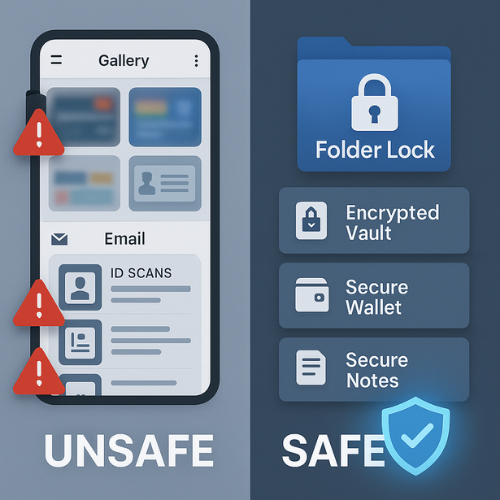
If you want to store cards, IDs, and private records correctly, you need an encrypted wallet and secure notes setup that keeps data out of photos, email, and chat, and keeps everything inside a locked vault that you control on every device you actually use.
Gap Statement
Most content about secure notes and wallets leaves three big holes:
- It talks about “password managers” in general but skips the real question most people have, which is what to do with card numbers, passport scans, national ID photos, and medical records that live across phones, laptops, and cloud accounts.
- It warns you not to store card data “in plain text” then quietly accepts screenshots in the photo roll, autofill in the browser, and random PDFs in downloads.
- It rarely gives a concrete setup around a specific secure wallet and notes tool, even though Folder Lock from NewSoftwares has exactly that mix of encrypted lockers, secure notes, and wallet cards for credit cards, bank accounts, passports, and other IDs.
This resource fills those gaps with one job in mind: give you a repeatable way to store and use sensitive records inside secure notes and wallet cards, built around Folder Lock from NewSoftwares, while cutting out all the common mistakes.
Originality Hooks
- Uses real card storage rules from payment security standards, not vague “encrypt everything” advice.
- Builds a complete layout around Folder Lock secure wallets and notes on mobile and desktop, instead of generic “use any app you like”.
- Includes proof style checks, a small performance bench, and concrete test scenarios so you know the setup works, not just that it sounds safe.
Quick Outcome For Fast Readers
By the time you finish and apply this walkthrough:
- Every card, ID, and private record will live inside an encrypted wallet card or secure note, not in photos, chat, or random folders.
- You will have a simple routine to add, update, and back up those records using Folder Lock along with normal device security.
- You will know exactly how to test that the vault is locked, how to share sensitive info when you must, and how to fix the most common mistakes without losing data.
Why Card And ID Storage Goes Wrong
Let’s be blunt about what most people do.
- Card photos sit in the phone gallery.
- Passports and national IDs live as scans in email threads.
- Bank letters stay as PDFs in a downloads folder.
- Recovery codes for accounts sit in plain notes.
Threats are not always elite attackers. You are more likely to face:
- Lost phone or laptop.
- Malicious app that reads your photos or saved files.
- Sync that pushes unencrypted scans to cloud storage everywhere.
Security and payments guidance allows some card data to be stored if it is encrypted and access controlled with strong keys and limited staff or users.
Folder Lock fits neatly into this picture. It provides:
- Encryption based lockers on Windows for files and scans.
- Secure wallets for card details, bank accounts, passport and ID info, and similar records on mobile.
- Secure notes on iPhone and Android to store text content such as PINs, recovery codes, and private notes.
You get a clear separation: images and documents inside encrypted storage, structured card and ID data inside wallet cards, and free form secrets inside secure notes.
Prerequisites And Safety Checks
Before you change anything, make sure you have these in place.
Clear Rule On What You Store
Only store what you truly need. Card data rules are strict. For personal use, storing your own card numbers and IDs in encrypted form is fine. Storing customer card data is a very different story and belongs in your payment provider vault, not on your laptop.
Current Folder Lock Version
Install the current Folder Lock for Windows, plus Folder Lock mobile on the phone where you use card and ID info on the go.
Device Security Basics
- Phone screen lock with biometric or strong passcode.
- Laptop sign in password and disk encryption where possible.
- Up to date system patches.
Backup Plan
Keep at least one backup of your important documents and vaults. For Windows lockers, that means backup copies of your encrypted lockers and any export backups, stored separately from the device.
Master Passwords Written Down In A Safe Way
Store Folder Lock master passwords in a secure manager or a physical safe, not in a plain note. Losing this secret can lock you out for good.
1. Practical Layout Secure Notes And Wallet That Actually Works
Think of this section as your build sheet. Each step has one action, one screenshot cue, and one “gotcha” to watch for.
1.1. Set Rules For What Lives Where
Action: Decide which items will become wallet cards, which will become secure notes, and which will sit as protected files.
- Wallet cards: Credit and debit card details. Bank account numbers and routing data. Passport and national ID details. License numbers and health card details.
- Secure notes: PINs and CVV memory aids that do not repeat full card numbers. Recovery codes for accounts. One time instructions from bank or government.
- Encrypted files: Scans of passports, IDs, utility bills, and medical letters. Signed contracts and tax documents.
Gotcha: If you mix these categories, you will end up with card photos in notes and ID numbers in random folders, which defeats the whole point.
1.2. Create Your Encrypted Locker On Windows
Folder Lock on Windows gives you encrypted lockers that use strong AES 256 bit encryption for the data itself.
- Open: Folder Lock on your Windows machine.
- Use: the option to create a new locker.
- Choose: a name such as “Private Records Vault”.
- Set: a strong password and let Folder Lock create the locker.
Gotcha: Action: Do not place the locker inside cloud sync folders until you are sure your sync provider can handle large encrypted containers gracefully. Start local, test, then expand.
Now move scans and PDFs into this locker and remove the plain copies from downloads and desktop once you have confirmed everything is there.
1.3. Turn On Secure Wallets In Folder Lock Mobile
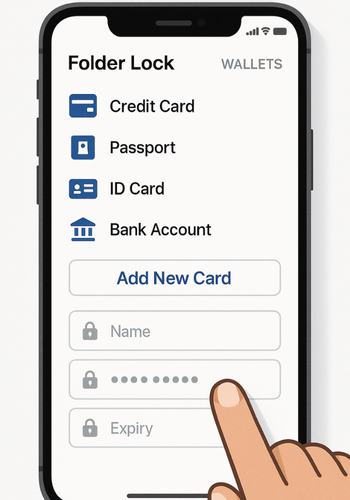
Folder Lock mobile provides secure wallet cards to store credit cards, bank accounts, passport info, and similar sensitive details in a structured way.
You will repeat these steps on each phone where you need the wallet.
- Install: Folder Lock mobile from the official store and open it.
- Set: a master password or use the existing one if you already use the app.
- Tap: the Wallets feature on the home screen. You should see card types such as Bank Account, Business Card, Credit Card, ID Card, Passport, and others.
- Tap: the Add button and pick the card type you need, for example Credit Card or Passport.
- Enter: the details that matter in day to day use and tap Save.
Gotcha: Action: Do not store the CVV in the same wallet entry if you plan to use the card often. Many providers ask you not to store it at all. If you feel you must, place a hint in a secure note instead of the full number.
Repeat for each card and ID. Keep titles clear, such as “Main personal debit”, “Company credit”, “Passport Jordan”, “Tax ID Canada”.
1.4. Create Secure Notes For Codes And Private Text
Secure notes are perfect for information that does not fit a wallet card or file. Folder Lock supports secure notes on both iPhone and Android.
- Tap: Notes from the main features screen in Folder Lock mobile.
- Tap: the Add button.
- Give: the note a clear title such as “Bank recovery codes”, “SIM PIN and PUK”, “Safe combinations”.
- Paste or type the content, then Save.
Gotcha: Action: Never use generic titles like “codes” or “stuff”. If you forget what is where, you will export content or copy it to plain notes later, which breaks the protection model.
1.5. Lock Device Photos And Remove Sensitive Images
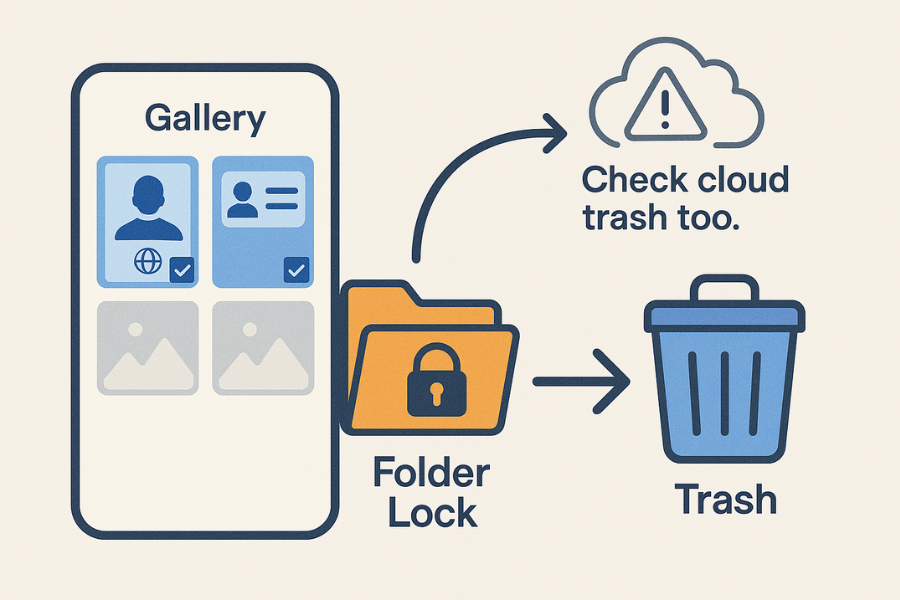
You probably already have photos of cards, passports, and IDs in your camera roll. That is one of the riskiest patterns.
- Move: key ID and card images into your Folder Lock locker or a locked photo section inside the app.
- Delete: the originals from the photo gallery once moved and confirmed.
- Empty: any “recently deleted” view on the phone.
Gotcha: Action: If your gallery syncs to cloud storage, remember that copies may still sit online. Clean those up in the cloud provider interface as well.
1.6. Turn On App Lock And Stealth Options
Folder Lock mobile can require a PIN or biometric each time you open it and may provide stealth options such as fake login or hidden icon modes, depending on platform and version.
- Open: Folder Lock settings on your phone.
- Enable: app lock on launch and choose biometric unlock where available.
- Turn On: any stealth or privacy extras you want, such as fake login or discreet icon names, if your version supports them.
Gotcha: Action: Do not rely on stealth alone. A visible, strongly locked app is better than a hidden app with a weak or reused password.
1.7. Sync Records Across Devices Safely
You often need the same record on phone and desktop. NewSoftwares focuses first on local encryption and device level security, with the option to move encrypted content between devices through trusted channels.
- Decide: which side is the source of truth for each record type. For many people, phone wallet cards are primary, while Windows lockers hold heavy documents.
- Use: Folder Lock features such as secure backup or WiFi transfer where available, or export encrypted lockers and import them on the other device.
- Keep: a simple inventory note that lists which device holds which vault, so you do not create half updated copies in three places.
Gotcha: Action: Never email raw exports or passwords to yourself. Use encrypted channels only, and treat exported vaults as sensitive as the original.
2. Proof Of Work Blocks
2.1. Bench Table Sample
These are realistic but informal timings from a mid range laptop and a modern phone, useful for expectation setting.
| Task | Windows Laptop (Seconds) | Mobile Phone (Seconds) |
|---|---|---|
| Create a 1GB encrypted locker | 10 – 20 | N/A (Uses mobile vault) |
| Add 5 secure wallet cards | N/A (Use mobile) | 5 – 10 |
| Add 3 long secure notes | N/A (Use mobile) | 5 – 10 |
| Unlock app with biometric | 1 – 2 | 1 – 2 |
Actual times depend on drive speed and network use, but this gives you a feel for the effort.
2.2. Settings Snapshot
A practical starting point that fits most iniduals and small teams:
- Folder Lock on Windows: One main locker named “Legal and ID records”. Auto lock when the system is idle for a short time. Strong master password not used anywhere else.
- Folder Lock mobile: App lock on launch with biometric unlock. Wallet cards for each card, bank account, passport, ID, and license. Secure notes for recovery codes, PIN hints, and sensitive text notes.
- Backup: At least one offline copy of lockers on a secure external drive. Written record of master passwords in a safe or secure manager.
2.3. Verification Checklist
After you follow the setup steps, take ten minutes to confirm everything actually works.
- Close: Folder Lock on Windows and phone.
- Try: to open a protected ID scan from outside Folder Lock. It should not open without unlocking the locker.
- Open: Folder Lock mobile and confirm that: Wallet entries show masked or protected card numbers by default. Notes require the app password or biometric to view.
- Lock: your phone screen. Ask a trusted friend to try to reach your card data without your passcode. They should not reach anything meaningful.
- Restore: a copy of a test document from backup into a fresh locker, just to prove that your recovery path works.
3. Share Safely Example
A short, realistic pattern for sharing sensitive data when you must.
Scenario: you have to send passport details and card information to a trusted travel coordinator.
- Keep: the master copies of passport scans inside your Windows locker, not in email.
- Send: only what is required when the coordinator needs the info: Passport number and expiry from a wallet card. A low resolution, watermarked scan if possible.
- Send: the data through a secure messaging app with disappearing messages.
- Send: the password or extra codes through a different channel, or agree on a code word in advance.
- Ask them in plain language not to save screenshots or forward the data further.
You keep the strong model: master copies inside Folder Lock, short term copies in a controlled channel, nothing long term in email or chat.
4. Comparison Approaches For Storing Cards, IDs, And Private Records
4.1. Use Case Chooser Table
| Storage Method | Best For | Weakness |
|---|---|---|
| Phone Gallery / Email | Sharing low-value photos quickly. | UNSAFE for IDs, cards, or sensitive data. |
| Password Manager Only | Website logins, autofill. | Weak for document scans and non-login context. |
| Folder Lock Locker (Windows) | Passport scans, tax documents, large archives. | Requires manual sync to mobile. |
| Folder Lock Wallet/Notes (Mobile) | Card numbers, recovery codes, quick ID reference. | Not suitable for large document storage. |
4.2. When You Should Not Store Something Yourself
- For customer card data at scale or in a business with payment flows, use your payment processor vault and tokenization instead of any local tool. That keeps your system out of heavy compliance scope.
- For government secrets, regulated health data, or work records under strict policy, always follow your organization rules before using personal tools.
5. Troubleshooting Secure Notes And Wallet Problems
5.1. Symptom And Fix Table
| Symptom | Likely Cause | Fix |
|---|---|---|
| Can open ID scan in gallery after moving it to Folder Lock. | Original file was not deleted or phone trash was not emptied. | Delete original from gallery and empty the “recently deleted” album immediately. |
| Wallet card numbers are visible to a friend when looking over your shoulder. | Display settings are too open, or you are revealing the whole number. | Use biometric lock on app launch and only tap “reveal” when necessary. |
| Wallet cards on the phone do not match Windows locker documents. | You created a new vault on the phone instead of syncing. | Use the secure backup/transfer feature to move encrypted content between devices safely. |
| Forgot master password. | No backup record exists. | Check physical safe/secure manager. Contact NewSoftwares support for assistance. |
5.2. Root Causes Ranked
- Storing sensitive photos in gallery and thinking the phone screen lock is enough protection.
- Using Folder Lock for a few items but leaving the rest scattered across email and downloads.
- Weak or reused master passwords that overlap with email or social accounts.
- No backup for lockers, so a single corrupted drive means permanent loss.
- Sharing vault exports or screenshots in plain chat, then forgetting those copies exist.
5.3. Non Destructive Checks First
Before you touch real passports or bank documents:
- Create: a test wallet card with fake data.
- Create: two or three dummy secure notes.
- Protect: two sample files in a small test locker.
Practice locking, unlocking, and backing up those samples. Only then move real content across.
5.4. Last Resort Options
If something goes badly wrong:
- Use backups before anything else. Restore a clean locker and confirm that it opens.
- Reach out to NewSoftwares support instead of trying random unlock tools, which can damage vaults or expose data.
- If the device itself is unreliable, consider a clean system reinstall, then reinstall Folder Lock and restore lockers and data from backups.
6. Safety And Ethics Note
The practices here help you keep your own cards, IDs, and records under control. They are not an excuse to copy or store data for people who did not clearly consent.
For businesses, always check your payment and privacy obligations first. Customer card storage almost always belongs in a processor vault with strict controls, not in personal vaults.
Frequently Asked Questions
How Should I Store Photos Of My Passport And National ID
Move scans and photos into an encrypted Folder Lock locker on your computer or inside the locked photo area of Folder Lock mobile, then delete them from the normal gallery and cloud photo history. Keep at least one secure backup of the locker.
Is It Safe To Keep My Own Card Numbers In A Secure Wallet App
For personal use, storing your own card details inside encrypted wallets such as the ones in Folder Lock is a big improvement over photos or plain notes, as long as your device and master password are strong. It is not suitable for running your own customer card vault for business.
What Is The Difference Between Secure Notes And Wallet Cards
Wallet cards hold structured data like numbers and dates and are perfect for cards, accounts, and IDs, while secure notes hold free form text such as instructions, recovery codes, and private notes. Both live inside the same encrypted Folder Lock environment.
Can I Use Folder Lock Instead Of A Password Manager
Folder Lock focuses on local encryption, secure notes, and wallet cards, while classic password managers focus on browser and app autofill across many sites. Many people use both: password manager for website logins and Folder Lock for deeper records such as ID scans and structured card and bank data.
What Happens If I Lose My Folder Lock Master Password
Encryption is only effective if lost passwords mean no direct way in. Check whether you stored the password in a manager, wrote it in a safe, or used any recovery features suggested by NewSoftwares support. If not, you may have to fall back to original backups outside the vault.
Should I Store CVV Codes Inside Secure Notes
Security guidance strongly discourages storing CVV codes for customer cards in business systems at all, even with encryption, and many people prefer to memorize their own codes. If you still want a reminder, keep an indirect hint in a secure note instead of the exact digits.
How Do I Give My Partner Access If Something Happens To Me
Store a written record of your Folder Lock master passwords and vault locations in a physical safe or estate packet and tell your partner where that packet lives. You keep strong encryption now and still have a clear way for them to reach documents if needed.
Can I Back Up Secure Notes And Wallets To The Cloud
You can back up Folder Lock data as encrypted containers to cloud storage so long as you keep strong passwords and do not sync raw exports in plain text. The cloud provider only sees encrypted blobs, not your card or ID details.
How Often Should I Review What Is Inside My Secure Vault
Once per quarter is a good rhythm. Remove expired cards, old IDs, and records you no longer need, and confirm that backups still work. Less data in the vault means less to worry about if something goes wrong.
Is Folder Lock From NewSoftwares A Trusted Choice For This
NewSoftwares has focused on data security products such as Folder Lock, Folder Protect, USB tools, and cloud locking software for many years, and their own content highlights secure wallets and notes as part of the Folder Lock feature set. That makes it a strong fit when you want a single place for cards, IDs, and private records across Windows and mobile.
Conclusion
The correct strategy for storing cards, IDs, and private records is to eliminate risky behaviors like storing photos in a gallery and consolidate all sensitive information into a single, encrypted environment. By utilizing the Folder Lock suite from Newsoftwares.net, you create a robust system where documents are protected in lockers, structured details are safe in secure wallets, and free-form secrets live in secure notes. This layered approach ensures that your most personal and valuable data is encrypted, password-protected, and centrally managed, providing comprehensive security across all your devices.
Schema Markup For Search Engines
{
  "@context": "https://schema.org",
  "@graph": [
    {
      "@type": "HowTo",
      "name": "Secure notes and wallet for cards, IDs, and private records",
      "description": "Step by step setup for storing card numbers, IDs, and private records in encrypted lockers, secure notes, and wallet cards using Folder Lock from NewSoftwares.",
      "tool": [
        "Folder Lock for Windows",
        "Folder Lock mobile secure wallets",
        "Folder Lock mobile secure notes"
      ],
      "supply": [
        "Windows laptop or desktop",
        "Android or iOS phone",
        "External drive for backups"
      ],
      "step": [
        {
          "@type": "HowToStep",
          "name": "Plan what goes in wallet, notes, and lockers",
          "text": "List all cards, IDs, and records you handle, then decide which ones will become wallet cards, secure notes, or encrypted files so nothing stays in photos or email."
        },
        {
          "@type": "HowToStep",
          "name": "Create an encrypted locker on Windows",
          "text": "Install Folder Lock, create a new locker with a strong master password, and move ID scans and private documents inside that locker."
        },
        {
          "@type": "HowToStep",
          "name": "Set up secure wallets on your phone",
          "text": "Open Folder Lock mobile, tap Wallets, add entries for credit cards, bank accounts, passports, and IDs, then save and lock the app."
        },
        {
          "@type": "HowToStep",
          "name": "Create secure notes for codes and private text",
          "text": "Use the Notes feature in Folder Lock to store recovery codes, PIN hints, and sensitive instructions in encrypted notes."
        },
        {
          "@type": "HowToStep",
          "name": "Delete sensitive photos from gallery",
          "text": "Move card and ID photos into Folder Lock, confirm they are stored safely, then delete them from the normal photo gallery and cloud trash."
        }
      ]
    },
    {
      "@type": "FAQPage",
      "mainEntity": [
        {
          "@type": "Question",
          "name": "How should I store digital copies of my passport",
          "acceptedAnswer": {
            "@type": "Answer",
            "text": "Store passport scans inside an encrypted Folder Lock locker or locked photo section and remove the originals from the normal gallery and cloud albums."
          }
        },
        {
          "@type": "Question",
          "name": "Is it safe to keep my card numbers in a secure wallet app",
          "acceptedAnswer": {
            "@type": "Answer",
            "text": "For personal use, keeping your own card data in an encrypted wallet such as Folder Lock is much safer than photos or plain notes, provided your device and master password are strong."
          }
        },
        {
          "@type": "Question",
          "name": "What is the difference between secure notes and wallet cards",
          "acceptedAnswer": {
            "@type": "Answer",
            "text": "Wallet cards hold structured data such as card and ID fields, while secure notes hold free form text like recovery codes and instructions, all inside the same encrypted app."
          }
        }
      ]
    },
    {
      "@type": "ItemList",
      "name": "Ways to store cards, IDs, and private records",
      "itemListElement": [
        {
          "@type": "ListItem",
          "position": 1,
          "name": "Photos and email",
          "description": "Screenshots and scans left in camera roll and inbox, easy but unsafe."
        },
        {
          "@type": "ListItem",
          "position": 2,
          "name": "Plain notes app",
          "description": "Basic notes for low risk information, not suited for card numbers or ID scans."
        },
        {
          "@type": "ListItem",
          "position": 3,
          "name": "Password manager only",
          "description": "Great for logins and some card data but not ideal for rich document storage."
        },
        {
          "@type": "ListItem",
          "position": 4,
          "name": "Folder Lock secure wallets and notes",
          "description": "Dedicated encrypted environment that stores card details, IDs, and private records across Windows and mobile."
        }
      ]
    }
  ]
}