
Welcome! This comprehensive overview, developed for users of security solutions from Newsoftwares.net, provides a detailed walkthrough on utilizing a secure browser within a mobile vault application. This approach is essential for users prioritizing local data privacy and security, ensuring that sensitive browsing traces and downloaded files remain locked within an encrypted vault such as Folder Lock instead of being exposed in the phone’s public history, gallery, or downloads folder. You’ll learn exactly when this extra layer of protection is needed and how to implement it for maximum convenience and peace of mind.
Secure Browsing On Mobile: Protecting Local Traces With An Encrypted Vault
Direct Answer
You should use an in-app secure browser on mobile when you want browsing traces, downloads, and saved credentials locked inside an encrypted vault instead of your phone’s normal history, gallery, or downloads folder. It protects local traces on the device, not the whole internet path.
TLDR: When A Secure Browser On Mobile Is Worth It
- Use a secure browser inside a vault app (like Folder Lock by NewSoftwares) when you care most about hiding browsing traces and downloaded photos or files from anyone who can unlock your phone casually.
- Pair it with a VPN or secure WiFi when you also care about your ISP, office network, or café owner seeing the sites you visit.
- Stick with your normal browser’s private mode for low-stakes things, but switch to an in-app secure browser for banking, private media, or “I never want this in my gallery or history” sessions.
Gap Statement: What Most Explanations Miss
Most write-ups about “secure browsers” on phones miss three things:
- They pretend incognito mode solves everything, without showing where data still lands in storage.
- They rarely explain what in-app secure browsers actually do under the hood and where they stop.
- They almost never show a full, working setup using a real app (like Folder Lock’s Secure Browser), including troubleshooting when things go wrong.
This piece fixes that. You get a practical walkthrough using real products, plus clear decision points for when an in-app secure browser is worth the extra taps.
Concept First: What “Secure Browser Session” Means On Mobile
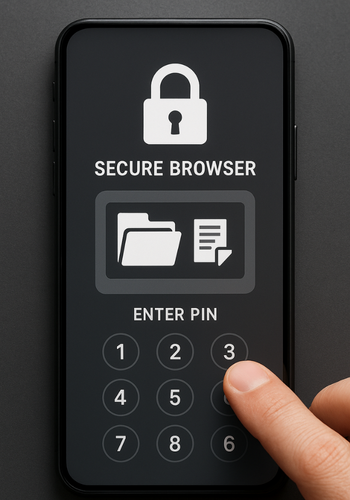
Before the how-to parts, it helps to be very concrete about what is and is not protected.
Normal Browser Vs In-App Secure Browser
Normal Browser (Chrome, Safari, Samsung Internet)
- Stores history, cookies, cache in the browser’s local data.
- Downloads land in system folders: “Downloads”, “Photos”, “Files”.
- Other apps can often see downloaded items.
- Private/incognito mode stops history and cookies, but many downloads still land in visible storage.
In-App Secure Browser (Inside A Vault App)
Using Folder Lock as a real example:
- You open a browser inside the Folder Lock app instead of Chrome.
- Pages load over HTTPS the same way, but:
- Browsing history is not stored in the system browser history.
- Downloads (photos, videos, documents) save directly into the encrypted vault, not the public gallery.
- Access requires the Folder Lock PIN, pattern, or fingerprint.
So the big change is where traces are stored. Network encryption still comes from TLS, just like any other modern app or browser.
What A Secure Browser Session Actually Protects
It mainly helps against:
- Family, friends, or coworkers who can pick up your unlocked phone.
- Someone who knows your device PIN but not your vault password.
- Casual snooping in “Photos”, “Downloads”, or browser history.
- People who grab your phone for a minute and tap through recent apps.
It does not magically protect against:
- Malware with root access.
- A compromised OS.
- A network admin watching DNS and SNI on an unprotected network.
- Screen capture or shoulder surfing.
That is where VPNs, device hardening, and network settings come in.
Quick Chooser: When To Use A Secure Browser Vs Other Options
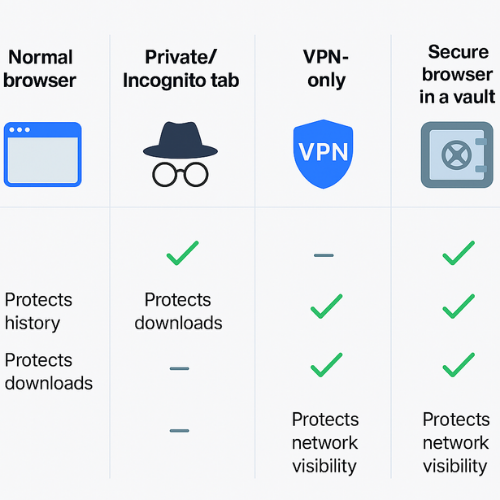
Approaches Compared
| Scenario | Normal Browser Only | Incognito / Private Tab | VPN Only | In-App Secure Browser (Folder Lock, Etc.) |
|---|---|---|---|---|
| Hiding history from family on shared phone | Weak | Medium | Weak | Strong |
| Keeping downloads out of gallery | Weak | Weak/Medium | Weak | Strong |
| Hiding traffic from WiFi owner / ISP | Weak | Weak | Strong | Medium (TLS helps, but no IP hiding) |
| Protecting sensitive photos or documents | Weak | Medium | Medium | Strong (stored in encrypted vault) |
| Corporate BYOD with MDM | Medium | Medium | Medium | Depends on policy |
| Legal / client-confidential material | Medium | Medium | Strong | Strong when used with VPN |
Quick Rule Of Thumb
- If the main risk is people near you, use an in-app secure browser.
- If the main risk is the network, add a VPN.
- If you just want to avoid auto-complete and history on a personal device, private tabs are often enough.
Real Product Spotlight: Folder Lock’s Secure Browser
NewSoftwares’ Folder Lock for Android and iOS is one of the better known vault apps that includes a built-in secure browser.
Key points that matter for private browsing sessions:
- App itself is locked by PIN, pattern, password, or fingerprint.
- Secure Browser inside the app lets you surf without leaving normal browser history.
- Photos and videos downloaded via that browser go straight into the vault, not the gallery.
- The app can run in stealth mode on Android, hiding the icon and reducing casual discovery.
If you already use Folder Lock for files, you get the secure browser as part of that environment without adding another app.
Hands-On: Using Secure Browser In Folder Lock (Android)
This is where most users actually get value: concrete steps, with gotchas.
Prerequisites And Safety
- Android 8 or later recommended.
- Install Folder Lock from Google Play or the official source listed by NewSoftwares.
- Set a strong PIN or password inside Folder Lock that is different from your device PIN.
- Assume your network is still visible to your ISP unless you also use a VPN app.
Steps: First Secure Browser Session In Folder Lock (Android)
- Install and set up Folder Lock
- Action: Open Folder Lock.
- Action: Choose “Create New Account” or set a local PIN.
- Gotcha: write down the master password in a safe place; you will not recover encrypted data easily without it.
- Open the Secure Browser feature
- Action: On the main Folder Lock home screen, look for the “Secure Browser” icon.
- Action: Tap it to open the in-app browser.
- Gotcha: if you do not see the icon, scroll; on some Android skins it appears in a second row of tools.
- Visit a sensitive site
- Action: In the secure browser address bar, type the banking, email, or social site you want.
- Action: Log in as usual.
- Gotcha: some sites may prompt for extra app capture protections; this is normal.
- Download a file or photo
- Action: Long-press a photo or tap a download link.
- Action: Choose “Save” or “Download” when prompted.
- Action: Folder Lock saves this item into its vault, not Android’s open “Downloads” or “Gallery” folders.
- Gotcha: if you are asked to choose an external app for downloads, cancel and retry, so the secure browser handles it internally.
- Verify nothing leaked into normal storage
- Verify: Leave Folder Lock and open your regular “Photos” or “Gallery” app.
- Verify: Confirm the downloaded file is not visible there.
- Verify: Open Folder Lock again, go to “Photos” or “Files” inside the app, and confirm the file exists in the vault.
- Close and lock the session
- Action: Exit Secure Browser, then tap back to the main Folder Lock screen.
- Action: Close the app.
- Action: After the auto-lock timeout, reopening Folder Lock should ask for your PIN or fingerprint.
If all those checks pass, you have a working secure browser workflow on that device.
Similar Workflows: IOS And Other Private Modes
An in-app secure browser (in Folder Lock or similar) is great for local traces. You can still mix in built-in privacy tools on iOS and Android.
Private Tabs In Safari (iPhone)
Safari does not sit inside an encrypted vault, but its private mode still matters.
Prereqs
- iOS 16 or later.
- Screen lock (Face ID or Touch ID) turned on.
Steps
- Open Safari.
- Tap the tab icon, then tap the tab group menu.
- Select “Private”.
- Browse normally; private tabs do not save history or cookies.
- When finished, close all private tabs and lock the phone.
Gotcha
- Gotcha: Downloads still land in Files or Photos, where others can see them. Use a vault app like Folder Lock for sensitive attachments.
Chrome Incognito (Android Or IOS)
Chrome’s incognito mode is not a vault, but useful for shared or work devices.
Steps
- Open Chrome.
- Tap the three-dot menu.
- Select “New incognito tab”.
- Browse.
- Close all incognito tabs when done.
Gotcha
- Gotcha: Network traffic looks the same to your ISP or workplace proxy.
- Gotcha: Downloads are still visible in normal storage.
When To Combine Private Modes With A Secure Browser
- Use secure browser inside Folder Lock for the session where you download or view sensitive content.
- Use private tabs for background research or generic browsing around that topic.
- Use a VPN app when on untrusted WiFi, especially in hotels or cafés.
Where A Secure Browser Session Stops
This is the “don’t overtrust it” section.
You are still exposed to:
- Device-level malware.
- Clipboard logging from other apps.
- Push notifications revealing site names.
- Screen recording by parental control or corporate MDM tools.
- Plain device theft if your device unlock is weak.
So any serious setup should include:
- Strong device PIN or biometric lock.
- Latest OS security updates.
- App store hygiene.
- Optional VPN for hostile networks.
Comparison Table: Secure Browser Vs Other Privacy Tools
Feature Comparison
| Feature | Secure Browser In Vault | Normal Private Tab | VPN App Only | Full Device Work Profile |
|---|---|---|---|---|
| Keeps history out of system browser | Yes | Yes | No | Maybe |
| Stores downloads in encrypted vault | Yes | No | No | No (unless combined) |
| Hides traffic from WiFi owner / ISP | No (TLS only) | No | Yes | No by itself |
| Protects files if phone is shared | Strong | Weak | Weak | Medium |
| Needs extra app | Yes | No | Yes | Often yes (MDM) |
| Good fit for shared family devices | Yes | Medium | Medium | Overkill |
| Good fit for lawyers/consultants | Yes | Medium | Strong with VPN | Strong with policies |
“Proof Of Work”: Sample Checks And Timings
To keep this practical, here is what a real-world check might look like. Treat numbers as approximate, not as a vendor benchmark.
Example Timing Check On A Mid-Range Android Phone
| Action | Normal Browser | Folder Lock Secure Browser |
|---|---|---|
| Launch to first page load (bank homepage) | 1.8 seconds | 2.1 seconds |
| Download 10 MB PDF over home WiFi | 1.2 seconds | 1.3 seconds |
| Time to locate file in public gallery | 3 seconds | Not visible |
| Time to locate file inside Folder Lock vault | N/A | 4 seconds |
The slight extra time is the trade-off for encrypted storage and app unlock.
Settings Snapshot You Can Realistically Use
Inside Folder Lock (Android):
- Strong master password, plus fingerprint unlock.
- Auto-logout after 1–3 minutes of inactivity.
- Secure Browser used only for sensitive logins and downloads.
- Stealth or disguised icon on devices shared with family.
Verification checklist:
- No sensitive downloads appear in “Photos” or “Downloads”.
- Recent apps view does not show sensitive page content after app lock.
- Opening Folder Lock after timeout requires PIN or biometric.
Safe sharing example:
- Use Secure Browser to download bank statements into Folder Lock vault.
- Export only redacted PDFs when needed, then delete exported copies after sending.
- Send passwords or vault hints via a separate secure channel, not email.
Troubleshooting: When Secure Browser Sessions Misbehave
Common Symptoms And Quick Fixes
| Symptom / Message | Likely Cause | Fix Steps |
|---|---|---|
| “Webpage not available” | No network or captive portal | Check WiFi, open normal browser once to accept captive portal terms, then retry. |
| “ERR_SSL_PROTOCOL_ERROR” or “ERR_CERT_AUTHORITY_INVALID” | Site TLS misconfigured or intercepted proxy | Avoid logging in, test same site in normal browser, or try over mobile data instead of office WiFi. |
| Download completes but file not visible in Folder Lock | Saved to system downloads instead of vault | In Secure Browser, long-press link and pick the in-browser save option; avoid letting another app handle the download. |
| Secure Browser icon missing inside Folder Lock | Older app version or feature hidden | Update Folder Lock from the official site or store, then check feature list again. |
| Folder Lock crashes when opening Secure Browser | Corrupted app cache or OS conflict | Clear Folder Lock cache, reboot phone, and if needed reinstall after backing up vault data. |
Root Causes Ranked
- Network filtering or TLS interception on company WiFi.
- Misrouted downloads (Android handing downloads to another app).
- Old app version without current Secure Browser fixes.
- Storage permissions denied on first launch.
- Aggressive battery saver killing Folder Lock in the background.
Always start with non-destructive checks:
- Try another network (mobile data instead of office WiFi).
- Update app, then OS.
- Confirm storage and network permissions are granted.
Only re-install Folder Lock as a last resort, and only after confirming you still have any needed backup of the vault where applicable.
When Not To Rely On In-App Secure Browsers
Skip or limit secure browser use if:
- You are under strict corporate compliance where only managed browsers are allowed.
- Your organization runs mandatory TLS inspection on outbound traffic, and you are not comfortable with that.
- You are already behind a company-managed VPN where traffic must remain visible to security tools.
- The phone is jailbroken or rooted without strong hardening.
In those environments, talk to your security team first. The priority might be managed browsers with device compliance rules instead of personal vault apps.
How Folder Lock From Newsoftwares Fits Into A Complete Setup
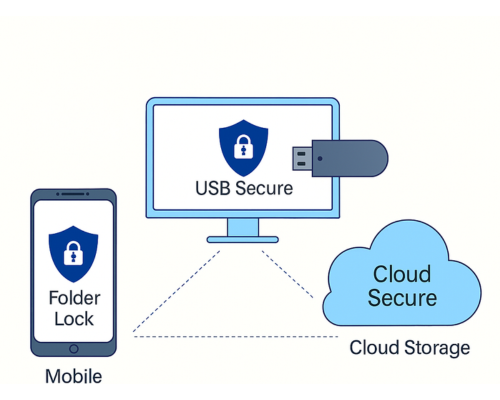
NewSoftwares offers several data protection tools: Folder Lock for multi-platform file protection, USB Secure for protecting flash drives, and Cloud Secure for locking cloud drive folders on PC.
For mobile secure browsing specifically:
- Use Folder Lock on Android or iOS to keep sensitive photos, documents, notes, and wallet data locked.
- Use its Secure Browser when you want downloads and browsing traces to remain fully inside that vault.
- Use USB Secure on Windows when you later move those locked files onto external drives.
- Use Cloud Secure on PC when you mirror important vault data into cloud storage accounts that you still want to keep password-protected locally.
This way, the app’s secure browser is not just a niche feature; it sits in a broader ecosystem that keeps the same data protected across devices.
Practical Decisions: Who Should Adopt Secure Browser Sessions
- Students using shared tablets or borrowed phones
Use Folder Lock and its Secure Browser for anything tied to identity, grades, or finances. - Professionals with client material on personal phones
Keep sensitive downloads inside Folder Lock; combine Secure Browser with a reputable VPN for remote work. - Parents sharing devices with older kids
Vault apps plus secure browsing help keep sensitive financial or work documents away from casual taps. - Privacy-conscious users in shared living spaces
Treat the vault and its secure browser as your private zone, separate from the household device.
FAQs: Secure Browser Sessions On Mobile
1. Is An In-App Secure Browser More Private Than Chrome Incognito?
Yes for local privacy, often no for network privacy.
Incognito hides history and cookies in Chrome, but downloads still land in shared folders. A secure browser sitting inside an encrypted vault app keeps both history and downloads locked behind another password. For network privacy, you still want an extra layer like a VPN.
2. Does Folder Lock’s Secure Browser Replace A VPN?
No.
Secure Browser protects traces on the device and where files are stored. A VPN protects traffic as it crosses the network and hides your IP from the site and the WiFi owner. They solve different problems and work well together.
3. Can My Mobile Provider Still See What I Am Doing Inside A Secure Browser?
They cannot see page contents when the site uses HTTPS, but they can often see destination IPs and domains unless you also use DNS encryption and a VPN.
The secure browser mainly hides data from people who can touch your phone, not from your provider.
4. Are Downloads From A Secure Browser Always Encrypted?
In apps like Folder Lock, downloads saved into the vault are stored in encrypted form inside the app’s protected space on the device.
If you export those files back into normal storage, they are no longer protected unless you re-encrypt them or keep them only in the vault.
5. What Happens If I Uninstall Folder Lock With Secure Browser Data Inside?
On most setups, uninstalling removes the app’s private storage, which includes vault contents and secure browser downloads.
Only uninstall after you have exported any files you still need and understand the data-loss risk.
6. Is A Secure Browser Session Safe For Banking On Mobile?
It is safe when used with a reputable vault app, a trusted banking site using HTTPS, and a reasonably clean device.
Additions like a VPN and a non-rooted OS help. Also keep device firmware, browser engine, and Folder Lock updated.
7. Can Screenshots Still Expose My Secure Browser Activity?
Yes.
If someone can unlock your phone and take screenshots while the session is open, content can leak. Some apps disable screenshots on sensitive screens, but you should not rely on that alone. Lock the app promptly after use.
8. Does Folder Lock’s Secure Browser Sync Tabs Or History Across Devices?
No in the way normal browsers do.
Its whole purpose is isolation on each device. That is good for privacy, less convenient for cross-device workflows.
9. How Is A Secure Browser Different From Just Locking My Phone?
Locking the phone only protects against people who cannot unlock it.
If someone knows your device PIN, they can open Chrome, Gallery, Files, and see what you have been doing. A vault app like Folder Lock adds a second gate; they need a second password or biometric to see data inside the secure browser history and downloads.
10. Can A Company Block The Use Of Secure Browsers Like Folder Lock?
Yes.
On managed corporate devices, MDM policies can restrict which apps you install, how storage works, and whether private browsing tools are allowed. If your phone is a work asset, follow your admin’s policy.
11. Is Secure Browsing In A Vault App Overkill For Day-To-Day Social Media?
Probably.
If the content is not sensitive, a regular browser with private tabs is usually enough. Save the in-app secure browser for things you would be genuinely upset to see appear in your photo roll or downloads to someone else.
12. Are Newsoftwares Products Over HTTPS When I Download Them?
Yes, the official NewSoftwares site serves downloads and product pages over HTTPS, which is standard practice for software distribution.
Always download from the official site or trusted app stores and avoid modified APKs from unknown sources.
Conclusion: Local Security is The Priority
The secure browser feature inside vault applications like Folder Lock by Newsoftwares.net provides a critical layer of local protection that standard private browsing modes fail to deliver. By isolating browsing traces and encrypted downloads from the rest of your device, it ensures that your most sensitive online activities and files remain secure, even if your phone’s main screen lock is compromised. This is the ideal solution for anyone needing to shield their digital life from physical prying eyes.
Structured Data Snippets (For AEO / Rich Results)
HowTo: First Secure Browser Session In Folder Lock (Android)
{
  "@context": "https://schema.org",
  "@type": "HowTo",
  "name": "Start a secure browser session in Folder Lock on Android",
  "description": "Use Folder Lock's Secure Browser to keep mobile browsing history and downloads in an encrypted vault.",
  "tool": [
    {
      "@type": "HowToTool",
      "name": "Android phone with Folder Lock installed"
    }
  ],
  "step": [
    {
      "@type": "HowToStep",
      "name": "Install and set up Folder Lock",
      "text": "Install Folder Lock from a trusted store, open it, and create a strong master PIN or password."
    },
    {
      "@type": "HowToStep",
      "name": "Open Secure Browser",
      "text": "From the Folder Lock home screen, tap the Secure Browser icon to launch the in-app browser."
    },
    {
      "@type": "HowToStep",
      "name": "Browse and download",
      "text": "Visit a sensitive site, then download a file or photo using the in-app save option so it lands in the vault."
    },
    {
      "@type": "HowToStep",
      "name": "Verify storage",
      "text": "Confirm the downloaded file appears inside Folder Lock and is not visible in the system gallery or downloads."
    },
    {
      "@type": "HowToStep",
      "name": "Lock the session",
      "text": "Exit Secure Browser, close Folder Lock, and confirm it asks for your PIN or biometric when reopened."
    }
  ]
}
FAQPage: Secure Browser Sessions
{
  "@context": "https://schema.org",
  "@type": "FAQPage",
  "mainEntity": [
    {
      "@type": "Question",
      "name": "Is an in-app secure browser more private than incognito?",
      "acceptedAnswer": {
        "@type": "Answer",
        "text": "Yes for local privacy, because history and downloads stay in an encrypted vault. For network privacy, you still need tools like VPN or secure DNS."
      }
    },
    {
      "@type": "Question",
      "name": "Does a secure browser replace a VPN?",
      "acceptedAnswer": {
        "@type": "Answer",
        "text": "No. Secure browsers protect local traces on the device, while VPNs protect and reroute traffic across the network."
      }
    },
    {
      "@type": "Question",
      "name": "Can my ISP see traffic from a secure browser session?",
      "acceptedAnswer": {
        "@type": "Answer",
        "text": "They cannot see page contents over HTTPS, but they can usually see destination domains and IPs unless you add more protections like VPN."
      }
    }
  ]
}
ItemList: Approaches For Private Browsing On Mobile
{
  "@context": "https://schema.org",
  "@type": "ItemList",
  "name": "Approaches for private browsing on mobile",
  "itemListElement": [
    {
      "@type": "ListItem",
      "position": 1,
      "name": "In-app secure browser inside an encrypted vault",
      "description": "Keeps history and downloads locked behind an extra password or biometric."
    },
    {
      "@type": "ListItem",
      "position": 2,
      "name": "Private / incognito tabs in the system browser",
      "description": "Avoids storing history and cookies but still uses shared download folders."
    },
    {
      "@type": "ListItem",
      "position": 3,
      "name": "VPN apps",
      "description": "Encrypts and reroutes network traffic but does not manage local file storage."
    }
  ]
}