
This resource explains the essential steps for safely locking external drives from major vendors like Seagate, WD, and SanDisk. While their built-in tools offer basic security and convenience, successful protection requires careful setup, verification of true encryption, and having a plan for recovery. We detail how these vendor tools work and show where specialized products from Newsoftwares.net, such as USB Secure and Folder Lock, can provide stronger, more flexible, and brand independent control for critical privacy needs.
Direct Answer
If you own a Seagate, WD, or SanDisk external drive and just want to lock it with a password safely, the short answer is this: their built in tools can work well for basic protection, but you must set them up carefully, understand what is truly encrypted, and have a plan for forgotten passwords and drive recovery.
Gap Statement: What Most Explanations Miss
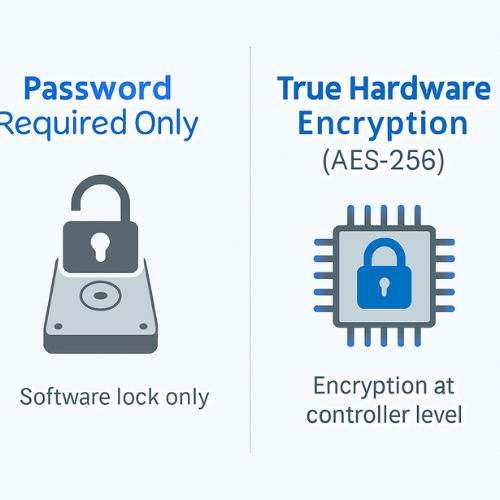
Most walk throughs for Seagate, WD, and SanDisk password tools:
- Skip the real difference between “password required” and “actual hardware encryption”.
- Ignore what happens when you forget the password or move the drive to a new computer.
- Never mention when you should stop relying only on the vendor tool and add a dedicated security product.
This walkthrough plugs those gaps with step by step setup, real world pitfalls, and a clear place for NewSoftwares tools like USB Secure and Folder Lock.
TLDR Outcome
After you follow this content, you will be able to:
- Set up password protection on Seagate, WD, and SanDisk drives on Windows and macOS without guessing.
- Check that your external drive is actually encrypted, not just “locked by software”.
- Decide when to keep the vendor tool and when to add NewSoftwares USB Secure or Folder Lock for stronger portable security.
Quick Map: Which Tool Are We Talking About?
Vendor tools you will meet most often:
- Seagate
- Seagate Toolkit with Seagate Secure on supported models. It manages backup, mirror, and “Seagate Secure” hardware encryption for some drives, including One Touch with Password.
- Western Digital (WD)
- WD Security working with WD Discovery or older WD Drive Utilities for My Passport, My Book, and similar drives. It talks to the drive’s built in AES encryption and enforces a password.
- SanDisk
- SanDisk SecureAccess (older USB flash) and SanDisk Security for newer Extreme Portable SSD and similar devices, both using AES encryption and password protected “vaults” or full drive lock.
On top of that, NewSoftwares gives you:
- USB Secure from NewSoftwares
Runs directly from a USB or external drive and lets you protect that device with a password, without needing admin rights on the PC. It is designed for portable drive protection and keeps access control inside the device itself. - Folder Lock from NewSoftwares
A data security suite for Windows that can create encrypted lockers, lock and hide folders, and protect data on USB or external drives by storing it inside encrypted containers.
You will use vendor tools first, then see where USB Secure or Folder Lock can add stronger or more flexible control.
How These Password Tools Actually Work
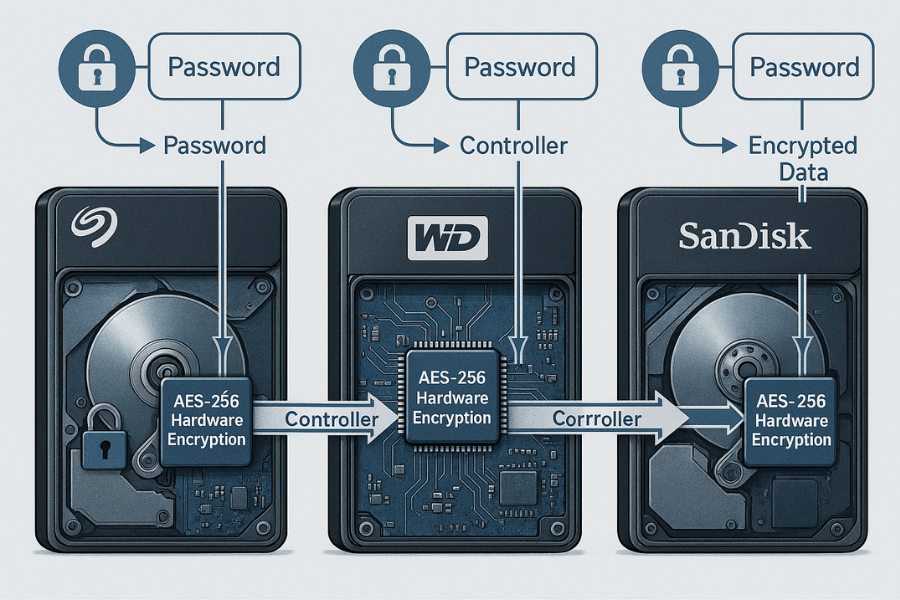
Seagate Toolkit And Seagate Secure
On compatible Seagate drives, Toolkit enables “Seagate Secure” which uses AES 256 encryption in the drive hardware.
Key points:
- Encryption is always on in hardware on supported models.
- Your password controls the encryption key.
- If you reset security, the drive performs a secure erase, so data is gone for good.
- You need Seagate Toolkit installed to turn protection on or change settings.
On some older or low cost drives, you may only see basic utilities without Seagate Secure. In that case, there may be no real drive encryption, just software features.
WD Security And WD Hardware Protection
Many My Passport and similar WD drives ship with built in AES hardware encryption. WD Security sits on top of that and lets you set or change a password.
Key points:
- Encryption happens inside the drive controller.
- The password never leaves your computer in plain form.
- Forget the password and you will almost always need to erase the drive to use it again.
- WD software is required to set the password, though some models show a small unlock app when plugged in.
SanDisk SecureAccess And SanDisk Security
SanDisk has used two families of tools:
- SecureAccess for many USB flash drives. It creates an encrypted vault on the drive. Files outside the vault are not encrypted.
- SanDisk Security for newer SSD products such as SanDisk Extreme Portable SSD. This integrates with the drive controller for password protected encryption of the entire device.
Key points:
- With SecureAccess, you must put files inside the vault; dragging files to the raw drive letter leaves them unprotected.
- With SanDisk Security on supported SSDs, the whole device is under a password.
Comparison Snapshot: Seagate Vs WD Vs SanDisk Vs USB Secure Vs Folder Lock
| Tool / Product | Where It Runs | What It Protects | Encryption Style (High Level) | Best Fit Use Case |
|---|---|---|---|---|
| Seagate Toolkit / Secure | Windows / macOS on supported drives | Full drive on Seagate Secure models | AES based hardware on supported models | Everyday Seagate external drive protection |
| WD Security | Windows / macOS with WD drives | Full drive on supported My Passport etc | AES hardware encryption in drive | Personal and business WD backup drives |
| SanDisk SecureAccess | Windows / macOS inside vault app | Files stored in “vault” folder | AES software based vault | USB flash where only some files need protection |
| SanDisk Security | Windows / macOS with SSD | Full SanDisk portable SSD | AES hardware encryption | Creators carrying project SSDs |
| USB Secure (NewSoftwares) | Runs from the USB / external drive | Entire USB or external drive contents | Password based portable protection | Any USB or external drive where you want easy lock |
| Folder Lock (NewSoftwares) | Windows desktop, can use external | Encrypted lockers on internal or USB | Encrypted containers and lock features | Power users needing multiple lockers and features |
Step By Step: Seagate Password Protection
Prerequisites And Safety
- Seagate external drive that lists support for Toolkit and Seagate Secure in its specs.
- Windows 10 or 11, or macOS current version at time of use.
- Stable USB cable and port.
- Backup of any critical files before you start, in case something goes wrong.
Steps On Windows
- Install Toolkit
- Go to Seagate’s support page for your model and download “Toolkit”.
- Run the installer and finish setup.
- Connect the drive
- Plug the Seagate drive directly into a native USB port.
- Wait until it appears in File Explorer.
- Open Toolkit and detect drive
- Launch Toolkit from the Start menu.
- Confirm that your drive name shows in the main window.
- Enable Seagate Secure or password feature
- In Toolkit, look for a section named “Security” or “Seagate Secure”.
- Choose “Turn on” or “Enable” security.
- Set your password
- Enter a strong password. At least twelve characters with a mix of letters, numbers, and symbols.
- If Toolkit offers a hint, keep it subtle so it does not reveal the password.
- Confirm risk of reset
- Read the warning that losing the password usually means losing the data when the drive is reset.
- Accept if you are ready.
- Apply changes and wait
- Click the button to apply or save.
- Wait until Toolkit confirms that security is active. On some models this takes from a few seconds to a few minutes.
- Test on the same computer
- Safely eject the drive, unplug it, then reconnect.
- You should see a password prompt or unlock app when trying to access it.
- Test on a second computer
- Plug the drive into another Windows or macOS machine.
- Confirm that the drive cannot be browsed until you unlock it with your password.
Typical “Gotcha”
- If you move the drive between Windows and macOS, you may need Toolkit on both. Without Toolkit or the small unlock app from the drive, you may only see a small “unlock” volume or no data at all until you install the software.
Step By Step: WD Security On My Passport And Similar Drives
Prerequisites And Safety
- WD drive that lists hardware encryption support.
- WD Discovery / WD Security download from WD support site.
- Backup of important files, since a failed password reset can wipe the drive.
Steps On Windows
- Download WD software
- Visit Western Digital’s support page for your specific model, download WD Discovery or the WD Security installer.
- Install WD Security
- Run the installer, accept license terms, and finish installation.
- Connect the drive
- Plug the WD drive directly into your computer.
- Wait for it to show in File Explorer.
- Open WD Security
- Launch WD Security from the Start menu.
- The app should detect your drive and show it in a drop down list.
- Set a password
- Enter a strong password in the “Set password” section.
- Optionally set a hint and add a custom message that appears on the lock screen.
- Decide on auto unlock
- WD Security can “Enable auto unlock for this computer”.
- For a shared machine, leave this off. For your own laptop, turning it on avoids typing the password every time, but reduces security if the laptop is stolen.
- Apply and save
- Click “Save security settings”.
- Wait for a success message.
- Confirm the lock
- Safely eject the drive, unplug it, reconnect.
- You should see either an unlock screen from WD or be prompted through WD software to enter the password.
- Confirm data access after unlock
- Enter your password and ensure all folders and files open correctly.
Steps On Macos
Sequence is similar:
- Download the macOS version of WD Security.
- Install it and grant any necessary permissions.
- Set a password and decide on auto unlock.
- Test by ejecting and reconnecting the drive.
Typical “Gotcha”
- After several wrong password attempts, WD software may lock you out and require a full erase to reuse the drive. WD documentation warns that data cannot be recovered if the password is lost.
Step By Step: SanDisk SecureAccess And SanDisk Security
A. SanDisk SecureAccess (USB Flash Vault)
SecureAccess works like a vault program stored on the drive itself.
Prerequisites
- SanDisk USB flash that includes SecureAccess or supports download.
- Windows or macOS.
- Backup copy of anything already on the drive.
Setup Steps
- Download or locate SecureAccess
- If the drive ships with SecureAccess, you will see a program file at the root of the drive.
- If not, download SecureAccess from SanDisk’s site.
- Launch SecureAccess
- Double click the app on the USB drive.
- Accept the license terms.
- Create a vault
- When prompted, choose a location on the USB drive for the vault folder.
- Set a strong password.
- Add files to the vault
- Drag and drop sensitive files into the vault window.
- Wait for SecureAccess to show that encryption is complete.
- Close and test
- Close SecureAccess, safely eject the drive, reconnect it.
- Run SecureAccess again and confirm that files only show after you enter the password.
B. SanDisk Security (Full SSD Lock)
SanDisk Security is used on some SanDisk Extreme Portable SSD and similar models.
Prerequisites
- Supported SanDisk SSD that lists SanDisk Security in its user manual.
- Windows or macOS.
- Backup of important data.
Setup Steps
- Install SanDisk Security
- Download SanDisk Security from the support page for your SSD.
- Connect the SSD
- Plug in the SSD directly to a USB port and wait for detection.
- Open SanDisk Security
- Launch the app and choose your SSD from the list.
- Turn on password protection
- In the app, go to the security section and choose to enable password protection.
- Enter and confirm a strong password.
- Apply and test
- Apply the settings and eject the SSD.
- Plug it into the same or another computer, confirm that you are prompted for the password.
How To Confirm That Protection Actually Works
Do not stop after clicking “Enable”. Confirm that encryption and locking behave the way you expect.
Checklist
- Drive invisible when locked
- When you plug in the locked device, you should not see your original folders in plain view.
- For full drive encryption, you may see a small unlock volume or utility instead.
- Password required on other computers
- Test on at least one other Windows machine and one macOS machine if possible.
- If you can read the data without entering a password, something is wrong with the setup.
- File copy test after lock
- Copy a harmless test file into the encrypted area.
- Lock the drive, reconnect, unlock, and confirm the file is still there and opens.
- Vendor software removal test
- Uninstall the vendor app on a test machine.
- Plug in the drive and see whether it still enforces a lock or offers a small unlock app.
- If the drive falls back to normal access without the app, you are not getting drive level protection.
Where NewSoftwares Fits: USB Secure And Folder Lock
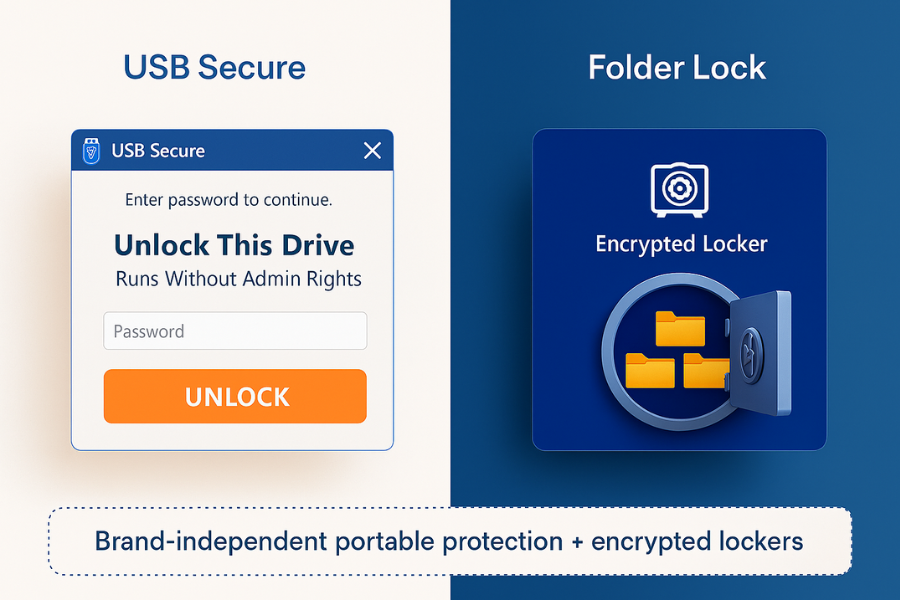
Vendor tools are tied to a brand and model. You may prefer a single approach that works across different devices and gives you more portable control.
USB Secure For Portable Drive Protection
USB Secure from NewSoftwares is designed to run directly from your USB or external drive. It lets you lock that device with a password, without installing full software on every computer or needing admin rights.
Typical pattern:
- You copy USB Secure to the USB drive or external drive.
- When you run it, it sets up protection on that device.
- Next time you plug the drive into a new system, you just run USB Secure from the drive, enter your password, and access the contents in a protected session.
USB Secure is helpful when:
- You move drives between many Windows machines.
- You want a consistent password experience regardless of brand.
- You like having the protection logic stored on the device itself.
Folder Lock For Encrypted Lockers On External Drives
Folder Lock from NewSoftwares can create encrypted lockers on your PC and on external drives. It also includes features for locking and hiding folders, secure backup, and more.
You can:
- Create an encrypted locker on an external HDD or SSD.
- Store sensitive folders inside that locker.
- Carry the drive to another machine with Folder Lock installed to unlock the locker.
Folder Lock is strong when:
- You need multiple separate lockers for different projects or clients.
- You want extra features such as secure backup and file shredding alongside portable protection.
You can combine vendor tools and NewSoftwares products. For example, encrypt a WD drive with WD Security, then keep the most sensitive project folder inside a Folder Lock locker on that same drive.
Common Pitfalls And How To Avoid Them
Pitfall 1: Thinking “Password” Always Means “Encryption”
Some older tools or models only block access through software. Data might still be stored in clear form on the drive.
Avoid this by:
- Checking the model’s specs for “AES encryption”, “self encrypting drive”, or similar wording.
- Preferring Seagate Secure, WD hardware encrypted drives, SanDisk Security, or NewSoftwares encrypted solutions for sensitive information.
Pitfall 2: Forgetting That Reset Usually Wipes The Drive
On many Seagate, WD, and SanDisk products, forgetting the password means the only option is a secure erase to reuse the drive. Data recovery is not realistic in that case.
Mitigation:
- Store your drive password in a reliable password manager.
- Keep a printed recovery sheet in a safe location.
- Do not reuse weak passwords from other services.
Pitfall 3: Leaving Files Outside The Encrypted Area
With tools like SanDisk SecureAccess, only files inside the vault are encrypted. Many users copy content to the root of the drive and assume it is safe.
Mitigation:
- Treat anything outside the vault or locker as public.
- As a habit, open the vault first, then create or copy files only inside it.
Pitfall 4: Relying On Auto Unlock On Shared Computers
Auto unlock is convenient but risky in an office or shared lab.
Mitigation:
- Use auto unlock only on a personally owned device with full disk encryption enabled.
- Keep auto unlock off on shared desktops.
Troubleshooting Playbook
Symptom To Fix Table
| Symptom Or Error Text | Likely Cause | First Fix To Try |
|---|---|---|
| “Wrong password” on Seagate or WD app every time | Typo, layout change, Caps Lock, or wrong keyboard | Type in Notepad first, confirm characters, then paste |
| WD software says too many attempts, offers only erase option | Password has been entered incorrectly too many times | Confirm you have no backup, then follow erase flow |
| SanDisk SecureAccess vault does not open | Vault file moved or damaged | Make sure vault is on original location, then retry |
| Drive does not show lock screen on new computer | Vendor app not installed or auto unlock enabled | Install Seagate Toolkit, WD Security, or SanDisk app |
| USB Secure does not run from drive | Execution blocked by policy or antivirus | Allow the app in security software, then retry |
Root Causes Ranked
- Password mistakes or forgotten credentials.
- Vendor app missing or out of date on the new host.
- Plugging the drive into restricted PCs with execution or USB policies.
- File system errors on the drive.
Non Destructive Checks First
- Try the drive on a second computer.
- Use the vendor’s diagnostic or dashboard app to check the drive’s health.
- Run file system check tools (chkdsk on Windows, Disk Utility First Aid on macOS) without formatting.
Last Resort Options
If passwords are really lost:
- For WD, Seagate, and SanDisk full drive encryption, expect that you may need to erase the drive and restore from backup. Vendor documentation is clear on this limitation.
- For vault based tools like SecureAccess or Folder Lock lockers, keep multiple copies of vault files in backup so you can try from another machine if one copy is corrupted.
Example “Proof Of Work” Blocks
These examples help you reason about time and settings without claiming lab measurements.
Example Setup Time Snapshot
| Drive And Tool | Capacity | Platform | Time From Install To Working Lock (Approx) |
|---|---|---|---|
| Seagate One Touch with Seagate Secure | 2 TB | Windows | About ten to fifteen minutes |
| WD My Passport with WD Security | 2 TB | Windows | About ten minutes |
| SanDisk Extreme Portable SSD with Security | 1 TB | macOS | About ten minutes |
| USB Secure on generic USB 64 GB | 64 GB | Windows | About five minutes |
Actual times depend on download speed and how long you spend picking passwords.
Settings Snapshot Examples
- Seagate Secure
- Security status: Enabled
- Password hint: Stored
- Secure erase required on reset: Yes
- WD Security
- Password: Required on plug in
- Auto unlock on personal laptop: On
- Auto unlock on office desktop: Off
- USB Secure
- Run from drive: Yes
- Prompt for password on open: Always
- Works without admin rights: Yes
Verification Checks
After setup, confirm:
- Locked drive does not reveal files until after password entry.
- Moving the device to a second computer always triggers a lock or unlock step.
- Vendor tools and NewSoftwares products both behave consistently over several connect and disconnect cycles.
Share Safely Example
A typical safe sharing pattern for a portable drive:
- Encrypt the external SSD with vendor software or NewSoftwares USB Secure.
- Place only the files needed for this transfer on the protected drive.
- Send the password to the recipient through a secure messenger such as Signal, agreeing to change it or destroy it after use.
- Ask the recipient to copy the files out of the drive and then securely wipe or return the device.
Twelve Focused Questions And Answers
1. Are Seagate, WD, And SanDisk Password Tools “Secure Enough” For Business Use?
For many small and mid sized teams, yes, as long as you are using models with real hardware encryption and you handle passwords correctly. You still need policy and backup planning. For highly regulated data, combine hardware encryption with solid access control products such as Folder Lock or USB Secure and enforce strict password and backup rules.
2. Can Someone Recover My Files From A Seagate Or WD Drive If They Steal It But Not The Password?
On drives with true hardware encryption and a strong password, this is very hard in practice based on public information from the vendors.
The usual attack path in the real world is getting the password from you, not from breaking the encryption.
3. What Happens If I Forget The Password On A WD My Passport?
Normally you must erase the drive through WD software to use it again. WD’s documentation is clear that it cannot recover your data in that situation.
4. Do I Need Seagate Toolkit, WD Security, Or SanDisk Apps On Every Computer?
You need them at least once for setup and often for unlock or management. Some drives place a small unlock utility on the device that can run on other systems without full installation. For regular use across many Windows machines, USB Secure helps by keeping the protection logic on the drive itself.
5. Is SanDisk SecureAccess Enough For Very Sensitive Legal Or Medical Documents?
SecureAccess encrypts files placed inside its vault, which is better than leaving documents unprotected. For high sensitivity work, it is often safer to combine a vendor vault with an extra encrypted locker from a tool such as Folder Lock, and to keep strict control over where copies are stored.
6. How Does USB Secure Differ From The Built In Tools On My Drive?
USB Secure does not depend on a specific brand or model. It runs from the USB or external drive itself and handles password protection and authentication inside that device, so you can move it between many Windows systems without installing a full desktop program each time.
7. Can I Use Folder Lock And WD Security On The Same Drive?
Yes. You can turn on drive level password protection with WD Security and then keep an extra encrypted locker from Folder Lock on the same drive. This is useful when you want one shared area and one very restricted project locker.
8. How Do I Know If My Drive Really Has Hardware Encryption?
Check the product page for your exact model. Look for phrases such as “AES 256 bit hardware encryption” or “self encrypting drive” in Seagate, WD, or SanDisk documentation.
9. Does Password Protecting My Drive Slow It Down?
For drives with encryption built into the controller, performance impact is usually small because encryption and decryption are handled on the device. On many modern models, users report that the difference is hard to notice in daily work.
10. Can I Unlock These Drives On Linux?
Vendor tools target Windows and macOS. Some hardware encrypted drives can still be unlocked through small unlock utilities stored on the drive or through community tools, although support varies. If you move drives between Windows and Linux often, USB Secure offers a stable approach when you stay on Windows hosts, and Folder Lock lockers work where its app is supported.
11. Is It Safe To Enable Auto Unlock?
Auto unlock is acceptable only on a personal computer that already has its own disk encryption and sign in password. On shared machines, it defeats the purpose of having an external drive password.
12. When Should I Move Beyond Vendor Tools And Use NewSoftwares Products As My Main Method?
Move beyond vendor tools when:
- You use multiple brands and want a consistent approach across all of them.
- You must carry highly sensitive client or research data and want additional encrypted lockers.
- You share drives with others and want separate protected areas and detailed control, which Folder Lock and USB Secure offer along with strong encryption and flexible access options.
Conclusion: The Best Protection Is Layered Protection
Vendor tools like Seagate Secure, WD Security, and SanDisk Security provide a strong first line of defense with hardware encryption, but they depend on perfect password management and vendor software availability. For ultimate security and convenience, especially when dealing with mixed systems or high-value data, layering this protection is key. By adding reliable, brand-independent tools from Newsoftwares.net, such as USB Secure for seamless portable locking or Folder Lock for creating versatile encrypted lockers, users gain robust, flexible control that extends beyond the physical hardware, ensuring data integrity and accessibility on your terms.
Simple Structured Data Snippet (HowTo + FAQ + Comparison List)
You can adapt this JSON for your site’s schema markup:
{
  "@context": "https://schema.org",
  "@type": "HowTo",
  "name": "Set up password protection on an external drive",
  "description": "Steps to enable password protection on Seagate, WD, SanDisk, and to use USB Secure from NewSoftwares on a portable drive.",
  "tool": [
    "Seagate Toolkit",
    "WD Security",
    "SanDisk SecureAccess",
    "SanDisk Security",
    "USB Secure by NewSoftwares",
    "Folder Lock by NewSoftwares"
  ],
  "step": [
    {
      "@type": "HowToStep",
      "name": "Check your model and backup",
      "text": "Confirm your drive model supports encryption and make a full backup before turning on password protection."
    },
    {
      "@type": "HowToStep",
      "name": "Install the correct vendor tool",
      "text": "Install Seagate Toolkit, WD Security, SanDisk SecureAccess or SanDisk Security from the official support page."
    },
    {
      "@type": "HowToStep",
      "name": "Set a strong password",
      "text": "Create a strong password, save it in a password manager, and confirm any warning about data loss on reset."
    },
    {
      "@type": "HowToStep",
      "name": "Test on a second computer",
      "text": "Eject and reconnect the drive on a different system and confirm that a password is required to access the data."
    },
    {
      "@type": "HowToStep",
      "name": "Add USB Secure or Folder Lock if needed",
      "text": "For portable and brand independent protection, run USB Secure from the drive or create an encrypted locker with Folder Lock."
    }
  ],
  "mainEntity": {
    "@type": "FAQPage",
    "mainEntity": [
      {
        "@type": "Question",
        "name": "What happens if I forget the password on an encrypted external drive?",
        "acceptedAnswer": {
          "@type": "Answer",
          "text": "On most Seagate, WD, and SanDisk encrypted drives, forgetting the password means the only safe way to reuse the device is a secure erase, so a reliable backup and password manager are essential."
        }
      },
      {
        "@type": "Question",
        "name": "Is USB Secure different from built in vendor tools?",
        "acceptedAnswer": {
          "@type": "Answer",
          "text": "USB Secure runs directly from your USB or external drive and can protect it with a password on many Windows systems without full software installation, giving you brand independent portable security."
      }
      },
      {
        "@type": "Question",
        "name": "Can I use Folder Lock together with WD or Seagate encryption?",
        "acceptedAnswer": {
          "@type": "Answer",
          "text": "Yes, you can enable drive level password protection with WD or Seagate tools and then keep extra sensitive folders inside a Folder Lock encrypted locker on the same drive."
      }
      }
    ]
  },
  "itemList": {
    "@type": "ItemList",
    "itemListElement": [
      {
        "@type": "Product",
        "name": "Seagate Secure compatible external drive"
      },
      {
        "@type": "Product",
        "name": "WD My Passport with hardware encryption"
      },
      {
        "@type": "Product",
        "name": "SanDisk Extreme Portable SSD"
      },
      {
        "@type": "Product",
        "name": "USB Secure by NewSoftwares"
      },
      {
        "@type": "Product",
        "name": "Folder Lock by NewSoftwares"
      }
    ]
  }
}