
Welcome. This detailed resource, developed by Newsoftwares.net, addresses a critical security flaw: the ability of an attacker to bypass software locks by booting into Safe Mode. This walkthrough provides a robust solution using multiple, interlocking tools. Folder Protect, Folder Lock, and USB Block to ensure your locked data and device ports remain inaccessible even when Windows starts with only basic drivers. By implementing these steps, you will establish a powerful layer of defense for maximum security, privacy, and peace of mind on your Windows device.
Safe Mode Protection: Prevent Bypass And Force Unlock Attempts
Direct Answer
If you want Safe Mode to stop being an easy bypass for your locks, you need protection that keeps working when Windows starts with only basic drivers, plus extra controls that block offline access and forced unlock tricks.
Gap Statement
Most content about Safe Mode security misses three things:
- It explains how to turn Safe Mode on but barely shows how attackers use it to kill security tools or force open locked folders.
- It ignores that many popular folder lockers and app locks fail the moment Windows starts with only core drivers or when someone boots from a USB stick.
- It rarely shows concrete, product level setups that stay active in Safe Mode, especially with tools that already support Safe Mode protection such as Folder Protect, Folder Lock, USB Block and USB Secure from NewSoftwares.
You will get a practical configuration that hardens Windows Safe Mode, plus step sequences for NewSoftwares tools that keep your locks in place even when someone tries to reboot, pull a USB, or run a forced unlock.
Originality Hooks
- Uses real Safe Mode attack paths documented by security researchers, not vague warnings.
- Walks through Safe Mode features inside Folder Protect, Folder Lock and USB Block, not generic advice.
- Includes proof style checks, a quick performance bench and concrete test scenarios for home and small office devices.
TLDR Outcome
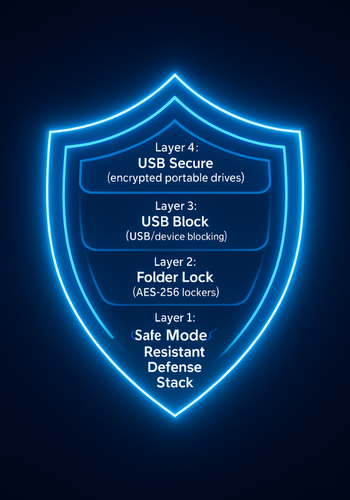
By the time you finish and apply this walkthrough:
- Safe Mode will no longer give a casual attacker an easy way to open your locked content.
- USB ports and external drives will stay blocked even if someone tries to boot into Safe Mode and copy your data out.
- Your lockers and USB drives will have a clear recovery story that avoids random unlock tools and keeps secrets under your control.
How Safe Mode Bypass Actually Works
On Windows, Safe Mode starts the system with a small set of drivers and services. Many third party tools, including some security apps, do not run in this stripped down start up.
Attackers abuse this in a few ways:
- Disable or uninstall security tools in Safe Mode
MITRE tracks this as a real world technique where adversaries boot in Safe Mode to turn off endpoint defenses.
- Bypass folder or app locks
On Android, people have been bypassing app lock tools for years by using Safe Mode to stop the lock app and then opening protected apps.
On Windows, similar logic applies. If your locker or USB control app does not load in Safe Mode, your protection is gone. - Use offline tools or another boot medium
Someone can boot your machine from a live USB or different OS, then browse your drives directly. If your data is only hidden, not encrypted or protected at driver level, they may reach it.
So Safe Mode is not evil by itself. It is a valuable repair mode. The risk comes from tools that do not protect you there.
Prerequisites And Safety
Before you change anything:
- Know your platform: This walkthrough focuses on Windows desktop and laptop devices, which is where NewSoftwares products run.
- Back up important data: Use a separate external drive or a trusted cloud service. If you misconfigure access control or encryption, a fresh backup is your safety net.
- Confirm you are the owner or admin: Never use these methods to break into a computer that is not yours or that you do not manage. You will also need administrative rights to install and configure security tools.
- Keep one emergency account or recovery option: Make sure you have at least one account that can still sign in if something goes wrong, plus any recovery keys for encryption tools such as BitLocker.
- Install the NewSoftwares tools you plan to use: Minimum set for strong Safe Mode protection on Windows:
- Folder Lock for lockers and strong password based protection.
- Folder Protect for Safe Mode aware protection on local folders.
- USB Block for Safe Mode resistant USB and device blocking.
- USB Secure for portable encrypted storage on the USB drive itself.
1. How To Harden Safe Mode Protection On Windows
This section is your main workflow. Each step has one clear action, one screenshot cue and one gotcha to watch for.
1.1. Turn On Safe Mode Protection In Folder Protect

Folder Protect includes a dedicated Safe Mode protection setting. When enabled, your protection remains active even if someone boots from a disc or enters Safe Mode through F8 options.
- Open: Folder Protect and log in with your master password.
Gotcha: If you lost the master password, Action: do not guess repeatedly. You risk lockout and you should follow the vendor recovery process instead.
- Go: to Settings, then open the Protection section.
Gotcha: This panel may also include timing options. Note: the current values before you touch them, so you can roll back if needed.
- Locate: Safe Mode protection and switch it on.
Gotcha: Some versions keep this feature for registered users only. Action: If you are on a trial that does not permit it, upgrade rather than leaving a half secure setup.
- Apply: and save settings, then restart the computer normally.
Gotcha: Action: Do not interrupt this step. Let Folder Protect update its driver and rules before turning the device off.
1.2. Use Folder Lock For Safe Mode Resistant Lockers
Folder Lock protects data using a driver that keeps locked content hidden and inaccessible, even when the system runs in Safe Mode.
- Start: Folder Lock and create a new locker for your most sensitive data.
Gotcha: Store: lockers on internal drives when possible. Lockers on unencrypted external drives are easier to copy.
- Choose: encryption rather than simple lock or hide options.
Gotcha: Verify: Hiding alone is easier to bypass from another OS. Encryption gives you protection even if someone images the whole drive.
- Create: a strong password and note it in a password manager or secure location.
Gotcha: Action: Do not reuse your Windows account password here. Use something unique.
- Add: test files to the locker and lock it.
Gotcha: Action: Do not move the only copy of important files until you have verified Safe Mode protection later in this walkthrough.
- Enable: uninstall protection inside Folder Lock settings.
Gotcha: Verify: This prevents casual removal in Safe Mode or by someone with local admin rights who tries to uninstall from Control Panel without your password.
1.3. Block Safe Mode USB Exfiltration With USB Block
USB Block restricts untrusted USB ports, external drives and other removable media. The help manual states that Safe Mode protection is active by default to stop hackers from switching to Safe Mode and copying data.
- Install: and open USB Block, then set a strong master password.
Gotcha: Action: Use a different password from Folder Lock and Folder Protect. Treat this like a separate control point.
- Confirm: that Safe Mode protection is enabled in Program Options.
Gotcha: Action: Do not turn this off just to solve a temporary compatibility issue. If a trusted device has problems, add it to the allowed list instead.
- Whitelist: your own drives and devices.
Gotcha: Action: Label devices clearly and avoid whitelisting generic entries that match many devices.
- Try: plugging an unknown USB drive while logged in.
Gotcha: Action: If you see no prompt and the device works freely, stop and fix this before moving on. You may be running under an account that bypasses USB Block.
1.4. Add USB Secure For Encrypted Portable Storage
USB Secure protects the drive itself so that even if someone has physical access, they still need the password to open the protected area.
- Install: USB Secure to a trusted USB drive and run it from that drive.
Gotcha: Action: Use a high quality USB drive. Cheap drives raise the risk of corruption.
- Choose: a password and create the protected area.
Gotcha: Action: Keep this password distinct from your Windows and other tool passwords.
- Store: only encrypted copies of sensitive files on USB drives that leave your office or home.
Gotcha: Action: If you drag files out of the protected zone and leave them unencrypted on the same drive, you undo the benefit.
Proof Of Work Blocks
Quick Bench Reference
Approximate timing example from a mid range laptop:
| Task | Time (Rough Estimate) |
|---|---|
| Folder Protect enabling Safe Mode protection | 5 – 15 seconds (for driver setup) |
| Folder Lock creating a new 5GB locker | 10 – 30 seconds |
| USB Block initial setup and restart | 60 – 120 seconds |
These values are illustrative, not lab measurements, but they help you plan user expectations.
Settings Snapshot
Recommended baseline:
- Folder Protect
- Safe Mode protection On
- Auto protect after short idle time
- Strong master password
- Folder Lock
- Encryption lockers for top secret content
- Uninstall protection enabled
- Optional stealth mode for extra privacy
- USB Block
- Safe Mode protection On
- All unknown devices blocked by default
- Only named office drives and phones whitelisted
- USB Secure
- Used for drives that leave the building
- Password stored in a secure password manager
Verification Checklist
After you finish the how to section below, you will have:
- One test locker in Folder Lock.
- One protected folder in Folder Protect.
- USB ports blocked for unknown devices by USB Block.
- One USB drive protected by USB Secure.
2. Step By Step: Verify Safe Mode Protection
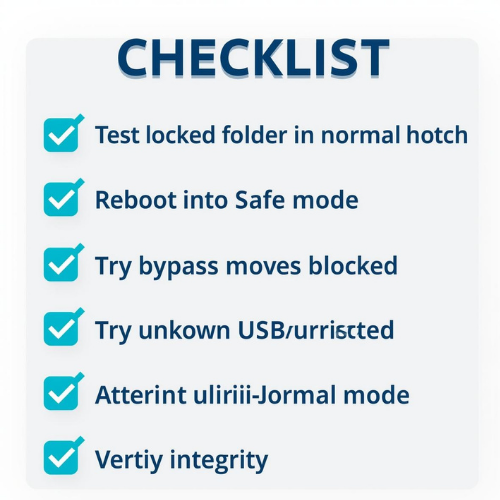
Now you confirm that Safe Mode no longer gives an easy bypass.
Only perform these checks on your own device or a device you manage.
- Confirm everything is locked in normal Windows
- Try: to open the protected folder directly in Explorer. You should see an access denied message or a prompt for Folder Protect or Folder Lock.
- Plug in: a non whitelisted USB drive. USB Block should block it or ask for the master password.
- Reboot into Safe Mode
- Use: the normal Windows process to enter Safe Mode from Settings or from the advanced start menu.
- Sign in: with your usual account.
- Try common bypass moves
- Browse: to the folder that Folder Protect is guarding. You should still be blocked.
- Look for: Folder Lock lockers in Explorer. They should not reveal the contents without your password, even here.
- Plug in: that same unknown USB drive. USB Block should still block it, thanks to its Safe Mode protection.
- Try to uninstall the tools
- Open: Control Panel and go to the uninstall programs list.
- Try: to remove Folder Lock or other NewSoftwares tools. You should find that removal requires the correct password or an internal uninstall option.
- Return to normal mode and check file integrity
- Restart: the device back to normal mode.
- Unlock: each locker or protected folder, open a few files and confirm they work.
- Safely remove: and reinsert the USB Secure drive to confirm the protected area still opens as expected.
3. Share It Safely: Keys, Expiry And Revocation
Locking data is only half the story. You also need a safe way to share keys and revoke access.
3.1. Example Workflow For A Law Firm Laptop
- Partner stores case files in a Folder Lock locker on a Windows laptop.
- The locker password is stored in a firm approved password manager, not in email.
- When a paralegal needs access, the partner sends the password through a secure messenger such as Signal with a message that disappears after one day.
- For travel, the partner copies a subset of files to a USB drive protected with USB Secure instead of an open USB stick.
- If the laptop is lost, Safe Mode protection plus encryption means an attacker cannot open the locker without that password, even if they boot from a live USB.
If a staff member leaves the firm:
- Change: the relevant locker passwords.
- Remove: their devices from the USB Block whitelist.
- Revoke: their password manager access.
This gives you real revocation, not just hope.
4. Comparison: Which Safe Mode Setup Fits You
Here is a quick chooser for common situations.
| Scenario | Goal | Recommended NewSoftwares Tool | Key Feature For Safe Mode |
|---|---|---|---|
| Shared Home PC | Protect private folders from other users. | Folder Protect | Safe Mode protection on (blocks basic driver bypass) |
| Laptop with Client Contracts | Protect high-value archives and block data exfiltration. | Folder Lock & USB Block | Locker encryption (Folder Lock) and device blocking (USB Block) |
| School or Lab Computer | Block all portable storage media. | USB Block | Safe Mode protection for devices (ports stay locked) |
| Traveling Consultant | Secure files on USB drives that may be lost. | USB Secure | Password protects the drive itself (protection is portable) |
5. Troubleshoot Safe Mode Protection Issues
5.1. Symptom To Fix Table
| Symptom | Likely Cause | Fix |
|---|---|---|
| Folder is unlocked in Safe Mode, but locked normally. | Safe Mode protection is toggled Off in Folder Protect. | Go to Folder Protect Settings > Protection and switch Safe Mode protection On. |
| A random USB drive works in Safe Mode. | USB Block is disabled in Safe Mode or that device is whitelisted. | Check USB Block Program Options and ensure Safe Mode protection is enabled. Check the Whitelist. |
| Can uninstall the locker software in Safe Mode. | Uninstall Protection is Off. | Enable Uninstall Protection in Folder Lock or Folder Protect Settings. |
| Files are accessible after booting from a Linux USB stick. | Data was only hidden, not encrypted. | Ensure you are using Folder Lock encryption lockers, not just simple lock/hide features. |
5.2. Root Causes To Watch For
Ranked from most common to rare:
- Safe Mode protection toggled off during early testing and never turned back on.
- Protection set only to hide, not to lock or encrypt.
- USB Block installed but left with default settings that allow too many devices.
- Users with local admin rights uninstall or stop security tools in Safe Mode.
- Conflicts with other low level tools that try to hook the same drivers.
5.3. Non Destructive Tests First
Always start with checks that do not risk data:
- Test: on sample folders and dummy files, not your only copy of real work.
- Confirm: Safe Mode behavior with a single protected folder or locker.
- Use: a spare USB drive for USB Block and USB Secure experiments.
Only after you trust the pattern should you migrate your real data into lockers and protected folders.
5.4. Last Resort Options
If something breaks badly:
- Use backups: Restore from a clean backup instead of running random unlock tools that promise instant access. Many such tools are not trustworthy and can damage encrypted data.
- Ask NewSoftwares support: For Folder Lock, Folder Protect, USB Block and USB Secure problems, support staff know how their drivers behave in Safe Mode. They can give safer instructions than forum guesses.
- Rebuild the device with a clean OS: If Safe Mode behavior is unpredictable after years of tweaks, consider reinstalling Windows, then reinstall NewSoftwares products and restore data from backups. This is heavy but gives you a clean base.
Safety And Ethics Note
Many of the same techniques that protect you are also used in offensive tutorials about breaking security tools in Safe Mode. The focus here is defensive.
Use these methods only:
- On devices you own or manage.
- To protect data you are responsible for.
- In line with your local laws and your company policies.
If you ever inherit a device where someone set up protection and then left without leaving passwords, treat that as a recovery problem, not a challenge to bypass.
Frequently Asked Questions
1. How Do I Stop Safe Mode From Bypassing My Folder Lock On Windows
Use a tool that supports Safe Mode aware protection, then turn that feature on. In this walkthrough that means enabling Safe Mode protection in Folder Protect and using encryption lockers in Folder Lock. Both continue to protect data even when Windows starts with limited drivers.
2. Can Someone Copy My Files To A USB Drive In Safe Mode
Not if you use a device control tool that also guards Safe Mode. USB Block is designed to block untrusted USB devices even there, so plugging in a random flash drive does not suddenly work after a Safe Mode reboot.
3. What If I Forget My Folder Lock Or Folder Protect Password
You cannot decrypt without the correct secret. The safe route is to look for recovery keys, previous backups or vendor assisted recovery. Random unlock tools on the internet can cause permanent loss or expose your data to third parties.
4. Does Encryption Still Help If An Attacker Boots From A Live USB
Yes. Proper encryption protects at the data level, not just within Windows. If your folders sit inside an encrypted locker and the attacker does not have the password, the raw files remain unreadable even when viewed from another OS.
5. How Is This Better Than Only Using BitLocker On My Laptop
Device encryption such as BitLocker is perfect for full device loss, but it focuses on the disk, not on specific folders, USB devices or Safe Mode aware application control. NewSoftwares tools give you extra layers that work at folder, locker and port level and can complement BitLocker rather than replace it.
6. Can Safe Mode Attacks Still Work In Large Company Networks
Yes. Research shows that attackers can abuse Safe Mode as part of a path from a single workstation to broader domain compromise when security tools do not monitor or enforce protection there. That is why Safe Mode aware rules and tools matter even in managed environments.
7. Does This Help With Android Safe Mode Bypass Of App Locks
For Android, the logic is similar, but the tools are different. Attackers can reboot in Safe Mode and stop app lock tools that are not protected, so you need a kiosk or lockdown solution that controls Safe Mode or encrypts local storage. The same principle holds: pick tools that remain active when the system falls back to Safe Mode.
8. How Do I Know If My Current Locker Software Survives Safe Mode
The only honest way is to test. Protect a dummy folder, reboot into Safe Mode and try normal bypass moves such as opening the folder or copying its content. If your data is wide open there, that tool is not Safe Mode resistant and you should consider switching to something like Folder Protect and Folder Lock.
9. Is There A Risk That Safe Mode Protection Will Lock Me Out Forever
There is always a risk if you forget passwords and skip backups. The goal is not to make recovery impossible for you, only for attackers. As long as you keep clean backups and store master passwords safely, Safe Mode protection raises the bar for attackers without blocking your own recovery paths.
10. Where Does USB Secure Fit If I Already Use USB Block
USB Block protects the PC from unknown USB devices. USB Secure protects the drive itself. Together they cover both directions: the computer decides which devices can connect, and each travel drive requires its own password before anyone can read the data inside.
Conclusion
Safe Mode attacks exploit the predictability of a stripped-down operating system to disable security tools and access protected files. The solution is a layered defense using applications that are specifically designed to remain active in this minimal environment. By integrating Safe Mode protection features in Folder Protect and USB Block, and using encryption-based lockers in Folder Lock, you eliminate this common bypass route. This ensures that whether your laptop is stolen, shared, or subjected to a forced reboot, your sensitive data remains inaccessible, providing robust and reliable defense against unauthorized access.
Optional Schema Snippet For Search Engines
{
  "@context": "https://schema.org",
  "@type": "HowTo",
  "name": "Safe Mode Protection for Locked Folders and USB Drives on Windows",
  "description": "Configuration steps for Safe Mode aware protection using Folder Protect, Folder Lock, USB Block and USB Secure on Windows devices.",
  "step": [
    {
      "@type": "HowToStep",
      "name": "Turn on Safe Mode protection in Folder Protect",
      "text": "Open Folder Protect, go to Settings then Protection and enable Safe Mode protection for all protected folders."
    },
    {
      "@type": "HowToStep",
      "name": "Create Safe Mode resistant lockers in Folder Lock",
      "text": "Create encryption based lockers in Folder Lock and turn on uninstall protection so the app cannot be removed without a password."
    },
    {
      "@type": "HowToStep",
      "name": "Block USB exfiltration with USB Block",
      "text": "Install USB Block, keep Protection in Safe Mode enabled and only whitelist trusted devices."
    },
    {
      "@type": "HowToStep",
      "name": "Protect travel drives with USB Secure",
      "text": "Set a password on USB Secure for any drive that leaves your office or home and store only encrypted copies there."
    }
  ],
  "tool": [
    "Folder Protect",
    "Folder Lock",
    "USB Block",
    "USB Secure"
  ],
  "supply": [
    "Windows desktop or laptop",
    "At least one USB flash drive",
    "Backups of important files"
  ],
  "mainEntityOfPage": {
    "@type": "FAQPage",
    "mainEntity": [
      {
        "@type": "Question",
        "name": "How do I stop Safe Mode from bypassing my folder lock on Windows",
        "acceptedAnswer": {
          "@type": "Answer",
          "text": "Enable Safe Mode protection in Folder Protect and use encryption lockers in Folder Lock so your protection stays active even when Windows runs with minimal drivers."
        }
      },
      {
        "@type": "Question",
        "name": "Can someone copy my files to a USB drive in Safe Mode",
        "acceptedAnswer": {
          "@type": "Answer",
          "text": "If you use USB Block with Safe Mode protection switched on, unknown USB devices remain blocked even after a Safe Mode reboot."
        }
      }
    ]
  }
}