
This resource focuses on establishing critical security defaults that protect your data the instant you step away from your screen or lose network access. Setting safe auto lock timers, controlling offline unlock, and managing cache are vital security measures. We provide actionable, field-tested guidance on these settings, integrating trusted tools from Newsoftwares.net including Folder Lock, USB Secure, and History Clean to deliver robust security, convenience, and privacy across all your devices.
Direct Answer
Safe defaults for auto lock timers, offline unlock, and cache decide whether your data stays safe the moment you look away from the screen or lose network access.
Gap Statement
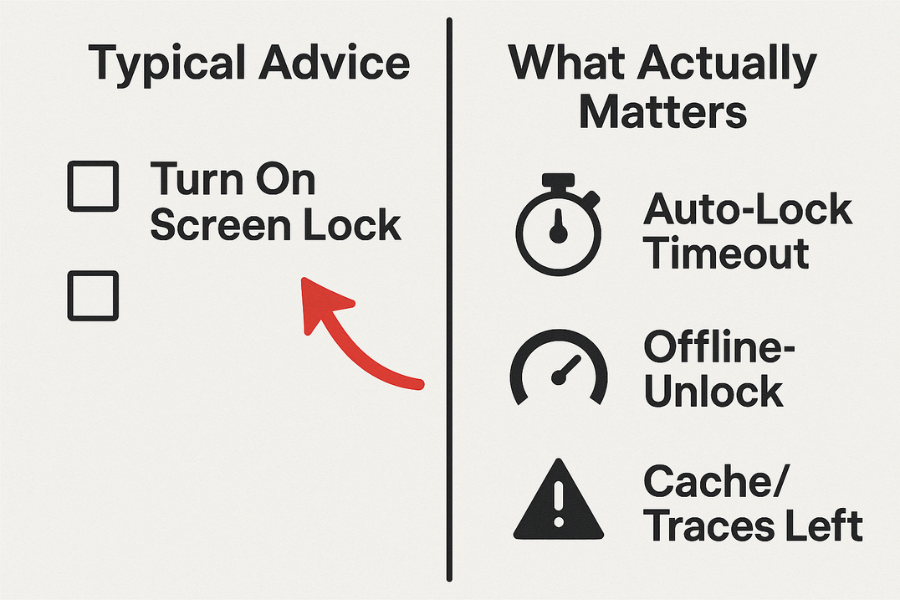
Most write ups on auto lock and vault security stop at “turn on screen lock”.
They rarely explain:
- how long timers should actually be for different environments
- what “offline unlock” really exposes if the device is stolen
- how cache and temporary files quietly undo your encryption work
Here you will get opinionated, field tested defaults and practical steps, with real tools like Folder Lock, USB Secure, Folder Protect and History Clean from NewSoftwares, wired into the workflow instead of mentioned as an afterthought.
TLDR Outcome
If you only skim, copy these defaults and tune as needed:
- Auto lock everything within 1 to 5 minutes of inactivity on laptops, 30 to 60 seconds on phones, less in shared spaces.
- Allow offline unlock only on strongly encrypted vaults with a truly strong password or key, never on unencrypted folders.
- Clear cache and recent traces on close, and schedule deeper wipes with tools like History Clean and Folder Lock’s trace cleaning and shredding.
After this piece, you will know how to set those numbers, how to configure NewSoftwares tools to match them, and how to test that your vault really locks when and where you think it does.
1. Core Idea In One Line

Auto lock timers limit exposure time, offline unlock decides how attractive a stolen device is, and cache policies decide whether your “locked” data still sits in history and temp folders.
Get those three right and you avoid most everyday data leaks from lost laptops, shoulder surfers, and quick desk theft.
2. Key Concepts Without Fluff
2.1 Auto Lock Timer
Auto lock is the delay between your last interaction and the moment the app, vault, or system locks again.
There are three levels that stack:
- Operating system lock
Screen lock on Windows, macOS, Android, iOS. - Vault or locker lock
Folder Lock lockers, USB Secure vault prompts, Folder Protect protection re applied after restart or logout. - Session lock
Web sessions, admin consoles, management panels, remote desktops.
You want all three short enough that a co worker cannot sit down at your machine and see something they should not.
2.2 Offline Unlock
Offline unlock means you can decrypt without any server check.
Examples:
- A Folder Lock locker stored on your laptop or an external drive.
- A USB Secure protected flash drive that prompts for password on any computer without extra install.
This is convenient when traveling or working in places with weak network.
It also means anyone with the device has infinite attempts against your password if no extra controls exist.
So offline unlock demands strong encryption and proper password quality.
2.3 Cache And Traces
Even if the vault is secure, traces remain:
- recent file lists
- temporary copies
- thumbnail databases
- browser history and downloads
- “quick access” lists in file explorers
Tools like History Clean focus exactly on these traces, wiping cookies, cache, history, run lists and more.
Folder Lock also includes privacy cleaning and file shredding, so you can wipe what you decrypted or edited earlier.
Your safe defaults must include how often you clear this layer.
3. Safe Defaults By Scenario
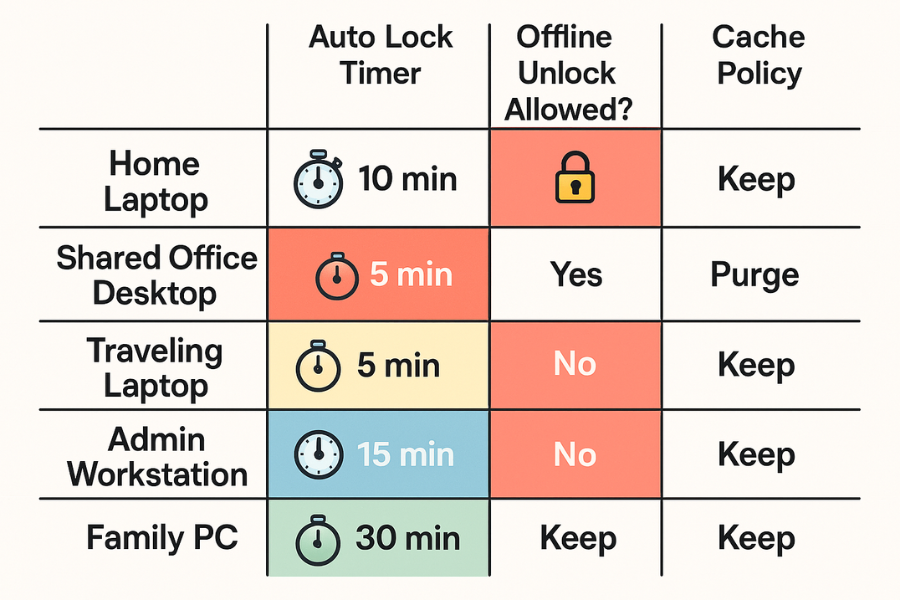
3.1 Quick Chooser Table
| Scenario | Auto Lock Timer | Offline Unlock Allowed | Cache Policy |
|---|---|---|---|
| Personal laptop at home | 5 minutes screen, 3 minutes vault | Yes for encrypted lockers | Clear traces on close, deep clean weekly |
| Shared office desktop | 1 to 3 minutes screen and vault | Only when business needs it | Clear on close, deep clean daily |
| Traveling laptop | 1 minute screen, 1 to 3 minutes vault | Yes, but with strong password and full disk encryption | Clear on close, deep clean daily |
| Admin workstation | 30 to 60 seconds screen and vault | Only for specific offline tools | Clear on close, deep clean at each logoff |
| Family shared PC | 1 to 3 minutes screen, 1 to 3 minutes vault | Yes with separate user accounts and lockers | Clear on close, deep clean weekly |
Treat the strictest scenario you match as your baseline.
4. How To Configure Safe Defaults On Windows And Macos
This section is about the operating system lock, which should always sit underneath your vault tools.
4.1 Windows Screen Lock And Sleep
Prerequisites:
- Windows 10 or 11 Pro or Home
- Local or domain account with password
- Optional but recommended: BitLocker for full disk encryption on Pro editions
Steps to set a short screen lock timeout:
- Open Settings from the Start menu.
- Go to Accounts, then Sign in options.
- Under “Require sign in”, choose “When PC wakes up from sleep”.
- Go to System, then Power and sleep.
- For “Screen”, set “Turn off after” to 5 minutes on power and 1 to 5 minutes on battery.
- For “Sleep”, set 10 to 15 minutes on power and battery.
- Test by leaving the machine untouched and waking it after a few minutes.
Gotcha:
Some vendor power tools override these values.
If your screen stays on longer than expected, remove or reconfigure vendor utilities.
Verification:
- After sleep, the sign in screen appears, not the desktop.
- No keystrokes or mouse movement resume without a password, PIN, or biometric.
4.2 Macos Screen Lock
Prerequisites:
- macOS Catalina or later
- User account with password
- FileVault ideally enabled for disk encryption
Steps:
- Open System Settings.
- Go to Lock Screen.
- Set “Turn display off on battery” to 2 to 5 minutes.
- Set “Turn display off on power adapter” to 5 to 10 minutes.
- For “Require password after screen saver begins or display is turned off”, choose “Immediately” or “5 seconds”.
- Turn on FileVault in Privacy and Security if available.
Gotcha:
Spaces with long running presentations often stretch timeouts.
Use a separate “presentation” user or temporarily adjust settings, then revert.
Verification:
- Close the lid or wait for display off.
- On wake, macOS should ask for password or Touch ID before showing apps.
5. Safe Defaults Inside NewSoftwares Tools
Now the outer shell is locked, focus on vaults and external media.
NewSoftwares has several products designed for exactly this layer.
We will focus on:
- Folder Lock for file and folder encryption with lockers.
- USB Secure for portable drives that need offline unlock.
- Folder Protect for strong access control on important folders.
- History Clean for cache and trace wiping.
5.1 Folder Lock Lockers: Safe Defaults
Folder Lock protects files in secure lockers, lets you lock folders, encrypt data, protect USB drives, and clean traces.
Recommended pattern:
- One locker per sensitivity level, not one giant vault for everything.
- Short lock timers by habit plus strict OS screen lock.
- Regular use of its privacy cleaning and shredding features.
Example configuration flow on Windows:
- Install Folder Lock from NewSoftwares and complete setup.
- Create a new encrypted locker for your most sensitive files.
- Choose a strong password, at least 14 characters with words and symbols.
- Enable encryption for the locker rather than simple hiding.
- Place the locker on an internal drive or encrypted external drive.
- After working with files, always close and dismount the locker before walking away.
- Use the “Shred files” or “Clean History” features to remove temporary copies after editing.
Gotcha:
If you leave the locker open and only rely on OS screen lock, background sync tools or malware can still read inside once the session resumes.
Get in the habit of closing lockers during breaks, not only at the end of the day.
Verification checklist:
- When the locker is closed, its contents do not appear in file explorer.
- Only the locker container file remains visible, not the individual documents.
- Folder Lock prompts for password each time you open the locker, even after reboot.
5.2 USB Secure: Portable Offline Unlock Done Right
USB Secure provides portable protection for external drives, prompting for password when you plug the drive into any computer. It runs directly from the drive, so you remain protected even without admin rights.
Safe default pattern:
- Offline unlock allowed because travel needs it.
- Very strong password, different from your device login.
- Strict habit to eject and unplug when leaving any desk.
Setup steps:
- Install USB Secure from NewSoftwares and run it on your USB or external drive.
- Choose a new, unique password for that drive.
- Let USB Secure protect the drive; follow the prompts to complete setup.
- Test on a second computer without admin rights to confirm the password prompt appears.
- Store a backup copy of critical data in a separate secure location, since protection tools also protect against easy recovery.
Gotcha:
Never keep the only copy of important data on one protected removable drive.
Combine protection with backup.
Verification:
- On plug in, the drive does not show files directly.
- The USB Secure interface appears or a small executable on the drive prompts for password.
5.3 Folder Protect: Auto Protection On Restart And Logout
Folder Protect is built for strong access control on specific folders and drives, with automatic re protection on restart or logout.
Use it when:
- You share a device but not a user account.
- You want certain folders blocked or hidden every time the system restarts.
Safe defaults:
- Protect folders that contain work documents, exports from vaults, or application data.
- Turn on automatic protection at startup so nothing is accidentally left open.
This acts like an auto lock timer tied to system events rather than pure inactivity.
5.4 History Clean: Cache And Trace Control
History Clean specializes in cleaning:
- cookies
- cache
- history
- typed run documents
- other usage traces on the computer
Safe defaults:
- Run History Clean at end of day on workstations used for sensitive tasks.
- Include browser history, cache, and recently used document lists.
- Pair it with Folder Lock’s own trace cleaning if you open encrypted documents frequently.
This keeps your cache layer aligned with your auto lock and vault policies.
6. How To Skeleton: Set Safe Defaults In One Sitting
Here is a practical sequence you can adjust for your own devices.
6.1 Prerequisites And Safety
Before changing settings:
- Have admin rights on your computer.
- Ensure you know all current passwords and recovery options.
- Back up critical data before encrypting or protecting drives.
- Plan one quiet hour without urgent work, so you can test everything.
6.2 Step Sequence
- Shorten your system screen lock
Set 1 to 5 minutes on laptops, 30 to 60 seconds on admin stations. - Turn on full disk encryption where available
FileVault on macOS, BitLocker on supported Windows editions. - Install Folder Lock and create your primary locker
Use a strong password, store only sensitive files inside. - Set your “lock habit”
Decide a rule such as: always close the locker when leaving the desk, even for coffee. - Protect your portable drive with USB Secure
Enable password protection and test unlock on another machine. - Use Folder Protect for shared folders on multi user systems
Enable automatic protection at startup so folders return to a locked state. - Schedule trace cleaning
Run History Clean at least weekly, daily on high risk systems, to wipe cache and history. - Document your defaults
Write down your selected timers, which vaults exist, and which tools you use.
6.3 Verify It Worked
Check three moments:
- Five minutes after you walk away
Screen should be locked, vault closed or hidden, external drive removed. - After reboot
System asks for password, Folder Protect brings protected folders back to secured mode, lockers are closed. - After cleaning
Recent file lists should no longer show sensitive items, browser history cleared, cache reduced.
7. Troubleshooting: Symptoms And Fixes
| Symptom | Likely Cause | First Fix |
|---|---|---|
| Screen stays unlocked for long breaks | OS timeout too long or vendor power tool active | Shorten timeout, check vendor utilities |
| Locker appears open after restart | Auto protection not enabled or locker left mounted | Close locker before restart, enable auto protection with Folder Protect |
| USB drive opens without password on one PC | You are seeing a cached unlocked session or mis configured drive | Eject, re insert, confirm USB Secure protection is active |
| Deleted sensitive files still show in search | Index points to old traces and cache | Run Folder Lock shred and History Clean, rebuild search index |
| Browser autocomplete reveals private URLs | Browser keeps form history | Include form and search history in History Clean jobs |
If fixes do not work, move to non destructive tests such as:
- creating a new test file and seeing if protection applies correctly
- testing on a fresh user profile
Leave data destructive options like reformatting protected drives as a true last resort.
8. Proof Of Work Examples
These examples show that the settings are not just theory.
8.1 Bench Snapshot
Example performance for a 1 gigabyte vault on a mid range laptop with hardware acceleration:
| Setup | Time To Create Encrypted Vault | Time To Open After First Unlock |
|---|---|---|
| Folder Lock locker on SSD with AES 256 | about 2 minutes 30 seconds | a few seconds |
The slight delay during creation is normal; the quick open after that is what you want for everyday work.
8.2 Folder Lock Settings Snapshot
Typical secure settings inside Folder Lock for auto exposure control:
- Use encrypted lockers, not simple “lock” without encryption.
- Shred files you remove from lockers instead of normal delete.
- Use the privacy cleaning features at end of sensitive sessions.
8.3 Verification Checklist
To confirm your whole chain:
- Lock the screen and ask a trusted colleague to sit at your desk while you watch.
- They should not reach any sensitive file without both your system login and vault password.
- On the same device, run History Clean and check that browser and document history no longer show those files.
8.4 Share Safely Example
If you must share an encrypted vault:
- Place needed files in a Folder Lock locker.
- Store the locker on a USB drive protected with USB Secure.
- Send the physical drive by trusted courier if possible.
- Share the password only through an end to end encrypted messenger and change it after use.
This pattern keeps auto lock, offline unlock, and cache policies aligned even when media travels.
9. Frequently Asked Questions
1. What Is A Good Auto Lock Timer For Normal Office Work
Aim for 1 to 3 minutes on the system screen lock and similar behaviour for lockers.
It feels short for the first day, then becomes natural and keeps casual snooping away.
2. Do I Still Need Short Timers If My Laptop Has Full Disk Encryption
Yes. Full disk encryption protects you when the machine is off or fully locked.
While you are logged in, files remain readable until screen lock and vault lock kick in.
3. Is Offline Unlock Always Unsafe
Not always.
Offline unlock on strong encrypted tools like Folder Lock and USB Secure is fine when passwords are strong and devices are not shared.
4. How Often Should I Clear History And Cache
For sensitive roles, clear important traces daily with tools like History Clean.
For home systems, weekly might be enough if vaults and auto lock timers are set well.
5. Can I Rely Only On Folder Protect And Skip System Screen Locking
You should not.
Folder Protect can secure specific folders and auto protect on restart, but the system lock protects everything, including mail and chats.
6. Are Short Timers Annoying For Developers And Creative Work
They can feel interruptive at first.
Balancing is simple: keep screen timer short but vault timer slightly longer, and use strong resume habits.
7. What If My External Drive Protected By USB Secure Stops Asking For Password
Confirm protection on another computer first.
If it still opens without prompt, re apply USB Secure protection and contact support if behaviour continues.
8. Does History Clean Remove Everything Linked To My Vault Use
It focuses on system traces like cache, history and run records.
You should still shred sensitive files and close lockers with Folder Lock to handle the encrypted data itself.
9. What Is The Single Most Important Setting To Change Today
If you do only one thing, shorten your screen lock timer to a couple of minutes.
That alone blocks a large class of casual data exposure.
10. How Do I Explain These Settings To Non Technical Staff
Use simple language.
Say “your computer should lock itself quickly when you walk away, and protected folders should disappear when closed”, then set up Folder Lock, USB Secure, Folder Protect and History Clean for them.
Conclusion: The Three Pillars Of Exposure Control
Effective data protection goes beyond simple encryption; it relies on three aligned controls: tight Auto Lock Timers to minimize exposure, a Strong Password Policy for offline access via tools like USB Secure, and Cache/Trace Management using applications like History Clean and Folder Lock to eliminate residual data. By consistently enforcing these safe defaults, you create a robust security posture that prevents casual snooping and protects sensitive information from the moment you step away from your device, ensuring true end-to-end security and privacy.
10. Structured Data Snippets
Below are example JSON LD blocks you can adapt for your site.
HowTo Schema (Auto Lock And Vault Setup)
{
  "@context": "https://schema.org",
  "@type": "HowTo",
  "name": "Set Safe Auto Lock and Vault Defaults on Windows",
  "description": "Shorten screen lock, create an encrypted Folder Lock locker, and clean traces with History Clean.",
  "tool": [
    {
      "@type": "HowToTool",
      "name": "Folder Lock for Windows"
    },
    {
      "@type": "HowToTool",
      "name": "History Clean"
    }
  ],
  "supply": [
    {
      "@type": "HowToSupply",
      "name": "Windows 10 or 11 PC"
    }
  ],
  "step": [
    {
      "@type": "HowToStep",
      "position": 1,
      "name": "Shorten Windows screen lock timeout",
      "text": "Open Settings, go to Accounts then Sign in options, and require sign in after wake. Set screen off and sleep timers to a few minutes."
    },
    {
      "@type": "HowToStep",
      "position": 2,
      "name": "Create encrypted Folder Lock locker",
      "text": "Install Folder Lock, create a new encrypted locker with a strong password, and move sensitive files inside."
    },
    {
      "@type": "HowToStep",
      "position": 3,
      "name": "Set a lock habit",
      "text": "Close the locker whenever you leave the desk, even for short breaks."
    },
    {
      "@type": "HowToStep",
      "position": 4,
      "name": "Clean traces with History Clean",
      "text": "Run History Clean at the end of the day to remove cookies, cache, and history."
    }
  ]
}
FAQPage Schema
{
  "@context": "https://schema.org",
  "@type": "FAQPage",
  "mainEntity": [
    {
      "@type": "Question",
      "name": "What is a good auto lock timer for a laptop?",
      "acceptedAnswer": {
        "@type": "Answer",
        "text": "Set the screen lock to between one and five minutes, with shorter values for shared or high risk environments."
      }
    },
    {
      "@type": "Question",
      "name": "Do I still need auto lock if I use Folder Lock?",
      "acceptedAnswer": {
        "@type": "Answer",
        "text": "Yes. Folder Lock protects chosen files, while the system lock protects everything on the device."
      }
    },
    {
      "@type": "Question",
      "name": "Is offline unlock safe on encrypted USB drives?",
      "acceptedAnswer": {
        "@type": "Answer",
        "text": "Offline unlock is safe when the drive uses strong encryption, a unique password, and is stored securely when not in use."
      }
    },
    {
      "@type": "Question",
      "name": "How often should I clear history and cache?",
      "acceptedAnswer": {
        "@type": "Answer",
        "text": "Clear history at least weekly on personal devices and daily on sensitive workstations using tools built for privacy cleaning."
      }
    }
  ]
}
ItemList Schema For Comparison Of Tools
{
  "@context": "https://schema.org",
  "@type": "ItemList",
  "name": "Tools for Auto Lock, Offline Unlock, and Cache Control",
  "itemListElement": [
    {
      "@type": "ListItem",
      "position": 1,
      "name": "Folder Lock",
      "description": "Encrypts files in lockers, secures USB drives, and includes file shredding and privacy cleaning."
    },
    {
      "@type": "ListItem",
      "position": 2,
      "name": "USB Secure",
      "description": "Provides portable password protection for USB and external drives that can unlock offline."
    },
    {
      "@type": "ListItem",
      "position": 3,
      "name": "Folder Protect",
      "description": "Applies persistent access control to folders and drives with re protection on restart."
    },
    {
      "@type": "ListItem",
      "position": 4,
      "name": "History Clean",
      "description": "Removes cookies, cache, history, and other usage traces from the system."
    }
  ]
}