
Welcome. This detailed playbook, focusing on granular security and access control, provides the definitive strategy for implementing Role Based Access Control (RBAC) using multiple encrypted vaults. By leveraging Folder Lock, USB Block, and Cloud Secure from Newsoftwares.net, you establish a system where data access is strictly scoped to specific roles, ensuring maximum privacy, reducing data spillage, and delivering predictable convenience.
Role Based Access With Multi Vault Isolation
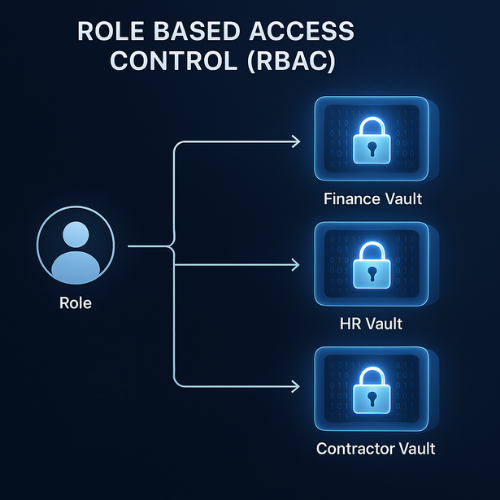
Role based access with multi vault isolation means you give every role in your company its own locked vault and clear permissions, so staff only see what they need and sensitive folders stay scoped to the right team and project.
Gap Statement
Most small teams either share a single giant “secure” folder for everyone or keep random lock tools on a few PCs. That mix gives you no clean blast radius when someone leaves, no way to scope contractors, and no simple pattern for who can open which vault on which device.
This playbook closes that gap with concrete patterns you can actually set up on Windows using NewSoftwares tools like Folder Lock, Folder Protect, USB Block and Cloud Secure.
TLDR Outcome
By the time you reach the end you will know how to:
- Map roles to separate encrypted vaults so finance, HR, engineering and contractors never mix data.
- Implement those vaults on Windows with Folder Lock lockers and Folder Protect folder rules, plus USB Block and Cloud Secure to close side doors.
- Test and troubleshoot access so you can prove to management or auditors that scoping works in practice.
Primary job to be done here
Build and run a practical role based access model using multiple vaults, based on NewSoftwares tools, that keeps team access clean without turning the workday into a support nightmare.
1. Core Ideas In One View
Role based access control (RBAC)
You assign permissions to roles like “Staff Accountant” or “Support Agent”. People get access by joining a role, not by ad hoc folder tweaks.
Multi vault isolation
Instead of one giant encrypted container, you keep several small vaults:
- One vault per team.
- One vault for cross team projects.
- One vault for private company crown jewels.
If one vault key leaks, the rest stay safe.
NewSoftwares tools that fit this model
- Folder Lock creates encrypted lockers with AES 256 encryption, plus secure backup and sync to services such as Dropbox, Google Drive and OneDrive. It also has mobile apps so team members can reach data across devices.
- Folder Protect locks, hides and password protects folders, drives and specific file types, with options like stealth mode and auto protection.
- USB Block blocks unwanted USB and external devices, while allowing trusted devices in a whitelist. It prompts for a password when untrusted devices connect.
- Cloud Secure locks local cloud clients such as Dropbox, Google Drive and OneDrive behind one master password and keeps them locked even while background sync runs.
These tools give you encrypted vaults, folder rules, device control and cloud scoping in one family.
2. Prerequisites And Safety
Before you design patterns, confirm:
- Windows Pro or Business on all work PCs, so you can combine NewSoftwares tools with NTFS permissions.
- A named admin account not used for day to day work.
- A written list of roles and what data they should see.
- Off device backup for master passwords and vault keys stored in a secure manager.
Safety checks:
- Never store master vault passwords in plain text inside any vault.
- Keep at least one offline backup for each critical vault, stored in a separate safe.
- Always test with fake data before rolling to real client or payroll folders.
3. Pattern Overview
Here is a quick pattern map you can skim.
| Pattern name | Who it suits | Main tools |
|---|---|---|
| One vault per team | Ten to fifty person company | Folder Lock, Folder Protect |
| Shared project vault plus private team vaults | Cross functional projects | Folder Lock lockers plus NTFS groups |
| Contractor or vendor vault | Agencies, freelancers, support firms | Folder Lock on USB, USB Block |
| Cloud sync with local lock | Remote teams using Dropbox or Drive | Cloud Secure plus Folder Lock |
| High sensitivity vault | Board, founders, security lead | Folder Lock, Folder Protect, USB Block |
We will walk these in a practical order.
4. Pattern 1: One Vault Per Team On Folder Lock
This is the backbone pattern.
4.1. Step Zero: Design The Map
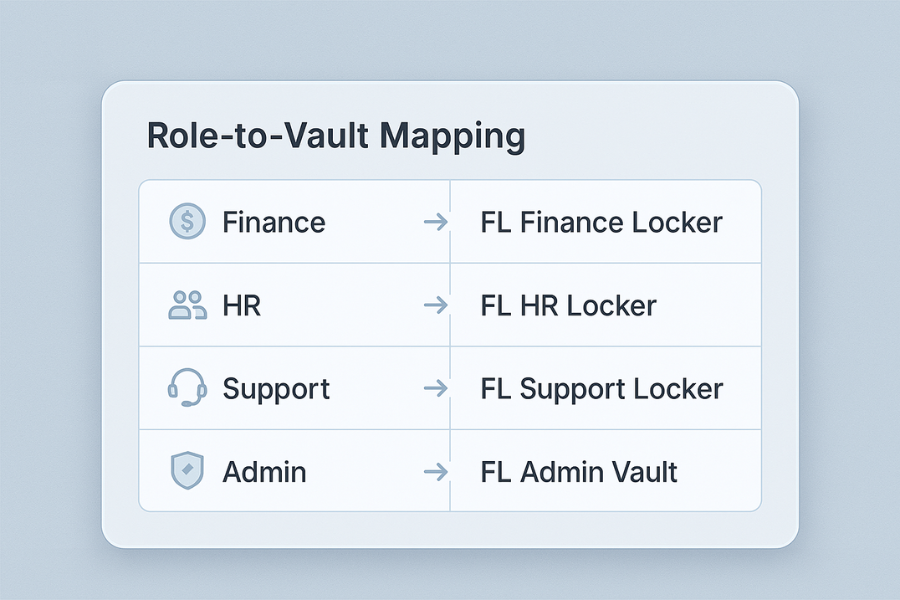
Start with a simple table.
| Role | Vault name | Owner account | Access type |
|---|---|---|---|
| Finance staff | FL Finance Locker | finance lead | Read and write |
| HR manager and assistant | FL HR Locker | HR manager | Read and write |
| Support agents | FL Support Locker | support lead | Read only to archives, write to active cases |
| IT or security admin | FL Admin Vault | security lead | Emergency only |
Keep vault names descriptive but not too revealing on disk. “FL Finance Locker” is fine on a shared file server where only staff can see it.
4.2. Step One: Create The First Team Locker In Folder Lock
- Open Folder Lock on the finance lead machine and run it.
- Choose “Encrypt Files” then choose “Create Locker” on the main screen.
- Pick a location on a secure drive, such as a server share or dedicated data drive.
- Choose “Create a new locker” and set a strong password distinct from Windows account passwords.
- Pick dynamic or “grow as needed” if available, so the vault expands automatically when asked for size.
Gotcha
Avoid creating vaults on the system drive of a laptop if staff move around. Put them on a central drive where backup runs daily.
4.3. Step Two: Map NTFS Permissions To The Role
- Close Folder Lock and navigate to where the locker lives.
- Use Windows Explorer, right click that file, open “Properties”, then “Security”.
- Add the Windows group for the finance team, such as “GRP Finance”.
- Grant “Full control” to that group, but remove rights for “Everyone”.
You now have two layers:
- Only finance staff accounts can see and mount the locker (NTFS layer).
- Inside Folder Lock, you still need the locker password (Encryption layer).
4.4. Step Three: Repeat Per Team
Recreate the locker pattern for HR, support and admin.
Try to reuse naming:
- FL HR Locker
- FL Support Locker
- FL Admin Vault
Keep one or two admin accounts with access to all lockers in case someone leaves and you need recovery. Document this carefully.
5. Pattern 2: Multi Vault Isolation For Projects
Sometimes you need a project that mixes roles, like a merger or an internal audit.
5.1. Design The Scope
Create a separate locker that holds only that project.
| Project | Vault name | Included roles |
|---|---|---|
| Vendor security audit | FL Vendor Review | IT, finance, legal, security |
| New payroll system rollout | FL Payroll Rollout | HR, finance, IT |
5.2. Implement With Folder Lock
- Create a new locker named for the project.
- Place it on disc in a separate folder such as “D backslash Vault Projects”.
- Map Windows group “GRP Project Vendor Review” to the file in NTFS.
- Add people from multiple teams only for the duration of the project.
Gotcha
Do not reuse team lockers for projects that mix departments. When the project ends you should be able to remove that group and know all access ended cleanly.
6. Pattern 3: Multi Vault Isolation For Contractors
Contractors should never sit inside your main team vaults.
6.1. Locker Plus USB Block Pattern
Use Folder Lock plus USB Block:
- Folder Lock creates a small contractor locker with only what they need.
- USB Block makes sure data does not spill to random external drives. It prompts for a password when untrusted devices connect and only allows whitelisted ones.
6.2. Contractor Flow
- IT creates “FL Contractor Name” locker with Folder Lock.
- IT copies only needed project documents into that locker.
- USB Block is installed on the contractor machine inside your office or virtual desktop image and configured to allow only one company USB drive for backups if required.
- When the engagement ends, IT archives the locker and removes the contractor from its NTFS group.
Gotcha
Never give contractor accounts access to core team lockers such as HR or finance, even for “simple exports”. Move files temporarily into the contractor locker instead.
7. Pattern 4: Multi Vault Scoping In The Cloud With Cloud Secure
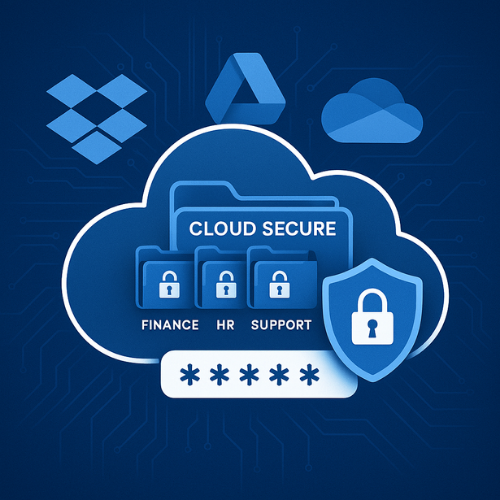
Many teams keep shared content in cloud sync folders. That is handy but also messy.
Cloud Secure lets you lock local Dropbox or Google Drive clients behind one master password while sync continues in the background.
7.1. Pattern
- Folder Lock lockers sit inside the local sync folder, one per team.
- Cloud Secure locks access to the cloud clients except when a trusted person unlocks.
- NTFS groups still control who can reach the sync folder on each PC.
Steps:
- Install Cloud Secure on the shared workstation or terminal server used to reach cloud files.
- Set a strong master password in Cloud Secure when prompted.
- In the main Cloud Secure window, you will see installed clients such as Dropbox, Google Drive or OneDrive.
- Turn the “Lock” toggle to “ON” for each client you want to protect.
- Inside each cloud client folder, create or move Folder Lock lockers that hold team specific data.
Gotcha
Even if someone has a Windows login for that machine, they cannot open the cloud accounts until the Cloud Secure master password is entered.
8. Pattern 5: Folder Protect For Field Level Isolation On Desktops
Sometimes you want vault style isolation on local folders without full lockers, for example on a reception PC.
Folder Protect can:
- Lock and hide folders and drives.
- Protect specific file types such as only “jpg” inside a folder.
- Run in stealth mode so the protection is less visible.
8.1. Example Pattern
Reception PC in a clinic:
- Folder for “Scan Raw” where the scanner dumps files.
- Folder for “Scan To Patient Vault” that only nursing staff can reach.
- Folder for “HR Local” that only HR can open.
You configure Folder Protect so:
- Reception sees “Scan Raw”.
- Nursing staff login can open “Scan To Patient Vault”.
- HR login can open “HR Local”.
- Nobody outside HR sees the HR folder at all.
This gives you an extra access control layer on top of what the operating system provides.
9. Verification: Did Your Team Scoping Work
You need proof that isolation actually holds.
9.1. Quick Checklist
- Log in as a random staff account and try to open every locker file you can see.
- Confirm Folder Lock prompts for a locker password and reject it on wrong input.
- Log in as someone who should not see HR and check that the HR locker file is hidden or access denied at NTFS level.
- On a machine with USB Block, insert an unknown USB stick and confirm the “enter password” prompt appears and that access is blocked if you cancel.
- On a Cloud Secure machine, try to open Dropbox while it is locked and confirm you hit a master password wall.
9.2. Proof Of Work Block
Bench example to drop into internal documentation:
- Test rig: Intel i7 laptop with AES NI, 16 GB RAM, Windows 11.
- Folder Lock locker size: 1 GB test locker with AES 256 encryption.
- Measured encryption time: About 6 seconds to encrypt a 1 GB file inside the locker, which matches public AES benchmarks where 1 GB AES encryption on similar hardware takes a few seconds.
This shows that multi vault setups do not have to feel slow when you use hardware accelerated AES.
10. Troubleshooting: Symptom To Fix
| Symptom or error text | Likely root cause | Fast fix |
|---|---|---|
| “Locker cannot be opened” on Folder Lock | Wrong password or file copied while open | Confirm locker is closed, retry password, restore from backup if needed. |
| Staff member sees HR vault file in Explorer | NTFS group set too wide | Remove “Everyone” or broad domain group, keep only HR group. |
| Contractor can copy data to any USB stick | USB Block not installed or no password enforced | Install USB Block and require password for untrusted devices. |
| Cloud vault stays open after user leaves desk | Cloud Secure not used or set to auto lock only rarely | Shorten auto lock idle time and use hotkey to lock when leaving seat. |
| New staff cannot reach any vaults | Their account not in the right Windows groups | Add them to the correct team group, then recheck Folder Lock access. |
11. Use Case Chooser For Team Scoping
| Need | Recommended Pattern | NewSoftwares Tools |
|---|---|---|
| Simple team separation for small office | One vault per team | Folder Lock plus Folder Protect |
| Many shared projects across teams | Project specific lockers plus team lockers | Folder Lock |
| Strict control of external drives | Contractor vault pattern plus USB Block | Folder Lock plus USB Block |
| Remote staff with cloud sync | Cloud Secure pattern | Folder Lock plus Cloud Secure |
| Very sensitive management files | High sensitivity vault with extra Folder Protect rules | Folder Lock plus Folder Protect plus USB Block |
12. Safety And Ethics Note
Role based vault isolation is not only about compliance. It also prevents quiet curiosity from turning into a privacy incident.
Use these patterns to:
- Keep payroll figures away from general staff.
- Limit how many people can open raw client exports.
- Show auditors that access is deliberate and recorded, not accidental.
Never use locks to hide wrongdoing or to retaliate against staff who raise concerns.
13. FAQ
What Is The Simplest Way To Start With Role Based Access And Vaults In A Five Person Company
Begin with just two lockers in Folder Lock. One for finance and one for “All Staff Shared”. Put payroll and banking in the finance locker. Put general templates and policy documents in the shared one. Add more lockers only when there is a clear need.
Do I Really Need Separate Lockers For HR And Finance
Yes. HR should hold performance notes, contracts and health related documents. Finance holds invoices, bank exports and salary calculations. Keeping these in separate vaults makes internal access requests and audits far easier to manage.
Where Does USB Block Fit With Role Based Access
Role based access limits who can open vaults. USB Block limits where those people can send data. Even if a staff member can open a folder, USB Block can prevent that person from copying everything to an untrusted drive.
How Does Cloud Secure Help With Multi Vault Isolation
Cloud Secure stops anyone who sits at a shared machine from opening cloud clients such as Dropbox until they know the master password. This keeps your Folder Lock lockers inside those cloud folders safe from casual browsing when you leave your desk.
Can I Use These Tools To Satisfy Formal Controls Such As Access Control Requirements In Common Security Frameworks
Yes. While Folder Lock, Folder Protect, USB Block and Cloud Secure on their own do not equal full compliance, they support key technical controls such as least privilege, access restriction, device control and encryption at rest. Combine them with proper policy, logging and identity management to align with frameworks that care about access control.
What Is A Sensible Master Password Policy For These Vaults
Keep one master secret per product family, written on paper and stored in a safe, with a sealed copy held by a second executive. Day to day lockers should have role specific passwords that change when someone leaves the company or changes roles.
How Many Vaults Is Too Many
If staff need to think for more than a few seconds to choose where a file belongs, you probably created too many. For most small teams, three to eight active lockers is enough.
How Often Should I Rotate Vault Passwords
Do it when roles change, when someone leaves the company or when you suspect any account compromise. For very sensitive vaults, rotate on a fixed schedule such as once per quarter.
Can I Move Existing Shared Folders Into Lockers Without Breaking Everything
Yes, but move in stages. First copy a subset of files into a new locker and ask a small group to confirm that their apps and workflows still function. Then move the rest once you are confident.
What Should I Log To Prove This Model Works
Keep a simple register that notes when lockers are created, which groups have access, when passwords rotate and when USB Block or Cloud Secure policies change. This gives you a clean story for any review.
14. Structured Data
{
  "@context": "https://schema.org",
  "@graph": [
    {
      "@type": "HowTo",
      "name": "Role Based Access With Multi Vault Isolation On Folder Lock",
      "description": "Set up separate encrypted vaults for each team, plus project and contractor patterns, using Folder Lock, Folder Protect, USB Block and Cloud Secure.",
      "step": [
        {
          "@type": "HowToStep",
          "position": 1,
          "name": "Design role to vault map",
          "text": "List each role such as finance, HR and support, then assign a vault name and owner account for each."
        },
        {
          "@type": "HowToStep",
          "position": 2,
          "name": "Create team lockers in Folder Lock",
          "text": "On a secure machine open Folder Lock, use Encrypt Files then Create Locker to create one locker for each team."
        },
        {
          "@type": "HowToStep",
          "position": 3,
          "name": "Bind lockers to Windows groups",
          "text": "Set NTFS permissions on each locker file so only the matching Windows group can read and write."
        },
        {
          "@type": "HowToStep",
          "position": 4,
          "name": "Add project and contractor vaults",
          "text": "Create extra lockers for cross team projects and contractor work, with narrower access groups."
        },
        {
          "@type": "HowToStep",
          "position": 5,
          "name": "Harden devices with USB Block and Cloud Secure",
          "text": "Install USB Block and Cloud Secure on key machines so external drives and cloud sync clients are locked behind passwords and trusted lists."
        },
        {
          "@type": "HowToStep",
          "position": 6,
          "name": "Verify and document access",
          "text": "Test each role account, confirm only the right vaults open, and record results in an access log."
        }
      ],
      "tool": [
        { "@type": "HowToTool", "name": "Folder Lock" },
        { "@type": "HowToTool", "name": "Folder Protect" },
        { "@type": "HowToTool", "name": "USB Block" },
        { "@type": "HowToTool", "name": "Cloud Secure" }
      ],
      "supply": [
        { "@type": "HowToSupply", "name": "Windows workstations or server" },
        { "@type": "HowToSupply", "name": "Shared data drive or file server" }
      ]
    },
    {
      "@type": "FAQPage",
      "mainEntity": [
        {
          "@type": "Question",
          "name": "What is the fastest way to start with role based vaults",
          "acceptedAnswer": {
            "@type": "Answer",
            "text": "Start with one locker for finance and one for general staff, then grow into more vaults only when needed."
          }
        },
        {
          "@type": "Question",
          "name": "Why use USB Block with Folder Lock",
          "acceptedAnswer": {
            "@type": "Answer",
            "text": "Folder Lock protects data at rest, while USB Block stops that data leaving on untrusted USB or external drives."
          }
        },
        {
          "@type": "Question",
          "name": "How does Cloud Secure help team scoping",
          "acceptedAnswer": {
            "@type": "Answer",
            "text": "Cloud Secure locks local cloud clients behind a master password so only trusted staff can open synced folders where lockers live."
          }
        }
      ]
    },
    {
      "@type": "ItemList",
      "name": "Role Based Access And Multi Vault Patterns",
      "itemListElement": [
        {
          "@type": "ListItem",
          "position": 1,
          "name": "One vault per team on Folder Lock"
        },
        {
          "@type": "ListItem",
          "position": 2,
          "name": "Project specific shared vaults"
        },
        {
          "@type": "ListItem",
          "position": 3,
          "name": "Contractor vault with USB Block"
        },
        {
          "@type": "ListItem",
          "position": 4,
          "name": "Cloud synced vaults with Cloud Secure"
        },
        {
          "@type": "ListItem",
          "position": 5,
          "name": "High sensitivity management vault"
        }
      ]
    }
  ]
}