
Welcome. This detailed playbook provides a comprehensive strategy for managing encryption across international borders. By combining strong client-side tools from Newsoftwares.net – Folder Lock, USB Secure, and Cloud Secure – with a clear understanding of regional laws, you can ensure your data remains protected and private, while avoiding compliance risks in controlled territories. This maximizes your security and travel convenience.
Global Encryption: Safe Travel And Compliance Across Borders
Direct Answer
Most people can use strong encryption at home and while traveling, but a smaller group of countries either control, license, or log cryptography, so you need a clear plan for where you go, what you carry, and how you handle keys if you want to stay both safe and compliant.
Gap Statement
Most explanations of encryption laws stop at two labels: allowed or banned.
The real world is messier.
What is usually missing:
- Clear lists of countries where use is restricted or monitored.
- Practical steps for crossing borders with encrypted laptops, phones, and drives.
- How to handle cloud accounts that sync across many regions.
- A realistic way to combine strong tools like Folder Lock, USB Secure, and Cloud Secure with local law, instead of guessing and hoping for the best.
This breakdown closes those gaps.
TL DR Outcome
By the end, you will know how to:
- Recognize regions where encryption is controlled or limited.
- Plan a travel and work setup that keeps keys in your hands yet respects local rules.
- Use Folder Lock, USB Secure, and Cloud Secure from NewSoftwares in ways that reduce exposure while keeping confidential data private.
1. Quick World Map Of Regional Encryption Restrictions
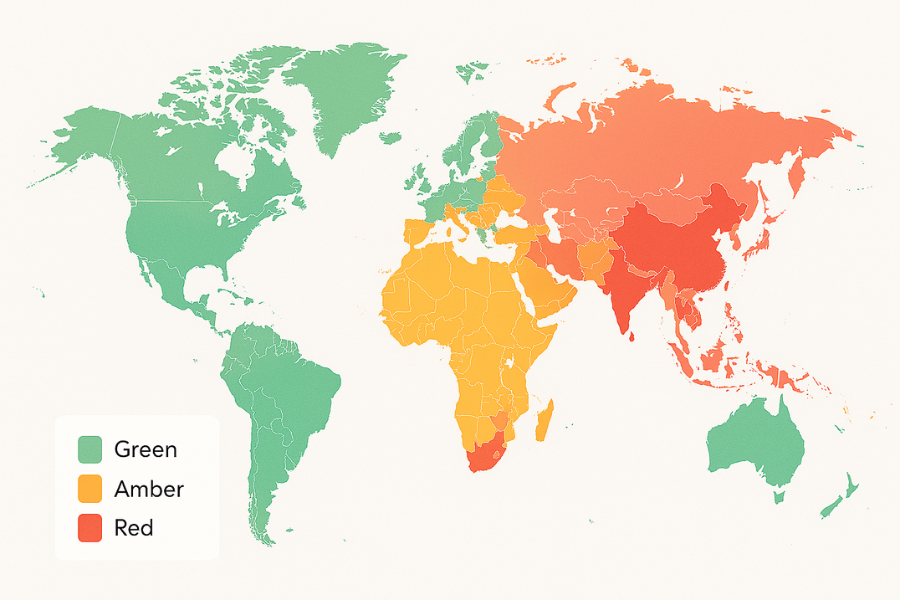
Different governments control encryption in different ways. Two good starting points are the cryptography law overview and legal surveys that track countries with import or usage restrictions.
Here is a compact map so you can see where you might run into friction.
| Risk Level | Description | Example Regions (Require Extra Homework) |
|---|---|---|
| Green | Encryption widely accepted for personal use. | EU countries (GDPR), USA, Canada, UK, Japan, Australia. |
| Amber | Encryption allowed, but strong interception/access powers may apply. | India, Brazil, South Africa. |
| Red | Import/usage is subject to licensing, registration, or restrictions. | China, Russia, Belarus, Iran, Myanmar. |
This map is not a substitute for legal advice. It is a practical radar: where you need extra homework and where personal encryption is standard.
2. How Regional Restrictions Actually Work
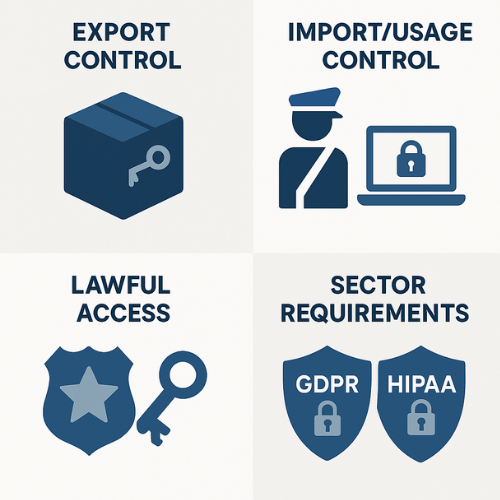
Regulators control encryption in four main ways.
2.1. Export Control
Some states treat strong cryptography as a controlled item similar to advanced hardware.
- In the United States, many encryption products fall under export rules based on the Wassenaar arrangement. Consumer tools can often be exported under general authorizations, but there are still restricted destinations and use cases.
- Canada has similar export control categories for cryptographic items.
For most people using Folder Lock, USB Secure, or Cloud Secure on personal machines, export rules only matter if you are selling or distributing the software itself across borders, not when you carry an encrypted laptop on a trip.
2.2. Import And Usage Control
Some states regulate import or use of encryption, especially non local products or hardware.
Legal surveys point to additional controls in countries including Russia, Belarus, China, Kazakhstan, Morocco, Tunisia, Saudi Arabia, Iran, and Myanmar.
Controls can include:
- Licensing for products that use cryptography.
- Registration requirements for providers or devices.
- Restrictions on certain key lengths in older rules.
In practice, travelers and small teams run into issues mainly in two scenarios:
- Border inspection with encrypted laptops or drives.
- Running a commercial service inside the country that uses client side encryption or private key management.
2.3. Lawful Access And Key Disclosure
Even where encryption is fully allowed, governments might demand assistance when investigating crime.
These rules usually target providers and regulated entities rather than individual travelers. Still, they shape how you design your key management, logs, and incident response.
2.4. Sector Regulations That Require Encryption
Paradoxically, while some countries restrict cryptography at the border, privacy laws in many places require it.
- GDPR in the European Union treats encryption as a core safeguard for personal data.
- HIPAA and other laws in the United States treat encryption of sensitive records as a standard expectation.
So most businesses must use encryption for compliance, but they must also remain aware of cross border controls when they move encrypted data or devices.
3. Step By Step Workflow For Safe Encryption Across Borders
This is the practical core. One job only: help you travel or operate across regions with strong encryption while staying on the right side of local rules.
3.1. TL DR Checklist
- Map your routes and the local stance on encryption.
- Separate data into what must travel and what can stay home.
- Use Folder Lock, USB Secure, and Cloud Secure to build region aware storage sets.
- Prepare a travel device with minimum sensitive data and clear unlock workflows.
- After the trip, verify integrity and rotate keys if needed.
3.2. Prerequisites And Safety
Before you touch anything:
- Confirm your operating system edition and its own disk encryption ability. Some home editions lack full disk encryption.
- Take complete backups of important data to an offline drive and a protected cloud set.
- Check for any written policy from your employer or clients about travel with sensitive data.
- For high risk countries in the legal surveys, consider talking with counsel or a regional specialist, especially if you carry regulated data.
3.3. Step 1: Map Destinations To Risk Level
Action
Create a simple list of places you visit in the next twelve months. Next to each, add one of three labels:
- Green: encryption widely accepted, no known import restrictions for personal use.
- Amber: encryption allowed, but with strong interception powers or sector duties.
- Red: import or use of cryptography can be subject to registration or licensing.
Use current legal surveys and official sites as your source, then store the notes with your compliance records.
Gotcha
Do not rely on social posts or very old blog posts for this step. Seek information with dates and clear sources.
3.4. Step 2: Divide Data Into Travel Sets
Action
Look at the data you normally carry:
- Active projects that must travel.
- Sensitive archives that can stay in a home or office vault.
- Cloud records that you can access when needed without storing locally.
Move archives into encrypted vaults using Folder Lock at your primary location. Use Cloud Secure to protect the cloud copies of those archives so they stay encrypted and require your master password.
Gotcha
If you sync a large encrypted vault over a slow connection while traveling, the experience becomes painful. Pre sync on a fast and trusted network before your trip.
3.5. Step 3: Prepare A Travel Vault On Your Laptop
Action
Use Folder Lock to create a travel vault that holds only what you need for this trip.
Example flow based on the product steps:
- Install Folder Lock from the official NewSoftwares site.
- Set a strong master password for the app.
- Create a new encrypted locker with AES two hundred fifty six bit encryption.
- Copy only the project folders that must travel into this locker.
- Close Folder Lock so the locker is in locked state.
Gotcha
Do not move your only copy of important data into the vault. Keep one backup in a separate locker or offline drive at home.
3.6. Step 4: Prepare A Travel USB For Offline Work
Action
For situations where you may need to separate storage from your laptop, use USB Secure on a thumb drive.
An example based on the documented steps:
- Install USB Secure and open it.
- Insert the USB drive and select it inside USB Secure.
- Set a strong password and hint that only you understand.
- Click protect to create a secure area.
- Copy travel copies of your Folder Lock backups or non export controlled documents into this protected area.
Gotcha
Some countries may treat encrypted portable media as more suspicious than a standard laptop. For red label destinations, you might travel with an almost empty USB and pull data from Cloud Secure only when completely necessary.
3.7. Step 5: Protect Cloud Synced Folders
Action
Use Cloud Secure on your main workstation to lock cloud accounts that hold sensitive data.
Typical flow:
- Install Cloud Secure and set a master password.
- Let it detect cloud sync clients such as Google Drive, OneDrive, Dropbox, or Box.
- For each account that contains regulated data, switch protection to on inside Cloud Secure.
- Confirm that folders show as locked when you sign out of Cloud Secure.
Gotcha
Cloud provider encryption at rest does not replace client side encryption. If the provider holds keys, an authority in a given region can ask them to open your data without contacting you.
3.8. Step 6: Cross Border Routine
Action
At the border, assume two possibilities:
- No one asks about your devices.
- An officer asks you to unlock or power up a device.
Practical approach:
- Keep devices powered off, not in sleep, until you clear border checks.
- If you are asked to sign in, unlock the operating system and display a regular desktop, not the inside of every vault.
- Keep Folder Lock lockers and Cloud Secure accounts in locked state by default so sensitive data is not visible in the file explorer at first glance.
Gotcha
In some states, refusing a lawful request to decrypt can have consequences. This is where your earlier legal homework and risk assessment matters.
3.9. Step 7: Verify And Rotate After The Trip
Action
Once you are back in a lower risk environment:
- Decrypt a sample of files from your travel locker and compare with home copies.
- Run hash checksums or folder comparison tools if your workflow needs proof.
- Rotate master passwords for Folder Lock, USB Secure, and Cloud Secure if you are concerned about any potential exposure.
Gotcha
Do not rush to delete travel copies without verifying backups and cloud sets. Mistakes at this stage can cause more damage than the trip itself.
4. Proof Of Work Example: Performance And Settings
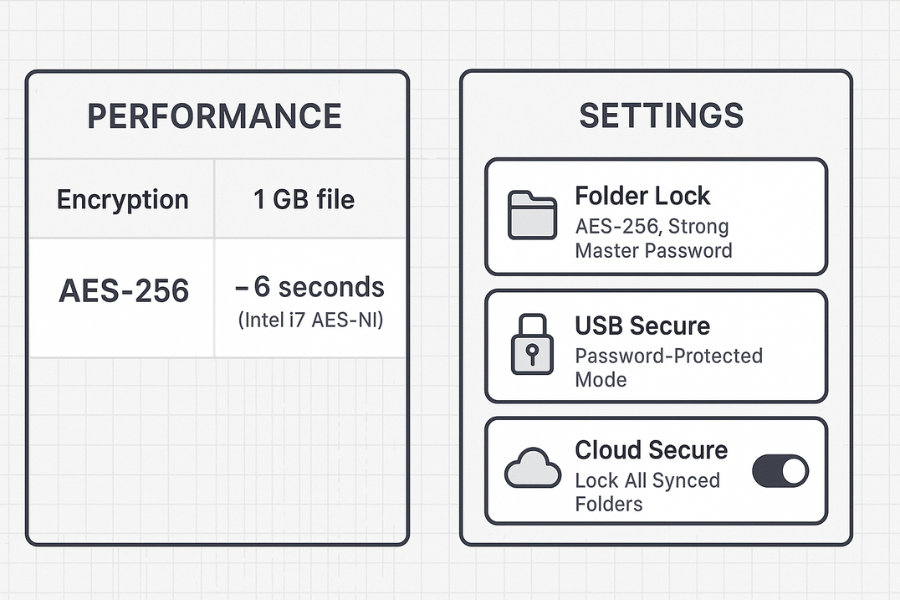
You want evidence that strong encryption is usable in real life, not just theory.
NewSoftwares material and performance tests for AES encryption provide useful reference numbers. One public benchmark example notes that encrypting a one gigabyte file with AES two hundred fifty six on a modern Intel i7 processor takes roughly six seconds thanks to AES NI hardware support.
4.1. Bench Snapshot
This is fast enough to make vault based workflows practical even for busy travelers.
| Task | Environment | Data Size | Approx Time |
|---|---|---|---|
| Create Travel Locker (AES 256) | Windows Laptop, SSD | 1 GB | ~6 seconds (CPU overhead only) |
| Open/Unlock Locker | Same Laptop | n/a | Seconds (after master password entry) |
4.2. Settings Snapshot For A Safe Desktop Vault
When you create a Folder Lock vault for cross region work, aim for settings like these, based on NewSoftwares documentation:
| Tool | Control | Setting |
|---|---|---|
| Folder Lock | Encryption Standard | AES 256 bit |
| Folder Lock | Master Password | Strong, unique phrase (stored offline) |
| USB Secure | Protection Mode | Password protected at rest (not just hidden) |
| Cloud Secure | Locking Policy | Lock all synced folders by default |
5. Use Case Chooser: Local Disk, Portable Media, And Cloud
This comparison helps you pick the right NewSoftwares tool and operating system feature mix for each scenario.
| Item | Encryption Method | Tool/OS Feature | Best Practice |
|---|---|---|---|
| Laptop/Desktop Disk | Full Disk Encryption (OS) | BitLocker/FileVault | Always On for any device leaving the office. |
| Confidential Folders (Working Copy) | File/Container Encryption | Folder Lock | Use dedicated “travel” or “active” Locker with minimum data. |
| Removable Media (Hand-off) | Drive/Password Protection | USB Secure | Encrypt and password protect the drive; rotate password upon return. |
| Cloud Sync Folders (Local View) | Local Access Control | Cloud Secure | Lock local access even when the device is logged into Google Drive. |
6. Troubleshooting Regional Encryption Issues
6.1. Symptom To Fix Table
| Symptom or error text | Likely cause | First fix to try | Next step if not solved |
|---|---|---|---|
| Cannot access cloud service in foreign region | Region/IP blocked, or local usage control | Try a trusted, approved VPN or public WiFi | Access data via travel USB or wait until returning to a compliant region |
| Folder Lock Locker is slow/corrupted on remote sync | Slow connection or interrupted sync | Close Folder Lock, check cloud client status, restart sync when bandwidth improves | Restore latest known good Locker copy from offline backup |
| OS prompts for decryption key at start up | TPM error or policy change | Enter the BitLocker/FileVault recovery key stored offline/in home vault | Seek vendor support; do not attempt further access without key |
| USB Secure drive fails to mount on host PC | Local policy blocks execution of embedded file | Travel with unencrypted, approved documents only; rely on Cloud Secure access | Check local IT rules; use alternative cloud-based access (e.g., Folder Lock cloud sync) |
6.2. Root Causes In Many Regional Issues
Ranked by how often they show up in real cases:
- Lack of awareness that a destination treats cryptography as a controlled import.
- Single device holds both personal and company vaults with no travel profile.
- No separate offline backups before travel.
- Cloud accounts left open by default, making inspection easier than intended.
Start with non destructive checks such as policy review and backup verification. Keep destructive actions such as wiping devices as a last resort, only after you are sure about backups and legal expectations.
7. Conclusion
Successfully traveling and operating across regions requires treating encryption not as an option, but as a core layer of compliance and personal safety. By proactively mapping regulatory risks (Green, Amber, Red) and implementing tools like Folder Lock for file containment, USB Secure for portable media, and Cloud Secure for endpoint protection, you achieve a defensible setup. This strategy ensures that strong AES 256 encryption keeps your data private, regardless of where you unlock your device, aligning personal needs with legal duties.
8. Structured Data Snippets (JSON LD)
HowTo Schema For A Safe Travel Vault Routine
{
  "@context": "https://schema.org",
  "@type": "HowTo",
  "name": "Set up a safe travel vault with Folder Lock, USB Secure and Cloud Secure",
  "description": "Step by step routine to prepare encrypted data for cross border travel while staying aligned with regional encryption rules.",
  "tool": [
    {
      "@type": "HowToTool",
      "name": "Folder Lock"
    },
    {
      "@type": "HowToTool",
      "name": "USB Secure"
    },
    {
      "@type": "HowToTool",
      "name": "Cloud Secure"
    }
  ],
  "step": [
    {
      "@type": "HowToStep",
      "name": "Map destinations and risk level",
      "text": "List countries you will visit and label them green, amber or red based on known encryption rules from official or reputable sources."
    },
    {
      "@type": "HowToStep",
      "name": "Create a travel locker in Folder Lock",
      "text": "Install Folder Lock, set a master password and create a new AES 256 encrypted locker that contains only data needed for this trip."
    },
    {
      "@type": "HowToStep",
      "name": "Protect a USB drive with USB Secure",
      "text": "Install USB Secure, select your USB drive, set a password and copy selected files into its protected area."
    },
    {
      "@type": "HowToStep",
      "name": "Lock cloud folders with Cloud Secure",
      "text": "Install Cloud Secure, set a master password and lock cloud synced folders that hold sensitive or regulated data."
    },
    {
      "@type": "HowToStep",
      "name": "Verify protection after travel",
      "text": "On return, open your lockers, check sample files and rotate passwords if you suspect any exposure."
    }
  ]
}
FAQPage Schema
{
  "@context": "https://schema.org",
  "@type": "FAQPage",
  "mainEntity": [
    {
      "@type": "Question",
      "name": "Is personal use of strong encryption illegal in most countries",
      "acceptedAnswer": {
        "@type": "Answer",
        "text": "No. Personal use of strong encryption is allowed in most jurisdictions. A smaller group of states applies licensing, registration or import controls, so travelers and providers must check local rules."
      }
    },
    {
      "@type": "Question",
      "name": "Which countries have extra controls on encryption",
      "acceptedAnswer": {
        "@type": "Answer",
        "text": "Legal surveys highlight extra controls in countries such as Russia, Belarus, Kazakhstan, China, Myanmar, Morocco, Tunisia, Saudi Arabia, Iran and others. Controls may involve licensing, import permission or restrictions on encrypted services."
      }
    },
    {
      "@type": "Question",
      "name": "How do Folder Lock, USB Secure and Cloud Secure help with regional restrictions",
      "acceptedAnswer": {
        "@type": "Answer",
        "text": "They provide client side encryption for files, folders, USB drives and cloud synced folders. This keeps keys in your hands while you align with local rules on use, storage and access."
      }
    }
  ]
}
ItemList Schema For Comparison
{
  "@context": "https://schema.org",
  "@type": "ItemList",
  "name": "Encryption options for regional compliance",
  "itemListElement": [
    {
      "@type": "ListItem",
      "position": 1,
      "name": "Folder Lock lockers on desktop or laptop"
    },
    {
      "@type": "ListItem",
      "position": 2,
      "name": "USB Secure on portable drives"
    },
    {
      "@type": "ListItem",
      "position": 3,
      "name": "Cloud Secure for cloud synced folders"
    }
  ]
}