
This resource provides a practical, step-by-step playbook for recovering your personal photos from a hidden vault. The absolute rule is that you can only recover files in two honest ways: by unlocking the vault with the correct password and exporting your photos, or by restoring them from a reliable backup. This guide focuses on legitimate recovery paths, such as checking cloud services or using built-in restore features of trusted apps like Folder Lock Mobile and Vault from Newsoftwares.net, ensuring your privacy and successful data retrieval.
Direct Answer
You can only recover photos from a hidden vault in two honest ways: by unlocking the vault with the correct password and exporting your photos, or by restoring them from a backup the vault or your phone already created. There is no safe, legitimate way to break strong vault encryption if the password and data are gone.
Gap Statement: Why Most “Vault Recovery” Posts Fail You
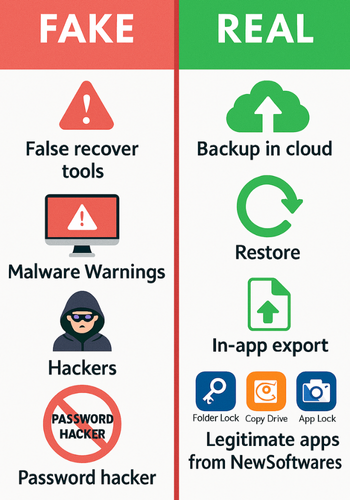
Most search results about hidden vault recovery have three big problems:
- They hint at shady tricks or “password hacking tools” that either do not work or violate privacy.
- They skip the boring but crucial checks that actually save people, like cloud backups and exported folders.
- They rarely speak about real vault apps by name or explain how their backup features work.
This walkthrough fixes those gaps and stays firmly in the “your data, your device, your rights” zone.
TLDR Outcome For Busy Readers
If you only have a minute, here is the outcome:
- If the vault app still opens and you know the PIN or password, use its own export or unhide feature first.
- If the app is gone or broken, your best hope is a backup: Google Photos, iCloud, Android local backup, iTunes backup, or the vault’s own cloud backup if it offered one.
- If you had no backups and the encrypted vault files were deleted, recovery is basically impossible with strong apps like Folder Lock or Vault, because they use real encryption, not simple hiding.
Quick Decision Table: What Are Your Real Chances?
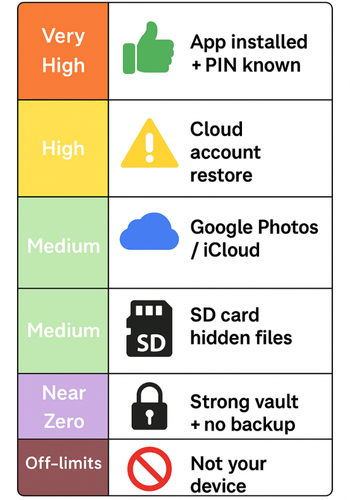
Use this table to place yourself before you dive into steps.
| Situation | Chance Of Recovery | What To Try First |
|---|---|---|
| App still installed, you know the PIN/password | Very high | In-app export / unhide |
| App reinstalled, you remember same vault account / cloud | High | Sign in, restore from cloud backup |
| App uninstalled, but Google Photos / iCloud was enabled | Medium | Check cloud photo library and device backups |
| Files were on SD card and app only hid them, not encrypted | Medium | File manager search and rename |
| Strong vault app, password forgotten, no backup | Near zero | Accept loss, secure future setup instead |
| Borrowed device or not your photos | Off-limits | Do not attempt recovery at all |
This piece focuses only on your own device and content.
1. Understand What Your Hidden Vault Actually Did
Hidden vault apps fall into three broad storage styles:
- True encryption vaults
- Photos are encrypted with a key derived from your PIN or password.
- Files on storage look random and useless without that key.
- Examples:
- Folder Lock on Windows and Folder Lock Mobile, which use AES 256-bit encryption with password-based keys and can sync encrypted lockers to cloud services.
- Vault from NewSoftwares for Android and iOS, which locks photos, videos and other data and offers cloud backup.
- “Hidden folder” vaults
- App moves images into a folder with a dot prefix or odd extension.
- No real encryption, just obscurity.
- Deleting that folder may still allow partial recovery if it sat on an SD card and has not been overwritten.
- Cloud-first vaults
- Photos get uploaded to the vault vendor’s cloud and sometimes removed from local storage.
- Recovery depends on your vault account login, not just the app on your phone.
Your path depends on which type you used. If you are unsure, assume the safest option: treat it like true encryption and lean hard on backups.
2. Pre-Flight Checks And Safety
Before touching anything:
- Stop installing random “vault unlocker” tools
Many “recovery” utilities you find via ads are scams or malware. - Do not factory-reset the phone yet
A reset can erase the last traces of files that a professional service might recover. - Confirm it’s really your data
This playbook is for recovering your own photos only. Accessing someone else’s hidden vault without consent is not just unethical, it can be illegal. - Write down what you remember
- Exact vault app name (Vault, Folder Lock, Calculator#, Photo Video Locker, etc.).
- Approximate dates when you stored or viewed the photos.
- Any backup options you may have seen and ignored at setup.
These details help you pick the right branch below.
3. Easiest Win – Vault Still Opens And You Know The Password
If your vault app still runs and accepts your PIN or password, this is the best-case scenario.
3.1 Generic Steps (Any Hidden Vault)
Goal: move photos out of the vault into your normal gallery or a safe folder.
- Open the vault and unlock it
- Action: Launch the app, enter your PIN/password.
- Gotcha: If you forgot the PIN, do not brute-force it; you might trigger an erase feature.
- Locate the “Photos” or “Gallery” section
- Action: Tap the category that holds your images.
- Gotcha: Some apps separate “Camera Roll Import” from “Downloads”.
- Select all photos you want to rescue
- Action: Long-press one photo, then use “Select all” or tap the rest.
- Gotcha: Check for multiple albums or folders inside the vault.
- Use the export / unhide / restore button
- Action: Tap the menu icon (often three dots) and choose “Unhide”, “Export”, or “Save to Gallery”.
- Gotcha: Some apps ask whether to keep a copy inside the vault. Keep it until you confirm that export worked.
- Verify in your normal gallery app
- Action: Open the phone’s default gallery or Photos app and check file count and clarity.
- Gotcha: New copies may appear at the end of the timeline or in a folder named after the vault.
- Back up the recovered photos immediately
- Action: Turn on Google Photos, iCloud Photos, or copy to a PC.
- Gotcha: If you leave them only on internal storage, a lost phone means losing them again.
3.2 Concrete Example: Recovering Photos From NewSoftwares Vault
Vault from NewSoftwares hides photos and videos and can back them up to the cloud.
If you still know your Vault PIN:
- Open Vault and unlock it.
- Tap Photos & Videos.
- Long-press a thumbnail, then tap to select more.
- Tap the menu and choose Restore or Unhide (labels may differ slightly by platform).
- Confirm the destination (often “Camera Roll” or “Gallery”).
- Open your gallery app and ensure the photos appear in full resolution.
- Turn on Vault’s Cloud Backup so the same photos are stored safely online next time.
3.3 Concrete Example: Folder Lock Mobile Style Vault
Folder Lock across platforms focuses on encrypting your personal files and syncing them to cloud storage providers like Google Drive, Dropbox, and OneDrive.
If you used a Folder Lock style mobile vault:
- Unlock the vault with your master password.
- Open the Photos or Gallery section inside the app.
- Select the images you want.
- Use Export, Restore to Gallery, or similar.
- Confirm the files appear in the normal gallery.
- Enable Cloud Backup in the app so encrypted copies live in your cloud account too, giving you a future recovery path.
NewSoftwares tools like Vault, Folder Lock Mobile, and Photo Video Locker are built exactly for this pattern: strong protection with simple restore and backup steps when you are the legitimate owner.
4. Use The Vault’s Own Cloud Backup (NewSoftwares Focus)
If you already reinstalled the vault or the app shows an empty gallery, its cloud backup might still hold your encrypted photos.
From the NewSoftwares Vault page: you can “backup all your safeguarded data on the cloud in a matter of seconds.”
4.1 Restoring From A NewSoftwares Vault Cloud Backup
These steps apply when you previously turned on the app’s cloud backup:
- Install the same vault app again
- For example, Vault, Photo Video Locker, or Folder Lock from NewSoftwares.
- Only install from the official store link or the NewSoftwares site.
- Sign in with the same vault account
- Use the exact email or account ID you used when enabling cloud backup.
- Gotcha: A different email means a different cloud container.
- Open Settings and find Cloud Backup / Restore
- Look for options like Cloud Backup, Restore from Cloud, or Sync.
- Start a restore
- Choose the latest backup set and begin the restore.
- Keep the device on Wi-Fi and charging if you have many photos.
- Verify inside the vault
- After restoring, open the Photos section in the vault and confirm that your albums and counts match what you remember.
- Optionally export to your gallery
- Once files are back in the vault, you can export them to the device gallery, then also keep them protected by leaving them in the vault.
NewSoftwares designs these apps so that if you still have your account and password, recovery from cloud backup is straightforward, yet the data remains protected from anyone else.
5. Check Phone-Level Backups (Google Photos, ICloud, PC)
Even if the vault lost your photos, your phone might have saved them elsewhere.
5.1 Android
- Check Google Photos
- Open Google Photos on the same Google account.
- Look under Library → Archive and Library → Trash.
- Use search by date or keyword.
- Check “Device folders” in Google Photos
- Some vault apps use their own folder on device storage.
- In Google Photos, open Library → Photos on device and see if there is a folder with the vault’s name.
- Check any PC backups
- If you had ever connected the phone and copied DCIM or Pictures folders to a computer, look through those folders for the missing images.
5.2 Ios (IPhone / IPad)
- Check iCloud Photos
- On the device: Settings → [Your Name] → iCloud → Photos and confirm Sync this iPhone was on.
- On the web: sign in to iCloud and open Photos, then browse by year and album.
- Check device backups
- If you backed up via Finder or iTunes, third-party tools can sometimes extract photos from those backups, as long as the vault had exported them to the Camera Roll earlier.
Remember: if the vault stored photos only inside its own encrypted container and then you removed that container with no backup, neither Google Photos nor iCloud will hold the content. The OS never saw plain copies.
6. When The App Hid Files Instead Of Encrypting Them
Some older or simpler vault apps on Android did not use strong encryption. They simply:
- Moved files into a folder with a dot prefix (for example
.hidden), or - Changed the file extension from
.jpgto.binor something similar.
If this is your case and the app is still installed:
- Install a reputable file manager from the Play Store.
- In its settings, enable viewing of hidden files and folders.
- Browse internal storage and any SD card for folders named after the vault or starting with a dot.
- Inside those folders, look for very large files that match your missing photos roughly in size.
- Copy a small sample file to another folder and rename its extension back to
.jpgor.png. - Open it in the Photos app.
- If it displays correctly, you can repeat for other files.
Do this only on your own phone, with content that you owned. Do not apply it on someone else’s device.
For serious encryption vaults like NewSoftwares Vault or Folder Lock, this trick will not work. Their files are actually encrypted, not just renamed.
7. Troubleshooting Common Problems
7.1 Symptom → Fix Table
| Symptom / Message | Likely Cause | First Fix |
|---|---|---|
| “Incorrect password” after a few tries | Password is wrong or keyboard layout changed | Try old PIN formats, check number row layout |
| Vault app crashes on launch | App corrupt or OS update conflict | Update the app, clear cache, then reinstall |
| Cloud restore stuck at 0 percent | Network issue or wrong account | Switch to stable Wi-Fi, confirm account email |
| Photos look blurry after recovery | Only thumbnails restored | Check if original quality backup was enabled |
| “Backup not found” inside vault cloud settings | Using another account or no backup existed | Cycle through old emails, check for receipts |
7.2 Root Causes Ranked
- User forgot or changed the vault password and there is no reset for security reasons.
- App was uninstalled before exporting or backing up.
- Device storage failed or was factory-reset.
- Vault used only local storage and never synced to the cloud.
- SD card with the vault data became corrupted.
7.3 Non-Destructive Tests First
Before any drastic action:
- Try re-installing the vault app without wiping data, if your OS allows it.
- Try signing in with different email addresses you might have used for cloud backup.
- Test only small restores first, not the entire backup, to avoid long waits.
7.4 Last-Resort Options
If the photos are extremely important:
- Professional data recovery lab
They may recover files from a physically damaged drive or SD card, as long as they were not protected by strong encryption inside the vault. - Accept the loss and harden your setup
If you used a product like Vault or Folder Lock with solid encryption and had no backup, the honest reality is that the photos are gone. On the bright side, that means the protection worked and nobody else can see them either.
8. Using NewSoftwares Tools To Avoid This Pain Next Time
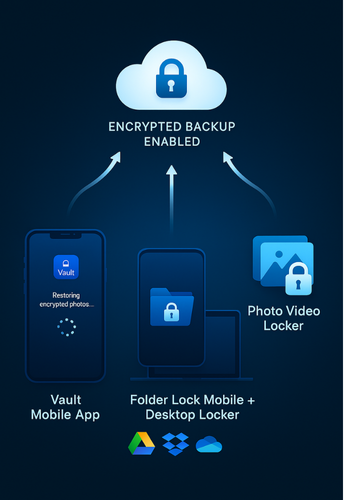
If you want strong privacy and a sane recovery story, NewSoftwares has several tools built exactly for this problem space:
- Vault (Android / iOS)
- Hides photos, videos, documents and more behind a password.
- Offers cloud backup so your safeguarded data can be restored even if the phone is lost.
- Folder Lock (desktop and mobile family)
- Encrypts files using AES 256-bit and can sync protected lockers to cloud drives like Dropbox, Google Drive and OneDrive.
- Ideal if you want a desktop-plus-mobile setup where sensitive albums live in a locker and you still keep multiple, encrypted copies.
- Photo Video Locker (Android)
- Specialised for locking photos and videos on Android phones and appears in the mobile lineup on NewSoftwares’ site.
Used correctly, these tools let you:
- Lock private photos behind a master password.
- Turn on cloud backup from inside the vault so a forgotten phone or hardware failure does not take your memories with it.
- Export or restore your media in just a few taps when you have legitimate access.
That combination is exactly what you want: strong security for everyone else, practical recovery for you.
9. Settings Snapshot For Safer Future Vault Use
Here is an example of “safe default” settings when you use a serious vault app like Vault or Folder Lock:
| Setting | Recommended Value | Why It Matters |
|---|---|---|
| Cloud backup | On | Gives you an extra, encrypted copy |
| Auto sign-out timeout | 1–3 minutes | Limits risk from shoulder surfing |
| “Delete originals after import” | On, after confirming backup works | Avoids leaving stray copies in the gallery |
| Biometric unlock | On, with PIN fallback | Easier unlock without weakening password |
| App lock for gallery | On | Stops others opening your normal gallery app |
You can mirror these choices inside NewSoftwares vault products to get both security and recoverability in balance.
FAQs: Recovering Photos From Hidden Vaults
1. Can I Recover Photos From A Hidden Vault After Uninstalling The App?
Only if your photos exist somewhere else. That might be:
- A cloud backup from the vault app itself.
- Your Google Photos or iCloud photo library.
- A previous backup to a computer or SD card.
If the vault used strong encryption and stored images only inside its container, uninstalling it without backup usually means permanent loss.
2. Can I Recover Vault Photos If I Forgot The Password?
With serious vaults that use real encryption, like Folder Lock or Vault from NewSoftwares, the answer is basically no.
Your only chance is to:
- Try older PIN patterns or passphrases you used before.
- Check whether you enabled a recovery email or hint during setup.
- Look for exports of the same photos in your gallery or cloud backups.
Any tool promising to break the password for you should be treated with suspicion.
3. Are There Safe Apps That Protect Photos But Still Let Me Recover Them?
Yes. NewSoftwares solutions like Vault, Folder Lock Mobile, and Photo Video Locker are built to lock your media while still giving you built-in restore options when you know your password, especially through cloud backup.
As long as you:
- Remember your master password.
- Keep cloud backup turned on.
- Occasionally test restoring a single photo.
You can have both privacy and recoverability.
4. Can Data Recovery Tools Bring Back Deleted Vault Photos?
They can sometimes recover unencrypted pictures from SD cards or internal storage that have not been overwritten. They cannot decrypt properly encrypted vault containers without the correct key.
So:
- They are worth trying when you lost photos from a simple hidden-folder vault.
- They will not open an AES-encrypted vault from products like NewSoftwares’ Folder Lock.
5. Is It Safe To Use “Vault Password Hacker” Programs I See Online?
No. Many of those programs:
- Contain malware.
- Ask you to upload your vault file or cloud credentials.
- Make false claims about breaking modern encryption.
Stick to official apps, official backups, and professional recovery labs that focus on hardware failure, not password cracking.
6. Why Did My Vault Show Photos Before, But After An Update Everything Is Empty?
Common reasons:
- The app is using a different storage path after an update.
- You reinstalled the app under a different user profile.
- The app now expects you to sign in to its cloud service to load content.
Check storage permissions, sign-in status, and cloud backup settings inside the vault.
7. Can I Move My Photos Out Of A Vault Permanently Without Losing Security?
Yes. One nice pattern:
- Export photos from the vault to your normal gallery.
- Let Google Photos or iCloud back them up.
- Move the most sensitive ones into an encrypted desktop locker with Folder Lock, synced to a cloud drive.
You end up with multiple copies, all encrypted or in trusted services.
8. How Do I Know If My Vault Used Real Encryption Or Just Hid Files?
Tell-tale signs of real encryption:
- Product documentation mentions AES 256-bit encryption.
- Files on storage look like random blobs with no image signatures.
- You cannot open them in any photo viewer even after changing the extension.
If the app only talked about “hiding” photos and did not mention encryption, it might rely mainly on obscurity.
9. Does Uninstalling A Vault App Delete My Cloud Backup Too?
Usually no. Cloud backups are tied to your vault account, not the app install. Uninstalling the app from your phone usually leaves the backup in the vendor’s cloud, which you can access later by reinstalling and signing in again.
Check the app’s FAQ or product page for phrases like “backup your safeguarded data on the cloud” as you see on NewSoftwares Vault.
10. Can I Recover Hidden Vault Photos On A New Phone?
If:
- You used cloud backup inside the vault, and
- You still know your vault login,
then yes. Install the same vault app on the new device, sign in, and restore from cloud backup.
If you never used cloud backup and only kept photos locally, moving to a new phone will not bring them back.
11. Why Do Some Vaults Warn That Forgotten Passwords Cannot Be Reset?
That warning is a feature, not a bug. It means:
- The app does not keep a copy of your password or a master key on its servers.
- Only you can decrypt your data.
This is exactly how tools like Folder Lock and Vault keep your files private, but it also means you must take backups seriously.
12. What Should I Change Today To Avoid Ever Needing “Vault Recovery” Again?
Three practical moves:
- Pick a serious vault, such as a NewSoftwares solution (Vault, Folder Lock Mobile, Photo Video Locker) and enable cloud backup from day one.
- Store your vault password in a reputable password manager.
- Once a month, restore a single test photo and confirm everything works.
If those three habits are in place, “recovery” becomes a boring, two-minute routine instead of a crisis.
Conclusion: Security Requires Backup
The ability to recover your personal photos from a hidden vault is directly proportional to the quality of your backup strategy. Strong encryption in apps like Folder Lock and Vault from Newsoftwares.net is effective protection against unauthorized access, but it requires the legitimate owner to maintain the master password and enable cloud synchronization. By prioritizing cloud backup and setting a unique, secure password, you ensure that hardware failure or accidental uninstall does not lead to permanent data loss, turning a potential crisis into a simple data restoration task.
Structured Data (JSON-LD)
HowTo: Recover Photos From A Hidden Vault You Can Still Unlock
{
  "@context": "https://schema.org",
  "@type": "HowTo",
  "name": "Recover Photos from a Hidden Vault You Can Still Unlock",
  "description": "Safe, step-by-step method to export photos from a vault app you can still open with your PIN or password.",
  "tool": [
    { "@type": "HowToTool", "name": "Your vault app (for example Vault or Folder Lock Mobile)" },
    { "@type": "HowToTool", "name": "Phone gallery app" }
  ],
  "supply": [
    { "@type": "HowToSupply", "name": "Unlocked phone that still has the vault installed" }
  ],
  "step": [
    {
      "@type": "HowToStep",
      "name": "Open and unlock the vault",
      "text": "Launch your vault app and enter the correct PIN or password."
    },
    {
      "@type": "HowToStep",
      "name": "Select hidden photos",
      "text": "Open the Photos or Gallery section inside the vault and select the images you want to recover."
    },
    {
      "@type": "HowToStep",
      "name": "Export or unhide photos",
      "text": "Use the app menu option labeled Export, Restore, or Unhide to move photos back to your normal gallery."
    },
    {
      "@type": "HowToStep",
      "name": "Verify in gallery",
      "text": "Open your phone’s gallery app and confirm that the recovered photos display correctly."
    },
    {
      "@type": "HowToStep",
      "name": "Back up photos",
      "text": "Turn on Google Photos, iCloud Photos, or copy the recovered images to a computer for an extra backup."
    }
  ]
}
FAQPage
{
  "@context": "https://schema.org",
  "@type": "FAQPage",
  "mainEntity": [
    {
      "@type": "Question",
      "name": "Can I recover photos from a hidden vault after uninstalling the app?",
      "acceptedAnswer": {
        "@type": "Answer",
        "text": "You can only recover photos after uninstalling a vault app if they exist in a separate backup, such as the vault’s own cloud backup, Google Photos, iCloud, or a previous copy on a computer or SD card. If the vault stored them only in an encrypted container that was removed, recovery is usually impossible."
      }
    },
    {
      "@type": "Question",
      "name": "Can I get back vault photos if I forgot the password?",
      "acceptedAnswer": {
        "@type": "Answer",
        "text": "With serious vault apps that use strong encryption, forgotten passwords cannot be bypassed. You can try older PINs, recovery hints, or alternative backups like Google Photos and iCloud, but there is no safe tool that can break proper vault encryption."
      }
    },
    {
      "@type": "Question",
      "name": "Do NewSoftwares apps support recovering hidden photos?",
      "acceptedAnswer": {
        "@type": "Answer",
        "text": "Yes. NewSoftwares apps such as Vault, Folder Lock Mobile, and Photo Video Locker can back up safeguarded data to the cloud. As long as you still know your master password and sign in with the same account, you can restore protected photos from cloud backup and then export them to your gallery."
      }
    },
    {
      "@type": "Question",
      "name": "Can data recovery software open encrypted vault files?",
      "acceptedAnswer": {
        "@type": "Answer",
        "text": "Data recovery tools can sometimes restore deleted, unencrypted images from storage, but they cannot decrypt vault containers protected with strong algorithms like AES without the correct password or key."
      }
    },
    {
      "@type": "Question",
      "name": "How do I avoid losing vault photos in the future?",
      "acceptedAnswer": {
        "@type": "Answer",
        "text": "Use a reputable vault with cloud backup, such as NewSoftwares Vault or Folder Lock, keep your master password in a password manager, and periodically test a small restore so you know your recovery setup works before anything goes wrong."
      }
    }
  ]
}
ItemList: Main Recovery Paths
{
  "@context": "https://schema.org",
  "@type": "ItemList",
  "name": "Safe Ways to Recover Photos from Hidden Vaults",
  "itemListElement": [
    {
      "@type": "ListItem",
      "position": 1,
      "name": "Use in-app export or unhide when the vault still opens",
      "description": "Unlock the vault with your password and export photos back to the normal gallery."
    },
    {
      "@type": "ListItem",
      "position": 2,
      "name": "Restore from vault cloud backup",
      "description": "Reinstall the vault, sign in with the same account, and restore safeguarded data from the app’s cloud backup if available."
    },
    {
      "@type": "ListItem",
      "position": 3,
      "name": "Restore from phone-level backups",
      "description": "Check Google Photos, iCloud Photos, and any computer or SD card backups that might still hold the original images."
    },
    {
      "@type": "ListItem",
      "position": 4,
      "name": "Recover hidden but unencrypted files",
      "description": "On your own device, use a file manager to locate and rename hidden image files if the vault only obscured them rather than encrypting them."
    },
    {
      "@type": "ListItem",
      "position": 5,
      "name": "Professional data recovery for hardware issues",
      "description": "For critical cases, use a reputable data recovery service to handle damaged drives or SD cards, keeping in mind they cannot break strong vault encryption."
    }
  ]
}