
Protecting portable storage, such as USB sticks, external drives, and SD cards, requires more than just masking files—it demands dedicated encryption on the media combined with strict handling protocols. This resource details the necessity of securing these easily lost devices and outlines essential techniques and tools, including solutions from Newsoftwares.net, to ensure your confidential data remains locked and inaccessible, providing necessary security and privacy even when the physical device is compromised.
Direct Answer
If you care about real protection for USB sticks, external drives, SD cards and other portable storage, you need encryption on the media plus clear handling rules, not just “hide the files” or rely on luck.
Gap Statement: What Most Explanations Miss
Most explanations of external media security stop at “turn on BitLocker” or “buy an encrypted USB.” They skip cross platform access, what really happens when a drive is lost, how to prove encryption is on, and what to do when staff forget passwords or plug into infected machines. This piece fills those gaps with specific workflows, checks, and fixes.
Quick Outcome (TLDR)
- Encrypt every device that can walk out of the room.
- Prefer tools that still work when the drive is lost or stolen and plugged into someone else’s computer.
- Add simple rules for passwords, backups and device handling so people can follow them under pressure.
1. What Counts As “External Media And Portable Security”
In this context we care about:
- USB flash drives and portable SSDs
- External hard drives
- SD and micro SD cards
- USB memory card readers
- Sometimes phones used as “storage devices” when plugged into a laptop
The main risks:
- Lost or stolen devices that reveal data
- Malware that hops via USB
- Staff copying data to personal storage without control
- Border searches and shared computers in hotels or client offices
Encryption and access control are your main tools.
2. Method Chooser: What Should You Actually Use
Here is a compact chooser for common situations.
| Scenario | Best Primary Method | Extras | Fits Who |
|---|---|---|---|
| You carry one USB with very sensitive files between Windows PCs | BitLocker To Go on the entire USB drive | Backup recovery key in password manager | Consultant, lawyer, auditor |
| You need one secure folder on multiple devices and clouds | Encrypted container such as Folder Lock locker or VeraCrypt volume | Sync locker file via cloud not raw files | Knowledge worker, freelancer |
| You pass USB sticks to clients who are not technical | USB Secure from NewSoftwares so the drive prompts for a password on plug in | Send password via Signal or phone call | Account managers, agencies |
| Company laptops should never copy data to unapproved USBs | USB Block to block or allow only whitelisted drives | Policy and admin password locked | IT admin in small team |
| You move data between mixed Windows, Mac and Linux | Encrypted container tool that exists on all three platforms | Keep portable decryptor on drive | Engineers, researchers |
| High risk travel country, you expect device checks | Hardware encrypted USB with keypad, plus clean laptop | Keep keys and PINs off paper | Executives, journalists |
You can mix methods. For example a hardware encrypted USB that also contains a Folder Lock locker.
3. Core Methods For External Media Security
3.1 Full Drive Encryption On External Storage
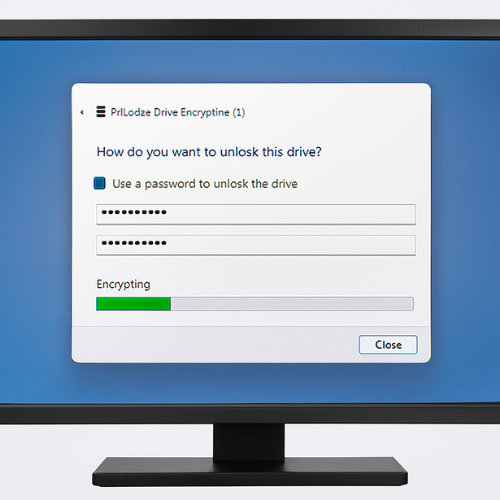
Best when you control the computers that will read the drive.
Option A: BitLocker To Go On Windows
Supported on Windows Pro and some Enterprise editions. Windows Home users often cannot turn on BitLocker directly, so check edition first.
Steps
- Insert the USB or external drive and open File Explorer.
- Right click the drive and select Properties then the BitLocker setting for that drive.
- Choose “Use a password to unlock the drive”.
- Set a strong password at least 14 characters long. Use words plus numbers, not random paste no one will remember.
- Save the recovery key to your password manager or print it and store offline.
- Select “Encrypt used space only” for fast setup on new drives or “Encrypt entire drive” for existing drives.
- Start encryption and keep the drive plugged in until the process ends.
Screenshot point: capture the BitLocker dialog that shows the drive letter and “BitLocker on”.
Gotcha: if the drive is formatted as exFAT and you plan to use it on very old systems, test unlock on each system once before trusting it.
Verify It Worked
- In File Explorer, the drive icon should show a small padlock.
- When you unplug and reinsert, Windows should prompt for the password.
- In a command prompt, you can run
manage-bde -statusand confirm “Percentage Encrypted 100”.
If any machine opens the drive without a prompt, something is wrong.
Option B: Encrypted External Volume On Macos
Mac allows you to encrypt external drives with APFS or older formats.
Steps
- Attach the external disk or USB stick.
- Open Disk Utility.
- Select the external device in the left pane.
- Use the Erase action and choose APFS Encrypted for SSD style storage or Mac OS Extended (Journaled, Encrypted) for older disks.
- Set a strong password and optional hint that does not reveal the password.
- Confirm erase and wait for the format to complete.
Screenshot point: show the Disk Utility format dialog with “APFS Encrypted” selected.
Gotcha: this will erase the drive, so move data off first.
Verify It Worked
- Eject, then reattach. macOS should ask for the password before mounting.
- In Disk Utility info for the volume, “Encrypted” should show as Yes.
Option C: Luks On Linux For Removable Drives
For security conscious teams with Linux desktops or servers.
High level steps:
- Plug in the drive and identify it with
lsblk. - Use
cryptsetup luksFormat /dev/sdXfor the right device. - Open the volume with
cryptsetup openand then create a filesystem inside. - Mount and copy data as normal.
Screenshot point: the desktop password prompt that appears when you plug the drive next time.
Gotcha: mixing Linux LUKS removable drives with office Windows laptops is painful, only pick this if you stay on Linux.
3.2 File And Folder Containers
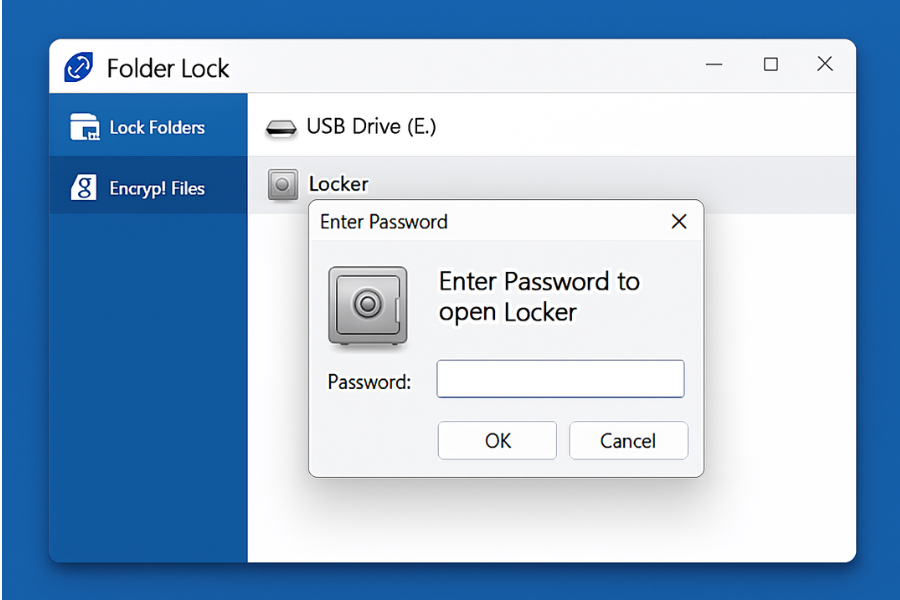
Instead of encrypting an entire device, you can encrypt one “vault file” and carry that file around. Once unlocked, it behaves like a drive or folder.
Folder Lock Lockers From NewSoftwares
Folder Lock is a commercial tool from NewSoftwares that can create encrypted lockers which you can keep on local drives, portable external disks and even USB sticks. It uses AES 256 bit encryption according to product material.
Workflow
- Create a locker on your laptop.
- Store the locker file on an external drive or inside a cloud storage folder.
- Open the locker with your master password when needed.
This works well when you move between many devices and want one consistent secure container instead of full disk encryption each time.
VeraCrypt And Similar Tools
VeraCrypt is an open source tool used by many technical users. It creates encrypted volumes that mount as virtual drives on Windows, macOS and Linux.
This option is powerful and flexible but has more knobs, so it fits teams that already have some security experience.
3.3 USB Specific Protection From NewSoftwares
Here is where NewSoftwares products line up very neatly with portable media.
USB Secure For Password Protected USB Drives
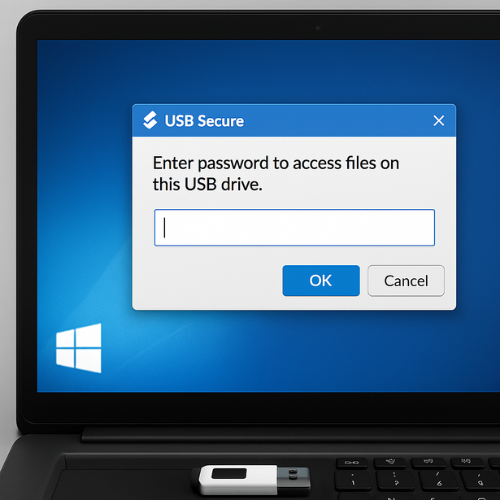
USB Secure is built specifically to protect portable media like USB flash drives, memory cards and external drives with a password. It installs on the USB itself, then prompts you for the password when you plug that drive into any Windows machine, even without admin rights.
Setup Steps
- Download USB Secure from NewSoftwares and run the installer.
- Point it at the USB drive you want to protect.
- Let it copy its small program onto the drive.
- Set a password. You can choose to protect the entire drive or only selected folders.
- Safely eject and reinsert the drive to check that it now asks for the password.
Gotcha: if autorun is disabled on a host PC, you might need to double click the USB Secure program on the drive manually to unlock.
Why USB Secure Is Useful
- It protects data on the drive without relying on BitLocker support on the host.
- It does not require admin rights on other machines.
- It works with many forms of removable storage, including memory cards in readers.
This is ideal when you share files with clients and cannot control their system setup.
USB Block To Control What Can Be Copied Out
USB Block lets you block or allow only certain USB drives on your own computers. It focuses on preventing data theft rather than encrypting the drive itself. It can also control other ports like FireWire and external drives.
Usage pattern:
- IT installs USB Block on office Windows machines.
- Admin sets a password and defines which USB IDs are allowed.
- Any unapproved USB is blocked from reading or copying files.
This addresses the problem “staff walk out with sensitive files on a cheap thumb drive”.
3.4 Hardware Encrypted USB Keys And Drives
Companies like Kingston, Apricorn and iStorage sell USB drives and portable SSDs with built in encryption and sometimes a physical keypad. Many of these devices:
- Encrypt all data on the drive with AES 256
- Require a PIN on the keypad before the host even sees the storage
- Lock or wipe themselves after several wrong attempts
These are excellent for high risk travel and executive data, as long as users can remember the PIN and there are spares for recovery.
3.5 File Level Encryption For Ad Hoc Use
Sometimes you just need to send one protected file.
Options:
- Password protected zip or 7zip archive using AES encryption
- PGP encryption for a file or folder when both sides can handle keys
For 7zip, always pick AES 256 and enable the option to encrypt file names, since names alone can reveal sensitive information.
4. Hands On Walkthroughs
This section moves from theory to clear actions. Replace “screenshot” notes with your real images later.
4.1 Protecting A Client USB With USB Secure
Goal
You regularly hand over case files or project folders on USB to non technical clients. If the stick is lost on the way home, nobody should read the contents.
Steps
- Action: On your Windows workstation, download and install USB Secure from NewSoftwares.
- Action: Insert the USB drive you plan to reuse for many clients.
- Action: Launch USB Secure and select that USB from the list of removable drives.
- Action: Choose the option to protect the entire drive area.
- Action: Set a password that you will communicate safely to the client.
- Action: Click the protect action. Wait until USB Secure reports completion.
- Verify: Eject and reinsert the drive. Confirm that USB Secure prompts for the password.
- Action: Unlock the drive and copy the client files into it.
- Action: Eject safely and hand over.
Screenshot ideas:
- USB Secure main window showing the drive list
- Password creation screen
- Unlock prompt on reinsertion
Gotcha: some corporate machines may block running programs on removable drives. In that case, alert the client that they may need to temporarily allow the program or use a personal machine.
Verify
Ask the client to plug the drive in while you are on a call. They should see the USB Secure prompt and no files until they enter the password.
Share The Password Safely
- Use a Signal message
- Or share by phone during a call
- Avoid sending the password in the same email as the confirmation that you shipped the drive
4.2 Encrypting An External Drive With BitLocker To Go
This suits a consultant who travels between several company branches with one external SSD.
We already covered high level steps. Here are the “gotchas” and checks.
Edge Cases
- If you only see a “Format” warning dialog when moving the drive between machines, check for older Windows versions that may lack BitLocker support.
- Some locked down corporate builds may block BitLocker operations. Ask IT before you rely on it.
Quick Test Matrix
After encrypting:
- Test on your main laptop
- Test on at least one second machine
- Test read only access on a machine where you do not have admin rights
If any of these fail, you can fall back to a container based method.
4.3 Building A Portable Locker With Folder Lock
For someone who wants one vault they can carry on a USB or external disk and also keep mirrored in cloud storage.
High level pattern:
- Install Folder Lock on your main Windows machine.
- Create a new locker with AES 256 encryption.
- Set capacity a bit larger than your current data size to avoid constant resizing.
- Save the locker file onto an external disk or USB drive.
- Add sensitive files into the mounted locker.
- Close the locker when finished.
You can also create a portable locker that carries a small decryptor program alongside the encrypted container, which lets you open it on other Windows systems with your password only.
5. Proof Of Work And Performance Expectations
5.1 Example Performance Table
These numbers are illustrative, based on typical consumer laptops with AES acceleration, not lab grade tests.
| Task | Setup | Size | Approx Time |
|---|---|---|---|
| Encrypt new 1 GB USB with BitLocker used space only | Mid range Intel laptop with SSD | 1 GB allocation on USB | 15 to 30 seconds |
| Encrypt full 64 GB USB that already holds data | Same laptop | 40 GB real data | 8 to 20 minutes |
| Protect 1 GB of mixed files with USB Secure | Windows 11 laptop | Existing USB | 30 to 60 seconds |
| Create 2 GB Folder Lock locker on external SSD | Same laptop | Locker file | Around 1 minute |
Aim for a process that finishes inside a normal work break. If a full drive encryption run takes hours, leave it running overnight and do not pull the plug mid process.
5.2 Settings Snapshot Example
For a safe 7zip based container on external media:
- Archive format: 7z
- Encryption method: AES 256
- Password: long passphrase
- Encrypt file names: enabled
For Folder Lock:
- Encryption: AES 256
- Locker type: portable locker if you plan to travel with it on USB
- Auto lock on inactivity: enabled
For USB Secure:
- Protection scope: entire drive when used for single purpose sticks
- Autoplay unlock: enabled where allowed
- Master password: unique to that drive and stored in a password manager
5.3 Verifying Encryption Beyond Just “It Asks For A Password”
Checks you can perform:
- Mount the drive on a system that does not know any password and see if raw sectors look like random bytes using a hex editor.
- Confirm that filenames and directory structure are not visible until after unlocking.
- For BitLocker or LUKS, confirm that backup tools cannot read files from the locked device.
5.4 Sharing Keys Without Creating New Risk
Simple playbook:
- Primary storage for passwords and recovery keys lives in an enterprise password manager.
- Individual USB drive passwords are unique.
- Sharing uses out of band channels such as Signal or voice, not email in plain text.
- Remove passwords from chat logs after the project ends if the messenger supports that.
6. Troubleshooting And Fixes
6.1 Symptom To Fix Table
| Symptom Or Message | Likely Cause | First Fix | Last Resort |
|---|---|---|---|
| “Windows needs to format this drive before use” | Host cannot read encrypted formatting BitLocker or APFS on wrong system | Try on system where you originally set up encryption | Use recovery key if BitLocker, otherwise restore from backup |
| USB Secure prompt never appears on a client PC | Autoplay disabled or program blocked | Open the drive in File Explorer and double click the USB Secure executable manually | If still blocked, use a different machine that allows executable files |
| BitLocker recovery key screen on boot | System thinks something changed in hardware or boot sequence | Enter recovery key from your records | If missing, contact IT or accept data loss and reformat |
| Folder Lock locker will not open with correct password | Caps lock or keyboard layout mismatch, or corruption | Try on second machine, test keyboard layout | Restore locker from backup if corruption suspected |
| Drive very slow after encryption | Old hardware or using full drive encryption on worn USB stick | Move to a better quality USB 3 or SSD device | For critical use, replace media entirely |
6.2 Root Causes Ranked
- No backups of encrypted containers and keys
- People using the same password on many devices
- Relying only on access control without real encryption
- Using outdated or weak methods such as legacy zip encryption
- Lack of testing before shipping drives to clients
Non destructive tests come first:
- Try a different USB port or machine
- Confirm the filesystem is still healthy with disk check tools
- Confirm the encryption tool version is up to date
Only then consider reformatting or recreating containers.
7. Policy Notes And Safe Handling Habits
A workable external media policy can be as short as one page:
- All portable storage that holds sensitive data must be encrypted.
- Only approved tools may be used, such as BitLocker, Folder Lock, USB Secure and specific hardware drives.
- Staff use USB Block on office machines so personal sticks are rejected.
- Passwords and recovery keys are stored in the central password manager.
- No single person is allowed to be the only holder of a recovery key for shared devices.
This keeps the focus on a few simple repeatable actions instead of abstract “best practice”.
8. Frequently Asked Questions
1. Is Encrypting A USB Drive Really Necessary For Normal Staff
Yes. USB sticks are small and easy to lose. They often hold reports, client lists or internal documents. Once lost, unencrypted data is as open as a printed binder left in a taxi. Tools like BitLocker To Go or USB Secure make encryption routine rather than special.
2. Which Is Safer For Client Handovers, USB Secure Or BitLocker To Go
BitLocker To Go gives strong encryption but only works on supported Windows editions. USB Secure travels better across mixed Windows machines and does not need admin rights, so it is often better when you cannot control the client side. You can also combine both if all parties use compatible systems.
3. Does Folder Lock Replace BitLocker On Laptops
No. BitLocker protects the entire internal drive in case the laptop is stolen. Folder Lock protects selected lockers that might live on external media or cloud storage and gives finer sharing control. Many teams use both at once.
4. Can Malware Still Infect An Encrypted USB Drive
Yes. Encryption protects the confidentiality of stored files when the drive is lost or unplugged. Once you unlock the drive on an infected system, malware can write into the unlocked volume like any other. Maintain endpoint protection and avoid plugging drives into untrusted machines.
5. What Happens If I Forget The Password For USB Secure
Without the correct password, you cannot open the protected content. There is no universal backdoor. Treat the password like a key to a safe. Store it in a password manager, and consider separate drive passwords for different projects.
6. Is Hardware Encrypted Media Always Better Than Software Encryption
Hardware media is handy and tamper resistant, but it is also more expensive and sometimes depends on proprietary firmware. Software tools such as Folder Lock and BitLocker are easier to back up because you can copy containers and keep multiple versions. Pick based on budget, risk and how many devices you must support.
7. Can I Use These Tools On Shared Office Computers
Often yes, but two checks matter. First, confirm you are allowed to run these tools under company policy. Second, confirm that tools like USB Secure are not blocked by endpoint controls. When in doubt, use company managed solutions set up by IT.
8. How Do I Know If A Method Uses Strong Encryption
Look for AES with at least 128 bit keys, ideally 256 bit, and modern modes of operation. Folder Lock and many hardware encrypted drives use AES 256. NewSoftwares material also describes strong protection for USB Secure based media.
9. Is Copying An Encrypted Locker To Cloud Storage Safe
It is much safer than uploading raw files. The cloud provider only sees ciphertext. Still, your risk now sits with the password or key. Keep that key in a password manager and avoid reusing it across containers.
10. Should I Still Shred Files On An Encrypted External Disk
If the disk will be reused after decryption, yes. If the entire disk will stay encrypted and then be physically destroyed later, you can rely mainly on encryption. For shared drives that change owners, combine encryption with secure deletion once projects end.
11. What Is The Role Of NewSoftwares Tools In An All Round Setup
In a compact setup:
- Folder Lock protects lockers across internal and external storage.
- USB Secure handles ad hoc portable media given to clients.
- USB Block stops staff from using unapproved portable media.
This gives both encryption and access control in simple pieces that normal staff can learn.
12. Does Encryption On External Media Slow Things Down Too Much
On modern machines with CPU support for AES, most people will not notice a big slowdown once the initial encryption pass finishes. Old USB sticks and spinning external disks may feel slower. For heavy use, move to quality USB 3 drives or portable SSDs and keep capacity below the point where they become crowded.
Conclusion: Encryption Plus Policy Is The Only Defense
Relying on luck or vague policies to protect portable media is a critical security failure. Real protection demands mandatory encryption on every device that leaves your sight. By combining native OS tools like BitLocker with specialized solutions from Newsoftwares.net, such as USB Secure for client handovers and USB Block for endpoint control, organizations can establish a complete and enforceable defense, ensuring data confidentiality regardless of where the physical media travels.
9. Structured Data Snippets
9.1 HowTo Schema For Protecting A USB With USB Secure
{
  "@context": "https://schema.org",
  "@type": "HowTo",
  "name": "Protect a USB drive with USB Secure",
  "description": "Use USB Secure from NewSoftwares to lock a USB drive with a password so data stays safe if the drive is lost.",
  "tool": [
    {
      "@type": "HowToTool",
      "name": "USB Secure"
    }
  ],
  "supply": [
    {
      "@type": "HowToSupply",
      "name": "USB flash drive or external USB storage"
    },
    {
      "@type": "HowToSupply",
      "name": "Windows computer with internet access"
    }
  ],
  "step": [
    {
      "@type": "HowToStep",
      "position": 1,
      "name": "Download USB Secure",
      "text": "Download USB Secure from the NewSoftwares website and run the installer on your Windows computer."
    },
    {
      "@type": "HowToStep",
      "position": 2,
      "name": "Attach the USB drive",
      "text": "Insert the USB drive or external USB storage you want to protect into the computer."
    },
    {
      "@type": "HowToStep",
      "position": 3,
      "name": "Select the drive in USB Secure",
      "text": "Launch USB Secure and select the USB drive from the list of detected removable devices."
    },
    {
      "@type": "HowToStep",
      "position": 4,
      "name": "Set a password",
      "text": "Choose a strong password and confirm it so USB Secure can protect the files stored on the drive."
    },
    {
      "@type": "HowToStep",
      "position": 5,
      "name": "Finish protection and test",
      "text": "Complete the protection process, safely remove and reconnect the drive, then confirm that USB Secure prompts for the password before showing any files."
    }
  ]
}
9.2 FAQPage Schema
{
  "@context": "https://schema.org",
  "@type": "FAQPage",
  "mainEntity": [
    {
      "@type": "Question",
      "name": "Do I really need to encrypt USB drives and external media?",
      "acceptedAnswer": {
        "@type": "Answer",
        "text": "Yes. Portable storage is easy to lose and often contains sensitive documents. Encryption on the device keeps the data unreadable if the media is lost or stolen."
      }
    },
    {
      "@type": "Question",
      "name": "What is the simplest way to protect a USB stick for a non technical client?",
      "acceptedAnswer": {
        "@type": "Answer",
        "text": "A straightforward option is USB Secure from NewSoftwares, which installs on the drive and prompts for a password on any Windows machine, without needing administrator rights."
      }
    },
    {
      "@type": "Question",
      "name": "Can I use Folder Lock and BitLocker together?",
      "acceptedAnswer": {
        "@type": "Answer",
        "text": "Yes. Many users encrypt the internal system drive with BitLocker and place sensitive content inside Folder Lock lockers that sit on internal or external storage for extra structure and sharing control."
      }
    }
  ]
}
9.3 ItemList Schema For External Media Security Options
{
  "@context": "https://schema.org",
  "@type": "ItemList",
  "name": "External media and portable security solutions",
  "itemListElement": [
    {
      "@type": "ListItem",
      "position": 1,
      "name": "BitLocker To Go",
      "description": "Windows full drive encryption for USB and external drives."
    },
    {
      "@type": "ListItem",
      "position": 2,
      "name": "Folder Lock",
      "description": "Encrypted lockers from NewSoftwares that can live on internal and external storage."
    },
    {
      "@type": "ListItem",
      "position": 3,
      "name": "USB Secure",
      "description": "Portable password protection software from NewSoftwares for USB and other removable media."
    },
    {
      "@type": "ListItem",
      "position": 4,
      "name": "USB Block",
      "description": "Endpoint control from NewSoftwares that blocks unapproved USB and external devices."
    },
    {
      "@type": "ListItem",
      "position": 5,
      "name": "Hardware encrypted USB drives",
      "description": "Special USB keys and portable SSDs with built in encryption and keypad access."
    }
  ]
}