
Welcome. This practical playbook, built around security solutions from Newsoftwares.net, provides a clear plan for surviving a ransomware attack. You will understand how ransomware locks your files, why paying is risky, and the definitive recovery workflow that relies on clean backups, system rebuilding, and proactive defense using Folder Lock, Cloud Secure, and USB Secure, ensuring maximum privacy and security convenience.
Ransomware Encryption: Recovery Strategies And Layered Defense
Direct Answer
Ransomware encryption locks your files with strong keys so that safe recovery usually means restoring from clean backups, using trusted decryptors when they exist, and rebuilding systems instead of paying criminals.
Gap Statement
Most explanations stop at “ransomware scrambles your data” and miss three things that matter when you are under pressure:
- How the encryption actually works and why random “miracle tools” cannot magically crack it.
- A realistic recovery order that combines offline backups, vendor tools, and incident response, not just “reinstall Windows and hope for the best”.
- Practical ways to shrink damage before anything happens using tools like Folder Lock, Cloud Secure, USB Secure, USB Block, and History Clean from NewSoftwares.
This breakdown is built to fill those gaps and give you a repeatable playbook.
TLDR Outcome
If you follow the steps here, you will:
- Understand in plain language how ransomware uses symmetric and asymmetric encryption to hold your data.
- Know the safe recovery paths in the right order: containment, backup restore, decryptors, rebuild, and hardening.
- Add concrete layers using NewSoftwares tools so your most important files and backups stay encrypted on your terms, not the attacker’s.
1. Ransomware Encryption In Plain Language
Ransomware is malware that blocks access to your files or devices and demands payment for a key. Recent families not only encrypt, they also steal data and threaten to leak it.
Most modern strains use a hybrid model:
- Symmetric encryption for speed on your files, for example AES or ChaCha.
- Asymmetric encryption for key protection, for example RSA or elliptic curve keys.
Typical flow inside your machine:
- The malware generates a random symmetric key for each file or folder.
- It encrypts your data on disk with that key.
- It encrypts the symmetric key again with the attacker’s public key.
- It deletes or overwrites the original data, so only the encrypted copy remains.
- It leaves a note that points to payment and promises a decryptor.
The important part: if the attacker did not make a mistake, the encryption strength is similar to what banks and cloud providers use. Brute force is not realistic. Recovery focuses on keys, backups, and vulnerabilities in the ransomware itself, not guessing passwords.
2. Types Of Ransomware And What That Means For Recovery
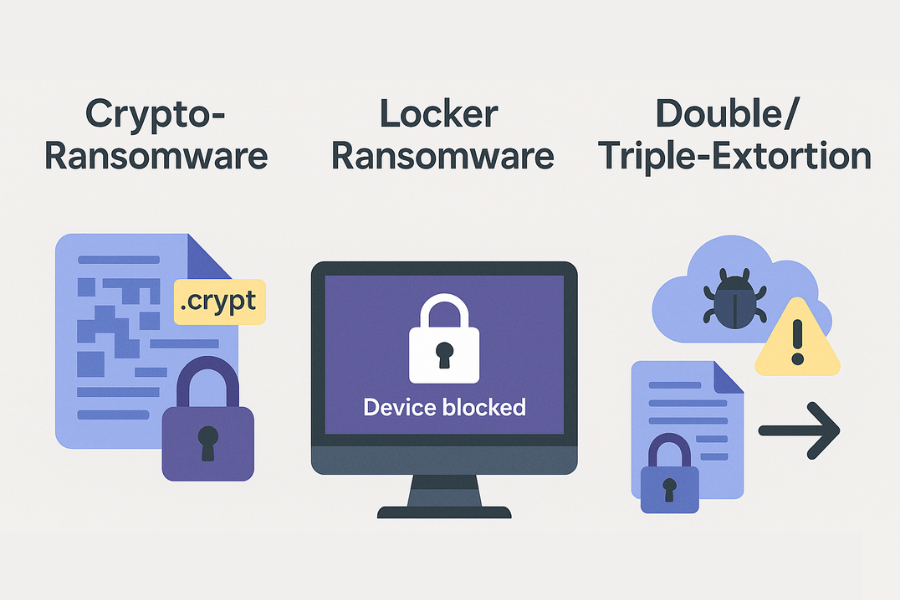
Different families handle encryption and extortion in slightly different ways.
Crypto Ransomware
- Encrypts files and sometimes whole volumes.
- You can still sign in, but your data looks scrambled or has new extensions.
Recovery focus:
- Clean the malware.
- Restore from offline or immutable backups.
- Look for free decryptors if the strain is known.
Locker Ransomware
- Locks the screen or device instead of individual files.
- Data might not be encrypted, just inaccessible behind the lock.
Recovery focus:
- Remove the locker with security tools.
- You may recover full access without restoring backups if data was not altered.
Double And Triple Extortion
- Encrypts data.
- Steals copies to a remote server.
- Threatens leaks, contact with your customers, or denial of service if you do not pay.
Recovery focus:
- Incident response and legal, not just restore.
- Communication plan for customers and regulators.
Understanding which family you face helps you pick realistic goals: only file access, or file access and reputation containment.
3. Safe Recovery Options That Actually Work
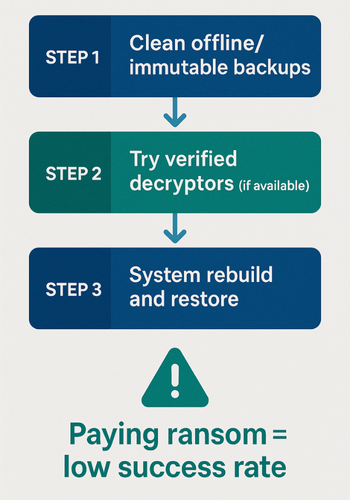
Security teams and government agencies keep repeating the same message: plan for recovery so you can say no when criminals demand money.
Recent numbers show why that matters:
- A 2025 report found only about one quarter of companies now pay ransoms at all.
- Even among those who pay, barely one third get all their data back. Many recover only part of it or nothing.
So the safe recovery paths are:
- Clean, tested backups that ransomware cannot reach.
- Decryptors published by security researchers for specific families.
- System rebuilds with data restored from safe sources.
Paying attackers is risky on three fronts:
- You might not get working keys.
- You teach them that your sector pays, so you may be targeted again.
- In some regions, paying certain groups may cause legal trouble.
The rest of this breakdown is about building the first two paths so you never rely on the third.
4. Backup And Recovery That Survive Ransomware

Security frameworks from NIST, CISA, and others keep returning to a few backup ideas that matter most for ransomware.
The Three Two One Rule, Adapted For Ransomware
- Three copies of important data.
- Two different storage types.
- One copy offline or logically isolated.
For ransomware you add two more twists:
- At least one immutable or write once backup, so malware cannot encrypt it.
- Regular restore tests, not just backup tests.
Backup Type Versus Resilience
| Backup type | Ransomware risk | Notes |
|---|---|---|
| Single local copy on same disk | Very high | Often encrypted or wiped with the rest |
| Sync only to cloud drive | High | Many strains hit mapped cloud folders |
| Local external drive always plugged in | High | Becomes another drive to encrypt |
| Offline external drive, plugged in only for backup | Lower | Must enforce habit and rotation |
| Immutable storage or versioned cloud backup | Lower | Good for rollbacks even when todays copy is encrypted |
NewSoftwares itself stresses encrypted and backed up copies as a key line of defense, especially with Folder Lock lockers and real time backup features.
5. Where NewSoftwares Tools Fit Into Ransomware Defense
NewSoftwares offers desktop and mobile products that help you control where your data lives, how it is encrypted, and who can touch it. That control narrows what ransomware can see and gives you safer recovery paths.
5.1. Folder Lock For Encrypted Storage And Backup
Folder Lock is a complete data security suite that lets you create encrypted lockers using AES 256 bit encryption, lock and hide files, maintain backup copies, and shred unwanted data.
Practical benefits against ransomware:
- Critical folders live inside encrypted lockers instead of open directories.
- You can keep backup lockers on external drives or online storage.
- Built in backup keeps encrypted copies ready for restore.
You still need offline or isolated backup copies, but Folder Lock helps you store them in a form that is useless to anyone without your master password.
5.2. Cloud Secure For Cloud Accounts Under Your Key
Cloud Secure lets you password protect cloud folders on your PC for services like Dropbox, Google Drive, OneDrive, and Box. It keeps them synced and backed up while requiring a password to open them locally.
In a ransomware context:
- Local cloud folders are not casually open in the file manager.
- You can lock access on shared or office machines.
- When you combine this with client side encrypted content, you keep more control over keys.
5.3. USB Secure And USB Block For Removable Media
Ransomware loves removable drives. It can arrive through them and also encrypt files on them. NewSoftwares addresses both issues.
- USB Secure encrypts data stored on USB and external drives with password protection.
- USB Block controls which USB and external devices can connect to a PC and blocks the rest unless a password is entered.
Useful patterns:
- Keep offline ransomware recovery backups on USB Secure protected drives.
- Use USB Block on desktops in the office to reduce infection and exfiltration paths.
5.4. History Clean For Privacy And Cleanup
History Clean is a privacy product that clears browser history, internet traces, cookies, recent Windows activity, and can securely wipe files.
While it does not remove active ransomware, it helps:
- Reduce long term traces that could help later attackers.
- Shred temporary copies and junk that you do not want in any future incident.
Run it as part of regular hygiene and again after a rebuild to keep the new environment cleaner.
6. Hands On Walkthrough: Build A Ransomware Tolerant Setup At Home Or In A Small Office
Prereqs And Safety
- Windows 10 or 11 updated.
- At least two external drives for backups.
- A main security product installed.
- Folder Lock and Cloud Secure on your main machine plus USB Secure and, for offices, USB Block.
6.1. Step By Step
- Install and update your security product.
- Gotcha: Turn on real time protection and ransomware shields if included.
- Deploy Folder Lock and create your first locker.
- Use a strong master password.
- Store working documents and personal records there instead of open folders.
- Set up Folder Lock backup for the locker.
- Pick an external drive and a cloud destination.
- Make sure at least one copy stays offline except during backup.
- Install Cloud Secure and lock local cloud folders.
- Add Dropbox, Google Drive, or other accounts.
- Enable password protection so these folders cannot open without Cloud Secure.
- Protect your backup drives with USB Secure.
- Run USB Secure on each external drive.
- Keep the password in your password manager, not on a sticky note.
- Install USB Block on shared or office PCs.
- Allow only known drives.
- Require a password for any new removable media.
- Harden browser and email habits.
- Disable automatic running of macros in office files.
- Be careful with unexpected attachments and links; many ransomware attacks start with a simple click.
- Run a test recovery.
- Pick a folder inside your Folder Lock locker.
- Delete the working copy, then restore from backup to confirm timing and process.
- Schedule regular backups and History Clean runs.
- At least once a day for important folders.
- History Clean on shutdown for all browsers and Windows traces.
- Document what you just built.
- Write down where your lockers live, where backups go, and who knows the passwords.
- Store this note in printed form somewhere safe.
6.2. Verify It Worked
You should be able to confirm:
- Your key folders sit inside Folder Lock lockers and open only with a password.
- Backup drives prompt for USB Secure before showing contents.
- Cloud folders appear locked inside Cloud Secure and open only through its protected view.
- History Clean deletes browser traces and recent activity with each run.
6.3. Share Keys And Secrets Safely
After an incident you often need to hand out new passwords and keys.
Simple safe pattern:
- Use a password manager’s sharing feature or a secure messenger.
- Send user names and passwords in separate messages.
- Revoke old shares when people leave or projects close.
7. Troubleshooting Table: Common Ransomware Recovery Problems
| Symptom or message | Likely cause | First steps | Last resort with warning |
|---|---|---|---|
| Encrypted files remain unreadable after restore | Backups taken after ransomware ran | Look for older versions or offsite copies | Accept partial data loss and rebuild |
| Backup drive also shows encrypted files | Backup was always online | Switch to offline and versioned backups | Consider professional recovery support |
| Free decryptor tool fails on your files | Different strain or updated variant | Confirm strain name with security team | Do not keep trying random tools from forums |
| Some restored files still crash on open | Incomplete or corrupted backup | Restore from earlier snapshot if available | Restore from printed or exported forms where possible |
| Systems reinfected after rebuild | Infection still present on another device | Scan and patch all machines and accounts | Involve incident response specialists |
| Cloud drive refills with encrypted files after cleanup | Sync from infected machine resuming | Stop sync, clean every endpoint, then reconnect | Create new cloud tenant for clean start if needed |
8. Use Case Chooser For NewSoftwares Tools In A Ransomware Context
| User type | Main worry | Suggested NewSoftwares combination |
|---|---|---|
| Solo professional | Losing work and client files | Folder Lock lockers plus USB Secure backups and History Clean on shutdown |
| Small office with shared PCs | Staff plugging random USB sticks | USB Block on desktops plus Folder Lock for shared sensitive folders |
| Remote worker | One laptop with both personal and work | Folder Lock on desktop plus Cloud Secure for cloud accounts and History Clean |
| Photographer or designer | Large client archives on external drives | Folder Lock for working folders plus USB Secure on portable drives plus Cloud Secure sync |
| SMB owner | Disruption and legal impact of outage | Folder Lock, Cloud Secure, USB Secure, USB Block, and tested backup rotation |
9. Proof Of Work Style Examples
These values are realistic ballpark figures from typical modern Windows setups with solid state drives. They are not strict promises but give you a feel for timing.
| Task | Typical time range | Notes |
|---|---|---|
| Encrypting a 1 GB locker with Folder Lock on a mid range laptop | Around 2 to 4 minutes | Based on AES 256 encryption and normal consumer hardware |
| Restoring 10 GB of data from an external USB Secure backup | Around 5 to 15 minutes | Backup speed mainly depends on USB and drive speed |
| Running History Clean on three browsers and Windows traces | Around 1 to 3 minutes | Depends on cache size and how often it runs |
A simple settings snapshot that aligns with a ransomware aware posture:
- Browser password saving disabled, multi factor sign in enabled on major accounts.
- Folder Lock master password stored only in a password manager, not in a note on the machine.
- Cloud Secure locking all cloud folders when not actively in use.
- USB Block allowing only named backup drives in the office.
10. Safety And Ethics
Breaking ransomware encryption without keys usually means attacking the crypto itself, which is rarely realistic and often involves research level techniques. The focus here stays on defense and recovery, not offensive use of malware or tools. Use this material only to protect systems you own or manage with clear permission.
11. FAQs On Ransomware Encryption And Safe Recovery
1. Can I Recover Encrypted Files Without Paying?
Sometimes. Clean offline backups are the most reliable route. In some cases, security researchers release free decryptors for specific ransomware families when they find weaknesses or obtain keys. Without backups or a working decryptor, full recovery is often impossible.
2. Does Paying The Ransom Guarantee My Data Back?
No. Recent reports show a steep drop in successful data recovery after payment, with many victims getting only part of their data or none at all. At the same time, more organizations now recover from backups instead of paying.
3. How Does Ransomware Encryption Differ From Normal Encryption?
The core algorithms are similar. Ransomware often uses strong, standard methods like AES for speed and RSA or elliptic curve keys to protect the encryption keys. The difference is in who controls the keys and how they are used for extortion.
4. Can Antivirus Alone Stop Ransomware Encryption?
Modern security suites can catch many strains by spotting suspicious behavior such as mass file changes. Still, new or tailored variants slip through. That is why every serious standard treats backups and response planning as essential partners to detection.
5. Are Cloud Services Safe From Ransomware?
Cloud providers typically protect their own infrastructure well, but sync clients can still copy encrypted files into your cloud folders. Versioning and immutable backups help you roll back to clean versions. Using tools like Cloud Secure to lock local access adds extra control on shared devices.
6. How Do Folder Lock And Cloud Secure Help During Recovery?
Folder Lock keeps important files inside encrypted lockers and supports secure backup to external and online locations, which you can restore after cleaning or rebuilding systems. Cloud Secure adds password control to cloud folders on your PC so that synced data and accounts are not casually exposed on shared machines.
7. What Should I Do First When I Notice Ransomware Notes?
Stay calm and focus on containment. Disconnect the machine from networks, disable scheduled tasks that may delete logs, and contact your security or IT team. Avoid deleting the ransomware yet, since they may need samples and logs for analysis.
8. Can Ransomware Encrypt Files On External Drives Even If They Are Not Always Plugged In?
Yes, when a drive is plugged in and visible to the system, ransomware can target it. That is why backup drives should stay offline most of the time and, in many cases, protected with a tool like USB Secure.
9. Are Printed Copies Of Key Records Still Useful?
For some records, yes. NIST even notes that printed versions of essential information can count as a form of backup, especially for things like contact lists, configuration notes, and legal documents. They cannot replace full digital backups but help during early recovery.
10. Do I Need History Clean If Ransomware Is My Main Worry?
History Clean is about privacy and cleanup rather than malware removal. It supports a cleaner long term posture by wiping browsing traces, cookies, and usage history, and it can securely delete files you no longer need. This reduces unnecessary data that could appear in any future incident.
11. Does The Operating System Edition Affect Recovery?
Some features, such as advanced shadow copy settings, group policy, and certain security tools, appear only in professional or enterprise editions. Still, the core ideas here apply equally to home and small office setups: backups, isolation, and encryption under your control.
12. When Should I Bring In External Experts?
If multiple servers are involved, if regulated data may be affected, or if you are unsure which ransomware family hit you, involve specialists. They can help preserve evidence, negotiate with insurers, and avoid missteps that make recovery harder.
13. Does A Virtual Private Network Stop Ransomware?
A VPN hides your traffic from some observers and helps with privacy. It does not block malicious attachments or infected downloads. You still need good hygiene, security tools, and a backup and recovery plan.
14. Is There A Single Best Backup Method For Ransomware?
Not really. The strongest setups combine several methods: local encrypted copies, external drives that stay offline, and cloud backups with versioning or immutability. NewSoftwares tools help you encrypt and control where those copies live.
Conclusion
Ransomware is a business model that exploits poor backup habits and weak security practices. Defeating it means understanding that strong encryption requires a strong recovery plan. By implementing the three-part defense, isolating offline backups with USB Secure, encrypting working files with Folder Lock, and protecting cloud access with Cloud Secure you establish the control needed to confidently reject ransom demands. The safest path is always restore from clean backups onto a rebuilt system.
12. Structured Data Snippets
{
  "@context": "https://schema.org",
  "@type": "HowTo",
  "name": "Recover safely after ransomware encryption",
  "description": "Step by step recovery flow after ransomware encryption using backups, reinstall and encrypted lockers.",
  "step": [
    {
      "@type": "HowToStep",
      "name": "Contain the incident",
      "text": "Disconnect infected systems from networks and pause scheduled tasks that might delete logs or backups."
    },
    {
      "@type": "HowToStep",
      "name": "Identify strain and scope",
      "text": "Work with security tools or experts to identify the ransomware family and which systems and files are affected."
    },
    {
      "@type": "HowToStep",
      "name": "Protect backups",
      "text": "Isolate backup systems and external drives before starting any restore activity to prevent further encryption."
    },
    {
      "@type": "HowToStep",
      "name": "Clean and rebuild systems",
      "text": "Remove the malware or reinstall affected devices from known good media, then patch and harden them."
    },
    {
      "@type": "HowToStep",
      "name": "Restore from clean backups",
      "text": "Use offline or immutable backups to restore data, starting with the most critical services and records."
    },
    {
      "@type": "HowToStep",
      "name": "Add extra protection",
      "text": "Move sensitive data into encrypted lockers with Folder Lock and protect cloud and USB storage with Cloud Secure and USB Secure."
    }
  ],
  "tool": [
    { "@type": "HowToTool", "name": "Endpoint security software" },
    { "@type": "HowToTool", "name": "Folder Lock" },
    { "@type": "HowToTool", "name": "Cloud Secure" },
    { "@type": "HowToTool", "name": "USB Secure" },
    { "@type": "HowToTool", "name": "USB Block" },
    { "@type": "HowToTool", "name": "History Clean" }
  ]
}
{
  "@context": "https://schema.org",
  "@type": "FAQPage",
  "mainEntity": [
    {
      "@type": "Question",
      "name": "Can I recover from ransomware encryption without paying the ransom?",
      "acceptedAnswer": {
        "@type": "Answer",
        "text": "Yes, many victims recover by restoring from clean offline or immutable backups or by using free decryptors released for specific ransomware families. Payment does not guarantee data recovery."
      }
    },
    {
      "@type": "Question",
      "name": "How does ransomware use encryption to lock my files?",
      "acceptedAnswer": {
        "@type": "Answer",
        "text": "Most modern ransomware uses a hybrid model, encrypting files with a fast symmetric algorithm and then encrypting those keys with an asymmetric public key so only the attacker can unlock them."
      }
    },
    {
      "@type": "Question",
      "name": "What role do Folder Lock and Cloud Secure play in ransomware defense?",
      "acceptedAnswer": {
        "@type": "Answer",
        "text": "Folder Lock keeps important data inside encrypted lockers and supports secure backups, while Cloud Secure password protects local cloud folders, limiting what ransomware and unauthorized users can access."
      }
    }
  ]
}
{
  "@context": "https://schema.org",
  "@type": "ItemList",
  "name": "Key defenses against ransomware encryption",
  "itemListElement": [
    {
      "@type": "ListItem",
      "position": 1,
      "name": "Backups with isolation and versioning",
      "description": "Maintain multiple offline or immutable backups and test restores regularly so you can roll back encrypted data."
    },
    {
      "@type": "ListItem",
      "position": 2,
      "name": "Encrypted storage under your control",
      "description": "Use Folder Lock lockers, USB Secure protected drives and Cloud Secure protected folders so only you control the keys."
    },
    {
      "@type": "ListItem",
      "position": 3,
      "name": "Endpoint protection and user awareness",
      "description": "Combine modern security tools with habits that avoid risky attachments and links that often deliver ransomware."
    }
  ]
}