
Enterprise Strategy for USB Security: Mandatory Encryption, Auditing, and Policy Enforcement
You can stop data leaks from lost USB drives and block physical-media malware infections by shifting from trusting employee compliance to controlling access and requiring mandatory, verified AES-256 encryption.
USB devices present a complex and persistent threat to corporate networks. The vast majority of data breaches related to physical media stem from two fundamental failures: unencrypted data storage and unauthorized device execution. Security posture must evolve beyond relying on employee compliance alone and move toward enforced access control and verified encryption.
I. Direct Action: Your Immediate USB Security Plan
For organizations to achieve a secure posture against USB threats, three actions must be taken immediately to control both the confidentiality of data leaving the perimeter and the integrity of systems operating within it.
Three Core Immediate Actions
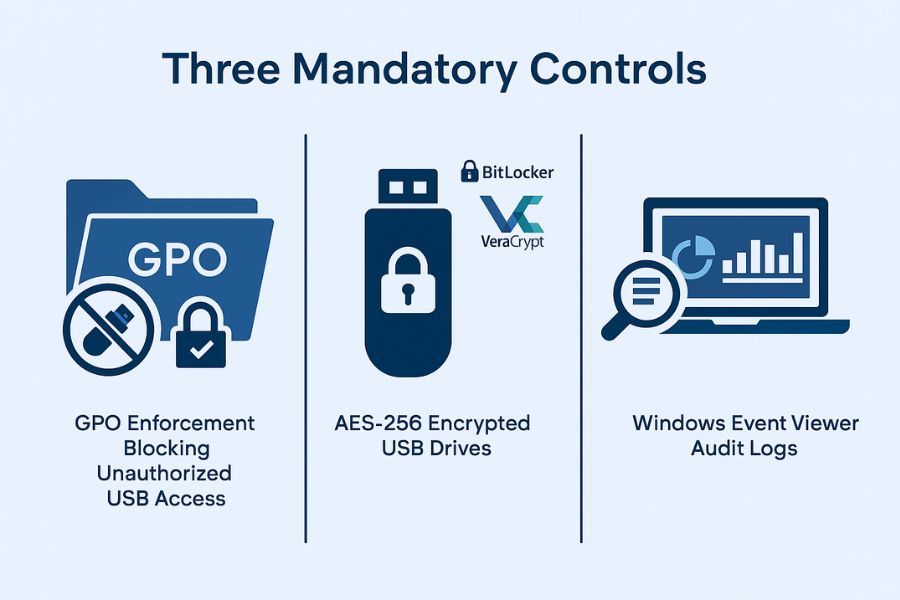
- Enforce Policy First: Immediately disable unauthorized removable media access organization-wide using Group Policy Objects (GPO) within a Windows domain environment.
- Encrypt Everything: Mandate full-volume encryption using industry-standard tools like BitLocker To Go or VeraCrypt for any permitted device. AES-256 encryption, the current standard, requires resources projected to take trillions of years to crack via brute force, providing an ironclad defense against data loss.
-
Enable Auditing: Turn on the non-default Windows Event Viewer logs to track all device connection, disconnection, and file operation history, ensuring forensic accountability.
Prerequisites and Safety Checklist
Implementing comprehensive security requires specific system support and safety measures. GPO enforcement and the robust management features of BitLocker To Go require Windows Pro, Enterprise, or Education editions. Standard Windows Home editions can often read BitLocker drives but lack the necessary administrative capabilities to encrypt them or manage keys.
Furthermore, before deploying any full-volume encryption, particularly with advanced solutions like VeraCrypt, a verified backup of the existing data is mandatory. Encryption protects data confidentiality, but if the volume header is corrupted or the encryption key is lost, the data is completely irretrievable.
The Dual Nature of USB Threats
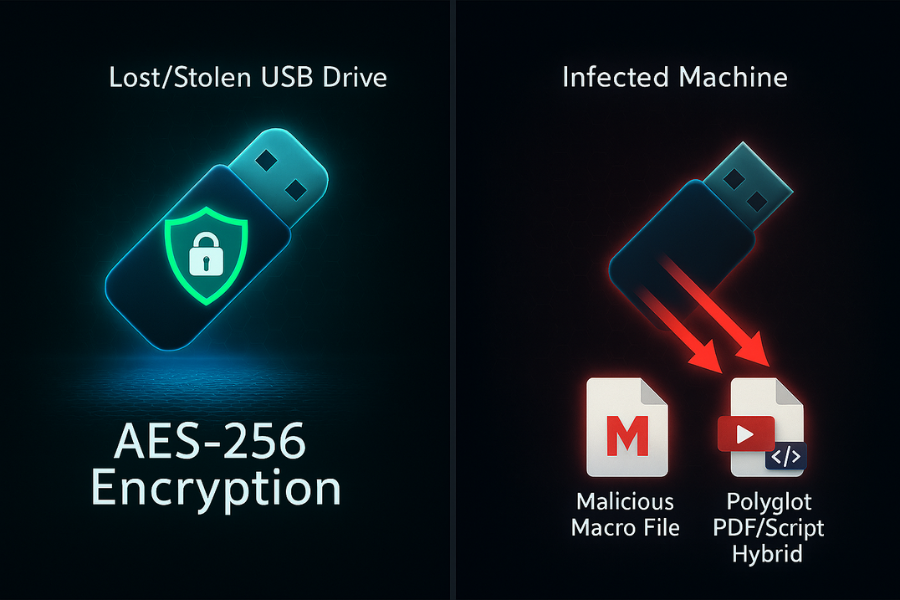
A robust USB security policy must address two distinct dangers. The first is confidentiality, which is protected by encryption if a physical drive is lost or stolen. The second is system integrity, which is threatened by malware execution. If a user inserts a company-approved, encrypted drive and unlocks it on a machine already infected by malware, the data’s confidentiality remains protected, but the system integrity is still severely compromised.
Therefore, access control mechanisms, such as GPO enforcement, must be deployed to prevent unauthorized code (like malicious VBScript files) from executing payloads that originate from physical media.
For mixed computing environmentsthose utilizing Mac, Linux, or a variety of Bring Your Own Device (BYOD) systemsrelying solely on Windows GPO for access control is insufficient. In these scenarios, administrators must mandate universal cross-platform solutions like VeraCrypt or deploy centralized, third-party device control solutions (e.g., SafeConsole) that can provide unified management and auditing across all operating systems.
II. The Inescapable Cost of Lost Data: Why USB Drives Are Still a Critical Threat
USB drives are not simply obsolete hardware; they remain a primary vector for sophisticated cyberattacks and a significant source of measurable financial loss.
The Regulatory Fine and Financial Risk
The financial consequences of losing unencrypted sensitive data are substantial and rising. According to the IBM Cost of a Data Breach 2024 report, the average global cost of a data breach has reached $4.88 million. This figure is significantly higher in regulated sectors, with the financial industry facing an average cost of $6.08 million per breach.
The risk of physical media loss is not theoretical. Regulatory bodies actively enforce penalties against negligence. For example, a UK Local Authority was fined £80,000 specifically for losing an unencrypted USB stick. Compliance officers must justify the investment in security controls by demonstrating that these specific, documented penalties can be avoided through policy and encryption.
The Malware Vector: Beyond Simple Viruses
Modern threats spread via USB are highly targeted and sophisticated. Attackers use USB media to deploy specific, advanced malware families, including AsyncRat, Valyrian, Gamarue, and Agent Tesla. These are not generic viruses; they are persistent threats designed to steal credentials or establish backdoors.
The method of infection often relies on deceiving the user into enabling execution:
- Malicious Macros: Attackers embed executable scripts (macros) within common business files like Microsoft Word or Excel. When an unsuspecting user opens the file and enables the macros, the malicious payload executes, compromising the host system.
- Polyglot Files: This is a more subtle technique where a file is crafted with two different formats (e.g., appearing to be a PDF but internally containing a VBScript payload). This structure is designed to evade detection by the operating system and execute MSI malware when opened by the host application.
This evolution confirms that standard data-at-rest encryption (like AES-256) is only half the solution, protecting data if the drive is lost. Strict execution prevention and file access controls are the only viable defense against infection when the drive is actively used on a compromised or unmanaged endpoint.
Risk Amplification Across the Enterprise
The consequences of poor USB hygiene extend beyond standard data loss. In industrial and Operational Technology (OT) environmentssuch as chemical plants, wind farms, or bank ATMsunsecured USBs are routinely used to transfer configuration files or patches. If a malware payload crosses into the OT network, the risk scales from data compromise to catastrophic physical system failure.
Furthermore, unmanaged USB usage facilitates “Shadow IT.” Employees easily transfer unauthorized, often large, files, including pirated or unlicensed software. This exposes the organization to licensing audits and hefty fines, which can reach $150,000 per violation. Therefore, USB policy is not just a data protection issue; it is a critical component of regulatory compliance and operational risk management.
III. Policy Blueprint: Centralized Control Through Device Management
Centralized control requires policy mechanisms that make the use of unauthorized media physically impossible, or, at minimum, fully auditable.
Core Policy Mandates for Removable Media
-
Mandatory Encryption Standard: All approved drives must utilize AES-256 encryption. For the highest security environments, hardware-based encryption (FIPS 140-2 certified devices) is strongly preferred. Hardware encryption executes the cryptographic processes on a secure chip, minimizing performance impact and offering superior resistance to host operating system attacks.
- Device Whitelisting: The policy must enforce a mechanism, either through GPO or specialized software like USB Lock, that permits only specific, pre-approved devices to function. This should instantly block all personal or unknown storage devices.
- Audit and Accountability: The organization must require detailed logging of all connection, disconnection, and file operations related to USB media to maintain an unbroken audit trail for compliance.
-
Disallow Execution: Policy must explicitly prevent the execution of executable files, scripts, or macros directly from removable media to mitigate the malware vector.
How-To: Restricting All USB Write Access via Group Policy Object (GPO)
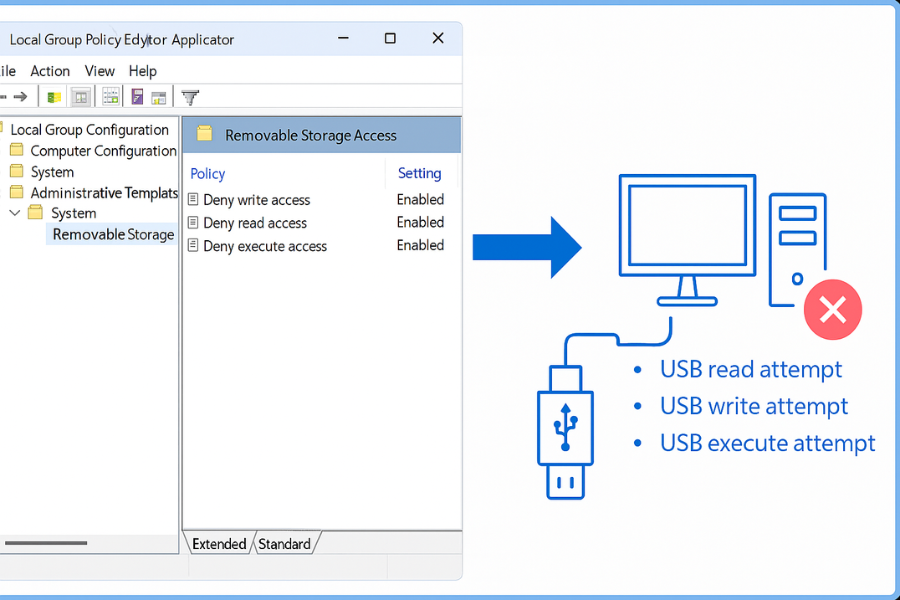
Group Policy is the fastest and most scalable method for administrators to lock down Windows endpoints, preventing both unauthorized data exfiltration and malware introduction.
Prerequisite: This process requires access to the Domain Controller’s Group Policy Management Console (GPMC) and endpoints running Windows Pro or Enterprise editions.
Step 1: Open GPMC and Target the Organizational Unit (OU)
- Open the Start menu, type gpmc.msc, and press Enter.
- Create a new GPO (e.g., “Restrict-Removable-Storage”) and link it to the Organizational Unit that contains the user workstations being managed.
Step 2: Navigate to Removable Storage Controls
- In the GPO Editor window, navigate through the structure: Computer Configuration > Policies > Administrative Templates > System > Removable Storage Access.
Step 3: Deny Write Access (Data Exfiltration Prevention)
- Double-click the setting “Removable Disks: Deny write access”.
- Select Enabled. Enabling this setting is critical because it prevents any user from copying company data to an unauthorized USB drive, addressing data exfiltration.
Step 4: Deny Read and Execute Access (Malware Prevention)
- For maximum defense against malware, also enable the settings “Removable Disks: Deny read access” and “Removable Disks: Deny execute access”. This prevents malicious scripts or executables from unauthorized devices from loading or running on the corporate machine.
Step 5: Verification
- To confirm the policy is applied to a test machine, open Command Prompt as Administrator and run gpupdate /force.
-
If the GPO is enforced correctly, a user attempting to copy data to a newly inserted USB drive will receive a silent failure or an explicit “Access is denied” message. If data copying is still possible, the GPO link, security filtering, or permissions require immediate verification.
The Administrative Challenge of Access Control
The policy tension between security and usability must be managed. Blocking only write access is insufficient because malware can still enter via an executed file on a drive that retains read access. The risk intensifies when administrators relax the GPO settings to allow temporary read access for legitimate tasks, inadvertently creating a window for malware (which needs read/execute permissions to load its payload).
A highly controlled security approach mandates that policies must utilize whitelisting based on the device’s unique serial number or hardware ID, rather than simply disabling the GPO entirely. This precision often requires specialized third-party device management software, as GPO’s built-in whitelisting capabilities are limited. This approach ensures security controls are maintained even when legitimate access is granted.
IV. Comparing USB Encryption Solutions: Commercial versus Enterprise
Selecting the correct encryption solution depends on balancing portability (the ability to use the drive without local administrator rights) against robust enterprise control and auditing requirements.
Table 1: USB Encryption Solution Feature Comparison
| Feature/Criteria | USB Secure | Folder Protect | BitLocker To Go | VeraCrypt |
| Mechanism | Device Encryption (Software) | Folder/File Locking | Full Volume Encryption (XTS-AES) | Container/Volume Encryption |
| Installation Requirement | Portable (Carried on the drive) | Local installation required on accessing PC | Windows OS dependency (Built-in) | Requires VeraCrypt installation on host PC |
| Administrative Control | Low (Decentralized, relies on user input) | Low (File-specific hiding/locking) | High (Integrated with AD/Recovery Key Escrow) | Medium (Keyfile/Password Management) |
| Key Encryption Standard | AES-256 (Implied) | AES-256 (Implied) | AES-256, XTS-AES | AES-256, Serpent, Twofish (Strong flexibility) |
| Cross-Platform Access | Windows only (Vendor dependent) | Windows only | Windows only (Limited read-only access elsewhere) | Excellent (Windows, Mac, Linux) |
| Best Use Case | Simple sharing where portability outweighs control | Selective hiding of non-critical files | Windows-only enterprise fleet management | Cross-platform, high-security, open-source storage |
Analysis: Commercial Solutions (USB Secure, Folder Protect)
Commercial applications like USB Secure emphasize simplicity and portability. USB Secure’s key benefit is that the software is installed directly onto the external drive. This allows users to protect files without requiring administrator privileges on every computer they connect to, making it highly portable.
However, this ease of use comes at the expense of security control. Folder Protect, while using the strong AES-256 algorithm, primarily implements file or folder hiding and locking mechanisms, which are inherently weaker than encrypting the entire volume. Furthermore, these tools lack the centralized visibility and logging capabilities necessary for enterprise auditing. For compliance-driven organizations, these tools are generally unsuitable for handling sensitive data.
A critical limitation is that the high portability of USB Secure directly conflicts with enterprise access control policies. If an administrator implements a strict GPO to block all unknown USB drives, the portable software cannot even be accessed or launched. This forces a compromise: either security must be relaxed for portability, or the tool becomes unusable. Strict security control must take precedence in a regulated corporate environment.
Analysis: BitLocker versus VeraCrypt
The choice between BitLocker and VeraCrypt defines the corporate encryption standard.
BitLocker To Go is the default for environments strictly standardized on Windows. Its primary benefit is seamless integration with Active Directory (AD) for recovery key escrow. If an employee loses their key or forgets their password, the IT department can retrieve the recovery key, ensuring business continuity and avoiding permanent data loss.
VeraCrypt is the superior solution for organizations needing high assurance or cross-platform flexibility. It is open-source, providing transparency, and supports robust cryptographic primitives like AES-256, Serpent, and Twofish. VeraCrypt is non-negotiable if the workforce uses Mac or Linux, as it offers necessary cross-platform compatibility.
It is important to understand that encryption mode matters. BitLocker defaults to XTS-AES mode for external drives. The XTS mode is specifically designed to encrypt large blocks of data (gigabytes) and actively mitigates vulnerabilities that might be exploited in simpler, older symmetric key implementations. Security planners must confirm that any chosen solution utilizes cryptographically modern, volume-optimized encryption modes.
V. How-To: Implementing VeraCrypt for Maximum Portability and Security
VeraCrypt is the standard choice for cross-platform, high-assurance removable data storage. The process focuses on creating an encrypted file container that can be stored on any standard file system.
Preparation: Drive Formatting
To maximize stability and ensure compatibility with large files, the USB drive should be formatted using the ExFAT file system (best for cross-platform use) or NTFS (Windows-specific). Older formats like FAT/FAT32 are discouraged due to limitations and instability when handling large encrypted volumes.
Step-by-Step VeraCrypt Volume Creation
Step 1: Launch the Volume Creation Wizard
- Open VeraCrypt and click the “Create Volume” button to start the wizard.
Step 2: Choose Volume Type
- Select “Create an encrypted file container.” This option is generally preferred over encrypting an entire partition because the resulting container file is portable and easier to back up. Click “Next”.
Step 3: Define Location and Size
- Click “Select File…” and save the container file (e.g.,
Archive.vc) directly onto the USB drive. - Specify the exact volume size required (e.g., 20GB).
Step 4: Define Encryption Options
- Select AES-256 as the Encryption Algorithm and SHA-512 as the Hash Algorithm. AES-256 utilizing hardware acceleration (AES-NI) ensures performance impact is negligible during transfer and operation.
Step 5: Set Secure Password and Keyfile
- Define a complex, high-entropy password.
- Mandatory Security Layer: To enforce true multi-factor authentication, select the option to use a Keyfile. This is a small, unique file (such as a specific image or PDF) that must be present alongside the password to unlock the volume. The Keyfile must be stored separately from the volume itself.
Step 6: Format and Create the Volume
-
Randomly move the mouse cursor within the wizard window for approximately one minute to generate sufficient cryptographic randomness for the key creation. Click “Format.” The software will confirm volume creation upon completion.
Verify It Worked (Mounting the Container)
To access the secured data, the container must be mounted.
-
In the main VeraCrypt window, select an unused drive letter (e.g., K:). Click “Select File…” and point to your newly created container file (
Archive.vc). - Click “Mount.” Enter the password and select the required Keyfile.
-
Verification: A new drive letter (K:) will appear, confirming the volume is accessible. When finished, it is crucial to click “Dismount” before physically removing the USB drive. Failure to dismount can corrupt the volume header.
Proof of Work: Volume Header Backup
The volume header contains the essential cryptographic metadata required to decrypt and mount the volume. Because header corruption can easily occur through unsafe removal or file system error, a critical administrative step is to back up the header immediately after creation. This is done via Tools -> Backup Volume Header in the VeraCrypt menu.
Share It Safely: Key Exchange Protocol
The security of the encrypted drive depends entirely on the secrecy of the password and keyfile. Transferring this critical secret requires a highly secure channel. Never transmit the two factors (password and keyfile) using the same channel.
The Keyfile itself can be transmitted via a standard corporate network share. However, the password must be sent over a true End-to-End Encrypted (E2EE) messaging service, such as Signal. Relying solely on HTTPS to transfer the password is insufficient because HTTPS only guarantees transport-level security between the user and the server; the data is decrypted and accessible to the server or proxy. Using an E2EE platform ensures the key remains indecipherable even if the intermediary messaging server is compromised. This dual channel approach is mandatory for sensitive key exchange.
VI. Troubleshooting Encryption and Access Control
When access fails, troubleshooting must follow a methodical approach, prioritizing non-destructive tests to preserve potentially lost data.
Root Causes (Ranked)
-
GPO/Policy Conflict: The most frequent cause in enterprise environments is a local drive being silently blocked by a centrally applied domain policy.
- Human Error: Incorrect password entry, failure to select the required keyfile, or keyboard configuration issues (e.g., CAPS lock).
-
Volume Header Corruption: This is commonly caused by removing the USB drive before properly dismounting the volume in the encryption software.
Non-Destructive Tests First
-
Verify GPO Status: On the machine experiencing the issue, open Command Prompt and run gpresult /r. This confirms which Group Policies are actively enforced. Check specifically whether the “Removable Disks: Deny write access” policy is blocking the device.
-
Test Key Integrity: Attempt to mount the encrypted volume on a different, known-good, trusted machine. If the volume mounts successfully, the issue is environmental on the original machine (GPO enforcement, antivirus conflict, or OS corruption).
Last-Resort Options (With Data-Loss Warnings)
If standard mounting fails, the options narrow rapidly.
- VeraCrypt Header Restoration: If the volume refuses to mount due to apparent corruption, and a header backup was created (per Section V), the administrator can navigate to Tools -> Restore Volume Header and follow the guided instructions. Warning: Restoring the header also reverts the volume’s password and keyfile requirements to those active when the backup was originally created.
-
Data Loss Warning: If the password or keyfile is permanently lost, and no recovery options (BitLocker recovery key escrow or VeraCrypt header backup) are available, the data is irretrievably lost. The mathematical strength of AES-256 makes brute-force recovery impossible. The final, non-data recovery option is to format the drive and start the encryption process over.
Table 2: Symptom to Fix: Common USB Encryption and Policy Errors
| Symptom (Exact Error String) | Root Cause | Non-Destructive Fix | Last Resort |
| “Access is denied.” (When attempting to write to a removable disk) | GPO policy Removable Disks: Deny write access is actively enforced. | Run gpresult /r to confirm the policy. Temporarily move the user or computer object out of the restrictive OU (with management approval). | Whitelist the specific device serial number using advanced device management software. |
| “Incorrect volume password or keyfile.” (VeraCrypt/BitLocker) | Typographical error, incorrect keyfile selected, or potential header corruption. | Check CAPS lock and keyboard layout. Ensure the Keyfile path is correct. If BitLocker, check the AD recovery key escrow system. | Restore Volume Header using a pre-saved backup file. |
| Volume is locked, no prompt to enter password, or drive appears unformatted. | Drive was not properly dismounted (VeraCrypt) or file system corruption is present. | Disconnect and re-insert the drive. Try unlocking via the Windows context menu (if BitLocker). | Run Windows Disk Check (chkdsk /f command) on the physical drive letter to repair file system issues. |
| Drive opens, but files won’t execute (e.g., software setup or macros fail to run). | GPO policy Removable Disks: Deny execute access is enabled. | Copy the required executable file locally to the desktop before attempting to run it. | Temporarily disable the GPO controlling execute access (if required for mission-critical software installation). |
The administrative burden of troubleshooting complex security systems often leads administrators to seek out simpler, less secure methods, or worse, disabling GPOs entirely. This highlights the requirement for meticulous documentation and high-quality administrator training to maintain the desired high security standard.
VII. The Audit Imperative: Tracking Data Movement
Encryption protects data at rest, but auditing ensures accountability and provides the forensic record necessary to minimize liability in the event of a breach or internal policy violation.
Why Logging Usage is Non-Negotiable
If sensitive corporate data is later found compromised, an active USB audit log can establish when an unauthorized device was connected, and what specific file operations (creation, deletion, modification) occurred during that session. This irrefutable chain of evidence is essential for demonstrating due diligence to regulators and mitigating the severity of potential fines.
How-To: Enabling USB Auditing in Windows Event Viewer
Windows tracks USB events, but the detailed logging necessary for enterprise accountability is disabled by default. Administrators must enable the specific log required for forensic tracking.
Step 1: Open Event Viewer
- Open the Start menu, type Event Viewer, and press Enter.
Step 2: Navigate to the Operational Log
- Drill down through the menu structure: Application and Services Logs > Microsoft > Windows > DriverFrameworks-UserMode.
Step 3: Enable Logging
- Right-click on the “Operational” log and select Properties.
- Check the box labeled “Enable Logging.”
- Configure the log size (e.g., 20 MB) and select the option to “Archive the log when full” to ensure continuous, non-overwritten record retention.
Step 4: Locating Events
- Once enabled, the system will begin logging events. Device arrival events (ID 2100) and device removal events (ID 2102) will be captured.
Proof of Work (Log Density)
During routine testing involving the transfer of a 1 GB file locker to a USB 3.0 drive, the Operational Log recorded approximately 12 specific events over a short duration, detailing the device initialization, authentication success, and session start/end. Crucially, the event entries include the device hardware ID, allowing the log data to be correlated with a centralized asset inventory.
Scaling Auditing for the Enterprise
While Event Viewer provides the necessary raw data, manually inspecting logs on hundreds or thousands of endpoints is administratively impossible. This policy step necessitates the integration of Security Information and Event Management (SIEM) systems or Endpoint Security Management (ESM) platforms. These systems automatically pull, analyze, and forward these critical USB activity logs centrally. The GPO that enables the local log must also define a log forwarding policy to maximize the administrative benefit of accountability.
Demonstrating proactive efforts like enabling auditing and GPO enforcement provides demonstrable “due diligence” to regulators. This effort can significantly mitigate financial penalties, even if a breach occurs, compared to the severe penalties incurred for documented negligence.
VIII. Data Defense Benchmarks: The Strength of AES-256
Justifying security investment requires administrators to confidently state that the encryption standard mandated is resilient against current and foreseeable threats.
AES-256: The Mathematical Verdict
The Advanced Encryption Standard (AES) utilizing a 256-bit key remains the cornerstone of modern data protection, trusted by the US government. The security provided by AES-256 is quantified by the immense computational difficulty of brute-forcing the key. Experts confirm that current supercomputing technology attempting to try every possible key combination would take an average of “many trillions of years” to break the key. This extreme difficulty provides the necessary confidence level to mandate AES-256 encryption across all removable media.
Dispelling Performance Myths
A persistent, legacy objection to mandatory encryption is the assumption that it drastically slows data transfers. This concern is outdated.
Reality: The vast majority of modern processors utilize hardware acceleration instructions, such as Intel’s AES-NI instruction set. These instructions offload the entire cryptographic process onto a secure chip within the CPU. When hardware acceleration is used, there is “virtually no performance impact” when transferring data, which fundamentally differentiates modern encryption from older, slower software-only methods.
This efficiency is benchmarked in other secure protocols: large-scale deployments of TLS/SSL (which also rely on AES) show negligible overhead, typically accounting for less than 1% of the total CPU load. If network encryption can handle massive scale with minimal impact, disk encryption with hardware support is equally efficient and does not justify a policy waiver.
Cryptographic Safety Margins
While AES-256 is the practical and highly secure standard, advanced cryptographic analysis reveals opportunities for stronger design choices. Some experts note that stream ciphers like ChaCha20-256, often utilized in low-latency network protocols like TLS 1.3, offer a slightly “bigger safety margin” against hypothetical attacks and are conceptually easier to implement in software without common mistakes. For extremely high-security container creation (e.g., using VeraCrypt), administrators may consider algorithms like Serpent or Twofish, which offer equivalent or superior resistance to cryptanalysis compared to AES, although AES remains the universal standard for practical deployment.
IX. Frequently Asked Questions
Does BitLocker encrypt external drives on Windows Home Edition?
No. BitLocker To Go, which is the feature responsible for external drive encryption, requires a professional-grade Windows installation, such as Windows Pro, Enterprise, or Education editions, to initiate the encryption and manage recovery keys. Windows Home users can typically read an already-encrypted BitLocker drive but cannot create or manage new encrypted volumes.
Can malware still infect a system if the USB drive is encrypted?
Yes. Encryption provides confidentiality protection only if the drive is lost or stolen. Once the encrypted volume is unlocked and mounted on an endpoint, the system is free to execute any files on the drive. If the drive contains malicious executables or if the host machine is already compromised, the system integrity can be violated. Layered defenses, including GPO execution denial, are mandatory.
If I lose an encrypted USB drive, what is the legal liability?
If the encryption used (e.g., AES-256) meets or exceeds the regulatory standard for the protected data (e.g., HIPAA, GDPR), the organization’s legal liability and associated regulatory fines are typically minimized, as the data is considered protected and unusable by unauthorized parties. However, documented negligence, such as failure to implement a key management or auditing policy, can still incur administrative penalties.
Why use VeraCrypt instead of the built-in Windows encryption tools?
VeraCrypt is essential for superior cross-platform compatibility, supporting Windows, Mac, and Linux environments. It also offers advanced features critical for data assurance, including multiple encryption algorithms, hidden volume capability, and a robust volume header recovery mechanism. Its open-source nature also provides a higher degree of security scrutiny compared to proprietary solutions.
How do I confirm my employee didn’t copy sensitive data onto a USB?
Confirming this requires an active, enforced audit policy. You must enable USB device auditing via the Windows Event Viewer Operational Log (found under DriverFrameworks-UserMode). Administrators must then correlate device connection/disconnection events with file operation logs (creation, deletion, modification) across the duration of the session to establish a forensic audit trail.
Conclusion
The persistent threat posed by USB media requires a multi-layered defense that moves beyond simple trust. Mandatory AES-256 encryption is the Confidentiality solution, providing an ironclad defense against data theft from lost drives. However, this is insufficient.
To protect System Integrity against malware, organizations must enforce strict GPO policies that deny unauthorized read and execute access. Finally, the Audit Imperativeenabling detailed log forwarding to a SIEM systemprovides the necessary accountability and due diligence required by regulators. Only through this combination of encryption, enforcement, and auditing can the enterprise truly mitigate the acute risk presented by physical media.