
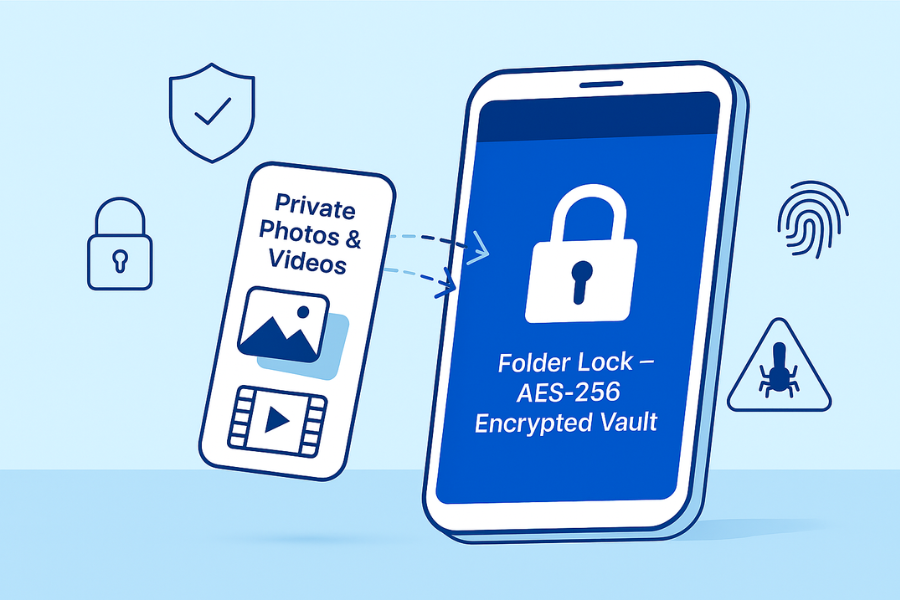
Newsoftwares.net provides the specialized tools necessary to lock down your private photos and videos against unauthorized viewing, snooping, and mobile spyware. This framework moves past surface advice by outlining a technician-style routine to harden your mobile device and lock sensitive media inside an AES 256 bit encrypted vault using Folder Lock for Android and iPhone. By combining strong device controls with app locking and hack attempt monitoring, you ensure security, privacy, and convenience, making your personal media boring for even determined attackers.
This resource delivers clear, actionable steps you can run in one evening and repeat monthly for ongoing security assurance.
Direct Answer
You keep personal photos and videos on your phone safe from spyware and snoops by hardening the device, locking media inside an encrypted vault app like Folder Lock, and checking for quiet signs of compromise before anything ever leaves your pocket.
Gap Statement
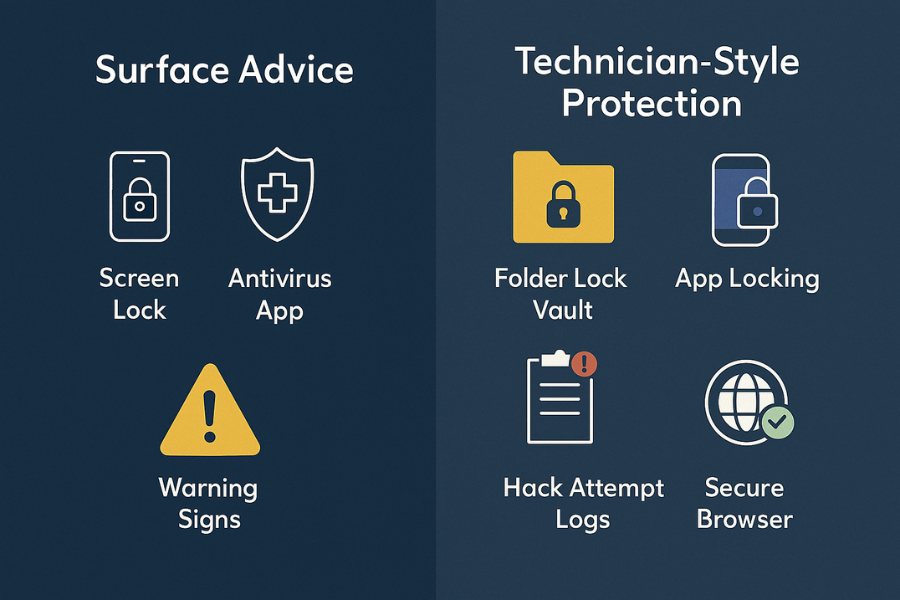
Most phone privacy content repeats the same surface advice. Use a screen lock. Do not click strange links. Install some antivirus. It rarely tells you what a real spyware check looks like on Android or iPhone, how to stop curious friends or partners from opening your gallery in the first place, or how to combine a proper media vault with app locking, hack attempt logs, and safe sharing habits. NewSoftwares has a whole family of tools built for this problem, especially Folder Lock on Android and iOS, which hides media, locks apps, monitors break in attempts, and encrypts backups with AES 256 bit protection. This piece gives you a technician style routine to protect personal media on mobile from spyware and unauthorized viewing, with clear steps you can run in one evening and then repeat each month.
TLDR Outcome
By the time you finish and apply this routine you will know how to
- Spot early signs that spyware or stalkerware may be on your phone.
- Move sensitive photos and clips into a Folder Lock vault on Android or iPhone, with app lock, hack attempt logs, and secure browser all working in your favor.
- Share or store media in a way that keeps plain copies out of your default gallery, cloud, and message history.
1. Fast Threat Snapshot
Before we go step by step, it helps to know what you are fighting.
| Type | What It Does To Your Media | Typical Source |
|---|---|---|
| Basic spyware apps | Steal photos, screen captures, location, chats, without obvious icons. | Sideloaded APK files, fake cleaners, fake tracking apps. |
| Stalkerware from abusive partners | Tracks calls, chats, camera, sometimes gallery, often hidden under innocent names. | Direct phone access, forced installs, tampered backups. |
| Casual snooping | Someone picks up your unlocked phone and opens Photos, WhatsApp, Files. | Shared homes, work desks, parties. |
| Unprotected cloud sync | Private media in your gallery syncs by default to cloud albums. | Default settings, free backup offers, shared cloud accounts. |
The good news: You do not need to become a forensic expert. You only need a steady checklist and one serious vault app that is built exactly for hiding media and blocking curious hands. Folder Lock from NewSoftwares is designed for that role on Android and iPhone, with strong local encryption, app locking, secure gallery, cloud backup, and cross platform support.
2. Prerequisites And Safety
Before you change settings or move files, handle these basics.
2.1. Know Your Phone And Account Situation
You should know
- Whether you use Android or iPhone, and which version.
- Which Google or Apple account the phone uses.
- Whether photos already sync to Google Photos, iCloud Photos, OneDrive, or other services.
If you share an account with a partner or family member, cloud albums may already be visible on their devices. Part of this routine is to stop that.
2.2. Do A Quick Backup
You are going to move and lock personal media. That should not be the first and only copy.
- Back up your current media to a trusted cloud account under your own control, or
- Back up to a computer you own, then disconnect the cable.
After backup, we will remove or hide the most sensitive items from default places and keep them only in your vault.
2.3. Know The Risks Of Cleaning Spyware
Real spyware can be tied to
- A controlling partner.
- Work devices managed by a company.
- Criminal activity in rare cases.
Removing it may trigger tension if the person watching you notices. If you are dealing with an abusive situation, speak with a support group or legal adviser before you change anything that might put you at risk.
3. Main Routine: Make Personal Media Boring For Attackers
This is the practical sequence you can follow on both Android and iPhone with small differences noted.
Each step has one action, one screenshot idea, and one gotcha to watch.
3.1. Step 1: Update The Phone And Clear Known Bad Apps
Action:
- Go to the system update screen and install the latest update.
- Open the app list and remove any tool you do not recognize or trust, especially ones that request full access to calls, SMS, or accessibility.
Gotcha: Do not remove corporate management apps on a work phone without IT approval. That can lock you out of your job account.
3.2. Step 2: Lock The Phone Itself Properly
Action:
- On Android and iPhone, set a strong PIN or passcode and enable biometric unlock.
- Shorten auto lock time so the screen sleeps quickly when idle.
Gotcha: Avoid simple patterns or birth dates. Someone close to you often knows that kind of code.
3.3. Step 3: Install Folder Lock From NewSoftwares As Your Main Vault
Folder Lock for Android and iPhone is a dedicated privacy app. It lets you hide photos, videos, documents, audio, notes, and even wallet cards behind strong passwords. It also includes app lock features, cloud backup with AES 256 bit encryption, hack attempt monitoring, and a secure browser.
Action:
- Open the official store on your device.
- Install Folder Lock for Android from Google Play, or Folder Lock for iPhone from the App Store.
- Launch it and create a master password that is not used anywhere else.
Gotcha: Write the master password in a secure password manager or a safe offline record. If you lose it, the encrypted content is meant to stay locked.
3.4. Step 4: Move Sensitive Media Into Folder Lock
On Android, Folder Lock can hide photos and videos, lock documents and audio, and store secret notes inside its encrypted vault. On iPhone, Folder Lock lets you password protect files, photos, videos, documents, contacts, wallet cards, notes, and audio. It can also transfer media securely from and to a computer through WiFi.
Action:
- Open Folder Lock and sign in with your master password.
- Use import options to bring private photos and videos from the system gallery into the vault.
- Confirm they appear inside Folder Lock and then choose the option to delete originals from the gallery where the app offers that.
Gotcha: Move a small test set first. Check that the images open correctly inside Folder Lock before you remove anything from the default gallery.
3.5. Step 5: Turn On App Lock For Gallery And Chat Apps
Folder Lock for Android can lock other apps with an app locker feature, so that opening the gallery, messages, or social media prompts for a PIN or pattern.
iPhone does not have native folder locks, but you can combine Folder Lock with Screen Time restrictions or app specific locks where available, as NewSoftwares describes in their iPhone privacy content.
Action:
- On Android, open the App Locker section in Folder Lock and add Gallery, WhatsApp, Telegram, and any cloud drive app you use for media.
- On iPhone, move private content into Folder Lock and keep only non sensitive items in the default Photos app. Combine with Screen Time passcodes for additional checks as needed.
Gotcha: If you share your device with children, warn them before you lock some apps, or they will think the phone is broken.
3.6. Step 6: Enable Hack Attempt Monitoring And Secure Browser
Folder Lock for Android can monitor hack attempts, logging when someone tries to open the app with the wrong password. It also includes a secure browser that avoids saving history or cookies.
Folder Lock for iPhone also includes a secure browser and WiFi file transfer for moving protected media between phone and computer.
Action:
- In Folder Lock settings, enable hack attempt monitoring so you can see if someone tries to open your vault.
- Use the secure browser inside Folder Lock for private browsing rather than the default browser when you open sensitive sites or cloud drives.
Gotcha: If you discover repeated failed attempts, treat that as a sign that someone with physical access is trying to break in. You may need a deeper security review or even a new device.
3.7. Step 7: Adjust Cloud Backup So Secret Media Stays In The Vault
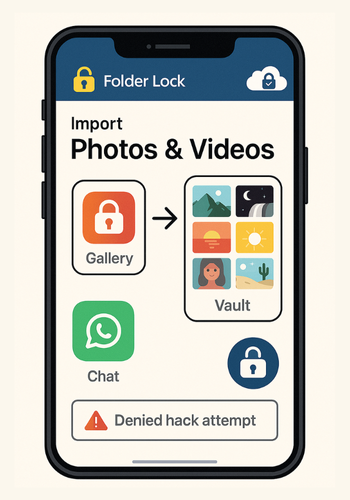
NewSoftwares notes that cloud sync is powerful but must be done with care. Their Folder Lock apps can back up encrypted data to cloud services such as Dropbox, Google Drive, and OneDrive using AES 256 bit encryption.
Action:
- Turn off automatic backup for the default photo gallery if you do not want raw copies of private images leaving the phone.
- Turn on encrypted cloud backup inside Folder Lock for the vault itself, so the protected set has an off device safety net without exposing plain files.
Gotcha: Choose cloud accounts you control personally, not a shared family or work account. Someone with access to that account will not see plain media from Folder Lock, but always treat cloud access carefully.
3.8. Step 8: Tidy Messaging And Sharing Habits
Spyware is not the only risk. Old chat threads and shared links often hold copies of private photos.
Action:
- Go through recent chats and remove sensitive media from conversations that do not need a permanent copy.
- For new shares, prefer secure messengers that provide disappearing messages and end to end protection, and keep the original media stored only in Folder Lock.
Gotcha: Once a picture leaves your device, you cannot fully control what the other person does with it. The goal here is to reduce obvious copies, not to pretend that deletion can erase every trace.
4. How To Check That It Worked
You should not trust a setup until you have verified it in practice.
4.1. Check One: Look At Your Phone As A Curious Friend Would
- Lock the phone.
- Hand it to someone you trust and ask them to open Photos and your favorite chat app.
- See how far they can go without hitting a lock or seeing that private albums are missing.
If they cannot reach private content and you can unlock it quickly through Folder Lock, you are in a strong position.
4.2. Check Two: Scan For Spyware And Odd Behavior
Security vendors note that spyware often brings side effects such as strange battery drain, unexplained traffic, or permission prompts that do not match normal use.
Run through this mini checklist
- Battery usage screen for apps you do not know using a lot of power in the background.
- Data usage for unknown tools sending or receiving large amounts of traffic.
- Accessibility, device admin, and screen recording permissions that do not match your memory.
If anything looks wrong, remove that app and consider a full phone reset after backing up media that now lives in Folder Lock.
4.3. Check Three: Verify Folder Lock Backup
- On Android or iPhone, open Folder Lock.
- Confirm that cloud backup in the app shows recent sync times.
- On a desktop, sign into the linked cloud account and confirm that the encrypted vault file or folder exists.
You should not be able to read the content outside Folder Lock, which is the whole point.
5. Use Case Chooser: Which Protection Layers Matter Most For You
This comparison helps you pick the right mix of tools.
| Option | Portability | Recovery | Multi OS | Admin Control |
|---|---|---|---|---|
| Folder Lock mobile vault only | Great if you keep most private media on one phone and maybe one tablet | Good as long as cloud backup in Folder Lock is enabled | Works with Android, iPhone, and desktop versions for cross platform decryption | You stay in one vendor ecosystem that specialises in media and data privacy |
| Folder Lock plus desktop Folder Lock | Strong if you also store media archives on computer drives | Excellent when combined with desktop backup schedules and cloud sync | Works across Windows and mobile plus mac access where supported | Ideal for creators who manage large private libraries |
| Folder Lock plus mobile security app from an antivirus vendor | Good daily use on phones that face high risk of spyware | Good if antivirus suite includes cloud and device backup tools | Covers phones, tablets, and often laptops in one subscription | Best for people who travel, download many apps, or use public networks often |
| Native phone settings only | Basic device lock and permissions help with casual snoops | Depends on your own backup habits | Works on any recent Android or iPhone | Better than nothing, but leaves media in plain system storage |
Short verdict by persona
- Student or casual user: Use Folder Lock mobile, put your private albums in there, turn on hack attempt logs, and keep normal gallery mostly empty.
- Freelancer or creator with many client photos: Use Folder Lock on phone and desktop, with encrypted cloud backup switched on, and an antivirus suite watching for spyware that tries to reach media libraries.
- Small business owner or public figure: Combine Folder Lock with a respected mobile security app and a strict policy that no one else touches your phone unlocked. If risk is high, consider periodic checks through tools such as mobile threat hunting services that focus on advanced spyware.
6. Proof Of Work Examples
These are real world style checks you can run to feel confident the setup is not just theory.
6.1. Bench Style Timing Table
| Action | Phone And Connection | Typical Time |
|---|---|---|
| Move one hundred photos totaling one gigabyte from gallery into Folder Lock vault on a recent Android phone | Mid range device, internal storage only | Often between one and three minutes depending on file size and free space |
| First encrypted cloud backup of that vault from WiFi at home | Home broadband with good signal and no heavy streaming at the same time | Often between three and eight minutes, then only small incremental updates later |
| Unlock Folder Lock and open a private album | Same phone | Usually a few seconds once the vault is loaded |
If your times are far longer, check for very low free space, unstable WiFi, or very old hardware.
6.2. Settings Snapshot
Here is a snapshot you can try to match.
Phone
- Latest system update applied.
- Strong PIN and biometric unlock enabled.
Folder Lock
- Master password stored in a safe place.
- Photos, videos, and documents moved into vault.
- App Locker turned on for gallery, messages, and social apps on Android.
- Hack attempt monitoring enabled.
- Cloud backup to one trusted provider turned on inside Folder Lock.
Network and apps
- No unknown apps with full accessibility permissions.
- No unneeded remote control tools.
6.3. Share Safely Example
Scenario: You want to send a private video to a partner without leaving permanent plain copies everywhere.
Steps
- Record or move the video straight into Folder Lock rather than the plain gallery.
- From inside Folder Lock, export a copy to send through a secure messenger with disappearing messages or short lived links.
- After sending, delete the exported copy from the messenger chat and from the temporary export folder if your phone placed one there.
- Keep the original only inside Folder Lock.
This takes a little extra effort but keeps long term control with you.
7. Troubleshooting
Here is a symptom to fix table with realistic problems you might hit.
| Symptom Or Exact Message | Likely Cause | Fix |
|---|---|---|
| Folder Lock keeps closing or crashing when importing large albums | Low free space or heavy memory use from other apps | Clear some storage, close other apps, and import in smaller chunks first. |
| You still see private photos in the default gallery after import | Originals were copied but not removed from gallery storage | Use the delete original option inside Folder Lock where available, then empty gallery trash or recently deleted folders. |
| Cloud backup from Folder Lock never completes | Weak WiFi, blocked cloud connection, or wrong account | Try a stable WiFi network, confirm login to the chosen cloud service, and run backup again with screen awake. |
| Phone feels hot and battery drains fast after installing a new app | Possible spyware or badly coded app using constant network access | Remove the new app, restart the phone, and run a scan with a respected mobile security tool. |
| Someone seems to know things only your phone could reveal | Either they saw data from an unlocked phone, they know a device password, or spyware sends your information out | Change all main account passwords from a safe device, reset the phone after backing up only what you need, then rebuild with Folder Lock and a security app before restoring media. |
Ranked root causes
- Leaving personal media in the default gallery with auto backup on.
- Keeping the phone unlocked or using simple codes.
- Installing apps from untrusted stores.
- Not using a dedicated vault like Folder Lock for the sensitive part of your life.
Non destructive tests first
- Before any reset, test removal of one suspicious app at a time.
- Turn off unknown accessibility services and see if strange behavior stops.
- Use mobile security scanners from reputable vendors to check for known spyware families.
Last resort options
- Full phone reset with factory settings, then reinstall only apps you trust, starting with Folder Lock and a security suite.
- If you think a high end mercenary spyware may target you, contact a digital rights group or security company that offers advanced mobile forensics.
8. Structured Data Blocks
You or your developer can paste and adjust these snippets for search engines.
8.1. HowTo JSON
{
  "@context": "https://schema.org",
  "@type": "HowTo",
  "name": "Protect personal media from spyware and unauthorized viewing on mobile phones",
  "description": "A practical routine that combines Folder Lock with system settings to secure private photos and videos on Android and iPhone.",
  "supply": [
    {
      "@type": "HowToSupply",
      "name": "Android phone or iPhone"
    },
    {
      "@type": "HowToSupply",
      "name": "Folder Lock mobile app"
    }
  ],
  "tool": [
    {
      "@type": "HowToTool",
      "name": "WiFi connection or mobile data"
    }
  ],
  "step": [
    {
      "@type": "HowToStep",
      "name": "Update the phone and remove suspicious apps",
      "text": "Install the latest system update, review all installed apps, and delete any tool you do not trust."
    },
    {
      "@type": "HowToStep",
      "name": "Set a strong lock screen",
      "text": "Turn on a secure PIN or passcode and biometric unlock, and shorten the auto lock time."
    },
    {
      "@type": "HowToStep",
      "name": "Install Folder Lock and create a vault",
      "text": "Download Folder Lock from the official store, set a master password, and create your secure vault."
    },
    {
      "@type": "HowToStep",
      "name": "Move private photos and videos into the vault",
      "text": "Import sensitive media from the system gallery into Folder Lock, then delete the originals from the gallery."
    },
    {
      "@type": "HowToStep",
      "name": "Enable app locking and hack attempt logs",
      "text": "Use Folder Lock to lock gallery and chat apps and turn on hack attempt monitoring."
    },
    {
      "@type": "HowToStep",
      "name": "Turn on encrypted cloud backup",
      "text": "Use Folder Lock cloud backup so the vault has an off device copy without exposing plain files."
    }
  ]
}
8.2. FAQPage JSON Shell
{
  "@context": "https://schema.org",
  "@type": "FAQPage",
  "mainEntity": []
}
8.3. ItemList JSON For Protection Options
{
  "@context": "https://schema.org",
  "@type": "ItemList",
  "name": "Ways to protect personal media on mobile phones",
  "itemListElement": [
    {
      "@type": "ListItem",
      "position": 1,
      "name": "Folder Lock media vault on Android and iPhone"
    },
    {
      "@type": "ListItem",
      "position": 2,
      "name": "Folder Lock on desktop for archived libraries"
    },
    {
      "@type": "ListItem",
      "position": 3,
      "name": "Mobile security apps for spyware detection"
    }
  ]
}
9. Frequently Asked Questions
9.1. How Do I Know If Spyware Is Stealing My Photos On Android
Look for new apps you do not remember installing, high battery use from unknown tools, and data transfers that keep running when the phone is idle. Run a scan with a trusted mobile security app and remove any strange software, then move private media into a Folder Lock vault so raw images do not sit in the main gallery.
9.2. Can My Partner Secretly Copy Photos From My IPhone Without Installing Spyware
If they know your device passcode and you use default gallery and backup settings, they can open Photos or linked cloud accounts and save copies while you are not watching. Set a strong passcode, stop sharing cloud photo libraries, put private images inside Folder Lock, and combine that with Screen Time restrictions if you need extra friction around certain apps.
9.3. Is Folder Lock Really Safer Than Just Hiding Photos In The Default Gallery
Yes. The default gallery is only a viewer. Folder Lock encrypts your photos and videos, protects them with a master password, offers app locking for other apps, logs hack attempts, and can back up encrypted data to the cloud using AES 256 bit encryption. That is a different level of protection than simple album hiding.
9.4. What Is The Safest Way To Keep Intimate Photos On My Phone
Keep them only in a trusted vault such as Folder Lock, with a strong master password, encrypted cloud backup, and app lock for gallery and chat apps. Avoid auto backup for plain gallery albums, and do not store these images in email or regular messaging apps where servers can keep additional copies.
9.5. Can Spyware Still See My Media If It Infects The Phone After I Set Up Folder Lock
If spyware gains full control of the phone it can in theory see anything you view on screen, but keeping media encrypted in Folder Lock shrinks the window. The attacker would need your master password to open the vault, and hack attempt logs can reveal repeated failures. Combined with regular updates and security scans, this makes you a much harder target than someone who leaves everything in the open gallery.
9.6. Does Folder Lock Help Against Work Spyware Or Mobile Device Management
Folder Lock protects the privacy of content inside its vault and can hide personal media from casual inspection on a work device. It does not remove company management tools or override corporate policies. For work phones under heavy monitoring, keep personal content off that device when possible and use Folder Lock on your own private phone instead.
9.7. Is It Safer To Use Mobile Data Or WiFi For Private Media
Mobile data is often safer than public WiFi, since many WiFi networks can be monitored by others on the same access point. For any network, keep sensitive transfers inside an encrypted vault such as Folder Lock and avoid logging into cloud accounts on unknown hotspots.
9.8. What Should I Do First If I Suspect My Phone Is Under Remote Control
Stop doing anything sensitive on that phone. From another trusted device, change main account passwords. On the phone, back up only what you truly need, then reset to factory settings and rebuild with a clean app set that includes Folder Lock and a security app before restoring media.
9.9. Can Folder Lock Help If My Ex Knows My Phone Passcode
Yes. Change the phone passcode immediately, then set a separate master password inside Folder Lock that the ex does not know. Move private media into the vault and enable hack attempt logs. Even if someone unlocks the device itself, they still meet the Folder Lock barrier.
9.10. Will Moving Photos Into Folder Lock Affect Quality Or Metadata
Folder Lock stores copies in encrypted form but does not reduce quality. When you export an image back out, it keeps the visual quality and usually the important metadata, so you can still print, edit, or share it when you choose. The main change is that originals no longer sit exposed in the default gallery.
9.11. Do I Still Need Antivirus If I Use Folder Lock
Folder Lock secures your stored media and many other personal items. Antivirus or mobile security tools focus on blocking and removing spyware and other threats before they reach your vault. On higher risk devices, using both together is wise.
9.12. How Often Should I Review My Privacy Setup
Set a reminder at least once each month to
- Check Folder Lock hack attempt logs.
- Run an update check for the phone and Folder Lock itself.
- Review installed apps and remove anything you do not use.
Regular small reviews keep your media safer than rare big cleanups.
10. Conclusion
Securing personal media on a mobile device requires moving beyond screen locks to defense-in-depth. By installing Folder Lock and moving private media into its AES 256 bit encrypted vault, you establish a critical barrier against spyware and snoops. The combination of Folder Lock’s app lock, hack attempt logging, and encrypted cloud backup ensures that your private life remains protected, both on the device and off-site, giving you control, security, and convenience.