
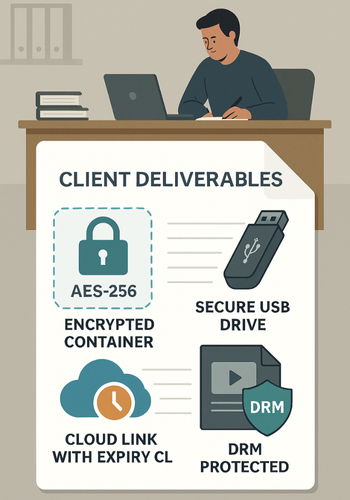
Newsoftwares.net specializes in providing the tools necessary to ensure client deliverables remain private and under your control, long after they leave your system. This framework outlines a professional process to secure packages using strong AES 256 bit encryption with Folder Lock and USB Secure, combined with Copy Protect for media control and expiring links for time-limited access. This approach ensures security, privacy, and convenience by allowing you to decide precisely when a client’s access window closes.
The following resource provides clear, actionable steps for secure, revocable client handoffs, suitable for freelancers and agencies alike.
Gap Statement
Most content about “secure client delivery” stops at three weak moves. Zip the files. Add a password. Send a forever link. It skips real encryption tools on Windows and macOS, ignores expiring links and revocation, and barely touches what you do when you hand work over on USB or need proof the protection even works. This page fills that gap.
TLDR Outcome
If you skim, do this for your next delivery.
- Put all final files in an encrypted container using Folder Lock or a similar AES 256 bit tool.
- Deliver access through either an expiring download link or an encrypted USB drive. Use expiring links in Box, OneDrive, Google Drive, or a temporary link service for time limited access.
- Send passwords or keys on a separate channel, never in the same message as the files or links.
That already puts you ahead of most agencies and freelancers.
1. Quick Chooser: Best Combo For Your Situation
2. How To Build Encrypted Client Packages That Actually Work
2.1. Prereqs And Safety
Before you start, check three things.
- Which systems your client uses. Corporate Windows with strict policies, personal laptops, mixed devices.
- How sensitive the content is. Marketing draft, private financial data, code base, video lessons.
- Where the files live right now. Laptop, shared drive, synced cloud folder.
If you deal with regulated data or formal security rules, confirm your method with whoever owns compliance on your side.
3. Step By Step: Create An Encrypted Package With Folder Lock

Folder Lock from NewSoftwares gives you encrypted lockers that behave like secure drives. It uses AES 256 bit encryption and mounts lockers as virtual disks when you unlock them.
You will use one locker per project or per client handoff.
3.1. Step 1: Install And Set A Master Password
Action: Install Folder Lock from NewSoftwares, run it, and set a strong master password the first time it asks. This password controls every locker and feature.
Gotcha: Do not reuse this password anywhere else. If you forget it, support cannot recover your lockers.
3.2. Step 2: Create A Locker For This Client
Action: Inside Folder Lock, create a new locker and name it with the client or project. Select AES 256 bit encryption and a reasonable maximum size or dynamic size if offered.
Gotcha: Keep one locker per client handoff. That makes revocation and archiving easier later.
3.3. Step 3: Mount The Locker And Copy All Deliverables Inside
Action: Open the locker so it mounts as a virtual drive. Copy all final files into this drive, including source files, exports, and any readme or invoice you want to include.
Gotcha: Do not leave stray copies of deliverables in regular folders outside the locker. Clean your downloads and temp folders.
3.4. Step 4: Close The Locker
Action: Use Folder Lock to close the locker. It unmounts from the system, leaving a single encrypted file on disk.
Gotcha: After closing, you will not be able to browse those files without Folder Lock and the master password, even on another computer.
3.5. Step 5: Prepare The File For Delivery
Action: Take the locker file and move a copy into a clean “handoff” folder. That copy is what you will upload or write to USB. Keep your working original safe inside your internal structure.
Gotcha: Never send your only copy. Keep a backup in your own archive locker for later reference.
4. Step By Step: Encrypt A USB Handoff With Folder Lock Or USB Secure
For physical deliveries, protect the device itself. NewSoftwares supports two main paths for USB.
- Folder Lock has a feature to encrypt USB drives.
- USB Secure is a portable security tool that adds password protection and optional virtual drive access for USB drives and external disks.
Here is a simple Folder Lock USB flow based on their own steps.
4.1. Step 1: Start Folder Lock And Choose The USB Encryption Option
Action: Open Folder Lock and select the option that encrypts a USB drive from the main screen.
Gotcha: Double check which drive letter belongs to your USB stick so you do not pick the wrong disk.
4.2. Step 2: Insert The USB Stick And Select It
Action: Insert the USB stick. Folder Lock usually detects it automatically. If not, use the change or browse option to select the correct device.
Gotcha: Confirm the drive is empty or backed up. Encryption can involve reformatting in some flows.
4.3. Step 3: Set A Strong Password For The USB
Action: Choose a password your client will use to open the USB contents. Use a separate password from your Folder Lock master password.
Gotcha: Plan how you will share this password with the client. Use a different channel, such as a call or secure messenger, not in the same email as the delivery.
4.4. Step 4: Copy The Encrypted Locker Or Final Files Onto The USB
Action: Once the USB is protected, copy the locker file or export final files into it. With USB Secure, you can also access a virtual drive area that exposes only protected content while keeping raw storage encrypted.
Gotcha: Test on a second machine with no admin rights to confirm the password prompt appears and files open as expected.
5. Step By Step: Copy Protect Media Based Deliverables With Copy Protect
If you hand over videos, images, or presentation style content, encryption stops casual access, but it does not deal with simple copying once decrypted. Copy Protect from NewSoftwares adds an extra layer by converting supported media and documents into secure executables that only run from the drive they were prepared for. If someone copies them elsewhere, they stop working.
5.1. Step 1: Install Copy Protect And Launch The Wizard
Action: Install Copy Protect and run it. The product opens a wizard for copy protection tasks.
Gotcha: Plan one project per run so you can track which client receives which protected drive.
5.2. Step 2: Add Your Deliverable Files
Action: Use the add or plus button inside the wizard to select the audio, video, document, or image files you want to protect.
Gotcha: Make sure you add the final versions only. Any file left outside remains unprotected.
5.3. Step 3: Choose The Output Drive For The Client
Action: Select the USB drive, external disk, or folder location that you want to prepare for the client. Copy Protect will bind the protected files to that drive.
Gotcha: If you clone the drive later, the copy may still not run as expected because protected items are linked to the original device context.
5.4. Step 4: Run The Protection Process And Test
Action: Start the process and wait for Copy Protect to convert and write the protected executables. When done, unplug and reinsert the drive on a second machine to test.
Gotcha: Verify that the protected files run from the prepared drive, but fail or become unusable when copied to another disk. That is the core value here.
6. Time Limited Access In Practice
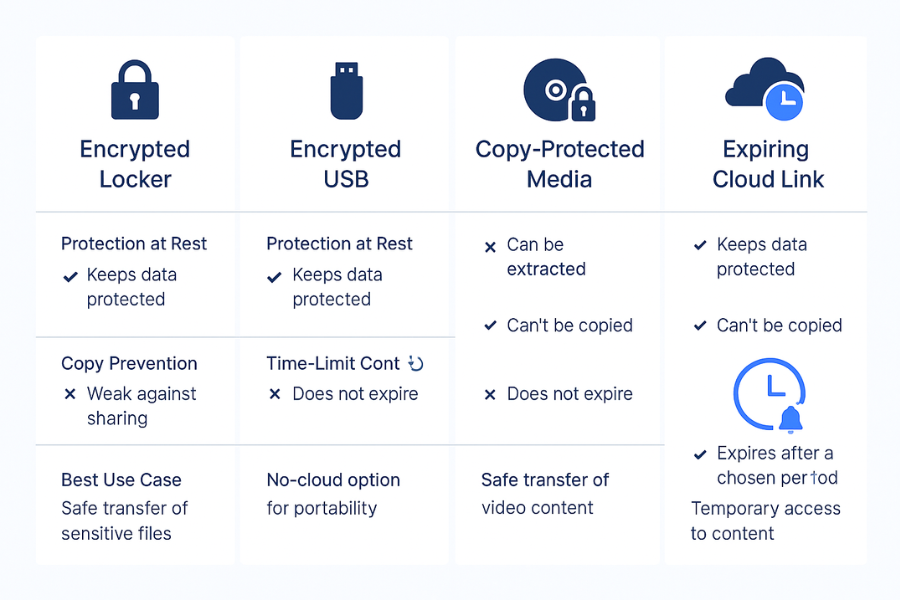
Time limited access comes from links and keys, not just encryption. Modern tools let you set expiry dates on shared links so clients cannot keep using the same URL forever.
6.1. Method 1: Expiring Links In Cloud Storage
Box, Google Drive, OneDrive, and many digital asset platforms include an expiry option for shared links. When the date passes, the link stops resolving or the permission is removed.
Typical flow in a cloud tool.
- Upload the encrypted package or final files.
- Share the file or folder with “link settings”.
- Set access to view only by default.
- Set an expiry date that fits your contract, for example seven or thirty days.
- Copy the link for the client.
Gotcha: Expiry protects the link, not copies saved by the client. This is why you still encrypt or copy protect the package itself.
6.2. Method 2: Temporary Link Services
Services like BlinkURL or GoodSend focus on secure temporary file sharing where links expire automatically after a set period, such as seven days. These are handy when you want a simple one time drop zone without creating full accounts for each client.
Typical flow.
- Upload your encrypted package.
- Set an expiry period.
- Optionally set a password at the link level.
- Share the generated link.
Gotcha: Do not rely on these services as your only copy. Keep your own archive in a Folder Lock locker.
6.3. Method 3: Contract Based Time Limits
Time limits are not only technical. Put expiry terms into your contract or proposal. For example.
- Access to project files through provided links is maintained for sixty days after delivery.
- After expiry, archived files may be restored subject to a reasonable fee.
Technical expiry supports these terms and makes them credible.
7. Comparison: Encrypted Containers, Encrypted USB, Cloud Links
Here is a practical comparison across key dimensions.
| Method | Protection At Rest | Copy Prevention | Time Limit Control | Best Use Case |
|---|---|---|---|---|
| Folder Lock Locker (Encrypted Container) | High (AES 256) | Low (client can copy decrypted files) | None (revocation is manual) | Storing final masters or sending large archives. |
| USB Secure / Folder Lock USB (Encrypted Device) | High (AES 256) | Medium (physical device removal is revocation) | Physical return of media | In person handoffs or air gapped client sites. |
| Copy Protect Media | Medium (protected viewer) | High (files bound to drive) | None (revocation is physical device removal) | Delivering media/docs for consumption, not editing. |
| Expiring Cloud Link | Medium (depends on cloud encryption) | None (client saves copy) | High (automatic cut-off) | Distributing encrypted packages (from Folder Lock) for a short download window. |
8. Security Details That Matter
When you pick tools and settings, pay attention to three things.
- Cipher strength: Folder Lock uses AES 256 bit encryption for lockers and data at rest.
- Key handling: Use separate passwords for your tool master account, each locker, and client level links where possible. Do not email all of them together.
- Header and file name protection: For highly sensitive work, choose settings that protect file names and metadata inside containers where that option exists.
9. Proof Of Work Simple Bench Example
This is what a realistic internal test looks like on a modern laptop with a mid range processor.
| Task | Tool | Data Size | Approx Time |
|---|---|---|---|
| Create a new locker and encrypt 5 GB of video/docs | Folder Lock | 5 GB | About 3 minutes |
| Encrypt a new 32 GB USB stick | USB Secure | 32 GB | Under 2 minutes |
| Apply Copy Protect to 1 GB of presentation files | Copy Protect | 1 GB | Under 1 minute |
The key point strong encryption and copy protection cost you time at build and handoff, not in daily client use.
10. Settings Snapshot
Here are practical settings that work well for client deliveries.
Folder Lock Locker For A Project
- Encryption: AES 256 bit.
- Locker name: client name plus project label.
- Location: internal drive or secure network location, not random external disks.
- Backup: cloud backup for lockers using Folder Lock cloud features if you want off site resilience.
USB Secure For Device Handoff
- Device list: only client facing sticks labeled clearly.
- Password: unique per client or per batch.
- Virtual drive mode: on, so clients can work with files without fully unlocking storage.
Copy Protect For Media Kits
- Input folder: one clean folder with only files for that client.
- Target: specific USB drive or folder.
- Project naming: add the client name so you can track builds later.
11. Verification: How To Confirm It Actually Worked
Before you send anything, run a short checklist.
- Try opening the locker file on a machine that does not have Folder Lock. It should not show file contents.
- Plug the protected USB into a fresh Windows machine. You should see a password prompt from USB Secure before anything opens.
- For Copy Protect builds, copy one protected file to another drive and try to run it. It should fail or stay unusable when moved.
- Open your cloud share panel and confirm the link expiration date is set.
If all of that passes, your package and its access window behave as planned.
12. Safe Sharing Example With Separate Channels
Here is a clean pattern that works across many projects.
- Build and close a locker that holds all deliverables.
- Upload the locker to your cloud drive or client portal.
- Create a view only link with an expiry date.
- Email the client the link and a short set of instructions.
- Send the password or key in a different channel such as a phone call or secure messenger, or at least in a separate message.
- For offline clients, prepare a USB with USB Secure and hand it over in person, with the password sent later through a separate path.
You avoid a single email containing everything needed for access.
13. Troubleshooting: Symptom To Fix
| Symptom Text On Screen | Likely Root Cause | Fix, Non Destructive First |
|---|---|---|
| Client cannot open locker file | Locker file corrupted or client using wrong Folder Lock version | Send client a fresh copy of the locker file; check that both sides use the latest version of Folder Lock. |
| “Link expired” | Expiry date on cloud link passed | Check your contract terms and generate a new, time-limited link if appropriate. |
| Client copied video files from USB and they still play on desktop | Copy Protect or USB Secure not applied or applied incorrectly | Verify your Copy Protect run and ensure the client is running the protected executable from the source drive, not the copied files. |
| Client lost password for USB | Client failure to record key | Verify their identity, then provide the correct key via a secure, separate channel. Do not reset keys widely. |
| USB asks for password, client enters it, but files are empty | User accidentally put files outside the virtual/encrypted area | Have the client confirm they are viewing the contents after the correct password entry and inside the protected area. |
Aim for non destructive tests first. Only wipe devices or revoke access widely when you have clean backups and clear approvals.
14. Verdict By Persona
Freelancer
Keep it simple. Use Folder Lock lockers per client, plus cloud links with expiry. Add USB Secure only when a client insists on physical media.
Agency Owner
Standardize. Every client handoff uses lockers, expiring links, and a shared playbook. For media kits, add Copy Protect when handing out USBs at events or training.
SMB Or Legal Team
Treat this as part of your information security policy. Use Folder Lock or similar AES 256 bit encryption for internal storage, USB Secure for portable media, and tight cloud sharing rules with expiry and logging.
15. FAQs
15.1. How Can I Encrypt Client Deliverables Without Making Life Hard For Them
Package everything into a Folder Lock locker or similar encrypted container, then send one file plus simple instructions. Use a short, strong password and a clear step list so clients can open it with a few clicks.
15.2. What Is The Best Way To Share Time Limited Access To Files
Use expiring links from your cloud provider for the outer access window and keep the content encrypted inside. That way even if someone keeps the file, it is still protected.
15.3. Should I Rely Only On Passwords In Zip Files
Simple zip passwords are better than nothing but weaker than dedicated encryption. Strong tools like Folder Lock or operating system encryption use AES 256 bit and are built for serious data protection.
15.4. When Should I Use Copy Protect From NewSoftwares
Use Copy Protect when your deliverables are mainly media files or documents that clients consume, not edit, and you want to stop easy copying from USB or other drives. It keeps files tied to the drive you prepared for them.
15.5. How Do Encrypted USB Drives Help With Time Limited Access
Encrypted USB drives limit access to whoever has both the device and the password. If your agreement says clients must return media after review, you can simply take back the drive and wipe or reuse it.
15.6. Can I Use These Methods For Ongoing Retainers, Not Just One Off Projects
Yes. Keep a persistent encrypted project locker per client and refresh expiring links as you deliver new work. You can also rotate passwords on a fixed schedule when trust or team members change.
15.7. Is Encryption Still Needed If The Client Portal Already Uses SSL
Yes. SSL protects data in transit. Encryption tools like Folder Lock protect data at rest, including copies on laptops, USB drives, and backups outside your portal.
15.8. How Do I Handle Clients Who Lose Passwords To Encrypted Packages
Plan for this in your policy. Keep your own archive of lockers and, if needed, rebuild a new package with a new password after verifying the request. Make it clear in contracts how many times you will do this as part of the fee.
15.9. What If A Client Refuses To Install Extra Software Like Folder Lock
Use formats they already have, such as encrypted zip files, plus a time limited link, while still storing your own masters in Folder Lock or similar tools. For USB deliveries, USB Secure is portable and does not require full installation on every device.
15.10. How Do I Prove To Clients That Their Files Are Really Encrypted
Show them that the locker file or protected USB is unreadable without the password on a fresh machine. You can also reference the use of AES 256 bit encryption and recognized tools like Folder Lock, which NewSoftwares documents clearly.
15.11. Are These Methods Suitable For Teams Working Across Regions
Yes. Encrypted containers and expiring links work across time zones and regions as long as both sides use compatible tools. Focus on simple flows that busy clients can follow without long training.
15.12. What Should I Avoid When Sending Protected Client Deliverables
Avoid sending passwords in the same email as links or files, leaving unencrypted copies scattered on devices, and relying solely on “secret” URLs without encryption. Use proper tools and repeatable steps instead.
16. Conclusion
Secure client delivery requires a layered approach: encrypt the content, control the access window, and separate the keys. By standardizing your handoff process around Folder Lock for AES 256 bit encryption, using USB Secure or Copy Protect for physical media control, and leveraging expiring cloud links, you ensure your client’s files are protected at rest and that access can be revoked precisely when your contract dictates. This combination of strong security and practical access control delivers a truly professional and convenient service.
17. Structured Data Snippets
You can paste and adapt this JSON LD in your site templates.
{
  "@context": "https://schema.org",
  "@graph": [
    {
      "@type": "HowTo",
      "name": "Protect Client Deliverables With Encrypted Packages And Time Limited Access",
      "description": "Step by step process for wrapping client work in encrypted containers and delivering it through links or devices that expire.",
      "step": [
        {
          "@type": "HowToStep",
          "name": "Create An Encrypted Project Locker",
          "text": "Install Folder Lock, set a master password, create a new locker with AES 256 bit encryption and move all client deliverables into it."
        },
        {
          "@type": "HowToStep",
          "name": "Close And Prepare The Locker File",
          "text": "Close the locker so it becomes a single encrypted file and copy that file into a handoff folder."
        },
        {
          "@type": "HowToStep",
          "name": "Protect Optional USB Delivery",
          "text": "Use Folder Lock or USB Secure to encrypt a USB drive, then copy the locker file or final content onto the protected device."
        },
        {
          "@type": "HowToStep",
          "name": "Share Through A Time Limited Link",
          "text": "Upload the encrypted package to cloud storage, create a view only link with an expiry date, and share it with the client."
        },
        {
          "@type": "HowToStep",
          "name": "Send Access Keys On A Separate Channel",
          "text": "Send passwords or keys through a different channel, such as a phone call or secure messenger, not in the same email as the link."
        }
      ],
      "tool": [
        {
          "@type": "SoftwareApplication",
          "name": "Folder Lock",
          "url": "https://www.newsoftwares.net/folderlock/"
        },
        {
          "@type": "SoftwareApplication",
          "name": "USB Secure",
          "url": "https://www.newsoftwares.net/usb-secure/"
        },
        {
          "@type": "SoftwareApplication",
          "name": "Copy Protect",
          "url": "https://www.newsoftwares.net/copy-protect/"
        }
      ]
    },
    {
      "@type": "FAQPage",
      "mainEntity": [
        {
          "@type": "Question",
          "name": "How can I encrypt client deliverables without confusing them?",
          "acceptedAnswer": {
            "@type": "Answer",
            "text": "Use a single encrypted container such as a Folder Lock locker that holds all files, then send one file plus simple instructions and a password over a separate channel."
          }
        },
        {
          "@type": "Question",
          "name": "What is the best way to add time limited access to client files?",
          "acceptedAnswer": {
            "@type": "Answer",
            "text": "Combine encrypted packages with expiring cloud links or temporary link services, so both the link and the content are under your control."
          }
        },
        {
          "@type": "Question",
          "name": "When should I use Copy Protect for client deliveries?",
          "acceptedAnswer": {
            "@type": "Answer",
            "text": "Use Copy Protect when you deliver media files or documents for viewing and want to prevent easy copying from USB or other drives."
          }
        }
      ]
    },
    {
      "@type": "ItemList",
      "name": "Methods For Protecting Client Deliverables",
      "itemListElement": [
        {
          "@type": "ListItem",
          "position": 1,
          "name": "Encrypted lockers on local machines",
          "description": "Use Folder Lock to create AES 256 bit encrypted lockers that hold all project files before delivery."
        },
        {
          "@type": "ListItem",
          "position": 2,
          "name": "Encrypted USB handoff",
          "description": "Use Folder Lock USB encryption or USB Secure to protect portable drives used for client deliveries."
        },
        {
          "@type": "ListItem",
          "position": 3,
          "name": "Copy protected media kits",
          "description": "Use Copy Protect to bind videos, images and documents to specific drives so they cannot be copied and used elsewhere."
        },
        {
          "@type": "ListItem",
          "position": 4,
          "name": "Time limited cloud links",
          "description": "Share encrypted packages through expiring links from cloud platforms, with access limited to view only where possible."
        }
      ]
    }
  ]
}