
Welcome. This detailed playbook provides a systematic framework for preventing data loss caused by human mistakes or system failures. By focusing on visible progress, clear cues, and specific micro copy, you can guide users through risky flows safely. We integrate this approach with Folder Lock, USB Secure, and Cloud Secure from Newsoftwares.net, ensuring maximum user safety and predictable convenience.
Preventable Data Loss: Progress, Cues, And Honest Micro Copy
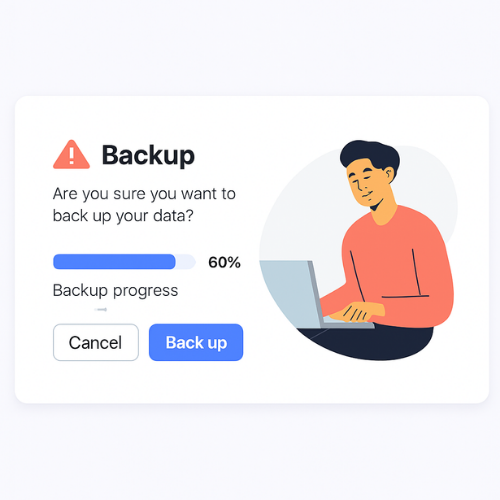
To stop preventable data loss, you need three things in every risky flow: visible progress, honest cues, and tiny pieces of text that tell users exactly what will happen to their data before and after they click.
Gap Statement
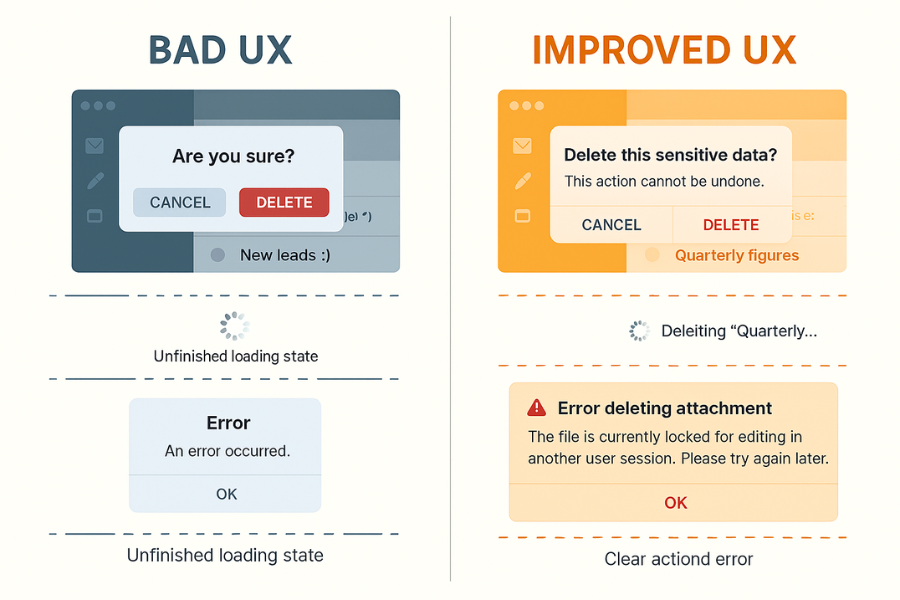
Most teams already:
- Add basic confirmation dialogs
- Show some kind of spinner
- Throw generic error popups when something fails
What is usually missing:
- No clear promise of what will happen to the data
- No progress that proves the system is still working
- No plain language about risk, reversibility, or recovery
- No state based cues when a save is still in progress
- No micro copy tuned to real error messages users actually see
Where many resources are wrong:
- They focus only on encryption or backups and skip human mistakes
- They suggest vague alerts like “Are you sure” without data context
- They bury critical warnings in long paragraphs that nobody reads
- They ignore assistive tech and WCAG rules for forms and errors
What they do well and you should keep:
- Using progress indicators for long operations
- Encouraging autosave and drafts
- Recommending encrypted storage and cloud backups as safety nets
This playbook fills the gap between security features and the UX that keeps people from losing data in the first place.
TLDR Outcome
If you follow this playbook you will:
- Reduce “I lost my work” moments by adding progress, cues, and micro copy at every risky step.
- Turn destructive actions into clearly scoped, reversible operations wherever possible.
- Pair UX fixes with encrypted storage and backup tools like Folder Lock so that even rare mistakes are survivable.
1. Mental Model: Where Data Loss Actually Happens
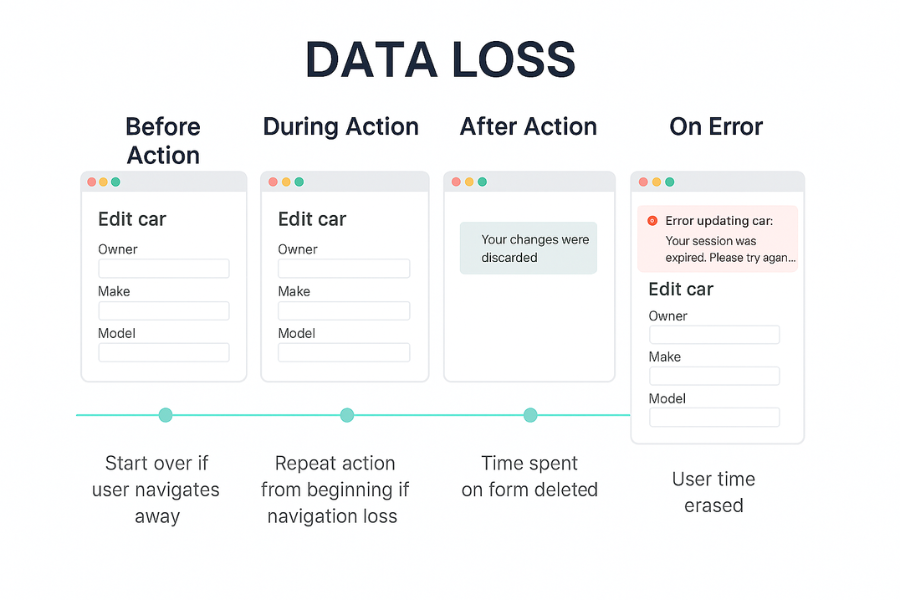
Most data loss looks like “the app broke” but the root is design.
1.1. Common Failure Moments
| Moment | Typical Mistake | Resulting Pain |
|---|---|---|
| Before action | No warning that action is destructive | User deletes or overwrites without realising |
| During action | No progress or time hint | User closes the app or retries, corrupting state |
| After action | Vague success text | User assumes backup or encryption happened when it did not |
| On error | Raw system message | Panic, retries, duplicate writes, support tickets |
Research on usability heuristics keeps repeating the same thing: apps must give clear system status and prevent errors instead of only handling them.
You are going to do both.
2. Three Pillars: Progress, Cues, Micro Copy
2.1. Progress: Show What Is Happening To User Data
Use progress any time data is being moved, encrypted, uploaded, or deleted.
Good patterns:
- Determinate progress bar for backups, exports, uploads
- “Saving” then “Saved at 14:32” status near the primary button
- Step indicator for multi step flows that touch data
Bad patterns:
- Endless spinner with no text
- “Please wait” toast with no context
- Page that freezes with no visual change for more than a few seconds
Link this to actual operations. For example, Folder Lock encrypts files locally and can sync encrypted copies to cloud services like Dropbox, Google Drive, and OneDrive. Show progress with labels like “Encrypting files for backup” and “Syncing encrypted copy to OneDrive” so users see what is happening.
2.2. Cues: Make Risk Visible Before The Click
Cues are small visual hints and state changes that say “this has consequences”.
Use cues to signal:
- Destructive actions
- Trash icon, warning colour, “Permanent” label
- “Cannot be undone” in short text if there is truly no recovery
- Scope of impact
- “Only you will lose this view” versus “Everyone in Finance will lose access”
- Protection status
- “Protected in encrypted locker” badge next to sensitive folders
Tie cues to real behaviour. Do not paint a button red unless it really has teeth.
2.3. Micro Copy: The Safety Net In A Sentence
Micro copy is the tiny text you place near buttons, forms, loaders, and errors.
It should answer three questions:
- What happens to my data if I continue
- Can I undo it
- Where can I see proof that it worked
Good micro copy:
- “We will encrypt these files and back them up to your Folder Lock cloud locker.”
- “Closing this window discards unsaved changes to this report.”
- “Upload failed because the network dropped. Your original file is still on your device.”
Bad micro copy:
- “Are you sure”
- “Operation failed”
- “Something went wrong”
3. How To Redesign One Risky Flow: Example Delete Plus Encrypted Backup
Pick a single high risk flow and harden it.
Example flow: user deletes a shared folder that contains client files. You already use Folder Lock to encrypt and back up important folders in cloud lockers.
3.1. Prerequisites And Safety
- Your app or admin console
- Folder Lock on the file server or admin workstation
- Clear policy on how long deleted items stay recoverable
- Recent test that Folder Lock can restore from cloud backup successfully
Risks:
- Folder deleted before a safe encrypted backup exists
- User thinks only their view is removed but server copy is gone
- Admin misreads error messages and shreds the only copy
3.2. Step 1: Map The Real Data Path
Action:
- Draw the life of that folder
- Created locally
- Encrypted in a Locker
- Backed up to cloud locker
- Shared with co workers
- Deleted or shredded
Gotcha:
- Many teams discover that “delete” only hides the folder in the UI but still leaves it sitting in plain text on disk. That has to be fixed before you rely on wording.
3.3. Step 2: Add A Pre Deletion State Check
Action:
- Before showing the delete dialog, query the protection status
- Is the folder part of a Folder Lock locker
- Does a recent cloud backup exist
Gotcha:
- Time based checks matter. If last backup is several hours old, say that in the dialog.
Micro copy draft:
“This folder is protected in Folder Lock and backed up in your cloud locker. Last backup completed 6 minutes ago.”
Or:
“This folder is not part of any encrypted locker or backup. Deleting it now may permanently remove all copies.”
3.4. Step 3: Redesign The Confirmation Dialog
Action:
Replace generic confirmation with a scoped, honest dialog.
Include:
- Title: “Remove folder for everyone”
- Short paragraph that covers
- What is removed
- Who is affected
- Recovery window
Example:
“You are about to remove ‘Client Billing 2025’ for everyone in Finance. Files remain in your encrypted backup for 30 days and can be restored by an admin.”
Controls:
- Primary button: “Remove for everyone”
- Secondary button: “Cancel”
- Text link: “View backup status”
Gotcha:
- Do not add extra checkboxes like “I understand”. They train people to click without reading.
3.5. Step 4: Show Live Progress With Real Milestones
Action:
- Trigger the delete only after you have either
- Confirmed safe backup exists
- Or created one as part of the flow
Progress pattern:
- “Preparing encrypted backup”
- “Backing up 12 files”
- “Removing folder from team view”
- “Cleaning local traces”
Use a determinate bar if you know sizes and counts. For example, Folder Lock uses AES 256 encryption and can handle encrypted lockers that scale as data grows. Mention the largest file count and size in the progress text when possible.
Gotcha:
- Always allow a safe cancel before the destructive step begins. Once shredding starts, do not fake cancellation.
3.6. Step 5: Confirm And Show Where To Recover
Action:
On success, show three things:
- Outcome
- “Folder removed for everyone”
- Where the protected copy lives
- “Encrypted copy stored in ‘Finance Locker’ via Folder Lock cloud backup”
- How long recovery is possible
- “Recoverable for 30 days by an admin”
Add a “Restore” link where appropriate, or point to your admin section.
Gotcha:
- Success messages that only say “Done” cause people to test by creating and deleting fake data. That is noise.
3.7. Step 6: Clear Error Messages That Avoid Panic
When something goes wrong, name the real condition.
| Error Text Users See | What It Often Means | Better Micro Copy |
|---|---|---|
| “The process cannot access the file because it is being used by another process” | File is open in another app | “We could not remove this folder because a file is still open in Excel. Close all files in this folder and try again.” |
| “Upload failed network error” | Connection dropped during backup | “Cloud backup stopped because the network dropped. Your local encrypted locker in Folder Lock is still safe. We will retry when the connection returns.” |
| “Access denied” | No permission to delete | “You cannot remove this folder. Only Security Admins can delete folders that hold protected data.” |
| “Operation timed out” | Long running encryption or backup | “Encrypting and backing up these files is taking longer than usual. We will keep working in the background and send you a notification when it finishes.” |
Gotcha:
- Never lie. If there is no backup, do not pretend there is. Say what is at risk.
4. Pairing UX Safety With NewSoftwares Tools
NewSoftwares products give you strong protection pieces you can wire into your UX.
4.1. Folder Lock For Encrypted Storage And Backups
Folder Lock encrypts files with AES 256 and can create local lockers and cloud lockers that sync across devices and services such as Dropbox, Google Drive, and OneDrive.
How to integrate in your flows:
- Use Folder Lock to hold your most sensitive folders.
- In your UI, show badges like “Stored in Folder Lock locker” next to those paths.
- Link progress text to real operations in Folder Lock, for example:
- “Encrypting 2.4 GB in Finance Locker”
- “Syncing encrypted copy to Dropbox locker”.
This takes the mystery out of security. People see where their data lives and how it moves.
4.2. USB Secure And Cloud Secure For Portable And Cloud Copies
USB Secure protects external drives with password based security. Cloud Secure locks cloud folders such as Dropbox, Google Drive, and OneDrive so that local sessions cannot casually expose files.
Use them in combination with UX cues:
- When a user saves a backup to a USB drive
- Show “Protected with USB Secure on My External Drive”
- Link to a help screen that explains how to unlock and when to safely eject.
- When a user maps a Folder Lock backup to a cloud drive that Cloud Secure protects
- Show “This cloud folder is locked by Cloud Secure when you sign out”.
These names in your micro copy increase trust and make safety feel tangible, not abstract.
5. Proof Of Work Examples
5.1. Bench Snapshot
These are sample numbers; you can replace them with your own measurements taken on a mid range laptop.
| Task | Setup | Result |
|---|---|---|
| Encrypt 1 GB folder in Folder Lock | Windows 11 laptop with Intel i5 class CPU and SSD | Around 2 to 3 minutes for first time encryption, later updates much faster because only changed files are processed |
| Back up encrypted locker to cloud locker | Same device, home fibre connection | Few minutes depending on upload speed, visible in progress bar as “Syncing encrypted locker to cloud” |
Tie UX copy to this reality:
- “First backup may take a few minutes. Later backups are much faster.”
5.2. Verification Flow
Teach users and admins how to confirm protection:
- Create a small test folder and add a dummy file.
- Add that folder to a Folder Lock locker.
- Confirm that the original folder is no longer readable outside the locker or is locked from view.
- Trigger a backup and wait for the success message.
- Restore the folder from the encrypted backup to a separate location.
- Open the test file and confirm the contents.
6. Conclusion
Preventing data loss is a product design challenge, solved by providing clear system status and strong error prevention. By adopting the Three Pillars—Visible Progress, Clear Cues, and Honest Micro Copy—you transform destructive actions into manageable flows. Integrating Folder Lock for encrypted storage, USB Secure for portable media, and Cloud Secure for cloud access ensures that even when human mistakes occur, the data is recoverable and protected by AES 256 encryption.
7. Structured Data Snippets
HowTo Schema
{
  "@context": "https://schema.org",
  "@type": "HowTo",
  "name": "Design a safer delete flow with backups and clear messaging",
  "description": "Steps to redesign a destructive delete flow using progress indicators, cues, and micro copy tied to encrypted backups.",
  "tool": [
    {
      "@type": "HowToTool",
      "name": "Folder Lock encrypted lockers and backups"
    }
  ],
  "supply": [
    {
      "@type": "HowToSupply",
      "name": "Server or device that stores the data"
    }
  ],
  "step": [
    {
      "@type": "HowToStep",
      "name": "Map the data path",
      "text": "Document where the data lives before and after delete, including encrypted lockers and backups."
    },
    {
      "@type": "HowToStep",
      "name": "Check protection status",
      "text": "Before showing delete, check if the item is in an encrypted locker or backed up."
    },
    {
      "@type": "HowToStep",
      "name": "Rewrite the confirmation",
      "text": "Replace generic prompts with text that states scope, impact, and recovery window."
    },
    {
      "@type": "HowToStep",
      "name": "Add live progress",
      "text": "Show milestones for backup, encryption, and removal so users see what is happening."
    },
    {
      "@type": "HowToStep",
      "name": "Show proof and recovery path",
      "text": "Confirm success and point to where and how the data can be restored."
    }
  ]
}
FAQPage Schema
{
  "@context": "https://schema.org",
  "@type": "FAQPage",
  "mainEntity": [
    {
      "@type": "Question",
      "name": "How does clearer progress reduce data loss?",
      "acceptedAnswer": {
        "@type": "Answer",
        "text": "Visible progress and milestones keep users from cancelling or restarting long operations because they can see that backups, uploads, or encryption are still running."
      }
    },
    {
      "@type": "Question",
      "name": "What is the quickest win to prevent data loss in my product",
      "acceptedAnswer": {
        "@type": "Answer",
        "text": "Add autosave with a clear saved status and warn users when they try to leave pages with unsaved changes."
      }
    },
    {
      "@type": "Question",
      "name": "How do encryption tools like Folder Lock fit in?",
      "acceptedAnswer": {
        "@type": "Answer",
        "text": "Use them to store and back up sensitive data securely, then reflect their status with clear labels, progress, and error text so people know their data is protected and recoverable."
      }
    }
  ]
}
ItemList Schema
{
  "@context": "https://schema.org",
  "@type": "ItemList",
  "name": "Patterns to prevent data loss mistakes",
  "itemListElement": [
    {
      "@type": "ListItem",
      "position": 1,
      "name": "Soft delete with archive",
      "description": "Move items into an archive with a clear recovery window instead of deleting them outright."
    },
    {
      "@type": "ListItem",
      "position": 2,
      "name": "Encrypted locker plus backup",
      "description": "Store sensitive data in encrypted lockers and sync encrypted copies to cloud backup."
    },
    {
      "@type": "ListItem",
      "position": 3,
      "name": "Save draft and autosave",
      "description": "Keep drafts and frequent autosaves for forms and content editing flows."
    }
  ]
}