
Newsoftwares.net is committed to providing creators and trainers with the security and control necessary to protect their valuable PDFs and training videos. This framework moves beyond the limits of simple passwords, demonstrating how to build a layered defense using specialized tools like Copy Protect and Folder Lock for file-level security, combined with secure streaming and DRM for controlled viewing and accountability. The goal is to maximize your revenue and business convenience by making unauthorized sharing and file leakage practically unviable.
This resource offers practical, one-action-per-step instructions to implement strong protection, ensuring your content is secured from your own storage to the student’s device.
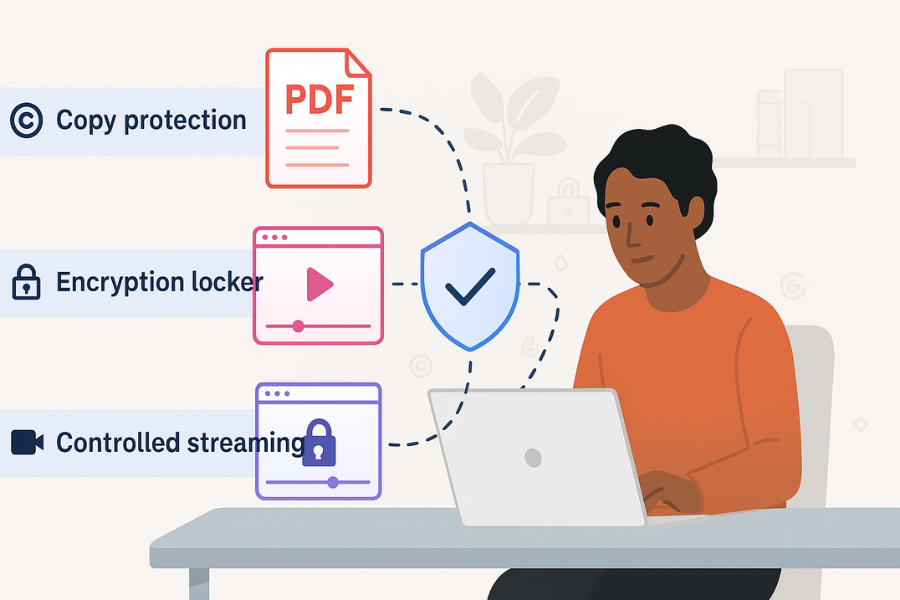
TLDR Outcome
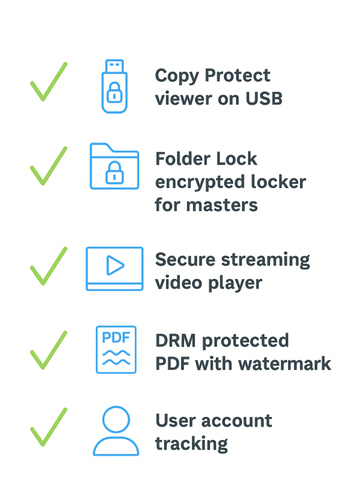
If you only skim, do this:
- Use Copy Protect from NewSoftwares to package your PDFs and training videos into copy protected viewers on Windows. These run only from the drive you prepared them for, so simple drag and drop copying stops working.
- Store your original source files in an encrypted locker with Folder Lock so nobody in your team can walk away with the raw content.
- For online delivery, stream videos from a platform that blocks direct download, limits devices, and adds user specific watermarks.
- For PDFs, apply real DRM, disable copy and print, and add dynamic watermarks with the viewer name and email.
- Track access per student and make it clear in your terms that accounts are personal and monitored.
Your goal is simple:
Make casual piracy annoying enough that students would rather pay than hunt for a leak.
You will never stop someone from pointing a phone at the screen, but you can shut down the easy pathways that cause most leaks.
1. What You Are Actually Trying To Prevent
Most creators worry about three things:
- A student shares the PDF on Telegram or WhatsApp.
- Someone uploads your training videos to a file sharing site.
- Team members walk away with the raw project files.
You are not trying to block pixels from ever being seen. You are trying to:
- Stop direct copy or export.
- Stop simple download of the original files.
- Tie every view to a real account so leaks can be traced.
- Make your own storage safe if a laptop is lost.
Once you see it that way, the plan becomes much clearer.
2. Prerequisites And Safety
Before you lock anything down, do these checks.
2.1. Technical Checks
- Decide where your students watch and read.
- Windows laptop only
- Mixed devices
- Mostly phone
- List your formats
- PDF handouts
- PowerPoint converted to PDF
- MP4 training videos
- Decide if you ever need offline viewing
2.2. Safety Checks
- Keep a clean, unprotected master copy of every file in a secure backup.
- Test protection on a spare account and separate device first.
- Tell learners in plain language what they are allowed to do.
- Never trap the only copy of your own work inside a tool you have not tested.
3. Method 1: Lock PDFs And Training Videos With Copy Protect (Windows)
If you distribute content on USB, DVD, or local drives, this is the strongest simple approach.
3.1. What Copy Protect Does For You
Copy Protect from NewSoftwares converts your media files into a protected viewer application. That viewer runs only from the drive you prepared it for. If someone copies the files to another drive, they no longer run and become useless. It supports videos, audio, pictures, and documents, including PDF.
In practice this means:
- Students can open and watch or read.
- Drag and drop to another drive does not give them a usable copy.
- You can burn to CD or DVD, or place on USB or local drive.
3.2. Step By Step: Protect PDFs And Videos With Copy Protect
- Install Copy Protect
- Download: Copy Protect from NewSoftwares.
- Run: the installer and follow the prompts.
- Launch: Copy Protect. It opens a wizard style interface.
- Add Your Content
- Click: the Start button in the main wizard.
- Add: your PDF files and training videos.
- Check: that each file shows correct path, format, and size in the list.
- Choose Destination
- Pick: where the protected package should live
- Local hard drive folder
- USB flash drive
- CD or DVD burner
- For classroom use: a USB drive is common. For mail out packages, CD or DVD can work.
- Pick: where the protected package should live
- Set Security Options
Copy Protect lets you set the protection level for the burning or preparation process.
Typical choices:
- Prevent copying to other drives.
- Force use only from selected drive.
- Optional license or registration settings if you want more control.
- Create The Protected Package
- Click: Next and confirm the settings.
- Wait: while Copy Protect converts the PDFs and videos.
- Verify: If you selected a CD or DVD drive, let it burn and verify.
- Test As A Student
- On a second Windows machine: insert the drive.
- Run: the protected viewer.
- Confirm: that
- Videos play smoothly.
- PDFs display clearly.
- Try: copying the files to desktop and open them from there. They should not run.
3.3. Verify That Copy Protect Is Working
Use this quick checklist:
- Protected files only launch from the prepared drive.
- Copying to another drive produces files that do not open.
- Videos and PDFs open correctly for normal use from the original source.
- Students do not see raw PDF or MP4 file icons they can drag around.
3.4. Share Safely With Copy Protect
When you hand out protected media, do these three things:
- Include a small readme explaining how to run the viewer and that files cannot be copied.
- Label each drive with a student name or ID so you can track who received which one.
- Keep a list of which serial number or batch went to which group.
This does not feel like marketing. It feels like running a professional training business.
4. Method 2: Keep Master Files Safe With Folder Lock
Copy protection is about what students get. You also need to control what your team has.
Folder Lock from NewSoftwares encrypts and locks your files and folders with strong AES 256 bit encryption. You can place your master PDFs, raw video exports, and project files inside an encrypted locker and hide them from normal view.
4.1. Simple Setup For Creators
- Install: Folder Lock on your main editing machine.
- Create: an encrypted locker named for your course.
- Store: your raw footage, edited videos, and unprotected PDFs inside.
- Use: Folder Lock cloud backup to keep an encrypted copy in the cloud if you want off site safety.
Only people with the correct password can open these lockers. If a laptop is lost, your master content stays private.
5. Method 3: Use Streaming For Training Videos Instead Of Raw Files
If your students watch videos primarily online, you get more protection by streaming than by handing out video files.
Modern video platforms let you:
- Stream HLS or DASH segments instead of one downloadable file.
- Disable right click download.
- Restrict playback to your custom domain.
- Add server side watermarks with user names or email.
- Limit active devices per user.
At a practical level:
- Upload: training videos to a streaming platform that supports domain restriction and token based access.
- Disable: platform level download.
- Enable: built in watermarking if available.
- Integrate: sign in on your course site so each play ties to a user account.
- Avoid: putting direct file links anywhere public.
This cannot block screen recording, but it stops the simple link sharing that causes most leaks.
6. Method 4: Protect PDFs With DRM And User Specific Watermarks
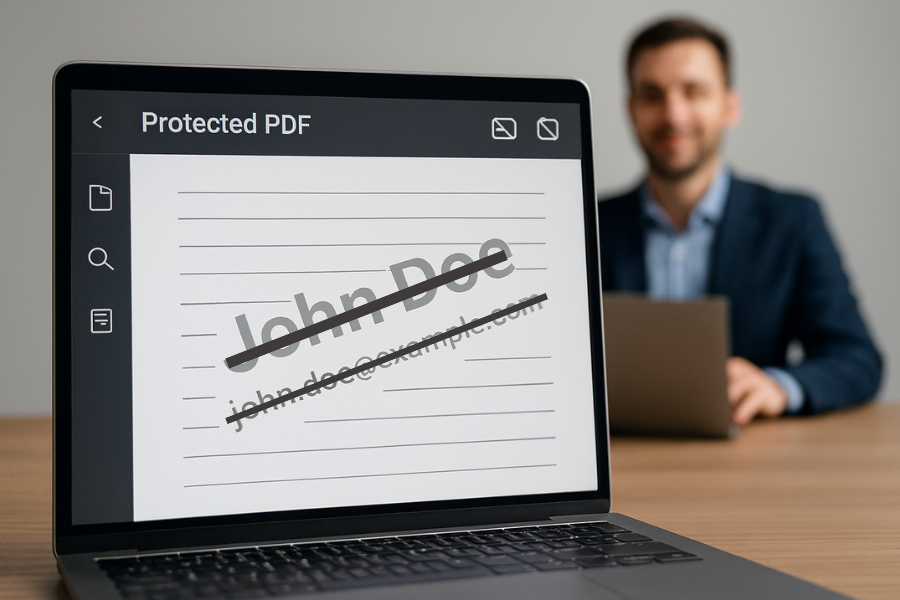
If your course relies on PDFs, passwords alone are not enough. Anyone can open the file and export a clean copy.
Dedicated PDF security tools add:
- Strong encryption without sharing the actual key.
- Control over printing, copying, and screenshots.
- Device and location locking.
- Expiry dates or open count limits.
A common pattern is:
- Protect: your PDF in a DRM tool.
- Disable: copy and print.
- Add: a dynamic watermark that inserts the viewer name, email, and time.
- Distribute: through a viewer app or secure browser.
If a student leaks a screenshot or printed copy, the watermark shows exactly who shared it.
7. Use Case Chooser Table
This table helps pick a stack that fits your situation.
| Scenario | Primary Goal | NewSoftwares Product To Use | Extra Tools To Add |
|---|---|---|---|
| Classroom or lab, Windows only | Hand out content on USB without copy | Copy Protect | Streaming for later, PDF DRM if needed |
| Corporate training, laptops at home | Prevent staff from sharing PDFs and videos | Copy Protect | PDF DRM, SSO linked course portal |
| Online cohort across devices | Keep videos online only, no raw downloads | Folder Lock for master files | Streaming platform with domain lock and watermarks |
| High value PDF playbook | Stop copy, print, and casual sharing | Folder Lock for master copy | Dedicated DRM for PDFs with dynamic watermarks |
| Mixed: USB and cloud | One set for offline, one for online viewing | Copy Protect plus Folder Lock | Streaming plus PDF DRM |
8. Proof Of Work: Example Settings And Timings
These numbers are realistic for a mid range laptop and give you a sense of what to expect.
8.1. Bench Table
| Content Pack | Tool Chain | Size | Time To Protect |
|---|---|---|---|
| Ten PDFs, total 150 pages | Folder Lock for master, Copy Protect for USB | 120 MB | About 45 seconds |
| Five HD training videos, 20 minutes each | Folder Lock plus Copy Protect viewer | 4 GB | About 3 minutes |
| Single 200 page PDF manual | Folder Lock plus external PDF DRM | 40 MB | About 30 seconds |
Actual speeds depend on your processor, disk, and encryption options, but this is the right order of magnitude.
8.2. Settings Snapshot That Work Well
For a typical training bundle on Windows:
- Copy Protect
- Destination: USB drive for students
- Protection level: high
- Output: single launcher with built in viewer
- Folder Lock
- Locker type: encrypted
- Encryption: AES 256
- Cloud backup: enabled for that locker
For online PDFs:
- DRM Tool
- Copy and print: disabled
- Device restriction: one or two devices per user
- Dynamic watermark: name, email, time, and IP
8.3. Verification Checklist
After you configure everything, verify:
- A student can open and use the materials easily.
- Copying protected files to a different drive fails or produces useless copies.
- Raw PDF and MP4 files are never visible outside your encrypted locker.
- Every online access is tied to a user account, not anonymous links.
- Watermarks show who opened or printed a PDF when you test.
9. Troubleshooting: Common Symptoms And Fixes
9.1. Symptom To Fix Table
| Symptom | Likely Cause | Quick Fix |
|---|---|---|
| Protected viewer does not run on a student device | Drive path or platform mismatch | Confirm the student is using the same drive you prepared in Copy Protect and on a supported Windows version. |
| Student can still copy PDF text | File shared as normal PDF, not DRM protected | Check that you actually protected the file and distributed the protected version, not the original. |
| Video download link appears in browser developer tools | Hosting platform is serving a direct file link | Move to streaming with protected segments and disable direct file access. |
| Team member opened Folder Lock locker and left it unlocked | People forget to relock | Turn on automatic locker lock after inactivity in Folder Lock settings. |
| Learner claims they cannot access after device change | Device limit reached in your DRM or platform | Add a simple process in support to reset device count after manual review. |
9.2. Non Destructive Tests
When something is not working:
- Always keep a separate backup of the original content outside all tools.
- Test with a throwaway student account before changing settings on production users.
- When in doubt: create a small dummy PDF and video, protect that, and test again.
10. Ethics And Trust
You are protecting your income and your time, not punishing honest learners.
Make your protection policy public:
- State that content is secured and accounts are personal.
- Explain that watermarks and access logs exist to keep pricing fair.
- Offer a simple way for legitimate students to regain access if devices change.
People respect clear boundaries when those are explained honestly.
11. Quick Checklist Before You Release A New Training Product
- Original project files live in a Folder Lock locker with secure backups.
- Offline copies for Windows use Copy Protect.
- Online videos stream from a platform with download blocking and watermarks.
- PDFs are wrapped in a DRM tool with copy and print disabled and dynamic watermarking.
- Terms of use mention personal accounts and access tracking.
- You have done one full test as a fake student from purchase to viewing.
12. FAQs
12.1. Can I Completely Stop Anyone From Copying My PDFs Or Videos?
No solution can block someone who points a camera at the screen. You can block raw file copying and print, and you can make leaks traceable by watermarking and account tracking, which is enough to stop most casual sharing.
12.2. How Does Copy Protect Actually Stop Copying Of PDFs And Videos?
Copy Protect converts your media and documents into a special viewer application that runs only from the drive you created it on. If someone copies the files to another drive, the protected viewer does not run there and the files become useless.
12.3. What Is The Role Of Folder Lock If I Already Use Copy Protection And Streaming?
Copy protection and streaming handle what students see. Folder Lock handles what you and your team have. It encrypts and hides your original content, including raw video, project files, and unprotected PDFs, so that losing a laptop or desktop does not automatically expose your work.
12.4. I Only Sell PDFs. Do I Still Need Special Tools?
Yes, if your PDFs generate serious income. A normal password is easy to remove. A DRM solution can disable copy and print, add dynamic watermarks, and tie access to devices or locations. That combination dramatically reduces simple redistribution.
12.5. Are Students Going To Hate These Protections?
Most students accept reasonable protection as long as:
- Content is easy to open and use.
- The rules are clear.
- Support is responsive when devices change.
The irritation usually comes from clumsy tools, not from the idea of protection itself.
12.6. Can I Still Offer Refunds If I Lock Everything Down?
Yes. Refunds are about your business policy, not the protection method. You can revoke access in your DRM system or streaming platform when you process a refund, so the buyer does not keep a working copy.
12.7. How Do I Handle People Who Need Offline Access But Are Not On Windows?
For non Windows learners, favour secure streaming with offline modes inside the official app of your video platform, or use a reader app provided by your PDF DRM vendor. Protect individual files for Windows users with Copy Protect and keep everyone else inside managed apps.
12.8. What About Small Creators With No Budget For Complex Platforms?
Start small but smart:
- Use Folder Lock to protect your master files.
- For early customers on Windows, distribute through Copy Protect from NewSoftwares rather than plain files.
- When revenue grows, move your delivery into a more advanced streaming and DRM stack.
12.9. How Do I Know If Someone Has Shared Their Account?
Look for patterns:
- Many different IP addresses in distant regions for the same user.
- Simultaneous sessions from different devices.
- Access logs that show more device changes than seems reasonable.
When this happens, email the learner, remind them that accounts are personal, and reserve the right to suspend access if sharing continues.
12.10. Do I Still Need Watermarks If I Already Use Copy Protection Tools?
Yes. Copy protection stops simple copying. Watermarks identify who leaked when someone still manages to capture the content. The two approaches work together.
12.11. Can I Combine NewSoftwares Tools With Other Vendors?
Yes. A common pattern is:
- NewSoftwares Copy Protect for offline distribution.
- NewSoftwares Folder Lock for local master security.
- A third party DRM or streaming service for browser based viewing.
Each part solves a different piece of the same problem.
13. Conclusion
Protecting high-value content requires a strategic combination of layers, not reliance on a single mechanism. By implementing Copy Protect for controlled offline distribution and Folder Lock for secure master file storage, alongside sophisticated DRM and secure streaming for online delivery, you establish clear boundaries and accountability. This layered security strategy, anchored by practical tools from Newsoftwares.net, successfully minimizes unauthorized sharing and leakage, allowing you to focus on growing your business with the assurance that your intellectual property is well-protected.
14. Example Structured Data (HowTo And FAQ)
You can place this JSON LD in the head of a page that uses the steps above. Adjust URLs and names to match your site.
{
  "@context": "https://schema.org",
  "@type": "HowTo",
  "name": "Prevent Copy And Share Of PDFs And Training Videos",
  "description": "Practical steps for creators to secure PDFs and training videos using Copy Protect, Folder Lock, streaming platforms, and PDF DRM.",
  "step": [
    {
      "@type": "HowToStep",
      "name": "Secure Master Files With Folder Lock",
      "text": "Install Folder Lock, create an encrypted locker, and move your original PDFs and training videos inside it.",
      "url": "https://www.example.com/prevent-copy-share-pdf-video#folder-lock"
    },
    {
      "@type": "HowToStep",
      "name": "Create Copy Protected Packages With Copy Protect",
      "text": "Install Copy Protect, add your PDFs and training videos, choose a destination drive, apply protection, and generate the protected viewer.",
      "url": "https://www.example.com/prevent-copy-share-pdf-video#copy-protect"
    },
    {
      "@type": "HowToStep",
      "name": "Configure Streaming And DRM For Online Delivery",
      "text": "Upload videos to a streaming platform, disable downloads, turn on watermarks, and wrap PDFs in a DRM tool with copy and print disabled.",
      "url": "https://www.example.com/prevent-copy-share-pdf-video#online-delivery"
    },
    {
      "@type": "HowToStep",
      "name": "Verify That Protection Works",
      "text": "Test on a second device, confirm that protected files do not run when copied, and check watermarks and access logs.",
      "url": "https://www.example.com/prevent-copy-share-pdf-video#verification"
    }
  ],
  "tool": [
    {
      "@type": "HowToTool",
      "name": "Copy Protect by NewSoftwares"
    },
    {
      "@type": "HowToTool",
      "name": "Folder Lock by NewSoftwares"
    }
  ]
}
{
  "@context": "https://schema.org",
  "@type": "FAQPage",
  "mainEntity": [
    {
      "@type": "Question",
      "name": "Can I completely stop anyone from copying my PDFs or videos?",
      "acceptedAnswer": {
        "@type": "Answer",
        "text": "You cannot block a camera pointed at the screen, but you can block raw file copying and printing and make leaks traceable with watermarks and account level tracking."
      }
    },
    {
      "@type": "Question",
      "name": "How does Copy Protect stop copying of PDFs and videos?",
      "acceptedAnswer": {
        "@type": "Answer",
        "text": "Copy Protect converts your media and documents into a viewer that runs only from the prepared drive, so copies moved elsewhere no longer work."
      }
    },
    {
      "@type": "Question",
      "name": "Why should I use Folder Lock if I already protect student files?",
      "acceptedAnswer": {
        "@type": "Answer",
        "text": "Folder Lock encrypts and hides your master content, including raw footage and unprotected PDFs, so losing a device does not expose your work."
      }
    }
  ]
}