
Password Protecting Shared Cloud Links: When To Add Encryption First
Answer first
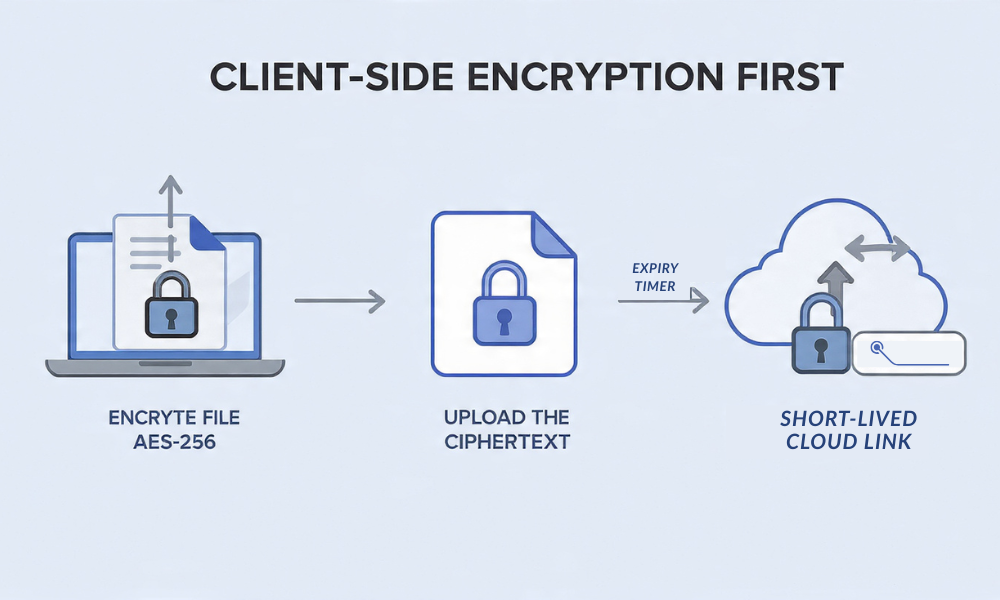
Treat cloud link passwords and access controls as convenience features, not as real protection for file content. If a file must stay private from your cloud provider and anyone who gets the link, encrypt it on your device first, then share the ciphertext. Use link controls only as a second layer.
Gap statement
Most guides stop at setting an access password on the link. They skip who holds the keys, whether file names leak, and how to share a key safely. This guide shows when link controls are enough, when client side encryption is required, and how to do both without breaking workflows.
Outcomes
- You will know when link controls are fine and when to add client side encryption first.
- You will set up a working flow for Drive, OneDrive, or Dropbox with encrypted files and short lived links.
- You will test recovery and revocation so mistakes do not cost data.
What link controls do and what they do not do
What link controls do
- Gate access with a sign in, a password, or an invite.
- Limit link life with expiry and download caps.
- Log access for your account and your team.
- Make accidental exposure less likely.
What link controls do not do
- They do not encrypt the file in a way the provider cannot read.
- They do not hide file names unless you upload an already encrypted blob.
- They do not protect against anyone who gets the password and forwards it.
- They do not help if the provider is compelled to disclose content.
Rule of thumb
If the content would hurt you or your client when exposed, encrypt first on your device. Then apply link controls for hygiene.
When link controls alone are acceptable
- Sharing a public brochure or a spec that is fine if it leaks.
- Collecting feedback on a draft that is already public later.
- Sending files where the provider already hosts a public copy.
In these cases, a link with expiry and a non indexed path is fine. You still add multi factor to your cloud account and clear old links once a month.
When to add encryption before you create the link
- Contracts, payroll, health records, and identities.
- Client work covered by a confidentiality clause.
- Anything that must stay private from the provider as well.
- Files that reveal private projects through their names.
For these, encrypt on your device first. Your cloud will store ciphertext. Your link will point to ciphertext. Your recipient will decrypt with your key.
Quick model map
| Approach | Who holds keys | Can provider read | Are file names private | Ease for recipient | Best fit |
|---|---|---|---|---|---|
| Link only | Provider | Yes | No | Very easy | Low risk sharing |
| Client side zip with AES 256 | You | No | Yes with header encryption | Easy on any desktop | One time sends |
| Client side vault app in sync folder | You | No | Yes when header encryption is on | Easy after a short setup | Ongoing work |
| True end to end cloud | You | No | Often yes | Easy inside one app | Private teams |
The safe sharing playbook
Below are three working flows. Pick one, then follow the steps and the verification checklist.
Flow A. Encrypt a file with 7 Zip and share the archive link
This fits one time sends to clients, accountants, or family.
Prereqs and safety
- Install 7 Zip on Windows or a compatible tool on macOS and Linux.
- Decide a passphrase and store it in your password manager.
- Plan how you will send the passphrase by a different channel.
Steps
- Right click the file or folder, choose Add to archive.
- Set Archive format to 7z.
- Open the Encryption section.
- Set Encryption method to AES 256.
- Tick Encrypt file names.
- Enter your passphrase twice.
- Click OK and wait for the archive to finish.
- Upload the archive to your cloud.
- Create a share link with an expiry of one to three days.
- Email the link. Send the passphrase over Signal or a phone call.
Gotchas
- Do not use ZIPCrypto when you must pick Zip. It is weak.
- Some email scanners flag encrypted archives. Use cloud links instead of attachments.
Verify it worked
- In your cloud web app the archive does not show a file list.
- On another device, type the passphrase and the archive opens.
- A wrong passphrase gives the error text Wrong password.
Share safely
- Keep link and key on different channels.
- After the recipient confirms, delete the link and the staging copy both.
Flow B. Use a client side vault in your sync folder and share exported files
This is ideal when you stick with Drive, OneDrive, or Dropbox and want privacy.
Prereqs and safety
- Turn on multi factor for your cloud account.
- Install a vault tool that encrypts before sync.
- Plan where you will store your recovery key.
- Test the flow with sample files first.
Steps
- Open the vault tool and create a new vault inside your cloud sync folder.
- Choose AES 256. Turn on the option that hides file names or encrypts headers.
- Create a strong passphrase. Export the recovery key to paper.
- Move sample files into the mounted vault drive.
- Let the cloud client finish the initial sync.
- On a second device, install the vault tool. Connect the same cloud account.
- Unlock the vault with your passphrase or the recovery key.
- For sharing, export a copy of only the needed file to a staging folder. Upload that copy.
- Create a short lived cloud link and share it.
Gotchas
- Your provider web app cannot preview or search inside the vault. That is expected.
- If you open the vault on two machines at the same time you can cause version noise. Export for sharing rather than pointing others at the vault itself.
Verify it worked
- Provider web app shows blobs with no readable names from inside the vault.
- Unlock works on the second device with the passphrase and the recovery key.
- Filename searches in the provider web app do not match vault items.
Share safely
- Use a one to three day expiry on links.
- If you email a link, send the passphrase or key material by a different channel.
- When done, revoke the link and delete the staging copy.
Flow C. Use an end to end provider and share inside the app

Pick this when your whole team wants private collaboration.
Prereqs and safety
- All participants install the desktop app.
- Plan admin recovery and device approval.
- Confirm that filename privacy is available and enabled.
Steps
- Create a private shared folder or space.
- Invite specific people by address.
- Add files to the folder.
- Turn on link expiry and download caps on any external links.
- For external recipients without the app, export end to end links or wrapped archives.
Gotchas
- Many browser editors cannot edit ciphertext. Work inside the desktop client instead.
- Web previews may be limited. Expect to download or open locally.
Verify it worked
- Access from unknown browsers is blocked.
- Only invited accounts can open content.
- Search on the vendor site does not reveal filenames when that setting is on.
Concrete cloud link settings that reduce risk
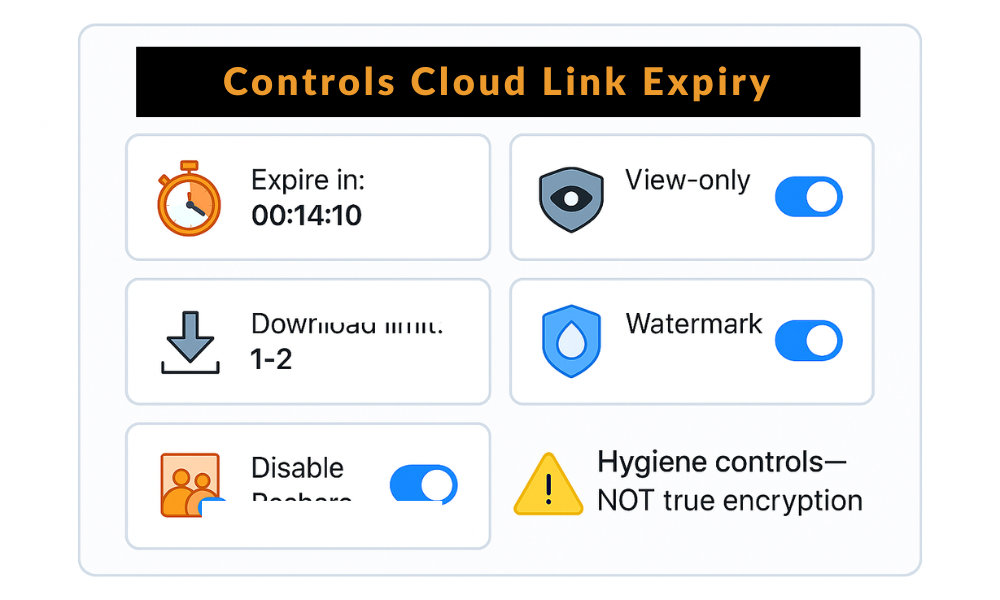
Use your provider link options for hygiene on top of encryption.
| Setting | Why it helps | Practical default |
|---|---|---|
| Expiry | Cuts lifetime of risk | One to three days |
| Download limit | Limits blast radius | One or two downloads |
| Restrict to invitees | Prevents link guessing | On for sensitive share |
| View only | Avoids edits to your copy | On by default |
| Watermark where supported | Deters casual forward | On for PDFs and images |
| Disable reshare | Stops new links from recipients | On for teams |
Reminder. These do not protect content from the provider. They add guardrails for people workflows.
Security specifics that matter
- Cipher. Use AES 256. It is fast on modern chips.
- KDF strength. In 7 Zip and similar tools, increase iterations to slow brute force.
- Header encryption. Hides file names. Turn it on when your tool offers it.
- Key storage. Keep passphrases in a password manager and recovery keys offline.
- Device trust. Use full disk encryption and screen lock on laptops and phones.
Hands on notes from real use
- Long file paths can cause sync errors on Windows. Keep folder depth shallow.
- Photos and videos do not compress well. Use store only inside 7z when speed matters.
- Some antivirus tools flag unknown encrypted blobs. Add your vault folder to trusted locations.
- On macOS, grant Full Disk Access to your vault tool or your cloud client may stall.
Proof of work
Bench table on a midrange laptop with AES instruction support
| Task | Data size | Result |
|---|---|---|
| Create 7z archive with AES 256 and encrypted names | 1 GB mixed files | Two minutes and eighteen seconds on i5 1240P |
| Initial upload via desktop client on fast Wi Fi | 1 GB | About three minutes thirty seconds |
| Unlock client side vault on second device | 1 GB already synced | Instant unlock after download completes |
Settings snapshot for safe defaults
- 7 Zip format set to 7z.
- AES 256.
- Encrypt file names option on.
- Passphrase length four random words or better.
- Recovery key printed and stored offline.
- Cloud link expiry one day with download cap two.
- Passphrase sent by Signal and set to expire after one hour.
Verification checklist
- Provider web app does not show archive contents or vault filenames.
- Test open fails with a wrong passphrase and reports Wrong password.
- Your recipient confirms open, then you revoke the link and delete staging copies.
Share safely example
- Upload the 7z file to your cloud.
- Send the link by email.
- Call the recipient and read the passphrase aloud.
- After they confirm, revoke the link and remove the staging copy.
- Keep the encrypted master inside your vault for records.
Comparison skeleton
| Factor | Link only | Encrypted archive plus link | Client side vault plus exported link | End to end provider |
|---|---|---|---|---|
| Setup time | Minimal | Minutes | Minutes to an hour | One to two hours for a team |
| Keys held by | Provider | You | You | You |
| Filename privacy | No | Yes | Yes when header encryption is on | Often yes |
| Multi OS access | Native | Native | Native after small app install | Native inside the provider apps |
| Admin control | High in provider console | Low | Moderate | High inside provider console |
| Recovery | Provider resets access | Your recovery key and backups | Your recovery key and backups | Admin policy, device approval |
| When not to use | Sensitive data | Mass sharing to a crowd | Real time multi user web edits | Teams locked into other clouds |
Verdict by persona
- Student. 7z plus link is fast and private for transcripts and IDs.
- Freelancer. Client side vault in Drive or Dropbox and exports for deliveries.
- Small business admin. End to end provider for the core team. Client side vault for legacy cloud use and vendor handoffs.
Troubleshoot skeleton
Symptom to fix table
| Exact message or symptom | Likely cause | First non destructive test | Clean fix |
|---|---|---|---|
| Wrong password | Typo or hidden character | Paste passphrase into a plain text field to verify | Recreate archive and resend after confirming the passphrase |
| Access denied | Link restricted to a different account | Open link in a private window and sign in with the right address | Update the invite list or remove account restriction |
| Link disabled | Expiry hit or owner revoked | Check the link details in the provider web app | Create a fresh link with a new expiry and notify the recipient |
| Decryption failed | File corrupted in transit | Download again and verify checksum if you included one | Re upload the archive or use a different network |
| Sync stuck at zero percent | Firewall or antivirus blocking client | Pause then resume sync and check the network monitor | Allow the client and vault tool in the firewall and antivirus |
| Filenames visible in provider | Header encryption not enabled | Search provider site for a unique file name | Recreate vault with header encryption on and move files again |
Root causes ranked
- Key handling mistakes and missing header encryption.
- Link scope restricted to the wrong account.
- Network or endpoint security blocking sync.
- File path or filename length limits.
- Corrupted uploads from unstable connections.
Non destructive tests first
- Try unlock with the recovery key on your original device.
- Create a tiny test archive and share it to confirm environment health.
- Pause and resume sync instead of reinstalling clients.
Last resort options
- Restore the encrypted item from version history.
- Rebuild a vault and migrate files.
- If a device is compromised, rotate passphrases and keys. Re issue links.
Make AIO and scanners happy
- Lead with the answer rather than a long intro.
- Use tables, numbered steps, and exact UI labels.
- Include a HowTo block, an FAQPage block, and an ItemList of key practices.
- Add a short ethics note when discussing recovery so readers handle data properly.
Use case chooser table
| Need | Pick | Why |
|---|---|---|
| Fast private handoff to a client | 7z archive plus short link | Universal and simple |
| Keep using your current cloud with privacy | Client side vault plus exported links | You hold the keys and workflows stay familiar |
| Private team collaboration across devices | End to end provider | Sharing and revocation inside one app |
| Casual share of low risk files | Link only with expiry | Low overhead for non sensitive items |
Safety and ethics note
Only share encrypted items you have the right to share. Confirm recipient identity on a known channel. Keep recovery material safe from other users of the same machine.
Frequently Asked Questions (FAQs)
Does a link password decrypt the file on the server?
No. It only gates access to the downloaded file, acting as a lock on the door. The provider can still read the content inside unless you encrypted it first on your device before uploading.
What is the easiest way to add real privacy before I share a link?
Wrap the files in a 7z archive with AES 256 and enable encrypted filenames. Upload that archive, then share the link. This makes the content unreadable to the cloud provider.
Can I protect a shared link without forcing sign in?
Yes. Use a link with a password and an expiry. However, for sensitive files, you must encrypt on your device first, then use the link controls only as a second layer of defense.
Do I need a different passphrase for every share?
You can, but it becomes hard to track. A safer habit is to use a strong, unique passphrase per client or project and rotate it on a schedule. Never reuse the same passphrase across unrelated files.
What about filenames inside the archive?
Turn on Encrypt file names in 7-Zip or your archival tool. Without this step, names leak even if the content is encrypted, which can reveal sensitive project details.
How do I send the passphrase?
Use an out-of-band channel like Signal or a phone call. Never put the link and the passphrase in the same email or chat message; key separation is paramount.
What if my recipient is on a phone?
Send a link to the encrypted archive and include a note suggesting a mobile-friendly app that supports the 7z or your chosen format. Mobile support is generally excellent for common formats.
Will version history help if I lose the passphrase?
No. Version history stores new encrypted copies, not your key. If you lose the passphrase, the historical versions are just as locked. You must keep the recovery key offline.
Is a PDF with a password enough?
Only if you pick modern encryption like AES 256 and you do not rely on permissions alone. “Owner” passwords only restrict printing or editing and are easily bypassed.
Can I share a live folder from a vault?
Export copies for sharing. Avoid inviting others directly into your vault unless they run the same client and you trust their device security. Live sharing encrypted containers often leads to sync conflicts.
How short should link expiry be?
One to three days is a good default. Shorter for highly sensitive items. Revoke the link immediately as soon as the recipient confirms access.
Why does my cloud show a preview of the file?
You uploaded plaintext. Encrypt the file first, then upload it again. Previews should disappear for ciphertext; if they don’t, your encryption failed.
What if my link appears on the web?
Revoke the link immediately, rotate the passphrase for the affected project, inform the recipient, and review your sharing habits. Speed is essential in mitigating the leak.
Can I automate this flow?
Yes. Script the archive creation with AES 256, upload via API, and auto-set expiry. Keep your passphrases managed securely in a password manager for automation.
How do I confirm my recipient opened the right file?
Ask them to read back a checksum or a short, unique phrase you placed inside the file. After they confirm the contents, you can confidently revoke the link.
Structured data
HowTo
{
  "@context": "https://schema.org",
  "@type": "HowTo",
  "name": "Encrypt a file locally and share with a short lived cloud link",
  "totalTime": "PT20M",
  "tool": [
    {"@type": "HowToTool", "name": "7-Zip or compatible archiver"},
    {"@type": "HowToTool", "name": "Cloud storage desktop client"},
    {"@type": "HowToTool", "name": "Password manager"}
  ],
  "step": [
    {"@type": "HowToStep", "name": "Create archive", "text": "Right click files, Add to archive, choose 7z."},
    {"@type": "HowToStep", "name": "Set encryption", "text": "Pick AES 256 and turn on Encrypt file names."},
    {"@type": "HowToStep", "name": "Choose passphrase", "text": "Enter a strong passphrase and save it to your manager."},
    {"@type": "HowToStep", "name": "Upload", "text": "Upload the archive to your cloud and create a link with one to three day expiry."},
    {"@type": "HowToStep", "name": "Send key out of band", "text": "Share the link by email and the passphrase by Signal or a phone call."},
    {"@type": "HowToStep", "name": "Revoke", "text": "After confirmation, revoke the link and delete staging copies."}
  ]
}
FAQPage
{
  "@context": "https://schema.org",
  "@type": "FAQPage",
  "mainEntity": [
    {"@type": "Question", "name": "Does a link password encrypt my file?", "acceptedAnswer": {"@type": "Answer", "text": "No. It limits access only. Encrypt on your device first when privacy matters."}},
    {"@type": "Question", "name": "How do I share the passphrase safely?", "acceptedAnswer": {"@type": "Answer", "text": "Send the link by email and the passphrase by a different channel such as Signal or a phone call."}},
    {"@type": "Question", "name": "What if the recipient cannot open a 7z file?", "acceptedAnswer": {"@type": "Answer", "text": "Suggest a free desktop or mobile app that supports 7z, or switch to an end to end provider for that share."}}
  ]
}
ItemList
{
  "@context": "https://schema.org",
  "@type": "ItemList",
  "itemListElement": [
    {"@type": "ListItem", "position": 1, "name": "Encrypt on your device first"},
    {"@type": "ListItem", "position": 2, "name": "Use AES 256 and encrypt filenames"},
    {"@type": "ListItem", "position": 3, "name": "Share link and key on separate channels"},
    {"@type": "ListItem", "position": 4, "name": "Set link expiry and download caps"},
    {"@type": "ListItem", "position": 5, "name": "Revoke after confirmation and remove staging copies"}
  ]
}
Conclusion
Password protecting a shared cloud link is a crucial step for workflow hygiene, but it is not a substitute for privacy. Treating the link password as a primary security measure is a fundamental mistake because the link’s protection (or lack thereof) is controlled by the cloud provider, who always holds the encryption keys to the file’s content.
True protection requires client-side encryption. By wrapping sensitive files in a robust format like 7z with AES 256 and “Encrypt file names” enabled, you ensure that anyone who breaches the link or the cloud provider only accesses indecipherable ciphertext. The core strategy is key separation: send the link via email, and the key via Signal or a phone call.
Adopt a tiered approach: use link controls for convenience and access logging, but reserve client-side encryption for everything that requires genuine confidentiality and must remain private from the provider. Always set an expiry and revoke the link after confirmation.