
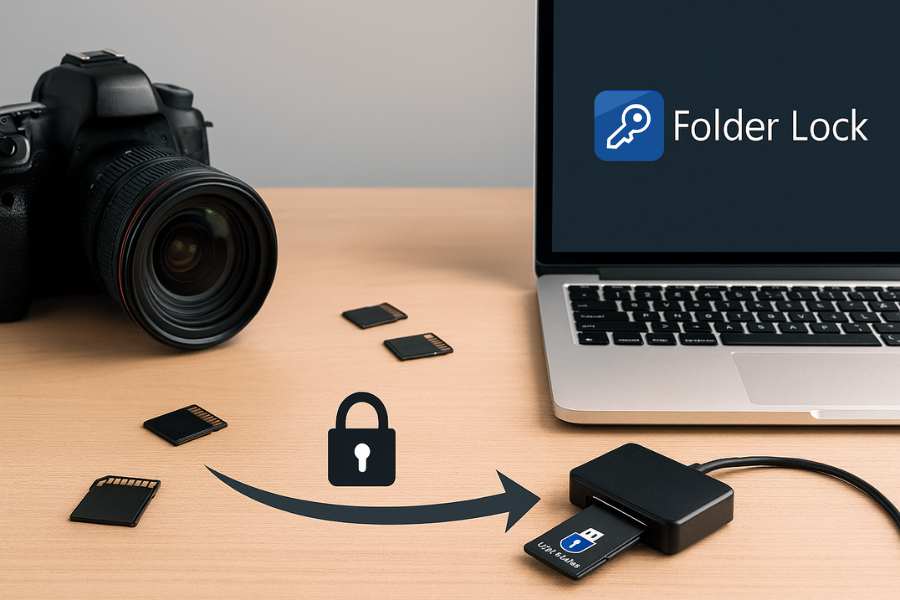
Newsoftwares.net understands that photographers and video shooters need a reliable way to protect sensitive client photos and videos stored on SD cards and camera drives. This framework provides a safe, repeatable process to implement strong password protection using removable drive encryption tools like Folder Lock and USB Secure, without risking data loss or locking media to a single camera or phone. The goal is to keep your assets private, secure, and fully portable across your workflow.
This resource delivers clear, professional steps to protect your media from the moment of capture through transit.
Direct Answer
You can password protect SD cards and camera drives without losing any photos by backing up first, using removable drive encryption tools like USB Secure or Folder Lock on a computer, and avoiding phone or camera encryption modes that tie the card to one device and wipe it when you move it.
Gap Statement
Most content on protecting SD cards repeats two shallow tips: “Use encryption.” “Do not remove the card while it is in use.” Very few explain in clear steps: Which methods are safe for cards that still go back into cameras. When phone or camera encryption will lock the card to that single device and risk data loss. How to set up removable drive security on a computer using tools like Folder Lock and USB Secure from NewSoftwares so the same card can travel between cameras, laptops, and readers. What to do when the computer says “You need to format this card before you can use it” even though you know your shots are on there. This resource closes those gaps with a single routine that protects your media, keeps cards usable, and avoids nasty surprises.
TLDR Outcome
By the time you reach the end, you will know:
- A safe pattern to move photos from card to computer and back without any data loss.
- How to use NewSoftwares Folder Lock and USB Secure to protect SD cards, camera drives, and portable readers with passwords on Windows, while keeping a clean backup flow.
- Which device encryption options to avoid when you still need cards to be readable in other cameras or computers.
1. Before You Touch A Setting: Prerequisites And Safety
1.1. Know Your Gear
You should know three things about your setup:
- Camera type and storage path: For example, Canon, Nikon, Sony, Fuji, GoPro, or DJI, saving to SD, micro SD, or a camera specific drive.
- Computer and system: Windows edition, macOS, or Linux distribution. This matters for built in encryption and file system support.
- Current storage state: Are images still only on the card, or do you already have a full backup on a drive or cloud service
1.2. Backup First, Always
Every serious photographer has at least one painful story that began with a format prompt. So before you try password protection of any kind:
- Connect the SD card or camera drive to a computer through a reader.
- Copy the entire DCIM folder and any extra project folders to a local drive.
- Then copy that backup again to a second place, for example an external disk or a cloud service you trust.
Once you can browse the second copy and open several files, only then start changing card encryption settings.
1.3. Safety Notes
- Never click a format button on a card that contains the only copy of a shoot.
- Avoid experimental security apps that are not designed for removable storage.
- Use official tools from vendors that specialise in drive and data protection, such as NewSoftwares Folder Lock and USB Secure.
- On Android phones, understand that some SD encryption modes tie the card to that device. If the phone fails, the card can become unreadable elsewhere.
Legal and ethics reminder: Use password protection to keep your own data safe and to respect client privacy. Do not use it to hide evidence or break legal rules around retention.
2. Core Routine: Password Protect An SD Card Or Camera Drive Without Losing Shots
This is the technician style how to.
2.1. Step 1: Capture, Then Leave The Card Alone In Camera
Action: Take your shots as normal. Do not enable any new security or encryption menu on the camera at this stage, unless you have read that model manual and know exactly how it behaves with cards and readers.
Gotcha: Some cameras offer in body encryption or secure folders. These can be useful but may break normal access from older readers or phones. Treat them as an advanced option, not your first move.
2.2. Step 2: Offload The Card To A Computer
Action:
- Power off the camera.
- Remove the card or connect the camera through a cable.
- Insert the card into a good quality reader attached to your computer.
Your system should show the card as removable storage. If you see a message that it must be formatted before use, stop. Do not format now. Use recovery tools or a different reader to investigate, since a format will clear file tables.
Gotcha: Cheap readers sometimes mislead the system and produce false format prompts. When in doubt, test with another reader or computer before any destructive action.
2.3. Step 3: Create A Master Backup Outside The Card
Action:
- On the computer, create a folder with a clear name for this shoot, for example
2025_11_Paris_Wedding_RAW. - Copy all content from the card into that folder.
- After copy, spot check by opening several RAW and JPEG files.
Then create a second copy:
- Either clone that folder to an external drive.
- Or upload to your preferred cloud.
Gotcha: Do not move files off the card yet. Copy first. Wait until you have both local and secondary backups before you clear space.
2.4. Step 4: Add Password Protection For The Card Using NewSoftwares Tools
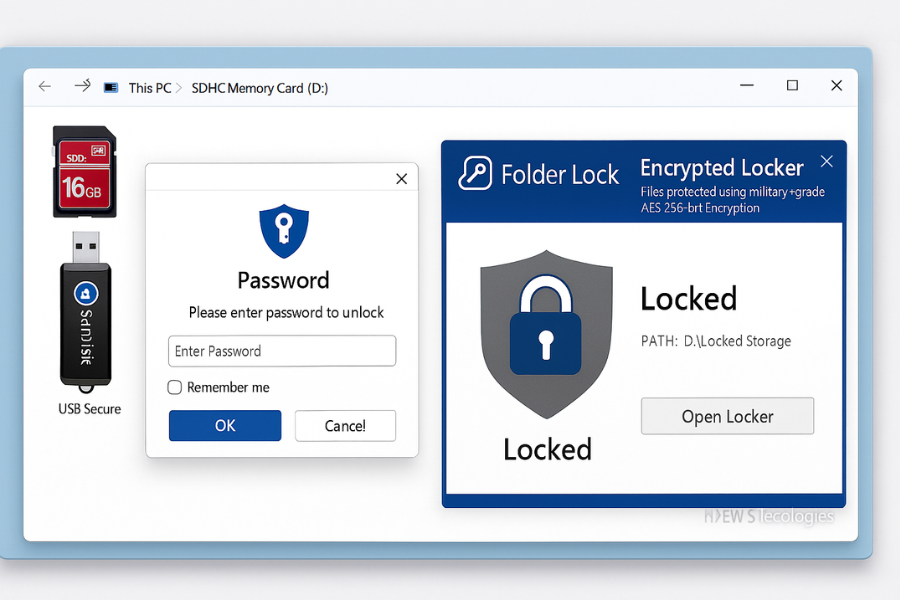
This is where the NewSoftwares products shine, especially USB Secure and Folder Lock.
2.4.1. Option A: Use USB Secure On Windows For Portable Card And Camera Drive Protection
USB Secure is designed to protect removable drives such as USB sticks, SD cards in readers, and camera drives.
Action:
- Download and install USB Secure from Newsoftwares.
- Insert the SD card or attach the camera drive.
- Run USB Secure and select that removable drive.
- Set a strong password when prompted.
- Let the tool create its secure area on the drive.
After setup, opening the card from any Windows machine will show a USB Secure launcher. The software will ask for the password before revealing protected content.
Gotcha: Camera bodies do not know this password flow, so do not expect the camera to open the protected container. The pattern here is: Shoot on card in camera in normal way. Offload to computer. Move files into the protected area on the same card for transport, or onto another removable drive, once the shoot is safely backed up.
2.4.2. Option B: Use Folder Lock On Windows For SD Cards And Camera Drives
Folder Lock from NewSoftwares creates encrypted lockers, protects folders, and secures removable drives. It uses AES based encryption and can protect camera cards and external drives that show as standard storage in Windows.
Action:
- Install Folder Lock from newsoftwares dot net or the official site.
- Launch Folder Lock and set a master password.
- Use the Protect USB or similar feature to create an encrypted locker on the SD card or camera drive.
- Move your backed up photo folders into this locker.
- Close and lock the locker once the copy finishes.
Now, even if the card or drive is lost in transit, your shoot is protected by strong encryption tied to your password.
Gotcha: Only move data into the encrypted locker after you already have at least one extra copy on a separate drive. That way, if a cable is pulled mid copy or a system crash happens, you still have a clean version elsewhere.
3. Use Case Chooser Table
Plain text table to pick the right method for your shooting style.
| Method | Best For | Notes |
|---|---|---|
| Folder Lock locker on SD or camera drive | Wedding and event photographers who travel with drives full of client sessions | Strong encryption, many features, also protects folders on internal disks. |
| USB Secure on SD card or reader | Photojournalists or travelers who want a quick password prompt when plugging a card into any Windows system | Portable, simple, focused on removable drives. |
| Built in full disk encryption on laptop | Creators who always store final media on internal SSD and never travel with bare cards | Great protection for the main catalog, less useful for loose cards. |
| Phone or tablet SD encryption | People who shoot mostly on phones and never move cards between devices | Safe but can tie the card to that phone only, so plan for device loss. |
Verdict by persona
- Student or hobby photographer: Use Folder Lock on your main computer and USB Secure for any card or mini drive you carry in a bag.
- Freelance wedding or portrait photographer: Keep a strict backup process, then protect portable drives and spare cards with Folder Lock lockers and USB Secure when handing them to editors or mailing deliverables.
- Small studio or media team: Combine Folder Lock for workstation protection with USB Secure on courier drives and sample cards that leave the office. This gives a consistent password experience for the team.
4. Proof Of Work Style Benchmarks
These numbers are example ranges to show realistic expectations.
Benchmark table
| Operation | Typical Card And Drive | Approx Time |
|---|---|---|
| Encrypt 64 gigabyte SD card with Folder Lock locker creation on a mid level Windows laptop | UHS I card in a USB 3 reader | Around 12 to 20 minutes depending on file mix and system speed |
| Protect 64 gigabyte card with USB Secure initial setup | Same card and reader | A few minutes to create secure area and set password, later unlocks are near instant |
| Copy 32 gigabyte of RAW files from card into a Folder Lock locker on external SSD | UHS II card into USB C reader | Often 5 to 10 minutes, limited mostly by card and port speed |
If your times are much slower:
- Check that the reader really uses a fast port on the computer.
- Avoid long USB hubs for heavy transfers.
- Scan both card and drive for file system errors.
4.1. Settings Snapshot
Sample secure setup you can copy:
- On the camera: Use two card slots when available, with raw files on card one and backups on card two. No in camera encryption until you fully understand that firmware behaviour.
- On the computer with Folder Lock: Master password set, auto lock active, secure backup feature enabled for your main vault that holds final client projects.
- On removable cards and drives: USB Secure installed and configured, each travel card or drive has its own strong password.
4.2. Verification Steps
To confirm that your SD card or camera drive is truly protected:
- Lock the Folder Lock vault or USB Secure container.
- Remove the card or drive and plug it into a second computer that does not have your passwords saved.
- Try to open the protected area.
- You should see a password prompt or protected container, not plain folders.
If you can browse all photos with no password on that second system, revisit your setup.
5. Share Safely Example
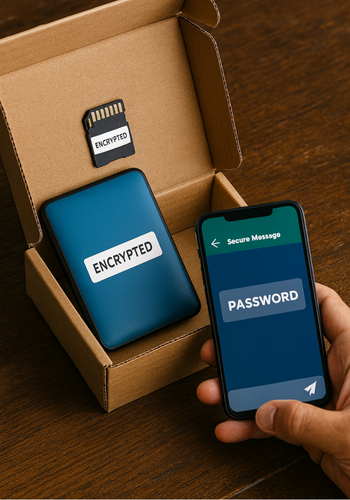
Say you need to send a hard drive of edited photos to a remote retoucher.
- Create a Folder Lock locker on that drive and move only the folder needed for editing into it.
- Set a strong password known only to you and the retoucher.
- Ship the drive by your normal courier or hand over in person.
- Send the password separately via an end to end encrypted messenger or a phone call, never in the same mail thread as the tracking number.
- After the retoucher is done, you can either change the password or move content to a different locker if you need a long term archive.
This keeps your client media safe even if the package is lost or delayed.
6. Troubleshooting: Symptom To Fix Table
Real messages and what they usually mean.
| Symptom Or Error Text | Likely Cause | Fix |
|---|---|---|
| Card asks to be formatted when inserted into computer | Reader or system cannot understand current file system, or card is damaged | Try different reader and system, use recovery software on a sector copy if needed, and do not format until recovery attempts are done. |
| Folder Lock or USB Secure cannot see the card | Card is not mounted correctly or appears as a special device | Reconnect through a standard USB reader, avoid connecting through the camera body if the software expects a pure mass storage device. |
| After Android SD encryption, card does not open on computer | Card is tied to that Android device encryption feature | Copy data inside the phone interface while it still works, then consider using NewSoftwares tools on a separate backup copy instead of direct card encryption next time. |
| USB Secure asks for a password on one machine but opens without it on another | Plain copies of files still sit outside the secure container | Move all sensitive folders into the protected area and clear any leftover unprotected copies after you confirm the secure version. |
| Folder Lock locker seems empty after a power cut | Locker or drive may have partial writes | Check your other backups first, then use the built in repair options from Folder Lock and from Windows, working on a cloned copy when possible. |
Ranked root causes
- Changing encryption or format options on the last remaining copy of a shoot.
- Relying only on phone or camera encryption that ties media to one device.
- Moving files instead of copying them first during early tests.
- Using unknown freeware that wraps cards in odd containers.
Non destructive tests first
- Always copy data before locking or formatting.
- Test new passwords on sample cards with throwaway images.
- Try new software features with a couple of small folders before applying them to multi hour event shoots.
Last resort options
If the only copy of a session is already on a failing card: Stop writing anything to that card. Use a known recovery service or a good specialist as early as possible. Accept that full recovery may not be possible and design future workflows around triple backup from the moment of capture.
7. Schema Ready Blocks For Search
7.1. HowTo JSON For Password Protecting SD Cards And Camera Drives
{
  "@context": "https://schema.org",
  "@type": "HowTo",
  "name": "Password protect SD cards and camera drives without losing photos",
  "description": "Keep your photos safe by backing up, then protecting SD cards and camera drives with tools like Folder Lock and USB Secure.",
  "supply": [
    {
      "@type": "HowToSupply",
      "name": "SD card or camera drive"
    },
    {
      "@type": "HowToSupply",
      "name": "Card reader and computer"
    },
    {
      "@type": "HowToSupply",
      "name": "Folder Lock or USB Secure software"
    }
  ],
  "tool": [
    {
      "@type": "HowToTool",
      "name": "Card reader"
    }
  ],
  "step": [
    {
      "@type": "HowToStep",
      "name": "Back up the card",
      "text": "Copy all photos and videos from the SD card or camera drive to at least two separate locations."
    },
    {
      "@type": "HowToStep",
      "name": "Install protection software",
      "text": "Install Folder Lock or USB Secure on your Windows PC and set a strong master password."
    },
    {
      "@type": "HowToStep",
      "name": "Create a protected area",
      "text": "Use the software to create an encrypted locker or secure area on the SD card or camera drive."
    },
    {
      "@type": "HowToStep",
      "name": "Move copies into protection",
      "text": "Move your backed up photo folders into the protected area, leaving at least one untouched backup elsewhere."
    },
    {
      "@type": "HowToStep",
      "name": "Verify and lock",
      "text": "Close and lock the vault, then test opening it on another computer to confirm the password is required."
    }
  ]
}
7.2. FAQPage JSON Shell
{
  "@context": "https://schema.org",
  "@type": "FAQPage",
  "mainEntity": []
}
7.3. ItemList JSON For Methods
{
  "@context": "https://schema.org",
  "@type": "ItemList",
  "name": "Password protection methods for SD cards and camera drives",
  "itemListElement": [
    {
      "@type": "ListItem",
      "position": 1,
      "name": "Folder Lock lockers on removable drives"
    },
    {
      "@type": "ListItem",
      "position": 2,
      "name": "USB Secure protection for portable drives"
    },
    {
      "@type": "ListItem",
      "position": 3,
      "name": "Built in device encryption for phones and computers"
    }
  ]
}
8. Frequently Asked Questions
8.1. Can I Password Protect An SD Card Without Deleting Photos
Yes, as long as you back up first and use tools that work at file or container level, such as Folder Lock or USB Secure, instead of formats that erase the card.
8.2. Will Camera Shots Still Save To A Protected SD Card
Cameras usually write to the plain file system on the card and do not know how to write into encrypted containers. The safer pattern is to shoot on a normal card, back up on a computer, then move a copy into a protected area for transport.
8.3. What Is The Safest Way To Travel With Full SD Cards From A Wedding
Keep at least two complete backups on separate drives at home or in the studio. Then use Folder Lock or USB Secure on travel cards or portable drives that leave your control, so anyone who finds them sees only a password prompt.
8.4. Is USB Secure Good For SD Cards As Well As USB Sticks
Yes. Windows sees many SD cards and camera drives as removable storage, the same as USB sticks, so USB Secure can protect them with a password prompt when opened.
8.5. Can Android SD Card Encryption Make Me Lose Camera Photos
If you encrypt a card through Android system settings, that card can become tied to that Android device. If the phone fails or you reset it, data on the card may be unreadable elsewhere. Back up to a computer and consider using NewSoftwares solutions on those backups instead.
8.6. What If Windows Says My Protected SD Card Needs To Be Formatted
Do not format right away. Try the card in another reader, confirm that Folder Lock or USB Secure can still see the protected area, and consider data recovery on a cloned copy if the file system is damaged.
8.7. How Strong Is The Protection From Folder Lock And USB Secure
Folder Lock uses strong encryption and is built to secure files, folders, and drives across many devices. USB Secure focuses on removable storage and gives a simple password gate at drive open. Both come from NewSoftwares, a vendor specialised in storage security.
8.8. Can I Use These Tools On MacOS As Well
Folder Lock supports macOS through its cross platform design for lockers and secure backup, so you can include Mac workstations in your password protected workflow. USB Secure is focused on Windows, so for Mac only setups you would rely more on Folder Lock and system encryption.
8.9. Should I Use Built In Card Lock Switches As Security
The tiny lock slider on many SD cards only signals that the card should be treated as read only by supporting readers. It does not add encryption or password protection. Use it to reduce accidental deletes, but not as your main privacy control.
8.10. How Often Should I Change Passwords On My Protected Cards
For cards and drives that hold client work, change passwords after each project batch or every few months, and keep a clear record that links sets of shoots to password histories in a secure place.
8.11. Can I Recover Data If I Forget My Folder Lock Or USB Secure Password
These tools are designed to protect data strongly, so password recovery may not be possible through normal means. Keep master passwords in a secure manager, and treat forgotten credentials as a serious risk to your own access.
8.12. Is It Safe To Delete Photos From The Card Once I Have A Protected Copy
Yes, once you have verified that both your primary backup and your password protected container open cleanly and include all files, you can clear the card for the next shoot. Keep at least two independent copies for important sessions.
Conclusion
Use this single routine every time you shoot. Back up first, protect travel copies with NewSoftwares tools, and avoid risky device specific encryption paths. Your SD cards and camera drives stay useful, and your photos stay safe.