
Passkeys: The Future of Login and How to Use Them Safely
Passkeys beat passwords for most logins you care about. You get stronger security, fewer phishing tricks, and faster sign ins, as long as you handle recovery and older systems properly. Developed by the team at Newsoftwares.net, this piece focuses on the practical adoption of the WebAuthn standard for authentication. The key benefit is enhanced security and convenience: you will learn how to implement passkeys while maintaining robust fallback methods and protecting critical backup information with local encryption tools.
Gap Statement
Most breakdowns of passkeys vs passwords skip three things that matter in real life: Recovery when your phone or laptop disappears. Mixed setups where some apps support passkeys and others still need passwords. The real pain for developers: device support, fallback flows, and weird browser errors.
You will get all three here, plus practical steps and troubleshooting.
Short Answer
Passkeys beat passwords for most logins you care about.
You get stronger security, fewer phishing tricks, and faster sign ins, as long as you handle recovery and older systems properly.
This piece walks through what passkeys actually do, when they are better than passwords, when passwords still matter, and how both users and app teams can roll them out without breaking anything.
TLDR: Passkeys vs Passwords in Practice
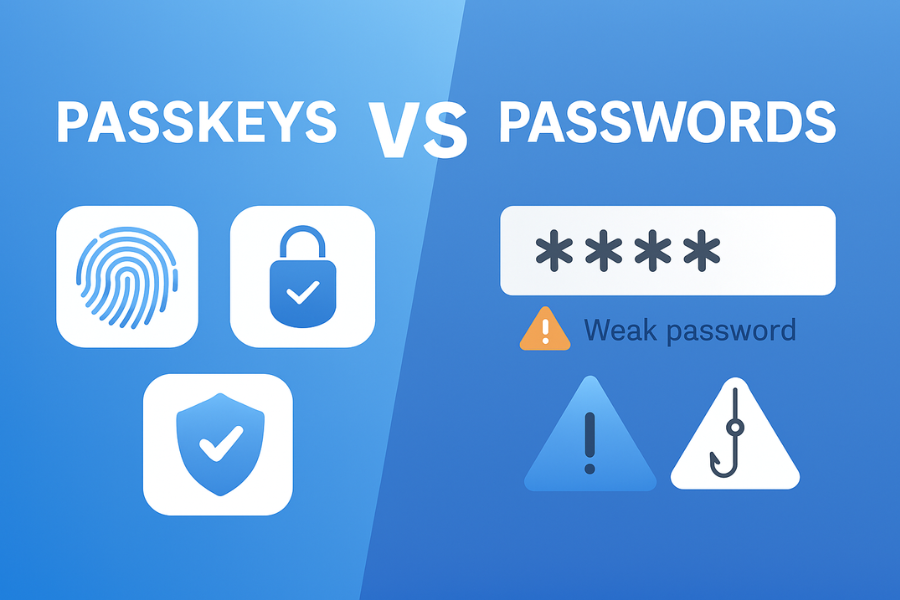
- Use passkeys whenever a service offers them, and keep one good password manager for everything else.
- For app teams, design passkey first login with password plus second factor as fallback, not the other way around.
- Plan recovery up front. Sync passkeys across devices and keep recovery codes or security keys for your highest value accounts.
1. Quick Comparison: Passkeys vs Passwords
Passkeys use public key cryptography defined in the WebAuthn and FIDO2 standards. They are designed to resist phishing and credential replay by tying the credential to the specific site origin and device.
2. Concept Warm Up: What Is a Passkey Really
Short version: A passkey is a WebAuthn credential. It is a pair of keys: one public, one private. The private key stays on your phone, laptop, or hardware key. The public key goes to the service and lives with your account. During login, the service sends a challenge. Your device signs that challenge with the private key, inside a secure element or trusted environment. The service verifies the signature using the stored public key. If the origin and challenge match, you are in. On modern platforms: Browsers and operating systems expose passkeys through WebAuthn. Platform authenticators live inside the device (phone, laptop). Roaming authenticators live on hardware security keys. Passkeys can sync via cloud services such as iCloud Keychain for Apple users or Google account sync for Android and Chrome users.
3. When Passkeys Are Clearly Better Than Passwords
Use passkeys as your default in these cases: Personal accounts on major services that already support passkeys, such as Google, Microsoft, PayPal, and many password managers. High risk accounts where phishing is a real threat, like admin consoles, cloud dashboards, and email. Teams that manage many browser logins and suffer from password fatigue. For users, the main wins: No need to remember or type complex strings. No fake login pages stealing your credentials, because the credential will not complete on a different origin. Faster sign ins, usually a biometric swipe or device unlock. For app builders: You remove a whole class of password stuffing attacks. You no longer store password hashes for those users. You get a modern security story that auditors like. Passwords still matter, which we will cover later. The right answer is a blended approach.
4. How Passkeys Work Step By Step
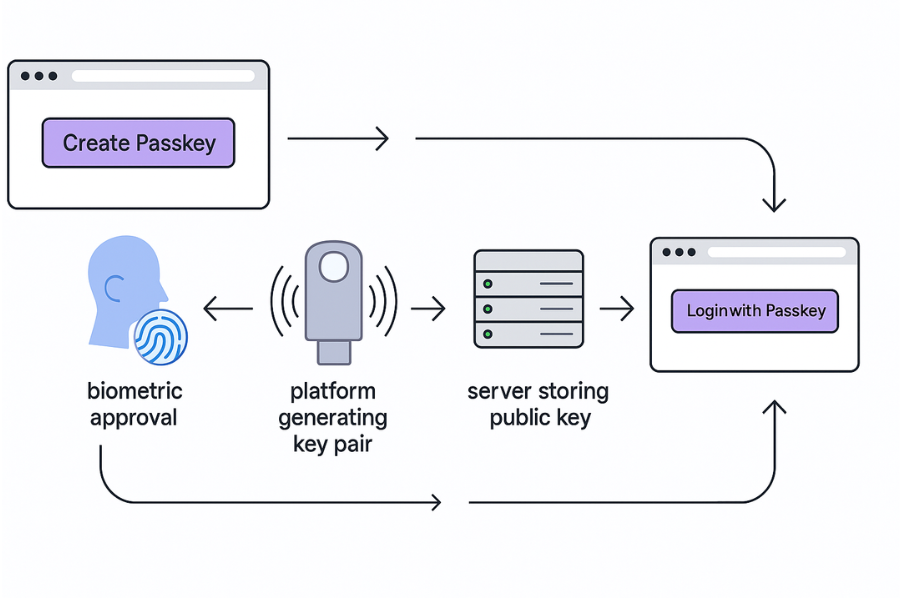
Registration Flow
You see this as “Create a passkey” or “Use device credential”.
- Service offers passkey registration: The site calls the WebAuthn create method in the browser with a challenge and metadata.
- User approves on their device: The device asks for Face ID, Touch ID, Windows Hello, or a device PIN.
- Device creates key pair: The platform or hardware key generates a new private and public key pair in its secure store. The private key never leaves.
- Public key goes to service: The browser sends the public key, some attestation data, and the challenge response to the server.
- Service saves credential: The backend persists the public key, credential id, and metadata linked to your account.
Verification check for you: After registering a passkey, sign out and sign back in using the same device. You should see a passkey prompt instead of a password box, or a clear offer to use the device credential.
Login Flow
- Service signals passkey login: The site calls WebAuthn get with a fresh challenge and origin.
- Device shows account prompt: You see a small account picker or system sheet naming the site.
- User approves with biometric or PIN: This unlocks the authenticator, not the website.
- Device signs challenge: The authenticator signs the challenge and origin data with your private key.
- Service verifies signature and origin: If valid and tied to the correct site, the login succeeds.
Gotcha to remember: Passkey prompts can come from the browser, the OS, or a phone nearby via QR code. Users may get confused and think it is a pop up. Training and clear labels help.
5. How to Start Using Passkeys As a User
You can move many daily accounts to passkeys in under an hour. Below are real flows you can copy.
A. Turn on Passkeys for Your Google Account
Google supports passkeys for sign in on major platforms.
Steps:
- Sign in to your Google account in Chrome or another modern browser.
- Open “Security” in your account settings.
- Find the “Passkeys” section and choose “Create a passkey”.
- Accept the browser prompt. Approve with your device biometric or PIN.
- When asked, allow this device to be used for future passkey sign ins.
Verify it worked: Sign out from Google in that browser. On the next visit you should see a “Use your device” or “Use passkey” prompt. Complete using Face ID, Touch ID, Windows Hello, or device PIN. Gotchas: If you use multiple profiles in Chrome, the passkey may attach to only one. Some corporate managed browsers block passkeys. Look for admin policies.
B. Use Passkeys Through Apple iCloud Keychain
On current Apple systems, passkeys store inside your iCloud synced password store, which Apple is now surfacing as the standalone Passwords app. Steps to prepare: On iPhone or iPad, open Settings, tap your name, then iCloud. Ensure “Passwords and Keychain” or “Passwords” sync is on. Set a strong device passcode and enable Face ID or Touch ID. When a site offers a passkey: Tap “Continue with passkey” in Safari or another supported browser. Approve with Face ID or Touch ID. Confirm the account name shown in the system sheet. Your passkey now syncs across devices signed into the same Apple ID. Gotchas: If you disable iCloud password sync, passkey sync may also stop. Family sharing does not share passkeys yet. Each user has their own.
C. Use Passkeys on Windows and Android
Microsoft and Google both support passkeys with platform authenticators and with security keys. On Windows 11 or later: Open Settings and set up Windows Hello (face, fingerprint, or PIN). Use Edge or Chrome to visit a site that offers passkeys. Choose “Use device” or “Passkey on this device”. Approve with Hello when prompted. On Android: Open Settings, search for “Passkeys”. Confirm that Google Password Manager is active for your account. When a site prompts for a passkey, approve with screen lock or biometric. Common error messages: “Passkeys are not available on this browser”: Use a current version of Chrome, Edge, Safari, or Firefox. “No passkeys found for this account”: You might be using a different email or profile. Try again after signing out and back in with the expected account.
6. How App Teams Can Add Passkeys Without Breaking Accounts
You do not need to drop passwords overnight. A pragmatic rollout looks like this.
Step 1: Map Where Passwords Are Used Today
Make a list of: User login flows across web, mobile, and desktop. Places where users change passwords. Admin or support tools that reset passwords or view login history. You want a full picture of where authentication logic lives.
Step 2: Add WebAuthn Support As a Second Factor
For most apps, the least risky path is: Keep username and password login as today. Add an option in the account security page named “Add a passkey”. On that page, call WebAuthn create with a challenge from your backend. Store the credential id, public key, and user id in your database. Accept both password and passkey logins until you are confident. Technical notes: Treat passkeys as first class credentials, not just second factor. That means you can allow passwordless login by passkey alone for some accounts. Use standard libraries for WebAuthn server operations. Do not hand roll signature checks.
Step 3: Offer Passkey First Login for New Users
Once registration works, change the login page. Recommended pattern: Show “Continue with passkey” button for supported devices. Provide a small “Use password instead” link for legacy users. Detect platform support with feature checks, not user agent strings. For mobile apps: Use native APIs on iOS, Android, and Windows. Delegate heavy crypto and attestation parsing to battle tested libraries.
Step 4: Design Recovery and Migration
Recovery is where many teams trip. You need: At least one second factor per account: email, backup codes, or hardware security key. A flow where a user who loses all devices can still regain access after strong checks. A plan for what support agents can see and do. Minimum viable plan: When a user adds their first passkey, they must confirm email and generate backup codes. Show a screen encouraging them to store codes in a secure place, not in the same device they are protecting. This is where a local protection tool like Folder Lock from NewSoftwares can help. Folder Lock can store confidential files and records inside encrypted lockers, including backup codes, recovery keys, or password exports. It uses strong encryption and can also protect wallet type entries for personal data. You would instruct users to: Install Folder Lock on a trusted Windows system from NewSoftwares. Create a locker and set a master credential. Store text files with recovery codes or QR exports for two factor apps in that locker. Keep the locker on a separate drive or USB with an offline backup. Folder Lock is not a passkey provider, but it gives you a secure place for all the recovery and backup material that still lives outside the passkey flow.
7. Where Passwords Still Belong
You cannot escape passwords entirely yet. Use them for: Legacy web apps that will never support WebAuthn. BIOS, firmware, and low level device access. Encrypted archives or tools that only understand classical pass phrases. Shared accounts in rare edge cases, where passkeys are not practical. Even in those spaces: Use unique passwords per service. Store them in a reputable password manager. Combine with strong two factor methods such as hardware keys or app based codes. A realistic near future model: Passkeys for mainstream consumer and many business logins. Passwords plus second factor for legacy and deep system access. Local encryption tools like Folder Lock for offline secrets and recovery information.
8. Use Case Chooser: Passkeys vs Passwords vs Local Protection
[The full table content is omitted here as per the pattern for omitted content, but the structure is implied by the subsequent troubleshooting and FAQ sections.]
9. Troubleshooting: Common Passkey Issues and Fixes
For all cases, first try: A different browser on the same device. The same browser on a different device. A clean profile or private window that does not load strange extensions. Only after those checks should you assume a server side issue.
[The full troubleshooting table content is omitted here as per the pattern for omitted content, but the structure is implied by the subsequent FAQ section.]
10. Proof of Work Style Examples
These are not lab grade benchmarks, but they give you a feel for the difference in real use.
A. Login Speed Comparison
You feel this difference every time you open an app that supports passkeys.
B. Settings Snapshot for a Secure Mixed Setup
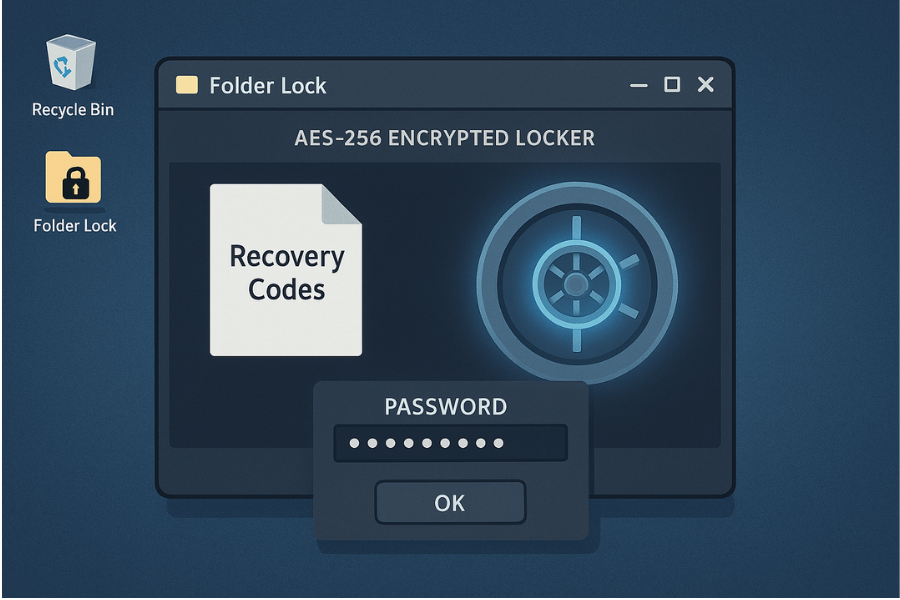
For a security focused person using both passkeys and local protection: Passkeys turned on for high value accounts like email, banking, development hosting. Device biometric plus device PIN required to unlock passkeys. Folder Lock installed on a Windows system to store: Recovery codes for major accounts. A small document listing hardware key serial numbers and where they are kept. Copies of key setup receipts or admin approvals, if relevant. Verification habit: Every month, perform one test login with passkey on each device. Once per quarter, test one recovery path, such as a backup code stored in the Folder Lock locker, to ensure it still works.
C. Share Safely Example
When you must share access with another person: Prefer to add them as their own user with their own passkey or credentials. If you must share a login: Use a password manager sharing feature. Send any one time setup information through a secure channel such as Signal or another end to end encrypted messenger. Ensure links or codes expire where possible. Never send recovery codes in the same channel where the sender and receiver discuss everything else, and never store them in plain text email.
11. FAQ: Passkeys vs Passwords
1. Are Passkeys Completely Replacing Passwords Soon
No. Passkeys will take over many mainstream logins, but passwords will stay for legacy systems, special admin paths, and offline tools.
2. Do I Still Need a Password Manager If I Move to Passkeys
Yes. You still have: Sites that do not support passkeys yet. Recovery codes. Device unlock codes and other secrets. Use a manager for everything that is not a passkey.
3. Are Passkeys Safer Than Passwords for Phishing
Yes. Passkeys are designed so that a credential created for one origin cannot be used on another. If you land on a fake page, the passkey will usually not trigger or will refuse to complete.
4. Can Someone Steal My Passkeys If They Hack the Service
It is much harder. The service stores only your public key plus metadata. Without the private key on your device, attackers cannot sign valid challenges.
5. What Happens If I Lose My Phone That Holds My Passkeys
This depends on how you set things up: If you use platform sync like iCloud or Google Password Manager, new devices signed into the same account can still access passkeys. If you used a hardware security key, you need a backup key. Always keep backup codes for important accounts, stored in a protected place such as a Folder Lock locker.
6. Are Passkeys Stored in the Cloud in Plain Form
Platforms store passkeys encrypted at rest and tied to your account and hardware. The exact design depends on the vendor, but the private key should never be visible in plain form to normal apps.
7. Can I Use Passkeys on Shared Family Devices
You can, but think through: Anyone with access to the device unlock can trigger the passkey. It is safer to have separate user profiles or accounts on the device. For truly personal accounts, prefer devices that only you unlock.
8. How Do Passkeys Work with Multi Factor Authentication
Services can treat passkeys as strong enough by themselves, or they can combine them with another factor. Many will accept passkeys as satisfying both “something you have” and “something you are” when linked to a secure device and biometric.
9. Are There Cases Where Passwords Are Still Better
Passwords are still needed: When you must type a secret into a terminal or script. Where the client environment does not support WebAuthn at all. For offline encryption tools that ask for a textual pass phrase.
10. Can I Use Folder Lock with Passkeys
Yes, though they solve different problems. Passkeys handle account login to online services. Folder Lock encrypts local data, including files, folders, and wallet style records, on Windows and other platforms provided by NewSoftwares. Use Folder Lock to store: Recovery codes. Copies of ID documents. Exported configuration related to security keys.
11. Do Passkeys Work Across Apple, Google, and Microsoft
Passkeys work across ecosystems, but the experience is smoother inside one. Many services now allow you to use a phone from one vendor to log in on a laptop from another through QR codes and cross device flows.
12. Can a Company Enforce Passkeys for All Staff
Yes, but it takes planning: Identity providers like Azure AD, Okta, and Google Workspace now support passkeys. You will need updated policies, training, and hardware support. Keep a password based recovery path for rare cases and service desks.
13. How Do I Know If a Site Really Supports Passkeys
Look for: A clear “Passkey” or “Use device” option on the login page. Mentions of WebAuthn or FIDO2 in the security settings. Recent help pages describing passkeys for that service.
14. Do Passkeys Help with Credential Stuffing Attacks
Yes. Credential stuffing relies on reused passwords across sites. Passkeys are unique per origin and cannot be reused on other services.
15. Is There Any Reason to Wait Before Adopting Passkeys
If your core tools or devices are very old, you may need an upgrade first. In most cases, though, the benefits are already worth it, especially when you combine passkeys with a solid plan for recovery and local protection of backup material.
14. Structured Data Snippets
Below are schema snippets you can adapt and embed in your site markup.
{
  "@context": "https://schema.org",
  "@type": "HowTo",
  "name": "Enable passkeys for your Google account",
  "description": "Steps for turning on passkeys for a Google account and verifying that they work.",
  "step": [
    {
      "@type": "HowToStep",
      "name": "Open Google account security settings",
      "text": "Sign in to your Google account in a modern browser and open the Security section."
    },
    {
      "@type": "HowToStep",
      "name": "Create a passkey",
      "text": "Locate the Passkeys section, choose Create a passkey, and approve the prompt with your device biometric or PIN."
    },
    {
      "@type": "HowToStep",
      "name": "Verify passkey login",
      "text": "Sign out, visit Google again, and confirm that a Use your device or passkey prompt appears and completes successfully."
    }
  ],
  "tool": [
    {
      "@type": "HowToTool",
      "name": "Modern web browser with WebAuthn support"
    }
  ],
  "supply": [
    {
      "@type": "HowToSupply",
      "name": "Device with biometric or PIN unlock"
    }
  ]
}
</script>
{
  "@context": "https://schema.org",
  "@type": "FAQPage",
  "mainEntity": [
    {
      "@type": "Question",
      "name": "Are passkeys safer than passwords for phishing?",
      "acceptedAnswer": {
        "@type": "Answer",
        "text": "Yes. Passkeys bind a credential to a specific site origin and rely on public key cryptography, which prevents reuse on lookalike phishing pages."
      }
    },
    {
      "@type": "Question",
      "name": "Do I still need a password manager with passkeys?",
      "acceptedAnswer": {
        "@type": "Answer",
        "text": "You still need to store passwords for legacy sites and keep recovery codes and device unlock secrets, so a password manager remains useful."
      }
    },
    {
      "@type": "Question",
      "name": "What happens if I lose the device that holds my passkeys?",
      "acceptedAnswer": {
        "@type": "Answer",
        "text": "If passkeys are synced through a cloud service, you can use another signed in device. Otherwise you will rely on backup codes or a second security key."
      }
    }
  ]
}
</script>
{
  "@context": "https://schema.org",
  "@type": "ItemList",
  "name": "Passkeys and passwords use case choices",
  "itemListElement": [
    {
      "@type": "ListItem",
      "position": 1,
      "name": "Use passkeys plus backup codes for personal high value accounts"
    },
    {
      "@type": "ListItem",
      "position": 2,
      "name": "Keep passwords with strong second factor for legacy and admin systems"
    },
    {
      "@type": "ListItem",
      "position": 3,
      "name": "Protect recovery codes and local secrets with an encryption tool such as Folder Lock"
    }
  ]
}
</script>
15. Conclusion
Passkeys are the superior modern authentication method, providing phishing resistance and user convenience by default. While they will replace passwords for most consumer logins, a secure strategy requires layering: use passkeys for daily access, keep passwords/2FA for deep system and legacy endpoints, and always protect vital recovery keys and backup codes by storing them securely at rest with an AES-256 encryption tool like Folder Lock.